Page 210 of 512
210 3-2. Using the air conditioning system and defogger
PRIUS_U_(L/O_0802)■
Adjusting the fan speed
Touch any switch of (decrease
increase) on the operating screen.
Press to turn the fan off.
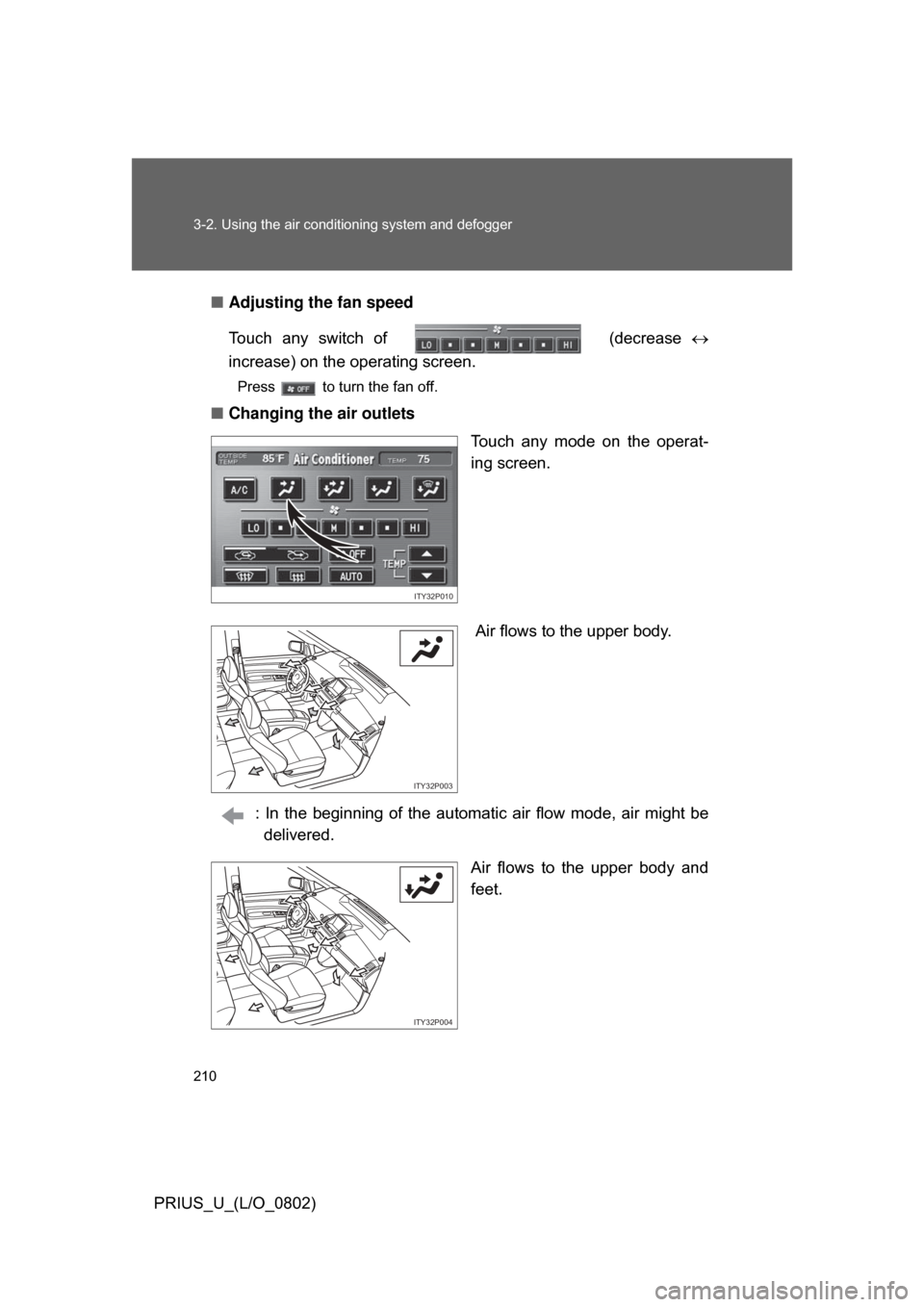
■ Changing the air outlets
Touch any mode on the operat-
ing screen.
Air flows to the upper body.
: In the beginning of the automat ic air flow mode, air might be
delivered.
Air flows to the upper body and
feet.
ITY32P010
ITY32P003
ITY32P004
Page 219 of 512
219
3
Interior features
PRIUS_U_(L/O_0802)
3-3. Using the audio system
Audio system type (Vehicle with AUX adapter)
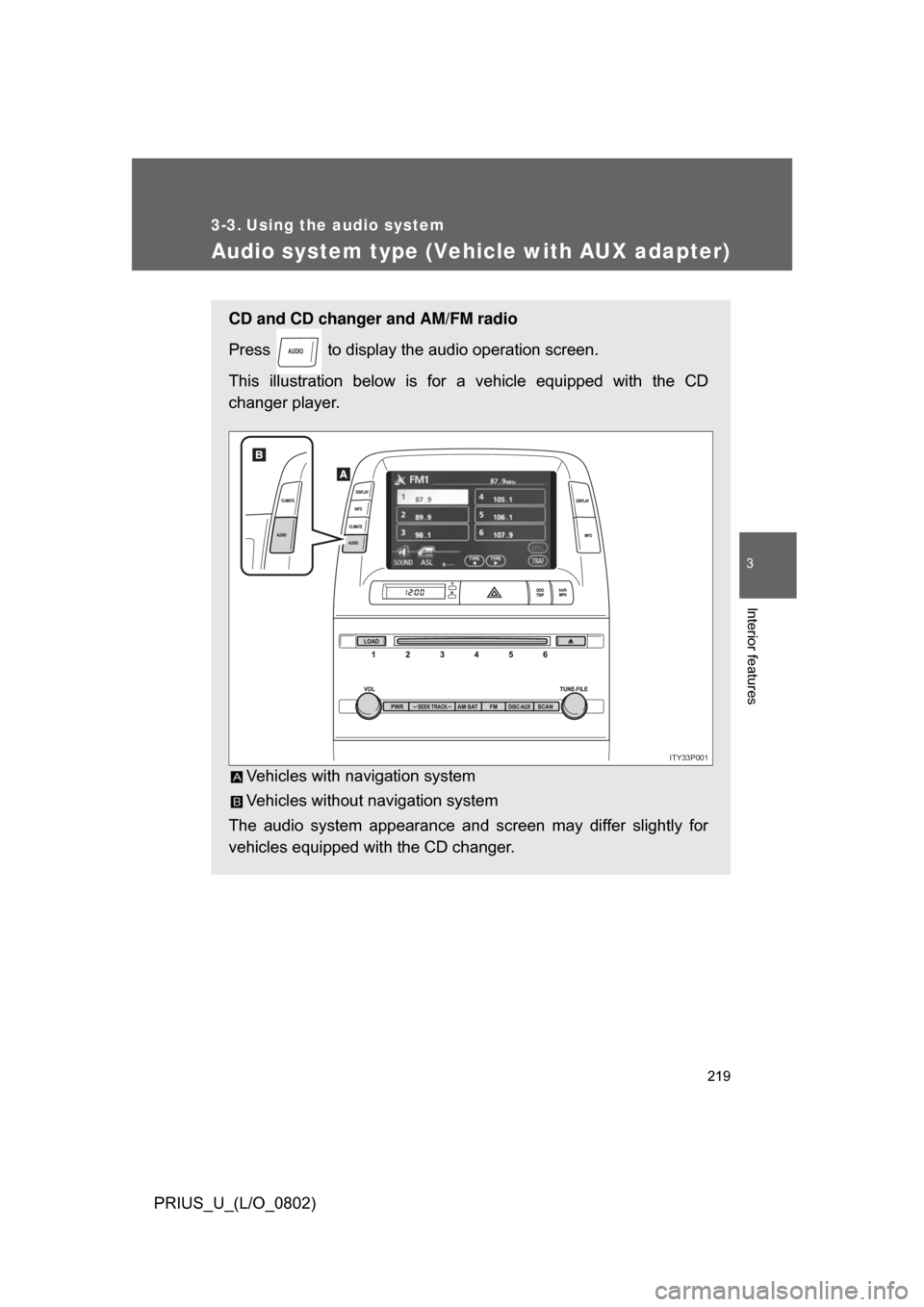
CD and CD changer and AM/FM radio
Press to display the audio operation screen.
This illustration below is for a vehicle equipped with the CD
changer player.
Vehicles with navigation system
Vehicles without navigation system
The audio system appearance and screen may differ slightly for
vehicles equipped with the CD changer.
AUDIO
ITY33P001
Page 222 of 512
222
3-3. Using the audio system
PRIUS_U_(L/O_0802)
Audio system type (Vehicle without AUX adapter)
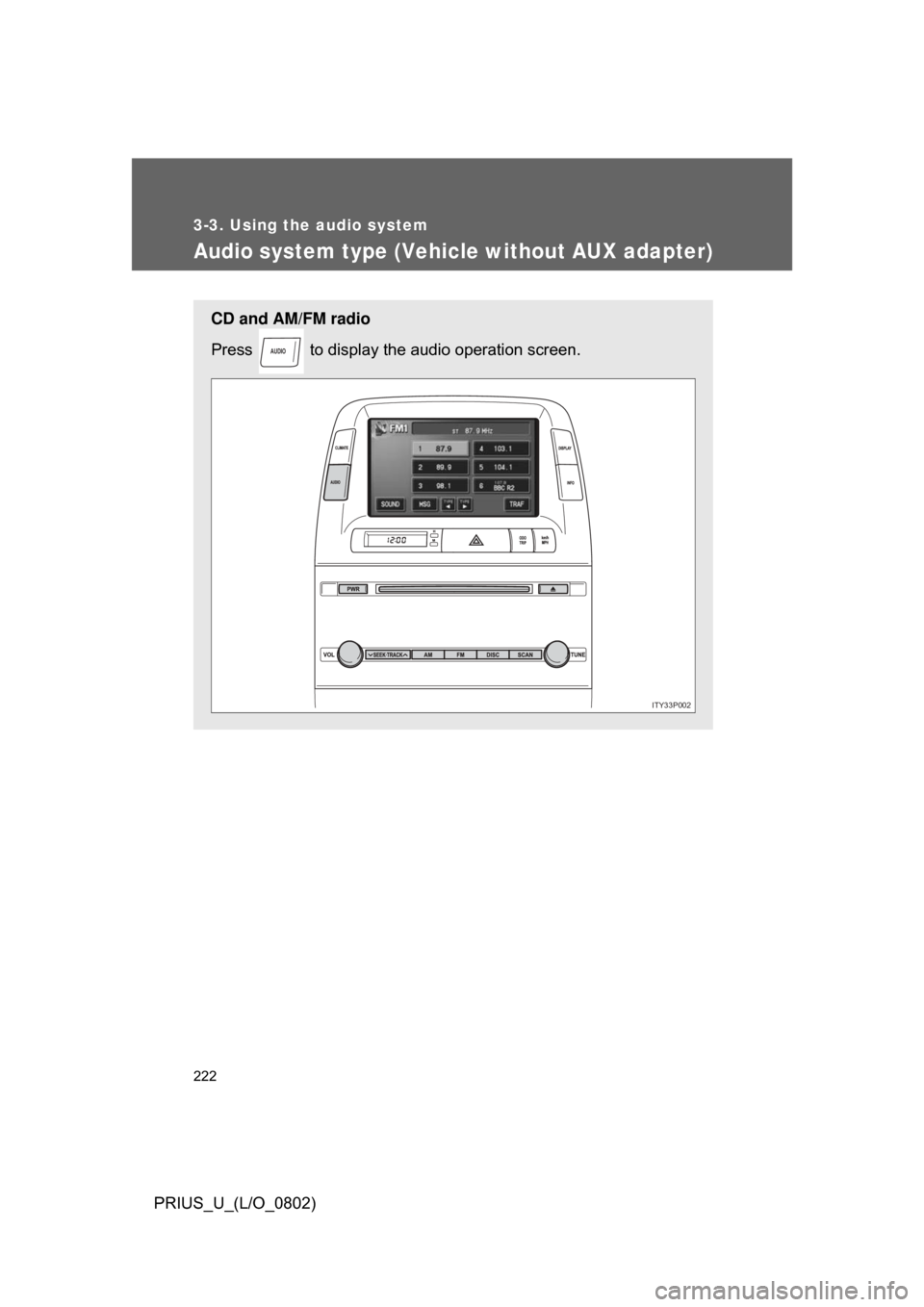
CD and AM/FM radio
Press to display the audio operation screen.
AUDIO
ITY33P002
Page 225 of 512
225
3-3. Using the audio system
3
Interior features
PRIUS_U_(L/O_0802)
Using the radio (vehicle with AUX adapter)
Press or to choose either an AM or FM band.
When you press while listening to the radio, the following
audio control screen appears.
This illustration is a vehicle not equipped with the CD changer
AUDIO
ITY33P003
Display audio
control
Power
Vo l u m e Scan for
receivable
stations
Seek
frequency Adjust the
frequency
(AM, FM
mode)
or channel
(SAT mode)
AM SAT/FM mode buttons Preset stations
Scan for
receivable
stations
(AM mode only)
Page 226 of 512
226 3-3. Using the audio system
PRIUS_U_(L/O_0802)
Setting station presets (excluding XM® satellite radio)
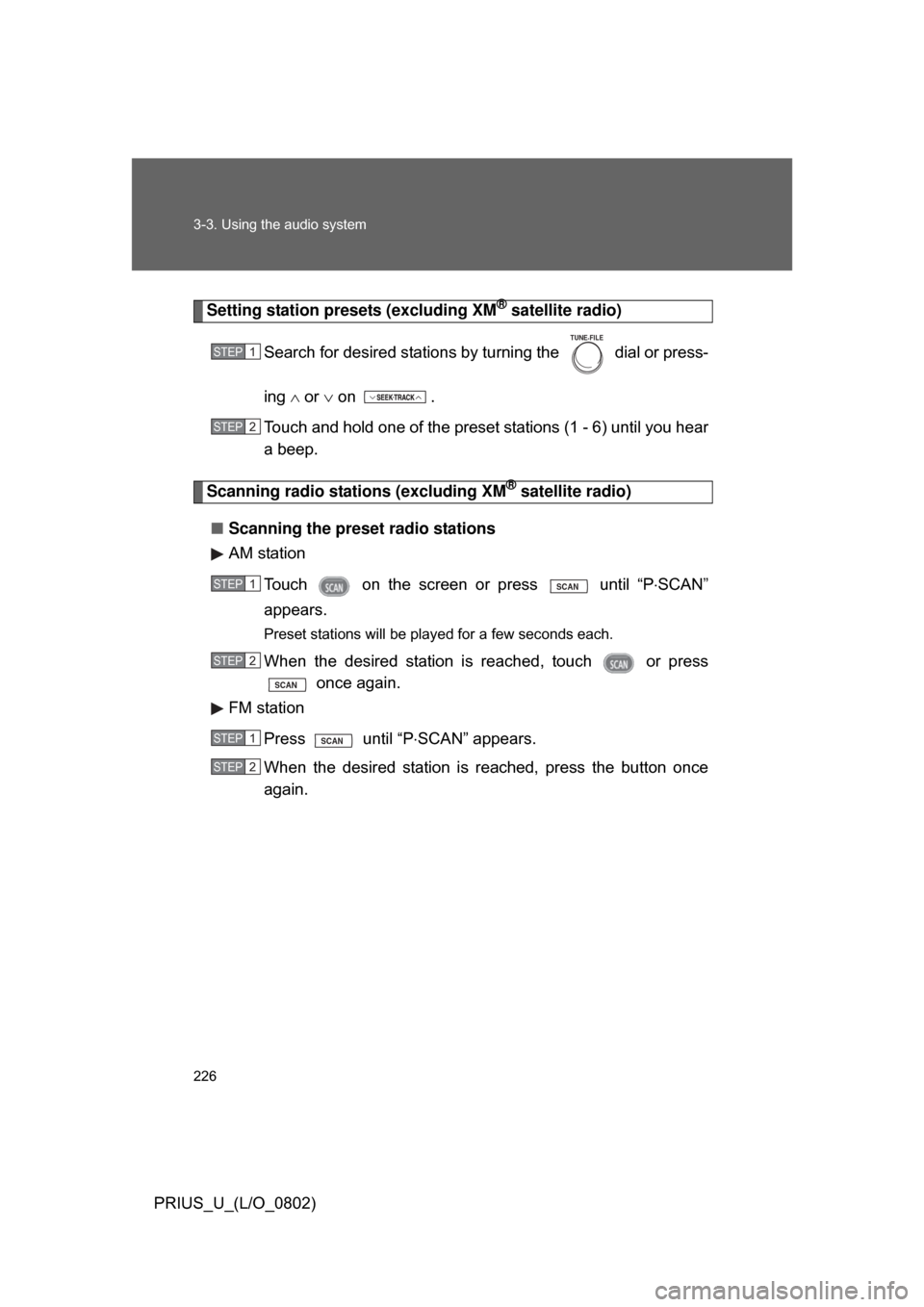
Search for desired stations by turning the
dial or press-
ing or on .
Touch and hold one of the preset stations (1 - 6) until you hear
a beep.
Scanning radio stations (excluding XM® satellite radio)
■ Scanning the preset radio stations
AM station
Touch on the screen or press
until “P SCAN”
appears.
Preset stations will be played for a few seconds each.
When the desired station is reached, touch or press once again.
FM station
Press until “P SCAN” appears.
When the desired station is reached, press the button once
again.
STEP1
TUNE FILE
STEP2
STEP1SCAN
STEP2
SCAN
STEP1SCAN
67(3�
Page 227 of 512
227
3-3. Using the audio system
3
Interior features
PRIUS_U_(L/O_0802)
■
Scanning all radio stations within range
AM station
Touch on the screen or press .
“SCAN” appears on the screen and all stations with reception will be
played for a few seconds each.
When the desired station is reached, touch or press once again.
FM station
Press .
“SCAN” appears on the screen and all stations with reception will be
played for a few seconds each.
When the desired station is reached, press the button once
again.
RDS (Radio Data System)
This feature allows your radio to receive station identification informa-
tion and program information (classical, jazz, etc.) from radio stations
which broadcast this information.
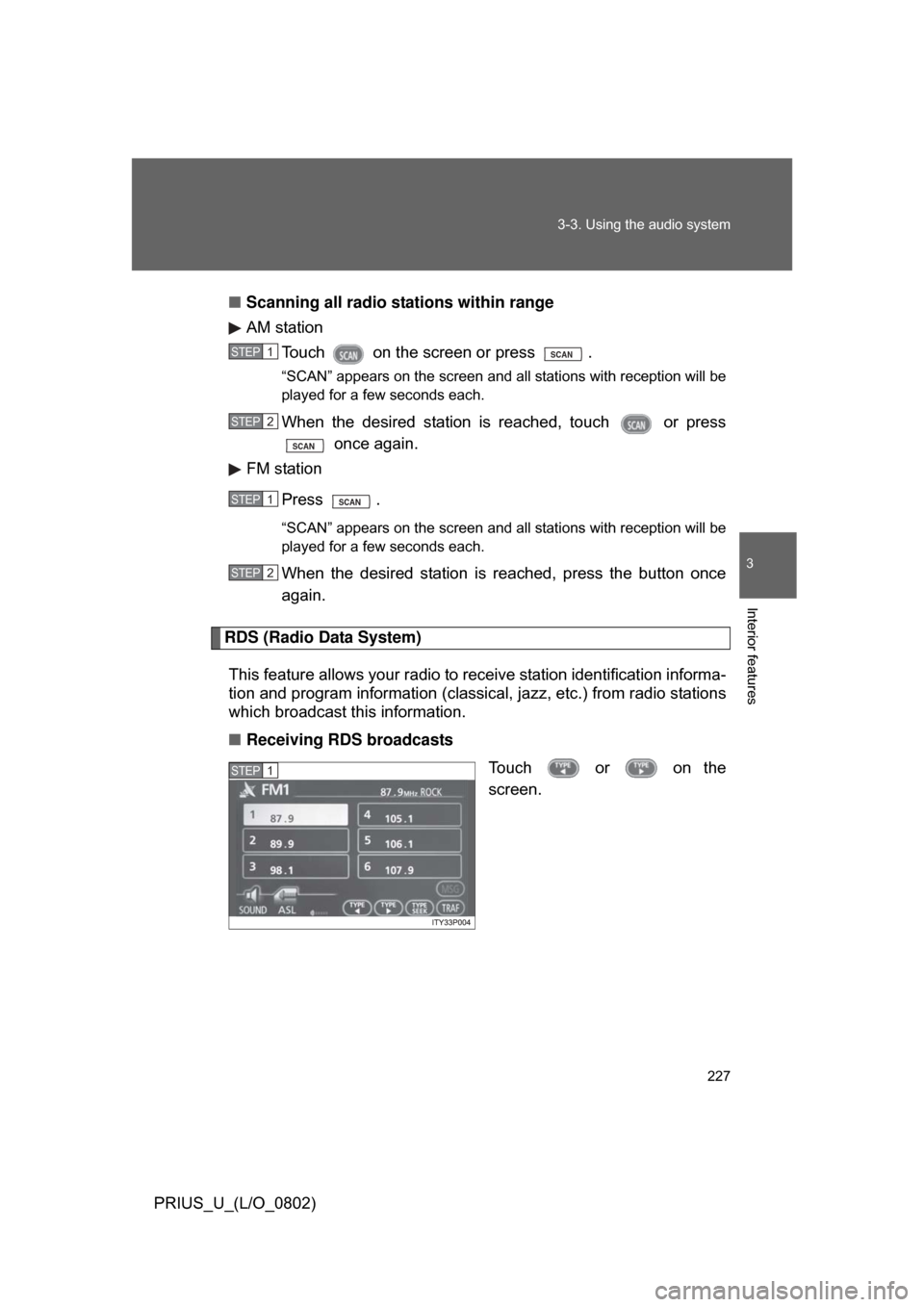
■ Receiving RDS broadcasts
Touch or on the
screen.
STEP1SCAN
STEP2
SCAN
STEP1SCAN
STEP2
STEP1
Page 228 of 512
228 3-3. Using the audio system
PRIUS_U_(L/O_0802)The type of program changes each time the button is pressed.
●
ROCK
● EASYLIS (Easy listening)
● CLS/JAZZ (Classical music and Jazz)
● R & B (Rhythm and Blues)
● INFORM (Information)
● RELIGION
● MISC (Miscellaneous)
● ALARM (Emergency messages)
If the system receives no RDS stations, “NO PTY” appears on the display.
When a program is set, “TYPE SEEK” appears.
Touch on the screen or press or on .
The radio seeks or scans the station by the relevant program type.
If no radio station of that type is found, “NOTHING” appears on the
screen.
■ Displaying radio text messages
Touch on the screen.
If “MSG” appears on the screen,
a text message may be dis-
played.
STEP2
Page 229 of 512
229
3-3. Using the audio system
3
Interior features
PRIUS_U_(L/O_0802)
■
Traffic announcement
Touch on the screen.
“TRAF SEEK” appears on the dis-
play, and the radio will start seek-
ing any station broadcasting
traffic program information.
If no traffic program station is
found, “NOTHING” appears on
the display.
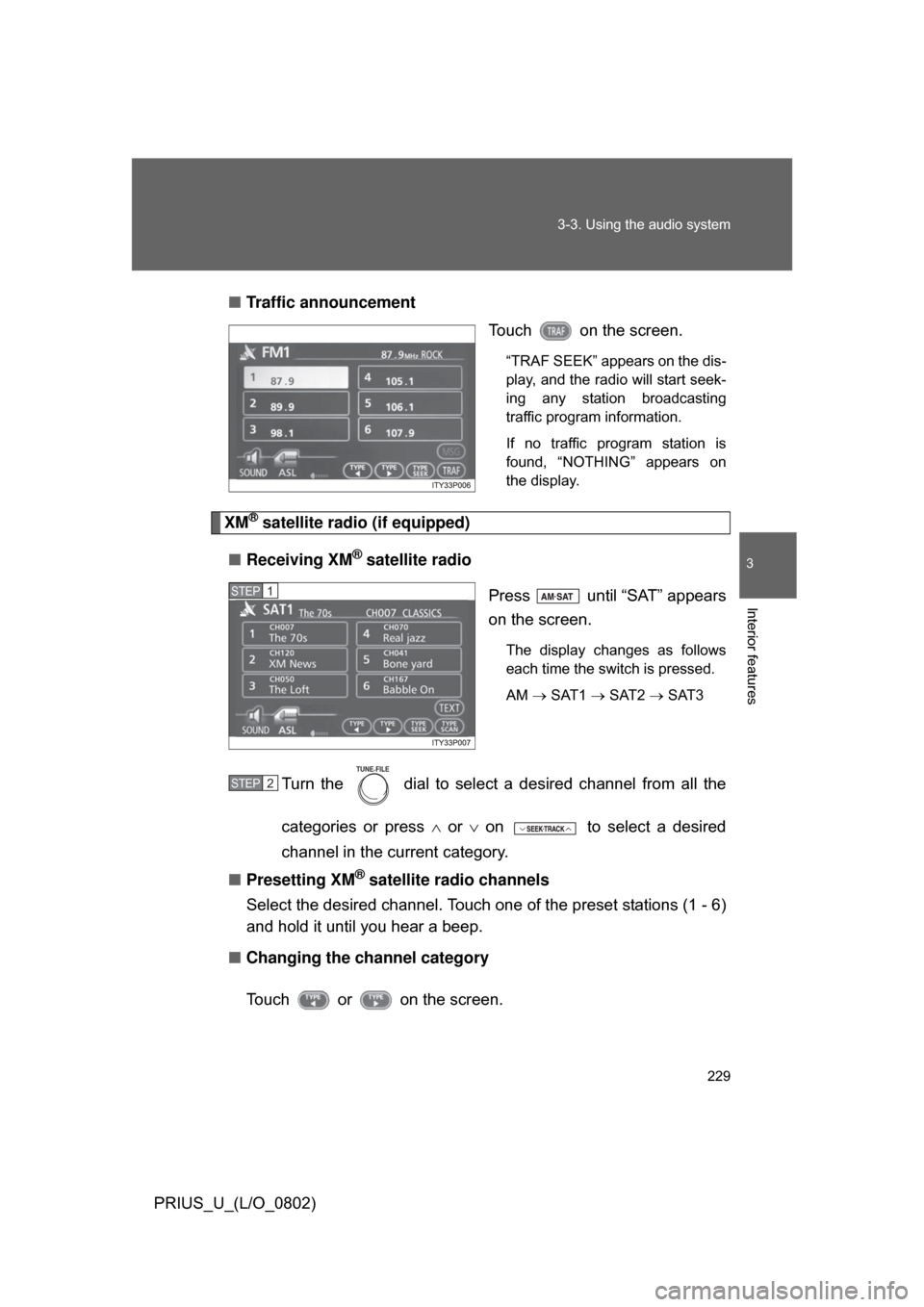
XM® satellite radio (if equipped)
■ Receiving XM
® satellite radio
Press until “SAT” appears
on the screen.
The display changes as follows
each time the switch is pressed.
AM SAT1 SAT2 SAT3
Turn the dial to select a desired channel from all the
categories or press or on to select a desired
channel in the current category.
■ Presetting XM
® satellite radio channels
Select the desired channel. Touch one of the preset stations (1 - 6)
and hold it until you hear a beep.
■ Changing the channel category
Touch or on the screen.
STEP1
STEP2
TUNE FILE