Page 188 of 225
187 Voice Control
Navigation
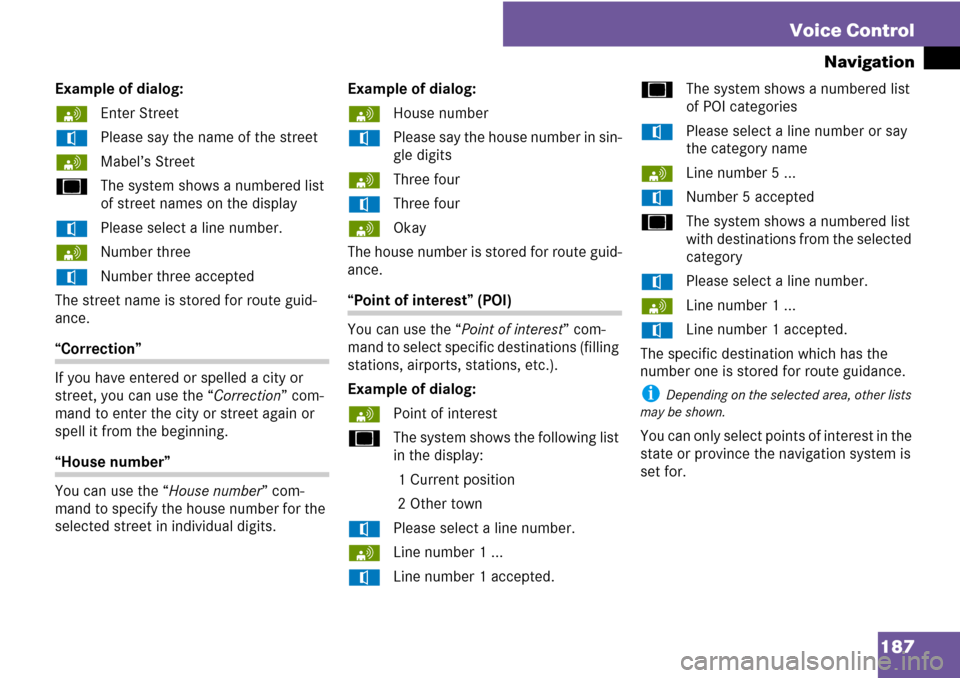
Example of dialog:
sEnter Street
tPlease say the name of the street
sMabel’s Street
uThe system shows a numbered list
of street names on the display
tPlease select a line number.
sNumber three
tNumber three accepted
The street name is stored for route guid-
ance.
“Correction”
If you have entered or spelled a city or
street, you can use the “Correction” com-
mand to enter the city or street again or
spell it from the beginning.
“House number”
You can use the “House number” com-
mand to specify the house number for the
selected street in individual digits.Example of dialog:
sHouse number
tPlease say the house number in sin-
gle digits
sThree four
tThree four
sOkay
The house number is stored for route guid-
ance.
“Point of interest” (POI)
You can use the “Point of interest” com-
mand to select specific destinations (filling
stations, airports, stations, etc.).
Example of dialog:
sPoint of interest
uThe system shows the following list
in the display:
1 Current position
2 Other town
tPlease select a line number.
sLine number 1 ...
tLine number 1 accepted.uThe system shows a numbered list
of POI categories
tPlease select a line number or say
the category name
sLine number 5 ...
tNumber 5 accepted
uThe system shows a numbered list
with destinations from the selected
category
tPlease select a line number.
sLine number 1 ...
tLine number 1 accepted.
The specific destination which has the
number one is stored for route guidance.
i Depending on the selected area, other lists
may be shown.
You can only select points of interest in the
state or province the navigation system is
set for.
Page 189 of 225
188 Voice Control
Navigation
Selecting next point of interest
You can use the following commands to
select nearby points of interest.
�“Next gas station”
�“Next car park”
�“Next Mercedes-Benz Service”
�“Next restaurant”
�“Next hospital”
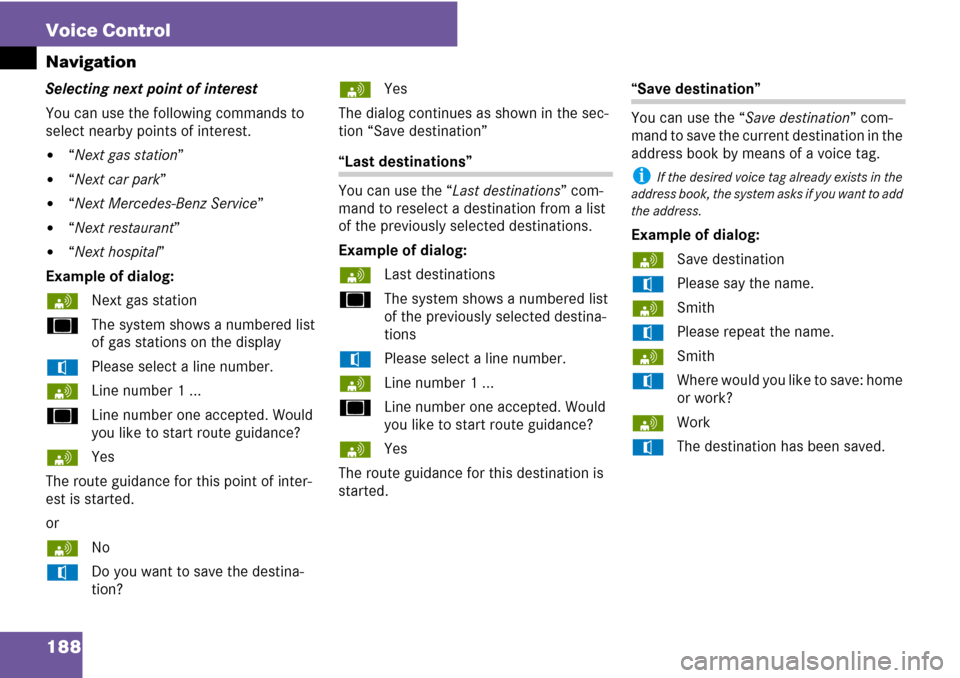
Example of dialog:
sNext gas station
uThe system shows a numbered list
of gas stations on the display
tPlease select a line number.
sLine number 1 ...
uLine number one accepted. Would
you like to start route guidance?
sYes
The route guidance for this point of inter-
est is started.
or
sNo
tDo you want to save the destina-
tion?sYes
The dialog continues as shown in the sec-
tion “Save destination”
“Last destinations”
You can use the “Last destinations” com-
mand to reselect a destination from a list
of the previously selected destinations.
Example of dialog:
sLast destinations
uThe system shows a numbered list
of the previously selected destina-
tions
tPlease select a line number.
sLine number 1 ...
uLine number one accepted. Would
you like to start route guidance?
sYes
The route guidance for this destination is
started.
“Save destination”
You can use the “Save destination” com-
mand to save the current destination in the
address book by means of a voice tag.
i If the desired voice tag already exists in the
address book, the system asks if you want to add
the address.
Example of dialog:
sSave destination
tPlease say the name.
sSmith
tPlease repeat the name.
sSmith
tWhere would you like to save: home
or work?
sWork
tThe destination has been saved.
Page 190 of 225
189 Voice Control
Navigation
“Find address”
You can use the “Find address” command
to select a previously saved address and
start route guidance.
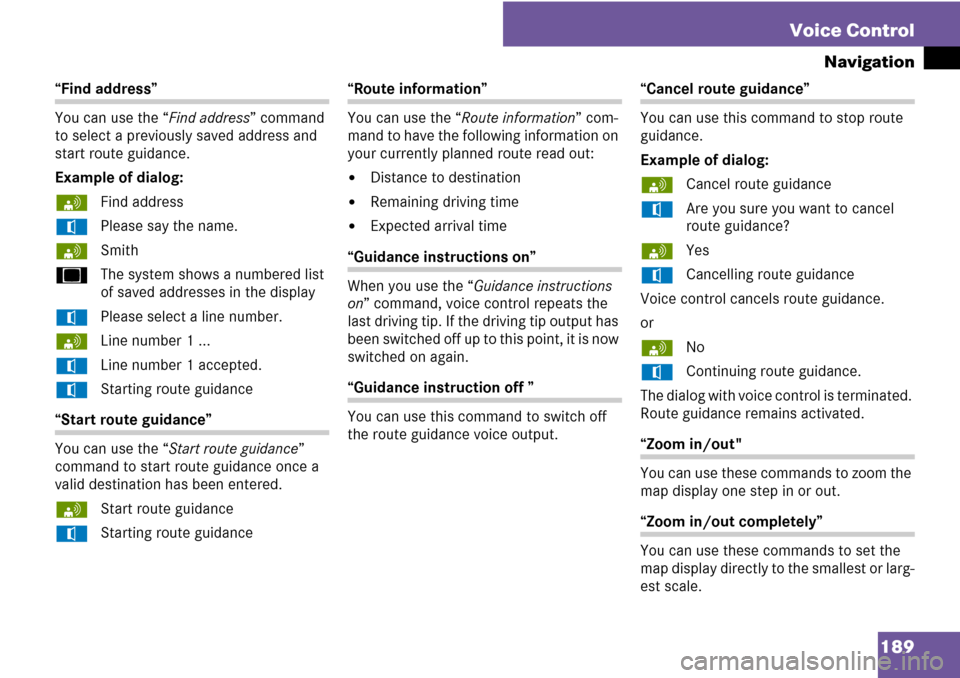
Example of dialog:
sFind address
tPlease say the name.
sSmith
uThe system shows a numbered list
of saved addresses in the display
tPlease select a line number.
sLine number 1 ...
tLine number 1 accepted.
tStarting route guidance
“Start route guidance”
You can use the “Start route guidance”
command to start route guidance once a
valid destination has been entered.
sStart route guidance
tStarting route guidance
“Route information”
You can use the “Route information” com-
mand to have the following information on
your currently planned route read out:
�Distance to destination
�Remaining driving time
�Expected arrival time
“Guidance instructions on”
When you use the “Guidance instructions
on” command, voice control repeats the
last driving tip. If the driving tip output has
been switched off up to this point, it is now
switched on again.
“Guidance instruction off ”
You can use this command to switch off
the route guidance voice output.
“Cancel route guidance”
You can use this command to stop route
guidance.
Example of dialog:
sCancel route guidance
tAre you sure you want to cancel
route guidance?
sYes
tCancelling route guidance
Voice control cancels route guidance.
or
sNo
tContinuing route guidance.
The dialog with voice control is terminated.
Route guidance remains activated.
“Zoom in/out"
You can use these commands to zoom the
map display one step in or out.
“Zoom in/out completely”
You can use these commands to set the
map display directly to the smallest or larg-
est scale.
Page 191 of 225
190 Voice Control
Navigation
“List destination memory”
You can use the “List destination memory”
command to listen to the entries from the
address book’s destination memory and, if
required, navigate to one of them.
sList destination memory
The system reads out all entries,
from the address book destination
memory.
�To select an entry and set an ad-
dress: press the ! button at the se-
lected entry.
tIf there is more than one address,
the system asks “Navigate to: home
or work?”
sHome
The system starts route guidance
�To cancel the dialog: press the L
button.
You have cancelled the dialog. The sys-
tem confirms by responding “Cancel”.
Page 194 of 225
193 Voice Control
Address book
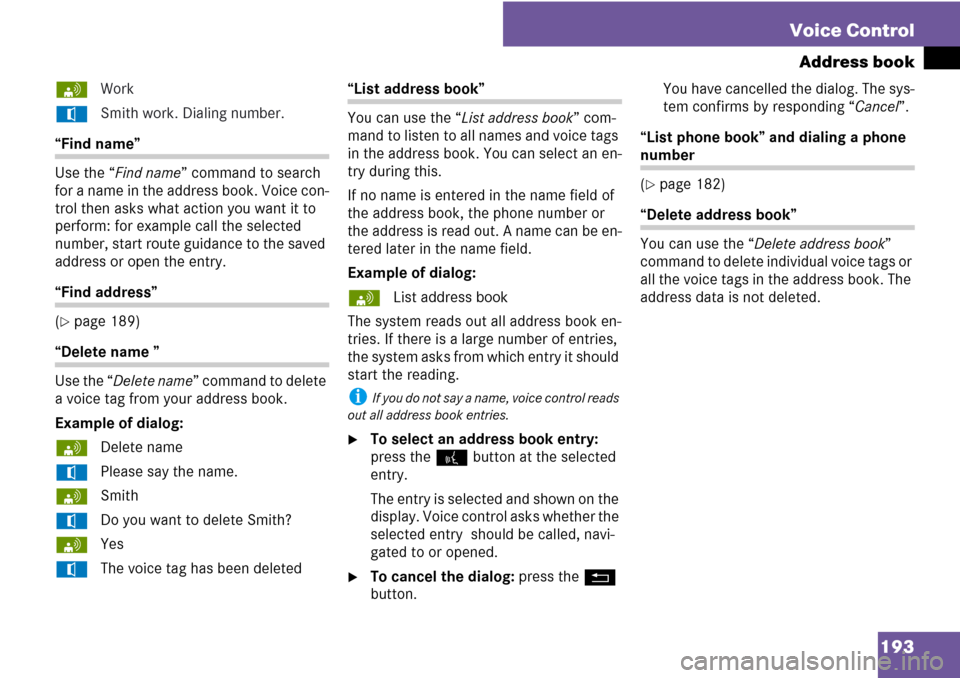
sWork
tSmith work. Dialing number.
“Find name”
Use the “Find name” command to search
for a name in the address book. Voice con-
trol then asks what action you want it to
perform: for example call the selected
number, start route guidance to the saved
address or open the entry.
“Find address”
(
�page 189)
“Delete name ”
Use the “Delete name” command to delete
a voice tag from your address book.
Example of dialog:
sDelete name
tPlease say the name.
sSmith
tDo you want to delete Smith?
sYes
tThe voice tag has been deleted
“List address book”
You can use the “List address book” com-
mand to listen to all names and voice tags
in the address book. You can select an en-
try during this.
If no name is entered in the name field of
the address book, the phone number or
the address is read out. A name can be en-
tered later in the name field.
Example of dialog:
sList address book
The system reads out all address book en-
tries. If there is a large number of entries,
the system asks from which entry it should
start the reading.
i If you do not say a name, voice control reads
out all address book entries.
�To select an address book entry:
press the ! button at the selected
entry.
The entry is selected and shown on the
display. Voice control asks whether the
selected entry should be called, navi-
gated to or opened.
�To cancel the dialog: press the L
button.You have cancelled the dialog. The sys-
tem confirms by responding “Cancel”.
“List phone book” and dialing a phone
number
(
�page 182)
“Delete address book”
You can use the “Delete address book”
command to delete individual voice tags or
all the voice tags in the address book. The
address data is not deleted.
Page 195 of 225
194
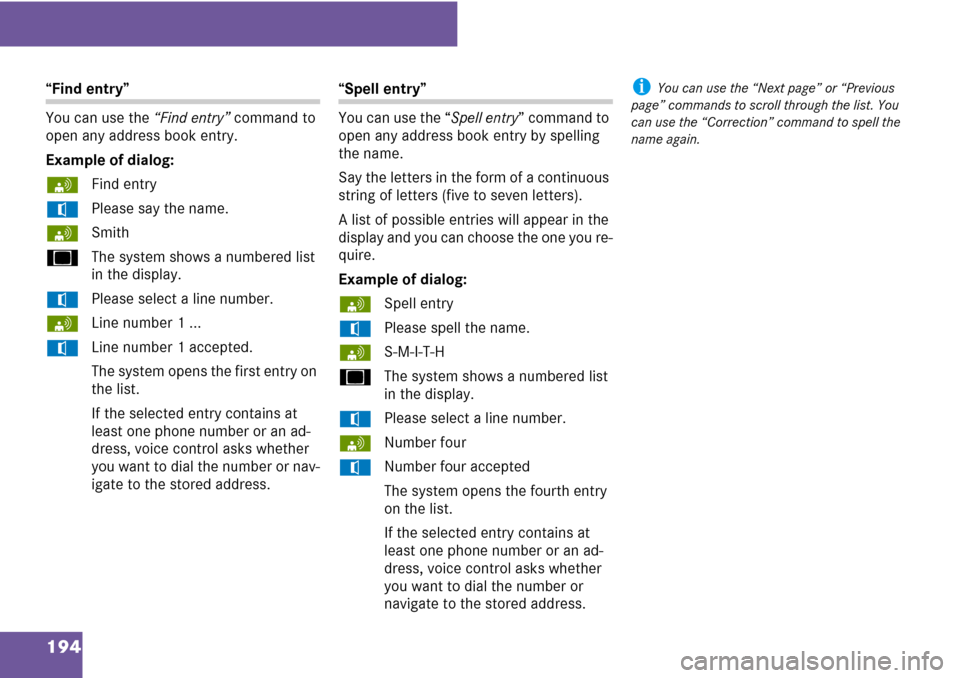
“Find entry”
You can use the “Find entry” command to
open any address book entry.
Example of dialog:
sFind entry
tPlease say the name.
sSmith
uThe system shows a numbered list
in the display.
tPlease select a line number.
sLine number 1 ...
tLine number 1 accepted.
The system opens the first entry on
the list.
If the selected entry contains at
least one phone number or an ad-
dress, voice control asks whether
you want to dial the number or nav-
igate to the stored address.“Spell entry”
You can use the “Spell entry” command to
open any address book entry by spelling
the name.
Say the letters in the form of a continuous
string of letters (five to seven letters).
A list of possible entries will appear in the
display and you can choose the one you re-
quire.
Example of dialog:
sSpell entry
tPlease spell the name.
sS-M-I-T-H
uThe system shows a numbered list
in the display.
tPlease select a line number.
sNumber four
tNumber four accepted
The system opens the fourth entry
on the list.
If the selected entry contains at
least one phone number or an ad-
dress, voice control asks whether
you want to dial the number or
navigate to the stored address.i You can use the “Next page” or “Previous
page” commands to scroll through the list. You
can use the “Correction” command to spell the
name again.
Page 201 of 225
200 Voice Control
Command list
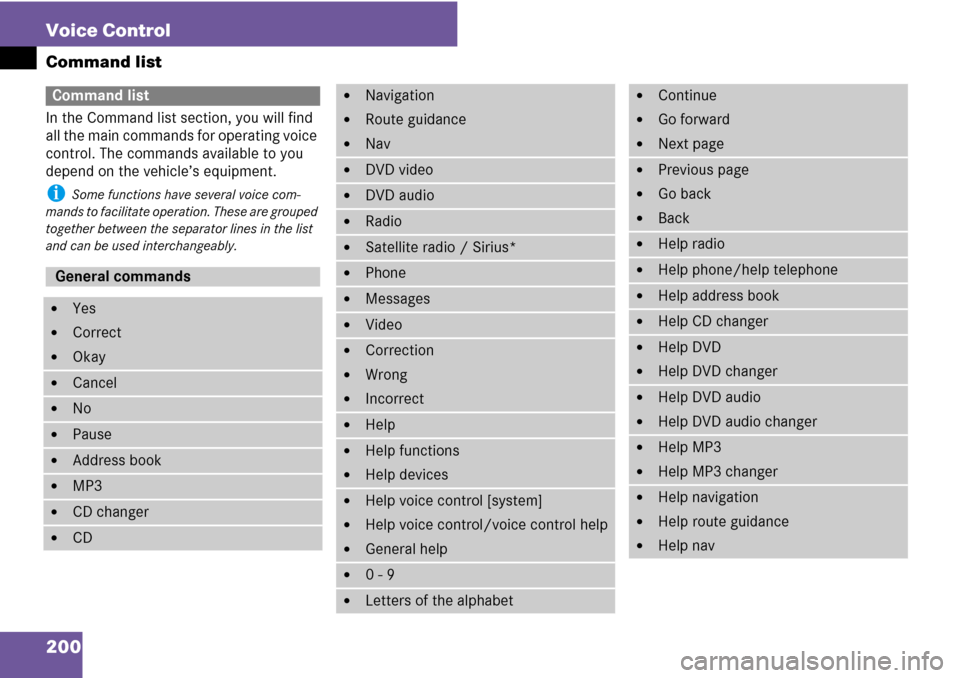
In the Command list section, you will find
all the main commands for operating voice
control. The commands available to you
depend on the vehicle’s equipment.
i Some functions have several voice com-
mands to facilitate operation. These are grouped
together between the separator lines in the list
and can be used interchangeably.
Command list
General commands
�Yes
�Correct
�Okay
�Cancel
�No
�Pause
�Address book
�MP3
�CD changer
�CD
�Navigation
�Route guidance
�Nav
�DVD video
�DVD audio
�Radio
�Satellite radio / Sirius*
�Phone
�Messages
�Video
�Correction
�Wrong
�Incorrect
�Help
�Help functions
�Help devices
�Help voice control [system]
�Help voice control/voice control help
�General help
�0 - 9
�Letters of the alphabet
�Continue
�Go forward
�Next page
�Previous page
�Go back
�Back
�Help radio
�Help phone/help telephone
�Help address book
�Help CD changer
�Help DVD
�Help DVD changer
�Help DVD audio
�Help DVD audio changer
�Help MP3
�Help MP3 changer
�Help navigation
�Help route guidance
�Help nav
Page 203 of 225
202 Voice Control
Command list
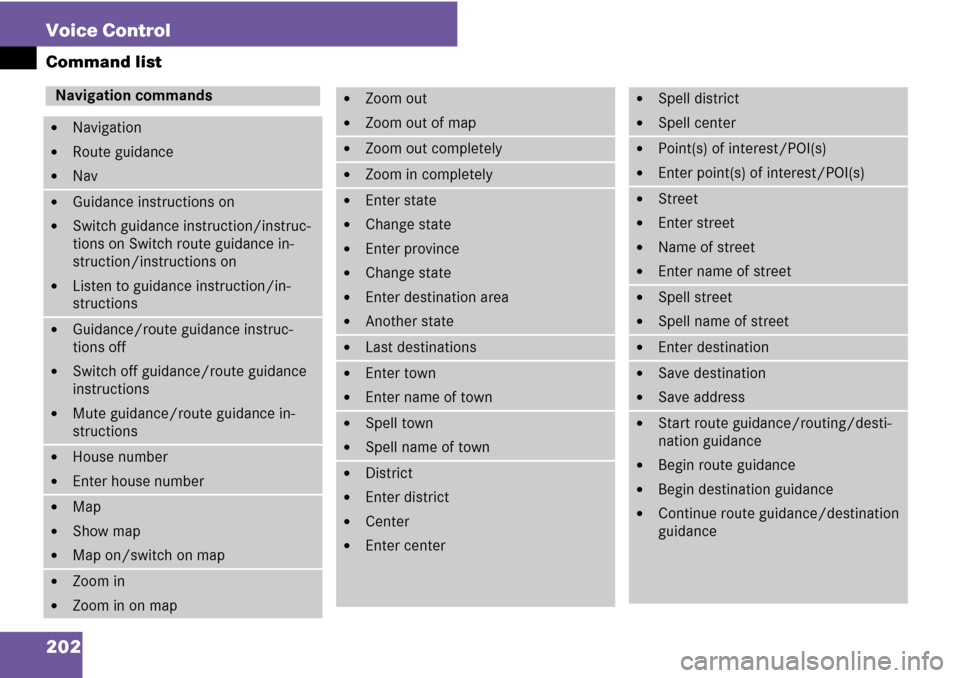
Navigation commands
�Navigation
�Route guidance
�Nav
�Guidance instructions on
�Switch guidance instruction/instruc-
tions on Switch route guidance in-
struction/instructions on
�Listen to guidance instruction/in-
structions
�Guidance/route guidance instruc-
tions off
�Switch off guidance/route guidance
instructions
�Mute guidance/route guidance in-
structions
�House number
�Enter house number
�Map
�Show map
�Map on/switch on map
�Zoom in
�Zoom in on map
�Zoom out
�Zoom out of map
�Zoom out completely
�Zoom in completely
�Enter state
�Change state
�Enter province
�Change state
�Enter destination area
�Another state
�Last destinations
�Enter town
�Enter name of town
�Spell town
�Spell name of town
�District
�Enter district
�Center
�Enter center
�Spell district
�Spell center
�Point(s) of interest/POI(s)
�Enter point(s) of interest/POI(s)
�Street
�Enter street
�Name of street
�Enter name of street
�Spell street
�Spell name of street
�Enter destination
�Save destination
�Save address
�Start route guidance/routing/desti-
nation guidance
�Begin route guidance
�Begin destination guidance
�Continue route guidance/destination
guidance
