2003 BMW 760LI SEDAN warning
[x] Cancel search: warningPage 73 of 229
At a glance
Controls
Driving tips
Communications
Navigation
Entertainment
Mobility
Reference
71
place Ð the transmission lockout is
released.
Re-engage the transmission lockout
after parking the vehicle at its destina-
tion. Otherwise there is a danger that the
vehicle could start to roll if parked on a
steep slope.<
Engaging again
1.Disengage the release lever by pressing
it together with the red detent lever,
arrow 1
2.Guide the release lever all the way back
into its original position Ð the transmis-
sion lockout is again engaged
3.Fold up and lock the cover panel. Now Ð
and not before Ð the key may be
removed.
Once the transmission lockout has
been re-engaged, the warning in the
Check Control should disappear, and the
symbol in the Info Display should change
from N to P. Should this fail to happen,
there is a danger that the vehicle could
start to roll.<
Information on jump-starting, tow-starting
and towing begins on page 202.
Turn signal indicators/
headlamp flasher
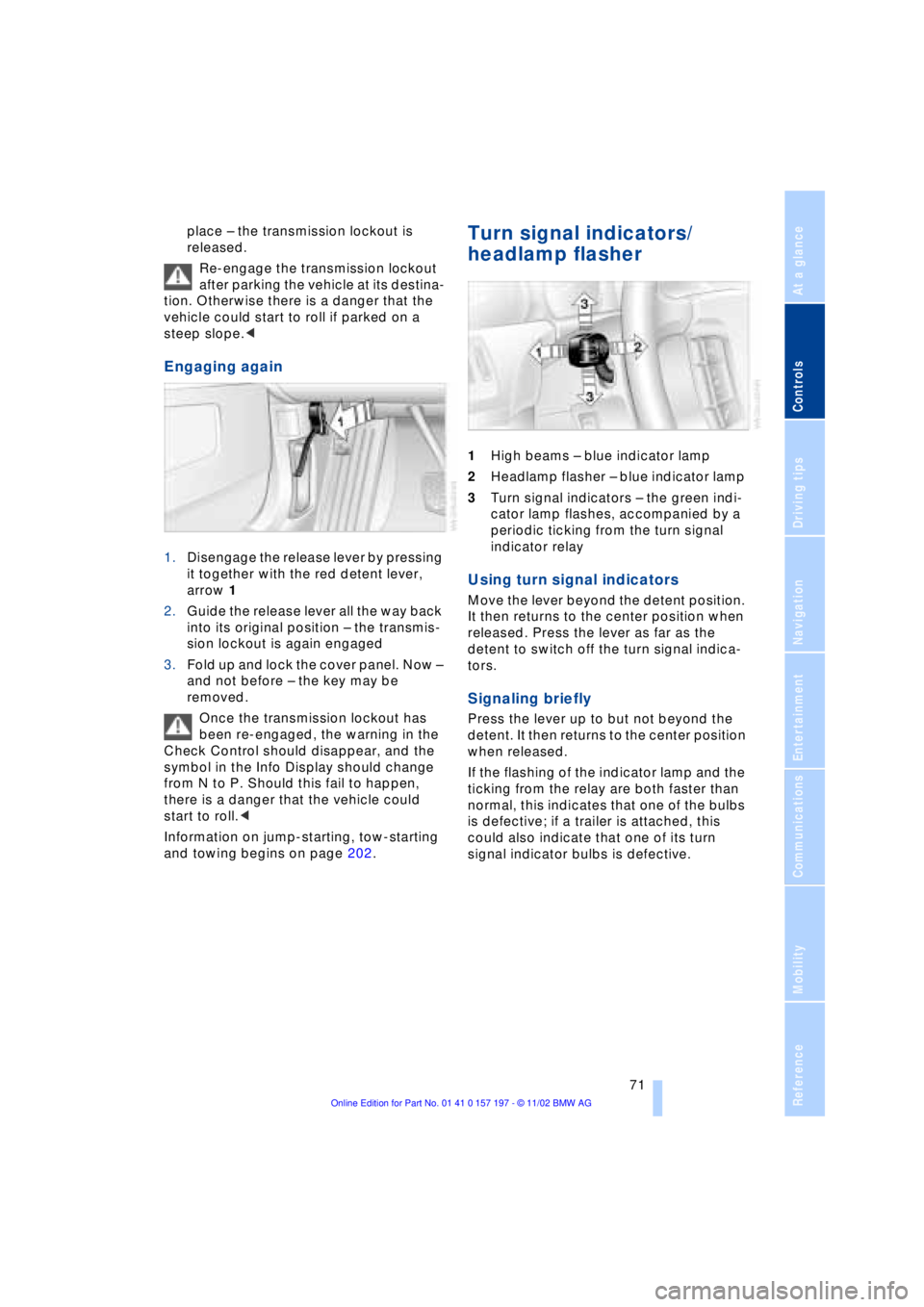
1High beams Ð blue indicator lamp
2Headlamp flasher Ð blue indicator lamp
3Turn signal indicators Ð the green indi-
cator lamp flashes, accompanied by a
periodic ticking from the turn signal
indicator relay
Using turn signal indicators
Move the lever beyond the detent position.
It then returns to the center position when
released. Press the lever as far as the
detent to switch off the turn signal indica-
tors.
Signaling briefly
Press the lever up to but not beyond the
detent. It then returns to the center position
when released.
If the flashing of the indicator lamp and the
ticking from the relay are both faster than
normal, this indicates that one of the bulbs
is defective; if a trailer is attached, this
could also indicate that one of its turn
signal indicator bulbs is defective.
Page 78 of 229
Driving
76 trips, the system can reduce fatigue and
tension, while increasing your enjoyment of
driving. Please use it safely and respon-
sibly.
In addition to holding a steady cruising
speed, if you do encounter slower vehicles
ahead, active cruise control will Ð within the
scope of given possibilities Ð adjust your
vehicle's speed automatically so that one
can flow with the traffic without frequent
intervention by the driver. If, for example,
while cruising at the selected speed, you
begin to approach a slower vehicle ahead
of you in the same lane, the system will
reduce your vehicle's speed to the same as
that of the vehicle ahead to maintain your
selected distance setting between your
vehicle and the vehicle ahead. There are
four settings for distance, which is addi-
tionally speed-dependent. Based on your
selected distance setting, the system auto-
matically decreases the throttle setting and
lightly applies the brakes if necessary. The
vehicle brake lamps will automatically illu-
minate to signal a following driver to take
action. In addition, it may be necessary for
the vehicle to downshift to maintain the dis-
tance setting selected. If the vehicle ahead
speeds up or when the lane ahead
becomes clear, your vehicle will accelerate
to the speed you have selected by
increasing the throttle setting and shifting
gears as needed.
Active cruise control is not and must
not be used as a collision avoidance/
warning system.<
Since this active cruise control
system is a new technology and oper-
ates differently from conventional cruise
control systems which you may be accus-
tomed, you are strongly urged to read all of
the pages relating to this system before
use. Pay special attention to the informa-
tion contained in the Things to know about
active cruise control section in this manual
beginning on page 79.<
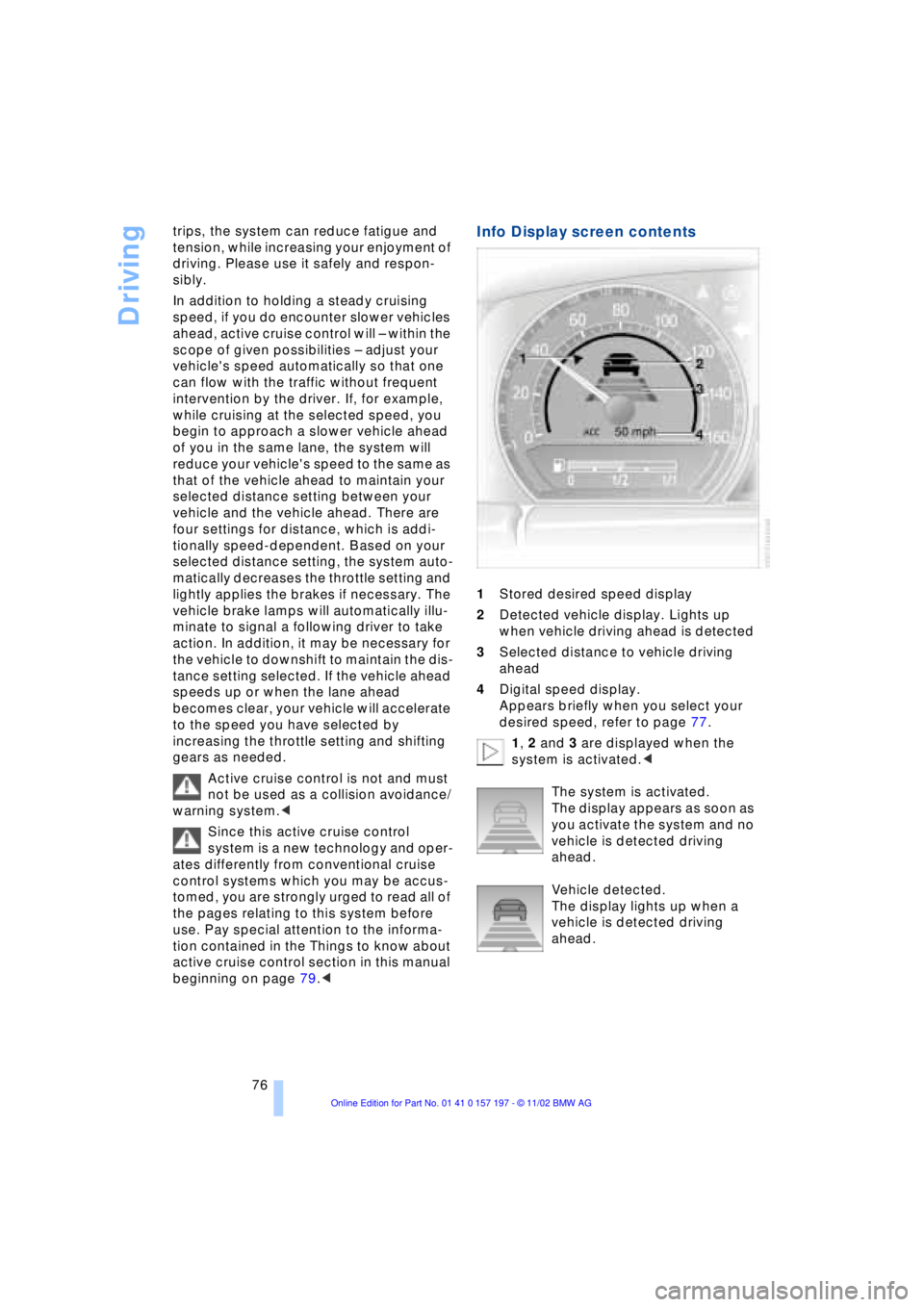
Info Display screen contents
1Stored desired speed display
2Detected vehicle display. Lights up
when vehicle driving ahead is detected
3Selected distance to vehicle driving
ahead
4Digital speed display.
Appears briefly when you select your
desired speed, refer to page 77.
1, 2 and 3 are displayed when the
system is activated.<
The system is activated.
The display appears as soon as
you activate the system and no
vehicle is detected driving
ahead.
Vehicle detected.
The display lights up when a
vehicle is detected driving
ahead.
Page 80 of 229
Driving
78 speed then displayed is stored and
reached on a clear road.
2 Desired speed store and decrease
Pull back the lever:
The current driving speed is rounded off to
the next 5-mile place (10 km/h), displayed
and stored.
Each time the lever is pulled back again,
the desired speed is decreased by another
5 mph (10 km/h) until the minimum speed
of 20 mph (30 km/h) is reached. The speed
then displayed is stored and reached on a
clear road.
3 Deactivate system
Press the lever up or down while the
system is active. The displays in the speed-
ometer disappear. You can use the system
again as required.
In addition, the system is deactivated auto-
matically:
>when you apply pressure to the brake
pedal
>when you select the automatic trans-
missionÕs neutral range N
>when you deactivate the Dynamic Sta-
bility Control DSC
>when you actuate the parking brake
during driving
>when the system reduces the speed to
below 20 mph (30 km/h) due to a traffic
situation.
The system deactivates automatically
when the speed is set to below
20 mph (30 km/h). A gong sounds and a
message appears in the Check Control.
The active intervention of the driver is
required.<
Background lighting
You can switch off the background lighting
of the speedometer and tachometer
>when you have deactivated the system
>when the prewarning field in the
tachometer has gone out, refer to
page 82 >when the destination guidance system
of the navigation system is deactivated.
Press the lever up or down for approx.
1 second.
4 Resume to stored desired speed
and distance setting
Press button 4:
The displays appear in the speedometer.
The system is reactivated and uses the last
stored desired speed and distance setting.
4 Fine adjustment of desired speed
In the activated state, the desired speed
increases by 1 mph (1 km/h) each time
button 4 is pressed briefly.
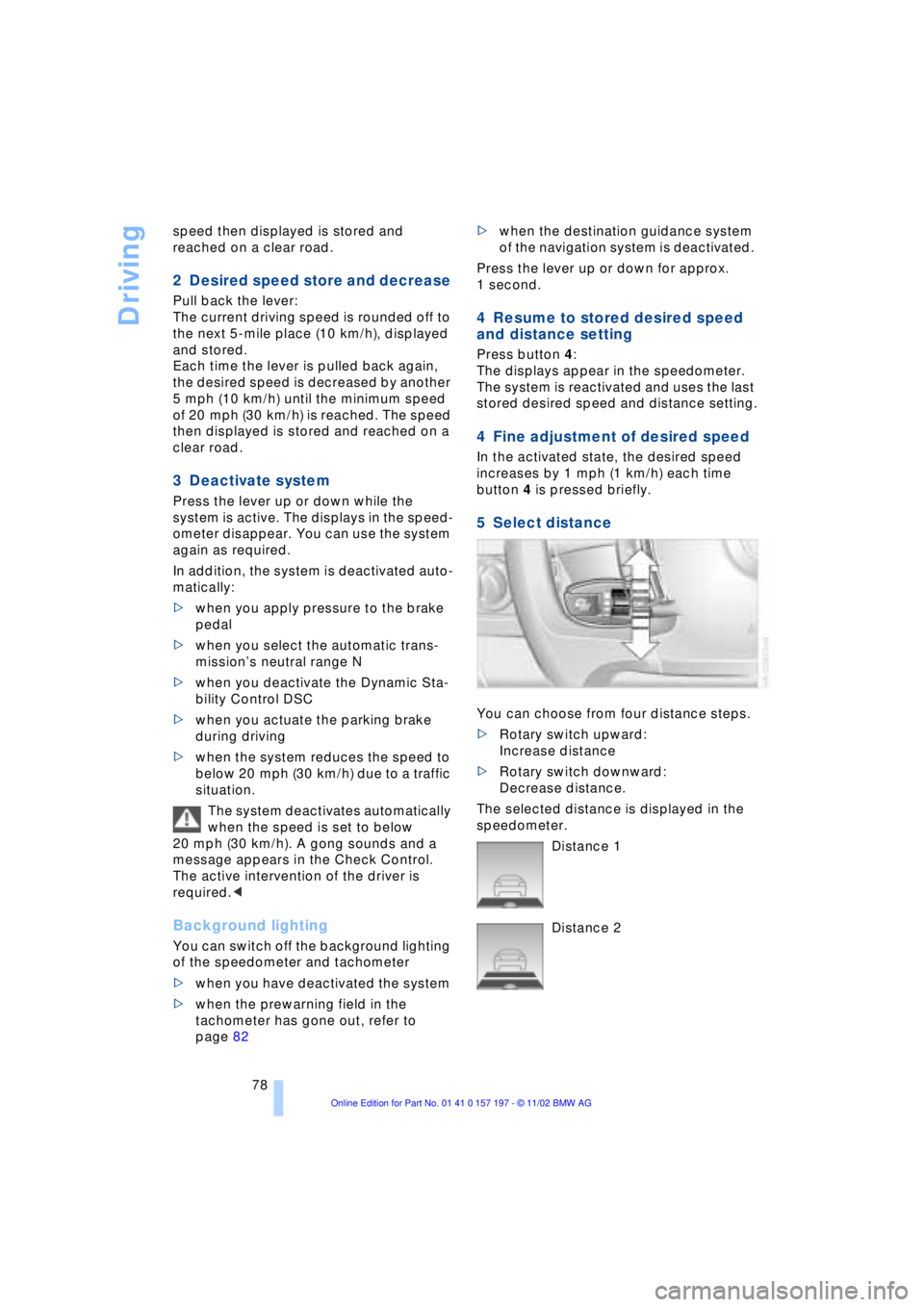
5 Select distance
You can choose from four distance steps.
>Rotary switch upward:
Increase distance
>Rotary switch downward:
Decrease distance.
The selected distance is displayed in the
speedometer.
Distance 1
Distance 2
Page 81 of 229
At a glance
Controls
Driving tips
Communications
Navigation
Entertainment
Mobility
Reference
79
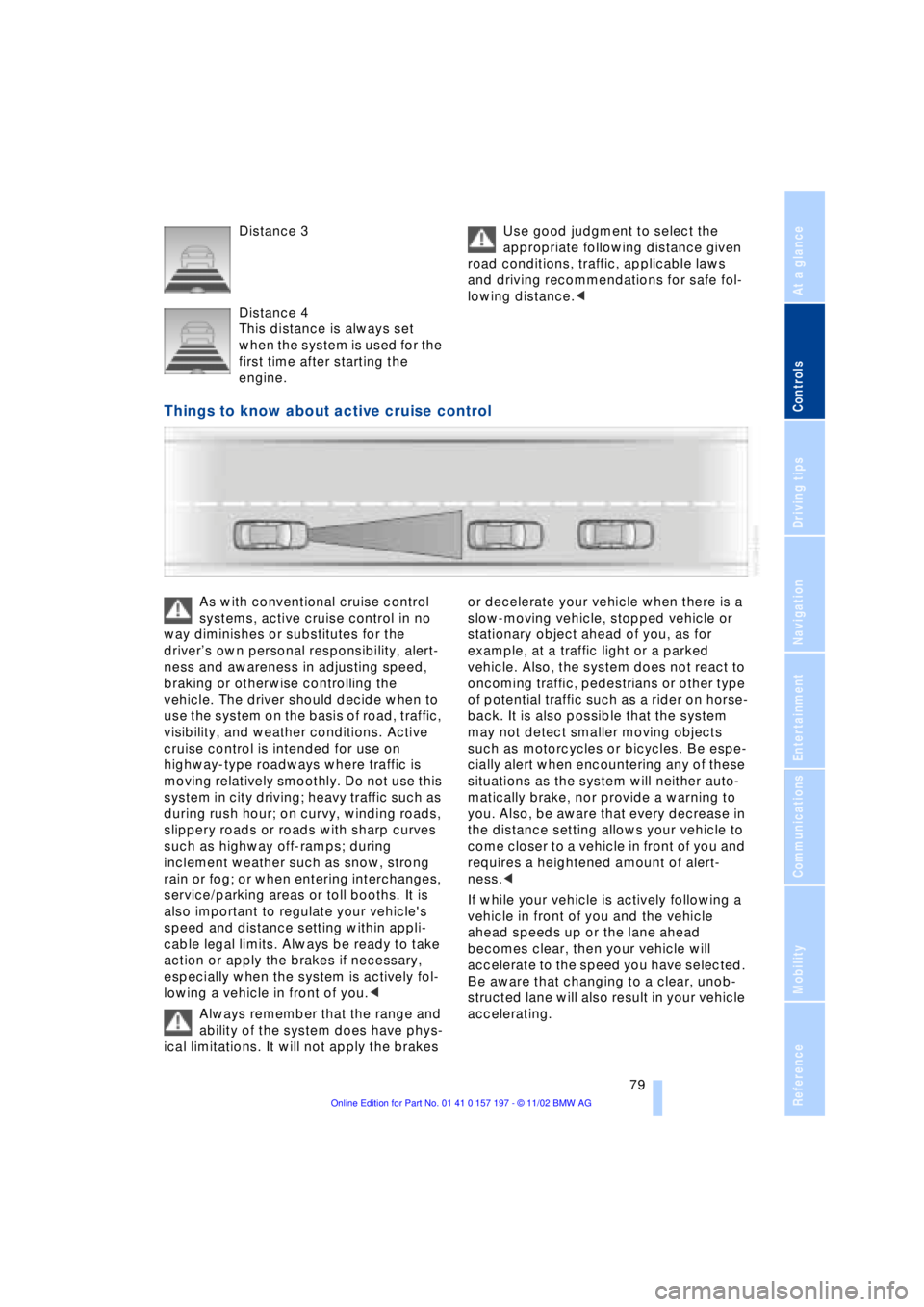
Distance 3
Distance 4
This distance is always set
when the system is used for the
first time after starting the
engine. Use good judgment to select the
appropriate following distance given
road conditions, traffic, applicable laws
and driving recommendations for safe fol-
lowing distance.<
Things to know about active cruise control
As with conventional cruise control
systems, active cruise control in no
way diminishes or substitutes for the
driverÕs own personal responsibility, alert-
ness and awareness in adjusting speed,
braking or otherwise controlling the
vehicle. The driver should decide when to
use the system on the basis of road, traffic,
visibility, and weather conditions. Active
cruise control is intended for use on
highway-type roadways where traffic is
moving relatively smoothly. Do not use this
system in city driving; heavy traffic such as
during rush hour; on curvy, winding roads,
slippery roads or roads with sharp curves
such as highway off-ramps; during
inclement weather such as snow, strong
rain or fog; or when entering interchanges,
service/parking areas or toll booths. It is
also important to regulate your vehicle's
speed and distance setting within appli-
cable legal limits. Always be ready to take
action or apply the brakes if necessary,
especially when the system is actively fol-
lowing a vehicle in front of you.<
Always remember that the range and
ability of the system does have phys-
ical limitations. It will not apply the brakes or decelerate your vehicle when there is a
slow-moving vehicle, stopped vehicle or
stationary object ahead of you, as for
example, at a traffic light or a parked
vehicle. Also, the system does not react to
oncoming traffic, pedestrians or other type
of potential traffic such as a rider on horse-
back. It is also possible that the system
may not detect smaller moving objects
such as motorcycles or bicycles. Be espe-
cially alert when encountering any of these
situations as the system will neither auto-
matically brake, nor provide a warning to
you. Also, be aware that every decrease in
the distance setting allows your vehicle to
come closer to a vehicle in front of you and
requires a heightened amount of alert-
ness.<
If while your vehicle is actively following a
vehicle in front of you and the vehicle
ahead speeds up or the lane ahead
becomes clear, then your vehicle will
accelerate to the speed you have selected.
Be aware that changing to a clear, unob-
structed lane will also result in your vehicle
accelerating.
Page 84 of 229
Everything under control
82
Everything under control
Odometer, outside temperature display, clock
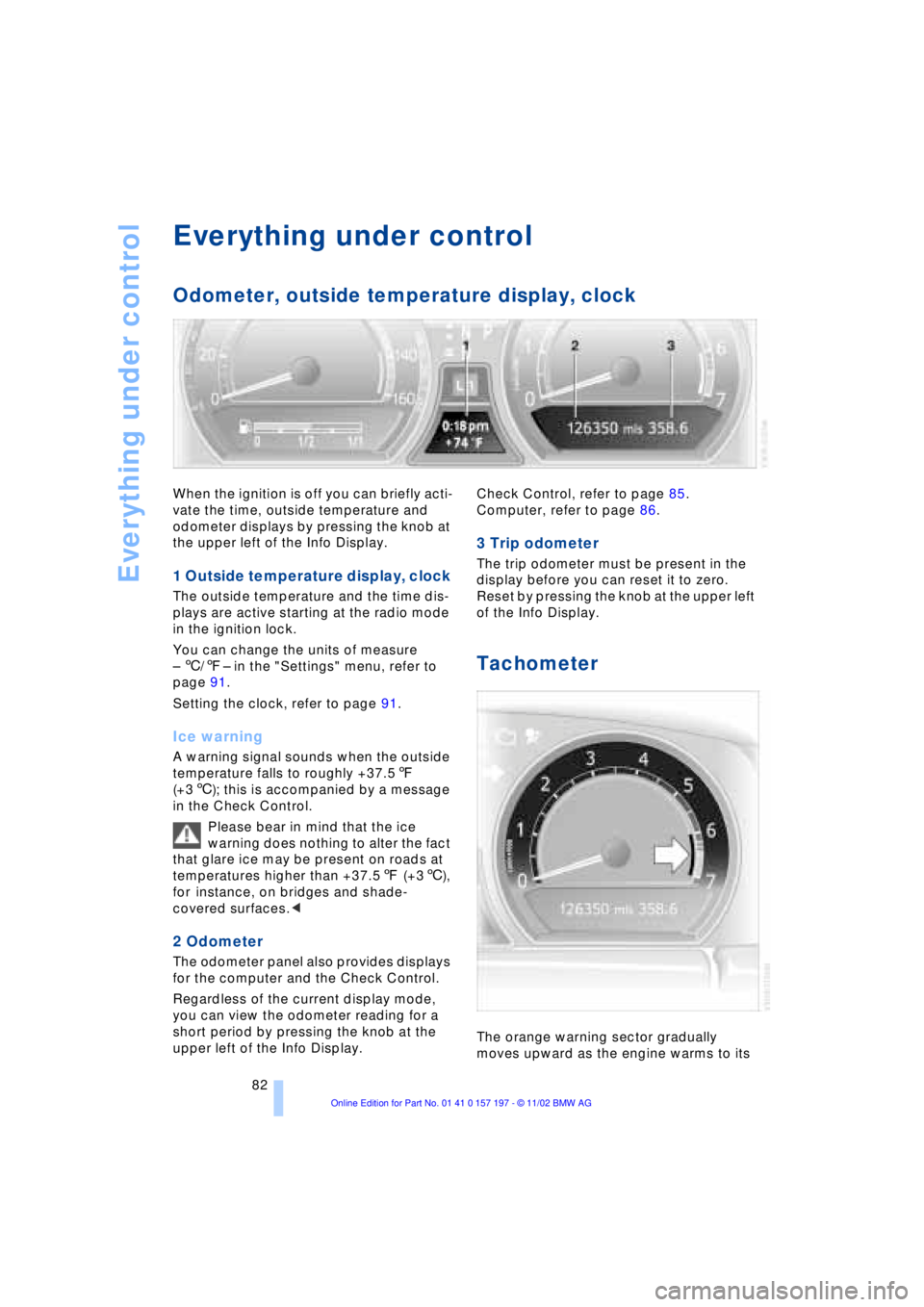
When the ignition is off you can briefly acti-
vate the time, outside temperature and
odometer displays by pressing the knob at
the upper left of the Info Display.
1 Outside temperature display, clock
The outside temperature and the time dis-
plays are active starting at the radio mode
in the ignition lock.
You can change the units of measure
Ð 6/7Ð in the "Settings" menu, refer to
page 91.
Setting the clock, refer to page 91.
Ice warning
A warning signal sounds when the outside
temperature falls to roughly +37.57
(+36); this is accompanied by a message
in the Check Control.
Please bear in mind that the ice
warning does nothing to alter the fact
that glare ice may be present on roads at
temperatures higher than +37.57 (+36),
for instance, on bridges and shade-
covered surfaces.<
2 Odometer
The odometer panel also provides displays
for the computer and the Check Control.
Regardless of the current display mode,
you can view the odometer reading for a
short period by pressing the knob at the
upper left of the Info Display. Check Control, refer to page 85.
Computer, refer to page 86.
3 Trip odometer
The trip odometer must be present in the
display before you can reset it to zero.
Reset by pressing the knob at the upper left
of the Info Display.
Tachometer
The orange warning sector gradually
moves upward as the engine warms to its
Page 85 of 229
At a glance
Controls
Driving tips
Communications
Navigation
Entertainment
Mobility
Reference
83
normal operating temperature. The seg-
ments disappear in sequence as the engine
warms to its normal operating temperature.
Avoid allowing the engine speed to rise as
far as the orange warning sector whenever
possible.
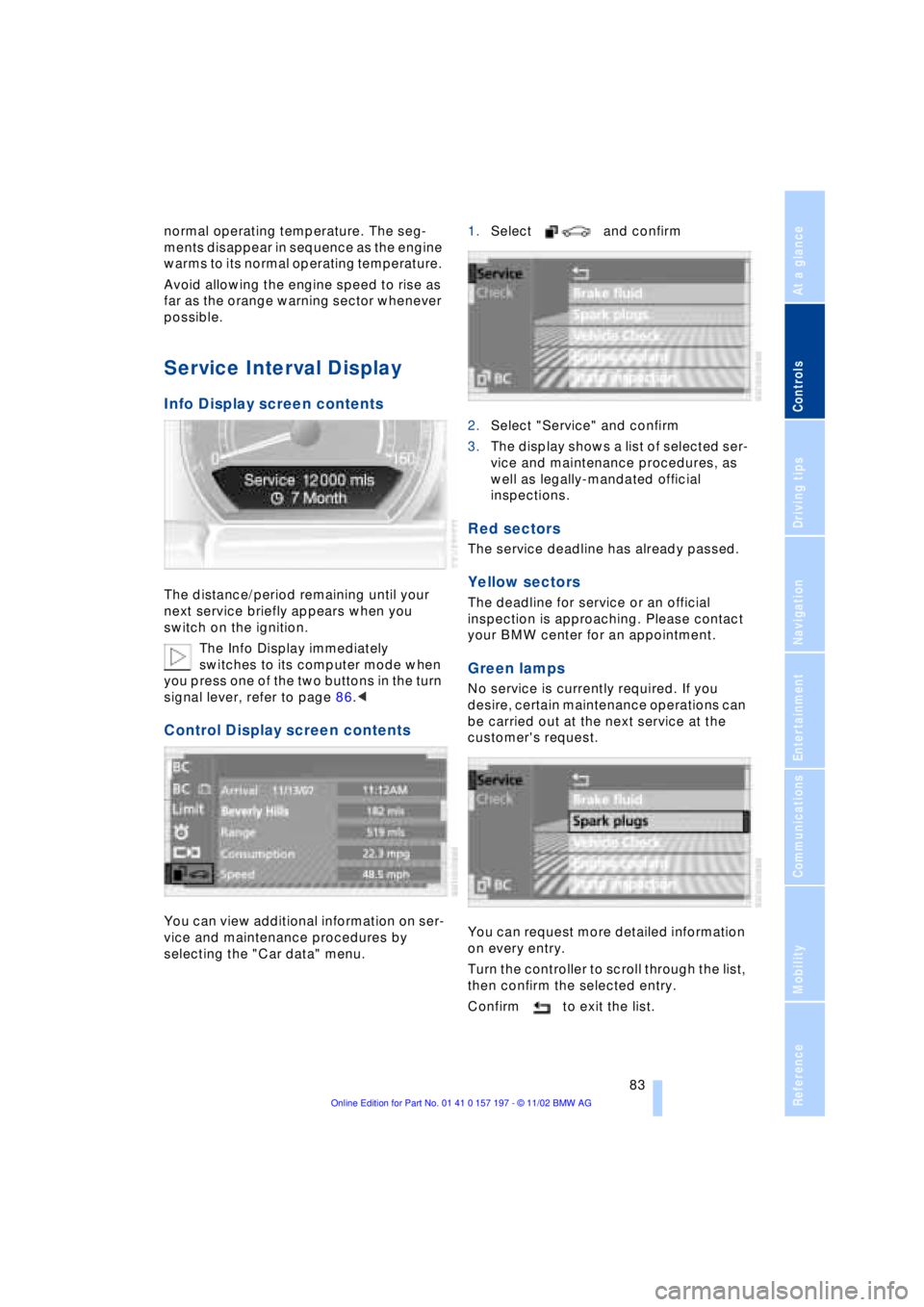
Service Interval Display
Info Display screen contents
The distance/period remaining until your
next service briefly appears when you
switch on the ignition.
The Info Display immediately
switches to its computer mode when
you press one of the two buttons in the turn
signal lever, refer to page 86.<
Control Display screen contents
You can view additional information on ser-
vice and maintenance procedures by
selecting the "Car data" menu. 1.Select and confirm
2.Select "Service" and confirm
3.The display shows a list of selected ser-
vice and maintenance procedures, as
well as legally-mandated official
inspections.
Red sectors
The service deadline has already passed.
Yellow sectors
The deadline for service or an official
inspection is approaching. Please contact
your BMW center for an appointment.
Green lamps
No service is currently required. If you
desire, certain maintenance operations can
be carried out at the next service at the
customer's request.
You can request more detailed information
on every entry.
Turn the controller to scroll through the list,
then confirm the selected entry.
Confirm to exit the list.
Page 87 of 229
At a glance
Controls
Driving tips
Communications
Navigation
Entertainment
Mobility
Reference
85
Check Control
Info Display screen contents
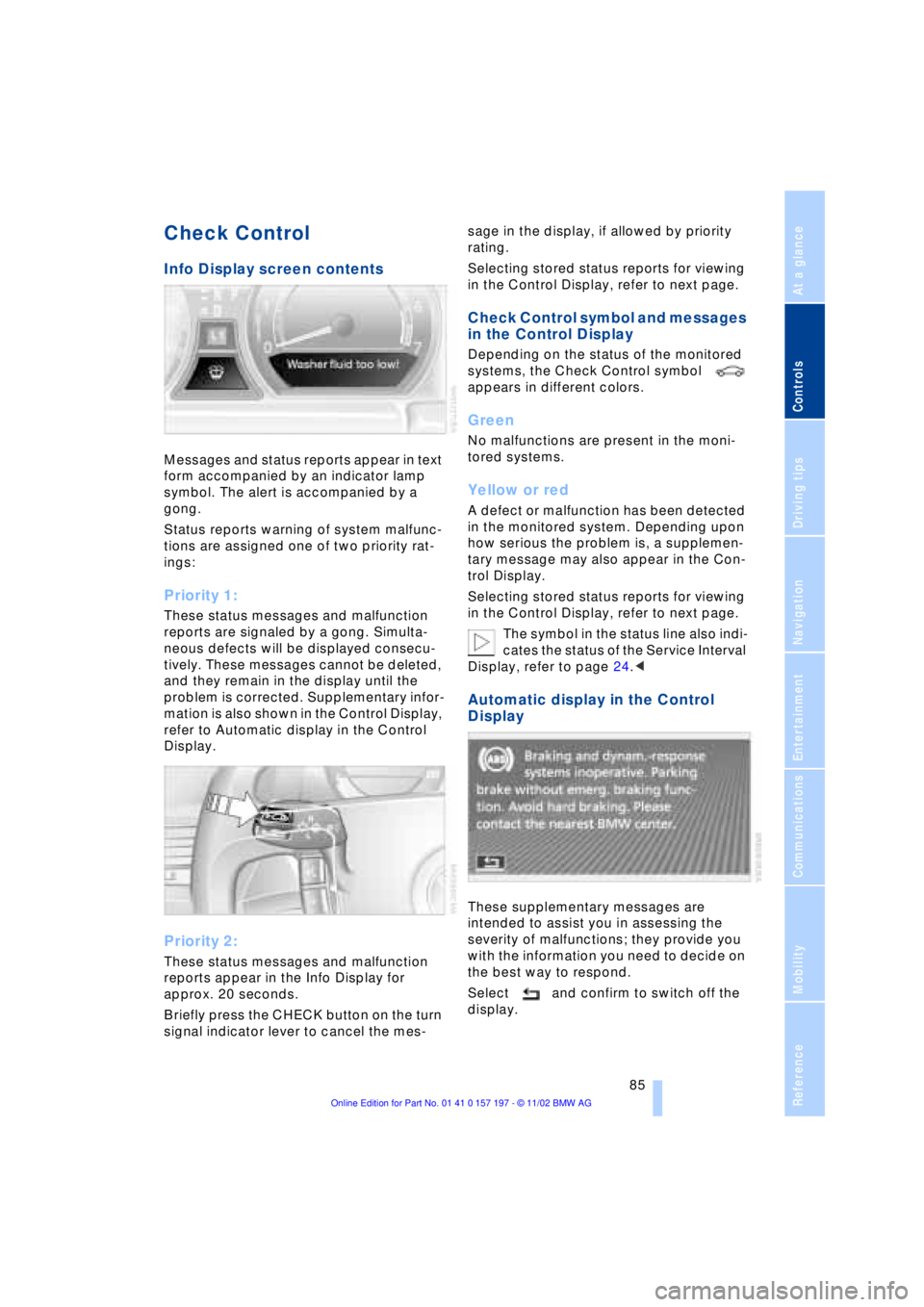
Messages and status reports appear in text
form accompanied by an indicator lamp
symbol. The alert is accompanied by a
gong.
Status reports warning of system malfunc-
tions are assigned one of two priority rat-
ings:
Priority 1:
These status messages and malfunction
reports are signaled by a gong. Simulta-
neous defects will be displayed consecu-
tively. These messages cannot be deleted,
and they remain in the display until the
problem is corrected. Supplementary infor-
mation is also shown in the Control Display,
refer to Automatic display in the Control
Display.
Priority 2:
These status messages and malfunction
reports appear in the Info Display for
approx. 20 seconds.
Briefly press the CHECK button on the turn
signal indicator lever to cancel the mes-sage in the display, if allowed by priority
rating.
Selecting stored status reports for viewing
in the Control Display, refer to next page.
Check Control symbol and messages
in the Control Display
Depending on the status of the monitored
systems, the Check Control symbol
appears in different colors.
Green
No malfunctions are present in the moni-
tored systems.
Yellow or red
A defect or malfunction has been detected
in the monitored system. Depending upon
how serious the problem is, a supplemen-
tary message may also appear in the Con-
trol Display.
Selecting stored status reports for viewing
in the Control Display, refer to next page.
The symbol in the status line also indi-
cates the status of the Service Interval
Display, refer to page 24.<
Automatic display in the Control
Display
These supplementary messages are
intended to assist you in assessing the
severity of malfunctions; they provide you
with the information you need to decide on
the best way to respond.
Select and confirm to switch off the
display.
Page 92 of 229
Everything under control
90
Info Display screen contents
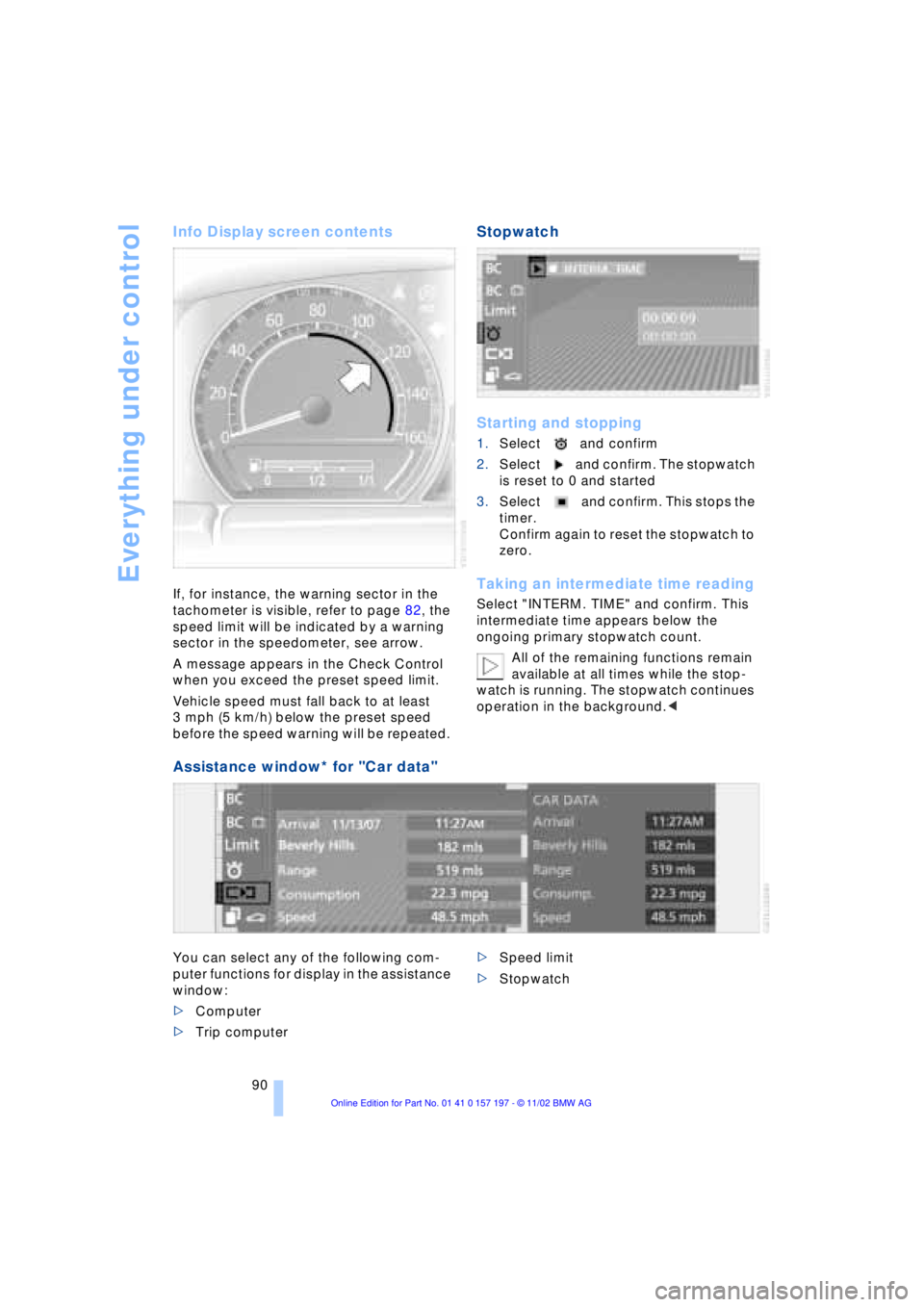
If, for instance, the warning sector in the
tachometer is visible, refer to page 82, the
speed limit will be indicated by a warning
sector in the speedometer, see arrow.
A message appears in the Check Control
when you exceed the preset speed limit.
Vehicle speed must fall back to at least
3 mph (5 km/h) below the preset speed
before the speed warning will be repeated.
Stopwatch
Starting and stopping
1.Select and confirm
2.Select and confirm. The stopwatch
is reset to 0 and started
3.Select and confirm. This stops the
timer.
Confirm again to reset the stopwatch to
zero.
Taking an intermediate time reading
Select "INTERM. TIME" and confirm. This
intermediate time appears below the
ongoing primary stopwatch count.
All of the remaining functions remain
available at all times while the stop-
watch is running. The stopwatch continues
operation in the background.<
Assistance window* for "Car data"
You can select any of the following com-
puter functions for display in the assistance
window:
>Computer
>Trip computer >Speed limit
>Stopwatch