2003 BMW 760LI SEDAN display
[x] Cancel search: displayPage 168 of 229
DVD changer
166
Chapter search
You can change to the next or pre-
vious chapter during playback.<
1.Display DVD controller, refer to
page 164
2.Select the direction
Confirm repeatedly, continuing until
you reach the desired chapter
or with buttons
select the direction
Press repeatedly, continuing until you
reach the desired chapter on the current
DVD.
Playback begins at the chapter selected.
Adjusting picture
1.During playback, press controller
2.Select and confirm.
3.Adjusting the picture, refer to page 161.
Freezing frame
1.Display DVD controller, refer to
page 164
2.At the desired position,
select and confirm.
The film is stopped
3.To restart the DVD:
Select or and confirm.
DVD playback is continued at the point
at which it was interrupted.
Selecting picture format
You can adjust the DVD format to your
screen.
1.Display DVD controller, refer to
page 164
2.Select and confirm
3.Select and confirm
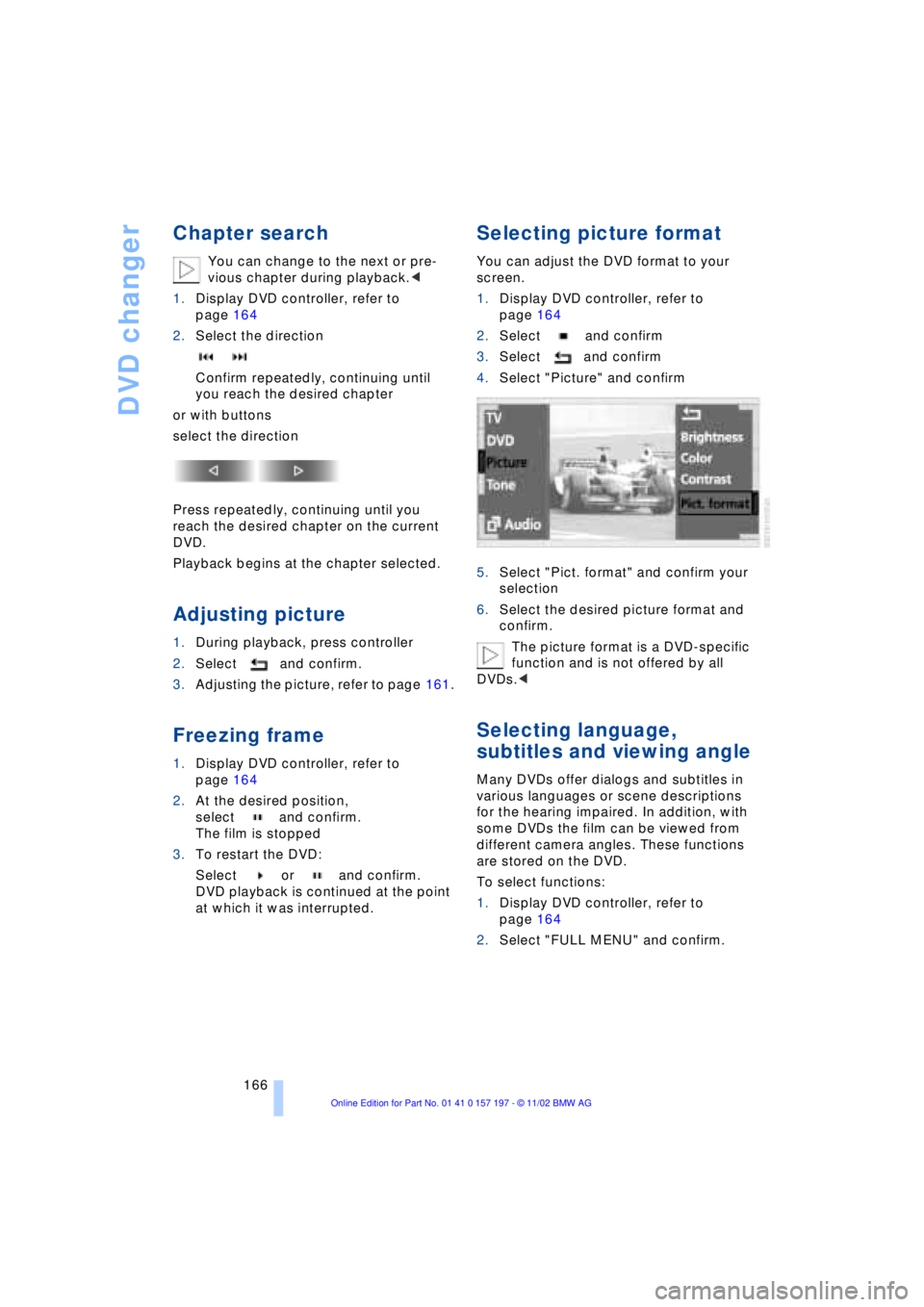
4.Select "Picture" and confirm
5.Select "Pict. format" and confirm your
selection
6.Select the desired picture format and
confirm.
The picture format is a DVD-specific
function and is not offered by all
DVDs.<
Selecting language,
subtitles and viewing angle
Many DVDs offer dialogs and subtitles in
various languages or scene descriptions
for the hearing impaired. In addition, with
some DVDs the film can be viewed from
different camera angles. These functions
are stored on the DVD.
To select functions:
1.Display DVD controller, refer to
page 164
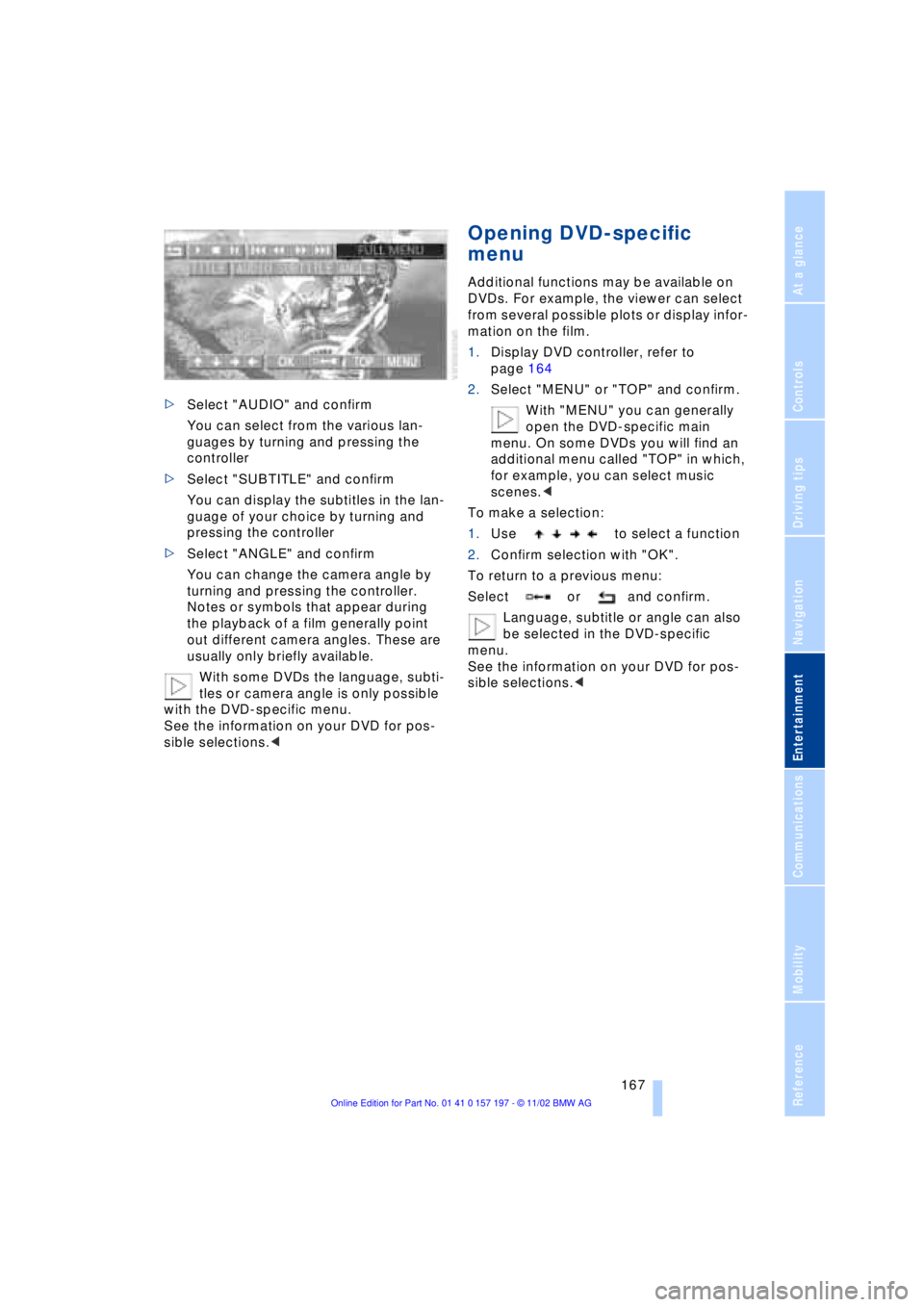
2.Select "FULL MENU" and confirm.
Page 169 of 229
At a glance
Controls
Driving tips
Communications
Navigation
Entertainment
Mobility
Reference
167
>Select "AUDIO" and confirm
You can select from the various lan-
guages by turning and pressing the
controller
>Select "SUBTITLE" and confirm
You can display the subtitles in the lan-
guage of your choice by turning and
pressing the controller
>Select "ANGLE" and confirm
You can change the camera angle by
turning and pressing the controller.
Notes or symbols that appear during
the playback of a film generally point
out different camera angles. These are
usually only briefly available.
With some DVDs the language, subti-
tles or camera angle is only possible
with the DVD-specific menu.
See the information on your DVD for pos-
sible selections.<
Opening DVD-specific
menu
Additional functions may be available on
DVDs. For example, the viewer can select
from several possible plots or display infor-
mation on the film.
1.Display DVD controller, refer to
page 164
2.Select "MENU" or "TOP" and confirm.
With "MENU" you can generally
open the DVD-specific main
menu. On some DVDs you will find an
additional menu called "TOP" in which,
for example, you can select music
scenes.<
To make a selection:
1.Use to select a function
2.Confirm selection with "OK".
To return to a previous menu:
Select or and confirm.
Language, subtitle or angle can also
be selected in the DVD-specific
menu.
See the information on your DVD for pos-
sible selections.<
Page 173 of 229
At a glance
Controls
Driving tips Communications
Navigation
Entertainment
Mobility
Reference
171
Batteries
Never attempt to open your BMW
portable phone or its battery. Use
only approved battery types Ð the wrong
battery can destroy your portable phone.
To avoid possible short circuits, after
removing a battery you should never allow
it to come into contact with metallic sur-
faces of any kind.<
Disposing of used batteries
Return used batteries to a recycling
collection point or to your BMW
center.<
Care instructions
You can find useful information on caring
for your portable phone in the separate
Portable phone manual and in the separate
Care manual.
Controls
You have the option of making phone calls
with the car phone or the BMW portable
phone.
If there is no BMW portable phone in the
cradle, Personal calling can be made with
the car phone.
Your car phone must be activated to
support his feature. Please see your
BMW center for further instructions to acti-
vate your car phone with the wireless car-
rier.<
The upper status line will indicate which
phone is currently active and connected to
the network.
For information on operating your
portable phone, please consult the
separate manual.<
The portable phone can be operated by
means of
>controls on the steering wheel, refer to
page 18
>Control Display
>the folding telephone keypad >and the voice command system, not for
incoming calls.
Control Display
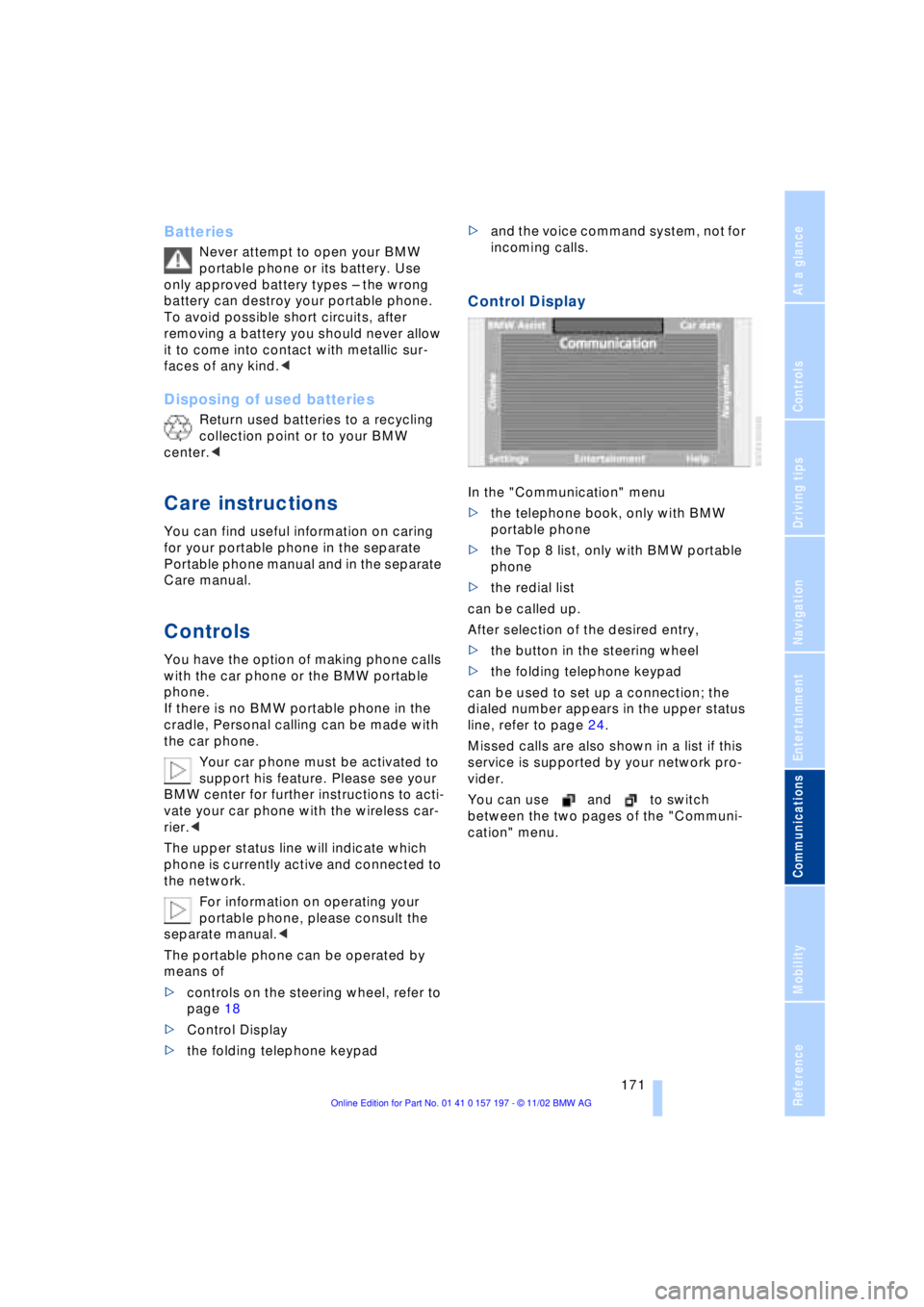
In the "Communication" menu
>the telephone book, only with BMW
portable phone
>the Top 8 list, only with BMW portable
phone
>the redial list
can be called up.
After selection of the desired entry,
>the button in the steering wheel
>the folding telephone keypad
can be used to set up a connection; the
dialed number appears in the upper status
line, refer to page 24.
Missed calls are also shown in a list if this
service is supported by your network pro-
vider.
You can use and to switch
between the two pages of the "Communi-
cation" menu.
Page 175 of 229
At a glance
Controls
Driving tips Communications
Navigation
Entertainment
Mobility
Reference
173
Hands-free system
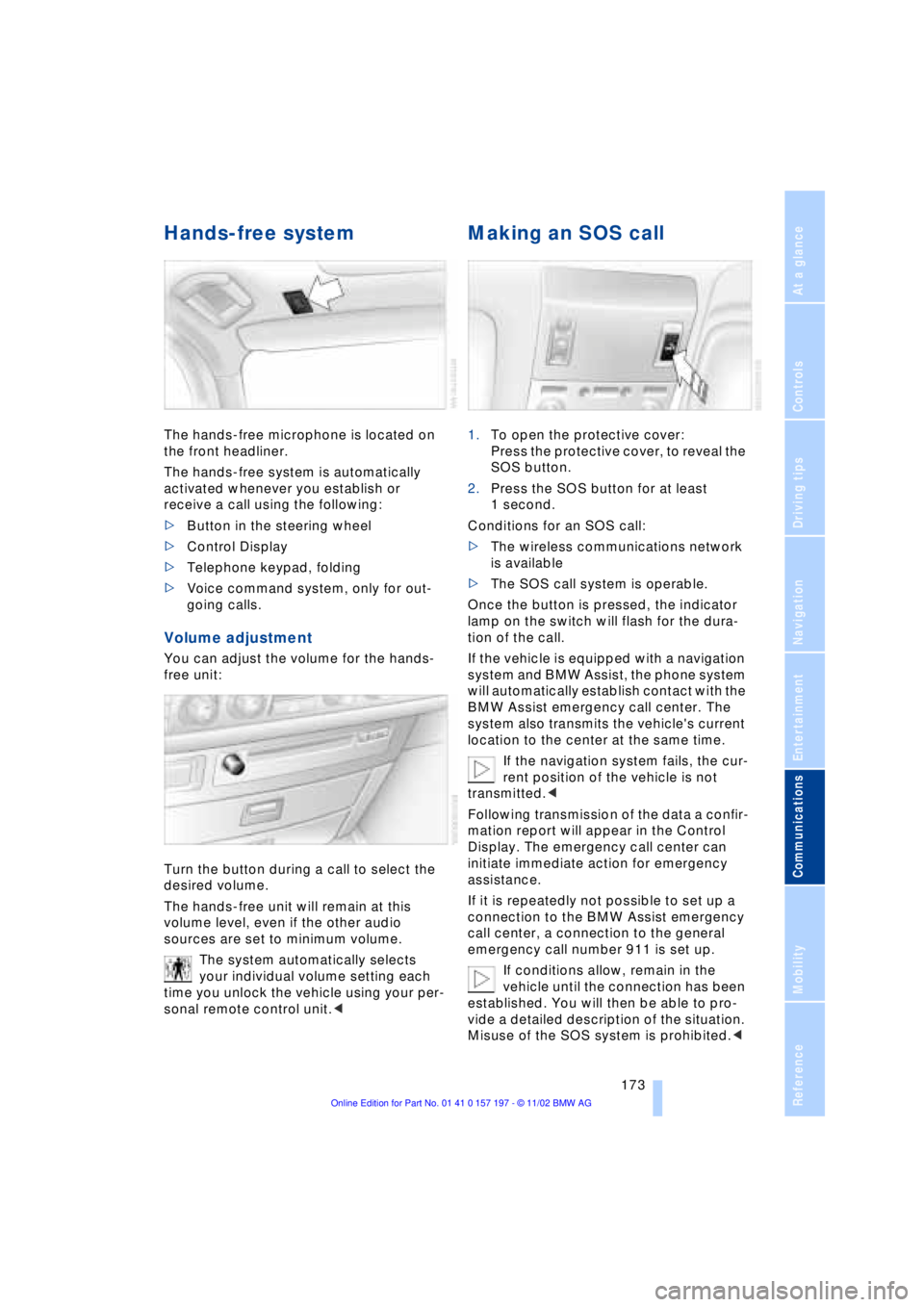
The hands-free microphone is located on
the front headliner.
The hands-free system is automatically
activated whenever you establish or
receive a call using the following:
>Button in the steering wheel
>Control Display
>Telephone keypad, folding
>Voice command system, only for out-
going calls.
Volume adjustment
You can adjust the volume for the hands-
free unit:
Turn the button during a call to select the
desired volume.
The hands-free unit will remain at this
volume level, even if the other audio
sources are set to minimum volume.
The system automatically selects
your individual volume setting each
time you unlock the vehicle using your per-
sonal remote control unit.<
Making an SOS call
1.To open the protective cover:
Press the protective cover, to reveal the
SOS button.
2.Press the SOS button for at least
1 second.
Conditions for an SOS call:
>The wireless communications network
is available
>The SOS call system is operable.
Once the button is pressed, the indicator
lamp on the switch will flash for the dura-
tion of the call.
If the vehicle is equipped with a navigation
system and BMW Assist, the phone system
will automatically establish contact with the
BMW Assist emergency call center. The
system also transmits the vehicle's current
location to the center at the same time.
If the navigation system fails, the cur-
rent position of the vehicle is not
transmitted.<
Following transmission of the data a confir-
mation report will appear in the Control
Display. The emergency call center can
initiate immediate action for emergency
assistance.
If it is repeatedly not possible to set up a
connection to the BMW Assist emergency
call center, a connection to the general
emergency call number 911 is set up.
If conditions allow, remain in the
vehicle until the connection has been
established. You will then be able to pro-
vide a detailed description of the situation.
Misuse of the SOS system is prohibited.<
Page 176 of 229
Using the phone in your vehicle
174 Under certain conditions, an SOS call is
triggered automatically immediately after a
severe accident. The automatic SOS call is
not affected by the SOS call button being
pressed.
Telephoning with the
car phone
If the BMW portable phone is not in the
cradle, you can telephone using the car
phone via the hands-free unit.
The telephone that can be used to set up a
connection is shown in the upper status
line in the Control Display.
The car phone must be enabled prior
to initial use. To do so, please consult
your BMW center.<
Calls can be set up or accepted using the
following equipment:
>Button in the steering wheel
>Control Display
Calls can only be set up via redi-
aling or missed calls.<
>Telephone keypad, folding
>Voice command system, only for out-
going calls.
Using the BMW portable
phone
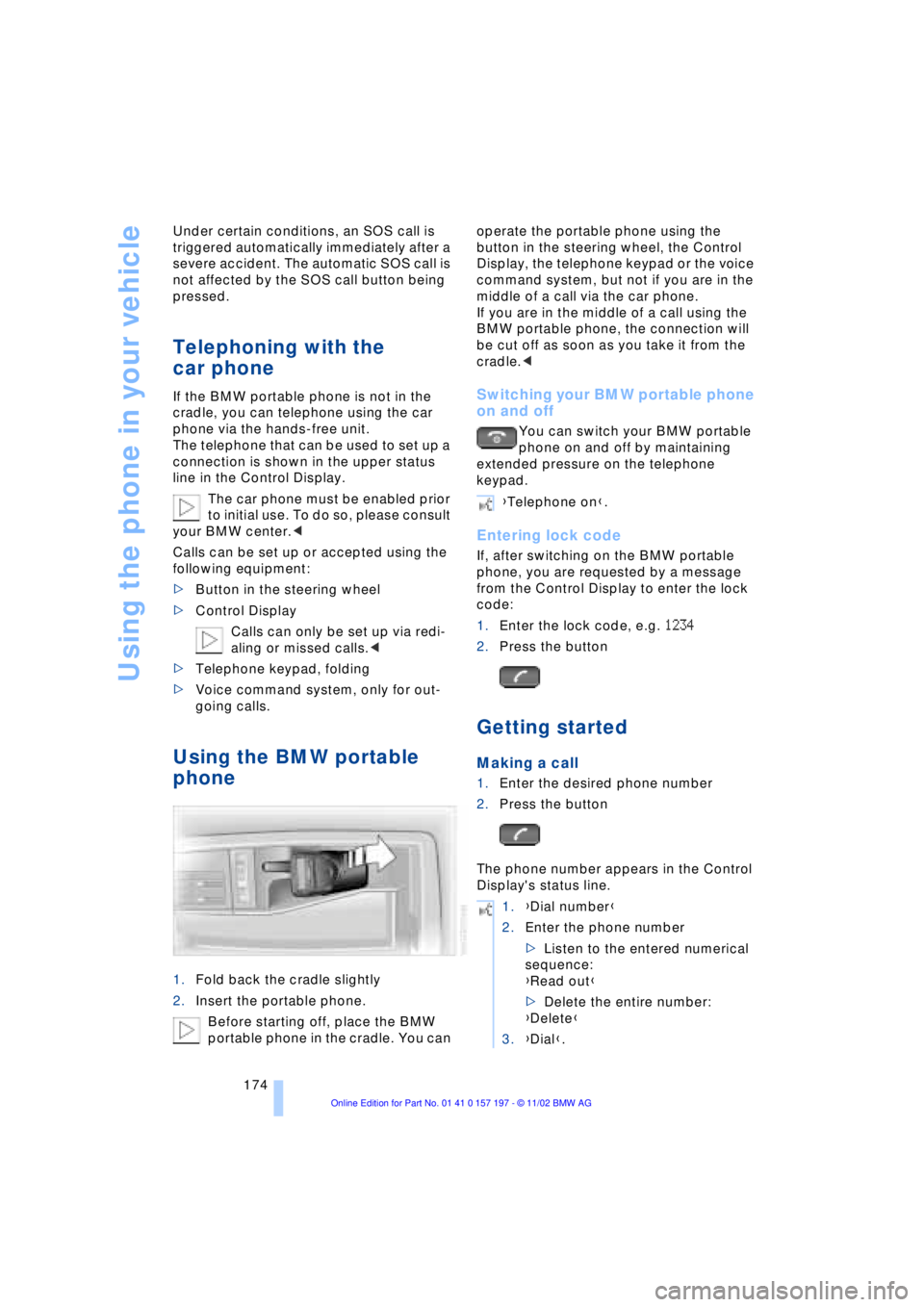
1.Fold back the cradle slightly
2.Insert the portable phone.
Before starting off, place the BMW
portable phone in the cradle. You can operate the portable phone using the
button in the steering wheel, the Control
Display, the telephone keypad or the voice
command system, but not if you are in the
middle of a call via the car phone.
If you are in the middle of a call using the
BMW portable phone, the connection will
be cut off as soon as you take it from the
cradle.<
Switching your BMW portable phone
on and off
You can switch your BMW portable
phone on and off by maintaining
extended pressure on the telephone
keypad.
Entering lock code
If, after switching on the BMW portable
phone, you are requested by a message
from the Control Display to enter the lock
code:
1.Enter the lock code, e.g. 1234
2.Press the button
Getting started
Making a call
1.Enter the desired phone number
2.Press the button
The phone number appears in the Control
Display's status line.
{Telephone on}.
1.{Dial number}
2.Enter the phone number
>Listen to the entered numerical
sequence:
{Read out}
>Delete the entire number:
{Delete}
3.{Dial}.
Page 177 of 229
At a glance
Controls
Driving tips Communications
Navigation
Entertainment
Mobility
Reference
175
Always remember to enter the com-
plete telephone number, including the
area code, even if you are currently in the
same area as the number that you wish to
contact.<
Ending call
Press the button
Telephone directory
You must enter your portable phone's tele-
phone directory in the voice command
system before it will be available for access
using voice commands. This creates a spe-
cial voice command telephone directory. If
changes are then made to the directory
using the voice command system, these
modifications will apply exclusively to the
voice directory, and not to the directory in
the portable phone.
Creating and updating voice
command telephone directory*
The entries in the portable phone's tele-
phone directory appear sequentially in the
Info Display.
You must assign a specific name to each
number that you wish to transfer to the
voice command telephone directory. These
numbers will no longer be requested during
updates.
Making a new entry in the voice
command directory
Dialing from telephone directory
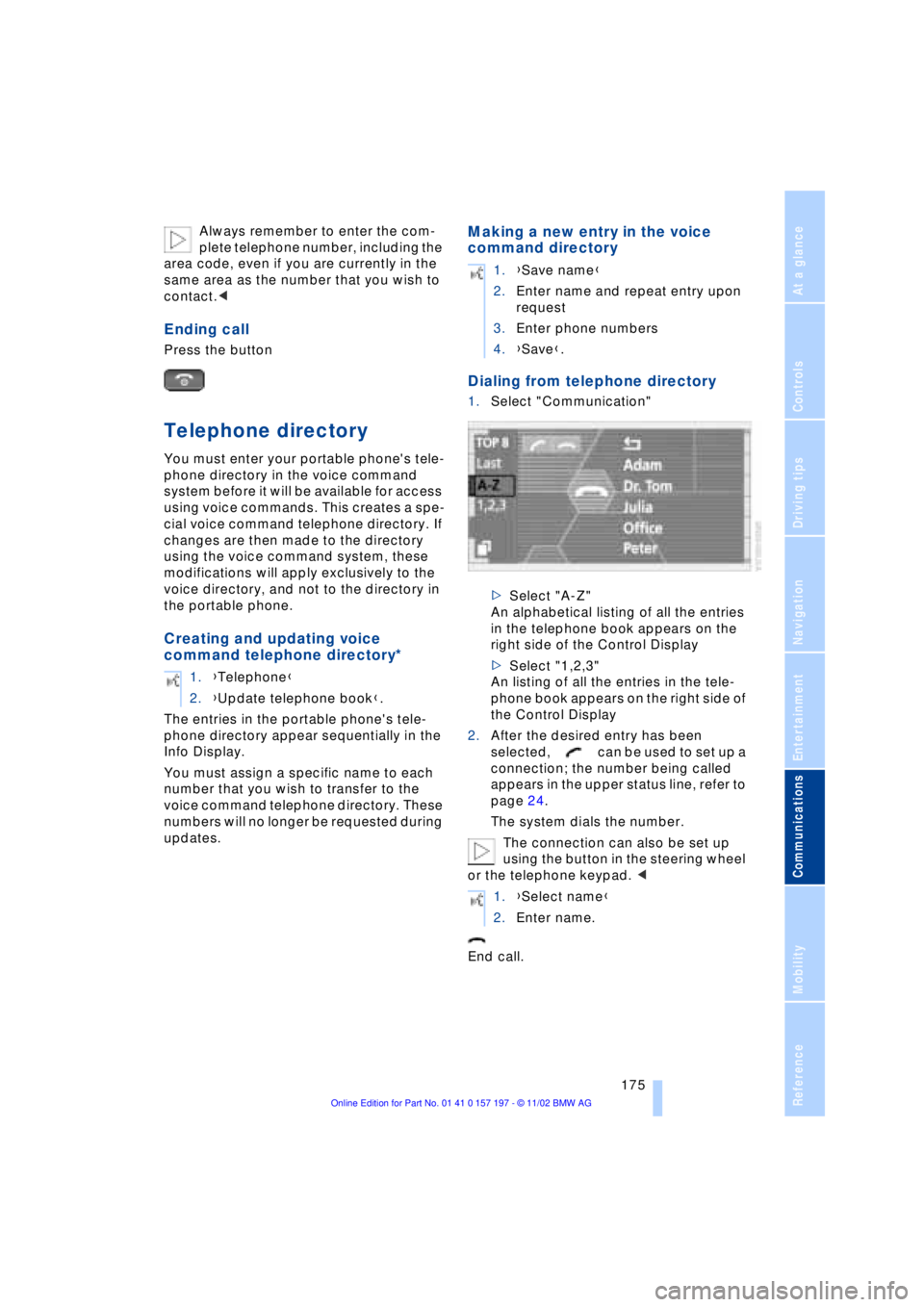
1.Select "Communication"
>Select "A-Z"
An alphabetical listing of all the entries
in the telephone book appears on the
right side of the Control Display
>Select "1,2,3"
An listing of all the entries in the tele-
phone book appears on the right side of
the Control Display
2.After the desired entry has been
selected, can be used to set up a
connection; the number being called
appears in the upper status line, refer to
page 24.
The system dials the number.
The connection can also be set up
using the button in the steering wheel
or the telephone keypad. <
End call. 1.{Telephone}
2.{Update telephone book}.
1.{Save name}
2.Enter name and repeat entry upon
request
3.Enter phone numbers
4.{Save}.
1.{Select name}
2.Enter name.
Page 178 of 229
Using the phone in your vehicle
176
Viewing entries
Deleting individual entries
Deleting the entire telephone
directory
Selecting a number from
the Top 8 list
The eight numbers that you call most fre-
quently on the BMW portable phone are
automatically stored in the Top 8 list. The
number called most often appears at the
top of the list.
1.In the "Communication" menu, select
"TOP 8" and confirm
2.Select an entry from the list that now
appears in the display, and confirm
3.After the desired entry has been
selected, can be used to set up a
connection; the number being called
appears in the upper status line, refer to
page 24.
The connection can also be set up
using the button in the steering wheel
or the telephone keypad.<
End call.
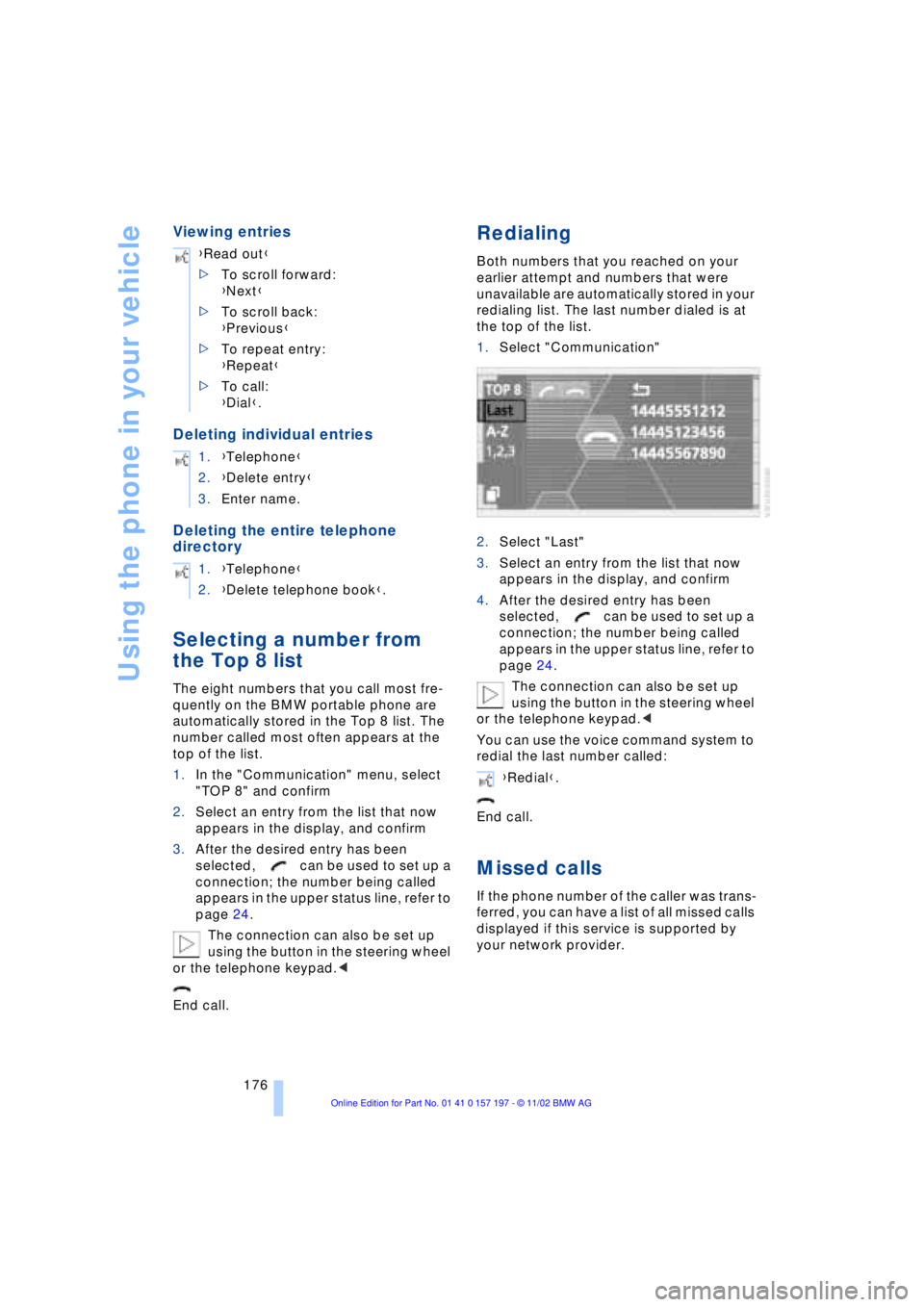
Redialing
Both numbers that you reached on your
earlier attempt and numbers that were
unavailable are automatically stored in your
redialing list. The last number dialed is at
the top of the list.
1.Select "Communication"
2.Select "Last"
3.Select an entry from the list that now
appears in the display, and confirm
4.After the desired entry has been
selected, can be used to set up a
connection; the number being called
appears in the upper status line, refer to
page 24.
The connection can also be set up
using the button in the steering wheel
or the telephone keypad.<
You can use the voice command system to
redial the last number called:
End call.
Missed calls
If the phone number of the caller was trans-
ferred, you can have a list of all missed calls
displayed if this service is supported by
your network provider. {Read out}
>To scroll forward:
{Next}
>To scroll back:
{Previous}
>To repeat entry:
{Repeat}
>To call:
{Dial}.
1.{Telephone}
2.{Delete entry}
3.Enter name.
1.{Telephone}
2.{Delete telephone book}.
{Redial}.
Page 179 of 229
At a glance
Controls
Driving tips Communications
Navigation
Entertainment
Mobility
Reference
177
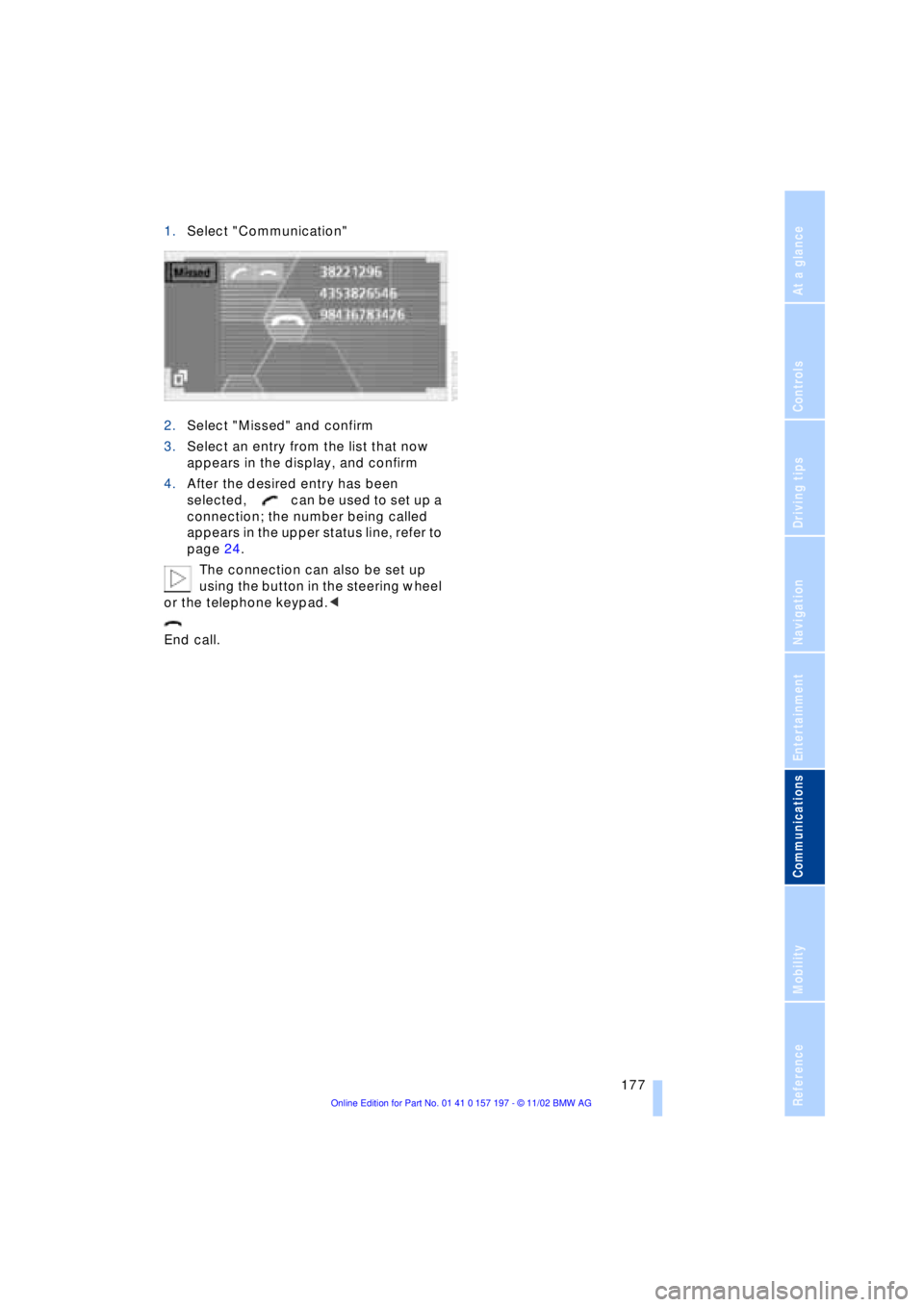
1.Select "Communication"
2.Select "Missed" and confirm
3.Select an entry from the list that now
appears in the display, and confirm
4.After the desired entry has been
selected, can be used to set up a
connection; the number being called
appears in the upper status line, refer to
page 24.
The connection can also be set up
using the button in the steering wheel
or the telephone keypad.<
End call.