2003 BMW 760LI SEDAN display
[x] Cancel search: displayPage 113 of 229
At a glance
Controls
Driving tips
Communications
Navigation
Entertainment
Mobility
Reference
111
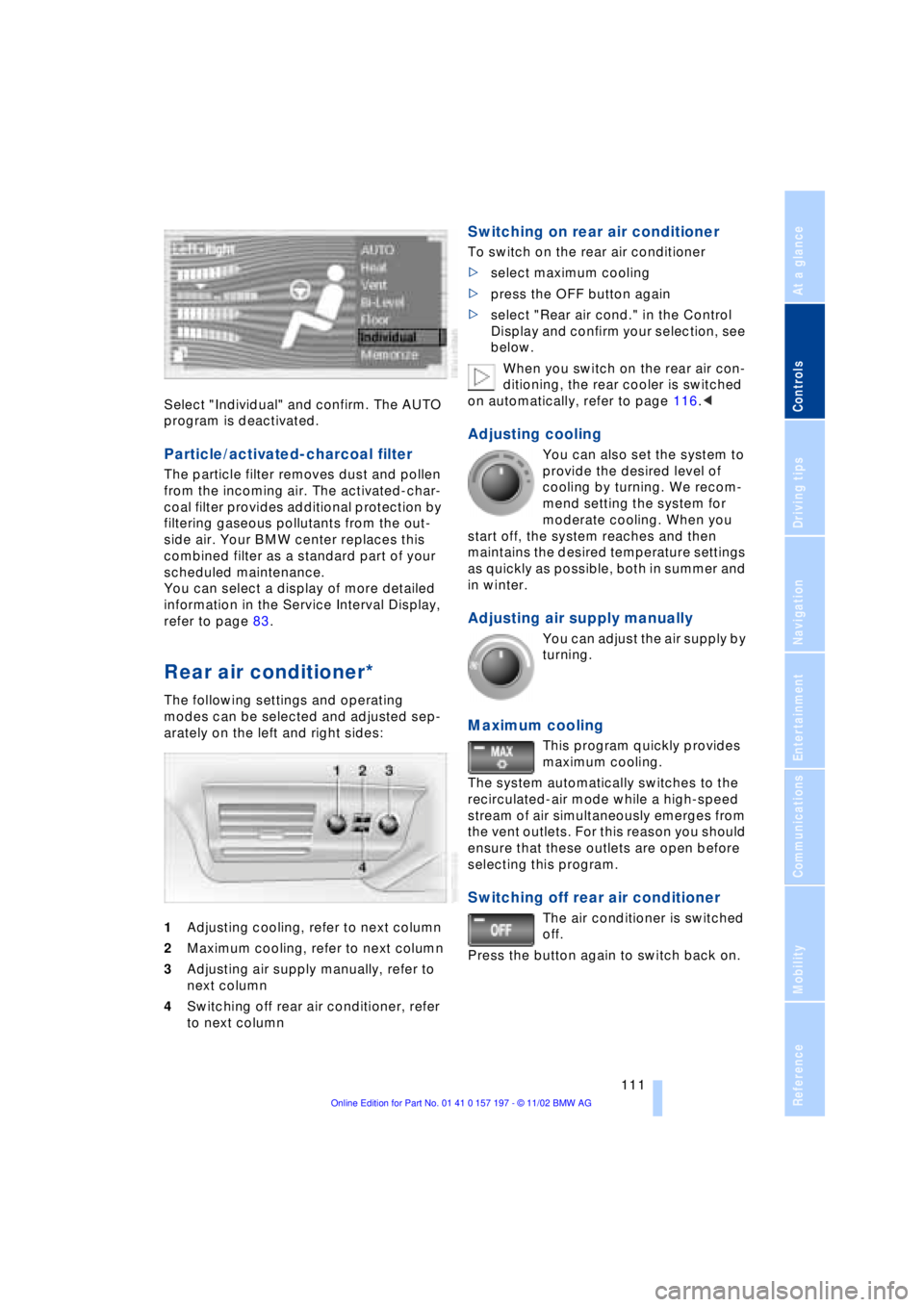
Select "Individual" and confirm. The AUTO
program is deactivated.
Particle/activated-charcoal filter
The particle filter removes dust and pollen
from the incoming air. The activated-char-
coal filter provides additional protection by
filtering gaseous pollutants from the out-
side air. Your BMW center replaces this
combined filter as a standard part of your
scheduled maintenance.
You can select a display of more detailed
information in the Service Interval Display,
refer to page 83.
Rear air conditioner*
The following settings and operating
modes can be selected and adjusted sep-
arately on the left and right sides:
1Adjusting cooling, refer to next column
2Maximum cooling, refer to next column
3Adjusting air supply manually, refer to
next column
4Switching off rear air conditioner, refer
to next column
Switching on rear air conditioner
To switch on the rear air conditioner
>select maximum cooling
>press the OFF button again
>select "Rear air cond." in the Control
Display and confirm your selection, see
below.
When you switch on the rear air con-
ditioning, the rear cooler is switched
on automatically, refer to page 116.<
Adjusting cooling
You can also set the system to
provide the desired level of
cooling by turning. We recom-
mend setting the system for
moderate cooling. When you
start off, the system reaches and then
maintains the desired temperature settings
as quickly as possible, both in summer and
in winter.
Adjusting air supply manually
You can adjust the air supply by
turning.
Maximum cooling
This program quickly provides
maximum cooling.
The system automatically switches to the
recirculated-air mode while a high-speed
stream of air simultaneously emerges from
the vent outlets. For this reason you should
ensure that these outlets are open before
selecting this program.
Switching off rear air conditioner
The air conditioner is switched
off.
Press the button again to switch back on.
Page 114 of 229
A congenial climate
112
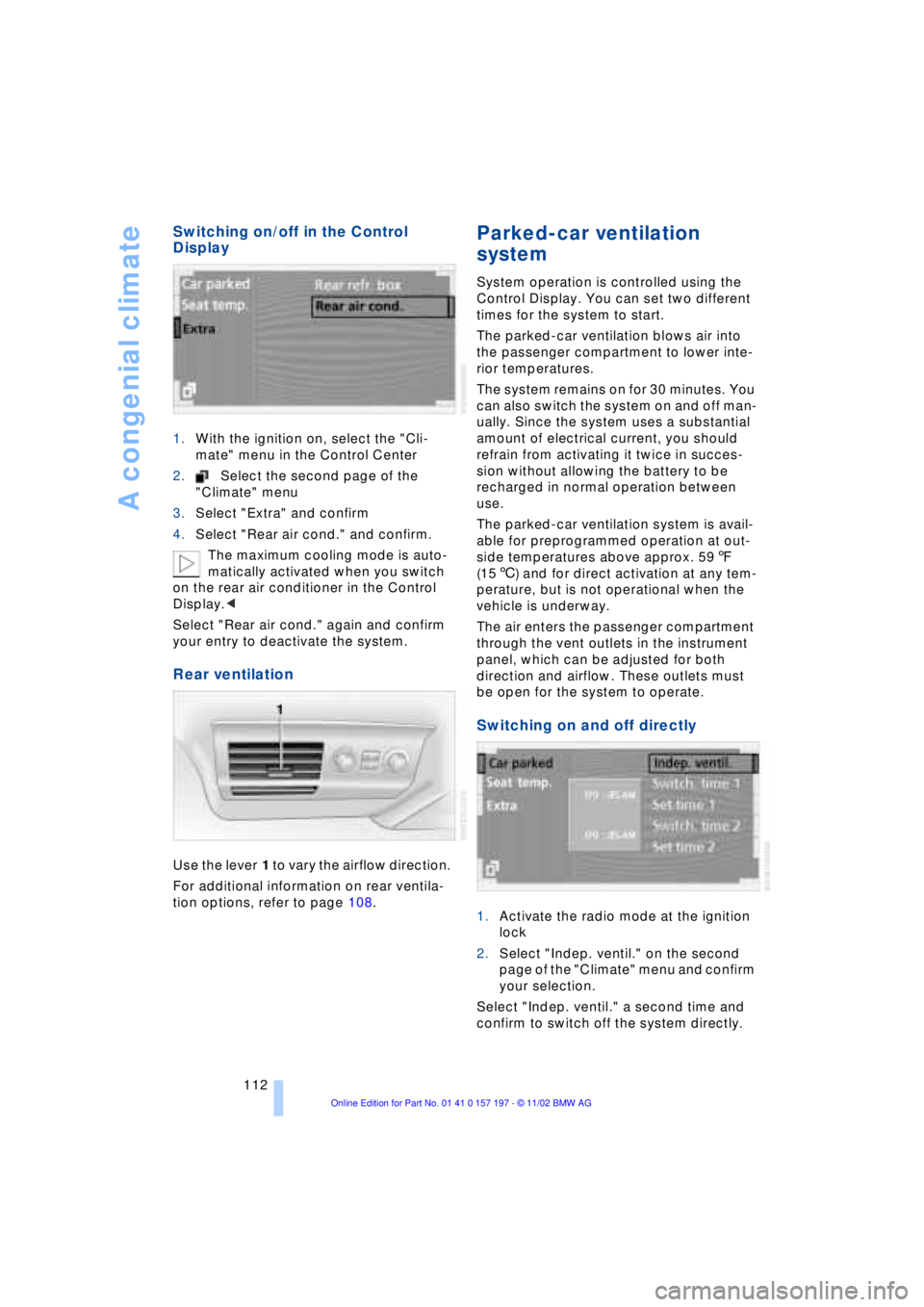
Switching on/off in the Control
Display
1.With the ignition on, select the "Cli-
mate" menu in the Control Center
2.Select the second page of the
"Climate" menu
3.Select "Extra" and confirm
4.Select "Rear air cond." and confirm.
The maximum cooling mode is auto-
matically activated when you switch
on the rear air conditioner in the Control
Display.<
Select "Rear air cond." again and confirm
your entry to deactivate the system.
Rear ventilation
Use the lever 1 to vary the airflow direction.
For additional information on rear ventila-
tion options, refer to page 108.
Parked-car ventilation
system
System operation is controlled using the
Control Display. You can set two different
times for the system to start.
The parked-car ventilation blows air into
the passenger compartment to lower inte-
rior temperatures.
The system remains on for 30 minutes. You
can also switch the system on and off man-
ually. Since the system uses a substantial
amount of electrical current, you should
refrain from activating it twice in succes-
sion without allowing the battery to be
recharged in normal operation between
use.
The parked-car ventilation system is avail-
able for preprogrammed operation at out-
side temperatures above approx. 597
(156) and for direct activation at any tem-
perature, but is not operational when the
vehicle is underway.
The air enters the passenger compartment
through the vent outlets in the instrument
panel, which can be adjusted for both
direction and airflow. These outlets must
be open for the system to operate.
Switching on and off directly
1.Activate the radio mode at the ignition
lock
2.Select "Indep. ventil." on the second
page of the "Climate" menu and confirm
your selection.
Select "Indep. ventil." a second time and
confirm to switch off the system directly.
Page 118 of 229
Practical interior accessories
116 3Rear window blind
4Switching to the other side
The side window blind can not be
extended unless the side window is
closed. If the window is open, the blind will
rise slightly prior to immediately retracting
to its original position.<
Briefly press the safety switch in the
driver's door, refer to page 43. The
indicator lamp must light up. This precau-
tion prevents children from operating the
sun blinds using the rear switches, etc.
Before using always ensure that the sun
blind's travel path is clear and unob-
structed.
When leaving the vehicle, always remove
the remote control unit from the ignition
lock and close the doors; this precaution
prevents children from using the sun blinds
and injuring themselves, etc.<
Automatically extending and
retracting the sun blinds
You can extend and retract the sun blinds
together by pressing and holding button 3
or the button in the driver's door.
Rear cooler*
The rear cooler is located behind the rear
seats' center armrest.
Activating
Press the button, see arrow 1, the indicator
lamp within the button comes on.
On vehicles equipped with a rear air
conditioner unit, once switched on
the rear cooler operates whenever the
engine is running.
High temperatures in the luggage compart-
ment can affect the temperature in the rear
cooler.
When a low voltage is reached, it is auto-
matically switched off to protect the vehicle
battery.<
Opening
Press button and open cooler, see arrow 2.
Switching on/off in Control Display*
When the rear air conditioner unit is
switched on, the rear cooler operates
whenever the engine is running.<
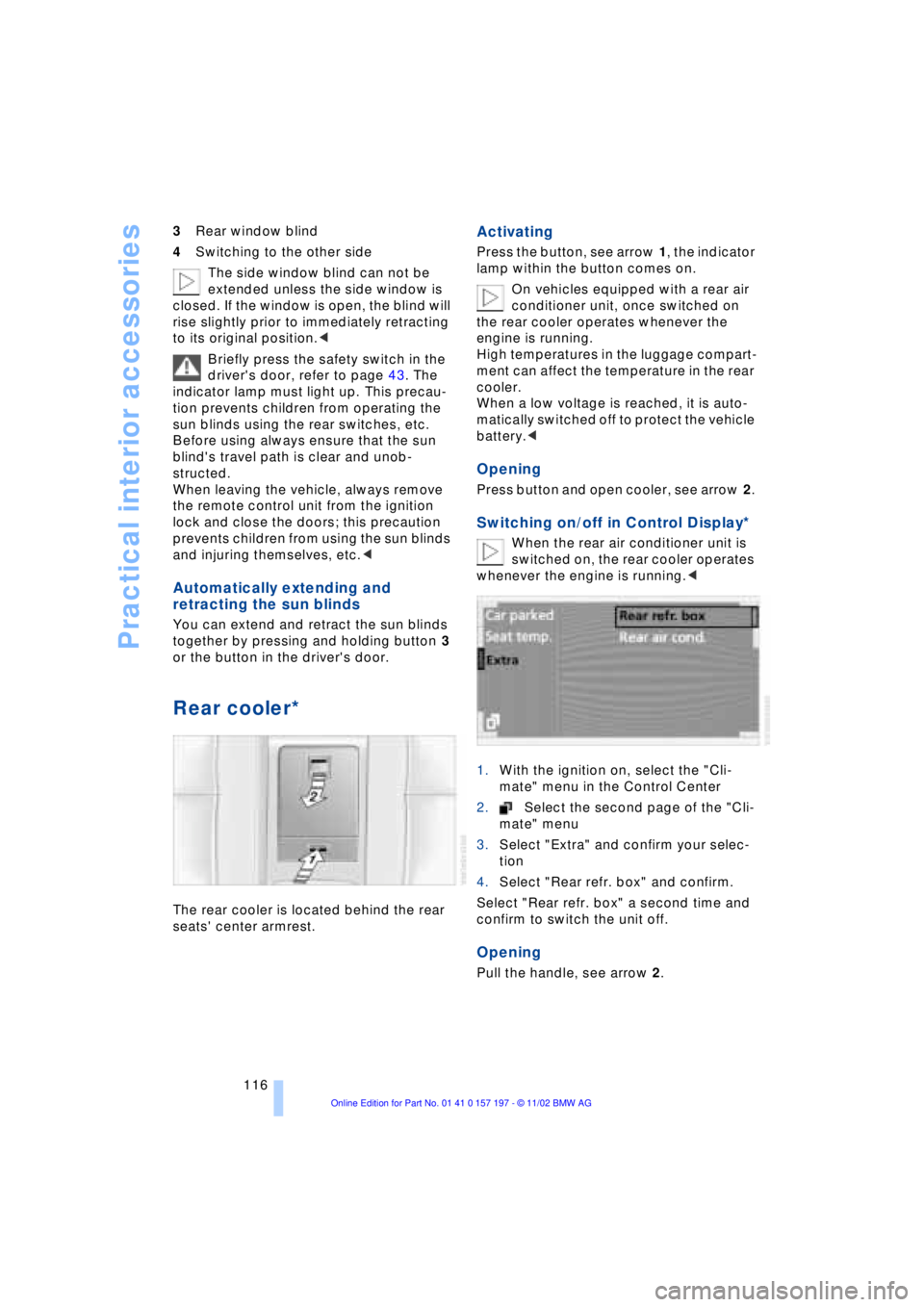
1.With the ignition on, select the "Cli-
mate" menu in the Control Center
2.Select the second page of the "Cli-
mate" menu
3.Select "Extra" and confirm your selec-
tion
4.Select "Rear refr. box" and confirm.
Select "Rear refr. box" a second time and
confirm to switch the unit off.
Opening
Pull the handle, see arrow 2.
Page 127 of 229
At a glance
Controls
Driving tips
Communications
Navigation
Entertainment
Mobility
Reference
125
undermining your ability to steer and brake
the vehicle.<
Driving through water
Do not drive through water on the
road if it is deeper than 1 ft (30 cm),
and then only at walking speed at the most.
Otherwise, the vehicle's engine, the elec-
trical systems and the transmission may be
damaged.<
Brake system
Braking with ABS
The best way to achieve optimal response
from the ABS is to apply maximum pres-
sure to the brake pedal during emergencyÐ
panic stops. Since the vehicle maintains
steering responsiveness, you can never-
theless avoid possible obstacles with a
minimum of steering effort.
Pulsation at the brake pedal combines with
sounds from the hydraulic circuits to indi-
cate to the driver that ABS is in its active
mode.
Do not drive with your foot resting on
the brake pedal. Even light but con-
sistent pedal pressure can lead to high
temperatures, brake wear and possibly
even brake failure.<
Disc brakes
Driving in wet conditions
While driving in wet conditions and in
heavy rain, it is a good idea to apply light
pressure to the brake pedal every few
miles. Monitor traffic conditions to ensure
that this maneuver does not endanger
other road users. The heat generated in this
process helps dry the pads and rotors to
ensure that full braking efficiency will then
be available when you need it.
Hills
You can retain full and unimpaired braking
efficiency by downshifting to a gear in
which only minimal brake applications are
needed when descending long or steep
downhill stretches.
You can further enhance the engine's bra-
king effect by selecting a lower gear in the
automatic transmission's manual mode,
downshifting as far as first gear on extre-
mely steep stretches, refer to page 68. This
strategy helps you avoid placing excessive
loads on the brake system.
Never allow the vehicle to coast with
the transmission in Neutral Ð or with
the engine switched off Ð there is no engine
braking when the transmission is in Neu-
tral, and no power-assist for brakes and
steering when the engine is not running.
Never allow floor mats, carpets or any other
objects to protrude into the area around the
accelerator and brake pedals and obstruct
their movement.<
Corrosion
When the vehicle is driven only occasio-
nally, during extended periods when the
vehicle is not used at all, and in operating
conditions where brake applications are
less frequent, there is an increased ten-
dency for corrosion to form on rotors, while
contaminants accumulate on the brake
pads. This occurs because the minimal
pressure which must be exerted by the
pads during brake applications to clean the
rotors is not reached.
Should corrosion form on the brake rotors,
the brakes will tend to respond with a pul-
sating effect that even extended applica-
tion will fail to cure.
Brake pads
If the brake pad wear warning lamp
appears in the Check Control,
accompanied by a text: please take
careful note of the additional information in
the Control Display.
Page 133 of 229
At a glance
Controls
Driving tips
Communications
Navigation
Entertainment
Mobility
Reference
131
Allow approx. eight seconds for the
system to scan the data from the new
CD.
Starting the navigation
system
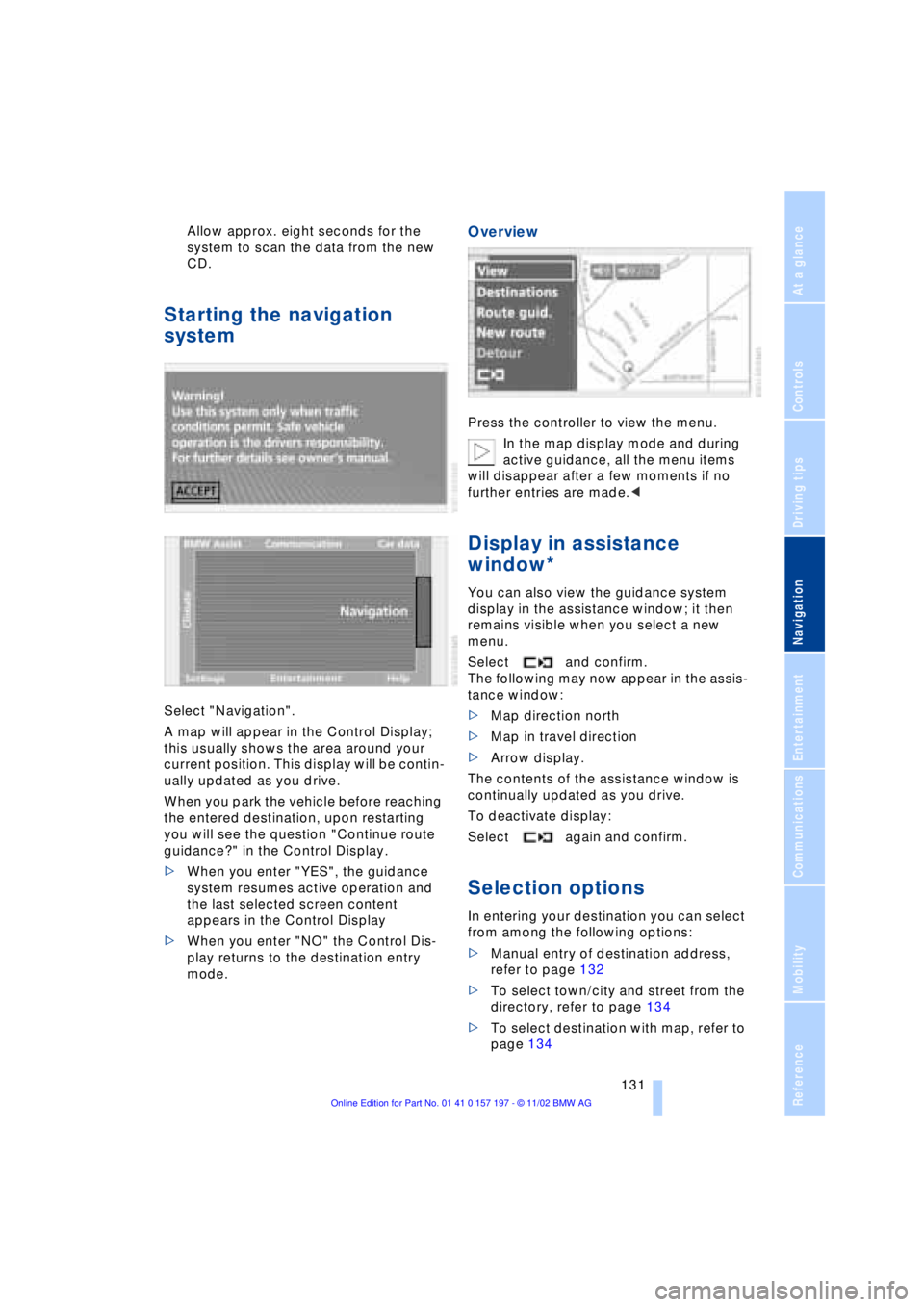
Select "Navigation".
A map will appear in the Control Display;
this usually shows the area around your
current position. This display will be contin-
ually updated as you drive.
When you park the vehicle before reaching
the entered destination, upon restarting
you will see the question "Continue route
guidance?" in the Control Display.
>When you enter "YES", the guidance
system resumes active operation and
the last selected screen content
appears in the Control Display
>When you enter "NO" the Control Dis-
play returns to the destination entry
mode.
Overview
Press the controller to view the menu.
In the map display mode and during
active guidance, all the menu items
will disappear after a few moments if no
further entries are made.<
Display in assistance
window*
You can also view the guidance system
display in the assistance window; it then
remains visible when you select a new
menu.
Select and confirm.
The following may now appear in the assis-
tance window:
>Map direction north
>Map in travel direction
>Arrow display.
The contents of the assistance window is
continually updated as you drive.
To deactivate display:
Select again and confirm.
Selection options
In entering your destination you can select
from among the following options:
>Manual entry of destination address,
refer to page 132
>To select town/city and street from the
directory, refer to page 134
>To select destination with map, refer to
page 134
Page 135 of 229
At a glance
Controls
Driving tips
Communications
Navigation
Entertainment
Mobility
Reference
133
The example shows how to use the naviga-
tion system to find the following destina-
tion:
United States
Beverly Hills, Ca
455 N Rexford Drive
To enter the destination address:
Select "ABC..." and confirm.
Entering name
The name is not required for the destination
guidance system or storage in the list, how-
ever can simplify the assignment of
addresses.
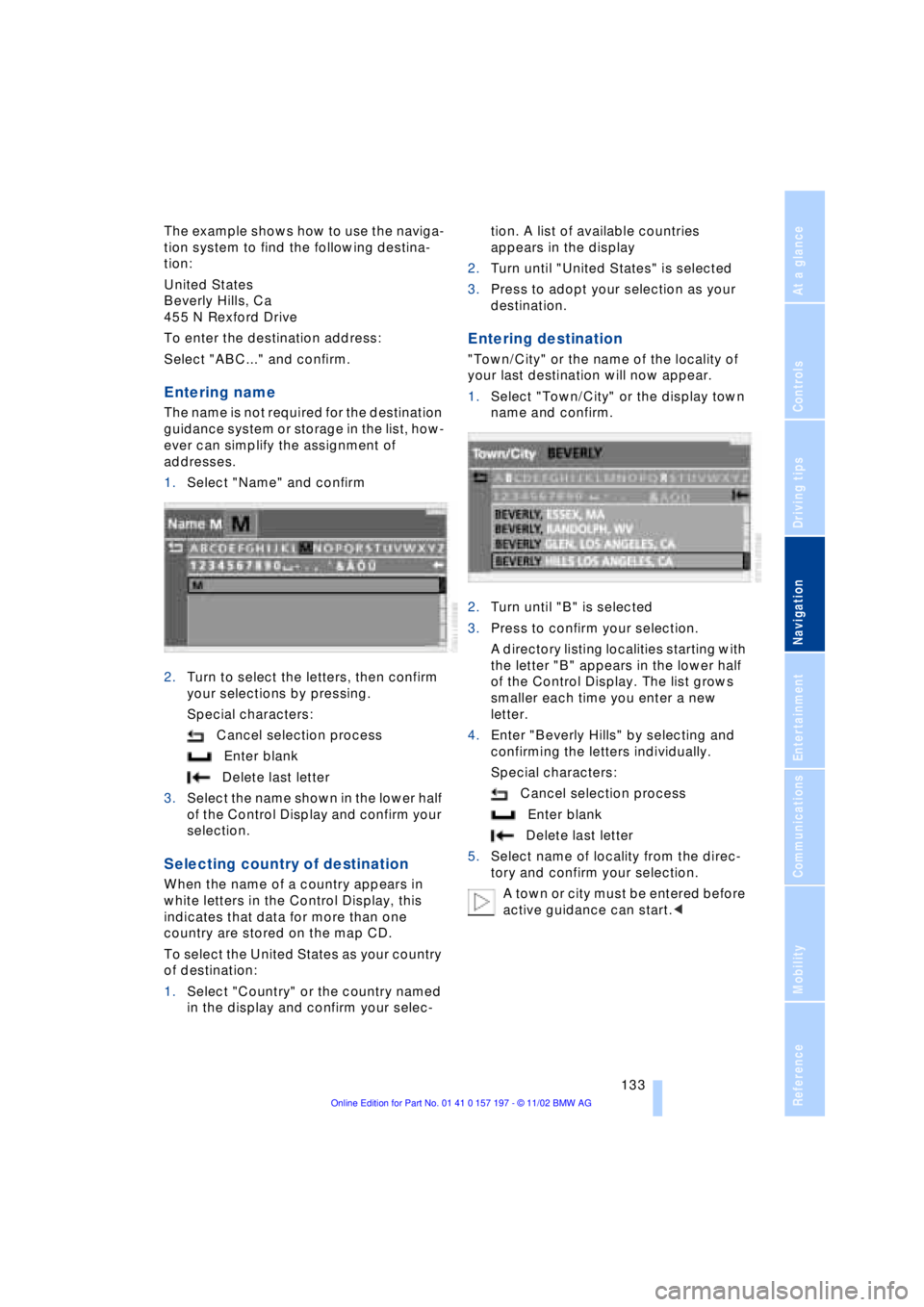
1.Select "Name" and confirm
2.Turn to select the letters, then confirm
your selections by pressing.
Special characters:
Cancel selection process
Enter blank
Delete last letter
3.Select the name shown in the lower half
of the Control Display and confirm your
selection.
Selecting country of destination
When the name of a country appears in
white letters in the Control Display, this
indicates that data for more than one
country are stored on the map CD.
To select the United States as your country
of destination:
1.Select "Country" or the country named
in the display and confirm your selec-tion. A list of available countries
appears in the display
2.Turn until "United States" is selected
3.Press to adopt your selection as your
destination.
Entering destination
"Town/City" or the name of the locality of
your last destination will now appear.
1.Select "Town/City" or the display town
name and confirm.
2.Turn until "B" is selected
3.Press to confirm your selection.
A directory listing localities starting with
the letter "B" appears in the lower half
of the Control Display. The list grows
smaller each time you enter a new
letter.
4.Enter "Beverly Hills" by selecting and
confirming the letters individually.
Special characters:
Cancel selection process
Enter blank
Delete last letter
5.Select name of locality from the direc-
tory and confirm your selection.
A town or city must be entered before
active guidance can start.<
Page 136 of 229
Navigation
134
Entering street, house number and
intersection
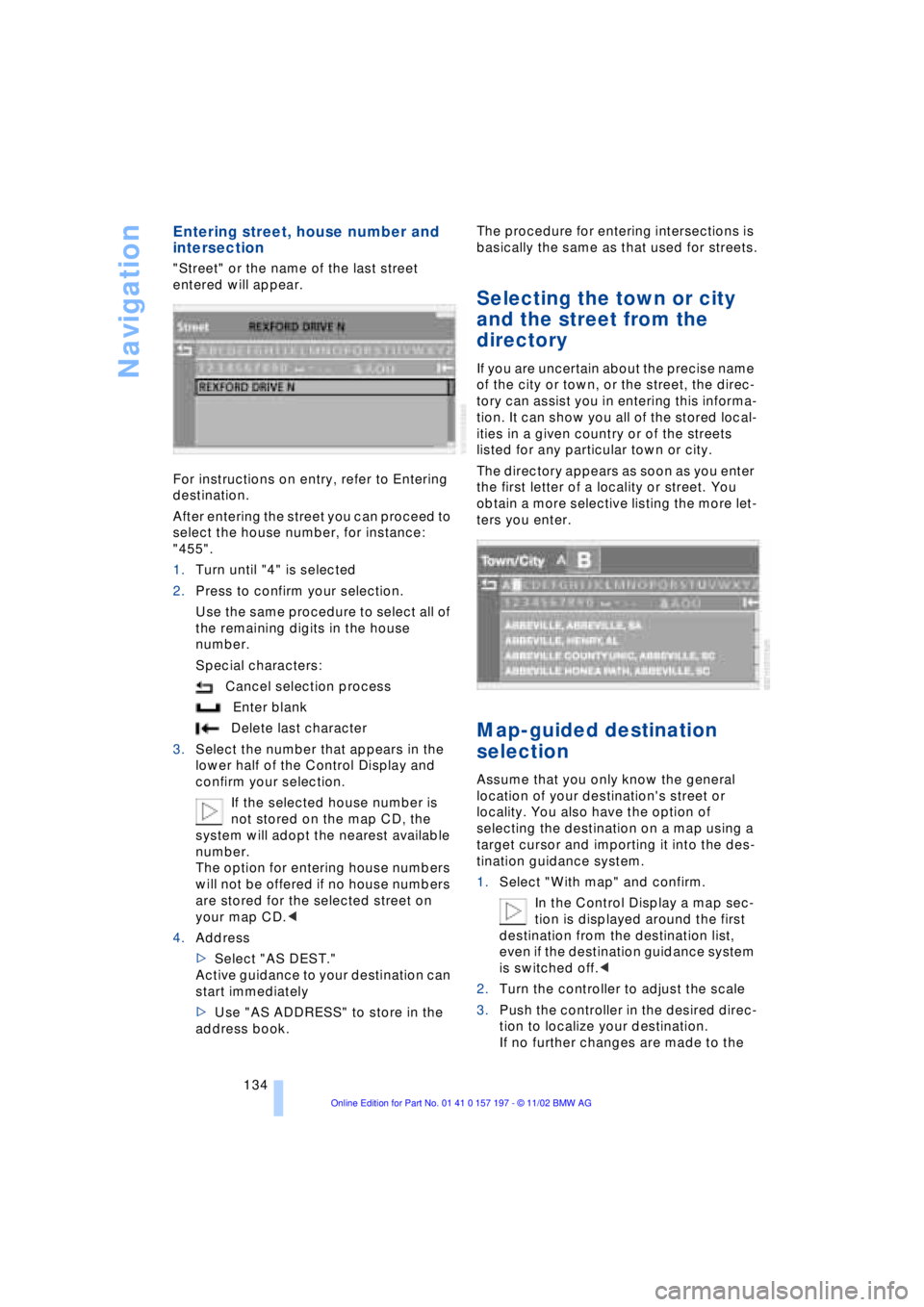
"Street" or the name of the last street
entered will appear.
For instructions on entry, refer to Entering
destination.
After entering the street you can proceed to
select the house number, for instance:
"455".
1.Turn until "4" is selected
2.Press to confirm your selection.
Use the same procedure to select all of
the remaining digits in the house
number.
Special characters:
Cancel selection process
Enter blank
Delete last character
3.Select the number that appears in the
lower half of the Control Display and
confirm your selection.
If the selected house number is
not stored on the map CD, the
system will adopt the nearest available
number.
The option for entering house numbers
will not be offered if no house numbers
are stored for the selected street on
your map CD.<
4.Address
>Select "AS DEST."
Active guidance to your destination can
start immediately
>Use "AS ADDRESS" to store in the
address book.The procedure for entering intersections is
basically the same as that used for streets.
Selecting the town or city
and the street from the
directory
If you are uncertain about the precise name
of the city or town, or the street, the direc-
tory can assist you in entering this informa-
tion. It can show you all of the stored local-
ities in a given country or of the streets
listed for any particular town or city.
The directory appears as soon as you enter
the first letter of a locality or street. You
obtain a more selective listing the more let-
ters you enter.
Map-guided destination
selection
Assume that you only know the general
location of your destination's street or
locality. You also have the option of
selecting the destination on a map using a
target cursor and importing it into the des-
tination guidance system.
1.Select "With map" and confirm.
In the Control Display a map sec-
tion is displayed around the first
destination from the destination list,
even if the destination guidance system
is switched off.<
2.Turn the controller to adjust the scale
3.Push the controller in the desired direc-
tion to localize your destination.
If no further changes are made to the
Page 137 of 229
At a glance
Controls
Driving tips
Communications
Navigation
Entertainment
Mobility
Reference
135
map, after a brief pause the name of the
street or locality marked by the cursor
will appear on the screen.
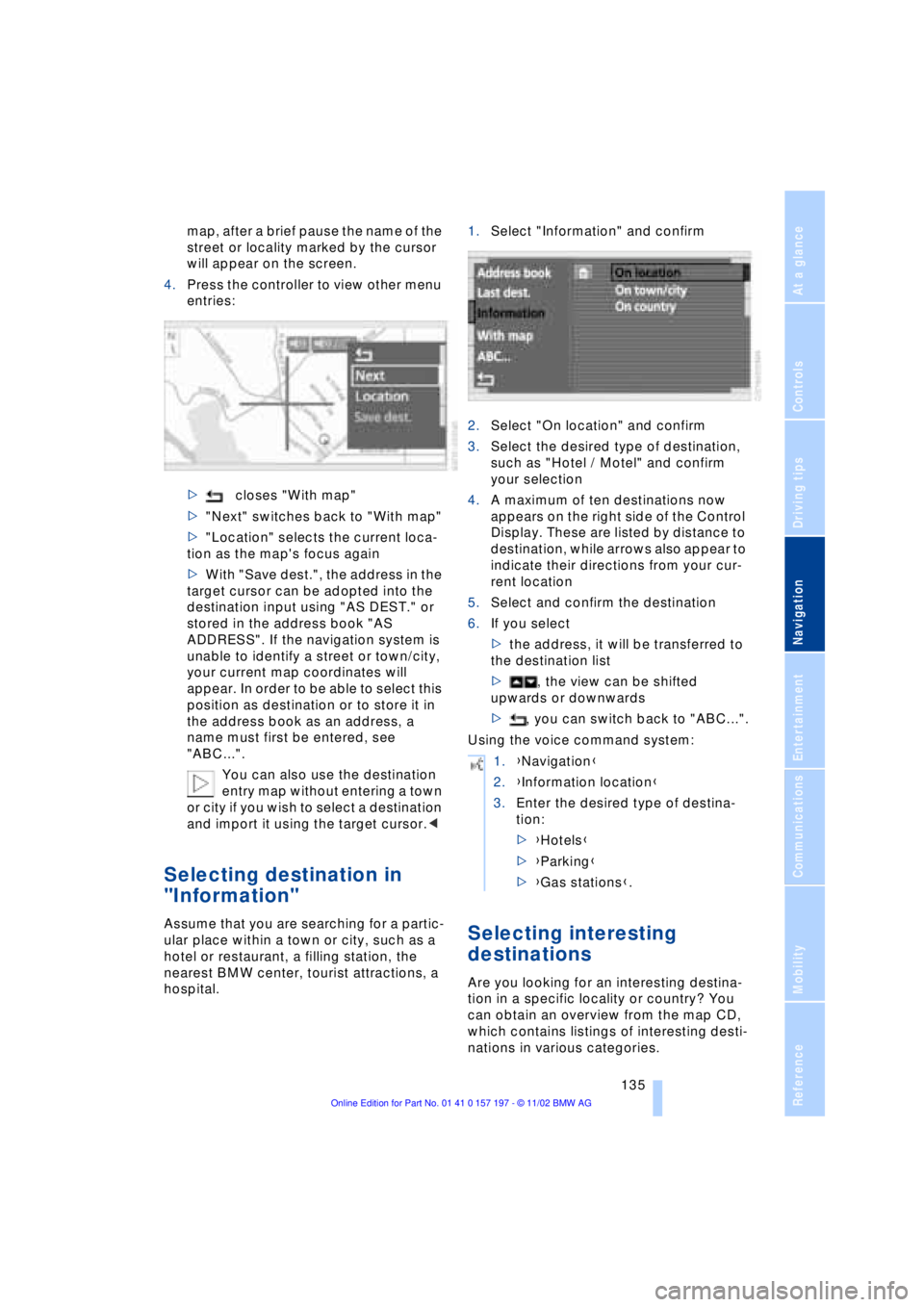
4.Press the controller to view other menu
entries:
>closes "With map"
>"Next" switches back to "With map"
>"Location" selects the current loca-
tion as the map's focus again
>With "Save dest.", the address in the
target cursor can be adopted into the
destination input using "AS DEST." or
stored in the address book "AS
ADDRESS". If the navigation system is
unable to identify a street or town/city,
your current map coordinates will
appear. In order to be able to select this
position as destination or to store it in
the address book as an address, a
name must first be entered, see
"ABC...".
You can also use the destination
entry map without entering a town
or city if you wish to select a destination
and import it using the target cursor.<
Selecting destination in
"Information"
Assume that you are searching for a partic-
ular place within a town or city, such as a
hotel or restaurant, a filling station, the
nearest BMW center, tourist attractions, a
hospital.1.Select "Information" and confirm
2.Select "On location" and confirm
3.Select the desired type of destination,
such as "Hotel / Motel" and confirm
your selection
4.A maximum of ten destinations now
appears on the right side of the Control
Display. These are listed by distance to
destination, while arrows also appear to
indicate their directions from your cur-
rent location
5.Select and confirm the destination
6.If you select
>the address, it will be transferred to
the destination list
>, the view can be shifted
upwards or downwards
>, you can switch back to "ABC...".
Using the voice command system:Selecting interesting
destinations
Are you looking for an interesting destina-
tion in a specific locality or country? You
can obtain an overview from the map CD,
which contains listings of interesting desti-
nations in various categories.
1.{Navigation}
2.{Information location}
3.Enter the desired type of destina-
tion:
>{Hotels}
>{Parking}
>{Gas stations}.