2003 BMW 760LI SEDAN display
[x] Cancel search: displayPage 151 of 229
At a glance
Controls
Driving tips
Communications
Navigation
Entertainment
Mobility
Reference
149
Radio
Operating temperatures
Only operate the radio at tempera-
tures of 57 (Ð156) to 1407
(+606) otherwise, malfunctions can
occur.
Even when switched off, the device should
only be exposed to temperatures between
Ð137 (Ð256) and 1857 (+856).<
Starting
1.Switch on audio or video sources, refer
to page 147
If a video source is switched on,
select "Audio" and confirm.<
2.If another audio source is switched on,
select "FM..." or "AM..." and confirm.
Volume adjustment, refer to page 147.
Tone control, refer to page 147.
Stopping
Switch off audio or video sources, refer to
page 147
or switch over to
>CD player, refer to page 153
>CD changer, refer to page 155
>Cassette deck, refer to page 158
>TV, refer to page 160
>DVD, refer to page 162.
Selecting frequency band
Your radio provides reception of the FM
and AM wavebands.
To select waveband:
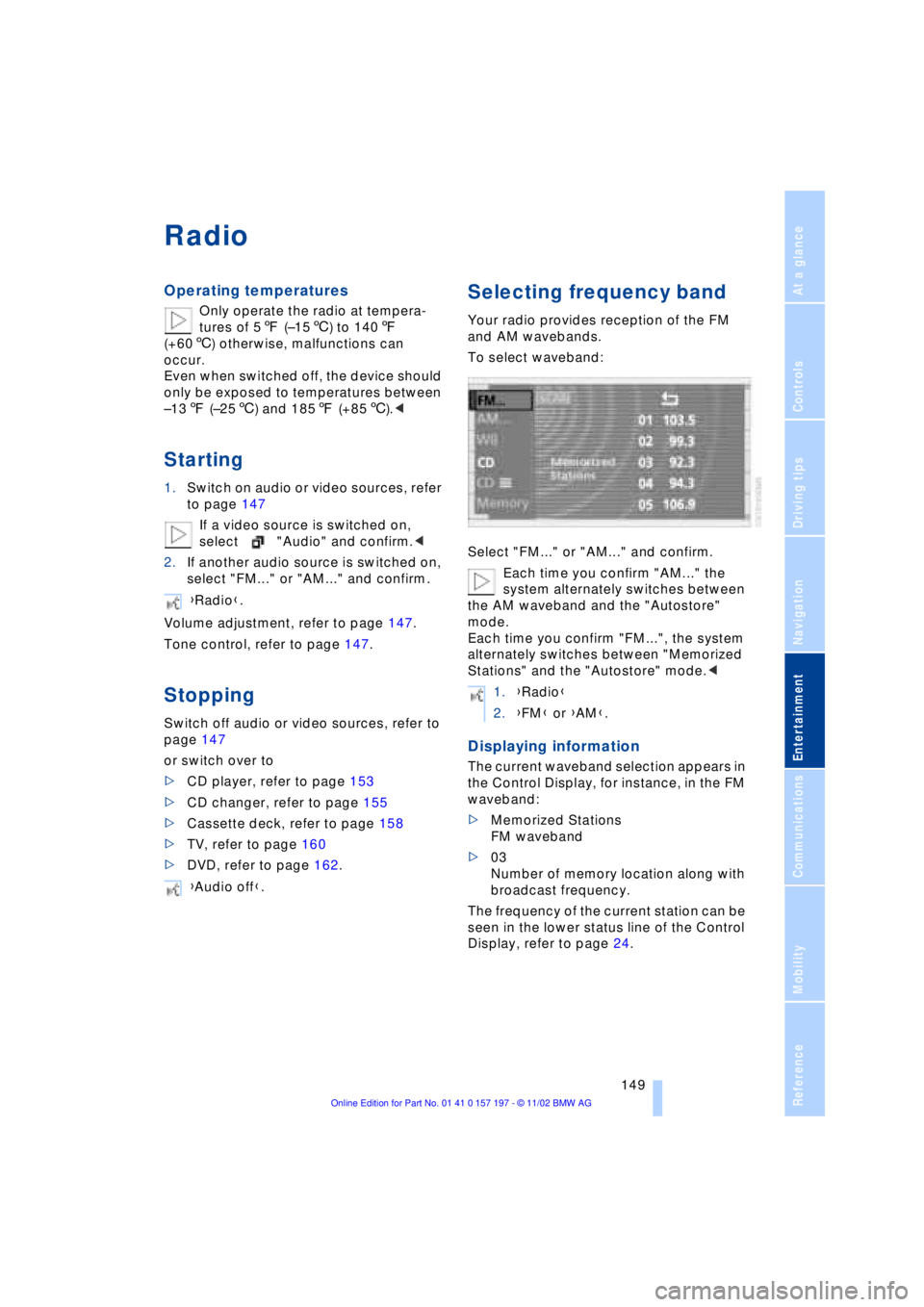
Select "FM..." or "AM..." and confirm.
Each time you confirm "AM..." the
system alternately switches between
the AM waveband and the "Autostore"
mode.
Each time you confirm "FM...", the system
alternately switches between "Memorized
Stations" and the "Autostore" mode.<
Displaying information
The current waveband selection appears in
the Control Display, for instance, in the FM
waveband:
>Memorized Stations
FM waveband
>03
Number of memory location along with
broadcast frequency.
The frequency of the current station can be
seen in the lower status line of the Control
Display, refer to page 24. {Radio}.
{Audio off}.
1.{Radio}
2.{FM} or {AM}.
Page 152 of 229
Radio
150
Selecting a station
Selecting station manually
To search for a particular station by
selecting its frequency
Scanning
To start scanning:
Extended pressure.
The scan mode begins with the currently
selected frequency.
The scan mode is stopped as soon as a
station is found.
The frequency of the station appears in the
bottom status line, refer to page 24.
Next station
Press to select the desired direction.
The next station that appears in the Control
Display is displayed.
Sampling and selecting Ð Scan
The automatic scan search feature auto-
matically plays a brief sample from each
station in the selected waveband.
1.Select "SCAN" in the Control Display
and confirm your selection.
Station search starts
2.To select a station:
Confirm "SCAN" a second time.
This cancels the scan function, and the
radio remains on the current station.
Storing and retrieving a
station
Memory locations
Your radio can store 36 stations:
>You can store as many as 18 stations in
the FM waveband
>You can store up to 18 stations in the
AM waveband.
Each time you confirm "AM..." the
system alternately switches between
the AM waveband and the "Autostore"
mode.
Each time you confirm "FM...", the system
alternately switches between "Memorized
Stations" and the "Autostore" mode.<
Storing a station
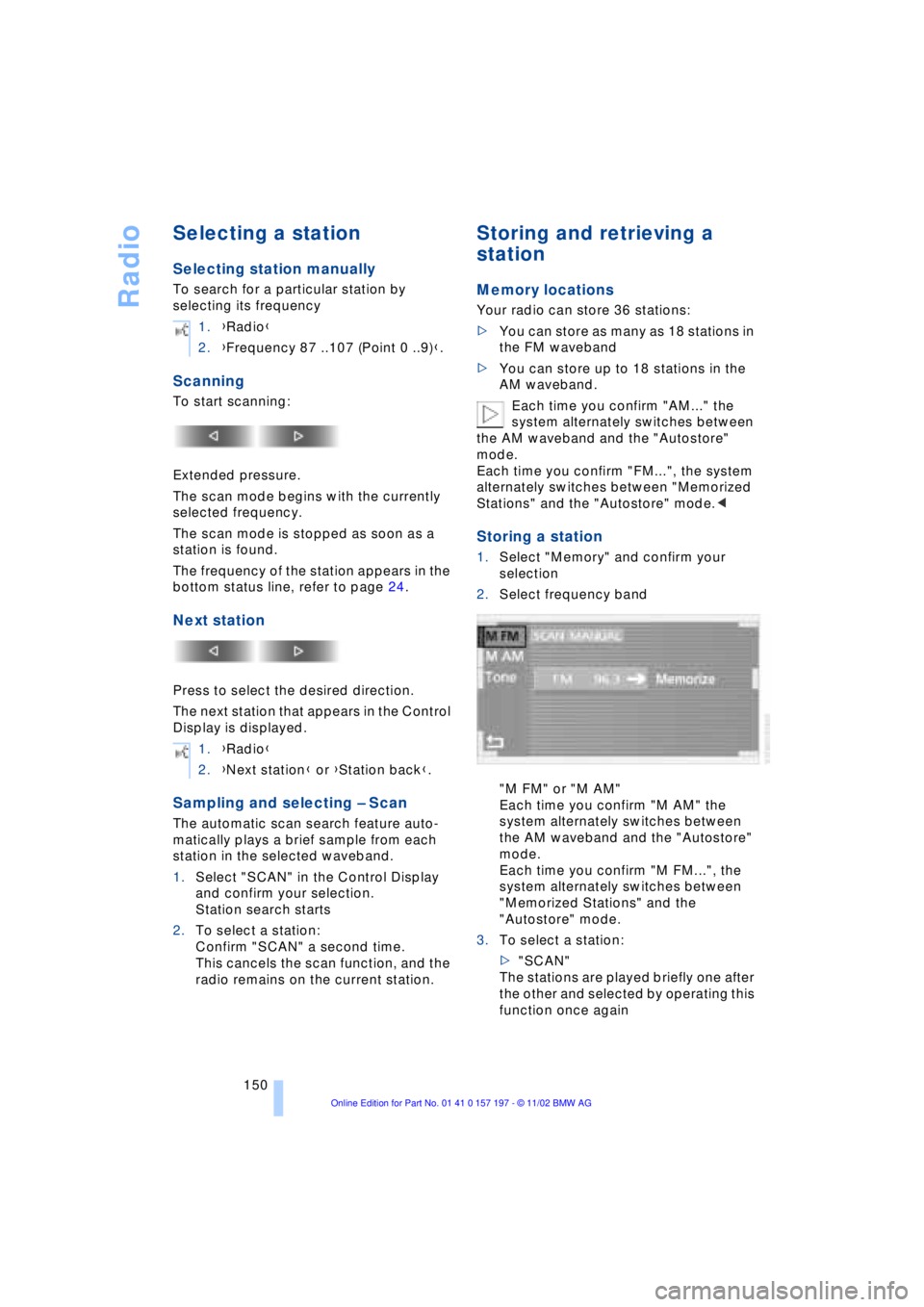
1.Select "Memory" and confirm your
selection
2.Select frequency band
"M FM" or "M AM"
Each time you confirm "M AM" the
system alternately switches between
the AM waveband and the "Autostore"
mode.
Each time you confirm "M FM...", the
system alternately switches between
"Memorized Stations" and the
"Autostore" mode.
3.To select a station:
>"SCAN"
The stations are played briefly one after
the other and selected by operating this
function once again 1.{Radio}
2.{Frequency 87 ..107 (Point 0 ..9)}.
1.{Radio}
2.{Next station} or {Station back}.
Page 156 of 229
CD Compact Disc
154
Searching for music tracks
in the Control Display
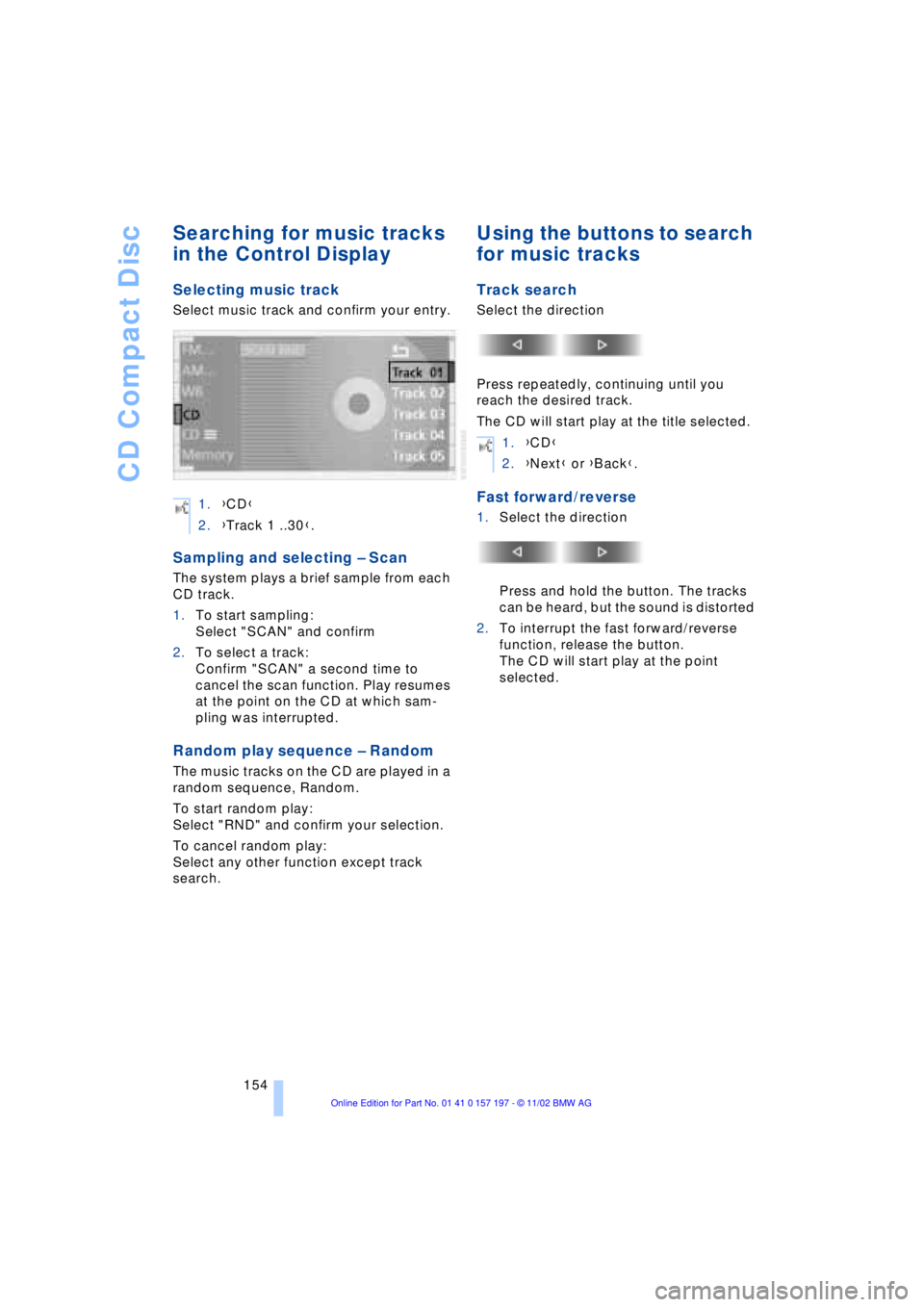
Selecting music track
Select music track and confirm your entry.
Sampling and selecting Ð Scan
The system plays a brief sample from each
CD track.
1.To start sampling:
Select "SCAN" and confirm
2.To select a track:
Confirm "SCAN" a second time to
cancel the scan function. Play resumes
at the point on the CD at which sam-
pling was interrupted.
Random play sequence Ð Random
The music tracks on the CD are played in a
random sequence, Random.
To start random play:
Select "RND" and confirm your selection.
To cancel random play:
Select any other function except track
search.
Using the buttons to search
for music tracks
Track search
Select the direction
Press repeatedly, continuing until you
reach the desired track.
The CD will start play at the title selected.
Fast forward/reverse
1.Select the direction
Press and hold the button. The tracks
can be heard, but the sound is distorted
2.To interrupt the fast forward/reverse
function, release the button.
The CD will start play at the point
selected. 1.{CD}
2.{Track 1 ..30}.
1.{CD}
2.{Next} or {Back}.
Page 158 of 229
CD changer
156
Inserting the CD magazine
1.Press button 1; the lid opens
2.Ensure that the arrow symbol is
pointing toward the CD player and slide
the magazine 2 all the way in. The lid
closes automatically.
The CD changer automatically reads
in the loaded CDs and is then ready
for operation.<
Operating temperatures
Only operate the CD changer at tem-
peratures of 57 (Ð156) to 1407
(+606); otherwise, malfunctions can
occur.
Even when switched off, the device should
only be exposed to temperatures between
Ð137 (Ð256) and 1857 (+856).<
Atmospheric humidity
High levels of humidity inside the player
can condense on the laser's scan lens and
prevent it from reading the CD.
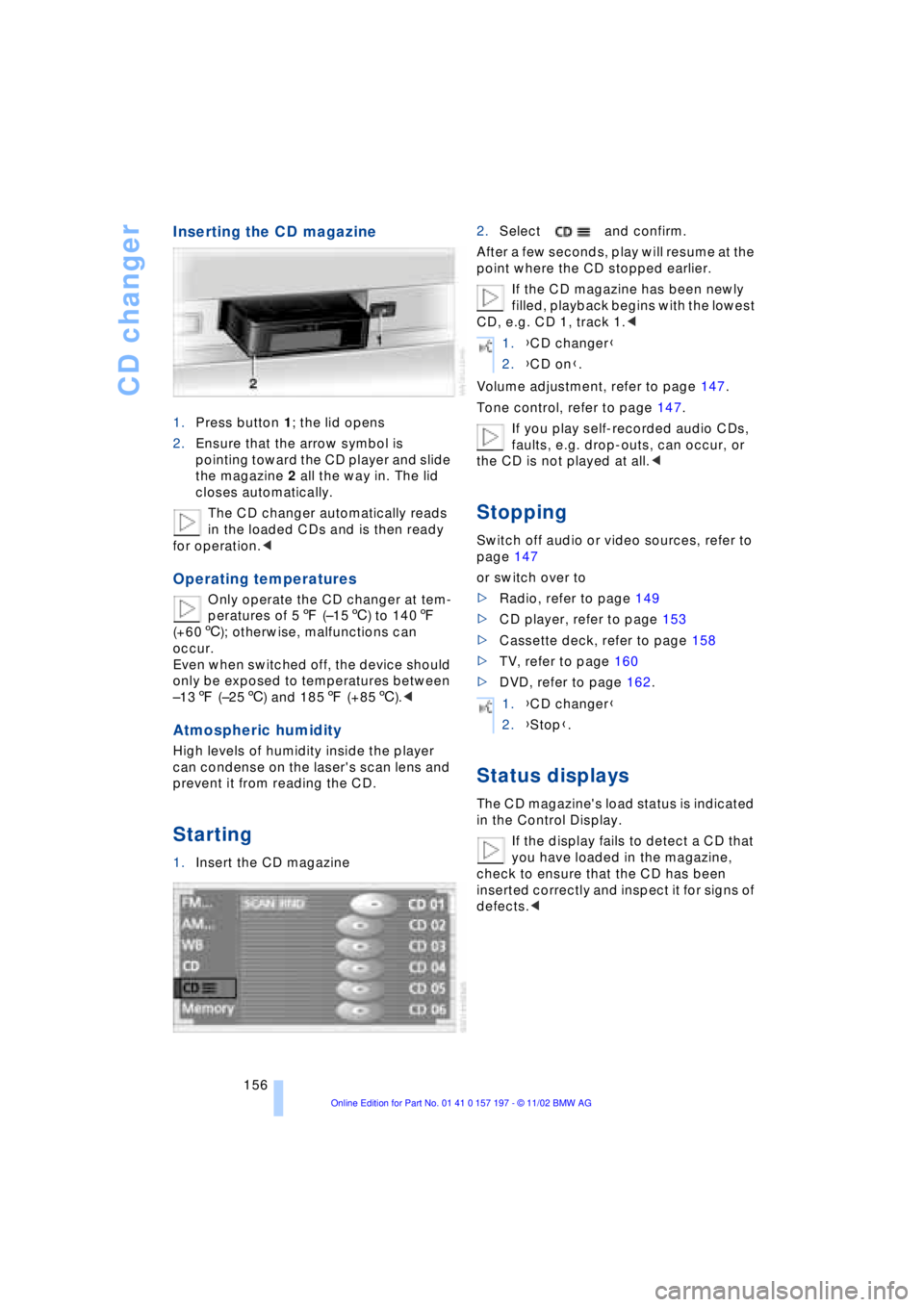
Starting
1.Insert the CD magazine2.Select and confirm.
After a few seconds, play will resume at the
point where the CD stopped earlier.
If the CD magazine has been newly
filled, playback begins with the lowest
CD, e.g. CD 1, track 1.<
Volume adjustment, refer to page 147.
Tone control, refer to page 147.
If you play self-recorded audio CDs,
faults, e.g. drop-outs, can occur, or
the CD is not played at all.<
Stopping
Switch off audio or video sources, refer to
page 147
or switch over to
>Radio, refer to page 149
>CD player, refer to page 153
>Cassette deck, refer to page 158
>TV, refer to page 160
>DVD, refer to page 162.
Status displays
The CD magazine's load status is indicated
in the Control Display.
If the display fails to detect a CD that
you have loaded in the magazine,
check to ensure that the CD has been
inserted correctly and inspect it for signs of
defects.<
1.{CD changer}
2.{CD on}.
1.{CD changer}
2.{Stop}.
Page 159 of 229
At a glance
Controls
Driving tips
Communications
Navigation
Entertainment
Mobility
Reference
157
Searching for music tracks
in the Control Display
Selecting CD
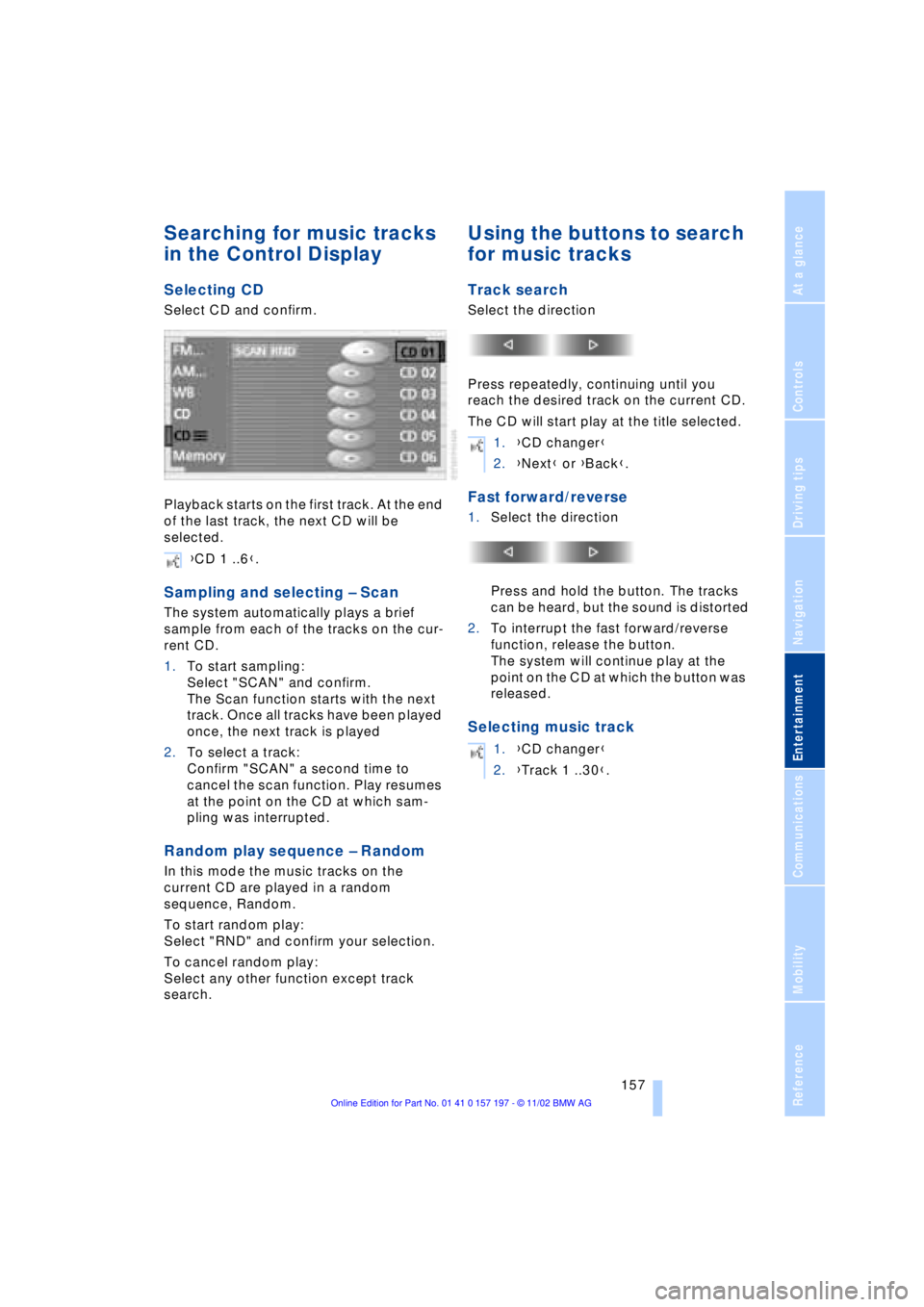
Select CD and confirm.
Playback starts on the first track. At the end
of the last track, the next CD will be
selected.
Sampling and selecting Ð Scan
The system automatically plays a brief
sample from each of the tracks on the cur-
rent CD.
1.To start sampling:
Select "SCAN" and confirm.
The Scan function starts with the next
track. Once all tracks have been played
once, the next track is played
2.To select a track:
Confirm "SCAN" a second time to
cancel the scan function. Play resumes
at the point on the CD at which sam-
pling was interrupted.
Random play sequence Ð Random
In this mode the music tracks on the
current CD are played in a random
sequence, Random.
To start random play:
Select "RND" and confirm your selection.
To cancel random play:
Select any other function except track
search.
Using the buttons to search
for music tracks
Track search
Select the direction
Press repeatedly, continuing until you
reach the desired track on the current CD.
The CD will start play at the title selected.
Fast forward/reverse
1.Select the direction
Press and hold the button. The tracks
can be heard, but the sound is distorted
2.To interrupt the fast forward/reverse
function, release the button.
The system will continue play at the
point on the CD at which the button was
released.
Selecting music track
{CD 1 ..6}.
1.{CD changer}
2.{Next} or {Back}.
1.{CD changer}
2.{Track 1 ..30}.
Page 163 of 229
At a glance
Controls
Driving tips
Communications
Navigation
Entertainment
Mobility
Reference
161
Adjusting the picture*
During reception, the menu items are
displayed by pressing the con-
troller.<
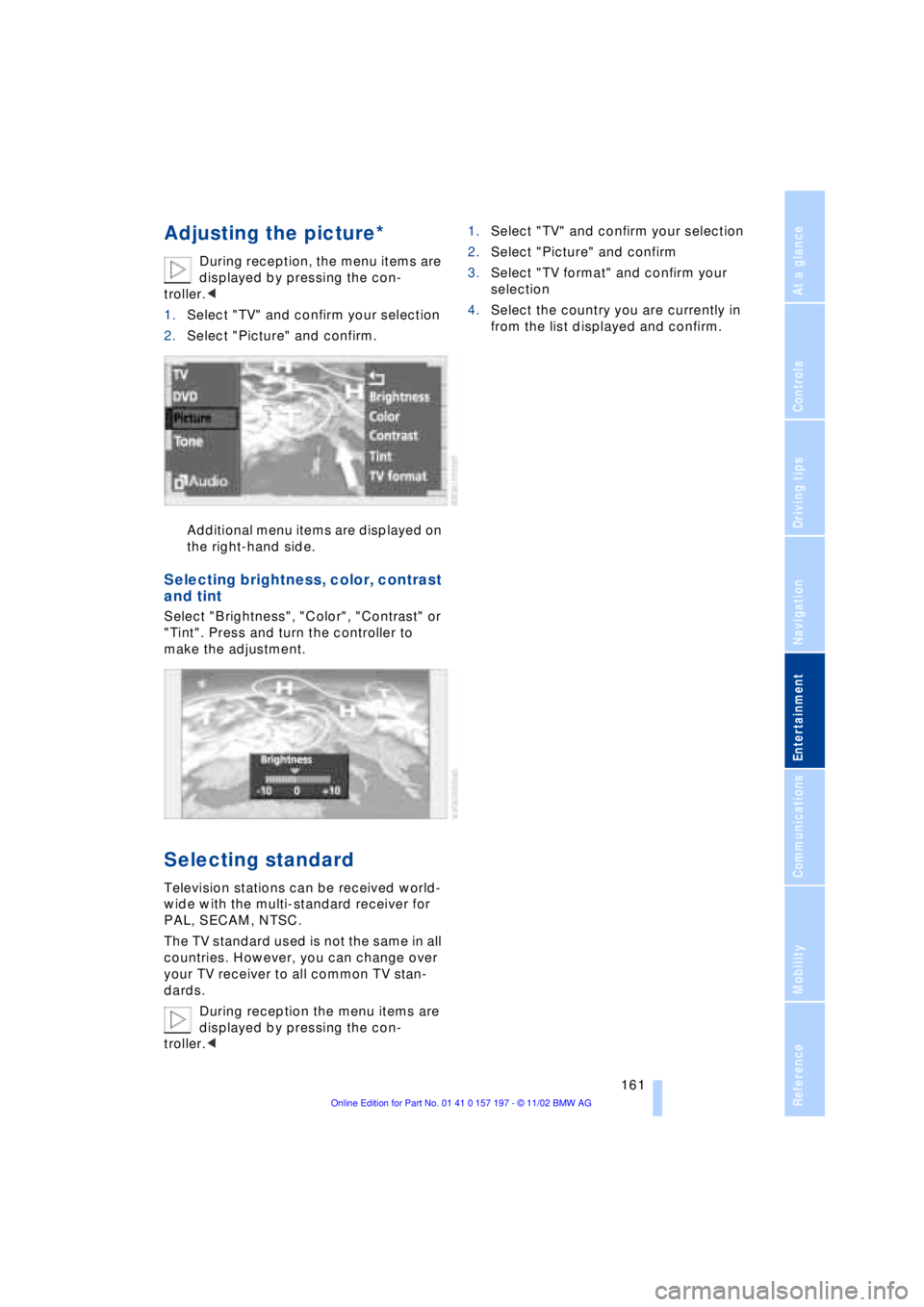
1.Select "TV" and confirm your selection
2.Select "Picture" and confirm.
Additional menu items are displayed on
the right-hand side.
Selecting brightness, color, contrast
and tint
Select "Brightness", "Color", "Contrast" or
"Tint". Press and turn the controller to
make the adjustment.
Selecting standard
Television stations can be received world-
wide with the multi-standard receiver for
PAL, SECAM, NTSC.
The TV standard used is not the same in all
countries. However, you can change over
your TV receiver to all common TV stan-
dards.
During reception the menu items are
displayed by pressing the con-
troller.<1.Select "TV" and confirm your selection
2.Select "Picture" and confirm
3.Select "TV format" and confirm your
selection
4.Select the country you are currently in
from the list displayed and confirm.
Page 166 of 229
DVD changer
164
Care instructions
You can find everything you need to know
on this topic by consulting the separate
Care manual.
Starting
Make all entries with the vehicle sta-
tionary. If you do not observe this pre-
caution, you may endanger vehicle occu-
pants and other road users.<
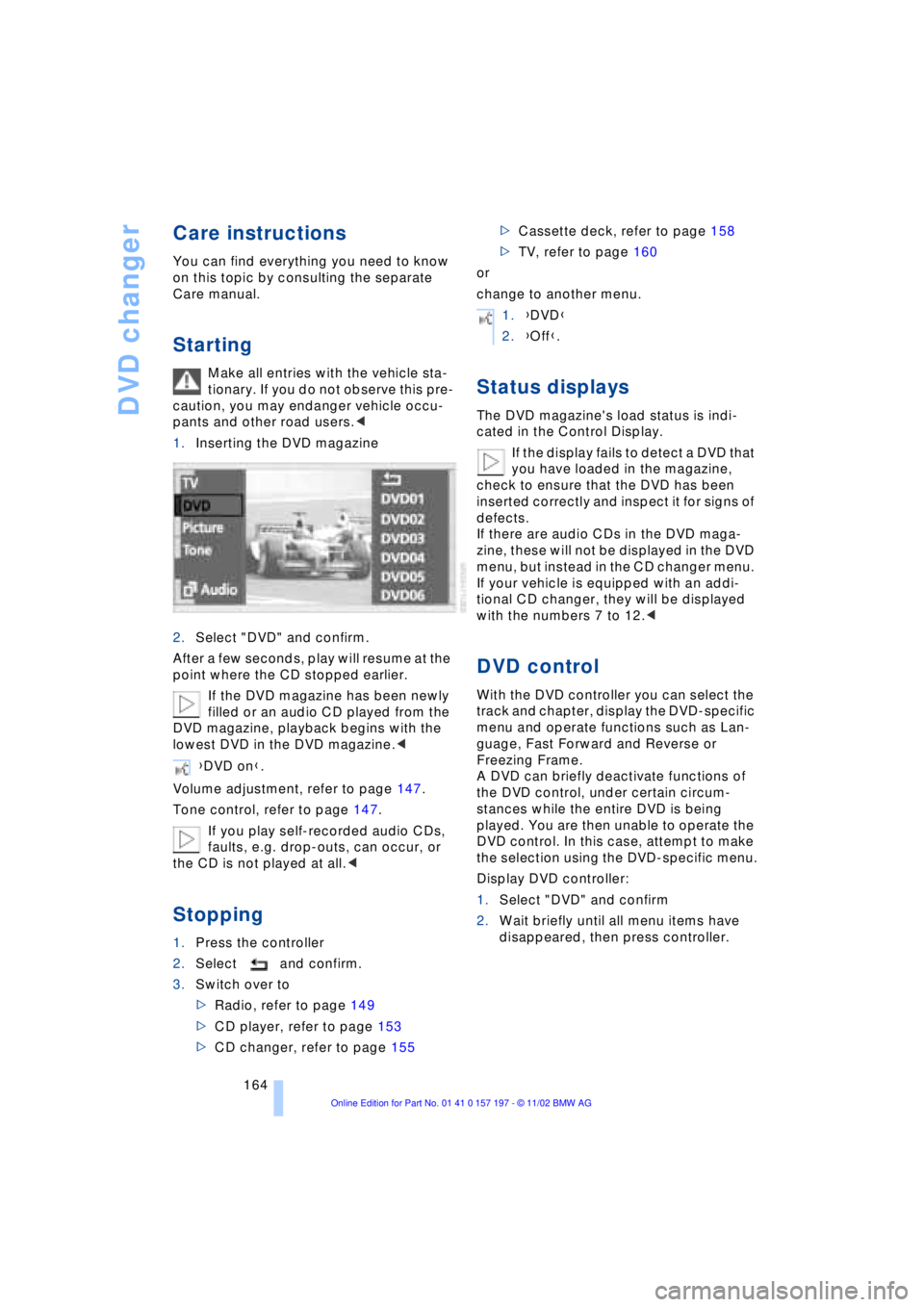
1.Inserting the DVD magazine
2.Select "DVD" and confirm.
After a few seconds, play will resume at the
point where the CD stopped earlier.
If the DVD magazine has been newly
filled or an audio CD played from the
DVD magazine, playback begins with the
lowest DVD in the DVD magazine.<
Volume adjustment, refer to page 147.
Tone control, refer to page 147.
If you play self-recorded audio CDs,
faults, e.g. drop-outs, can occur, or
the CD is not played at all.<
Stopping
1.Press the controller
2.Select and confirm.
3.Switch over to
>Radio, refer to page 149
>CD player, refer to page 153
>CD changer, refer to page 155>Cassette deck, refer to page 158
>TV, refer to page 160
or
change to another menu.
Status displays
The DVD magazine's load status is indi-
cated in the Control Display.
If the display fails to detect a DVD that
you have loaded in the magazine,
check to ensure that the DVD has been
inserted correctly and inspect it for signs of
defects.
If there are audio CDs in the DVD maga-
zine, these will not be displayed in the DVD
menu, but instead in the CD changer menu.
If your vehicle is equipped with an addi-
tional CD changer, they will be displayed
with the numbers 7 to 12.<
DVD control
With the DVD controller you can select the
track and chapter, display the DVD-specific
menu and operate functions such as Lan-
guage, Fast Forward and Reverse or
Freezing Frame.
A DVD can briefly deactivate functions of
the DVD control, under certain circum-
stances while the entire DVD is being
played. You are then unable to operate the
DVD control. In this case, attempt to make
the selection using the DVD-specific menu.
Display DVD controller:
1.Select "DVD" and confirm
2.Wait briefly until all menu items have
disappeared, then press controller. {DVD on}.
1.{DVD}
2.{Off}.
Page 167 of 229
At a glance
Controls
Driving tips
Communications
Navigation
Entertainment
Mobility
Reference
165
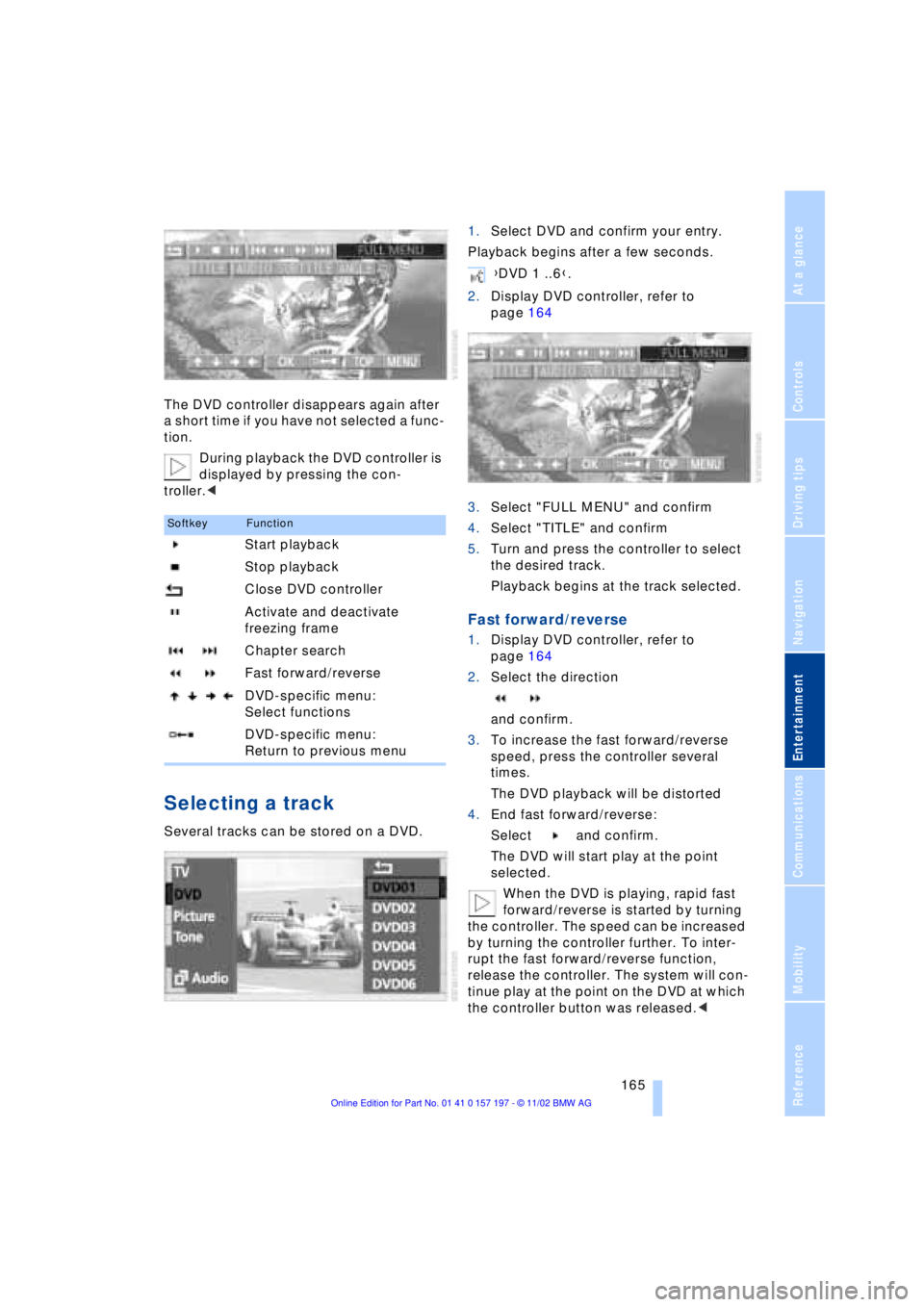
The DVD controller disappears again after
a short time if you have not selected a func-
tion.
During playback the DVD controller is
displayed by pressing the con-
troller.<
Selecting a track
Several tracks can be stored on a DVD.1.Select DVD and confirm your entry.
Playback begins after a few seconds.
2.Display DVD controller, refer to
page 164
3.Select "FULL MENU" and confirm
4.Select "TITLE" and confirm
5.Turn and press the controller to select
the desired track.
Playback begins at the track selected.
Fast forward/reverse
1.Display DVD controller, refer to
page 164
2.Select the direction
and confirm.
3.To increase the fast forward/reverse
speed, press the controller several
times.
The DVD playback will be distorted
4.End fast forward/reverse:
Select and confirm.
The DVD will start play at the point
selected.
When the DVD is playing, rapid fast
forward/reverse is started by turning
the controller. The speed can be increased
by turning the controller further. To inter-
rupt the fast forward/reverse function,
release the controller. The system will con-
tinue play at the point on the DVD at which
the controller button was released.<
SoftkeyFunction
Start playback
Stop playback
Close DVD controller
Activate and deactivate
freezing frame
Chapter search
Fast forward/reverse
DVD-specific menu:
Select functions
DVD-specific menu:
Return to previous menu
{DVD 1 ..6}.