2002 BMW 745LI SEDAN stop start
[x] Cancel search: stop startPage 86 of 208
At a glanceControlsDriving tipsCommunicationsNavigationEntertainmentMobilityReference
85
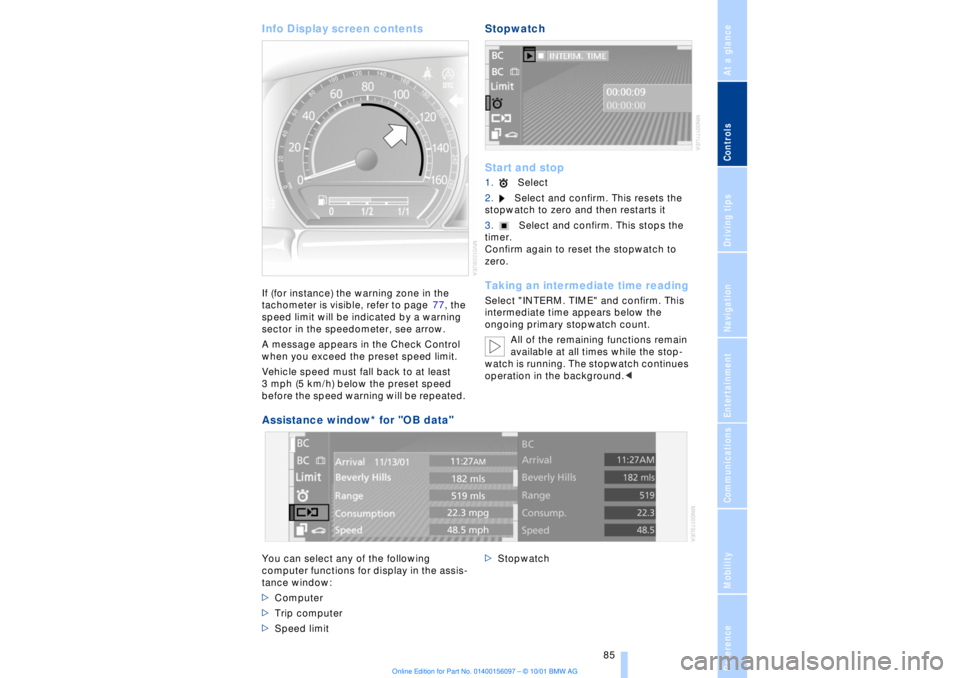
Info Display screen contents If (for instance) the warning zone in the
tachometer is visible, refer to page 77, the
speed limit will be indicated by a warning
sector in the speedometer, see arrow.
A message appears in the Check Control
when you exceed the preset speed limit.
Vehicle speed must fall back to at least
3 mph (5 km/h) below the preset speed
before the speed warning will be repeated.
Stopwatch
Start and stop1.Select
2.Select and confirm. This resets the
stopwatch to zero and then restarts it
3.Select and confirm. This stops the
timer.
Confirm again to reset the stopwatch to
zero. Taking an intermediate time readingSelect "INTERM. TIME" and confirm. This
intermediate time appears below the
ongoing primary stopwatch count.
All of the remaining functions remain
available at all times while the stop-
watch is running. The stopwatch continues
operation in the background.<
Assistance window* for "OB data"
You can select any of the following
computer functions for display in the assis-
tance window:
>Computer
>Trip computer
>Speed limit >Stopwatch
Page 90 of 208

At a glanceControlsDriving tipsCommunicationsNavigationEntertainmentMobilityReference
89
You also enjoy the option of having the
system show distances to objects in the
Control Display. The Control Display will
also indicate the presence of objects in
green before they are close enough to
generate a signal tone.
Select "PDC pic." from the "Settings" menu
and confirm your selection. This activates
the PDC display.
The display then appears in the Control
Display whenever PDC is automatically or
manually activated.
The previous display automatically reap-
pears after the system is deactivated.
Confirm in the menu to return to
the previous display.<
Even with PDC, final responsibility for
estimating the distance between the
vehicle and any obstructions always
remains with the driver. Even when sensors
are involved, there is a blind spot in which
objects cannot be detected. The system is
also subject to the physical limits that apply
to all forms of ultrasonic measurement,
such as those encountered with tow bars
and trailer couplings, as well as thin and
wedge-shaped objects, etc. After initial
detection, low objects such as curbs, etc.,
may disappear again before the system
starts to generate a continuous warning
tone. Loud noises from outside and inside
the vehicle may prevent you from hearing
PDC's signal tone.<
Keep the sensors clean and free of ice
or snow in order to ensure that they
will continue to operate effectively.
Do not apply high pressure spray to the
sensors for a prolonged period of time. Keep the spray at least 4 in (10 cm) away
from the sensors.<
Driving stability control/
DSC Dynamic Stability
Control Your BMW is equipped with an extended
array of systems designed to enhance and
maintain vehicle stability under extreme
conditions. The following section describes
these functions based on DSC and ABS. The concept DSC maintains vehicle stability, even in
critical driving situations.
The system optimizes vehicle stability
during acceleration and when starting from
a full stop, as well as optimizing traction.
The system recognizes any tendency for
the vehicle to assume an unstable attitude
such as oversteer or understeer; it then
counteracts this tendency with a combina-
tion of graduated reductions in engine
torque and selective braking intervention at
individual wheels. DSC provides optimal
stability within the limits defined by the
laws of physics.
The DSC is operational every time you start
the engine. DSC includes the functionality
of the DTC Dynamic Traction Control and
DBC Dynamic Brake Control.
With its selective braking intervention at the
individual drive wheels, DTC fulfills the
same function as a conventional limited-
slip differential to enhance traction under
difficult driving conditions, such as on
snow, etc. Indicator lamps
The indicator lamp in the Info
Display goes out soon after you
start the engine.
If the indicator lamp flashes:
DSC controls the drive and braking forces.
The indicator lamp stays lit:
DSC has been switched off via the Control
Display.
Page 93 of 208
Technology for comfort, convenience and safety
92 Active stabilizers at the front and rear axles
form the basis for Dynamic Drive. Suspen-
sion compliance adapts to suit driving
conditions, varying from performance-
oriented during cornering to smooth and
comfort-oriented when the vehicle is
proceeding in a straight line.
The system assumes operational status
each time you start the engine.
Driving with Dynamic Drive During vehicle operation, the system
continuously runs through closed-loop
control cycles lasting only fractions of a
second. In case of malfunction
The symbol will light up, accompa-
nied by a status message in the
Check Control panel. Please take
note of the additional information in the
Control Display panel.
You can find more detailed information on
the Check Control starting on page 80.
If the Dynamic Drive system switches
off in response to malfunction, please
remember to adapt your speed accord-
ingly, especially in curves.
The suspension will be noticeably softer
and the vehicle will display a greater
tendency to tilt during cornering and in
crosswinds.
If a status message appears in the Check
Control panel, accompanied by a red
symbol, the hydraulic fluid in the reservoir
may have fallen to below the minimum
level, possibly owing to leakage in the
hydraulic system. Stop the vehicle and
switch off the engine immediately.
Please observe the additional instructions
provided in the Control Display panel.<
EDC Electronic Damping
Control*
The suspension responds to changes in
factors such as road surface, or operating
conditions such as steering and braking, by
adapting to the new conditions within frac-
tions of a second.Comfort program The system automatically assumes opera-
tion in its Comfort mode each time you start
the engine; this mode is suitable for use
throughout the vehicle's entire speed range
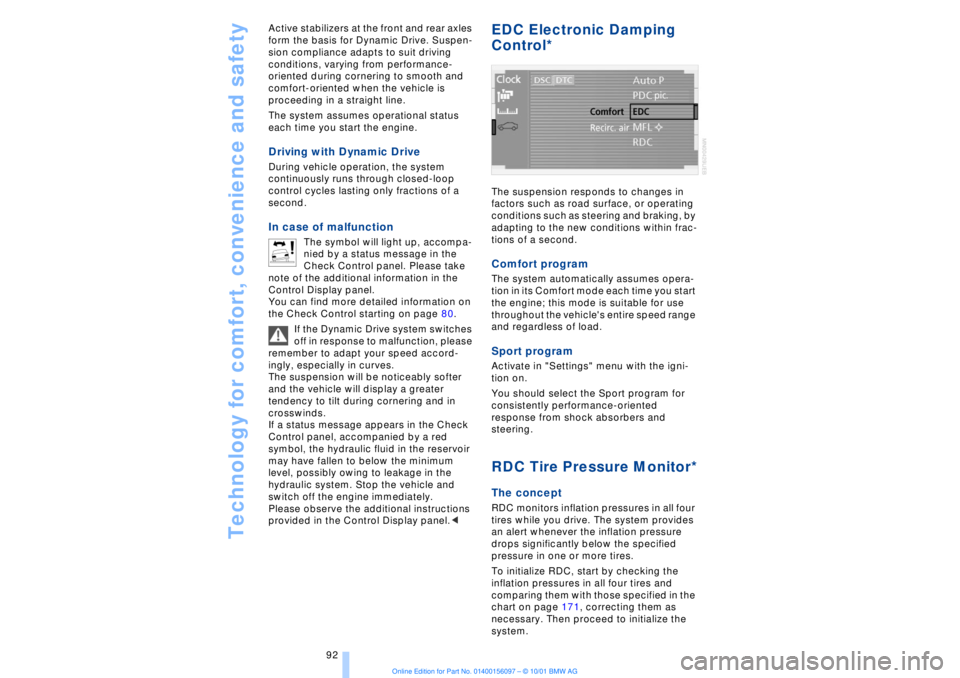
and regardless of load. Sport programActivate in "Settings" menu with the igni-
tion on.
You should select the Sport program for
consistently performance-oriented
response from shock absorbers and
steering. RDC Tire Pressure Monitor*The conceptRDC monitors inflation pressures in all four
tires while you drive. The system provides
an alert whenever the inflation pressure
drops significantly below the specified
pressure in one or more tires.
To initialize RDC, start by checking the
inflation pressures in all four tires and
comparing them with those specified in the
chart on page 171, correcting them as
necessary. Then proceed to initialize the
system.
Page 94 of 208
At a glanceControlsDriving tipsCommunicationsNavigationEntertainmentMobilityReference
93
This symbol will appear in the
Check Control panel to inform you
when the inflation pressure varies
from that stored in the system. A text
message appears at the same time. Please
take note of the additional information in
the Control Display panel.
You can find more information on the
Check Control starting on page 80.
The RDC cannot alert you to severe
and sudden tire damage caused by
external factors.<
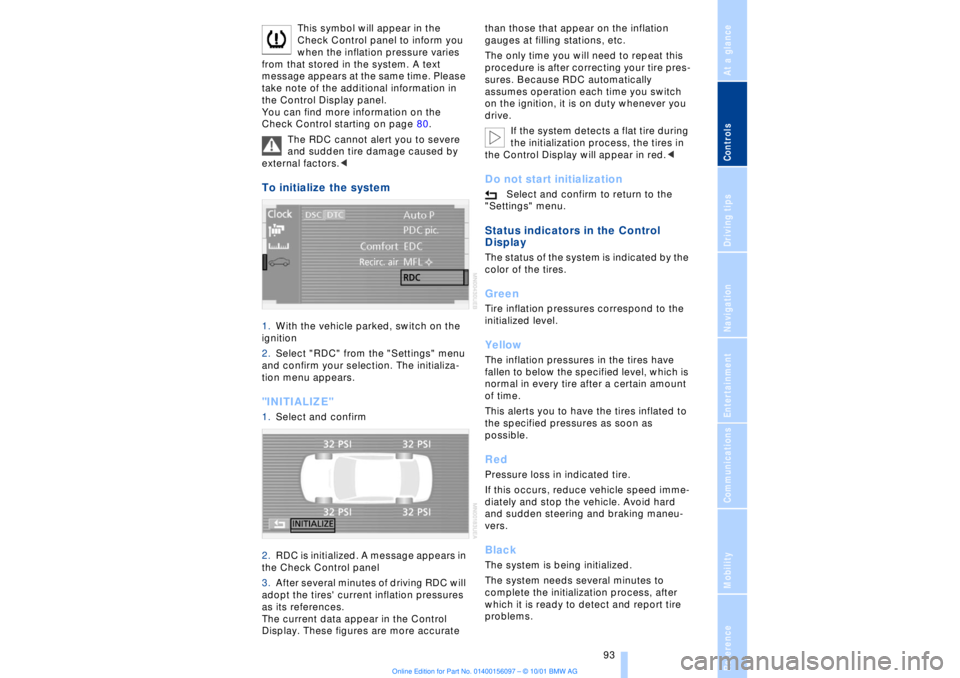
To initialize the system 1.With the vehicle parked, switch on the
ignition
2.Select "RDC" from the "Settings" menu
and confirm your selection. The initializa-
tion menu appears. "INITIALIZE" 1.Select and confirm
2.RDC is initialized. A message appears in
the Check Control panel
3.After several minutes of driving RDC will
adopt the tires' current inflation pressures
as its references.
The current data appear in the Control
Display. These figures are more accurate than those that appear on the inflation
gauges at filling stations, etc.
The only time you will need to repeat this
procedure is after correcting your tire pres-
sures. Because RDC automatically
assumes operation each time you switch
on the ignition, it is on duty whenever you
drive.
If the system detects a flat tire during
the initialization process, the tires in
the Control Display will appear in red.<
Do not start initialization
Select and confirm to return to the
"Settings" menu.
Status indicators in the Control
Display The status of the system is indicated by the
color of the tires. GreenTire inflation pressures correspond to the
initialized level.YellowThe inflation pressures in the tires have
fallen to below the specified level, which is
normal in every tire after a certain amount
of time.
This alerts you to have the tires inflated to
the specified pressures as soon as
possible. RedPressure loss in indicated tire.
If this occurs, reduce vehicle speed imme-
diately and stop the vehicle. Avoid hard
and sudden steering and braking maneu-
vers. BlackThe system is being initialized.
The system needs several minutes to
complete the initialization process, after
which it is ready to detect and report tire
problems.
Page 102 of 208
At a glanceControlsDriving tipsCommunicationsNavigationEntertainmentMobilityReference
101
Temperature adjustment
You can turn to select the
desired temperatures for the
driver's and passenger sides.
Your settings appear in the
Control Display's status line.
The figures in the display provide a general
indication of interior temperature. When
you start the vehicle, this system ensures
that the selected temperature is achieved
as quickly as possible. It then maintains
this temperature, regardless of the season.
Defrost windows and clear them of
condensation
This program quickly removes
ice and condensation from the
windshield and door windows.
To adjust air supply manually
You can adjust the air supply by
turning. The automatic air
supply control is operational
whenever you see your selec-
tion represented by a bar in the
Control Display's status line. The automatic
air distribution remains in operation as
before. You can reactivate the automatic
air supply mode with the AUTO button.
Air conditioner operation
The air conditioner cools and
dehumidifies the incoming air
before also reheating it as
required, according to temperature setting.
Depending on the weather, the windshield
may fog over briefly when the engine is
started.
The air conditioner comes on automatically
when you select the AUTO program.
Maximum cooling
Select this program to obtain
maximum cooling as quickly as
possible.
The temperature display reverts
to 61 7 (16 6) while the system switches
to the recirculated-air mode and starts to
provide maximum air supply through the instrument panel outlets only. For this
reason you should ensure that these
outlets are open before selecting this
program.
Outside air/AUC Automatic recircu-
lated-air control/Recirculated air
You can respond to unpleasant
odors or pollutants in the imme-
diate environment by tempo-
rarily suspending the flow of outside air.
The system then recirculates the air
currently within the vehicle. AUC executes
this function automatically.
Press the button repeatedly to run through
the following control sequence:
>Indicator lamps off: outside air flows into
the vehicle
>Left-hand indicator lamp on Ð AUC
mode: the system detects pollutants in the
outside air and responds by deactivating
the outside air supply when required. The
system then recirculates the air currently
within the vehicle.
Depending upon air quality, in the auto-
matic mode the system may start to alter-
nate between its outside-air and
recirculated-air modes
>Right-hand indicator lamp on Ð Recircu-
lated-air mode: the supply of outside air
into the vehicle is permanently blocked.
The system then recirculates the air
currently within the vehicle.
If condensation starts to form on the
inside window surfaces during opera-
tion in the recirculated-air mode, you
should switch it off while also increasing air
supply as required.<
Residual heat mode
The system uses the warmth
stored in the engine to heat the
interior when the ignition is off,
for instance, while the vehicle is
stopped at a school to pick up a
child.
You can adjust the automatic climate
control's settings when the ignition lock is
in the radio mode. The system blows
Page 137 of 208
Navigation
136
Wordmatch principleYour navigation system features a word-
match system designed to make it easier
for you to enter names. The system runs
ongoing checks, comparing your destina-
tion entries with the data stored on the map
CD as the basis for instant response. The
user benefits include:
>When you make an entry that consists of
more than one word, the system can iden-
tify the name regardless of the sequence in
which you enter the individual words.
Example:
Official version:
J.F. Kennedy Square
Possible entries:
Kennedy Square J.F.
or:
Square J.F. Kennedy
>Names of specific locations can also
vary from the official versions provided that
the spelling of the entry corresponds to a
standard form used in another country.
>When you are entering the names of
cities and streets the system will complete
them automatically as soon as enough
letters are available to ensure unambig-
uous identification.
Example:
For instance, if you were searching for Iowa
Ave NW in Washington, the system could
identify the street as soon as you typed in
the letter "o" and would proceed to
complete the entry automatically
>The system only accepts name entries
beginning with letters that are stored on the
map CD. The system will not accept non-
existent names and addresses.What to do if ÉWhat to do if É
>you request the current location of your
vehicle, but do not receive a precise
display?
The system is unable to receive enough GPS signals at your current location owing
to obstructions, your location is not yet
available on your CD, or the system is in the
process of calculating your location. Please
wait and then try again later on.
>the GPS logo disappears from the
Control Display screen?
Reception is interrupted; a building or
similar obstruction may be the cause.
>the guidance system refuses to import
an address from the destination directory
as its destination?
The address is in the list, but not on the
map CD currently in use. Choose an
address as close as possible to the original
one, using the destination entry map as
required.
>the guidance system adopts an address
without the street?
No specified center is defined for the
selected locality on your CD. Enter any
street, or a destination such as the railway
station, etc., then start the guidance
system.
>you want to enter an address for the
guidance system, but it is not possible to
select the letters for your desired entry?
The address is in the list, but not on the
map CD currently in use. In this case, the
system will not offer you any letters to
choose from. Choose an address as close
as possible to the original one, using the
destination entry map as required.
>you attempt to enter a destination
address using the target cursor, but the
guidance system refuses to accept your
entry?
Your current scale does not offer adequate
resolution. The system can only import
destinations at map scales to 0.6 miles
(1 km).
>the system stops furnishing directions
on which way to turn as you approach
intersections?
You are driving in an area that has not yet
been completely recorded on the map CD.
Instead of an arrow indicating a turn, you
will see an arrow which indicates the
general direction of your planned route;
Page 145 of 208
Radio
144 This cancels the scan function, and the
radio remains on the current station.
ScanTo start scan:
Press briefly or maintain pressure.
The scan mode begins with the currently
selected frequency.
The scan mode is stopped as soon as a
station is found.
The frequency of the station appears in the
bottom status line, refer to page 25.Next stationPress to select the desired direction
or
1.>>Radio (menu)<<
2.>>Next station<< or
>>Station back<<.<
The system scans for the next station.Storing and retrieving a
stationMemory locationsYour radio can store 30 stations:
>You can store as many as 18 stations in
the FM waveband
>You can store up to 12 stations in the
AM waveband.
Each time you confirm "AM" the
system alternately switches between
the AM waveband and the "Autostore"
mode.
Each time you confirm "FM" the system
alternately switches between "Memorized
Station" and the "Autostore" mode.<
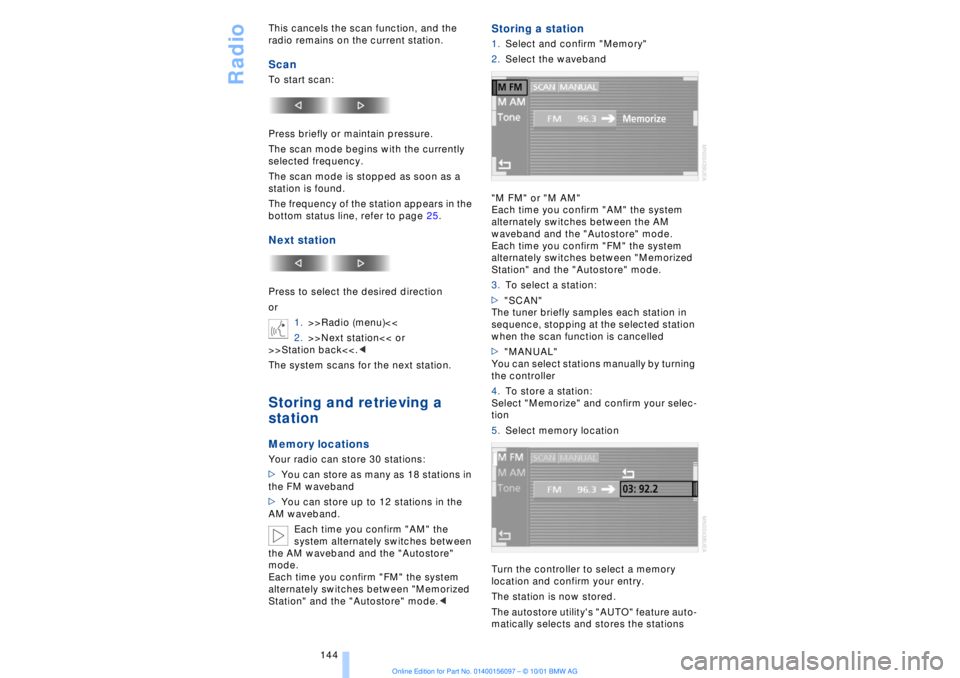
Storing a station 1.Select and confirm "Memory"
2.Select the waveband
"M FM" or "M AM"
Each time you confirm "AM" the system
alternately switches between the AM
waveband and the "Autostore" mode.
Each time you confirm "FM" the system
alternately switches between "Memorized
Station" and the "Autostore" mode.
3.To select a station:
>"SCAN"
The tuner briefly samples each station in
sequence, stopping at the selected station
when the scan function is cancelled
>"MANUAL"
You can select stations manually by turning
the controller
4.To store a station:
Select "Memorize" and confirm your selec-
tion
5.Select memory location
Turn the controller to select a memory
location and confirm your entry.
The station is now stored.
The autostore utility's "AUTO" feature auto-
matically selects and stores the stations
Page 147 of 208
CD Compact Disc
146
CD Compact Disc
You may experience playback prob-
lems, such as skips, when using CDs
that you have copied at home.<
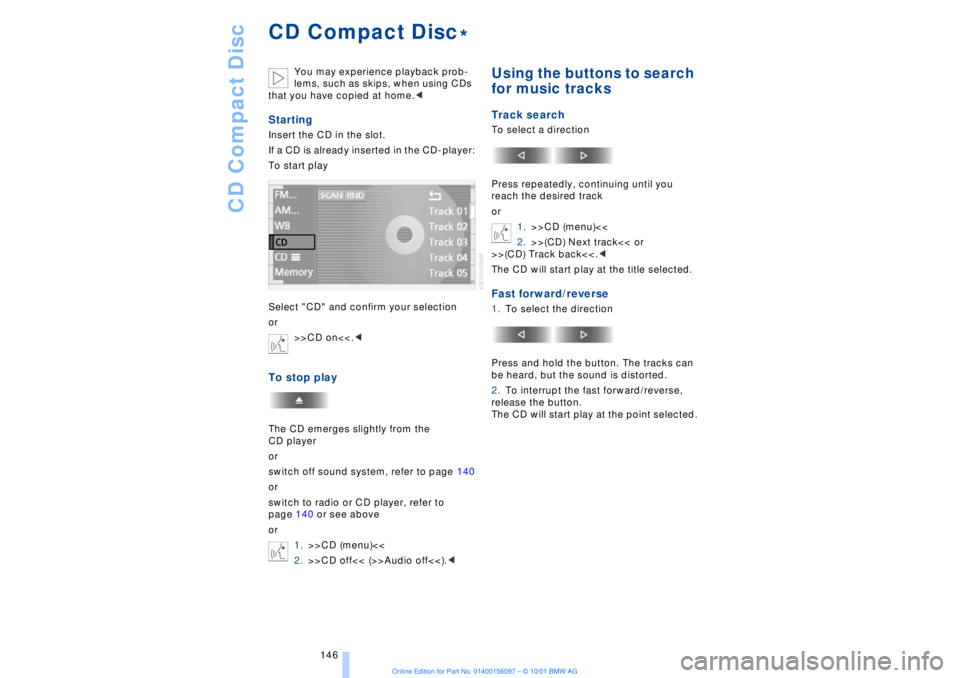
StartingInsert the CD in the slot.
If a CD is already inserted in the CD-player:
To start play
Select "CD" and confirm your selection
or
>>CD on<<.
or
switch off sound system, refer to page 140
or
switch to radio or CD player, refer to
page 140 or see above
or
1.>>CD (menu)<<
2.>>CD off<< (>>Audio off<<).<
Using the buttons to search
for music tracksTrack searchTo select a direction
Press repeatedly, continuing until you
reach the desired track
or
1.>>CD (menu)<<
2.>>(CD) Next track<< or
>>(CD) Track back<<.<
The CD will start play at the title selected.Fast forward/reverse1.To select the direction
Press and hold the button. The tracks can
be heard, but the sound is distorted.
2.To interrupt the fast forward/reverse,
release the button.
The CD will start play at the point selected.
*