2024 CHEVROLET SILVERADO EV ECO mode
[x] Cancel search: ECO modePage 108 of 429
Chevrolet Silverado EV Owner Manual (GMNA-Localizing-U.S./Canada-
16702912) - 2024 - CRC - 1/13/23
Instruments and Controls 107
On-Screen Controls
The Controls App organizes the on-screen
controls for many vehicle functions on one
screen. The specific controls available in the
app vary by model.
To access the Controls App, select the
Controls icon from the infotainment home
screen.
Warning Lights, Gauges, and
Indicators
Warning lights and gauges can signal that
something is wrong before it becomes
serious enough to cause an expensive repair
or replacement. Paying attention to the
warning lights and gauges could prevent
injury.
Some warning lights come on briefly when
the propulsion system is started to indicate
they are working. When one of the warning
lights comes on and stays on while driving,
or when one of the gauges shows there
may be a problem, check the section that
explains what to do. Waiting to do repairs
can be costly and even dangerous.
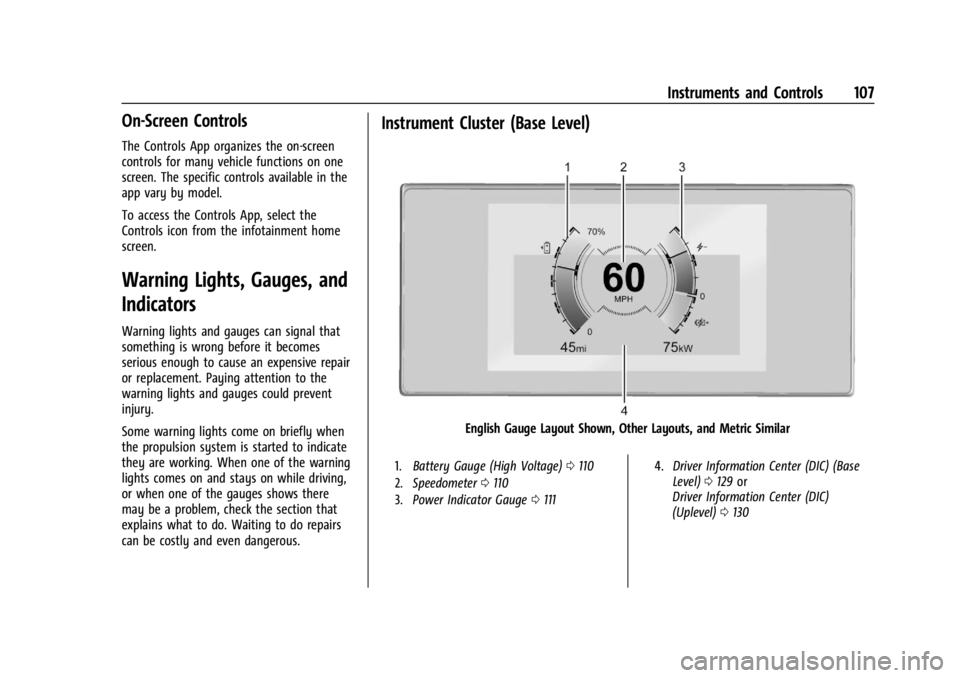
Instrument Cluster (Base Level)
English Gauge Layout Shown, Other Layouts, and Metric Similar
1.Battery Gauge (High Voltage) 0110
2. Speedometer 0110
3. Power Indicator Gauge 0111 4.
Driver Information Center (DIC) (Base
Level) 0129 or
Driver Information Center (DIC)
(Uplevel) 0130
Page 110 of 429
Chevrolet Silverado EV Owner Manual (GMNA-Localizing-U.S./Canada-
16702912) - 2024 - CRC - 1/13/23
Instruments and Controls 109
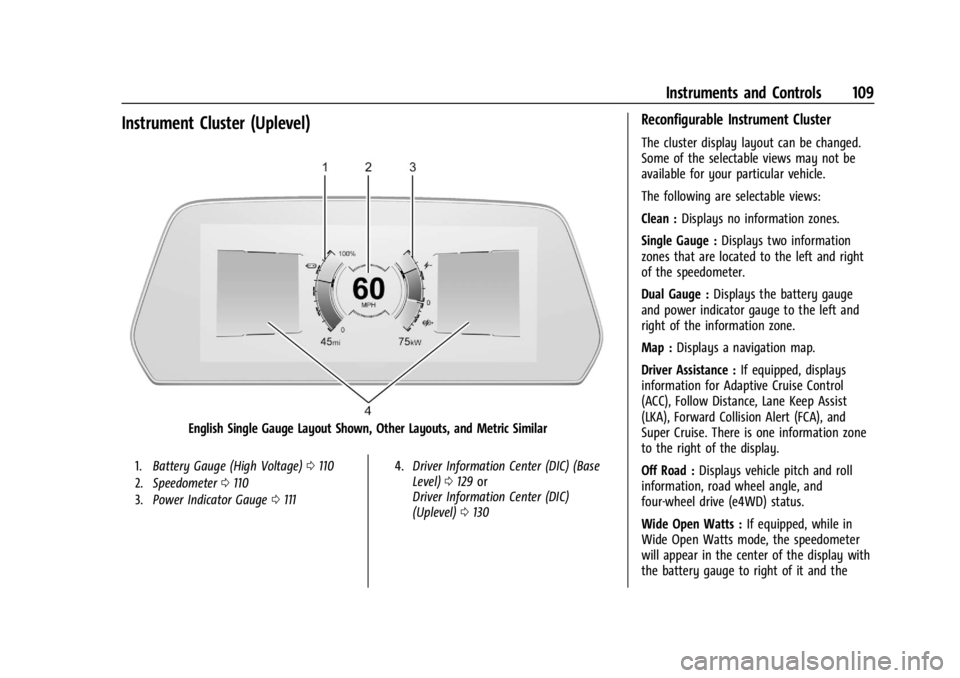
Instrument Cluster (Uplevel)
English Single Gauge Layout Shown, Other Layouts, and Metric Similar
1.Battery Gauge (High Voltage) 0110
2. Speedometer 0110
3. Power Indicator Gauge 0111 4.
Driver Information Center (DIC) (Base
Level) 0129 or
Driver Information Center (DIC)
(Uplevel) 0130
Reconfigurable Instrument Cluster
The cluster display layout can be changed.
Some of the selectable views may not be
available for your particular vehicle.
The following are selectable views:
Clean : Displays no information zones.
Single Gauge : Displays two information
zones that are located to the left and right
of the speedometer.
Dual Gauge : Displays the battery gauge
and power indicator gauge to the left and
right of the information zone.
Map : Displays a navigation map.
Driver Assistance : If equipped, displays
information for Adaptive Cruise Control
(ACC), Follow Distance, Lane Keep Assist
(LKA), Forward Collision Alert (FCA), and
Super Cruise. There is one information zone
to the right of the display.
Off Road : Displays vehicle pitch and roll
information, road wheel angle, and
four-wheel drive (e4WD) status.
Wide Open Watts : If equipped, while in
Wide Open Watts mode, the speedometer
will appear in the center of the display with
the battery gauge to right of it and the
Page 112 of 429
Chevrolet Silverado EV Owner Manual (GMNA-Localizing-U.S./Canada-
16702912) - 2024 - CRC - 1/13/23
Instruments and Controls 111
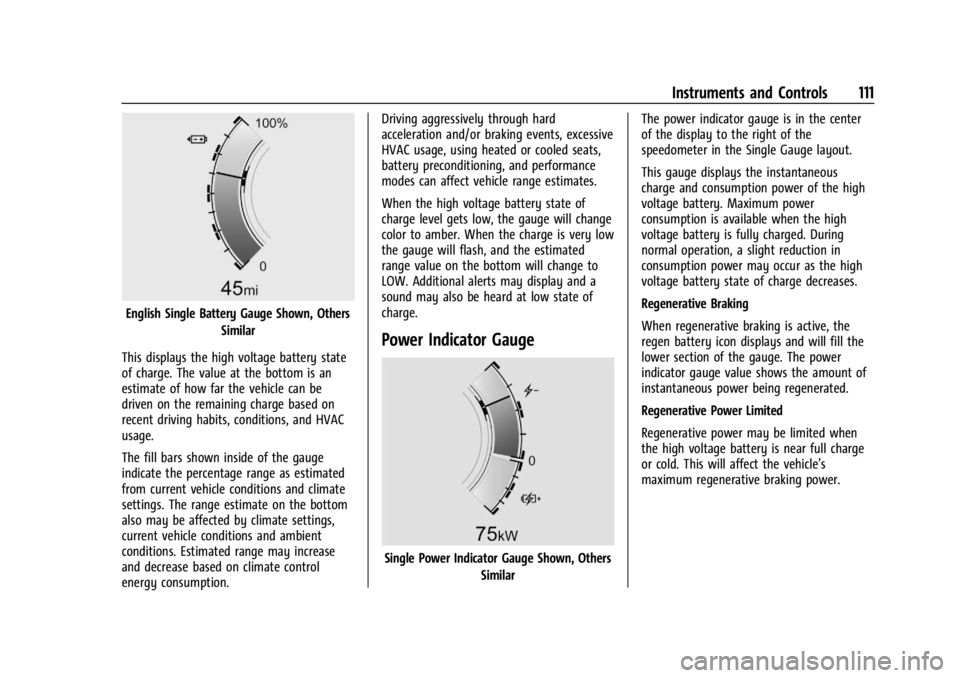
English Single Battery Gauge Shown, OthersSimilar
This displays the high voltage battery state
of charge. The value at the bottom is an
estimate of how far the vehicle can be
driven on the remaining charge based on
recent driving habits, conditions, and HVAC
usage.
The fill bars shown inside of the gauge
indicate the percentage range as estimated
from current vehicle conditions and climate
settings. The range estimate on the bottom
also may be affected by climate settings,
current vehicle conditions and ambient
conditions. Estimated range may increase
and decrease based on climate control
energy consumption. Driving aggressively through hard
acceleration and/or braking events, excessive
HVAC usage, using heated or cooled seats,
battery preconditioning, and performance
modes can affect vehicle range estimates.
When the high voltage battery state of
charge level gets low, the gauge will change
color to amber. When the charge is very low
the gauge will flash, and the estimated
range value on the bottom will change to
LOW. Additional alerts may display and a
sound may also be heard at low state of
charge.
Power Indicator Gauge
Single Power Indicator Gauge Shown, Others
Similar The power indicator gauge is in the center
of the display to the right of the
speedometer in the Single Gauge layout.
This gauge displays the instantaneous
charge and consumption power of the high
voltage battery. Maximum power
consumption is available when the high
voltage battery is fully charged. During
normal operation, a slight reduction in
consumption power may occur as the high
voltage battery state of charge decreases.
Regenerative Braking
When regenerative braking is active, the
regen battery icon displays and will fill the
lower section of the gauge. The power
indicator gauge value shows the amount of
instantaneous power being regenerated.
Regenerative Power Limited
Regenerative power may be limited when
the high voltage battery is near full charge
or cold. This will affect the vehicle’s
maximum regenerative braking power.
Page 113 of 429
Chevrolet Silverado EV Owner Manual (GMNA-Localizing-U.S./Canada-
16702912) - 2024 - CRC - 1/13/23
112 Instruments and Controls
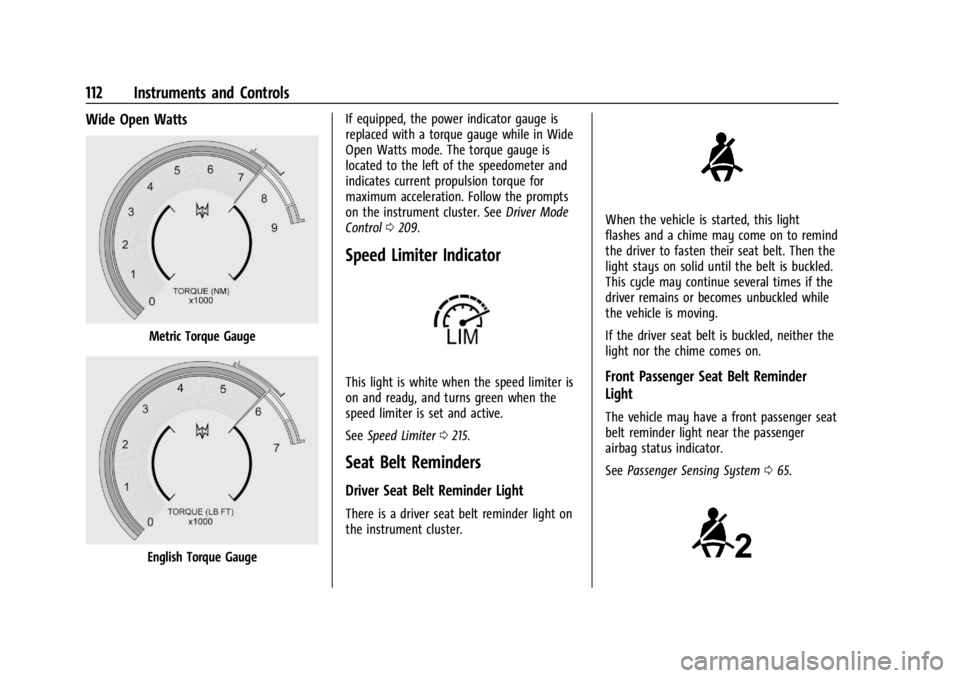
Wide Open Watts
Metric Torque Gauge
English Torque GaugeIf equipped, the power indicator gauge is
replaced with a torque gauge while in Wide
Open Watts mode. The torque gauge is
located to the left of the speedometer and
indicates current propulsion torque for
maximum acceleration. Follow the prompts
on the instrument cluster. See
Driver Mode
Control 0209.
Speed Limiter Indicator
This light is white when the speed limiter is
on and ready, and turns green when the
speed limiter is set and active.
See Speed Limiter 0215.
Seat Belt Reminders
Driver Seat Belt Reminder Light
There is a driver seat belt reminder light on
the instrument cluster.
When the vehicle is started, this light
flashes and a chime may come on to remind
the driver to fasten their seat belt. Then the
light stays on solid until the belt is buckled.
This cycle may continue several times if the
driver remains or becomes unbuckled while
the vehicle is moving.
If the driver seat belt is buckled, neither the
light nor the chime comes on.
Front Passenger Seat Belt Reminder
Light
The vehicle may have a front passenger seat
belt reminder light near the passenger
airbag status indicator.
See Passenger Sensing System 065.
Page 125 of 429
Chevrolet Silverado EV Owner Manual (GMNA-Localizing-U.S./Canada-
16702912) - 2024 - CRC - 1/13/23
124 Instruments and Controls
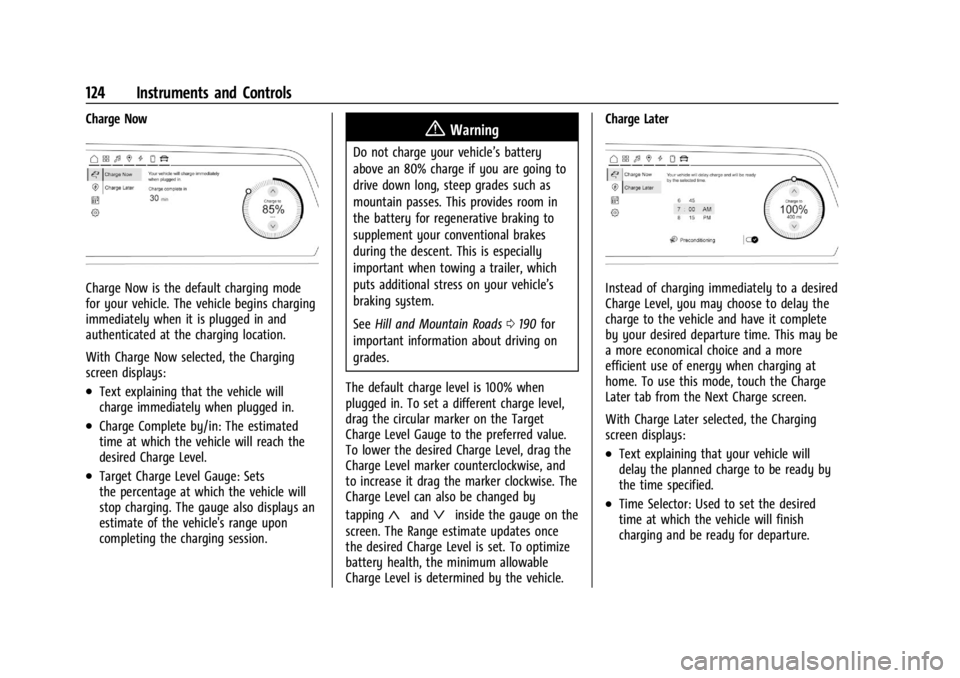
Charge Now
Charge Now is the default charging mode
for your vehicle. The vehicle begins charging
immediately when it is plugged in and
authenticated at the charging location.
With Charge Now selected, the Charging
screen displays:
.Text explaining that the vehicle will
charge immediately when plugged in.
.Charge Complete by/in: The estimated
time at which the vehicle will reach the
desired Charge Level.
.Target Charge Level Gauge: Sets
the percentage at which the vehicle will
stop charging. The gauge also displays an
estimate of the vehicle's range upon
completing the charging session.
{Warning
Do not charge your vehicle’s battery
above an 80% charge if you are going to
drive down long, steep grades such as
mountain passes. This provides room in
the battery for regenerative braking to
supplement your conventional brakes
during the descent. This is especially
important when towing a trailer, which
puts additional stress on your vehicle’s
braking system.
SeeHill and Mountain Roads 0190 for
important information about driving on
grades.
The default charge level is 100% when
plugged in. To set a different charge level,
drag the circular marker on the Target
Charge Level Gauge to the preferred value.
To lower the desired Charge Level, drag the
Charge Level marker counterclockwise, and
to increase it drag the marker clockwise. The
Charge Level can also be changed by
tapping
«andªinside the gauge on the
screen. The Range estimate updates once
the desired Charge Level is set. To optimize
battery health, the minimum allowable
Charge Level is determined by the vehicle. Charge Later
Instead of charging immediately to a desired
Charge Level, you may choose to delay the
charge to the vehicle and have it complete
by your desired departure time. This may be
a more economical choice and a more
efficient use of energy when charging at
home. To use this mode, touch the Charge
Later tab from the Next Charge screen.
With Charge Later selected, the Charging
screen displays:
.Text explaining that your vehicle will
delay the planned charge to be ready by
the time specified.
.Time Selector: Used to set the desired
time at which the vehicle will finish
charging and be ready for departure.
Page 126 of 429
Chevrolet Silverado EV Owner Manual (GMNA-Localizing-U.S./Canada-
16702912) - 2024 - CRC - 1/13/23
Instruments and Controls 125
.Target Charge Level Gauge: Sets
the percentage at which the vehicle will
stop charging. The gauge also displays an
estimate of the vehicle's range upon
completing the charging session.
.Preconditioning: Allows the vehicle to
heat or cool the cabin to your desired
temperature using energy from the
charger. This means energy from the
battery is not used to condition the cabin,
ensuring the vehicle gets the maximum
range from the charging session.
Preconditioning happens at the end of the
charge, and right before the
departure time.
To set the time at which the vehicle will
complete the charge and be ready for
departure:
Swipe up or down on each value within the
Time Selector until the preferred time is
selected. If the desired Charge Level cannot
be reached by the selected time, a message
will display that one of the two preferences
will need to be adjusted.
To adjust desired Charge Level in Charge
Later mode, see “Charge Now”earlier in this
section. Setting the Preconditioning preference:
Touch the switch to turn on Preconditioning.
Cabin Preconditioning temperature can be
adjusted by touching Preconditioning on this
screen, or in Settings.
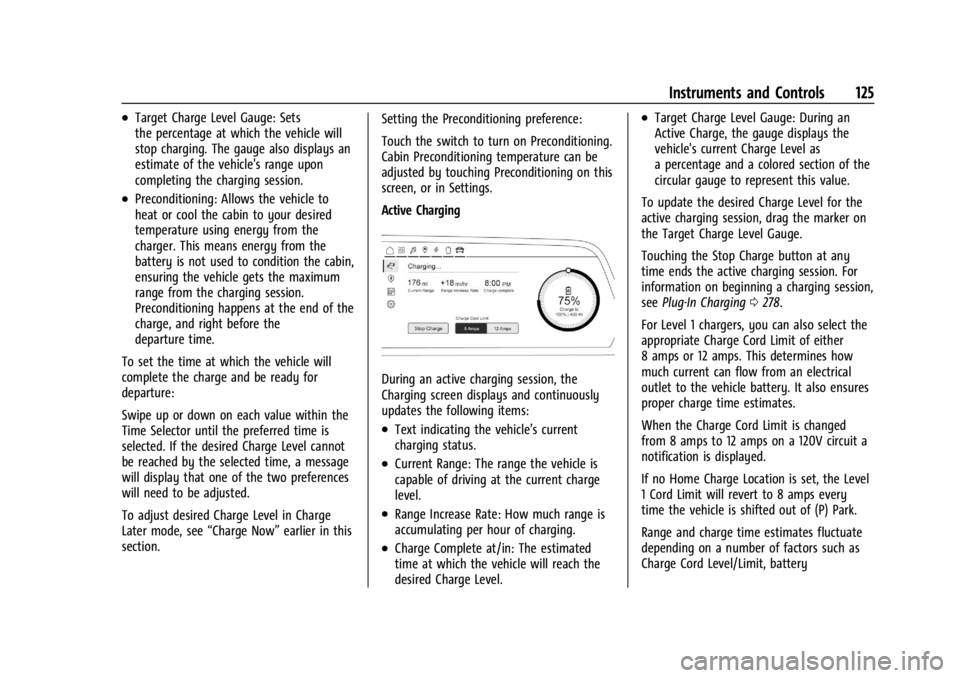
Active Charging
During an active charging session, the
Charging screen displays and continuously
updates the following items:
.Text indicating the vehicle’s current
charging status.
.Current Range: The range the vehicle is
capable of driving at the current charge
level.
.Range Increase Rate: How much range is
accumulating per hour of charging.
.Charge Complete at/in: The estimated
time at which the vehicle will reach the
desired Charge Level.
.Target Charge Level Gauge: During an
Active Charge, the gauge displays the
vehicle's current Charge Level as
a percentage and a colored section of the
circular gauge to represent this value.
To update the desired Charge Level for the
active charging session, drag the marker on
the Target Charge Level Gauge.
Touching the Stop Charge button at any
time ends the active charging session. For
information on beginning a charging session,
see Plug-In Charging 0278.
For Level 1 chargers, you can also select the
appropriate Charge Cord Limit of either
8 amps or 12 amps. This determines how
much current can flow from an electrical
outlet to the vehicle battery. It also ensures
proper charge time estimates.
When the Charge Cord Limit is changed
from 8 amps to 12 amps on a 120V circuit a
notification is displayed.
If no Home Charge Location is set, the Level
1 Cord Limit will revert to 8 amps every
time the vehicle is shifted out of (P) Park.
Range and charge time estimates fluctuate
depending on a number of factors such as
Charge Cord Level/Limit, battery
Page 144 of 429

Chevrolet Silverado EV Owner Manual (GMNA-Localizing-U.S./Canada-
16702912) - 2024 - CRC - 1/13/23
Lighting 143
Turn and Lane-Change Signals
Move the lever all the way up or down to
signal a turn.
An arrow on the instrument cluster flashes
in the direction of the turn or lane change.
Raise or lower the lever until the arrow
starts to flash to signal a lane change. Hold
it there until the lane change is complete.
If the lever is moved momentarily to the
lane change position, the arrow will flash
three times. It will flash six times if
Tow/Haul mode is active.
The lever returns to its starting position
when it is released.
If after signaling a turn or lane change, the
arrow flashes rapidly or does not come on, a
signal LED may be burned out.See your dealer for service. If a LED is not
burned out, check the fuse. See
Instrument
Panel Fuse Block (Left) 0340 or
Instrument Panel Fuse Block (Right) 0342.
Exterior Cargo Lamps
The exterior cargo lamps provide more light
in the cargo area or on the sides of the
vehicle, if needed.
The exterior cargo lamps controls are in the
Controls App on the infotainment home
screen. To turn the exterior lamps on or off,
select Controls > Lights > Exterior Cargo
Lamps when the vehicle is in P (Park),
R (Reverse), or N (Neutral).
Activating the exterior cargo lamps may also
activate the lamps inside the pickup box, in
the tailgate handle, the hitch, cargo switch
indicator, and/or the cargo mirror lamps,
if equipped.
Become familiar with and follow all state
and local laws that apply to cargo lamp
operation.
Interior Lighting
Instrument Panel Illumination
Control
Work Truck
Page 149 of 429
Chevrolet Silverado EV Owner Manual (GMNA-Localizing-U.S./Canada-
16702912) - 2024 - CRC - 1/13/23
148 Infotainment System
.Set up the audio by presetting favorite
stations, setting the tone, and adjusting
the speakers.
.Set up phone numbers in advance so they
can be called easily by pressing a single
control or by using a single voice
command.
See Distracted Driving 0182.
Overview
Infotainment System
The infotainment system is controlled by
using the infotainment display, controls on
the center stack, steering wheel controls,
and voice recognition, if available.
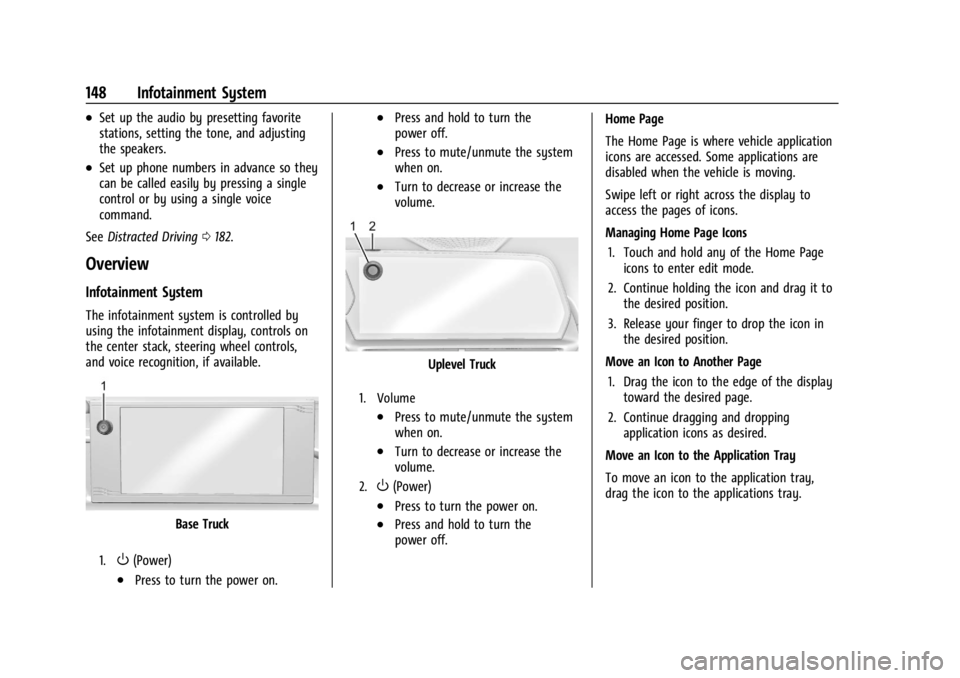
Base Truck
1.O(Power)
.Press to turn the power on.
.Press and hold to turn the
power off.
.Press to mute/unmute the system
when on.
.Turn to decrease or increase the
volume.
Uplevel Truck
1. Volume
.Press to mute/unmute the system
when on.
.Turn to decrease or increase the
volume.
2.O(Power)
.Press to turn the power on.
.Press and hold to turn the
power off. Home Page
The Home Page is where vehicle application
icons are accessed. Some applications are
disabled when the vehicle is moving.
Swipe left or right across the display to
access the pages of icons.
Managing Home Page Icons
1. Touch and hold any of the Home Page icons to enter edit mode.
2. Continue holding the icon and drag it to the desired position.
3. Release your finger to drop the icon in the desired position.
Move an Icon to Another Page 1. Drag the icon to the edge of the display toward the desired page.
2. Continue dragging and dropping application icons as desired.
Move an Icon to the Application Tray
To move an icon to the application tray,
drag the icon to the applications tray.