2023 LINCOLN CORSAIR wheel
[x] Cancel search: wheelPage 158 of 690
USING THE INSTRUMENT
CLUSTER DISPLAY CONTROLS
WARNING: Driving while distractedcan result in loss of vehicle control, crashand injury. We strongly recommend thatyou use extreme caution when using anydevice that may take your focus off theroad. Your primary responsibility is the safeoperation of your vehicle. We recommendagainst the use of any hand-held devicewhile driving and encourage the use ofvoice-operated systems when possible.Make sure you are aware of all applicablelocal laws that may affect the use ofelectronic devices while driving.
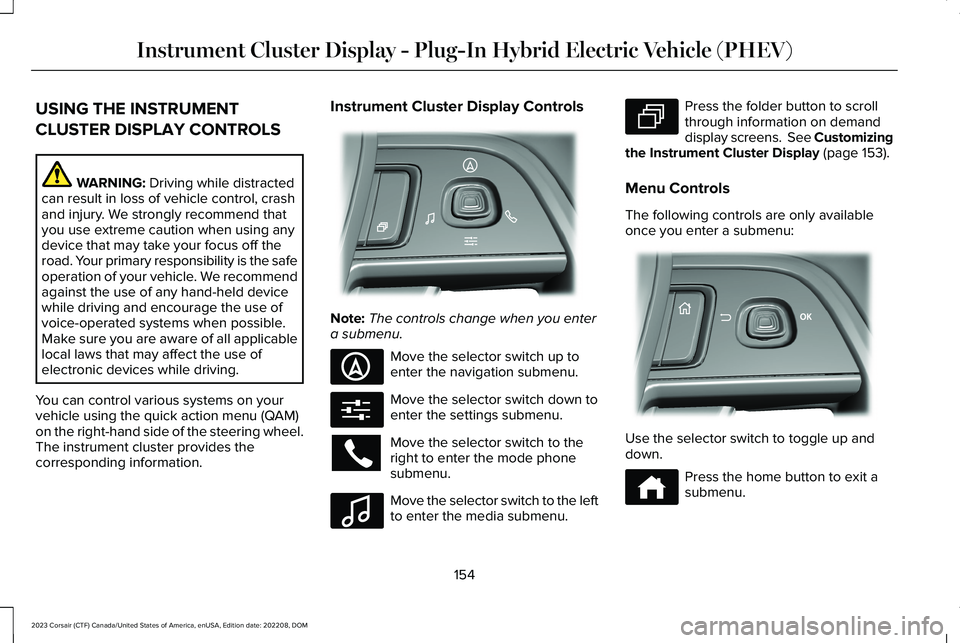
You can control various systems on yourvehicle using the quick action menu (QAM)on the right-hand side of the steering wheel.The instrument cluster provides thecorresponding information.
Instrument Cluster Display Controls
Note:The controls change when you entera submenu.
Move the selector switch up toenter the navigation submenu.
Move the selector switch down toenter the settings submenu.
Move the selector switch to theright to enter the mode phonesubmenu.
Move the selector switch to the leftto enter the media submenu.
Press the folder button to scrollthrough information on demanddisplay screens. See Customizingthe Instrument Cluster Display (page 153).
Menu Controls
The following controls are only availableonce you enter a submenu:
Use the selector switch to toggle up anddown.
Press the home button to exit asubmenu.
154
2023 Corsair (CTF) Canada/United States of America, enUSA, Edition date: 202208, DOMInstrument Cluster Display - Plug-In Hybrid Electric Vehicle (PHEV)E281220 E281481 E280315 E100027 E281483 E299701 E272621
Page 160 of 690
FUEL ECONOMY DISPLAY
This display comes with an instant fueleconomy gauge, along with the average fueleconomy. The gauge continuously averagesthe fuel economy since your last reset.
The system includes both the electric onlyand the hybrid operation in the calculation.More electric only driving results in a greateraverage fuel economy.
When the gasoline engine is off, changesfrom the instant fuel economy gauge to anelectric driving message.
Note:Press and hold the OK button on thecontrols on the steering wheel to reset youraverage fuel economy.
EV COACH
EV coach can help you get the most out ofyour vehicle's electric driving capabilities.
When you are accelerating or maintainingspeed you see a blue or white solid barindicating vehicle power. You may also seea blue rectangular box which shows thepower level at which the engine turns on.
•When the power level is within the box,the color of the bar is blue. This meansyou are in electric operation and theengine is off.
•When the power level is outside of thebox, the color of the bar is white. Thismeans you are in hybrid operation witha combination of the electric motor andthe engine providing vehicle power.
When you are decelerating with either yourfoot off the accelerator pedal or on the brakepedal, a green or white solid bar displaysindicating the power being used to slowdown your vehicle. You may also see a greenrectangular box which shows the amount ofpower that can be recaptured by theregenerative braking system and returnedto the high voltage battery.
•When the power level is within the box,the color of the bar will be all green. Thismeans that the regenerative brakingsystem is being used to efficiently slowyour vehicle down and return themaximum percentage of energy to thehigh voltage battery.
•When the power level is outside of thebox, then the bar is white. This meansboth the regenerative braking systemand conventional braking system arebeing used.
ELECTRIC ECONOMY
This screen shows your average drivingdistance per kilowatt-hour of electricity usedon your plug-in hybrid vehicle. The value iscalculated only when your available electricrange is being used and the gasoline engineis off.
Distance per full charge is also shown. Thisis an estimate of the electric range you wouldhave if you plugged in and fully charged yourvehicle right now. The higher your electriceconomy, the higher your distance per fullcharge.
156
2023 Corsair (CTF) Canada/United States of America, enUSA, Edition date: 202208, DOMInstrument Cluster Display - Plug-In Hybrid Electric Vehicle (PHEV)
Page 163 of 690
ACCESSING THE TRIP COMPUTER
Using Select Screens
1.Use the instrument cluster displaycontrols to navigate the home menu.
2.Select Select Screens.
3.Use the control on the steering wheel tonavigate the menu. See Customizingthe Instrument Cluster Display (page153).
Using the Home Screen
Once the screens have been added, use theinstrument cluster display controls on thesteering wheel to view each trip screen.
RESETTING THE TRIP COMPUTER
1.Use the instrument cluster displaycontrols to navigate the home screen.
2.Select the trip screen you want to reset.
3.Press and hold the OK button until thesystem reset confirmation appears.
CONFIGURING THE TRIP
COMPUTER
1.Use the instrument cluster displaycontrols to navigate the home screen.
2.Select the trip screen.
3.Press the menu button on the steeringwheel.
4.Select Configure View.
5.Select values to display.
TRIP DATA
Trip 1 and 2
Provides trip timer, trip average fuel economyand total trip distance traveled. For hybridvehicles, the trip also shows the distancetraveled on electric power only with theengine off.
Note:Trip 1 and 2 are selectable screens.See Accessing the Trip Computer (page159).
This Trip
Provides trip timer, trip average fueleconomy, total trip distance traveled, anddistance traveled on electric power only withthe engine off. If the gasoline engine has notturned on during the trip then trip averagefuel economy is not shown. This Trip resetseach time you start your vehicle.
Note:This trip is a selectable screen. SeeAccessing the Trip Computer (page 159).
159
2023 Corsair (CTF) Canada/United States of America, enUSA, Edition date: 202208, DOMTrip Computer
Page 164 of 690

WHAT IS THE HEAD UP DISPLAY
The system displays information on a displayscreen in your field of vision, allowing you tokeep your eyes on the road. You can selectwhich information the system displays.
SWITCHING THE HEAD UP
DISPLAY ON AND OFF
Use the instrument cluster controls on thesteering wheel to navigate to the head updisplay menu.
ActionMenu Item
Press the OK button.HUD
Press the OK button.HUD On
Note:The system remembers the last settingwhen you start the engine.
HEAD UP DISPLAY SETTINGS
You can control the system's options throughthe instrument cluster display by using theHUD, OK and arrow buttons on your steeringwheel. See Using the Instrument ClusterDisplay Controls (page 154).
You can adjust the display according to yourheight to make viewing the content easier.You can also adjust what content displaysand the brightness of the content. Thesystem's options appear in the instrumentcluster while the updates happen in the headup display.
Note:If HUD On is unchecked, other optionsof the system are hidden.
Note:The head up display menuautomatically closes after a certain periodof inactivity.
Note:The head up display image brightnessautomatically adjusts to the brightness ofthe ambient environment. You have theability to adjust the brightness furtheraccording to your preference.
Note:In some instances, sunlight can causesome reflections in and around the head updisplay image.
160
2023 Corsair (CTF) Canada/United States of America, enUSA, Edition date: 202208, DOMHead Up Display (If Equipped)
Page 168 of 690
HEAD UP DISPLAY – TROUBLESHOOTING
HEAD UP DISPLAY – INFORMATION MESSAGES
ActionMessage
The system is malfunctioning or something is obstructing the display.Make sure that the head up display is free from obstruction. If themessage continues to appear, have your vehicle checked as soon aspossible.
Head Up Display System Fault See Manual
Press the button on the steering wheel or center console. The headup display menu appears in the instrument cluster display. Make surethe blue frame is fully visible. Do not manually move the screen. Thiscan cause damage not covered by your vehicle's warranty.
Head Up Display To Position Use the Information Display
164
2023 Corsair (CTF) Canada/United States of America, enUSA, Edition date: 202208, DOMHead Up Display (If Equipped)
Page 170 of 690
EXTENDING THE REMOTE START
DURATION
To extend the engine running durationduring remote start, do the following:
Press the button on the remotecontrol.
Within three seconds, press thebutton on the remote control.
Within three seconds, press thebutton again.
Note:You can extend the engine runningduration to a maximum of 30 minutes.
REMOTE START REMOTE
CONTROL INDICATORS
Remote Control Feedback
An LED on the remote control provides statusfeedback of remote start or stop commands.
StatusLED
Remote startsuccessful.Solid green.
Remote stopsuccessful.Solid red.
Request failed orstatus not received.Blinking red.
Status incomplete.Blinking green.
REMOTE START SETTINGS
Climate Control Settings
1.Press Settings on the touchscreen.
2.Press Vehicle Settings.
3.Press Remote Start Setup.
4.Press Climate Control.
5.Press Auto or Last settings.
Note:If you switch the auto mode on, thesystem attempts to heat or cool the interiorto 72°F (22°C). When you switch the vehicleon, the climate control system returns to thelast used settings.
Note:If you switch the last settings on, thesystem remembers the last used settings.
Heated Seat Settings (If Equipped)
1.Press Settings on the touchscreen.
2.Press Vehicle Settings.
3.Press Remote Start Setup.
4.Press Seats.
5.Press Auto or Off.
Note:If you switch the heated seat settingson, the heated seats turn on during coldweather.
Note:You cannot adjust the heated seatsettings when you remotely start yourvehicle.
Heated Steering Wheel Settings (If
Equipped)
1.Press Settings on the touchscreen.
166
2023 Corsair (CTF) Canada/United States of America, enUSA, Edition date: 202208, DOMRemote StartE138623 E138625
Page 171 of 690
2.Press Vehicle Settings.
3.Press Remote Start Setup.
4.Press Seats and Steering Wheel.
5.Press Auto or Off.
Note:If you switch the heated steering wheelsettings on, the heated steering wheel turnson during cold weather.
Note:You cannot adjust the heated steeringwheel settings when you remotely start yourvehicle.
Remote Start Duration
1.Press Settings on the touchscreen.
2.Press Vehicle Settings.
3.Press Remote Start Setup.
4.Press Duration.
5.Press the duration you prefer.
167
2023 Corsair (CTF) Canada/United States of America, enUSA, Edition date: 202208, DOMRemote Start
Page 182 of 690

FRONT SEAT PRECAUTIONS
WARNING: Sitting improperly, out ofposition or with the seatback reclined toofar can take weight off the seat cushionand affect the decision of the passengersensing system, resulting in serious injuryor death in the event of a crash. Always situpright against your seat back, with yourfeet on the floor.
WARNING: Do not recline the seatbackrest too far as this can cause theoccupant to slide under the seatbelt,resulting in personal injury in the event ofa crash.
WARNING: Do not place objectshigher than the top of the seat backrest.Failure to follow this instruction could resultin personal injury or death in the event ofa sudden stop or crash.
WARNING: Do not adjust the driverseat or seat backrest when your vehicle ismoving. This may result in sudden seatmovement, causing the loss of control ofyour vehicle.
SITTING IN THE CORRECT
POSITION
When you use them properly, the seat, headrestraint, seatbelt and airbags will provideoptimum protection in the event of a crash.
We recommend that you follow theseguidelines:
•Sit in an upright position with the base ofyour spine as far back as possible.
•Do not recline the seat backrest so thatyour torso is more than 30 degrees fromthe upright position.
•Adjust the head restraint so that the topof it is level with the top of your head andas far forward as possible. Make sure thatyou remain comfortable.
•Keep sufficient distance betweenyourself and the steering wheel. Werecommend a minimum of 10 in (25 cm)between your breastbone and the airbagcover.
•Hold the steering wheel with your armsslightly bent.
178
2023 Corsair (CTF) Canada/United States of America, enUSA, Edition date: 202208, DOMFront SeatsE68595