Page 232 of 348

9-30
Welcome Mirror/Light (if equipped)
You can set the welcoming time on the outside rear view mirrors.
�Enable on Door Unlock: The welcome feature is enabled by the door unlock event.
�Enable on Driver Approach: When the driver with the smart key approaches, the
welcome feature is enabled.
Headlight Delay (if equipped)
You can set to turn off the taillights and headlights in 15 seconds after turning off the vehicle
to ensure visibility.
Travel Mode (if equipped)
Prevents blinding oncoming traffic by decreasing the headlamp illumination range. This
option is applicable in countries where traffic can move in opposite directions.
High Beam Assist (if equipped)
You can set to automatically control the high beam when an oncoming vehicle is approaching
to decrease the high beam glare.
Door (if equipped)
You can configure the operation environment for the trunk (liftgate) and doors.
A
The screen may differ depending on the vehicle model and specifications.
Auto Lock (if equipped)
You can set the time to automatically lock all doors.
Auto Unlock (if equipped)
You can set the time to automatically unlock all doors.
Page 233 of 348

9-31
Walk-away Lock (if equipped)
You can set to automatically lock all doors when you move away from the vehicle with the
smart key.
A
When all doors are closed, this feature works normally.
Horn Feedback (if equipped)
You can set to generate guiding beep when all doors are locked.
Remote Power Doors & Liftgate (if equipped)
Easily open the doors by pressing the unlock button on the smart key for more than 3
seconds.
2 Press Unlock (if equipped)
You can set to unlock all doors by pressing the door unlock button twice.
A
When you press the door unlock button once, only the driver's seat door is unlocked.
Smart Sliding Door (if equipped)
Set the sliding door to automatically open when you move close to the sliding door carrying
your smart key.
Power Trunk or Power Liftgate (if equipped)
Open or close the trunk (liftgate) automatically using the power trunk (liftgate) button.
A
The displayed name may differ depending on the vehicle model and specifications.
Power Trunk Opening Speed or Power Liftgate Opening Speed
(if equipped)
Set the opening speed for the power trunk (liftgate).
A
The displayed name may differ depending on the vehicle model and specifications.
Power Trunk Opening Height or Power Liftgate Opening Height
(if equipped)
Set the opening height for the power trunk (liftgate).
A
The displayed name may differ depending on the vehicle model and specifications.
Page 252 of 348

9-50
Sound Tuning
You can adjust the sound by adjusting the strengths (output levels) for each audio band: Bass,
Midrange, and Treble. You can also configure settings so that sound is audible more loudly
and clearly at a specific location in the vehicle.
A
To reset all audio settings to the default values, press Center.
Driving Guidance
Specify the system's guidance voice type, set a certain sound to override other sounds, and
configure other guidance sound settings.
Parking Safety Priority
When warning sound is generated while parking, the audio volume decreases to make the
sound audible.
Navigation Guidance
You can set to enable the navigation sound to be heard first when using both the navigation
system and Radio/Media system.
Navigation Guidance During Calls
Even during a call, the navigation sound is heard.
Mute Navigation Guidance
Press the Mute button on the steering wheel when the navigation guidance is being output
to set to mute the guidance volume for 10 seconds.
Page 257 of 348
9-55
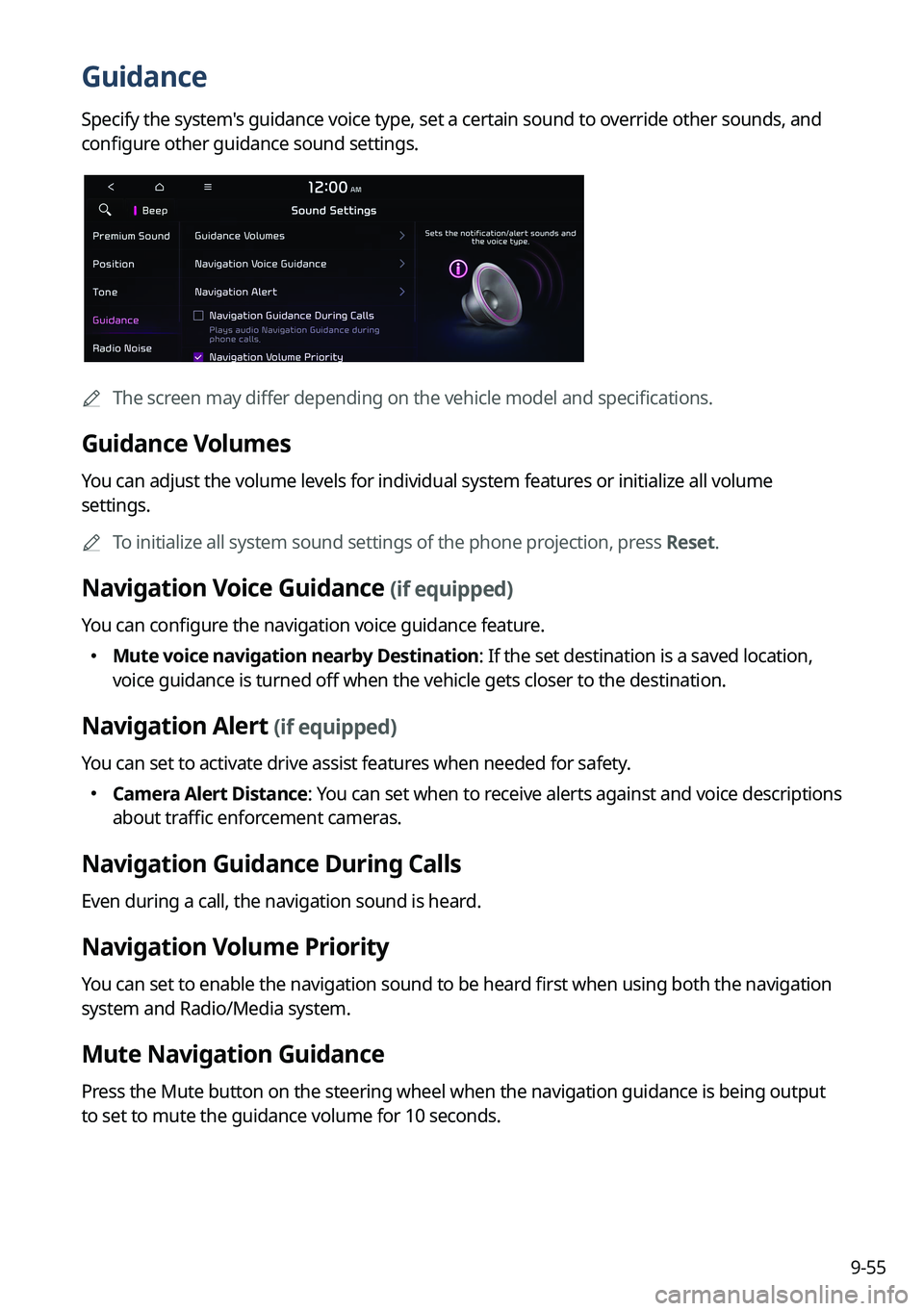
Guidance
Specify the system's guidance voice type, set a certain sound to override other sounds, and
configure other guidance sound settings.
AThe screen may differ depending on the vehicle model and specifications.
Guidance Volumes
You can adjust the volume levels for individual system features or initialize all volume
settings.
A
To initialize all system sound settings of the phone projection, press Reset.
Navigation Voice Guidance (if equipped)
You can configure the navigation voice guidance feature.
�Mute voice navigation nearby Destination: If the set destination is a saved location,
voice guidance is turned off when the vehicle gets closer to the destination.
Navigation Alert (if equipped)
You can set to activate drive assist features when needed for safety.
�Camera Alert Distance
: You can set when to receive alerts against and voice descriptions
about traffic enforcement cameras.
Navigation Guidance During Calls
Even during a call, the navigation sound is heard.
Navigation Volume Priority
You can set to enable the navigation sound to be heard first when using both the navigation
system and Radio/Media system.
Mute Navigation Guidance
Press the Mute button on the steering wheel when the navigation guidance is being output
to set to mute the guidance volume for 10 seconds.
Page 261 of 348
9-59
Configuring the voice recognition settings
(Type1)
You can change the settings for voice recognition.
1 On the All Menus screen, press Setup >
Voice Recognition.
The voice recognition settings screen appears.
2 Configure the settings required:
A
Press Menu >
Search for Settings or press and enter a keyword to search for a
setting item. You can also search for a setting item by voice.
Guidance
You can set whether to hear the voice recognition guidance briefly or in detail. You can also
turn off the voice guidance.
Page 262 of 348
9-60
Configuring the voice recognition settings
(Type2)
You can change the settings for voice recognition.
1 On the All Menus screen, press Setup >
Voice Recognition.
The voice recognition settings screen appears.
2 Configure the settings required:
A
Press >
Search for Settings or press and enter a keyword to search for a
setting item. You can also search for a setting item by voice.
Audible Prompts
You can set whether to hear the voice recognition guidance briefly or in detail. You can also
turn off the voice guidance.
A
The displayed screen or name may differ depending on the vehicle model and
specifications.
Rear Seat (if equipped)
Turn on the rear-seat speech recognition function.
AThe screen may differ depending on the vehicle model and specifications.
A
If the rear-seat speech recognition lock is on, it is not possible to use speech recognition
from the rear seats.
Page 264 of 348
9-62
Display Traffic: Displays nearby traffic information on the map.
3D Buildings: Displays major buildings on the map in three dimensions.
Auto-scale: Automatically changes the scale of the map.
� POI Display: You can specify the icon type to display nearby places on the map.
A
Press
on the right side of Gas/LPG Station to select display options for fuel prices.
Gas and LPG stations on the Map screen will also show their fuel prices if they are lower
than the set price.
Select Display Fuel Price Info on Map to view recommended fuel prices based on the
prices offered in the area.
Fuel prices on the map may differ from actual ones.
Information
You can specify the information to display on the navigation map screen while driving.
� Route Guide Line: Change the route guide line color depending on the traffic conditions.
To display the route guide line with a fixed color, uncheck Show Traffic Colors and select
a color.
�Vehicle Symbol: You can specify the icon type to display your current location on the
map.
�Units: You can set the distance unit of the navigation map to Kilometers (km) or Miles
(mi) (if equipped).
�Show Vehicle Speed: Displays the vehicle speed on the map.
�Detailed Guidance View: You can set to display detailed information on the Map screen,
such as moving directions and lane change.
�Speed Limits: Sets whether or not to display the speed limits on the screen.
Map Auto-scale Settings
You can set the scales for each vehicle speed zone.
A
For example, when "700 ft" is selected for the "21–40 mi/h" zone and "0.25 mi" for the
"41–60 mi/h" zone, the map scale on the navigation screen becomes 700 ft when vehicle
speed is 40 mi/h and 0.25 mi when vehicle speed is 41 mi/h.
Return to Map: Set Time
You can set the system to automatically display the map screen after a specified period of
time when switched to the Radio/Media mode screen while using the navigation.
A
This function works while driving once a destination has been set.
A
This feature is not available on the phone projection screen.
Page 267 of 348

9-65
Previous Destinations Settings
You can set to automatically save the previous destination and display the previous
destinations when the navigation system starts.
�Save Previous Destinations: The previous destination is automatically saved.
�Show Previous Destinations after Navigation Start-up: When the navigation system
starts, the list of recent destinations appear on a pop-up window.
Fuel Price Information (if equipped)
When displaying gas stations or LPG charging stations on the map, the fuel prices below a
specific range can be displayed.
A
Select Display Fuel Price Info on Map to view recommended fuel prices based on the
prices offered in the area.
A
Fuel prices on the map may differ from actual ones.
User Data
You can import location data from a USB device to the system, or export the data on the
system to a USB device.
A
When importing or exporting the location data, you can uses only the USB device
formatted in exFAT, FAT16/32, or NTFS.
�Import Address Book from USB Device: You can import the location data on a USB
device to the system.
A
The previous location data on the system is to be deleted.
A
If location information is imported from a different navigation device or system,
the locations may appear differently because the device/system uses a different
coordinate system.
�Export Address Book to USB Device: You can export the location data on the system to
a USB device.
A
The location data on the USB device is deleted.

