Page 291 of 348
9-89
Units (if equipped)
You can specify the units to display on the system screen.
A
The displayed screen or name may differ depending on the vehicle model and
specifications.
Distance and Speed
You can select the units for distance and vehicle speed to display on the screen.
Temperature
You can select the temperature unit to display on the screen.
Fuel Efficiency or Energy Economy
You can select the unit for fuel (energy) economy to display on the screen.
A
The displayed name may differ depending on the vehicle model and specifications.
Tire Pressure
You can select the unit for tire pressure to display on the screen.
Torque (if equipped)
You can select a torque unit to display on the system screen.
Turbo Boost (if equipped)
You can select a turbo boost unit to display on the system screen.
Page 320 of 348
11-4
USB playback
SymptomPossible causeSolution
Files in a USB device
cannot be played. There are no
compatible files for
playbackCopy the files that can be played by the
system to the USB device and connect the
device again.
> See "
USB mode."
Poor connection is
found. Remove the USB device from the USB port
and then reconnect it properly.
The USB device is
dirty. Remove foreign materials from the surface
that contacts the USB device and USB port.
A USB hub or
extension cable is
used.
Connect the USB device directly to the USB
port on the vehicle.
The USB device is
non-standard. Use a USB device that is compatible with the
system.
> See "
USB mode."
The USB device is
damaged. Use your computer to format the USB device
and then connect the device again. Format
the device in FAT16/32 format.
Page 322 of 348
11-6
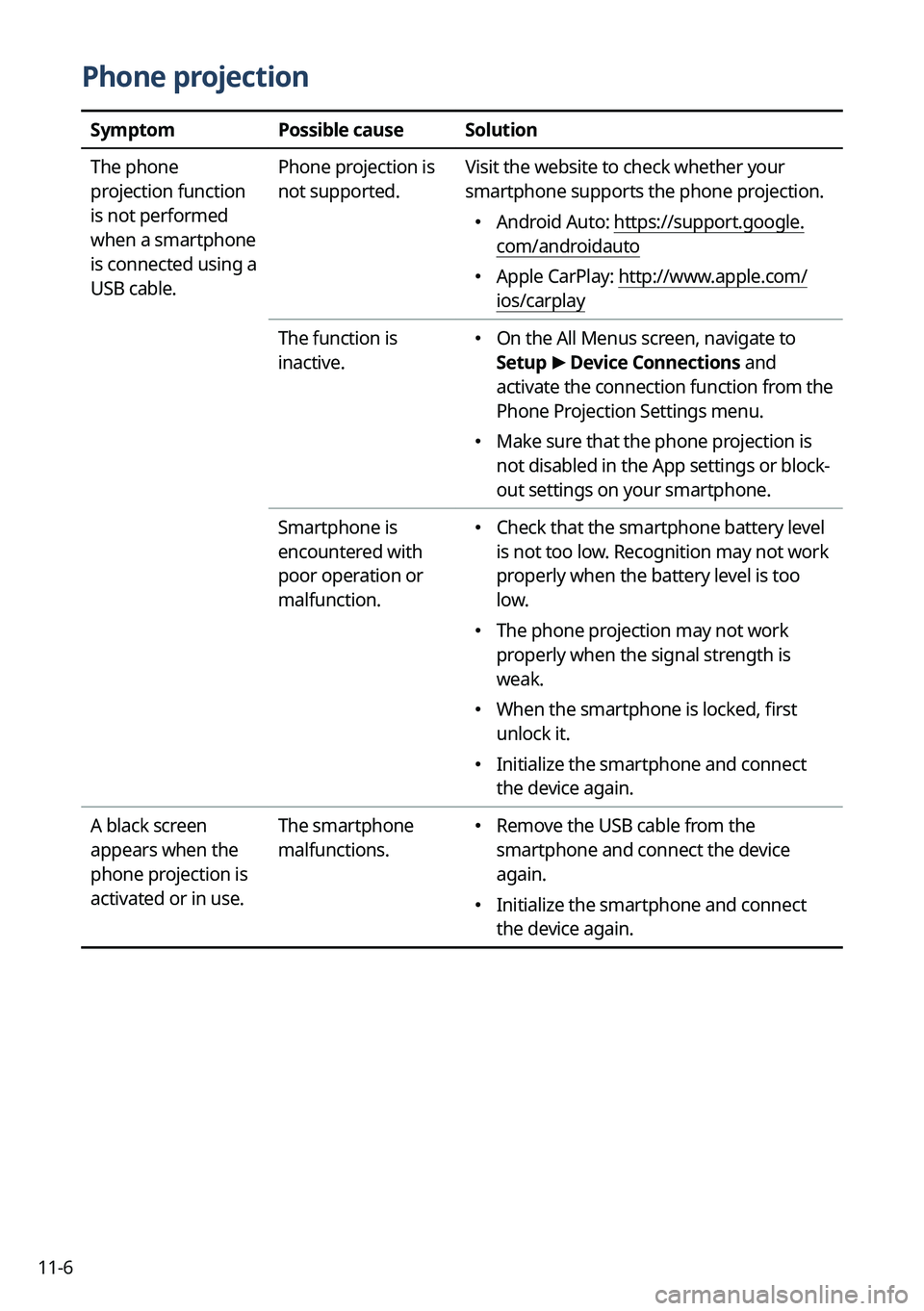
Phone projection
SymptomPossible causeSolution
The phone
projection function
is not performed
when a smartphone
is connected using a
USB cable. Phone projection is
not supported.
Visit the website to check whether your
smartphone supports the phone projection.
�
Android Auto: https://support.google.
com/androidauto
�Apple CarPlay: http://www.apple.com/
ios/carplay
The function is
inactive.
� On the All Menus screen, navigate to
Setup
>
Device Connections and
activate the connection function from the
Phone Projection Settings menu.
� Make sure that the phone projection is
not disabled in the App settings or block-
out settings on your smartphone.
Smartphone is
encountered with
poor operation or
malfunction.
� Check that the smartphone battery level
is not too low. Recognition may not work
properly when the battery level is too
low.
�The phone projection may not work
properly when the signal strength is
weak.
�When the smartphone is locked, first
unlock it.
�Initialize the smartphone and connect
the device again.
A black screen
appears when the
phone projection is
activated or in use. The smartphone
malfunctions.
�
Remove the USB cable from the
smartphone and connect the device
again.
�Initialize the smartphone and connect
the device again.
Page 325 of 348
11-9
System status indicator icons
You can see the system status by checking the status indicator icons at the top right of the
system screen.
Different status indicator icons appear when each function is performed. The meanings of
the icons are as follows:
Mute/memo recording
Navigation sound muted
Radio/Media sound muted
All sound outputs muted
Recording a voice memo
Bluetooth/call
Connecting a phone via Bluetooth
Connecting an audio device via Bluetooth
Connecting a phone and an audio device via Bluetooth
Making a call via a Bluetooth phone
Bluetooth phone's microphone off
Downloading the contact and list of recent calls from the connected Bluetooth
phone
Page 331 of 348

11-15
A
The following files are not played.
Modified files (format-changed files)
Variant files (e.g. MP3 files encoded by WMA audio codec)
DRM (Digital Rights Management)-protected files
Files with no index
A
Sound quality is not guaranteed in case of music files that use the bit-rate exceeding 192
kbps.
A
With the files that do not use the fixed bit rate, some functions may not work properly or
the playback time may not appear accurately.
A
When a trouble occurs while playing or you want to play an incompatible format file, use
the latest encoder software to change the format before using the file.
[USB storage devices
Item
Specifications
Byte/Sector 64 KB or less
Format system FAT16/32 (recommended), exFAT, NTFS
A
With the USB storage devices that are not equipped with a plug-type connector (metal
cover type), proper operation is not guaranteed.
USB storage devices with a plastic plug may not be recognized.
USB memory cards (e.g. CF cards, SD cards) may not be recognized.
A
Problems that are caused by using USB storage devices (not specified in the following
list), are not covered by the warranty.
Product name Manufacturer
XTICK LG
BMK BMK Technology
SKY-DRV Sky Digital
TRANSCEND JetFlash TranScend
Sandisk Cruzer SanDisk
Micro ZyRUS ZyRUS
NEXTIK DIGI Works
A
USB hard drives may not be recognized.
A
When using a USB mass storage device divided into logical drives, only the files saved in
the first drive can be played.
A
When a USB storage device has some Apps, media files may not be played.
Page 336 of 348

11-20
Navigation features
Navigation features included in the system are intended to provide detailed instructions to
get you to a desired destination. Ensure that all persons using this system carefully read and
follow all instructions on safety information.
Distraction hazard
Some navigation features may require manual (non-verbal) setup. Attempting to perform
such setup or inputting data while driving can seriously distract your attention and could
cause an accident. Stop the vehicle in a safe and legal manner before attempting these
operations.
Let your judgment prevail
Any navigation features are provided only as an aid. Make your driving decisions based on
your observations of local conditions and existing traffic regulations. Any such feature is not
a substitute for your personal judgment. Any route suggestions made by this system should
never replace any local traffic regulations or your personal judgment or knowledge of safe
driving practices.
Route safety
Do not follow the route suggestions if doing so would result in an unsafe or illegal maneuver,
if you would be placed in an unsafe situation, or if you would be directed into an area that
you consider unsafe. The driver is ultimately responsible for the safe operation of the vehicle
and must evaluate whether it is safe to follow the suggested directions.
Potential map inaccuracy
Maps used by this system may be inaccurate because of changes in roads, traffic controls
or driving conditions. Always use good judgment and common sense when following the
suggested routes.
Emergency services
Do not rely on any navigation features included in the system to direct you to emergency
services. Ask local authorities or an emergency services operator for these locations. Not all
emergency services such as police, fire stations, hospitals and clinics are contained in the
map database for navigation features.
Use of speech recognition functions
Speech recognition software is inherently a statistical process which is subject to errors. It is
your responsibility to monitor any speech recognition functions included in the system and
address any errors.
Page 337 of 348

11-21
Control panel
Custom button 1-3
MAP button 1-2
MEDIA button 1-2
NAV button 1-2
POWER button/VOLUME knob 1-2
RADIO button 1-2
Search knob 1-3
SEEK/TRACK button 1-3
SETUP button 1-3
System Reset button 1-3
Steering wheel remote control
Call button 1-4,
1-5
Custom button 1-5
End Call button 1-4, 1-5
MODE button 1-4
Move lever/button 1-4
Voice Recognition button 1-4
Volume lever/Mute button 1-4
Contacts list 6-10
Control panel 1-2
D
Deleting a location 5-26
Destination search 5-3
Driving assistance screen 2-9
Driving Information 2-27
E
Editing a location 5-26
Editing a route 5-16
EV charging stations 5-29
Index
A
Advanced system settings 9-41
Android devices
Android Auto 2-5
Apple devices Apple CarPlay 2-7
B
Battery warning 1-7
BluetoothBluetooth phone
Answering a call 6-15
Call 6-6
Contacts list 6-10
Dial pad 6-12
Favorites settings 6-8
Options during a call 6-16
Recent calls list 6-6
Switching to another call 6-17
Text message 6-17
Specifications 11-16
Bluetooth connection Adding a device 6-2
Deleting a device 6-5
Device connection 6-4
Disconnecting a device 6-5
C
ClimateClimate settings 9-9, 9-27
Climate control function 2-14
Component names and functions
Page 339 of 348

11-23
P
Parking assist guide lines 2-9
Phone 6-6
Phone projectionAndroid Auto 2-5
Apple CarPlay 2-7
Previous Destinations 5-14
Product specifications Bluetooth 11-16
Common specifications 11-16
LTE RF 11-17
Media player 11-14
Radio 11-16
Wi-Fi 11-18
Proximity Warning 2-10
R
Radio Changing the channel 3-7, 3-8
Changing the radio mode 3-6
Deleting a channel 3-10
Saving radio channels 3-9
Scanning channels 3-7, 3-8
Rear-seat climate control function 2-17
Rear-seat conversation mode 2-19
Rear-seat quiet mode 2-21
Rear-seat view 2-20
Rear view screen 2-9
Recent calls list 6-6
S
Save searched place 5-22
Saving frequently visited places 5-24
Saving the current position 5-23
Settings Advanced settings 9-41
Bluetooth settings 9-40
Button settings 9-45, 9-47
Data/network settings 9-77
Device connections settings 9-34, 9-36
Display settings 9-92, 9-97
General settings 9-80, 9-85
Kia Connect settings 9-75
Media settings 9-103
Navigation settings 9-61, 9-66
Screen saver settings 9-101
Screen theme/layout settings 9-91
Sound settings 9-49, 9-53
User profile settings 9-78, 9-79
UVO settings 9-73
Vehicle settings 9-3, 9-15
Voice recognition settings 9-59, 9-60
Siri Eyes Free 7-29
SiriusXM™ 3-13 Changing to SiriusXM mode 3-13, 3-14
Featured Favorites channels 3-19
Searching for channels 3-16
Selecting channels 3-17
Viewing the program schedule 3-18
Software update 9-104


