Page 268 of 348

9-66
GPS Information
You can see the GPS satellite status and coordinates of the current position.
a
b
The following information appears:
a a Can see the reception status of the satellite signals.
�Receiving: Satellite signals are being received and the current position is recognized.
�Searching: The system is scanning the satellite signals.
b b Can see the current location.
Reset
You can initialize all the settings of the navigation system.
Configuring the navigation settings (Type2)
You can configure the navigation settings for navigation operations, screen display, voice
guidance, etc. You can also export or import the location data.
A
For details on how to use navigation functions, see the "Navigation" chapter.
> See
" Navigation."
1 On the All Menus screen, press Setup >
Navigation.
The navigation settings screen appears.
2 Configure the settings required:
A
Press >
Search for Settings or press and enter a keyword to search for a
setting item. You can also search for a setting item by voice.
Page 269 of 348

9-67
Display
You can specify the information to display on the navigation map screen.
AThe screen may differ depending on the vehicle model and specifications.
Vehicle Speed
Displays the vehicle speed on the map.
Display Traffic Info
Displays nearby traffic information on the map.
Show Traffic Colors
Used to display the route guide line colors depending on the traffic conditions.
Nearby POIs
You can specify the icon type to display nearby places on the map.
A
Press
on the right side of Gas/LPG Station to select display options for fuel prices.
Gas and LPG stations on the Map screen will also show their fuel prices if they are lower
than the set price.
Select Show Fuel Price Information on the Map to view recommended fuel prices
based on the prices offered in the area.
Fuel prices on the map may differ from actual ones.
Fuel Price Info (if equipped)
When displaying gas stations or LPG charging stations on the map, the fuel prices below a
specific range can be displayed.
A
Select Show Fuel Price Information on the Map to view recommended fuel prices
based on the prices offered in the area.
A
Fuel prices on the map may differ from actual ones.
Page 271 of 348

9-69
Previous Destinations Settings
You can set to automatically save the previous destination and display the previous
destinations when the navigation system starts.
�Save Previous Destinations: The previous destination is automatically saved.
�Show Previous Destinations after Navigation Start-up: When the navigation system
starts, the list of recent destinations appear on a pop-up window.
�Auto. Destination Recommendation: You can set to analyze your departure places
and times and to automatically suggest destinations that are set periodically. When you
are driving without setting a destination and you are within the recommended time or
range, your home or office registered as a favorite is recommended as the destination (if
equipped).
A
To use this feature, your home or office must have been saved as a favorite. In Home
or Office under Navigation Menu >
Saved Places >
Favorites, save the location
information.
Alerts
You can set to activate drive assist features when needed for safety.
A The screen may differ depending on the vehicle model and specifications.
ÝWarning
Be sure to check the road conditions while driving, because the camera information may get
changed occasionally after a map update to the latest version. Relying solely on the driving
assist system may cause violation of traffic rules and regulations, resulting in an accident.
Camera Alert Distance
You can set when to receive alerts against and voice descriptions about traffic enforcement
cameras.
�Camera Alert Distance Depending on the Speed Limit: The time when to get alerts for
traffic enforcement cameras is automatically set depending on the driving speed. When
the Camera Alert Distance Depending on the Speed Limit function is off, the time
when to get guidance on traffic enforcement cameras on Local Roads and Freeway can
be selected.
Page 272 of 348

9-70
Map (if equipped)
You can specify the items to display on the map.
AThe screen may differ depending on the vehicle model and specifications.
Map Mode
You can specify the items to display on the map.
�Map View: Set the navigation map display mode. To fix the top of the map screen
to north, select North Up 2D. To automatically rotate the map screen based on the
driving direction, select Heading Up 2D. If you select Heading Up 3D, the map screen is
displayed in 3D mode and automatically rotates based on the driving direction.
�3D Buildings: Displays major buildings on the map in three dimensions.
�Auto-scale: Automatically changes the scale of the map.
Map Font Size
You can set the size of the screen font on the navigation map.
Map Color
You can set the navigation map theme color.
Vehicle Symbol Color
You can specify the icon type to display your current location on the map.
Set Map Auto-scale
You can set the scales for each vehicle speed zone
A
For example, when "700 ft" is selected for the "21-40 mi/h" zone and "0.25 mi" for the
"41–60 mi/h" zone, the map scale on the navigation screen becomes 700 ft when vehicle
speed is 40 mi/h and 0.25 mi when vehicle speed is 41 mi/h.
Page 274 of 348
9-72
User Data
You can import location data from a USB device to the system, or export the data on the
system to a USB device.
A
When importing or exporting the location data, you can uses only the USB device
formatted in exFAT, FAT16/32, or NTFS.
�Import Saved Places/Previous Destinations from USB: You can import saved location
and destination information, saved on your USB storage device, to the system.
A
Previous information saved on the system will be deleted.
A
If location information is imported from a different navigation device or system,
the locations may appear differently because the device/system uses a different
coordinate system.
�Export Saved Places/Previous Destinations to USB: You can export saved location and
destination information, saved on the system, to your USB storage device.
A
Previous information saved on the USB storage device will be deleted.
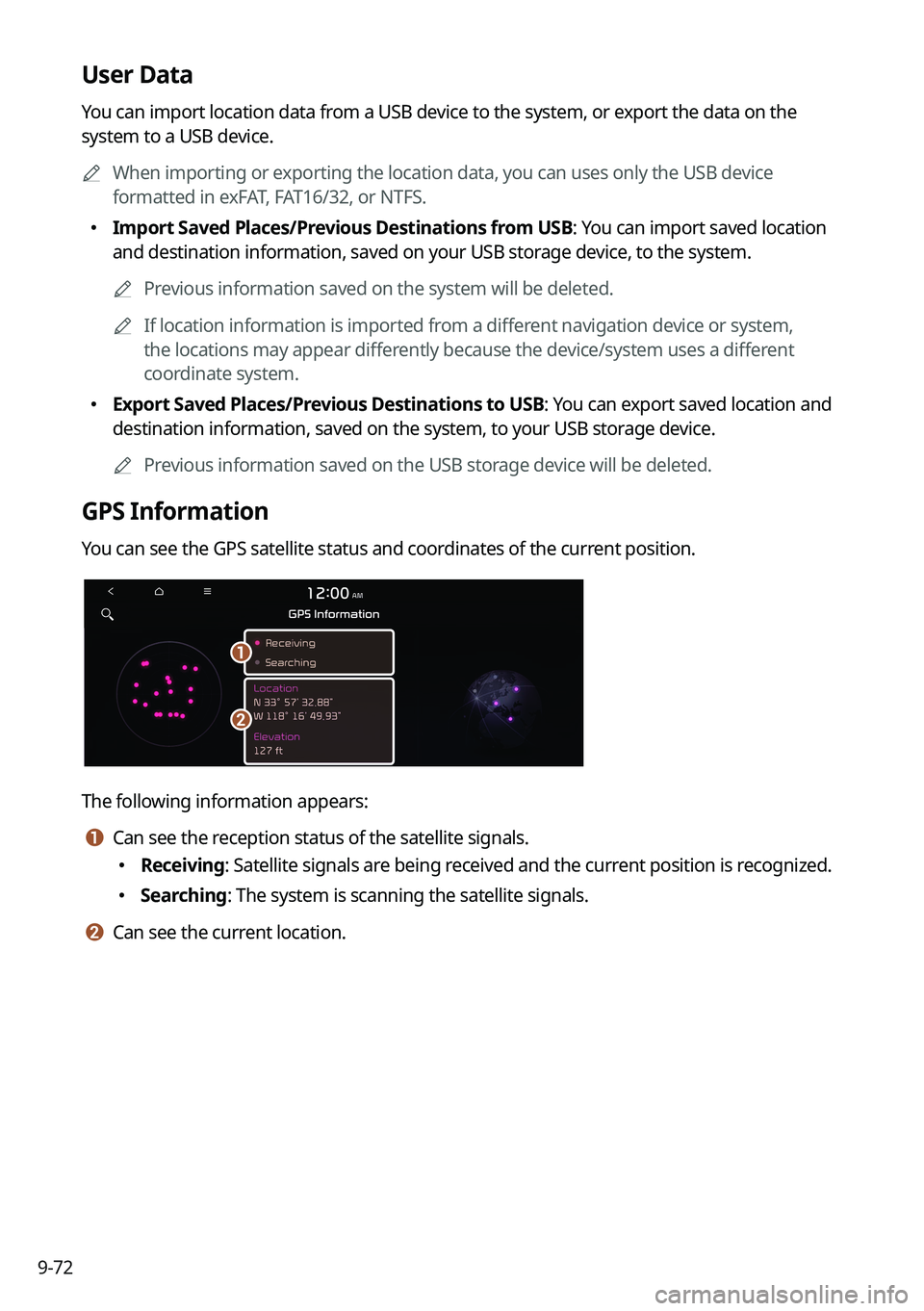
GPS Information
You can see the GPS satellite status and coordinates of the current position.
a
b
The following information appears:
a a Can see the reception status of the satellite signals.
�Receiving: Satellite signals are being received and the current position is recognized.
�Searching: The system is scanning the satellite signals.
b b Can see the current location.
Page 285 of 348
9-83
GPS Time
After receiving the time from GPS, it sets the system date and time automatically.
A
To manually set the date and time, uncheck GPS Time, press the current date and time
below GPS Time, and then set the date and time.
24 Hours
The system time is displayed in the 24-hour format.
Daylight Saving Time
Displays the system time in the format of Daylight Saving Time.
Language
You can set the system display language.
A
Once the language has been changed, it takes a while to apply the new language to the
system. The notification pop-up window appears as soon as the new language is applied
to the system. When you wait a while or press anywhere outside the pop-up window, the
window automatically disappears.
A
When you change the system language, it does not affect the display of other unique
data such as MP3 music file name.
A
Depending on the system language, the Bluetooth phone message view and voice
recognition may not be supported.
Page 286 of 348
9-84
Keyboard
You can change the keyboard type for each language to use when entering the text.
English Keyboard
You can select the keyboard type to use when entering the English text.
Default Keyboard
You can select the default keyboard type.
Units (if equipped)
You can specify the units to display on the system screen.
Distance and Speed
You can select the units for distance and vehicle speed to display on the screen.
Temperature
You can select the temperature unit to display on the screen.
Fuel Efficiency
You can select the unit for fuel economy to display on the screen.
Tire Pressure
You can select the unit for tire pressure to display on the screen.
Page 290 of 348
9-88
Language
You can set the system display language.
A
Once the language has been changed, it takes a while to apply the new language to the
system. The notification pop-up window appears as soon as the new language is applied
to the system. When you wait a while or press anywhere outside the pop-up window, the
window automatically disappears.
A
When you change the system language, it does not affect the display of other unique
data such as MP3 music file name.
A
Depending on the system language, the Bluetooth phone message view and voice
recognition may not be supported.
Keyboard
You can change the keyboard type for each language to use when entering the text.
English-Latin Keyboard Type
You can select the keyboard type to use when entering the English text.
Default Keyboard
You can select the default keyboard type.


