2023 HYUNDAI SONATA navigation system
[x] Cancel search: navigation systemPage 171 of 555
05
5-25
Recalling Positions from Memory
1. Shift to P (Park) while the ignition switch is in the ON position.
2. Press the desired memory button (1 or 2). The system will beep once,
and then the driver’s seat position,
side view mirror position, instrument
panel illumination intensity and
head-up display height/brightness
will automatically adjust to the stored positions.
3. “Settings 1 (or 2) applied” will appear on the cluster LCD display.
If your vehicle is equipped with
additional navigation, please refer to the
infotainment system manual separately supplied.
Information
• While recalling the “1” memory
position, pressing the SET or 1 button temporarily stops the adjustment of
the recalled memory position. Pressing
the 2 button recalls the “2” memory position.
• While recalling the “2” memory
position, pressing the SET or 2 button temporarily stops the adjustment of
the recalled memory position. Pressing
the 1 button recalls the “1” memory position.
• While recalling the stored positions,
pressing one of the control buttons
for the driver’s seat, side view mirror,
instrument panel illumination or head-up display will cause the movement of that component to stop and move in
the direction that the control button is
pressed.
Resetting the Driver’s Seat
Memory System
Take the following procedures to reset
the driver’s seat memory system, when it
does not operate properly.
To reset the driver’s seat memory
system
1. Place the ignition switch to the ON
position, shift to P (Park), and open
the driver’s door.
2. Operate the control switch to set the driver’s seat and seatback to the
foremost position.
3. Simultaneously press the SET button and push forward the seat movement
switch over 2 seconds.
While resetting the driver’s seat
memory system
1. It starts with the notification sound.
2. The driver’s seat and seatback is adjusted to the rearward position with
the notification sound.
3. The driver’s seat and seatback is re-adjusted to the default position
(central position) with the notification sound.
However, in the following cases, the
resetting procedure and the notification
sound may stop.
- The memory button is pressed.
- The control switch is operated.
- The gear is shifted out of P (Park) .
- The driving speed exceeds 3 km/h (2 mph).
- The driver’s door is closed.
Page 172 of 555
Convenience Features
5-26
NOTICE
• Reattempt to do the resetting procedure again, when the resetting
procedure incompletely stops or the
notification sound do not stop.
• Make sure that there is no obstacle around the driver’s seat in advance
of resetting the driver’s seat memory
system.
Easy Access Function
The system will move the driver’s seat
automatically as follows: • It will move the driver’s seat rearward
when the Engine Start/Stop button is
pressed to the OFF position.
• It will move the driver’s seat forward
when the Engine Start/Stop button is
pressed to the ACC or START position.
You can activate or deactivate the Easy
Access Function from the User Settings
mode in the cluster LCD display.
‘Convenience → Seat Easy Access →
Off/Normal/Extended’.
For more information, refer to “LCD
Display” in chapter 4.If your vehicle is
equipped with additional navigation,
please refer to the infotainment system
manual separately supplied.
CAUTION
Driver should be cautious when using
this function to assure no injury to
passenger or child on the back seat.
In case of emergency the driver has to
stop movement of front seat (when easy
access feature is activated) by pressing
SET button or any of the driver seat
control switches.
Page 199 of 555
05
5-53
Inside the vehicle
When you can not unlock the trunk due
to battery discharge or other reasons,
you can unlock the trunk inside the
vehicle.
ODN8059045L
Open the cable cover(1) under the rear
seat with a mechanical key and pull the
cable (2) for unlocking the trunk.
The cable is firmly fixed so it may hard to
pull. Therefore, please use a tool such as
a screwdriver to assist in pulling the loop
for the emergency release.
Smart Trunk with Auto Open (if equipped)
ODN8059046L
On a vehicle equipped with a smart key, the trunk can be opened using the Smart
Trunk with Auto Open system. How to use the Smart Trunk with
Auto Open
The trunk can be opened with no-touch
activation satisfying all the conditions
below.
• After 15 seconds when all doors are
closed and locked
• Positioned in the detecting area for more than 3 seconds.
Information
• The Smart Trunk with Auto Open does not operate when:
- The smart key is detected within 15 seconds after the doors are closed and locked, and is continuously detected.
- The smart key is detected within 15 seconds after the doors are closed and locked, and within 1.5m (60inches)
from the front door handles. (for
vehicles equipped with Welcome Light)
- A door is not locked or closed.
- The smart key is in the vehicle.
1. Setting
To activate the Smart Trunk with Auto
Open, go to User Settings Mode and
select Smart Trunk on the LCD display.
For more information, refer to the “LCD
Display” section in this chapter. If your
vehicle is equipped with additional
navigation, please refer to the
infotainment system manual separately supplied.
Page 205 of 555
05
5-59
heAD Up DiSplAy (hUD) (if eQUippeD)
ODN8A059054C
The Head-Up Display is an optional
feature that allows the driver to view
information projected onto a transparent
screen while still keeping your eyes
safely on the road ahead while driving.
Precautions while using the head up
display
It may sometimes be difficult to read
information on the head up display in the
following situations.
- The driver is improperly positioned in the driver’s seat.
- The driver wears polarizing-filter sunglasses.
- An object is located above the head up display cover.
- The vehicle is driven on a wet road.
- Any improper lighting accessory is installed inside the vehicle, or there
is incoming light from outside of the
vehicle.
- The driver wears glasses.
- The driver wears contact lenses.
When it is difficult to read the head up
display information, adjust the head
up display angle or the head up display
brightness level in the User Settings
mode. For more information, refer to
“LCD Display” in this chapter.
WARNING
• Do not tint the front windshield glass or add other types of metallic
coating. Otherwise, the head up
display image may be invisible.
• Do not place any accessories on the crash pad or attach any objects on the windshield glass.
• The Blind-spot Collision Warning system warnings on the head up
display are supplemental. Do not
solely depend on them to change
lanes. Always take a look around
before changing lanes.
NOTICE
When replacing the front windshield
glass of the vehicle equipped with
the head up display, replace it with
a windshield glass designed for the
head up display operation. Otherwise,
duplicated images may be displayed on the windshield glass.
Head-up display ON/OFF
OIK047152N
To activate the head up display, select
‘Enable Head-Up Display’ on the User
Settings mode on the instrument cluster
LCD display.
If you do not select ‘Enable Head-Up
Display’, the head up display will be
deactivated.
If your vehicle is equipped with
additional navigation, please refer to the
infotainment system manual separately supplied.
Page 206 of 555
Convenience Features
5-60
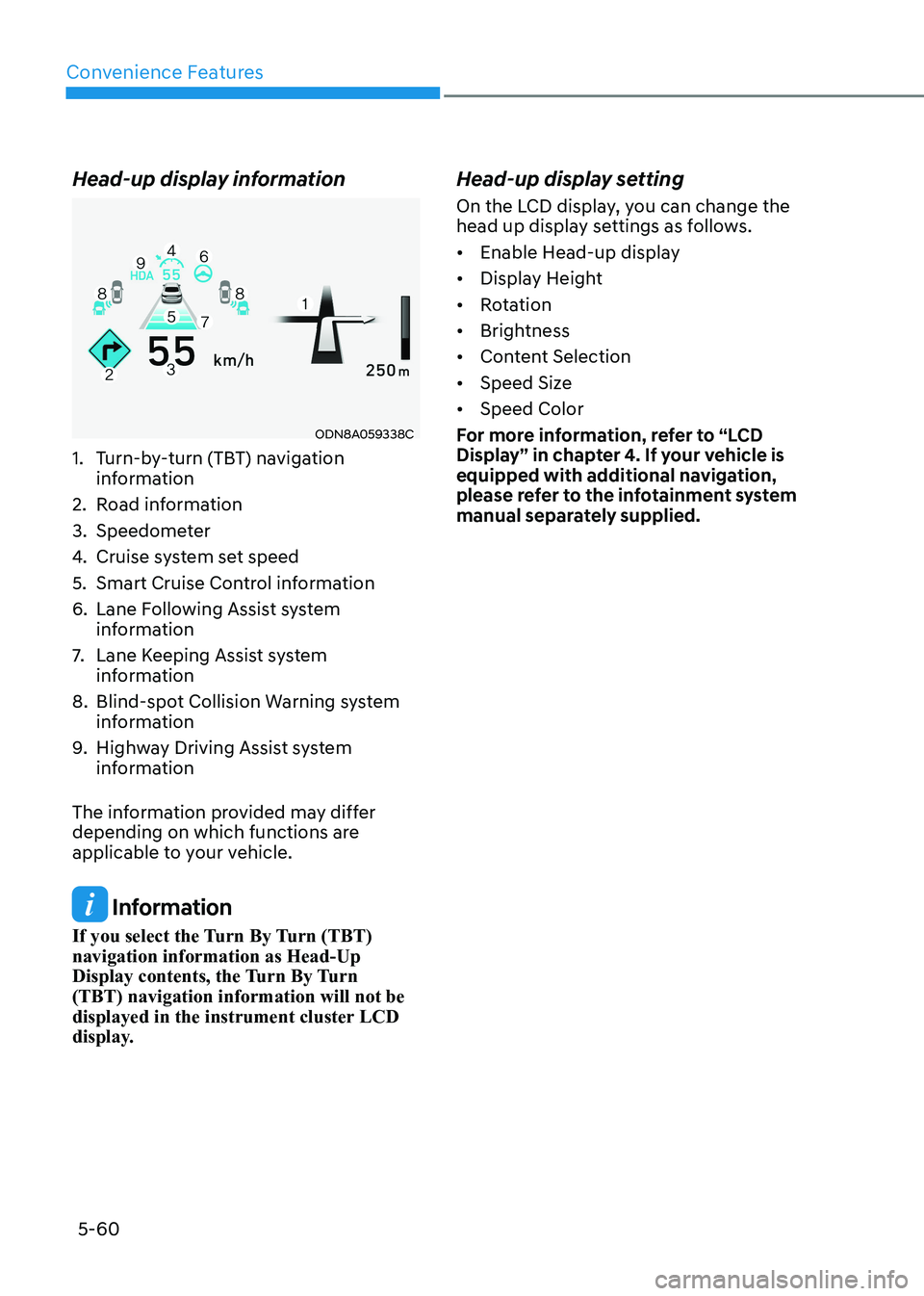
Head-up display information
ODN8A059338C
1. Turn-by-turn (TBT) navigation information
2. Road information
3. Speedometer
4. Cruise system set speed
5. Smart Cruise Control information
6. Lane Following Assist system information
7. Lane Keeping Assist system
information
8. Blind-spot Collision Warning system information
9. Highway Driving Assist system
information
The information provided may differ
depending on which functions are
applicable to your vehicle.
Information
If you select the Turn By Turn (TBT) navigation information as Head-Up
Display contents, the Turn By Turn (TBT) navigation information will not be
displayed in the instrument cluster LCD
display. Head-up display setting
On the LCD display, you can change the
head up display settings as follows.
• Enable Head-up display
• Display Height
• Rotation
• Brightness
• Content Selection
• Speed Size
• Speed Color
For more information, refer to “LCD
Display” in chapter 4. If your vehicle is
equipped with additional navigation,
please refer to the infotainment system
manual separately supplied.
Page 216 of 555
Convenience Features
5-70
Welcome System (if equipped)
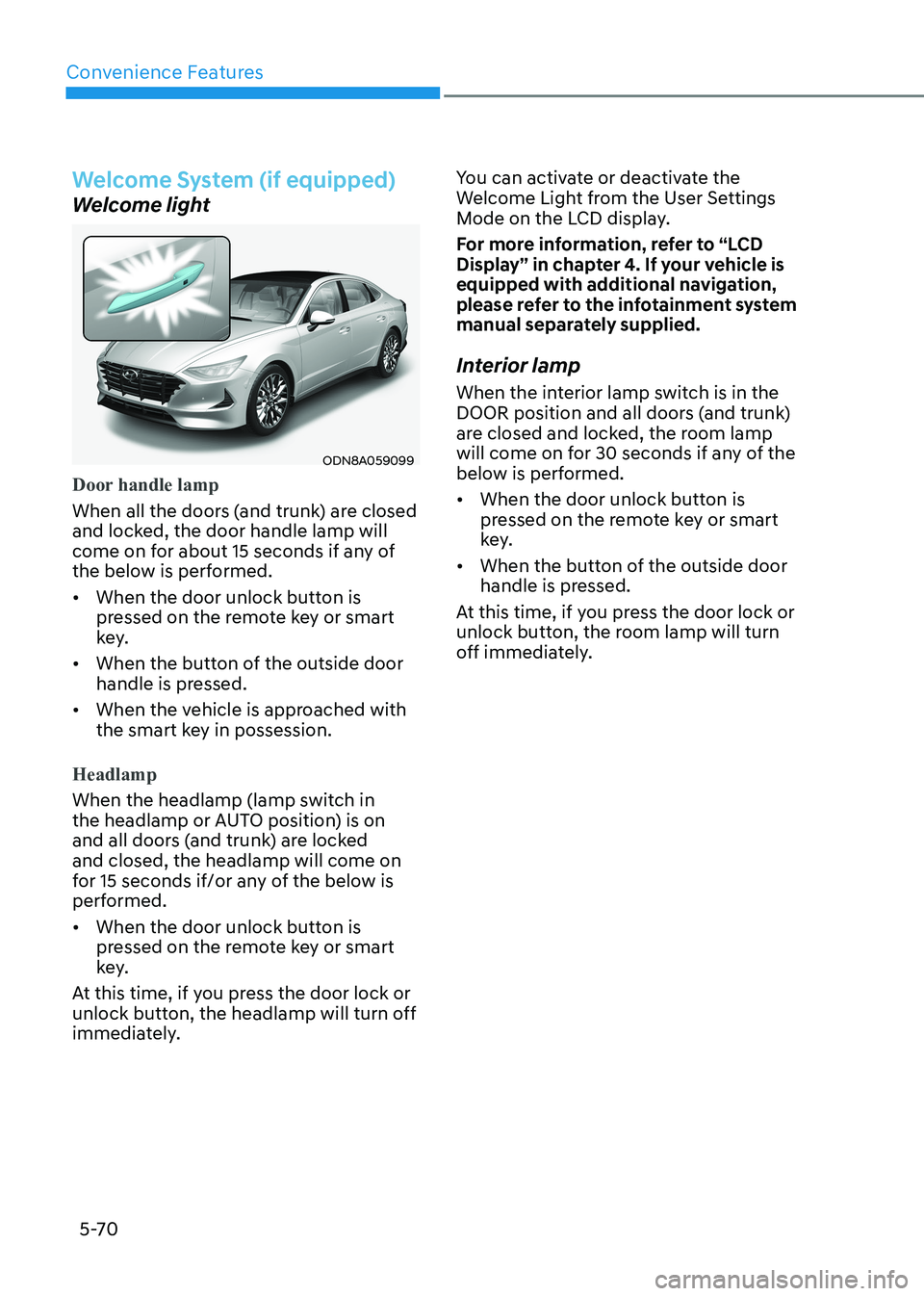
Welcome light
ODN8A059099
Door handle lamp
When all the doors (and trunk) are closed
and locked, the door handle lamp will
come on for about 15 seconds if any of
the below is performed.
• When the door unlock button is pressed on the remote key or smart
key.
• When the button of the outside door handle is pressed.
• When the vehicle is approached with the smart key in possession.
Headlamp
When the headlamp (lamp switch in
the headlamp or AUTO position) is on
and all doors (and trunk) are locked and closed, the headlamp will come on
for 15 seconds if/or any of the below is
performed.
• When the door unlock button is pressed on the remote key or smart
key.
At this time, if you press the door lock or
unlock button, the headlamp will turn off
immediately. You can activate or deactivate the
Welcome Light from the User Settings
Mode on the LCD display.
For more information, refer to “LCD
Display” in chapter 4. If your vehicle is
equipped with additional navigation,
please refer to the infotainment system
manual separately supplied.
Interior lamp
When the interior lamp switch is in the
DOOR position and all doors (and trunk)
are closed and locked, the room lamp
will come on for 30 seconds if any of the
below is performed.
• When the door unlock button is pressed on the remote key or smart
key.
• When the button of the outside door handle is pressed.
At this time, if you press the door lock or
unlock button, the room lamp will turn
off immediately.
Page 287 of 555
05
5-141
Bluetooth® Wireless Technology
Hands-Free
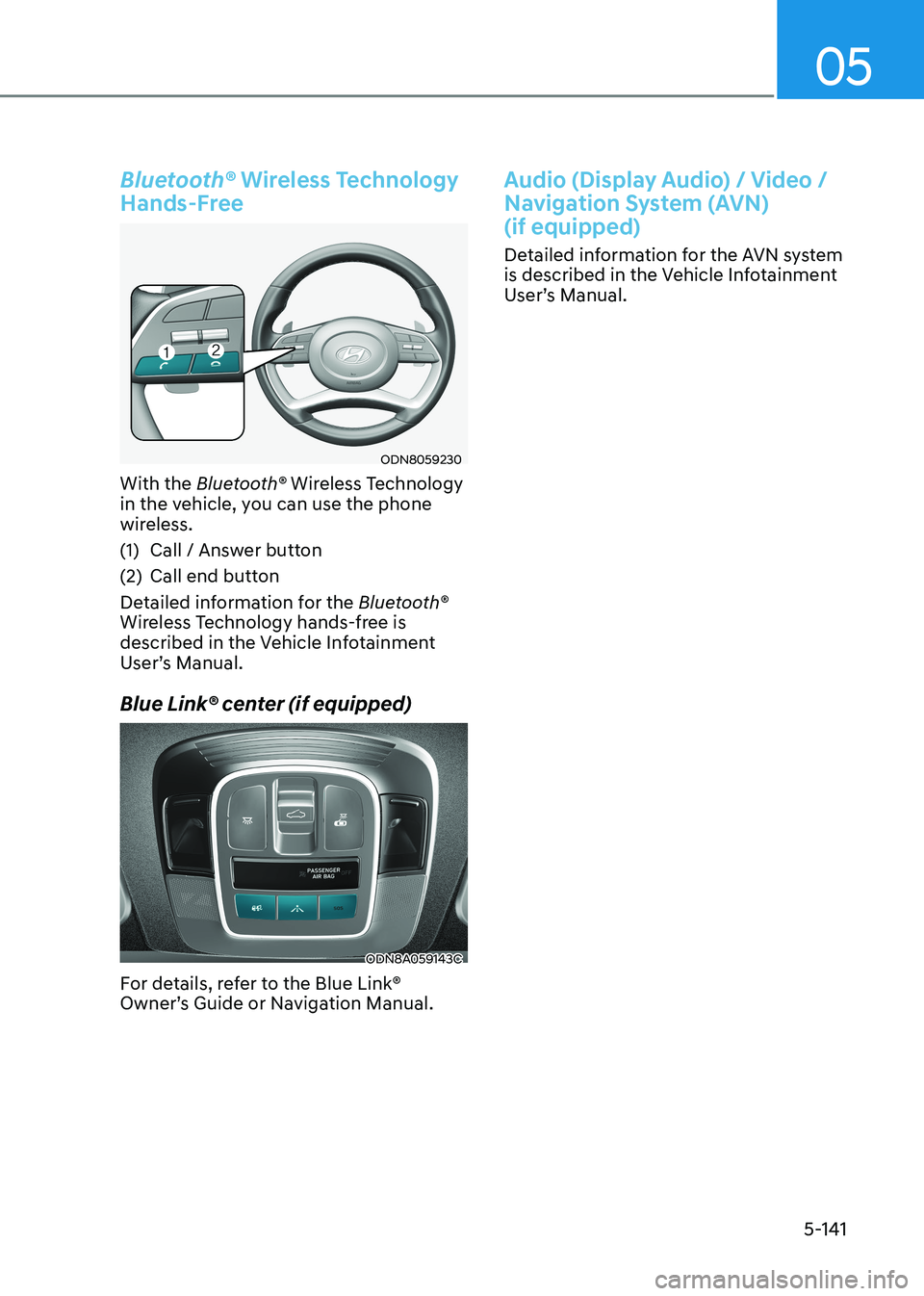
ODN8059230
With the Bluetooth® Wireless Technology
in the vehicle, you can use the phone
wireless.
(1) Call / Answer button
(2) Call end button
Detailed information for the Bluetooth®
Wireless Technology hands-free is
described in the Vehicle Infotainment
User’s Manual.
Blue Link® center (if equipped)
ODN8A059143C
For details, refer to the Blue Link®
Owner’s Guide or Navigation Manual.
Audio (Display Audio) / Video /
Navigation System (AVN) (if equipped)
Detailed information for the AVN system
is described in the Vehicle Infotainment
User’s Manual.
Page 290 of 555
Navigation-Based Smart Cruise Control ..................................................6-122
System Setting and Operation ............................................................................. 6-123
Lane Following Assist (LFA) ....................................................................... 6-126
LFA Operation ........................................................................................................ 6-127
Warning Message .................................................................................................. 6-128
Limitations of the System .................................................................................... 6-130
Highway Driving Assist (HDA) .................................................................... 6-132
System Setting and Operation ............................................................................. 6-133
Warning Message .................................................................................................. 6-135
Rear Cross-Traffic Collision Warning (RCCW) /
Rear Cross-Traffic Collision-Avoidance Assist (RCCA) ...........................6-138
System Description .............................................................................................. 6-138
System Setting and Activation ............................................................................ 6-139
Warning and System Control ................................................................................ 6-141
Detecting Sensors ................................................................................................ 6-144
Limitations of the System ..................................................................................... 6-145
Special Driving Conditions ........................................................................ 6-150
Hazardous Driving Conditions ............................................................................ 6-150
Rocking the Vehicle ............................................................................................. 6-150
Smooth Cornering ................................................................................................. 6-151
Driving at Night ..................................................................................................... 6-151
Driving in The Rain ................................................................................................ 6-151
Driving in Flooded Areas ....................................................................................... 6-152
Highway Driving .................................................................................................... 6-152
Winter Driving ............................................................................................. 6-153
Snow or Icy Conditions ......................................................................................... 6-153
Winter Precautions ................................................................................................ 6-154
Vehicle Load Limit ..................................................................................... 6-156
Tire Loading Information Label ............................................................................ 6-156
Trailer Towing .............................................................................................. 6-161
6
6. While Driving