2023 FORD MAVERICK USB
[x] Cancel search: USBPage 393 of 556
Using Apps on an Android Device
Note:For more information about availableapps, refer to the local Ford website.
When you start an app through the systemfor the first time, you could be asked togrant certain permissions. You can reviewand change the permissions that you havegranted at any time when your vehicle isnot moving.
Select the apps option on thefeature bar.
1.Switch Android Auto off.
2.Pair your device.
3.Start the apps on your device that youwant to use through the system.
Note:If you close the apps on your device,you will not be able to use them through thesystem.
4.Select Find mobile apps.
Note:The system searches and connectsto compatible apps that are running on yourdevice.
5.Select the app that you want to use onthe touchscreen.
Apps Troubleshooting
Possible Cause and ResolutionSymptom
The system cannot find anyapps.–Incompatible device.
•You will need an Android device with OS 2.3 orhigher or an iOS 3GS device with iOS 5.0 or higher.Pair and connect your Android device to findAppLink compatible apps. Connect your iOS deviceto a USB port to find AppLink compatible apps.
I have a compatible deviceand it is correctly connectedbut the system still cannotfind any apps.
–AppLink compatible apps not installed on your device.
•Download and install the latest version of the app.
–AppLink compatible apps not running on your device.
•Start the apps to allow the system to find themand make sure you sign in to any apps if required.
–Incorrect app settings.
•Check and adjust the app settings on your deviceand allow the system to access the app if required.
I have a compatible device,it is correctly connected andmy apps are running but thesystem still cannot find anyapps.
–Apps failed to fully close.
•Restart the apps and try again.
389
2023 Maverick (CFE) Canada/United States of America, enUSA, Edition date: 202208, First-PrintingAudio System - Vehicles Without: SYNC 3
Page 406 of 556

Automatic crash notificationsystem off.
Cell phone network signalstrength.
Vehicle data sharing on.
Vehicle location sharing on.
Vehicle data and vehicle locationsharing on.
Wireless charger active.
Feature Bar
Select to use the radio, a USB, amedia player or a Bluetooth®device. See Entertainment(page 410).
Select to adjust climate settings
Select to make calls and accessthe phonebook on your cellphone. See Phone (page 420).
Select to use the navigationsystem.
Select to search for and usecompatible apps on your iOS orAndroid device. See Apps (page428).
Select to adjust system settings.See Settings (page 430).
Cleaning the Touchscreen
See Cleaning Displays and Screens(page 330).
Updating the System
Updating the System Using a USB Drive
Downloading an Update
1.Go to the SYNC update page on thelocal Ford website.
2.Download the update.
Note:The website notifies you if an updateis available.
3.Insert a USB drive into your computer.
Note:The USB drive needs to be empty andmeet the minimum requirements detailedon the website.
4.Follow the instructions provided todownload the update to the USB drive.
Installing an Update
Note:You can use the system when aninstallation is in progress.
1.Disconnect all other USB devices fromthe USB ports.
2.Connect the USB drive with the updateto a USB port.
Note:Installation starts automaticallywithin 10 minutes.
Updating the System Using a Wi-FiNetwork Connection
Connecting to a Wi-Fi Network
Select the settings option on thefeature bar.
1.Select Automatic Updates.
2.Select System Wi-Fi.
3.Switch System Wi-Fi on.
4.Select Available Wi-Fi Networks.
5.Select an available Wi-Fi network.
Note:Enter the network password toconnect to a secure network.
402
2023 Maverick (CFE) Canada/United States of America, enUSA, Edition date: 202208, First-PrintingSYNC™ 3 (If Equipped) E263583 E100027 E283811 E280315 E280315
Page 408 of 556

Action and DescriptionVoice Command
You can use this command to view the next page of options onany screen where multiple pages of choices are given.Next Page
You can use this command to view the previous page of optionson any screen where multiple pages of choices are given.Previous Page
Gives you available commands you can use on the currentscreen.Help
Included here are some of the mostpopular commands for each SYNC 3feature.
Audio Voice Commands
___ is a dynamic listing, meaning that foraudio voice commands it can be the nameof a Sirius channel or a channel number, aradio frequency number, or the name of anartist, album, song or a genre.
To control the media features, press the voice button and when prompted, say:
DescriptionVoice Command
You can say the Sirius channel name or numbersuch as "Sirius channel 16".
1Sirius Channel ___
You can also tune to a Sirius channel by saying the channel's name, such as "The Pulse".
Allows you to tune to a specific FM or AMfrequency such as "FM 88.7" or "AM 1580".AM ___
FM ___
Allows you to tune to a specific HD frequencysuch as “FM 88.7 HD 1”.
1FM ___ HD ___
Allows you to listen to music on your Bluetooth®connected device.Bluetooth Audio
Allows you to listen to music on your USBconnected device.USB
For USB audio only, you can say the name of anartist, album, song or a genre to listen to thatselection. Your system must finish indexingbefore this option is available. For example, youcould say "Play artist The Beatles" or "Play songPenny Lane".
Play Genre ___
Play Playlist ___
Play Artist ___
Play Album ___
Play Podcast ___
Play Song ___
404
2023 Maverick (CFE) Canada/United States of America, enUSA, Edition date: 202208, First-PrintingSYNC™ 3 (If Equipped)
Page 409 of 556
DescriptionVoice Command
Play Audiobook ___
For USB audio only, you can say the name of anartist, album, or a genre to browse by that selec-tion. Your system must finish indexing before thisoption is available. For example you can say"Browse artist The Beatles" or "Browse genrefolk".
Browse ___
Browse Artist ___
Browse Album ___
Browse Genre ___
Browse Playlist ___
Browse Audiobook ___
Browse Podcast ___
1 This option may not be available in all markets or may require a subscription.
Climate Voice Commands (If Equipped)
You can control the temperature of thevehicle using voice commands.
___ is a dynamic listing, meaning that forclimate voice commands it can be thedesired degrees for the temperaturesetting.
To adjust the temperature, say:
DescriptionVoice Command
Adjust the temperature between 60–85°F(15.5–29.5°C).Set the Temperature to ____
Phone Voice Commands
Pairing a Phone
You can use voice commands to connectyour Bluetooth®-enabled phone to thesystem.
To pair your phone, press the voice button and when prompted, say:
DescriptionVoice Command
Follow the on-screen instructions to complete the pairingprocess. See Settings (page 430).Pair Phone
405
2023 Maverick (CFE) Canada/United States of America, enUSA, Edition date: 202208, First-PrintingSYNC™ 3 (If Equipped)
Page 415 of 556
Menu Item
AM
FM
1SIRIUS
CD
The name of the USB that is plugged in displays here.USB
Bluetooth Stereo
If you have SYNC 3 compatible apps on your connected smart phone, theydisplay here as individual source selections.Apps
1 This feature may not be available in all markets and requires an active subscription.
AM/FM Radio
Tuning a Station
You can use the tune or seek controls onthe radio bezel to select a station.
To tune a station using thetouchscreen, select:
Menu Item
Direct Tune
A pop up appears, allowing you to type inthe frequency of a station. You can onlyenter a valid station for the source you arecurrently listening to.
You can press the backspace button todelete the previously entered number.
Once you have entered the station'scall numbers, you can select:
Action and Descrip-tionMenu Item
Press to beginplaying the stationyou have entered.
Enter
Press to exitwithout changingthe station.
Cancel
Presets
To set a new preset, tune to the stationand then press and hold one of thememory preset buttons. The audio mutesbriefly while the system saves the stationand then returns.
You may be able to add additional presetpages using the settings option on thefeature bar.
411
2023 Maverick (CFE) Canada/United States of America, enUSA, Edition date: 202208, First-PrintingSYNC™ 3 (If Equipped)
Page 422 of 556
FunctionButton
For MP3 CDs, this button allows you to toggle through repeatoff, repeat one track (a small number one displays), and repeatcurrent folder (a small folder displays).
Select the shuffle symbol to have the audio on the disk playin random order.Shuffle
You can use the forward, reverse, pause orplay buttons to control the audio playback.Bluetooth Stereo or USB
Bluetooth Stereo and USB allow you toaccess media that you store on yourBluetooth device or USB device such asmusic, audio books or podcasts.
The following buttons are available for Bluetooth and USB:
FunctionButton
Pressing the repeat button toggles the repeat setting throughthree modes: repeat off (button not highlighted), repeat all(button highlighted) and repeat track (button highlighted witha small number one).
Repeat
Play the tracks in random order.Shuffle
You can use the forward, reverse, pause orplay buttons to control the audio playback.
To get more information about thecurrently playing track, press the cover artor Info button.
For some devices, SYNC 3 is able toprovide 30-second skip buttons when youlisten to audio books or podcasts. Thesebuttons allow you to skip forward orbackward within a track.
While playing audio from a USB device youcan look for certain music by selecting thefollowing:
FunctionButton
If available, displays the list of tracks in theNow Playing playlist.Browse
This option, which is available underbrowse, allows you to play all tracks or tofilter the available media into one of thebelow categories.
New Search
Play All
418
2023 Maverick (CFE) Canada/United States of America, enUSA, Edition date: 202208, First-PrintingSYNC™ 3 (If Equipped)
Page 423 of 556
FunctionButton
Playlists
Artist
Albums
Songs
Genres
Podcasts
Audio books
Composers
This button allows you to choose a specificletter to view within the category you arebrowsing.
A-Z Jump
If available, this allows you to browse thefolders and files on your USB device.Explore Device
USB Ports
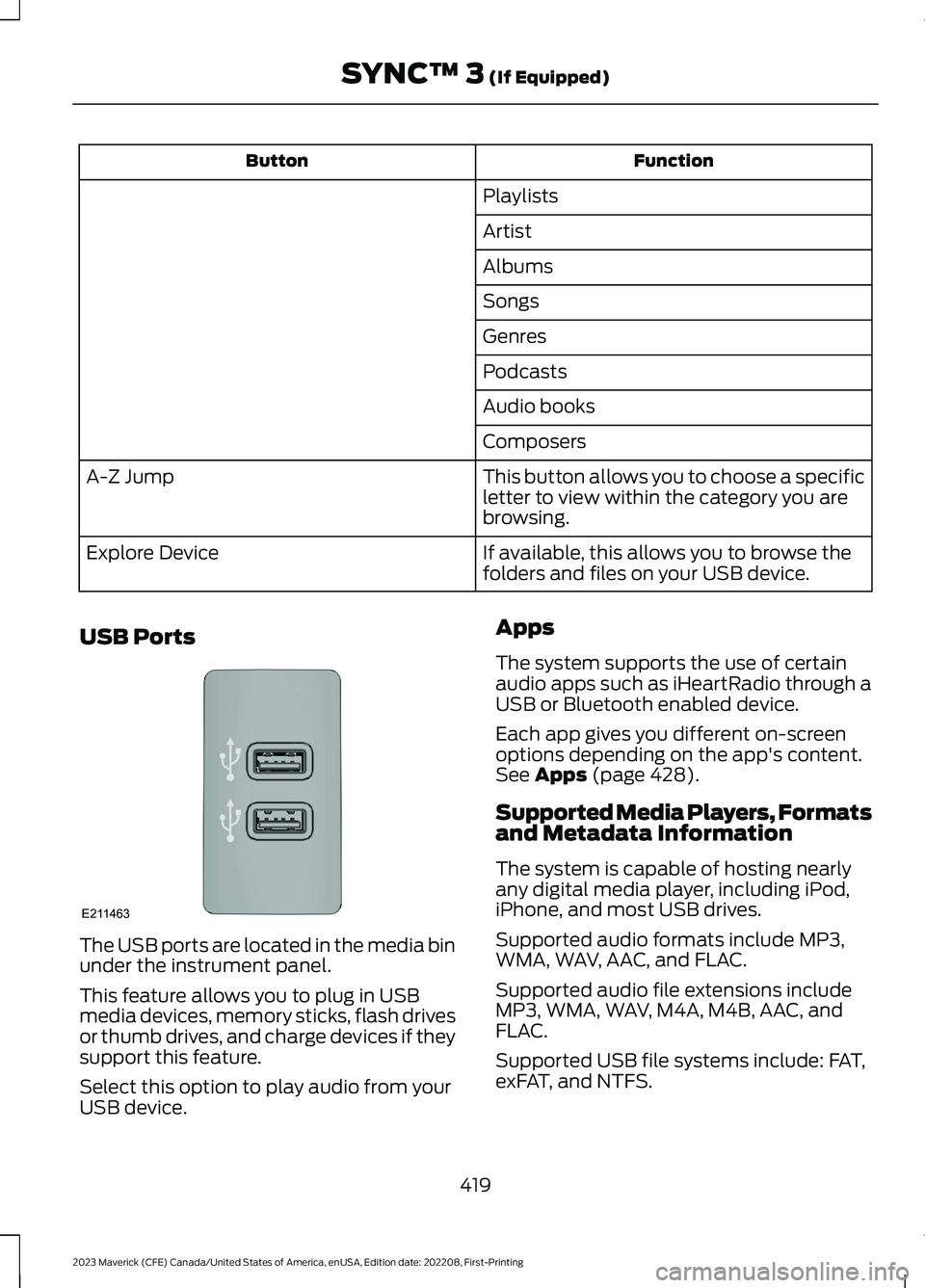
The USB ports are located in the media binunder the instrument panel.
This feature allows you to plug in USBmedia devices, memory sticks, flash drivesor thumb drives, and charge devices if theysupport this feature.
Select this option to play audio from yourUSB device.
Apps
The system supports the use of certainaudio apps such as iHeartRadio through aUSB or Bluetooth enabled device.
Each app gives you different on-screenoptions depending on the app's content.See Apps (page 428).
Supported Media Players, Formatsand Metadata Information
The system is capable of hosting nearlyany digital media player, including iPod,iPhone, and most USB drives.
Supported audio formats include MP3,WMA, WAV, AAC, and FLAC.
Supported audio file extensions includeMP3, WMA, WAV, M4A, M4B, AAC, andFLAC.
Supported USB file systems include: FAT,exFAT, and NTFS.
419
2023 Maverick (CFE) Canada/United States of America, enUSA, Edition date: 202208, First-PrintingSYNC™ 3 (If Equipped)E211463
Page 424 of 556
SYNC 3 is also able to organize the mediafrom your USB device by metadata tags.Metadata tags, which are descriptivesoftware identifiers embedded in themedia files, provide information about thefile.
If your indexed media files contain noinformation embedded in these metadatatags, SYNC 3 may classify the emptymetadata tags as unknown.
SYNC 3 is capable of indexing up to50,000 songs per USB device, for up to 10devices.
PHONE
WARNING: Driving while distractedcan result in loss of vehicle control, crashand injury. We strongly recommend thatyou use extreme caution when using anydevice that may take your focus off theroad. Your primary responsibility is thesafe operation of your vehicle. Werecommend against the use of anyhand-held device while driving andencourage the use of voice-operatedsystems when possible. Make sure youare aware of all applicable local lawsthat may affect the use of electronicdevices while driving.
Check the compatibility of your device onthe regional website.
Pairing Your Cell Phone for theFirst Time
Go to the settings menu on your cell phoneand switch Bluetooth on.
Select the phone option on thefeature bar.
1.Select Add Phone.
Note:A prompt alerts you to search for yourvehicle on your cell phone.
2.Select your vehicle on your cell phone.
Note:A number appears on your cell phoneand on the touchscreen.
3.Confirm that the number on your cellphone matches the number on thetouchscreen.
Note:The touchscreen indicates that youhave successfully paired your cell phone.
4.Approve phonebook download requeston your cell phone.
Using Your Cell Phone
Recent Call List
Display and select an entry from a list ofprevious calls.
Contacts
Display a smart search form to look up yourcontacts. Use the List button toalphabetically sort your contacts.
Favorites
Display and select an entry from the list offavorite contacts that are set up on yourphone.
Messaging
Displays the list of text messages to read,listen to, or respond to.
Email
Displays the list of emails to read, listen to,or respond to.
Phone List
Display the list of paired or connecteddevices that you can select.
Note:Up to 12 devices can be stored.
420
2023 Maverick (CFE) Canada/United States of America, enUSA, Edition date: 202208, First-PrintingSYNC™ 3 (If Equipped)