2023 FORD MAVERICK USB
[x] Cancel search: USBPage 425 of 556
Do Not Disturb
Reject incoming calls and switch ring tonesand alerts off.
Phone Keypad
Directly dial a number.
Text Messaging
Setting Text Message Notification
iOS
1.Go to the settings menu on your cellphone.
2.Select Bluetooth.
3.Select the information icon to the rightof your vehicle.
4.Switch text message notification on.
Android
1.Go to the settings menu on your cellphone.
2.Select Bluetooth.
3.Select the profiles option.
4.Select the phone profile.
5.Switch text message notification on.
Using Text Messaging
DescriptionMenu Item
Hear the text message.Hear It
View the text message.View
Call the sender.Call
Reply to the text message with a standard text message.Reply
Apple CarPlay (If Equipped)
1.Connect your device to a USB port.
2.Follow the instructions on thetouchscreen.
Note:Certain features of the system arenot available when you are using AppleCarPlay.
Switching Apple CarPlay Off
Select the settings option on thefeature bar.
1.Select Apple CarPlay Preferences.
2.Switch Apple CarPlay off.
Android Auto (If Equipped)
1.Connect your device to a USB port.
2.Follow the instructions on thetouchscreen.
Note:You might need to enable AndroidAuto from the settings menu.
Note:Certain features of the system arenot available when you are using AndroidAuto.
Switching Android Auto Off
Select the settings option on thefeature bar.
1.Select Android Auto.
2.Switch Android Auto off.
421
2023 Maverick (CFE) Canada/United States of America, enUSA, Edition date: 202208, First-PrintingSYNC™ 3 (If Equipped)
Page 431 of 556
Navigation Map Accuracy andUpdates
HERE is the digital map provider for thenavigation application. If you find map dataerrors, you may report them directly toHERE by going to www.here.com. HEREevaluates all reported map errors andresponds with the result of theirinvestigation by e-mail.
The navigation system map data maycontain inaccurate or incompleteinformation due to the passage of time,changing circumstances, sources used andthe nature of collecting comprehensivegeographic data, any of which may lead toincorrect results. Inaccurate speed limitinformation, turn restrictions and otherroad attributes may affect the determinedroute and associated guidance
Annual navigation map updates areavailable for purchase through yourdealership. Depending on your purchaseagreement, you might be eligible for a freemap update. You can choose to downloadthe map data update onto a USB, order aUSB, or use Wi-Fi to deliver automaticupdates. To update your map data overWi-Fi, your vehicle must be connected toa Wi-Fi access point. Map data files arelarge, so it is highly recommended toperform the update when free Wi-Fi isavailable otherwise high data rates mayapply. For USB updates, free map updateeligibility, and other details, contactdealers at 1-866-462-8837 in the UnitedStates and Canada or 800-557-5539 inMexico or visit our local website for moreinformation.
ELECTRIC VEHICLE
INFORMATION
Power Flow
The power flow information foryour hybrid vehicle is availablethrough the home screen orunder Apps.
Vehicle Operational States
Power flows to or from the front and rearwheels depending on operational stateand drive conditions.
•Idling: The vehicle is running and in park(P). The engine and/or the high voltagebattery are on.
•Electric Driving: The vehicle is runningand in drive (D) or neutral (N). The highvoltage battery provides power to thewheels.
•Hybrid Driving: The vehicle is runningand in drive (D) or neutral (N). Theengine and the high voltage batteryprovide power to the wheels.
•Regenerative Braking: The vehicle isrunning in drive (D) and is slowingdown. Power captured by theregenerative braking system is sentback to the high voltage battery.
Engine On Due To
The following conditions help to explainwhy the engine is on, and what you can doto allow all electric operation.
427
2023 Maverick (CFE) Canada/United States of America, enUSA, Edition date: 202208, First-PrintingSYNC™ 3 (If Equipped)E260071
Page 433 of 556
1.If your device is connected via USB,switch Apple CarPlay off. See Phone(page 420).
2.Connect your device to a USB port orpair and connect using Bluetooth.
3.If prompted to enable CarPlay, selectDisable.
4.Start the apps on your device that youwant to use through SYNC.
Note:If you close the apps on your device,you will not be able to use them through thesystem.
5.Select the app that you want to use onthe touchscreen.
Note:Connect your device to a USB port ifyou want to use a navigation app. Whenusing a navigation app, keep your deviceunlocked and the app open.
Using Apps on an Android Device
Select the apps option on thefeature bar.
1.If your device is connected via USB,switch Android Auto off. See Phone(page 420).
2.Pair your device. See Phone (page 420).
3.Start the apps on your device that youwant to use through SYNC.
Note:If you close the apps on your device,you will not be able to use them through thesystem.
4.Select Find Mobile Apps.
Note:The system searches and connectsto compatible apps that are running on yourdevice.
5.Select the app that you want to use onthe touchscreen.
Note:Mobile Apps on your device use theUSB port to establish a connection withSYNC. Some devices may lose the ability toplay music over USB when Mobile Apps areenabled.
Using Mobile Navigation on anAndroid Device
1.Connect your device to a USB port.
2.Switch Android Auto off. See Phone(page 420).
3.Switch on Enable Mobile Apps viaUSB in the Mobile Apps Settings tile.
4.Select the apps option on the featurebar.
5.Select the navigation app that youwant to use on the touchscreen.
Note:When using a navigation app, keepyour device unlocked and the app open.
SiriusXM Traffic and Travel Link (If
Equipped)
WARNING: Driving while distractedcan result in loss of vehicle control, crashand injury. We strongly recommend thatyou use extreme caution when using anydevice that may take your focus off theroad. Your primary responsibility is thesafe operation of your vehicle. Werecommend against the use of anyhand-held device while driving andencourage the use of voice-operatedsystems when possible. Make sure youare aware of all applicable local lawsthat may affect the use of electronicdevices while driving.
Note:SiriusXM Traffic and Travel Link maynot be available in all markets.
Note:In order to use SiriusXM Traffic andTravel Link, your vehicle must havenavigation.
429
2023 Maverick (CFE) Canada/United States of America, enUSA, Edition date: 202208, First-PrintingSYNC™ 3 (If Equipped)
Page 436 of 556
SYNC™ 3 TROUBLESHOOTING
Voice Recognition
Possible Cause and ResolutionSymptom
The system does not under-stand what I am saying.–You might not be using supported voice commands.
•See Using Voice Recognition (page 403).
•For a complete list of voice commands, refer to ourwebsite.
–You might be speaking too soon.
•Wait for the voice prompt before you speak.
The system does not under-stand the name of a track orartist.
–Device limitation.Bluetooth® does not support voicecommands.
•Connect your device to a USB port.
•If you have an iOS device, press and hold the voicecontrol button on the steering wheel to use Siri toplay specific tracks.
–You might not be using supported voice commands.
•See Using Voice Recognition (page 403).
•For a complete list of voice commands, refer to ourwebsite.
–You might not be saying the name exactly as it appearson your device.
•Say the name of the track or artist exactly as itappears on your device. Spell out any abbreviationsin the name.
–The name contains special characters, for example *,- or +.
•Rename the files on your device or use the touch-screen to select and play the track.
The system does not under-stand the name of a contactin the phonebook on mydevice and calls the wrongcontact.
–You might not be saying the name exactly as it appearson your device.
•Say the first and last name of the contact exactlyas it appears on your device. Spell out any abbrevi-ations in the name.
–The name contains special characters, for example *,- or +.
•Rename the contact on your device or use thetouchscreen to select and call the contact.
432
2023 Maverick (CFE) Canada/United States of America, enUSA, Edition date: 202208, First-PrintingSYNC™ 3 (If Equipped)
Page 437 of 556
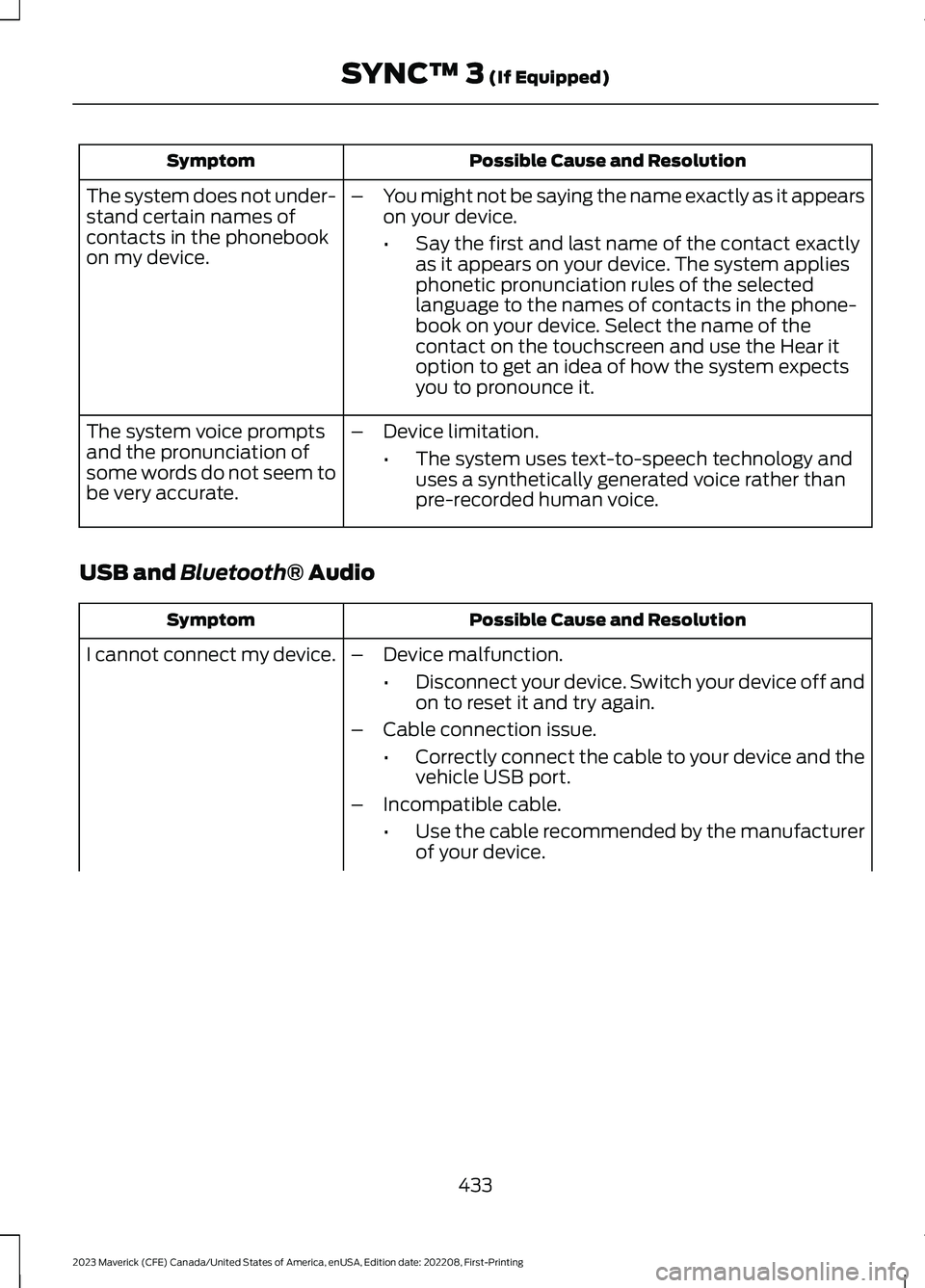
Possible Cause and ResolutionSymptom
–You might not be saying the name exactly as it appearson your device.
•Say the first and last name of the contact exactlyas it appears on your device. The system appliesphonetic pronunciation rules of the selectedlanguage to the names of contacts in the phone-book on your device. Select the name of thecontact on the touchscreen and use the Hear itoption to get an idea of how the system expectsyou to pronounce it.
The system does not under-stand certain names ofcontacts in the phonebookon my device.
–Device limitation.
•The system uses text-to-speech technology anduses a synthetically generated voice rather thanpre-recorded human voice.
The system voice promptsand the pronunciation ofsome words do not seem tobe very accurate.
USB and Bluetooth® Audio
Possible Cause and ResolutionSymptom
I cannot connect my device.–Device malfunction.
•Disconnect your device. Switch your device off andon to reset it and try again.
–Cable connection issue.
•Correctly connect the cable to your device and thevehicle USB port.
–Incompatible cable.
•Use the cable recommended by the manufacturerof your device.
433
2023 Maverick (CFE) Canada/United States of America, enUSA, Edition date: 202208, First-PrintingSYNC™ 3 (If Equipped)
Page 438 of 556
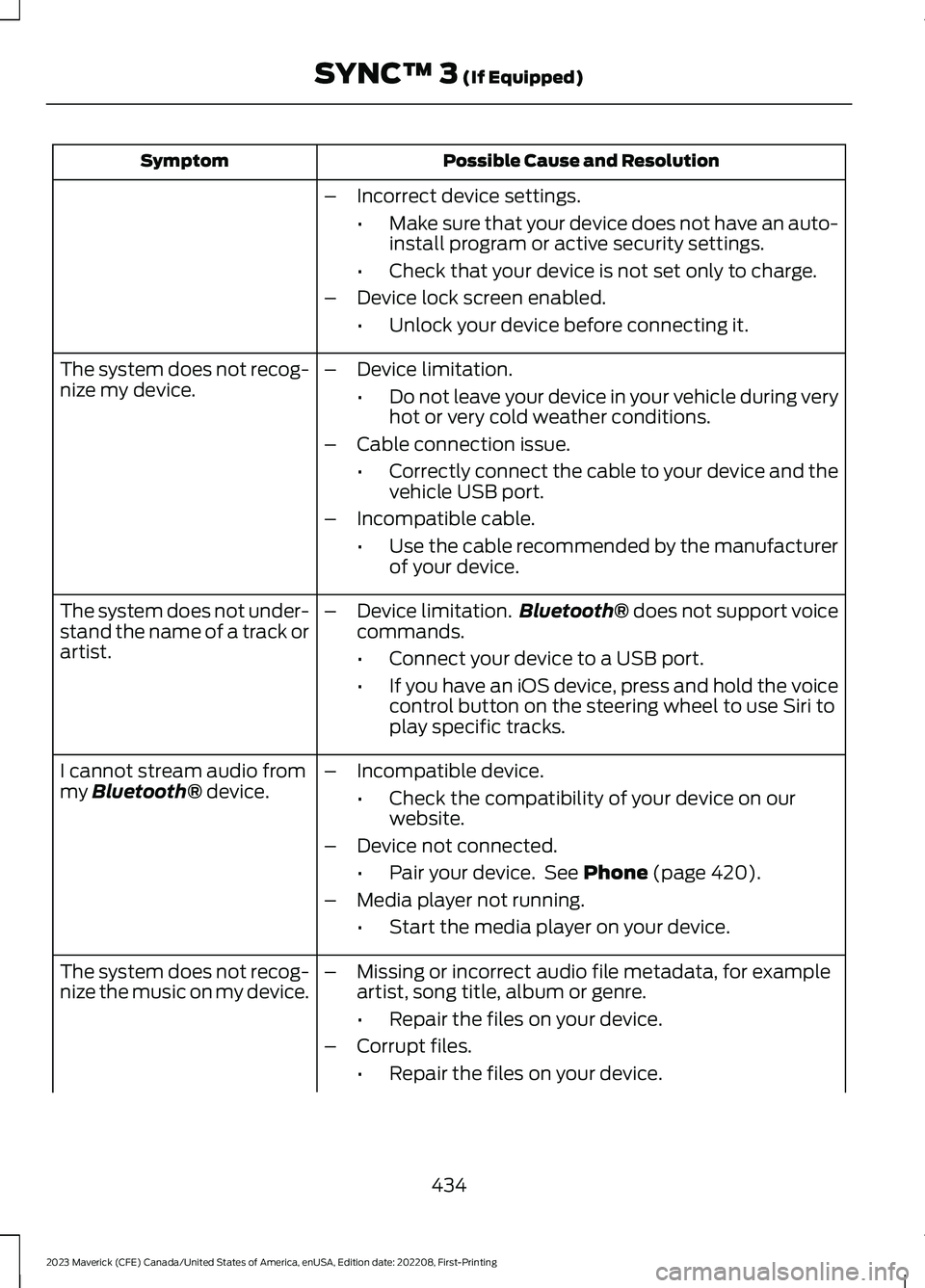
Possible Cause and ResolutionSymptom
–Incorrect device settings.
•Make sure that your device does not have an auto-install program or active security settings.
•Check that your device is not set only to charge.
–Device lock screen enabled.
•Unlock your device before connecting it.
The system does not recog-nize my device.–Device limitation.
•Do not leave your device in your vehicle during veryhot or very cold weather conditions.
–Cable connection issue.
•Correctly connect the cable to your device and thevehicle USB port.
–Incompatible cable.
•Use the cable recommended by the manufacturerof your device.
The system does not under-stand the name of a track orartist.
–Device limitation.Bluetooth® does not support voicecommands.
•Connect your device to a USB port.
•If you have an iOS device, press and hold the voicecontrol button on the steering wheel to use Siri toplay specific tracks.
I cannot stream audio frommy Bluetooth® device.–Incompatible device.
•Check the compatibility of your device on ourwebsite.
–Device not connected.
•Pair your device. See Phone (page 420).
–Media player not running.
•Start the media player on your device.
The system does not recog-nize the music on my device.–Missing or incorrect audio file metadata, for exampleartist, song title, album or genre.
•Repair the files on your device.
–Corrupt files.
•Repair the files on your device.
434
2023 Maverick (CFE) Canada/United States of America, enUSA, Edition date: 202208, First-PrintingSYNC™ 3 (If Equipped)
Page 439 of 556
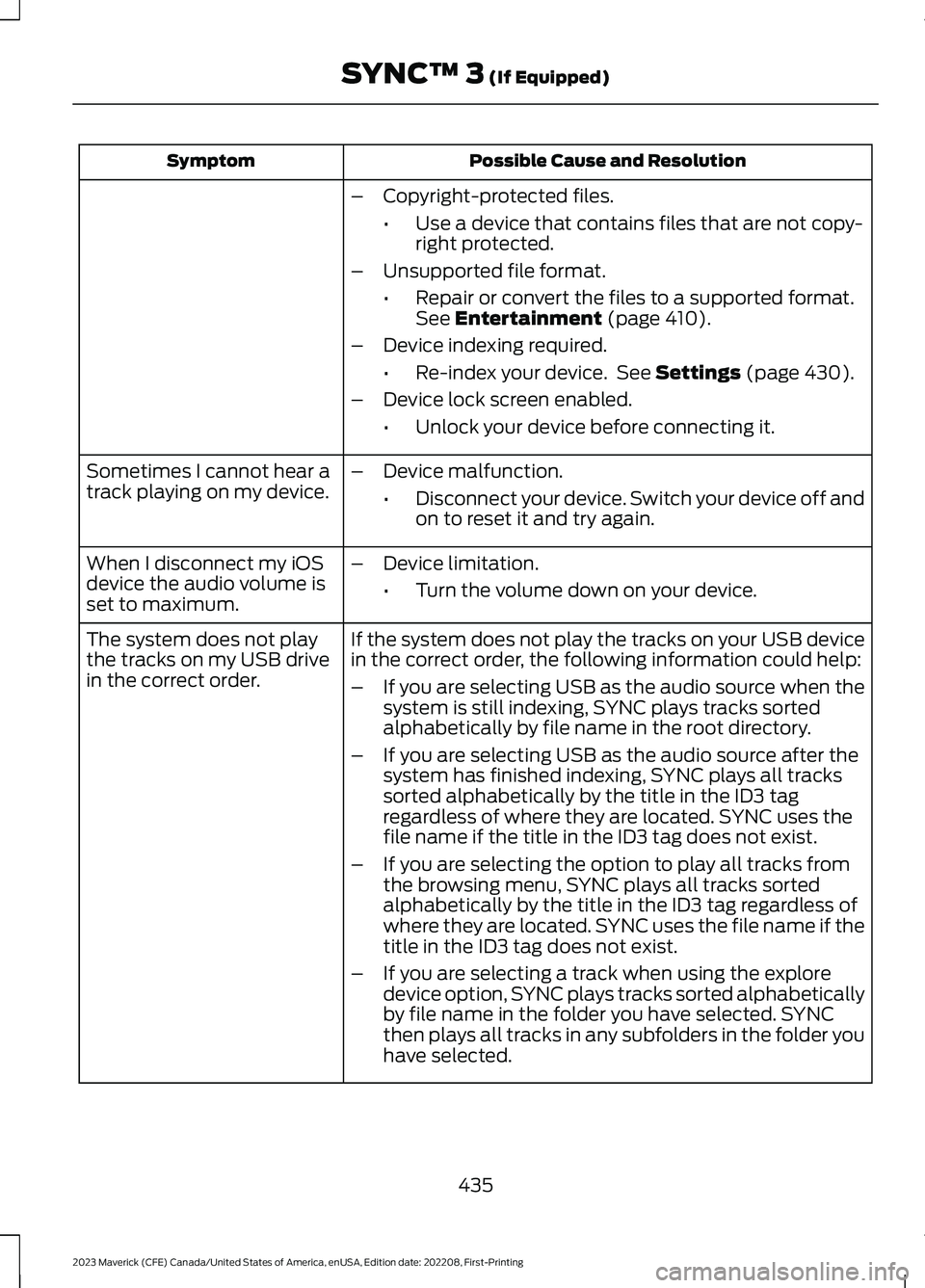
Possible Cause and ResolutionSymptom
–Copyright-protected files.
•Use a device that contains files that are not copy-right protected.
–Unsupported file format.
•Repair or convert the files to a supported format.See Entertainment (page 410).
–Device indexing required.
•Re-index your device. See Settings (page 430).
–Device lock screen enabled.
•Unlock your device before connecting it.
Sometimes I cannot hear atrack playing on my device.–Device malfunction.
•Disconnect your device. Switch your device off andon to reset it and try again.
When I disconnect my iOSdevice the audio volume isset to maximum.
–Device limitation.
•Turn the volume down on your device.
If the system does not play the tracks on your USB devicein the correct order, the following information could help:The system does not playthe tracks on my USB drivein the correct order.–If you are selecting USB as the audio source when thesystem is still indexing, SYNC plays tracks sortedalphabetically by file name in the root directory.
–If you are selecting USB as the audio source after thesystem has finished indexing, SYNC plays all trackssorted alphabetically by the title in the ID3 tagregardless of where they are located. SYNC uses thefile name if the title in the ID3 tag does not exist.
–If you are selecting the option to play all tracks fromthe browsing menu, SYNC plays all tracks sortedalphabetically by the title in the ID3 tag regardless ofwhere they are located. SYNC uses the file name if thetitle in the ID3 tag does not exist.
–If you are selecting a track when using the exploredevice option, SYNC plays tracks sorted alphabeticallyby file name in the folder you have selected. SYNCthen plays all tracks in any subfolders in the folder youhave selected.
435
2023 Maverick (CFE) Canada/United States of America, enUSA, Edition date: 202208, First-PrintingSYNC™ 3 (If Equipped)
Page 440 of 556
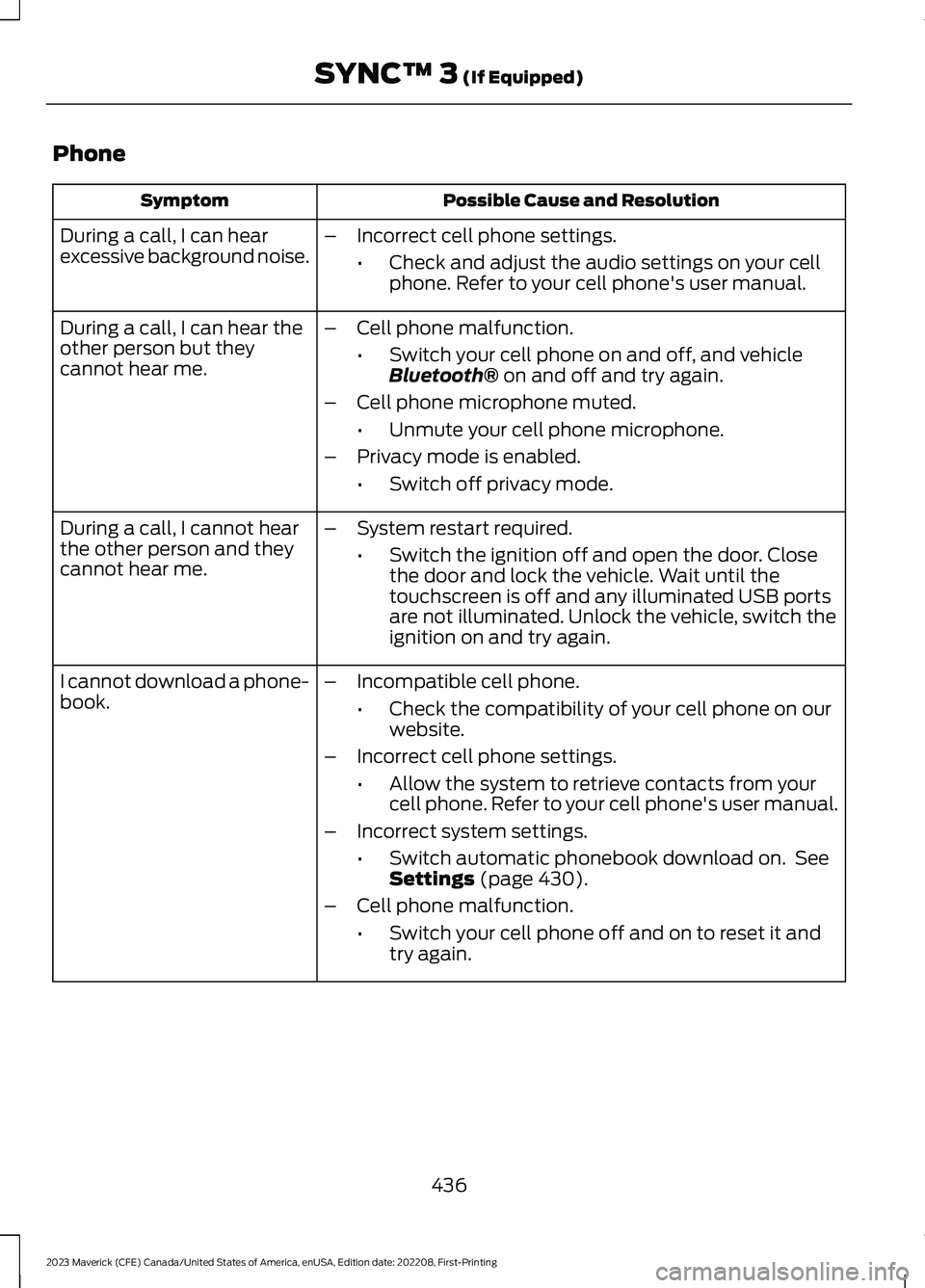
Phone
Possible Cause and ResolutionSymptom
During a call, I can hearexcessive background noise.–Incorrect cell phone settings.
•Check and adjust the audio settings on your cellphone. Refer to your cell phone's user manual.
During a call, I can hear theother person but theycannot hear me.
–Cell phone malfunction.
•Switch your cell phone on and off, and vehicleBluetooth® on and off and try again.
–Cell phone microphone muted.
•Unmute your cell phone microphone.
–Privacy mode is enabled.
•Switch off privacy mode.
During a call, I cannot hearthe other person and theycannot hear me.
–System restart required.
•Switch the ignition off and open the door. Closethe door and lock the vehicle. Wait until thetouchscreen is off and any illuminated USB portsare not illuminated. Unlock the vehicle, switch theignition on and try again.
I cannot download a phone-book.–Incompatible cell phone.
•Check the compatibility of your cell phone on ourwebsite.
–Incorrect cell phone settings.
•Allow the system to retrieve contacts from yourcell phone. Refer to your cell phone's user manual.
–Incorrect system settings.
•Switch automatic phonebook download on. SeeSettings (page 430).
–Cell phone malfunction.
•Switch your cell phone off and on to reset it andtry again.
436
2023 Maverick (CFE) Canada/United States of America, enUSA, Edition date: 202208, First-PrintingSYNC™ 3 (If Equipped)