2023 FORD MAVERICK wheel
[x] Cancel search: wheelPage 396 of 556
AUDIO SYSTEM
PRECAUTIONS
WARNING: Driving while distractedcan result in loss of vehicle control, crashand injury. We strongly recommend thatyou use extreme caution when using anydevice that may take your focus off theroad. Your primary responsibility is thesafe operation of your vehicle. Werecommend against the use of anyhand-held device while driving andencourage the use of voice-operatedsystems when possible. Make sure youare aware of all applicable local lawsthat may affect the use of electronicdevices while driving.
Listening to loud audio for long periods oftime could damage your hearing.
SWITCHING THE AUDIO UNIT
ON AND OFF
Press the button on the volumecontrol.
SELECTING THE AUDIO
SOURCE
1.Press your preferred audio source.
Note:Available audio sources are listedalong the top of the radio screen.
PLAYING OR PAUSING THE
AUDIO SOURCE
Press to pause playback. Pressagain to resume playback.
Note:Not all sources can be paused.
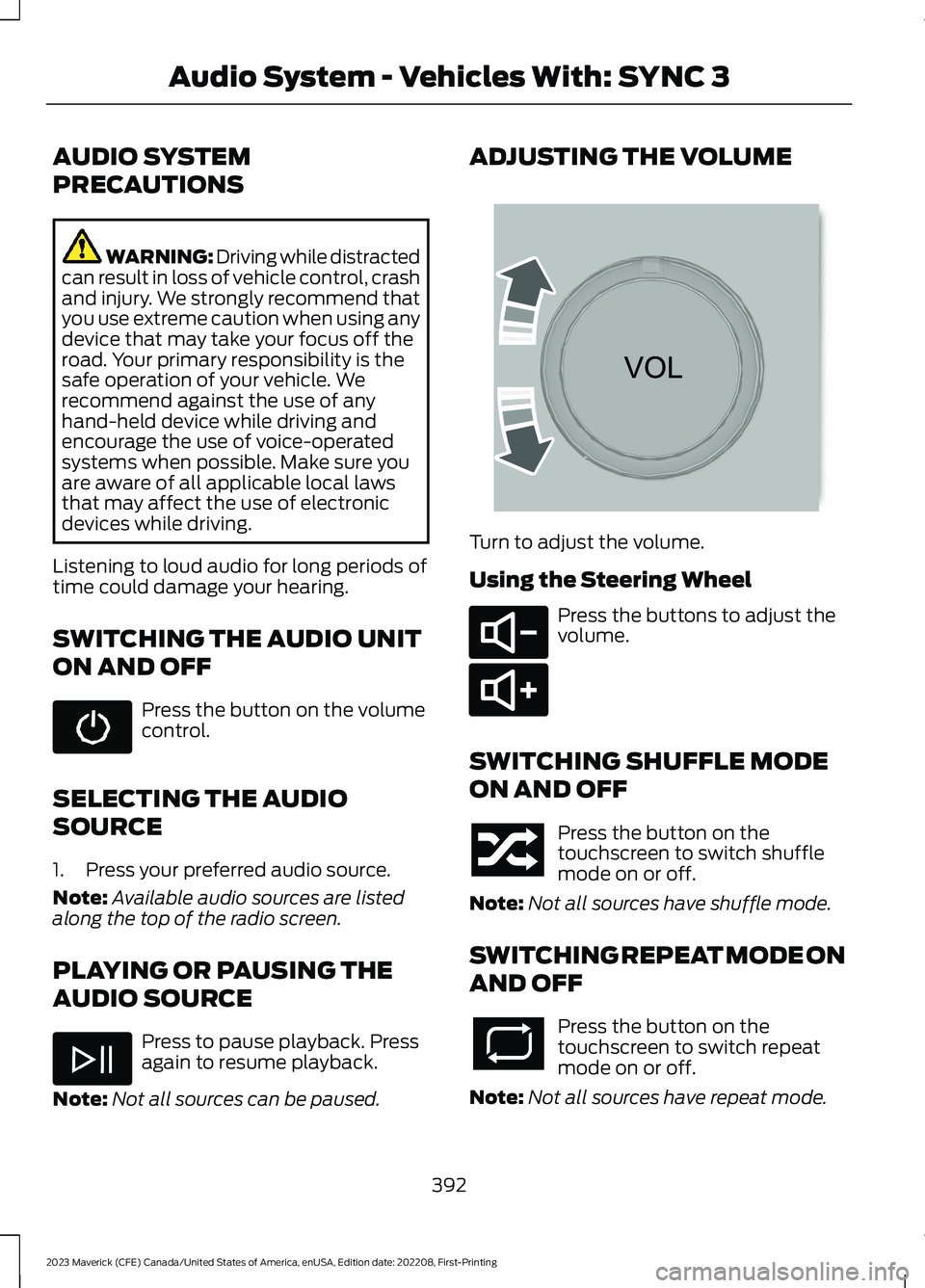
ADJUSTING THE VOLUME
Turn to adjust the volume.
Using the Steering Wheel
Press the buttons to adjust thevolume.
SWITCHING SHUFFLE MODE
ON AND OFF
Press the button on thetouchscreen to switch shufflemode on or off.
Note:Not all sources have shuffle mode.
SWITCHING REPEAT MODE ON
AND OFF
Press the button on thetouchscreen to switch repeatmode on or off.
Note:Not all sources have repeat mode.
392
2023 Maverick (CFE) Canada/United States of America, enUSA, Edition date: 202208, First-PrintingAudio System - Vehicles With: SYNC 3 E265373 E280802 E280803
Page 397 of 556

SETTING A MEMORY PRESET
1.Select a station or channel.
2.Press and hold a memory preset buttonon the touchscreen.
Note:The audio mutes briefly while thesystem saves the preset and returns once itis stored.
Note:You can save presets from multiplesources to the memory preset bar.
MUTING THE AUDIO
Press the button on the steeringwheel to mute the audio.
Press to mute the signal. Pressagain to restore the signal.
ADJUSTING THE SOUND
SETTINGS
Balance and Fade (If Equipped)
1.Access the vehicle drawer on thetouchscreen.
2.Press SETTINGS.
3.Press Sound.
4.Press Balance / Fade.
5.Press the arrows to adjust the settings.
Tone Settings
1.Access the vehicle drawer on thetouchscreen.
2.Press SETTINGS.
3.Press Sound.
4.Press Tone Settings.
5.Use the slider bar to adjust the settings.
Speed Compensated Volume
1.Access the vehicle drawer on thetouchscreen.
2.Press SETTINGS.
3.Press Sound.
4.Press Speed Compensated Volume.
5.Press a setting.
Occupancy Mode (If Equipped)
1.Access the vehicle drawer on thetouchscreen.
2.Press SETTINGS.
3.Press Sound.
4.Press Occupancy Mode.
5.Press a setting.
Sound Mode (If Equipped)
1.Access the vehicle drawer on thetouchscreen.
2.Press SETTINGS.
3.Press Sound.
4.Press Sound Mode.
5.Press a setting.
SETTING THE CLOCK AND
DATE
1.Access the vehicle drawer on thetouchscreen.
2.Press SETTINGS.
3.Press Clock.
4.Set the time.
Note:The AM and PM options are notavailable if 24-hour mode is on.
5.Press the arrows to adjust the settings.
393
2023 Maverick (CFE) Canada/United States of America, enUSA, Edition date: 202208, First-PrintingAudio System - Vehicles With: SYNC 3
Page 407 of 556
Switching Automatic System UpdatesOn
Select the settings option on thefeature bar.
1.Select Automatic Updates.
2.Switch Automatic System Updateson.
The system is now set to check for andreceive system updates when it isconnected to a Wi-Fi network.
Note:You can use the system when adownload is in progress.
Note:If the system is disconnected fromthe Wi-Fi network when a download is inprogress, the download continues the nexttime the system is connected to a Wi-Finetwork.
Additional Information andAssistance
For additional information and assistance,we recommend that you contact anauthorized dealer or refer to the local Fordwebsite.
USING VOICE RECOGNITION
The SYNC 3 system allows you to use voicecommands to control features like audioand climate controls. By using voicecommands, you can keep your hands onthe wheel and your eyes on the road.
You can access each feature controlled bySYNC 3 through a variety of commands.
To activate the SYNC 3 voicecommands push the voicebutton on the steering wheel andwait for the prompt.
___ is a dynamic listing, meaning that it canbe the name of anything, such as artist, thename of contact or number. The contextand the description of the command tellyou what to say for this dynamic option.
There are some commands that work forevery feature, these commands are:
Action and DescriptionVoice Command
Brings you to the main menu.Main Menu
Returns you to the previous screen.Go back
Ends the voice session.Cancel
Gives you a list of possible voice commands.List of Commands
You can name any feature and the system gives a list ofcommands available for the feature. For example, you couldsay:
___ List of Commands
Phone List of Commands
Navigation List of Commands
403
2023 Maverick (CFE) Canada/United States of America, enUSA, Edition date: 202208, First-PrintingSYNC™ 3 (If Equipped)E280315 E142599
Page 431 of 556
Navigation Map Accuracy andUpdates
HERE is the digital map provider for thenavigation application. If you find map dataerrors, you may report them directly toHERE by going to www.here.com. HEREevaluates all reported map errors andresponds with the result of theirinvestigation by e-mail.
The navigation system map data maycontain inaccurate or incompleteinformation due to the passage of time,changing circumstances, sources used andthe nature of collecting comprehensivegeographic data, any of which may lead toincorrect results. Inaccurate speed limitinformation, turn restrictions and otherroad attributes may affect the determinedroute and associated guidance
Annual navigation map updates areavailable for purchase through yourdealership. Depending on your purchaseagreement, you might be eligible for a freemap update. You can choose to downloadthe map data update onto a USB, order aUSB, or use Wi-Fi to deliver automaticupdates. To update your map data overWi-Fi, your vehicle must be connected toa Wi-Fi access point. Map data files arelarge, so it is highly recommended toperform the update when free Wi-Fi isavailable otherwise high data rates mayapply. For USB updates, free map updateeligibility, and other details, contactdealers at 1-866-462-8837 in the UnitedStates and Canada or 800-557-5539 inMexico or visit our local website for moreinformation.
ELECTRIC VEHICLE
INFORMATION
Power Flow
The power flow information foryour hybrid vehicle is availablethrough the home screen orunder Apps.
Vehicle Operational States
Power flows to or from the front and rearwheels depending on operational stateand drive conditions.
•Idling: The vehicle is running and in park(P). The engine and/or the high voltagebattery are on.
•Electric Driving: The vehicle is runningand in drive (D) or neutral (N). The highvoltage battery provides power to thewheels.
•Hybrid Driving: The vehicle is runningand in drive (D) or neutral (N). Theengine and the high voltage batteryprovide power to the wheels.
•Regenerative Braking: The vehicle isrunning in drive (D) and is slowingdown. Power captured by theregenerative braking system is sentback to the high voltage battery.
Engine On Due To
The following conditions help to explainwhy the engine is on, and what you can doto allow all electric operation.
427
2023 Maverick (CFE) Canada/United States of America, enUSA, Edition date: 202208, First-PrintingSYNC™ 3 (If Equipped)E260071
Page 432 of 556
•Drive Power: The engine is on due toaccelerator pedal pressure or speedcontrol activation. Reduce pressure onthe accelerator pedal or switch off thespeed control to return to full electricmode.
•High Speed: The engine is on becausethe vehicle speed exceeds the level forfull electric operation. Reduce thespeed to return to electric operation.
•Heater Setting: The engine is onbecause of the heater setting. Reduceor turn off the heater setting to returnto electric operation.
•Neutral Gear: The engine is on becausethe vehicle is in neutral (N). Shift outof neutral gear to return to electricoperation.
•Engine Cold: The engine is on becauseit is cold. The vehicle returns to electricoperation once the engine is sufficientlywarm.
•Battery Charging: The engine is on tocharge the high-voltage battery. Thevehicle returns to electric operationonce the battery is charged.
•Low Gear: The engine is on becausethe vehicle is in low gear. Shift out oflow gear to return to electric operation.
•Normal Operation: The engine is on tooptimize vehicle operation. The vehiclereturns to electric operation whenpossible.
•Engine Braking Active: The engine is onto provide increased powertrainbraking. This can occur when you turnon the grade assist feature, whenspeed control is on or when driving withyour foot off the accelerator pedal.Turning off grade assist or speedcontrol may allow the vehicle to returnto electric operation.
•Battery Temperature: The engine is ondue to high or low high-voltage batterytemperature. This is a normal operatingcondition. The vehicle returns toelectric operation when possible.
•Drive Mode: The engine is on due to thedrive mode selection. Select anappropriate drive mode for electric onlyoperation.
APPS
The system allows you interact with selectmobile apps while keeping your eyes onthe road. Voice commands, your steeringwheel buttons, or a quick tap on yourtouchscreen give you advanced control ofcompatible mobile apps. You can alsostream your favorite music or podcasts,share your time of arrival with friends, andkeep connected safely.
When you start an app through the systemfor the first time, you could be asked togrant certain permissions. You can reviewand change the permissions that you havegranted at any time when your vehicle isnot moving. We recommend that youcheck your data plan before using yourapps through the system. Using themcould result in additional charges. We alsorecommend that you check the appprovider's terms and conditions andprivacy policy before using their app. Makesure that you have an active account forapps that you want to use through thesystem. Some apps will work with nosetup. Others require you to configuresome personal settings before you can usethem.
Note:For more information about availableapps, visit catalog.ford.com.
Using Apps on an iOS Device
Select the apps option on thefeature bar.
428
2023 Maverick (CFE) Canada/United States of America, enUSA, Edition date: 202208, First-PrintingSYNC™ 3 (If Equipped)
Page 436 of 556
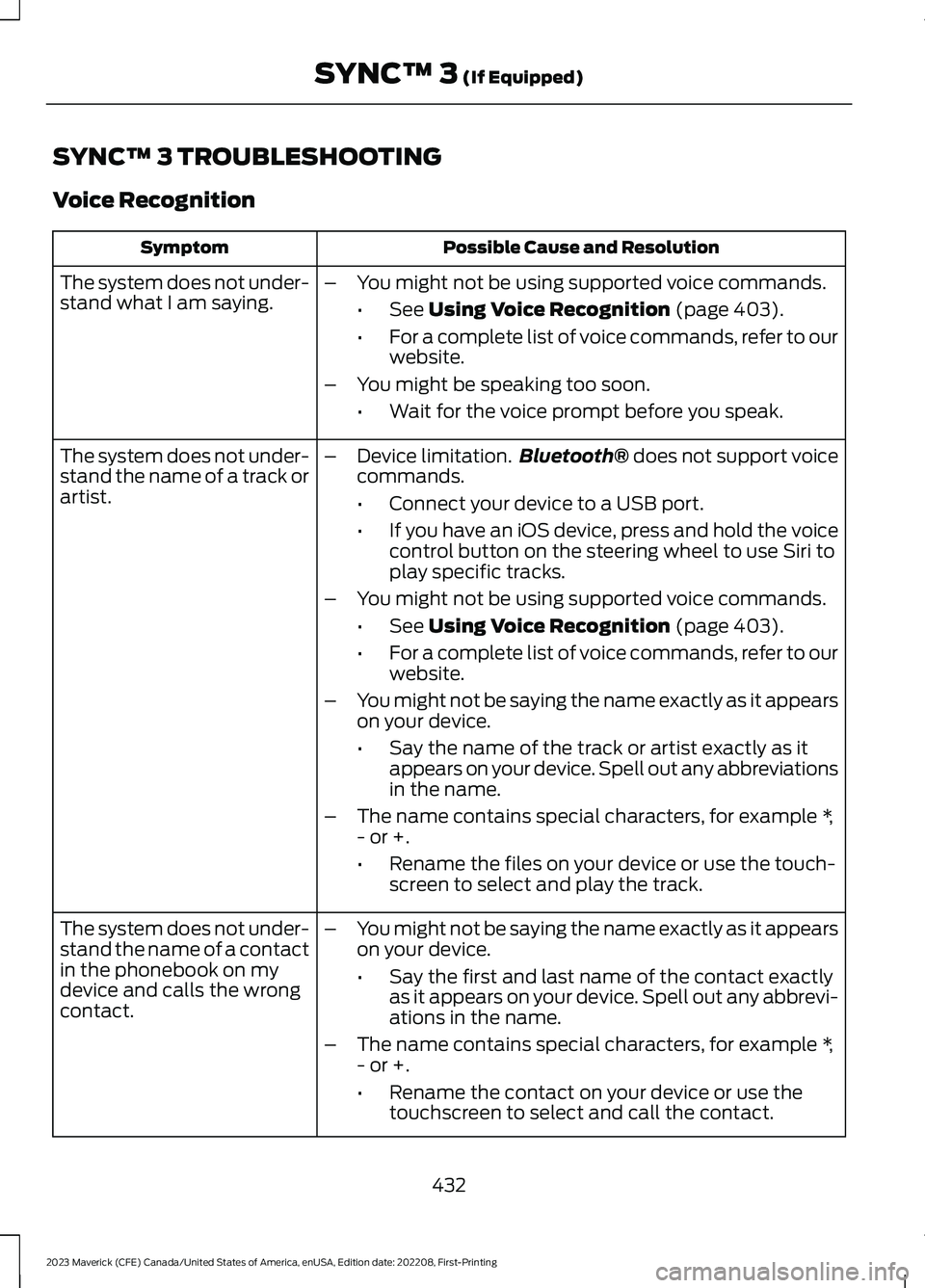
SYNC™ 3 TROUBLESHOOTING
Voice Recognition
Possible Cause and ResolutionSymptom
The system does not under-stand what I am saying.–You might not be using supported voice commands.
•See Using Voice Recognition (page 403).
•For a complete list of voice commands, refer to ourwebsite.
–You might be speaking too soon.
•Wait for the voice prompt before you speak.
The system does not under-stand the name of a track orartist.
–Device limitation.Bluetooth® does not support voicecommands.
•Connect your device to a USB port.
•If you have an iOS device, press and hold the voicecontrol button on the steering wheel to use Siri toplay specific tracks.
–You might not be using supported voice commands.
•See Using Voice Recognition (page 403).
•For a complete list of voice commands, refer to ourwebsite.
–You might not be saying the name exactly as it appearson your device.
•Say the name of the track or artist exactly as itappears on your device. Spell out any abbreviationsin the name.
–The name contains special characters, for example *,- or +.
•Rename the files on your device or use the touch-screen to select and play the track.
The system does not under-stand the name of a contactin the phonebook on mydevice and calls the wrongcontact.
–You might not be saying the name exactly as it appearson your device.
•Say the first and last name of the contact exactlyas it appears on your device. Spell out any abbrevi-ations in the name.
–The name contains special characters, for example *,- or +.
•Rename the contact on your device or use thetouchscreen to select and call the contact.
432
2023 Maverick (CFE) Canada/United States of America, enUSA, Edition date: 202208, First-PrintingSYNC™ 3 (If Equipped)
Page 438 of 556
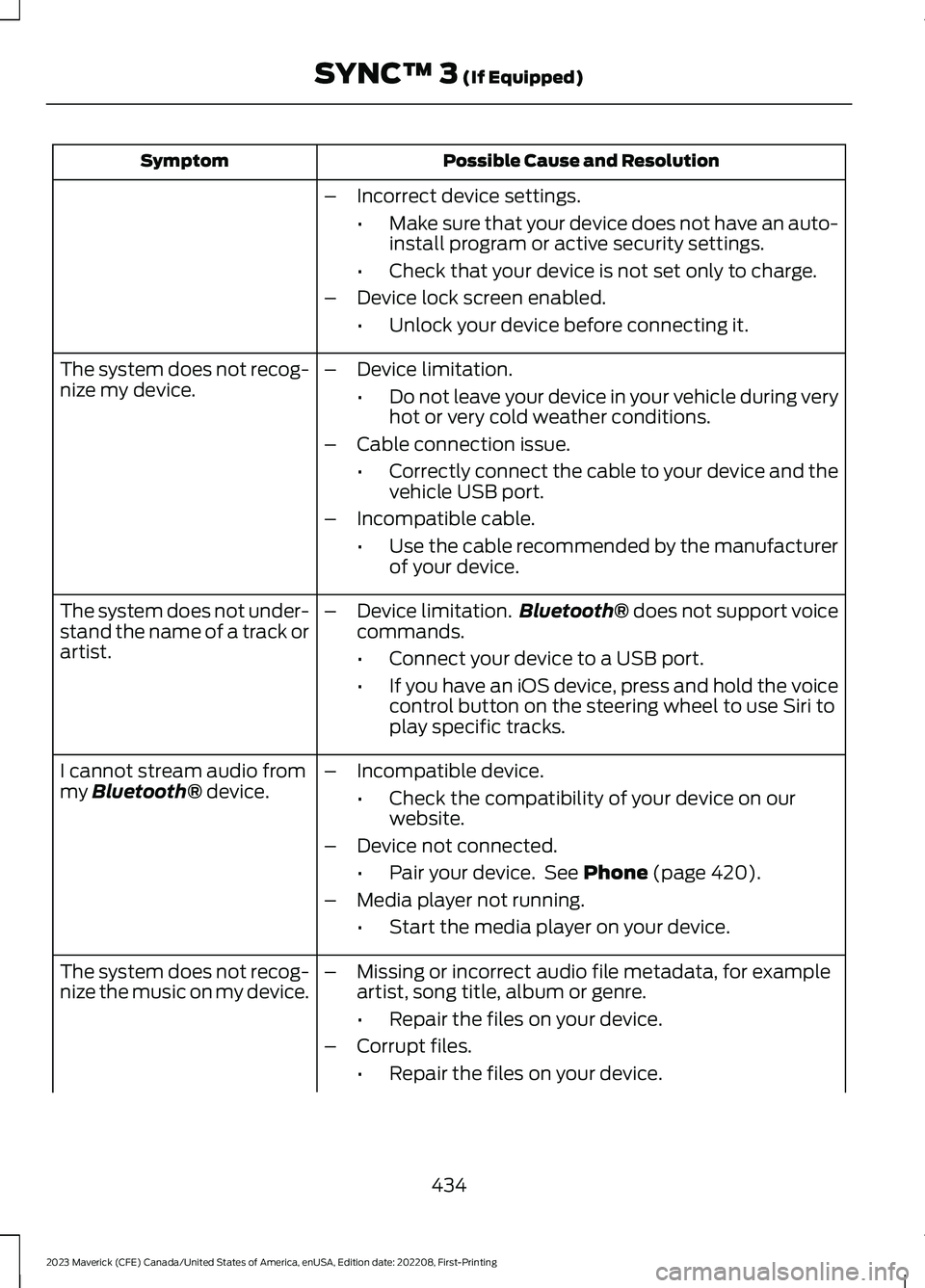
Possible Cause and ResolutionSymptom
–Incorrect device settings.
•Make sure that your device does not have an auto-install program or active security settings.
•Check that your device is not set only to charge.
–Device lock screen enabled.
•Unlock your device before connecting it.
The system does not recog-nize my device.–Device limitation.
•Do not leave your device in your vehicle during veryhot or very cold weather conditions.
–Cable connection issue.
•Correctly connect the cable to your device and thevehicle USB port.
–Incompatible cable.
•Use the cable recommended by the manufacturerof your device.
The system does not under-stand the name of a track orartist.
–Device limitation.Bluetooth® does not support voicecommands.
•Connect your device to a USB port.
•If you have an iOS device, press and hold the voicecontrol button on the steering wheel to use Siri toplay specific tracks.
I cannot stream audio frommy Bluetooth® device.–Incompatible device.
•Check the compatibility of your device on ourwebsite.
–Device not connected.
•Pair your device. See Phone (page 420).
–Media player not running.
•Start the media player on your device.
The system does not recog-nize the music on my device.–Missing or incorrect audio file metadata, for exampleartist, song title, album or genre.
•Repair the files on your device.
–Corrupt files.
•Repair the files on your device.
434
2023 Maverick (CFE) Canada/United States of America, enUSA, Edition date: 202208, First-PrintingSYNC™ 3 (If Equipped)
Page 459 of 556

At Every Oil Change Interval as Indicated by the Instrument Cluster Display1
Inspect the tires, tire wear and measure the tread depth.
Inspect the wheels and related components for abnormal noise, wear, looseness ordrag.
1 Do not exceed one year or 12,500 mi (20,000 km) between service intervals.
Brake Fluid Maintenance1
Change the brake fluid.2Every 3 Years
1 Perform this maintenance item every 3 years. Do not exceed the designated time for theinterval.2 Brake fluid servicing requires special equipment available at your authorized dealer.
Other Maintenance Items1
Replace the cabin air filter.Every 20,000 mi(32,000 km)
Replace the engine air filter.Every 30,000 mi(48,000 km)
Replace the spark plugs.Every 100,000 mi(160,000 km)Inspect the accessory drive belt(s).2
Change the automatic transmission fluid.Every 150,000 mi(240,000 km)Replace the accessory drive belt(s).3
Change the engine coolant.4At 200,000 mi(322,000 km)
1 Perform these maintenance items within 3,000 mi (4,800 km) of the last engine oil andfilter change. Do not exceed the designated distance for the interval.2 After initial inspection, inspect every other oil change until replaced.3 If not replaced within the last 100,000 mi (160,000 km).4 Initial replacement at 10 years or 200,000 mi (322,000 km), then every five years or100,000 mi (160,000 km).
455
2023 Maverick (CFE) Canada/United States of America, enUSA, Edition date: 202208, First-PrintingScheduled Maintenance