2023 FORD F150 ESP
[x] Cancel search: ESPPage 635 of 786

Hills, mountains, tall buildings, bridges,tunnels, freeway overpasses, parkinggarages, dense tree foliage andthunderstorms can interfere with yourreception.
When you pass a ground-basedbroadcast-repeating tower, a strongersignal may overtake a weaker one andcould result in the audio system muting.Your display could show an error messageto indicate the interference.
LOCATING THE SATELLITE RADIOIDENTIFICATION NUMBER
1.Select SiriusXM as the audio source.
2.Tune to channel 0.
SELECTING A CHANNEL
Manually Selecting a Channel
Press the button to find theprevious or next available radiochannel.
Linear Tuner
The linear tuner is displayed whenmanually selecting a channel. You canswipe left or right on the linear tunercarousel to navigate through the channellist. Tap on a channel title to listen to it.
Using Direct Tune
1.Press the channel up or down buttonto open the linear tuner screen.
2.Press Direct Tune to open the numberpad.
3.Enter the channel you prefer.
Using Browse
1.Press Browse.
2.Select a channel.
SATELLITE RADIO SETTINGS
Subscription
Your subscription status is displayed. Youcan subscribe or manage your subscriptiondirectly from the touchscreen.
Listener Add/Switch
You can create up to five listener profilesper SiriusXM account. Each listener profilecan be personalized with a name andprofile image.
Note:Requires a trial or active subscriptionto use.
Note:A default profile is available when nolistener profiles are created.
SiriusXM Favorites
SiriusXM Favorites are shown for the activelistener profile. While you are listening toSiriusXM, you can save favorites by:
•Tapping the currently tuned channelor show logo on the SiriusXM audioscreen. A favorite icon appears next tothe logo when it is saved as a favorite.
•Tuning to a channel or show you wantto save as a favorite. Navigate to theSiriusXM Favorites screen and pressthe Add Current button. The currentlytuned channel or show is saved as afavorite.
•Saving a radio preset. This saves thecurrently tuned SiriusXM channel orshow as a favorite.
Note:Requires a trial or active subscriptionto use.
631
2023 F-150 (TFD) Canada/United States of America, enUSA, Edition date: 202206, DOMAudio SystemE328569 E328570
Page 641 of 786

CENTER DISPLAY
PRECAUTIONS
WARNING: Driving while distractedcan result in loss of vehicle control, crashand injury. We strongly recommend thatyou use extreme caution when using anydevice that may take your focus off theroad. Your primary responsibility is thesafe operation of your vehicle. Werecommend against the use of anyhand-held device while driving andencourage the use of voice-operatedsystems when possible. Make sure youare aware of all applicable local lawsthat may affect the use of electronicdevices while driving.
CENTER DISPLAY
LIMITATIONS
Speed-restricted Features
For your safety, some features are notavailable while the vehicle is in motion ator above 5 mph (8 km/h). Settings thatare not critical while driving your vehicleare shown as restricted on your display.Some of these settings include:
•Software updates.
•Personal profiles setup.
•Valet mode setup.
•Driver assistance settings.
•MyKey setup.
•Door keypad code setup.
These restricted features becomeavailable when your vehicle is no longer inmotion.
STATUS BAR
The bar is on top of the display andindicates the status of your vehicle'sfeatures.
Audio System
Audio system muted.
Connected Device
Cell phone microphone muted.
Phone call in progress.
Media player connected usingBluetooth®.
Cell phone network signalstrength.
Cell phone roaming.
Text message received.
Unread email message.
Automatic crash notificationsystem off.
Cell phone battery status.
Vehicle Data
Wi-Fi available.
637
2023 F-150 (TFD) Canada/United States of America, enUSA, Edition date: 202206, DOMCenter Display OverviewE353221 E353213 E353208 E335295 E353216 E335293 E353219
Page 644 of 786

FORD ASSISTANT
USING FORD ASSISTANT
The digital assistant allows you to controlvehicle features using conversationalrequests.
To begin a voice interaction using the wakeword, say the selected wake word, thensay your command.
Press the voice interactionbutton on the steering wheel. Atone sounds before you can sayyour command.
Note:You may need to enable yourvehicle's modem to use certain voicecommands. See Enabling and Disablingthe Modem (page 621).
Note:When you are not driving, additionalcommands are available by using popularchat applications. Use FordPass to setup aconversation with your Ford assistant.
Voice Command Examples
To see examples of what voice commandsyou can use with different features:
Press the button on thetouchscreen.
1.Press Ford Assistant.
2.Press Voice Command Help.
3.Select a feature.
FORD ASSISTANT SETTINGS
To access the settings menu:
Press the button on thetouchscreen.
1.Press Ford Assistant.
From the settings menu you can do thefollowing:
•Switch listen for wake word on or off.
•Set the preferred wake word.
•Switch advance mode on or off.
•Switch phone confirmation on or off.
•Switch the commands list on or off.
•View the commands help menu.
Press the button next to a menuoption for more information.
FORD ASSISTANT – FREQUENTLYASKED QUESTIONS
Why does the system notunderstand what I am saying?
•You are speaking too soon. When usingthe button of the steering wheel, waitfor the tone before you speak.
Why does the system notunderstand the name of a track orartist?
•Bluetooth® does not support voicecommands.Connect your device to aUSB port.
•You are not saying the name exactlyas it appears on your device. Say thename of the track or artist exactly as itappears on your device. Spell out anyabbreviations in the name.
•The system does not recognize somespecial characters contained in thename of a song or artist, for example*, - or +. Rename the files on yourdevice or use the touchscreen to selectand play the track.
640
2023 F-150 (TFD) Canada/United States of America, enUSA, Edition date: 202206, DOMVoice InteractionE142599 E280315 E280315 E366956
Page 648 of 786

PHONE PRECAUTIONS
WARNING: Driving while distractedcan result in loss of vehicle control, crashand injury. We strongly recommend thatyou use extreme caution when using anydevice that may take your focus off theroad. Your primary responsibility is thesafe operation of your vehicle. Werecommend against the use of anyhand-held device while driving andencourage the use of voice-operatedsystems when possible. Make sure youare aware of all applicable local lawsthat may affect the use of electronicdevices while driving.
CONNECTING YOUR PHONE
Go to the settings menu on your device andswitch Bluetooth® on.
Press the phone option on thefeature bar.
1.Press Add Phone.
Note:A prompt alerts you to search for yourvehicle on your cell phone.
2.Select your vehicle on your cell phone.
Note:A number appears on your cell phoneand on the touchscreen.
3.Confirm the number on your cell phonematches the number on thetouchscreen.
Note:The touchscreen indicates that youhave successfully paired your cell phone.
4.Download the phonebook from yourcell phone when you are prompted.
Note:If you pair more than one cell phone,use the phone settings on the center displayto specify the primary phone. You canchange this setting at any time.
PHONE MENU
This menu becomes available after pairinga phone.
Recent Call List
Display and select an entry from a list ofprevious calls.
Contacts
Display a smart search form to look up yourcontacts. Use the List button toalphabetically sort your contacts.
Favorites
Display the list of favorite contacts thatare set up on your phone.
Messaging
Displays the list of text messages to read,listen to, or respond to.
Email
Displays the list of emails to read, listen to,or respond to.
Phone List
Display the list of paired or connecteddevices that you can select.
Note:Up to 12 devices can be stored.
Do Not Disturb
Reject incoming calls and switch ring tonesand alerts off.
Phone Keypad
Directly dial a number.
644
2023 F-150 (TFD) Canada/United States of America, enUSA, Edition date: 202206, DOMPhone
Page 653 of 786
CONNECTING A BLUETOOTH®
DEVICE
1.Make sure Bluetooth® is enabled onyour device.
2.Press Settings on the touchscreen.
3.Press Connectivity.
4.Press Bluetooth.
5.Press Add a Bluetooth Device.
Note:A prompt alerts you to search for yourvehicle on your device.
6.Select your vehicle on your device.
Note:A number appears on your device andon the touchscreen.
7.Confirm that the number on yourdevice matches the number on thetouchscreen.
Note:The touchscreen indicates that youhave successfully paired your device.
The Bluetooth® word mark and logos areregistered trademarks owned by BluetoothSIG, Inc. and any use of such marks byFord Motor Company is under license.Other trademarks and trade names arethose of their respective owners.
PLAYING MEDIA USING
BLUETOOTH®
WARNING: Driving while distractedcan result in loss of vehicle control, crashand injury. We strongly recommend thatyou use extreme caution when using anydevice that may take your focus off theroad. Your primary responsibility is thesafe operation of your vehicle. Werecommend against the use of any
hand-held device while driving andencourage the use of voice-operatedsystems when possible. Make sure youare aware of all applicable local lawsthat may affect the use of electronicdevices while driving.
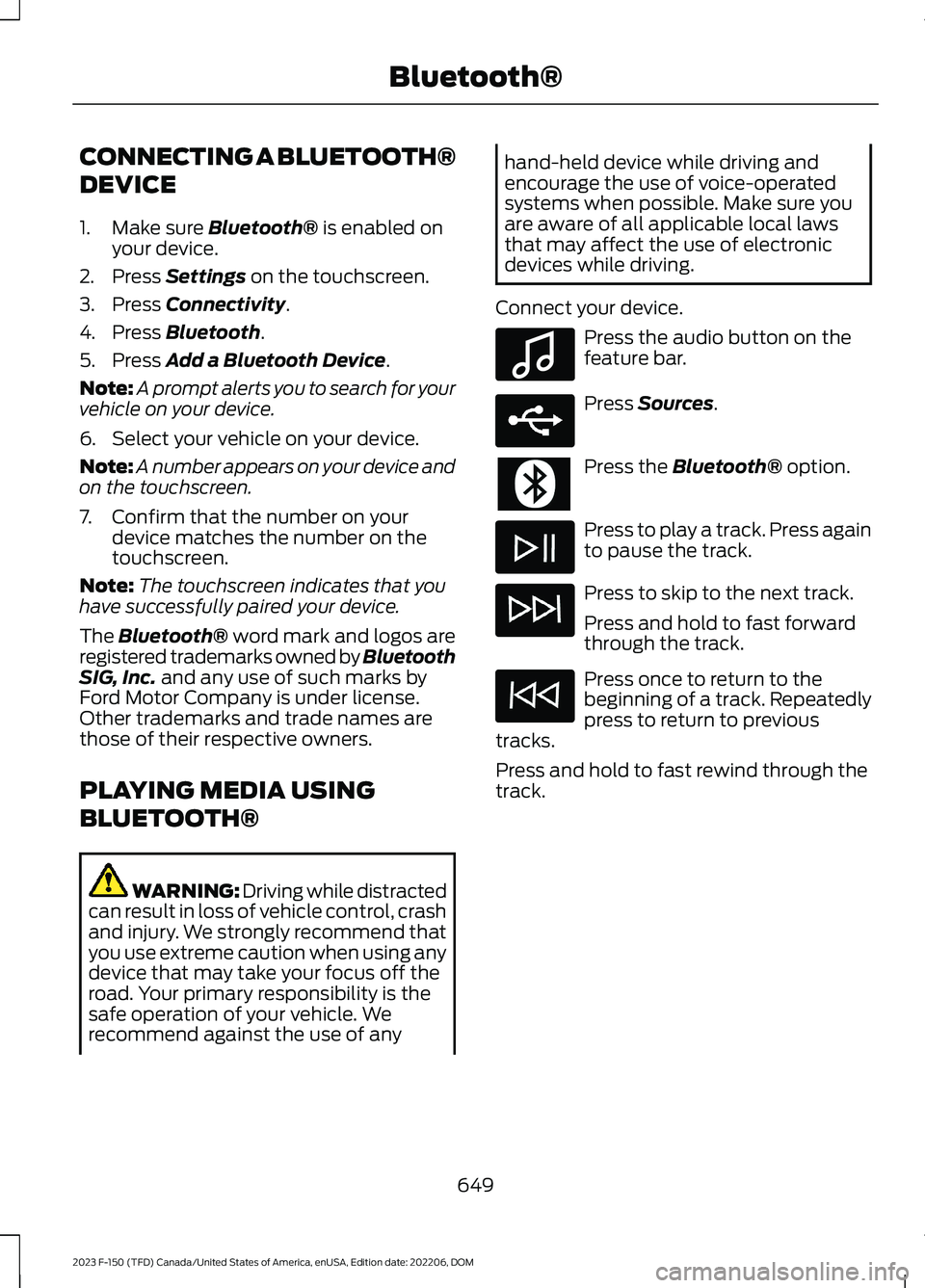
Connect your device.
Press the audio button on thefeature bar.
Press Sources.
Press the Bluetooth® option.
Press to play a track. Press againto pause the track.
Press to skip to the next track.
Press and hold to fast forwardthrough the track.
Press once to return to thebeginning of a track. Repeatedlypress to return to previoustracks.
Press and hold to fast rewind through thetrack.
649
2023 F-150 (TFD) Canada/United States of America, enUSA, Edition date: 202206, DOMBluetooth®E100027 E250655
Page 654 of 786

APP PRECAUTIONS
WARNING: Driving while distractedcan result in loss of vehicle control, crashand injury. We strongly recommend thatyou use extreme caution when using anydevice that may take your focus off theroad. Your primary responsibility is thesafe operation of your vehicle. Werecommend against the use of anyhand-held device while driving andencourage the use of voice-operatedsystems when possible. Make sure youare aware of all applicable local lawsthat may affect the use of electronicdevices while driving.
APP REQUIREMENTS
When you start an app through the systemfor the first time, you could be asked togrant certain permissions. You can reviewand change the permissions that you havegranted at any time when your vehicle isnot moving. We recommend that youcheck your data plan before using yourapps through the system. Using themcould result in additional charges. We alsorecommend that you check the appprovider's terms and conditions andprivacy policy before using their app. Makesure that you have an active account forapps that you want to use through thesystem. Some apps will work with nosetup. Others require you to configuresome personal settings before you can usethem.
ACCESSING APPS
Select the apps option on thefeature bar.
ENABLING APPS ON AN IOS
DEVICE
Select the apps option on thefeature bar.
1.Select Mobile Apps Help.
2.Follow the instructions to pair andconnect your device via Bluetooth® orwith a USB cable.
3.Start the apps on your device that youwant to use.
4.Select the app that you want to use onthe touchscreen.
Note:Some apps may run through AppleCarPlay if it is enabled.
Note:Closing an app on your device willclose it on the touchscreen.
Note:For troubleshooting assistance selectMobile Apps List under Mobile Apps Help.
ENABLING APPS ON AN
ANDROID DEVICE
Select the apps option on thefeature bar.
1.Select Mobile Apps Help.
2.Follow the instructions to pair andconnect your device via Bluetooth® orwith a USB cable.
3.Start the apps on your device that youwant to use.
4.Select Find Mobile Apps.
5.Select the app that you want to use onthe touchscreen.
Note:Some devices may lose the ability toplay music over USB when Mobile Apps areenabled.
Note:Some apps may run through AndroidAuto if it is enabled.
650
2023 F-150 (TFD) Canada/United States of America, enUSA, Edition date: 202206, DOMApps
Page 665 of 786

WHAT ARE THE AUXILIARY
SWITCHES
The auxiliary switchboard on the overheadconsole makes aftermarket customizationeasier with six prewired switchesconnected to the power distribution box.Each circuit is individually fused forconnection of electrical accessories.
For maximum vehicle performance, keepthe following information in mind whenadding accessories or equipment to yourvehicle:
•When adding accessories, equipment,passengers and luggage to yourvehicle, do not exceed the total weightcapacity of the vehicle or of the frontor rear axle (GVWR or GAWR asindicated on the safety compliancecertification label). Ask an authorizeddealer for specific weight information.
•It is your responsibility to ensure thatany equipment you have fittedcomplies with applicable locallegislation.
•An authorized dealer needs to installmobile communication systems.Improper installation may harm theoperation of your vehicle, particularlyif the manufacturer did not design themobile communication systemspecifically for automotive use.
•If you or an authorized dealer add anyelectrical or electronic accessories orcomponents not produced by us toyour vehicle, you may adversely affectbattery performance and durability. Inaddition, you may also adversely affectthe performance of the other electricalsystems in the vehicle.
LOCATING THE AUXILIARY
SWITCHES
The auxiliary switchboard on the overheadconsole makes aftermarket customizationeasier with six prewired switchesconnected to the power distribution box.The circuits are individually fused forconnection of electrical accessories.
The switches have labels for AUX 1 throughAUX 6. They only operate when the ignitionis in the on position, whether the engine isrunning or not. We recommend that youleave the engine running to maintainbattery charge when using the switchesfor an extended time or when using highercurrent draw accessories. When you turnon a switch, the indicator light on theswitch illuminates and the circuit providespower to the device wired to that switch.
Note:AUX switch 1 operates the off-roadlamps when your vehicle comes with thisoption.
661
2023 F-150 (TFD) Canada/United States of America, enUSA, Edition date: 202206, DOMAuxiliary Switches (If Equipped)E220728
Page 671 of 786

GENERAL MAINTENANCE
INFORMATION
Why Maintain Your Vehicle?
Carefully following the maintenanceschedule helps protect against major repairexpenses resulting from neglect orinadequate maintenance and may help toincrease the value of your vehicle whenyou sell or trade it. Keep all receipts forcompleted maintenance with your vehicle.
It is important that you have your vehicleserviced at the proper times. Theseintervals serve two purposes: first is tomaintain the reliability of your vehicle andthe second is to keep the cost of owningyour vehicle down.
It is your responsibility to have allscheduled maintenance performed and tomake sure that the materials used meetthe specifications identified in this owner'smanual. See Capacities andSpecifications (page 578).
Failure to perform scheduled maintenanceand regularly inspect your vehicle mayresult in vehicle damage not covered bythe vehicle Warranty.
Why Maintain Your Vehicle at YourDealership?
Our Genuine Replacement Parts
Dealerships stock our parts and ourauthorized branded re-manufacturedreplacement parts. These parts meet orexceed our specifications. Parts installedat your dealership carry a nationwide24-month or unlimited mile (kilometer)parts and labor limited warranty.
If you do not use our authorized parts theymay not meet our specifications and couldaffect emissions compliance.
Protecting Your Investment
Maintenance is an investment that paysdividends in the form of improvedreliability, durability and resale value. Tomaintain the proper performance of yourvehicle and its emission control systems,make sure you have scheduledmaintenance performed at the designatedintervals.
Your vehicle comes with the IntelligentOil-Life Monitor system, a messageappears in the information display at theproper oil change interval. This intervalmay be up to one year or 10,000 mi(16,000 km), hybrid vehicles could exceed10,000 mi (16,000 km).
When the oil change message appears inthe information display, it is time for an oilchange. Make sure you perform the oilchange within two weeks or 500 mi(800 km) of the message appearing. Makesure to reset the Intelligent Oil-Life Monitorafter each oil change. See Resetting theIntelligent Oil Life Monitor (page 506).
If your information display resetsprematurely or becomes inoperative, youshould perform the oil change interval atsix months or 5,000 mi (8,000 km) fromyour last oil change. Never exceed one yearor 10,000 mi (16,000 km) between oilchange intervals.
You can drive high performance vehiclesin such a way that may lead to higher oilconsumption including extended time athigh engine speeds, high loads, enginebraking, hard cornering maneuvers, trackand off-road usage. Under theseconditions, oil consumption ofapproximately 1 quart per 500 miles (1 literper 800 km) is possible. Check the engineoil level at every refueling and adjust tomaintain proper levels to avoid enginedamage.
667
2023 F-150 (TFD) Canada/United States of America, enUSA, Edition date: 202206, DOMScheduled Maintenance