2023 FORD EXPEDITION service
[x] Cancel search: servicePage 464 of 658

WARNING: The jack supplied withthis vehicle is only intended for changinga flat tire in an emergency. Do notattempt to do any other work on yourvehicle when it is supported by the jack,as your vehicle could slip off the jack.Failure to follow this instruction couldresult in personal injury or death.
WARNING: The jack should beused on level firm ground whereverpossible.
WARNING: Never place anythingbetween the vehicle jack and the ground.
WARNING: Never place anythingbetween the vehicle jack and yourvehicle.
WARNING: It is recommended thatthe wheels of the vehicle be chocked,and that no person should remain in avehicle that is being jacked.
WARNING: Failure to follow theseguidelines could result in an increasedrisk of loss of vehicle control, injury ordeath.
Note:The jack does not requiremaintenance or additional lubrication overthe service life of your vehicle.
Note:Both the front and rear jacking pointsare on the frame rails. The correct locationson the frame rails are marked with an arrowpunched into the frame rail. Jack at thespecified locations to avoid damaging yourvehicle.
Front jacking point
Rear jacking point
460
2023 Expedition (TB8) Canada/United States of America, enUSA, Edition date: 202207, DOMChanging a Road WheelE325274 E325281
Page 472 of 658
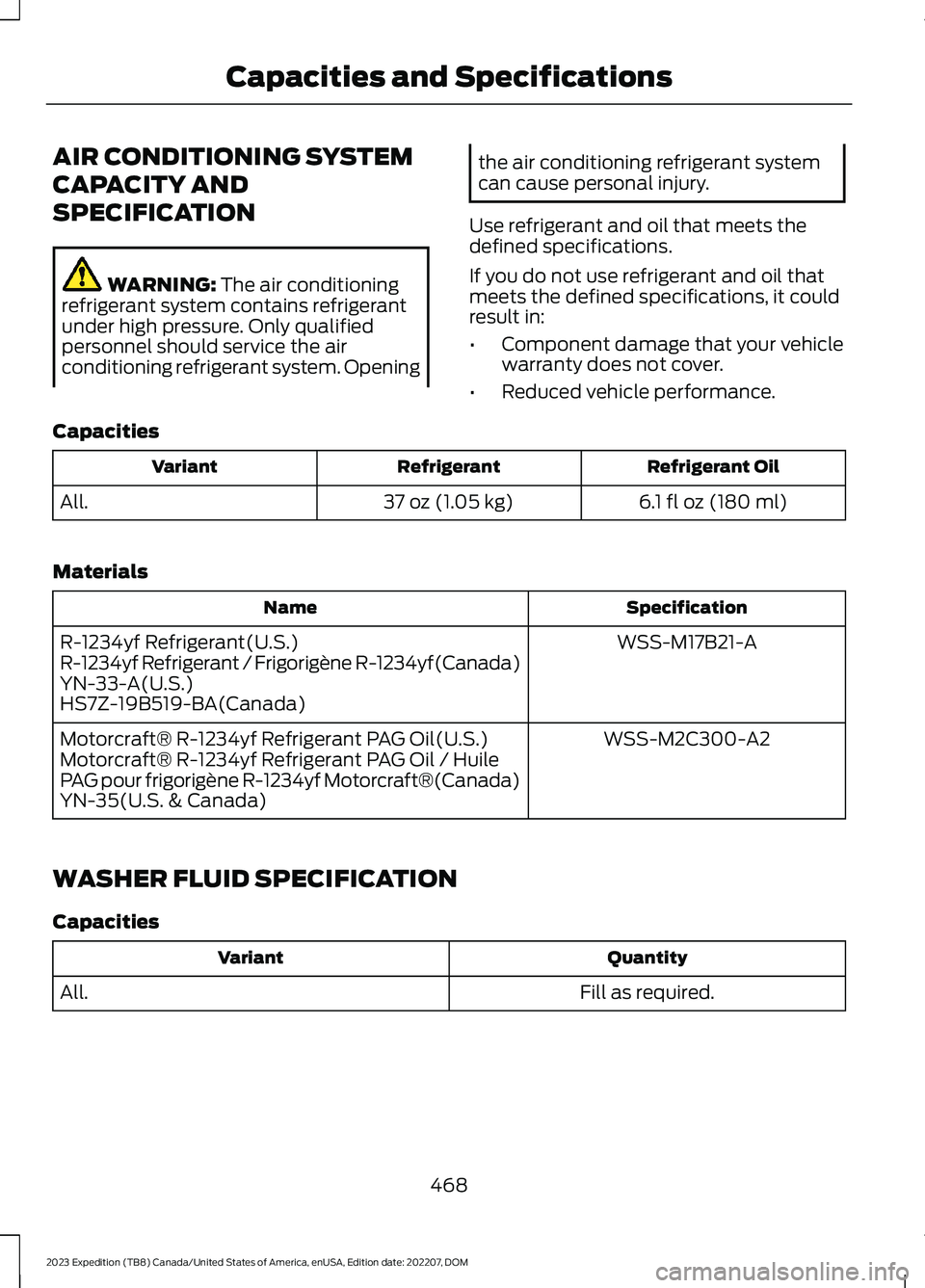
AIR CONDITIONING SYSTEM
CAPACITY AND
SPECIFICATION
WARNING: The air conditioningrefrigerant system contains refrigerantunder high pressure. Only qualifiedpersonnel should service the airconditioning refrigerant system. Opening
the air conditioning refrigerant systemcan cause personal injury.
Use refrigerant and oil that meets thedefined specifications.
If you do not use refrigerant and oil thatmeets the defined specifications, it couldresult in:
•Component damage that your vehiclewarranty does not cover.
•Reduced vehicle performance.
Capacities
Refrigerant OilRefrigerantVariant
6.1 fl oz (180 ml)37 oz (1.05 kg)All.
Materials
SpecificationName
WSS-M17B21-AR-1234yf Refrigerant(U.S.)R-1234yf Refrigerant / Frigorigène R-1234yf(Canada)YN-33-A(U.S.)HS7Z-19B519-BA(Canada)
WSS-M2C300-A2Motorcraft® R-1234yf Refrigerant PAG Oil(U.S.)Motorcraft® R-1234yf Refrigerant PAG Oil / HuilePAG pour frigorigène R-1234yf Motorcraft®(Canada)YN-35(U.S. & Canada)
WASHER FLUID SPECIFICATION
Capacities
QuantityVariant
Fill as required.All.
468
2023 Expedition (TB8) Canada/United States of America, enUSA, Edition date: 202207, DOMCapacities and Specifications
Page 479 of 658
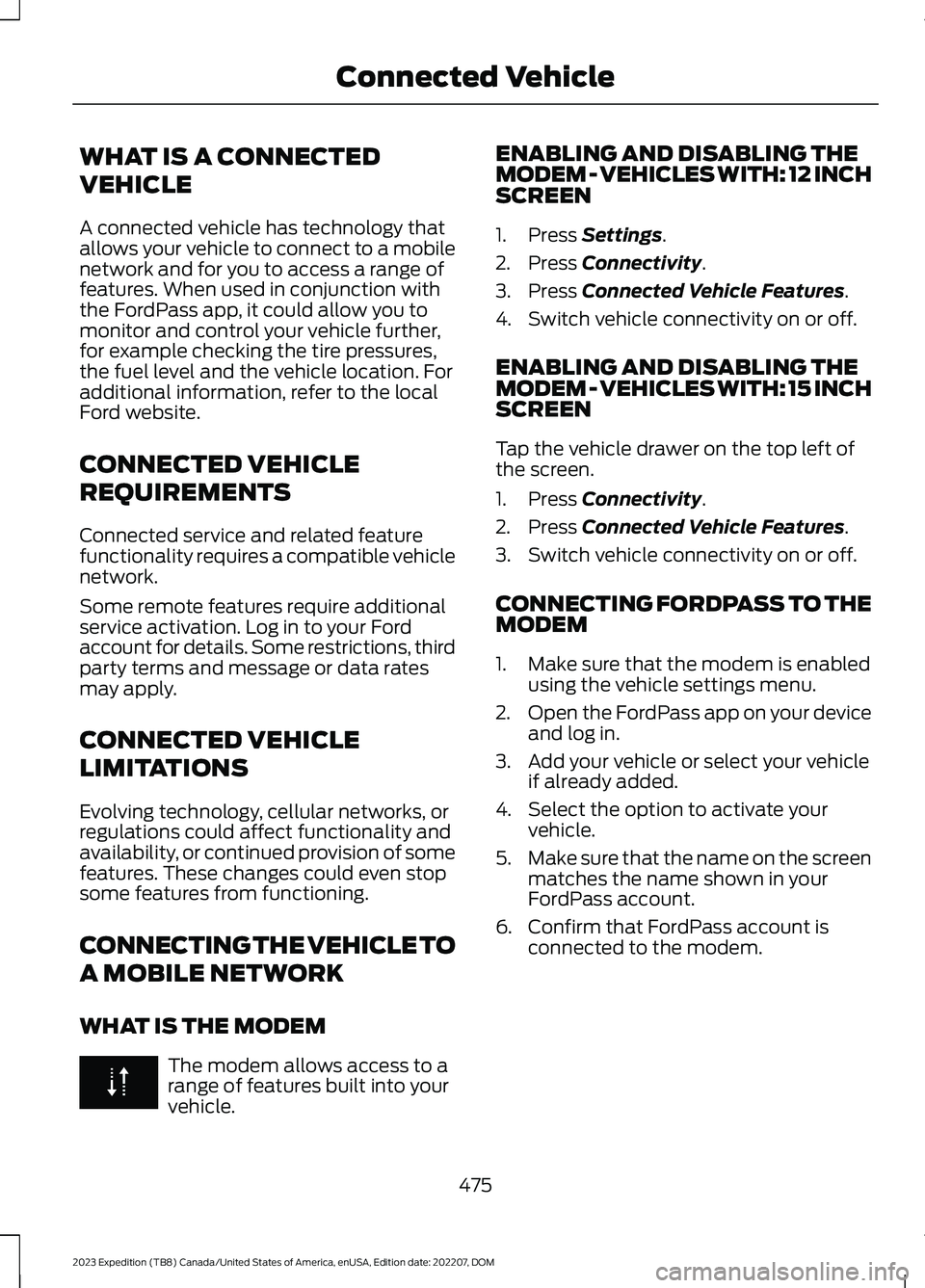
WHAT IS A CONNECTED
VEHICLE
A connected vehicle has technology thatallows your vehicle to connect to a mobilenetwork and for you to access a range offeatures. When used in conjunction withthe FordPass app, it could allow you tomonitor and control your vehicle further,for example checking the tire pressures,the fuel level and the vehicle location. Foradditional information, refer to the localFord website.
CONNECTED VEHICLE
REQUIREMENTS
Connected service and related featurefunctionality requires a compatible vehiclenetwork.
Some remote features require additionalservice activation. Log in to your Fordaccount for details. Some restrictions, thirdparty terms and message or data ratesmay apply.
CONNECTED VEHICLE
LIMITATIONS
Evolving technology, cellular networks, orregulations could affect functionality andavailability, or continued provision of somefeatures. These changes could even stopsome features from functioning.
CONNECTING THE VEHICLE TO
A MOBILE NETWORK
WHAT IS THE MODEM
The modem allows access to arange of features built into yourvehicle.
ENABLING AND DISABLING THEMODEM - VEHICLES WITH: 12 INCHSCREEN
1.Press Settings.
2.Press Connectivity.
3.Press Connected Vehicle Features.
4.Switch vehicle connectivity on or off.
ENABLING AND DISABLING THEMODEM - VEHICLES WITH: 15 INCHSCREEN
Tap the vehicle drawer on the top left ofthe screen.
1.Press Connectivity.
2.Press Connected Vehicle Features.
3.Switch vehicle connectivity on or off.
CONNECTING FORDPASS TO THEMODEM
1.Make sure that the modem is enabledusing the vehicle settings menu.
2.Open the FordPass app on your deviceand log in.
3.Add your vehicle or select your vehicleif already added.
4.Select the option to activate yourvehicle.
5.Make sure that the name on the screenmatches the name shown in yourFordPass account.
6.Confirm that FordPass account isconnected to the modem.
475
2023 Expedition (TB8) Canada/United States of America, enUSA, Edition date: 202207, DOMConnected Vehicle
Page 482 of 658
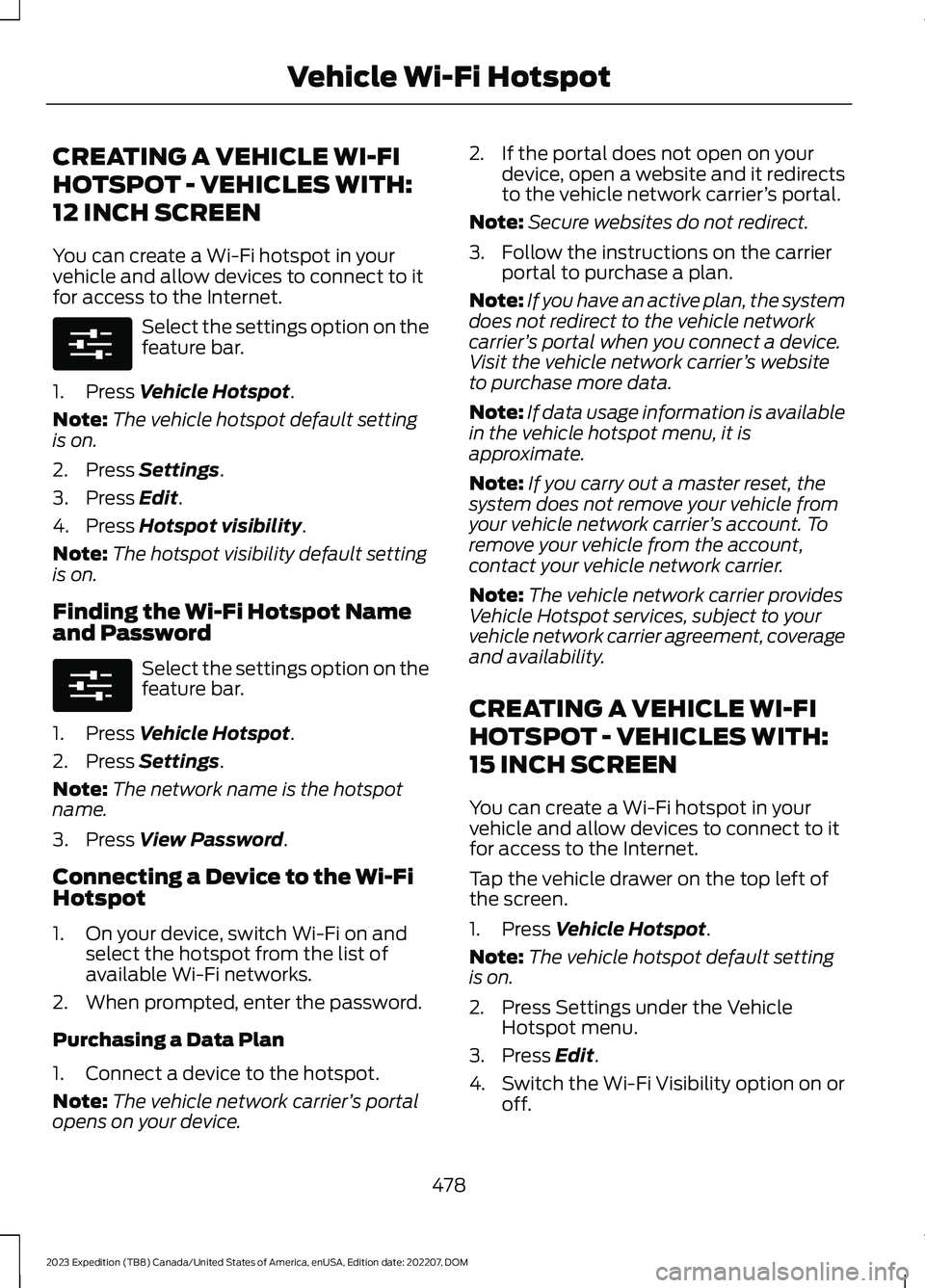
CREATING A VEHICLE WI-FI
HOTSPOT - VEHICLES WITH:
12 INCH SCREEN
You can create a Wi-Fi hotspot in yourvehicle and allow devices to connect to itfor access to the Internet.
Select the settings option on thefeature bar.
1.Press Vehicle Hotspot.
Note:The vehicle hotspot default settingis on.
2.Press Settings.
3.Press Edit.
4.Press Hotspot visibility.
Note:The hotspot visibility default settingis on.
Finding the Wi-Fi Hotspot Nameand Password
Select the settings option on thefeature bar.
1.Press Vehicle Hotspot.
2.Press Settings.
Note:The network name is the hotspotname.
3.Press View Password.
Connecting a Device to the Wi-FiHotspot
1.On your device, switch Wi-Fi on andselect the hotspot from the list ofavailable Wi-Fi networks.
2.When prompted, enter the password.
Purchasing a Data Plan
1.Connect a device to the hotspot.
Note:The vehicle network carrier’s portalopens on your device.
2.If the portal does not open on yourdevice, open a website and it redirectsto the vehicle network carrier’s portal.
Note:Secure websites do not redirect.
3.Follow the instructions on the carrierportal to purchase a plan.
Note:If you have an active plan, the systemdoes not redirect to the vehicle networkcarrier’s portal when you connect a device.Visit the vehicle network carrier’s websiteto purchase more data.
Note:If data usage information is availablein the vehicle hotspot menu, it isapproximate.
Note:If you carry out a master reset, thesystem does not remove your vehicle fromyour vehicle network carrier’s account. Toremove your vehicle from the account,contact your vehicle network carrier.
Note:The vehicle network carrier providesVehicle Hotspot services, subject to yourvehicle network carrier agreement, coverageand availability.
CREATING A VEHICLE WI-FI
HOTSPOT - VEHICLES WITH:
15 INCH SCREEN
You can create a Wi-Fi hotspot in yourvehicle and allow devices to connect to itfor access to the Internet.
Tap the vehicle drawer on the top left ofthe screen.
1.Press Vehicle Hotspot.
Note:The vehicle hotspot default settingis on.
2.Press Settings under the VehicleHotspot menu.
3.Press Edit.
4.Switch the Wi-Fi Visibility option on oroff.
478
2023 Expedition (TB8) Canada/United States of America, enUSA, Edition date: 202207, DOMVehicle Wi-Fi HotspotE280315 E280315
Page 483 of 658
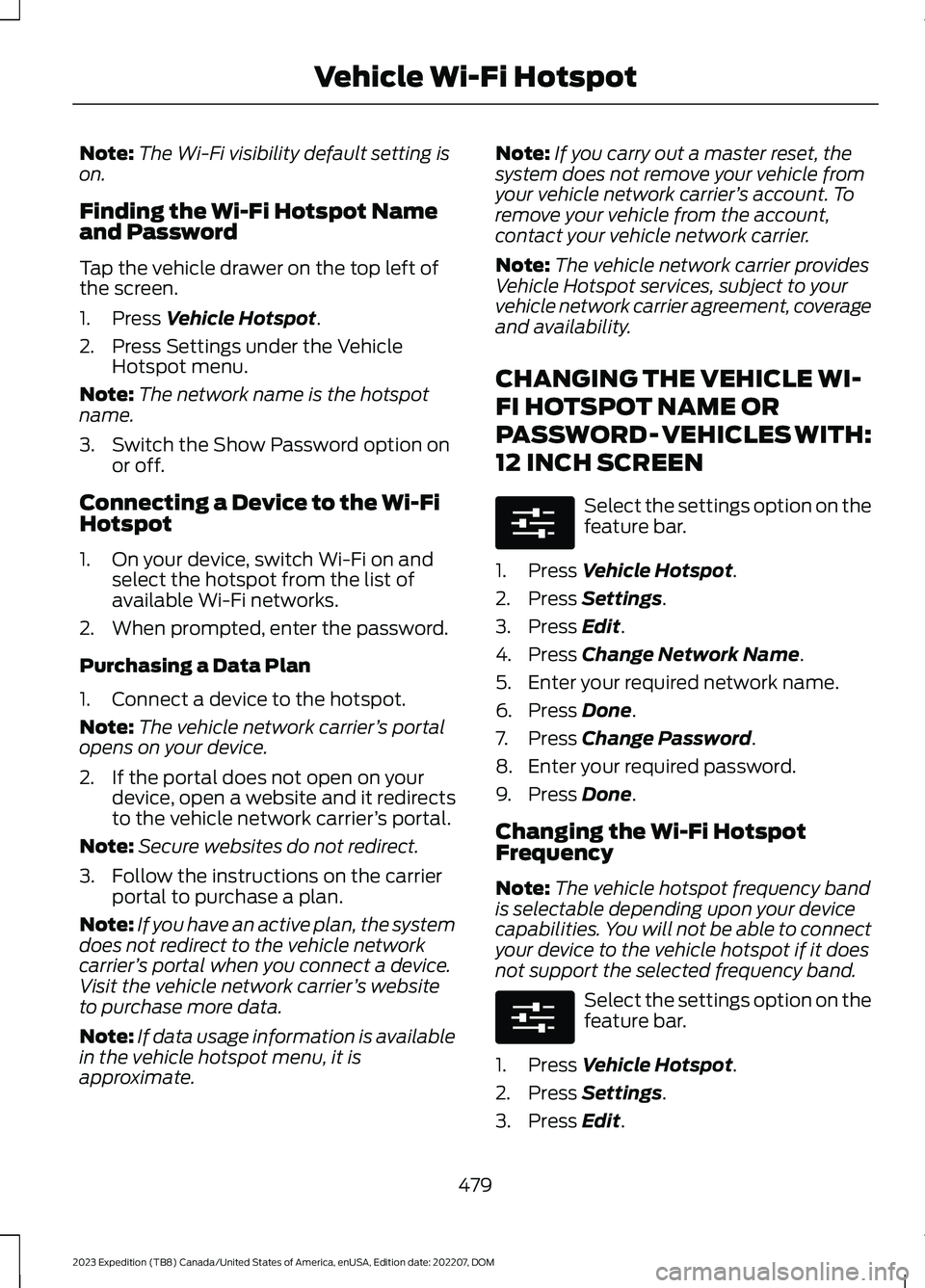
Note:The Wi-Fi visibility default setting ison.
Finding the Wi-Fi Hotspot Nameand Password
Tap the vehicle drawer on the top left ofthe screen.
1.Press Vehicle Hotspot.
2.Press Settings under the VehicleHotspot menu.
Note:The network name is the hotspotname.
3.Switch the Show Password option onor off.
Connecting a Device to the Wi-FiHotspot
1.On your device, switch Wi-Fi on andselect the hotspot from the list ofavailable Wi-Fi networks.
2.When prompted, enter the password.
Purchasing a Data Plan
1.Connect a device to the hotspot.
Note:The vehicle network carrier’s portalopens on your device.
2.If the portal does not open on yourdevice, open a website and it redirectsto the vehicle network carrier’s portal.
Note:Secure websites do not redirect.
3.Follow the instructions on the carrierportal to purchase a plan.
Note:If you have an active plan, the systemdoes not redirect to the vehicle networkcarrier’s portal when you connect a device.Visit the vehicle network carrier’s websiteto purchase more data.
Note:If data usage information is availablein the vehicle hotspot menu, it isapproximate.
Note:If you carry out a master reset, thesystem does not remove your vehicle fromyour vehicle network carrier’s account. Toremove your vehicle from the account,contact your vehicle network carrier.
Note:The vehicle network carrier providesVehicle Hotspot services, subject to yourvehicle network carrier agreement, coverageand availability.
CHANGING THE VEHICLE WI-
FI HOTSPOT NAME OR
PASSWORD - VEHICLES WITH:
12 INCH SCREEN
Select the settings option on thefeature bar.
1.Press Vehicle Hotspot.
2.Press Settings.
3.Press Edit.
4.Press Change Network Name.
5.Enter your required network name.
6.Press Done.
7.Press Change Password.
8.Enter your required password.
9.Press Done.
Changing the Wi-Fi HotspotFrequency
Note:The vehicle hotspot frequency bandis selectable depending upon your devicecapabilities. You will not be able to connectyour device to the vehicle hotspot if it doesnot support the selected frequency band.
Select the settings option on thefeature bar.
1.Press Vehicle Hotspot.
2.Press Settings.
3.Press Edit.
479
2023 Expedition (TB8) Canada/United States of America, enUSA, Edition date: 202207, DOMVehicle Wi-Fi HotspotE280315 E280315
Page 494 of 658
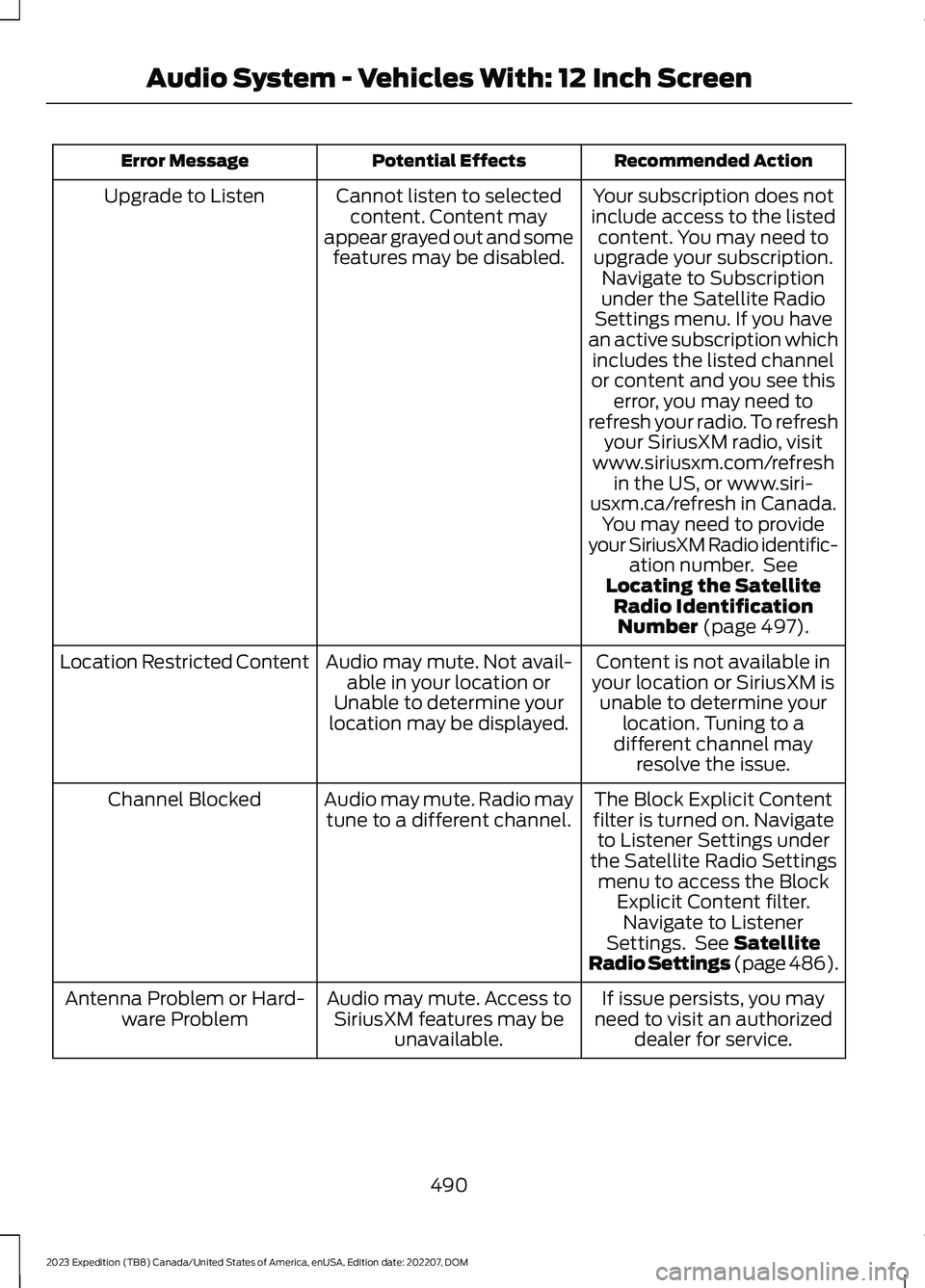
Recommended ActionPotential EffectsError Message
Your subscription does notinclude access to the listedcontent. You may need toupgrade your subscription.Navigate to Subscriptionunder the Satellite RadioSettings menu. If you havean active subscription whichincludes the listed channelor content and you see thiserror, you may need torefresh your radio. To refreshyour SiriusXM radio, visitwww.siriusxm.com/refreshin the US, or www.siri-usxm.ca/refresh in Canada.You may need to provideyour SiriusXM Radio identific-ation number. SeeLocating the SatelliteRadio IdentificationNumber (page 497).
Cannot listen to selectedcontent. Content mayappear grayed out and somefeatures may be disabled.
Upgrade to Listen
Content is not available inyour location or SiriusXM isunable to determine yourlocation. Tuning to adifferent channel mayresolve the issue.
Audio may mute. Not avail-able in your location orUnable to determine yourlocation may be displayed.
Location Restricted Content
The Block Explicit Contentfilter is turned on. Navigateto Listener Settings underthe Satellite Radio Settingsmenu to access the BlockExplicit Content filter.Navigate to ListenerSettings. See SatelliteRadio Settings (page 486).
Audio may mute. Radio maytune to a different channel.Channel Blocked
If issue persists, you mayneed to visit an authorizeddealer for service.
Audio may mute. Access toSiriusXM features may beunavailable.
Antenna Problem or Hard-ware Problem
490
2023 Expedition (TB8) Canada/United States of America, enUSA, Edition date: 202207, DOMAudio System - Vehicles With: 12 Inch Screen
Page 511 of 658
WHAT IS ALEXA BUILT-IN
Allows you to use Alexa in your vehicle forauto specific use cases on the road andgives you access to an ever evolvingnumber of skills that help to make your lifemore productive, entertaining, andconnected while using your vehicle.
ALEXA BUILT-IN
REQUIREMENTS
To use Alexa, all of the following mustoccur:
•Your vehicle modem is enabled.
•You are logged into an existing Amazonaccount.
•Vehicle location services are enabled.
•Vehicle connectivity and vehicle datasharing is enabled.
SIGNING INTO YOUR
ACCOUNT
Press the button in the statusbar and follow the on-screenprompts.
To sign in using the settings menu:
1.Press Settings on the touchscreen.
2.Press Amazon Alexa.
3.Press Get Started.
4.Sign into your account by eitherscanning the QR code or entering theon-screen code into the Amazonwebsite.
5.Once logged in, follow the on-screenprompts.
6.When complete, the vehicle informsyou that Alexa is ready to be used inthe vehicle.
Signing Out of Your Account
1.Press Settings on the touchscreen.
2.Press Amazon Alexa.
3.Press Sign Out.
USING ALEXA BUILT-IN
To use Alexa, say “Alexa” or press the voiceinteraction button on the steering wheeland then say “Alexa” to invoke Alexa tostart listening.
Note:If the wake word is not enabled, youcan only use the voice interaction button.
You can use Alexa for the following andmore:
•Entertainment.
•Hands-free calling.
•Traffic and navigation.
•Vehicle controls.
•Smart home device control.
•Weather and news information.
ALEXA BUILT-IN SETTINGS
Enabling the Wake Word
1.Press Settings on the touchscreen.
2.Press Amazon Alexa.
3.Switch Listen for Wake Word on or off.
Note:If the wake word is not enabled, youcan only use the voice interaction button.
Contact List
Displays a list of connected phones andcontact sharing status for each phone.
To change the contact sharing status:
1.Press Settings on the touchscreen.
2.Press Amazon Alexa.
3.Press Contact List.
507
2023 Expedition (TB8) Canada/United States of America, enUSA, Edition date: 202207, DOMAlexa Built-In - Vehicles With: 12 Inch ScreenE368039
Page 513 of 658
WHAT IS ALEXA BUILT-IN
Allows you to use Alexa in your vehicle forauto specific use cases on the road andgives you access to an ever evolvingnumber of skills that help to make your lifemore productive, entertaining, andconnected while using your vehicle.
ALEXA BUILT-IN
REQUIREMENTS
To use Alexa, all of the following mustoccur:
•Your vehicle modem is enabled.
•You are logged into an existing Amazonaccount.
•Vehicle location services are enabled.
•Vehicle connectivity and vehicle datasharing is enabled.
SIGNING INTO YOUR
ACCOUNT
Press the button in the statusbar and follow the on-screenprompts.
To sign in using the settings menu:
1.Access the vehicle drawer.
2.Press SETTINGS.
3.Press Amazon Alexa.
4.Press Get Started.
5.Sign into the Amazon account by eitherscanning the QR code or entering theon-screen code into the Amazonwebsite.
6.Once logged in, follow the on-screenprompts.
7.When complete, the vehicle informsyou that Alexa is ready to be used inthe vehicle.
Signing Out of Your Account
1.Access the vehicle drawer.
2.Press SETTINGS.
3.Press Amazon Alexa.
4.Press Sign Out.
USING ALEXA BUILT-IN
To use Alexa, say “Alexa” or press the voiceinteraction button on the steering wheeland then say “Alexa” to invoke Alexa tostart listening.
Note:If the wake word is not enabled, youcan only use the voice interaction button.
You can use Alexa for the following andmore:
•Entertainment.
•Hands-free calling.
•Traffic and navigation.
•Vehicle controls.
•Smart home device control.
•Weather and news information.
ALEXA BUILT-IN SETTINGS
Enabling the Wake Word
1.Access the vehicle drawer.
2.Press SETTINGS.
3.Press Amazon Alexa.
4.Switch Listen for Wake Word on or off.
Note:If the wake word is not enabled, youcan only use the voice interaction button.
Contact List
Displays a list of connected phones andcontact sharing status for each phone.
To change the contact sharing status:
1.Access the vehicle drawer.
509
2023 Expedition (TB8) Canada/United States of America, enUSA, Edition date: 202207, DOMAlexa Built-In - Vehicles With: 15 Inch ScreenE368039