2022 TOYOTA SUPRA navigation
[x] Cancel search: navigationPage 68 of 498
663-1. CONTROLS
The new screen is opened.
Settings such as brightness can be
made using the touchscreen.
Via Toyota Supra Command:
1 "My Vehicle"
2 "System settings"
3 "Displays"
4 "Control display"
5 "Brightness at night"
6 Make the desired setting:
• Move to the right or left until the
required setting is displayed.
• Tap the symbol.
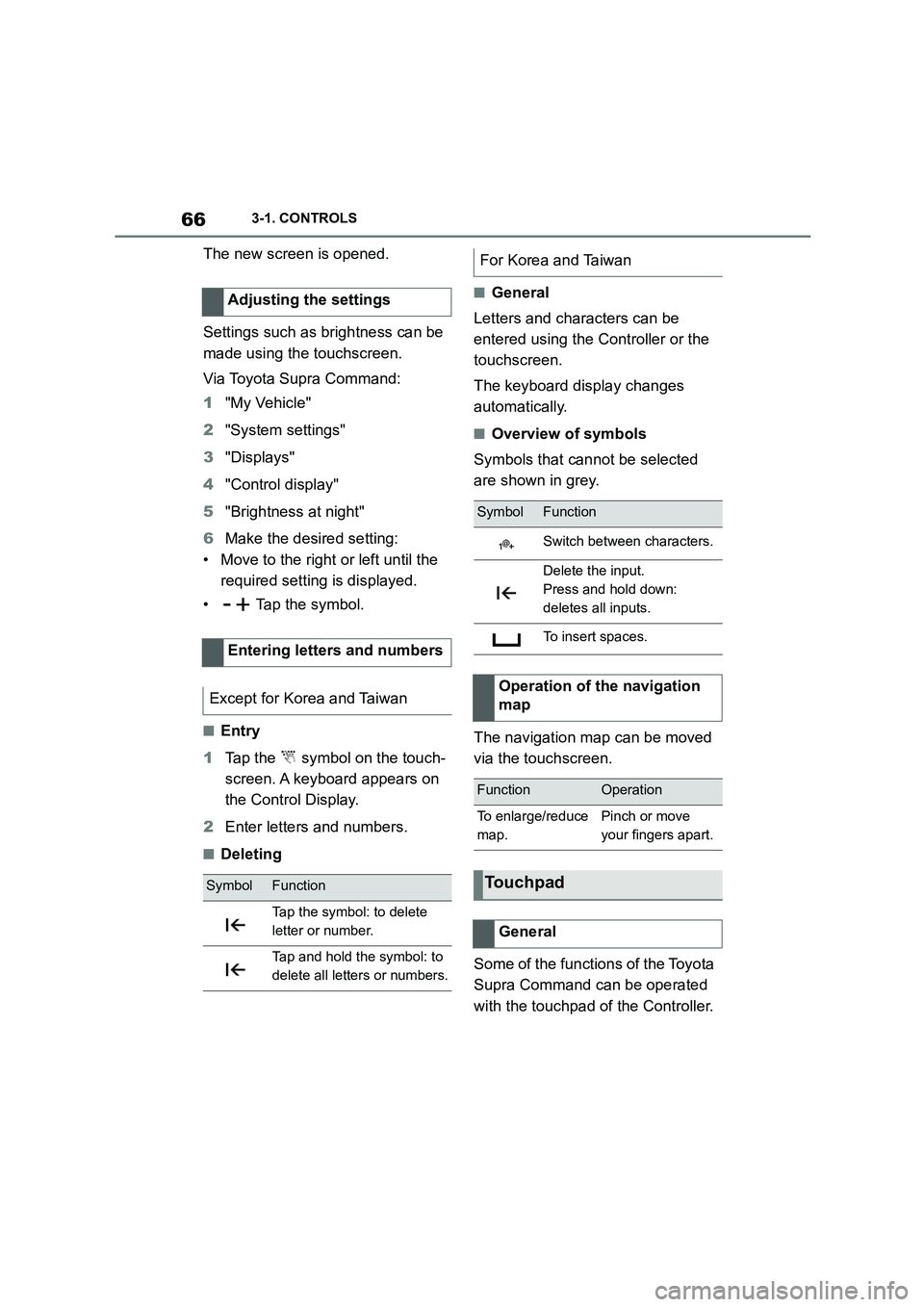
■Entry
1 Tap the symbol on the touch-
screen. A keyboard appears on
the Control Display.
2 Enter letters and numbers.
■Deleting
■General
Letters and characters can be
entered using the Controller or the
touchscreen.
The keyboard display changes
automatically.
■Overview of symbols
Symbols that cannot be selected
are shown in grey.
The navigation map can be moved
via the touchscreen.
Some of the functions of the Toyota
Supra Command can be operated
with the touchpad of the Controller.
Adjusting the settings
Entering letters and numbers
Except for Korea and Taiwan
SymbolFunction
Tap the symbol: to delete
letter or number.
Tap and hold the symbol: to
delete all letters or numbers.
For Korea and Taiwan
SymbolFunction
Switch between characters.
Delete the input.
Press and hold down:
deletes all inputs.
To insert spaces.
Operation of the navigation
map
FunctionOperation
To enlarge/reduce
map.
Pinch or move
your fingers apart.
Touchpad
General
Page 69 of 498
67
3
3-1. CONTROLS
CONTROLS
Via Toyota Supra Command:
1 "My Vehicle"
2 "System settings"
3 "Touchpad"
4 Select the desired setting:
• "Write": to enter letters and num-
bers.
• "Map": to operate the map.
• "Search fields": to write letters
without selecting the list field.
• "Audio feedback": to have the
entered letters and numbers
read out.
Entering letters requires a bit of
practice to begin with. Pay attention
to the following when entering:
• The system recognises upper
and lower case and numbers. It
may be necessary to switch
between upper and lower case,
numbers and characters, see
page 63.
• Enter characters as they are dis-
played on the Control Display.
• Always enter associated charac-
ters, for example accents or
dots, so that the letter can be
clearly identified. The input
options depend on the language
that has been set. You may need
to enter special characters using
the Controller.
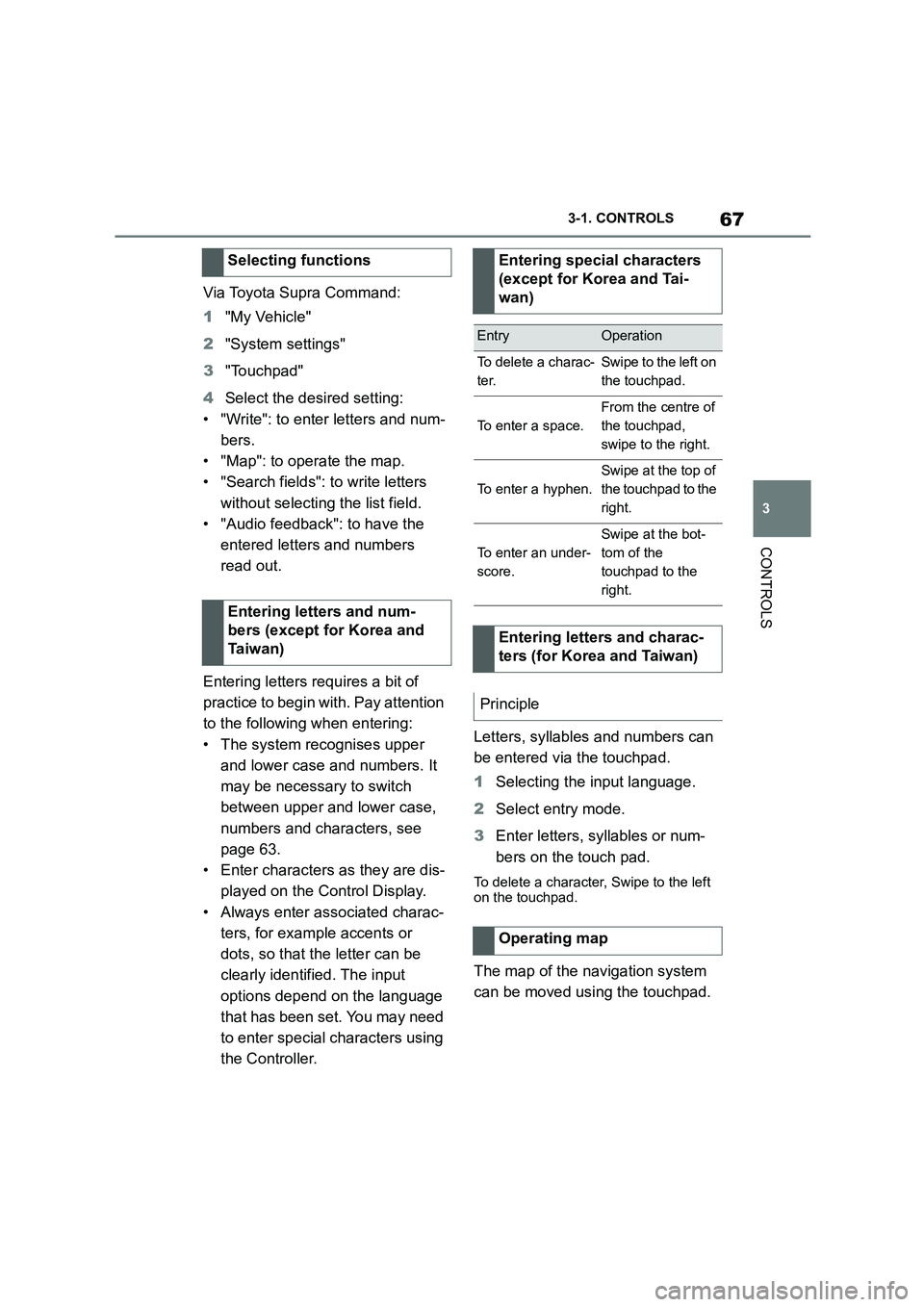
Letters, syllables and numbers can
be entered via the touchpad.
1 Selecting the input language.
2 Select entry mode.
3 Enter letters, syllables or num-
bers on the touch pad.
To delete a character, Swipe to the left
on the touchpad.
The map of the navigation system
can be moved using the touchpad.
Selecting functions
Entering letters and num-
bers (except for Korea and
Ta i w a n )
Entering special characters
(except for Korea and Tai-
wan)
EntryOperation
To delete a charac-
ter.
Swipe to the left on
the touchpad.
To enter a space.
From the centre of
the touchpad,
swipe to the right.
To enter a hyphen.
Swipe at the top of
the touchpad to the
right.
To enter an under-
score.
Swipe at the bot-
tom of the
touchpad to the
right.
Entering letters and charac-
ters (for Korea and Taiwan)
Principle
Operating map
Page 77 of 498
75
3
3-1. CONTROLS
CONTROLS
This chapter describes all standard,
country-specific and special equip-
ment available for the model series.
It may therefore describe equip-
ment which is not installed in your
vehicle, for exampl e on account of
the special equipment selected or
the country specific ation. This also
applies to safety-relevant functions
and systems. Please comply with
the relevant laws and regulations
when using the corresponding func-
tions and systems.
The vehicle offers various functions
which require data to be transferred
to Toyota or a service provider. The
transfer of data can be deactivated
for some functions.
If data transfer has been deacti-
vated for a function, then that func-
tion cannot be used.
Only perform settings with the vehi-
cle at a standstill.
Follow the instruct ions on the Con-
trol Display.
Via Toyota Supra Command:
1 "My Vehicle"
2 "System settings"
3 "Data privacy"
4 Select the desired setting.
Depending on use, the vehicle
stores personal data such as saved
radio stations. This personal data
can be permanently deleted using
Toyota Supra Command.
Depending on the equipment in
your vehicle, the following data can
be deleted:
• Driver profile settings.
• Saved radio stations.
• Saved Favourites buttons.
• Trip and on-board computer val-
ues.
• Music hard disc.
• Navigation, for example saved
destinations.
• Phone book.
• Online data, for example Favour-
ites, cookies.
• Office data, for example voice
Personal settings
Vehicle equipment
Data protection
Data transfer
Principle
General
Activating/deactivating
Deleting persona l data in the
vehicle
Principle
General
Page 87 of 498
85
3
3-1. CONTROLS
CONTROLS
• "Bluetooth"
• "Apple CarPlay"
Register iPhone via Bluetooth on
the vehicle, see page 81.
Select CarPlay as the function:
"Apple CarPlay"
The iPhone is connected to the
vehicle and displayed in the device
list, see page 86.
For further infor mation, see the
Navigation system Owner's man-
ual .
There may be instances where the
mobile device does not function as
expected, even though all precondi-
tions have been met and all the
necessary steps have been carried
out in the correct order. Neverthe-
less, the mobile device does not
function as expected.
In such cases, the following expla-
nations may provide assistance:
The iPhone has already been
paired with Apple CarPlay. When a
new connection is established,
CarPlay can no longer be selected.
• Delete the iPhone concerned
from the device list.
• On the iPhone, delete the vehicle
concerned from the list of saved
connections under Bluetooth and
under WLAN.
• Pair the iPhone as a new device.
If the steps listed have been carried
out and the desire d function still
cannot be run: contact the cus-
tomer support, any authorized
Toyota retailer or Toyota authorized
repairer, or any reliable repairer.
Screen Mirroring enables you to
display your smartphone screen on
the Control Display.
• Compatible smartphone with
Screen Mirroring interface.
• Screen Mirroring is switched on
in the smartphone.
• WLAN is switched on in the vehi-
cle.
Via Toyota Supra Command:
1 "My Vehicle"
2 "System settings"
3 "Mobile devices"
4 "Settings"
5 "Vehicle WiFi"
Registering iPhone with
CarPlay
Operation
Frequently Asked Questions
Screen Mirroring
General
Operating requirements
Switching on WLAN
Page 149 of 498

147
3
3-1. CONTROLS
CONTROLS
Shift from selector lever position
P to N, D or R.
Vehicle battery is heavily dis-
charged.
Start of an oil level measure-
ment.
Depending on the equipment ver-
sion and country version, the vehi-
cle has various sensors to record
the traffic situation. This enables
the intelligent auto matic Start/Stop
function to adapt to various traffic
situations and, where necessary,
behave in an anticipatory manner.
For example, in the following situa-
tions:
If a situation is detected in which
the duration of the stop is likely
to be very short, the engine is not
stopped automatically. Depend-
ing on the situation, a message
is shown on the Control Display.
If a situation is detected in which
the vehicle should drive off
immediately, the stopped engine
is started automatically.
The function may be limited if the
navigation data is invalid, outdated
or not available, for example.
The engine is not switched off auto-
matically.
During an automatic engine stop,
the engine is started.
Press the button.
The Auto Start/Stop is also deacti-
vated in selector lever position M.
The Auto Start/Stop is also deacti-
vated in the SPORT drive mode of
the Sport mode switch.
■General
With automatic engine stop, the
vehicle can be parked safely, for
Auto Start/Stop additional
function
Manually deactivating/acti-
vating the system
Principle
Using the button
Via selector lever position
Sport mode switch
Parking the vehicle during auto-
matic engine stop
Page 173 of 498
171
3
3-1. CONTROLS
CONTROLS
2 "Vehicle status"
3 "Service requirements"
4 "Date:"
5 Select the desired setting.
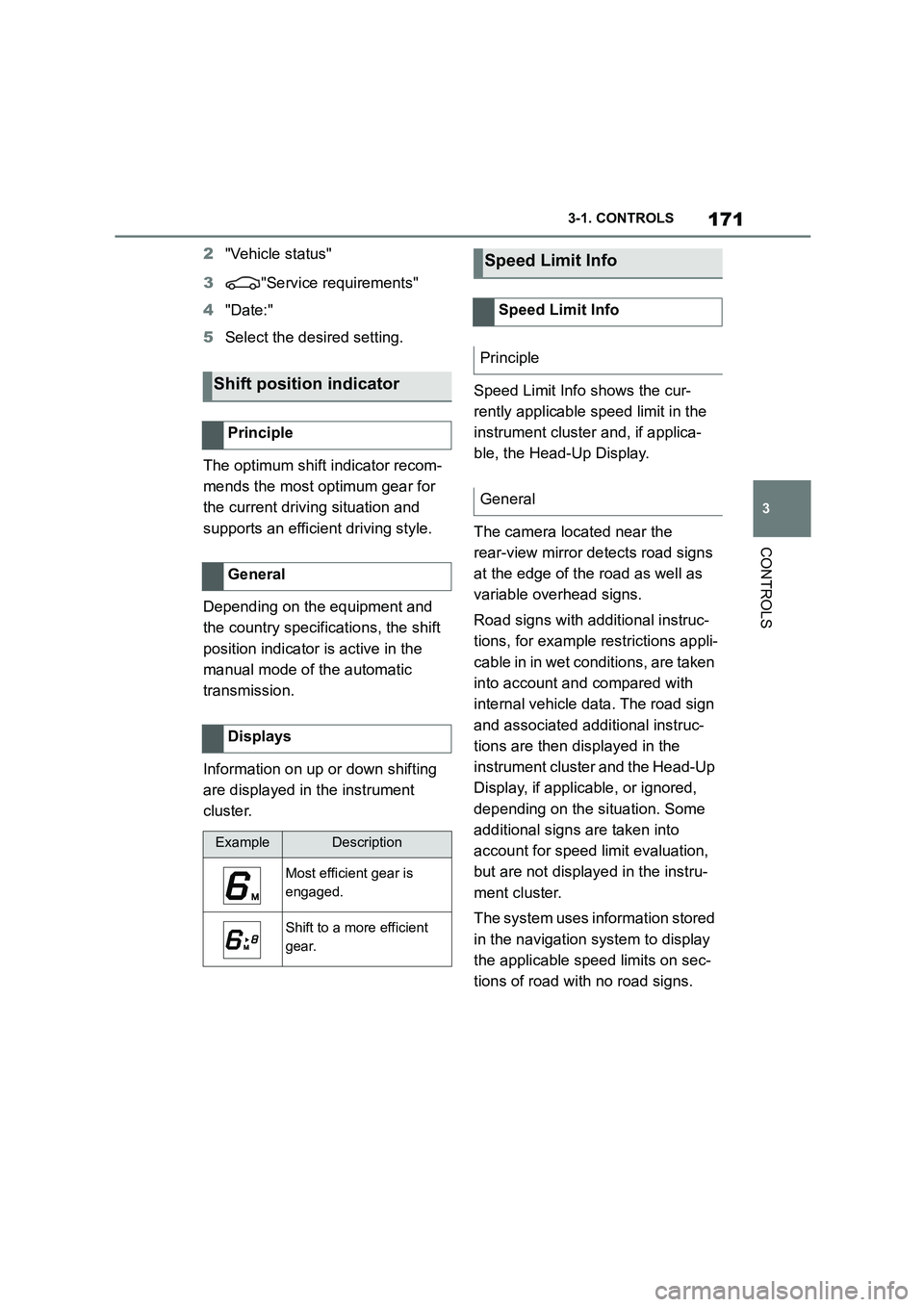
The optimum shift indicator recom-
mends the most optimum gear for
the current driving situation and
supports an efficient driving style.
Depending on the equipment and
the country specifications, the shift
position indicator is active in the
manual mode of the automatic
transmission.
Information on up or down shifting
are displayed in the instrument
cluster.
Speed Limit Info shows the cur-
rently applicable speed limit in the
instrument cluster and, if applica-
ble, the Head-Up Display.
The camera located near the
rear-view mirror detects road signs
at the edge of the road as well as
variable overhead signs.
Road signs with additional instruc-
tions, for example restrictions appli-
cable in in wet conditions, are taken
into account and compared with
internal vehicle data. The road sign
and associated additional instruc-
tions are then displayed in the
instrument cluster and the Head-Up
Display, if applic able, or ignored,
depending on the situation. Some
additional signs are taken into
account for speed limit evaluation,
but are not displayed in the instru-
ment cluster.
The system uses information stored
in the navigation system to display
the applicable speed limits on sec-
tions of road with no road signs.
Shift position indicator
Principle
General
Displays
ExampleDescription
Most efficient gear is
engaged.
Shift to a more efficient
gear.
Speed Limit Info
Speed Limit Info
Principle
General
Page 175 of 498

173
3
3-1. CONTROLS
CONTROLS
Via Toyota Supra Command:
1 "My vehicle"
2 "System settings"
3 "Displays"
4 "Instrument cluster"
5 Select the desired setting:
"Warning when speeding": acti-
vate or deactivate the flashing of
the Speed Limit Info display in
the instrument cluster and the
Head-Up Display when the cur-
rently applicable speed limit is
exceeded.
"Show speeding": the speed limit
detected by the Speed Limit Info
is indicated by a mark in the
speedometer in the instrument
cluster.
For further information:
• Cameras, see page P.50.
Functionality may be limited or
incorrect information may be dis-
played in some situations such as:
If road signs are fully or partially
obscured by objects, stickers or
paint.
If the vehicle is too close to the
vehicle ahead.
If the speed limits stored in the
navigation system or road data
are incorrect.
In the case of speed limits that
depend or the time of day or day
of the week.
In areas not covered by the navi-
gation system.
If there are navigation discrepan-
cies, for example due to changes
in road layout.
In the case of electronic road
signs.
When overtaking buses or trucks
with roadsign stickers.
If traffic signs do not correspond
to the standard.
If signs are detected that apply to
a parallel road.
In the case of country-specific
signs or road layouts.
Speed Limit Info shows the cur-
rently applicable speed limit in the
instrument cluster and the Head-Up
Display, as well as additional signs
where applicable, for example in
wet conditions.
Settings
System limits
System limits of the sensors
Functional limitations
Speed Limit Info with over-
taking restriction display
Speed Limit Info
Principle
Page 176 of 498

1743-1. CONTROLS
The camera in the area of the inte-
rior rear-view mirror detects traffic
signs at the edge of the road as
well as variable overhead signs.
Road signs with additional instruc-
tions, for example restrictions appli-
cable in wet weather, are taken into
account and correlated with infor-
mation in the vehicle, such as the
windscreen wiper signal. The road
sign and corresponding additional
signs are then displayed in the
instrument cluster and the Head-Up
Display, if applicable, or ignored,
depending on the situation. Some
additional signs are taken into
account in the evaluation of the
speed limit, but are not displayed in
the instrument cluster.
The system considers the informa-
tion saved in the navigation system
as applicable and also displays the
speed limits present on unmarked
sections of road.
Overtaking restriction signs and
end of restriction signs that are
detected by the camera are indi-
cated by corresponding symbols in
the instrument cluster and, if appli-
cable, the Head-Up Display.
The system considers overtaking
restrictions and ends of restrictions
that are indicated by means of
signs.
Nothing will be displayed in the fol-
lowing situations:
In countries where overtaking
restrictions are primarily shown
by road markings.
On routes without signs.
In the case of railway crossings,
lane markings and other situa-
tions which indicate an overtak-
ing restriction but which are not
signposted to this effect.
Depending on the equipment ver-
sion, an additional symbol with dis-
tance information may also be
displayed to indicate the end of the
overtaking restriction display.
The system is controlled using the
General
Overtaking restriction dis-
play
Principle
General
Safety note
WA R N I N G
The system does not relieve you of
your personal responsibility to assess the visibility conditions and traffic situ-
ation correctly. There is a danger of
accidents. Adapt your driving style to the traffic conditions. Observe the
traffic situation and intervene actively
if the situation warrants it.
Overview
Sensors