2022 TOYOTA HIGHLANDER warning
[x] Cancel search: warningPage 98 of 568

982-1. Instrument cluster
G-force display*
Displays the size and direction of
the G-force applied to the vehicle
via changes to the position of the
ball on the display.
Maximum G-force course*
This item is linke d with the G-force
display and the course of the past
movement of the ball is displayed.
Press and hold to reset the
record.
Wheel spin display
When a tire is spin ning, its icon on
the display change s its color and
blinks.
*: This item is displayed only when driving mode is set to sport mode.
■Safety system status
Enable/Disable the following
systems:
PCS (Pre-Collision system)
( P.235)
Intuitive parking assist (if
equipped) ( P.284)
BSM (Blind Spot Monitor)
( P.278)
RCTA (Rear Cross Traffic
Alert) ( P.293)
■Tire pressure
• It may take a few minutes to dis- play the tire inflation pressure
after the engine switch is turned to
ON. It may also take a few min-
utes to display the tire inflation
pressure after inflation pressure
has been adjusted.
• “---” may be disp layed if the tire
position information cannot be
determined due to unfavorable radio wave conditions.
• Tire inflation pressure changes with temperature. The displayed
values may also be different from
the values measured using a tire
pressure gauge.
■Changing settings
Use the meter control switches
on the steering wheel to change
settings.
1 Press or of the meter
control switch to select .
2 Press or of the meter
control switch to select the
desired item to be custom-
ized.
3 Press or press and hold .
The available settings will differ
depending on if is pressed or
pressed and held. Follow the
instructions on the display.
■Setting items
LTA (Lane Tracing Assist)
( P.246)
Press and hold to change the
settings of the following items:
• “Lane Center”
Select to enable /disable the lane
centering function.
• “Sensitivity”
Select to set the warning sensitivity.
• “Sway Warning”
Select to enable/disable the vehicle
sway warning.
Settings display ( )
Page 99 of 568

992-1. Instrument cluster
2
Vehicle status information and indicators
• “Sway Sensitivity”
Select to set the vehicle sway warn-
ing sensitivity.
PCS (Pre-Collision Sys-
tem) ( P.235)
Press to enable/disable the
pre-collision system.
• PCS (Pre-Collision System)
on/off
Select to enable/disable the
pre-collision system.
Press and hold to change the
settings of the following item:
• “Sensitivity”
Select to change t he pre-collision
warning timing.
DRCC (Dynamic Radar
Cruise Control with full-speed
range) ( P.257)
Press and hold to change the
settings of the following items:
• “Curve Speed Reduction”
( P.264)
Select to set the curve speed
reduction function strength.
BSM (Blind Spot Monitor)
( P.278)
Press to enable/disable the
Blind Spot Monitor function.
• BSM (Blind Spot Monitor) on/off
Select to enable/disable the Blind
Spot Monitor function.
Press and hold to change the
settings of the following items:
• “Brightness” Select to switch the brightness of
the outside rear view mirror indica-
tors. (
P.278)
• “Sensitivity”
Select to change the alert timing for
an approaching vehicle.
Intuitive parking assist (if
equipped) ( P.284)
Press to enable/disable the
Intuitive parking assist.
• Intuitive parking assist on/off
Select to enable/d isable the Intui-
tive parking assist.
Press and hold to change the
settings of the following item:
•“Volume”
Select to set the volume of the
buzzer which sounds when the
Intuitive parking assist is operated.
RCTA (Rear Cross Traffic
Alert) ( P.293)
Press to enable/disable the
Rear Cross Traffic Alert function.
• RCTA (Rear Cross Traffic Alert)
on/off
Select to enable/d isable the Rear
Cross Traffic Alert function.
Press and hold to change the
settings of the following item:
•“Volume”
Select to change the volume of the
RCTA buzzer.
PKSB (Parking Support
Brake) (if equipped) ( P.300)
Press to enable/disable the
Page 100 of 568

1002-1. Instrument cluster
Parking Support Brake function.
HUD (Head-up display) (if
equipped) ( P.103)
Press to enable/disable the
head-up display.
• HUD (Head-up display) on/off
Select to enable/disable the
head-up display.
Press and hold to change the
settings of the following items:
• “HUD Brightness/Position”
Select to adjust the brightness/posi-
tion of the head-up display.
• “HUD Driving Support”
Select to change the displayed
head-up display driving support
item.
• “HUD Rotation”
Select to adjust the angle of the
head-up display.
RSA (Road Sign Assist) (if
equipped) ( P.269)
Press to enable/disable the
Road Sign Assist.
• RSA (Road Sign Assist) on/off
Select to enable/disable the Road
Sign Assist.
Press and hold to change the
settings of the following items:
• “Notification Method”
Select to change e ach notification
method used to notify the driver
when the system recognizes
excess speed and no-entry sign.
• “Notification Level”
Select to change e ach notification level used to notify the driver when
the system recognizes a speed limit
sign.
■ Vehicle settings
Press and hold to change
the settings of the following
items:
PBD (Power Back Door)
( P.121)
• “System Settings”
Select to enable/disable the power
back door system.
• “Kick Sensor”
*
Select to enable/disable the kick
sensor.
• “Opening Adjustment”
Select the open position when
power back door is fully open.
•“Volume”
Select to set the volume of the
buzzer which sounds when the
power back door system operates.
*: Vehicles with a hands free power
back door
(Stop & Start) (if
equipped) ( P.272)
Select to set the length of time the
Stop & Start system will operate
when the “A/C” switch of the air
conditioning system is on.
“TPWS” (Tire Pressure Warn-
ing System) ( P.420)
• “Set Pressure” (tire pressure
warning system initialization)
Select to initialize the tire pressure
warning system.
Page 101 of 568

1012-1. Instrument cluster
2
Vehicle status information and indicators
• “Change Wheel” (register tire pressure warning system sensor
ID codes)
Select to register the ID codes of
the tire pressure s ensors to the tire
pressure warning system.
“Rear Seat Reminder”
( P. 1 1 9 )
Select to enable/disable the rear
seat reminder.
“Scheduled Maintenance”
( P.401)
Select to reset the scheduled main-
tenance information (maintenance
required message and distance
until maintenance necessary) after
all maintenance is performed.
“Oil Maintenance” ( P.410)
Select to reset the oil maintenance
information (maintenance required
message and distance until mainte-
nance necessary) after an oil
change is performed.
■ Meter settings
Press and hold to change
the settings of the following
items:
Language
Select to change the language dis-
played.
Units
Select to change t he units of mea-
sure displayed.
Eco Driving Indicator Light
( P. 9 5 )
Select to enable/disable the Eco
Driving Indicator Light.
Speedometer display (digital
speed)
Select to enable/disable the speed-
ometer display.
Gadget content
Select to turn the display of a gad-
get.
Fuel economy type
Select to change the average fuel
consumption display and an item to
be displayed as gadget.
Pop-up display
Select to enable/disable pop-up
displays for each relevant system.
Multi-information display off
Displays a blank screen.
Default setting
Select to reset the meter display
settings to the default setting.
■Vehicle functions and set-
tings that can be changed
P.521
■Background color of the indica-
tor/shift position display area
The background color of the indica-
tor/shift position display area is
changed accordi ng to the driving
mode as follows ( P.311):
●Eco drive mode: Blue
●Sport mode: Red
■Suspension of the settings dis-
play
●Some settings cannot be changed
while driving. When changing set-
tings, park the vehicle in a safe
place.
●If a warning message is displayed,
operation of the settings display
will be suspended.
Page 102 of 568
1022-1. Instrument cluster
■Pop-up displays
Depending on the pop-up display,
the currently disp layed item in the
message display area may be tem-
porarily not displayed. The item will
be displayed after the pop-up dis-
play is no longer displayed.
Select to display warning mes-
sages and measures to be
taken if a malfunction is
detected. ( P.467)
Displays suggestions to the
driver in the following situations.
To select a response to a dis-
played suggestion, use the
meter control switches.
■Suggestion to turn off the
headlights
If the headlights are left on for a
certain amount of time after the
engine switch has been turned
off, if the headlight switch is in
the “AUTO” position, a sugges-
tion message will be displayed
asking if you wish to turn the
headlights off.
To turn the headlights off, select
“Yes”.
If the driver's door is opened after
the engine switch is turned off, this
suggestion message will not be dis-
played.
■Customization
Some functions can be customized.
( P.521)
WARNING
■Cautions during setting up
the display
As the engine needs to be run-
ning during setting up the display,
ensure that the vehicle is parked
in a place with adequate ventila-
tion. In a closed area such as a
garage, exhaust gases including
harmful carbon monoxide (CO)
may collect and enter the vehicle.
This may lead to death or a seri-
ous health hazard.
NOTICE
■During setting up the display
To prevent battery discharge,
ensure that the engine is running
while setting up the display fea-
tures.
Warning message display
()
Suggestion function
Page 104 of 568
1042-1. Instrument cluster
Message display area (P.107)
The following pop-up displays will be displayed in certain situ ations:
• Warning/message
• Hands-free system status
• Audio system operation status
■Head-up display will operate
when
The engine switch is in ON.
■When using the head-up dis-
play
The head-up display may seem
dark or hard to see when viewed
through sunglasses, especially
polarized sunglasses. Adjust the
brightness of the head-up display or
remove your sunglasses.
■Outside temperature display
If the outside temperature becomes
approximately 37°F (3°C) or lower,
the low outside temperature indica-
tor will flash for 10 seconds then the
low outside temperature indicator
and outside temperature display will
turn off. The low outside tempera-
ture indicator will operate again if
the outside temperature becomes
approximately 41°F (5°C) or more
and then decreases to 37°F (3°C) or
lower.
■Changing settings of the
head-up display
Select on the multi-informa-
WARNING
■Before using the head-up dis-
play
●Check that the position and
brightness of the head-up dis-
play image does not interfere
with safe driving. Incorrect
adjustment of the image’s posi-
tion or brightness may obstruct
the driver’s view and lead to an
accident, resulting in death or
serious injury.
●Do not continuously look at the
head-up display while driving as
you may fail to see pedestrians,
objects on the road, etc. ahead
of the vehicle.
NOTICE
■To prevent damage to compo-
nents
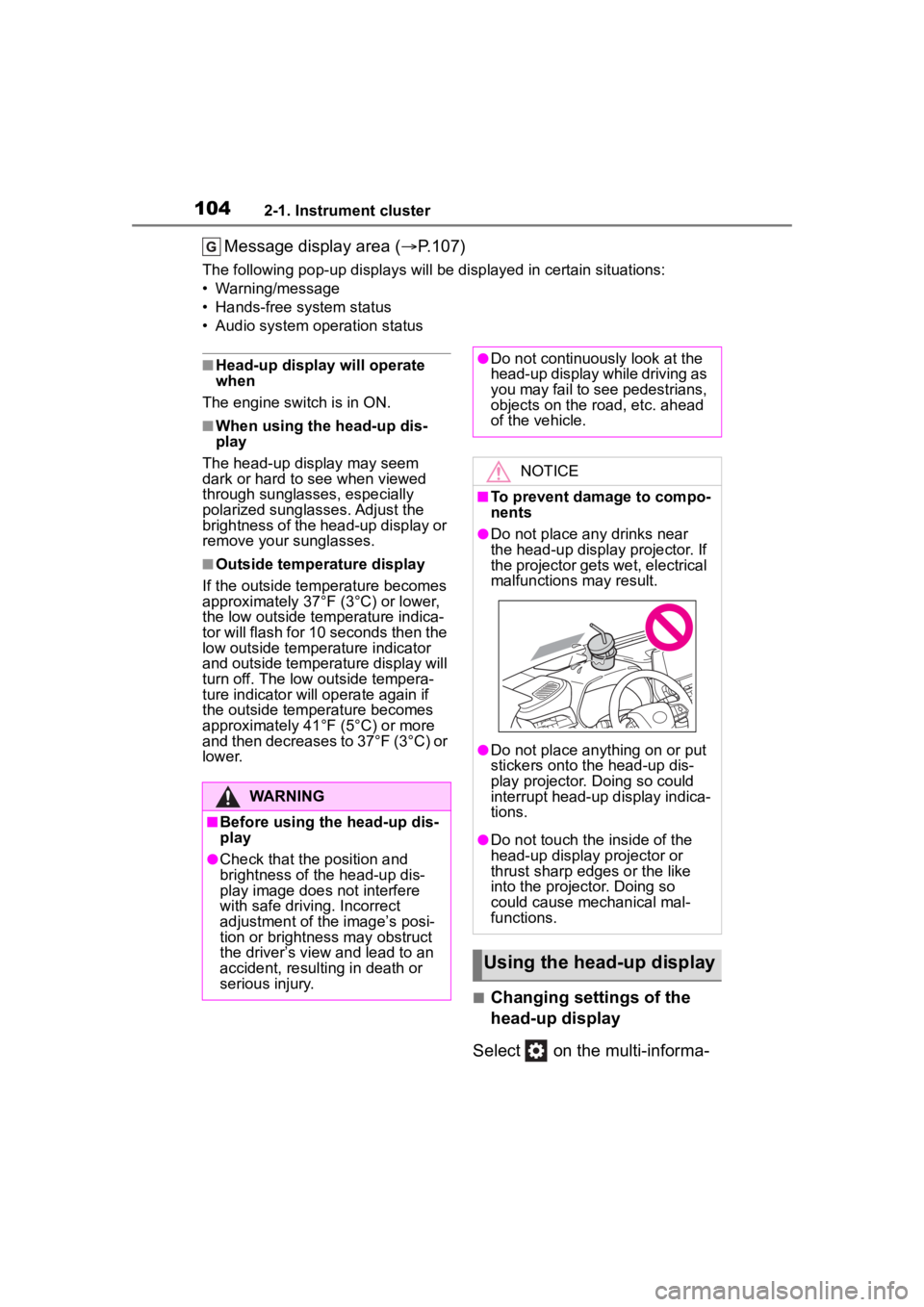
●Do not place any drinks near
the head-up display projector. If
the projector gets wet, electrical
malfunctions may result.
●Do not place any thing on or put
stickers onto the head-up dis-
play projector. Doing so could
interrupt head-up display indica-
tions.
●Do not touch the inside of the
head-up display projector or
thrust sharp edges or the like
into the projector. Doing so
could cause mechanical mal-
functions.
Using the head-up display
Page 105 of 568

1052-1. Instrument cluster
2
Vehicle status information and indicators
tion display (P.521) and then
.
■Enabling/disabling the
head-up display
Press to enable/disable the
head-up display.
■Changing the head-up dis-
play settings
Press and hold to display the
following settings.
“HUD Brightness/Position”
Select to adjust the brightness and
vertical position of the head-up dis-
play.
“HUD Driving Support”
• Tachometer Settings
Blank/Eco Indicator/Tachometer
Select to change the display to
blank (no display)/Eco Driving Indi-
cator/tachometer.
Select to enable/d isable the follow-
ing items:
• Navigation (if equipped)
• Driving Assist
• Compass (if equipped)
• Audio
“HUD Rotation”
Select to adjust the angle of the
head-up display.
Press the or switch to
adjust the angle of the head-up dis-
play.
■Enabling/disabling of the
head-up display
If the head-up display is disabled, it will remain disabled when the
engine switch is turned off then back
to ON.
■Display brightness
The brightness of the head-up dis-
play can be adjusted on of the
multi-information di splay. Also, it is
automatically adjusted according to
the ambient brightness.
■Automatic adjustment of the
head-up display position (vehi-
cles with driving position mem-
ory)
A desired head-up display position
can be entered to memory and
recalled automatica lly by the driving
position memory system. ( P.147)
■When the battery is discon-
nected
The customize settings of the
head-up display will be reset.
■Customization
Some functions can be customized.
( P.521)
WARNING
■Caution for changing settings
of the head-up display
As the engine needs to be run-
ning while changing the settings
of the head-up display, ensure
that the vehicle is parked in a
place with adequate ventilation. In
a closed area such as a garage,
exhaust gases in cluding harmful
carbon monoxide (CO) may col-
lect and enter the vehicle. This
may lead to death or a serious
health hazard.
Page 107 of 568

1072-1. Instrument cluster
2
Vehicle status information and indicators
■Street name display (vehicles
with a navigation system)
Depending on the situation, such as
when no information is available in
map data, etc., the street names of
an intersection may not be dis-
played.
Displays the operational status
of the following systems:
LTA (Lane Tracing Assist)
( P.246)
Dynamic radar cruise control
with full-speed range
( P.257)
PCS (Pre-Collision System)
( P.235)
Parking Support Brake func-
tion (for static objects) (if
equipped) ( P.307)
Intuitive parking assist (if
equipped) ( P.284)
Drive-Start Control ( P.180)
Brake Override System
( P.180)
Displayed content is the same as
that displayed on the multi-informa-
tion display. For details, refer to the
explanations of each system.
Displays the following
multi-information display linked
icons and a message: : Master warning icon
Displayed when a warning mes-
sage is displayed on
the multi-infor-
mation display. ( P.467)
: Information icon
Displayed when a sugges-
tion/advice pop-up display is dis-
played on the multi-information
display. ( P.92, 102)
Depending on the situation, the
following will be displayed:
■Warning/Message
Depending on the situation, a
warning message or other mes-
sage will be displayed.
Warning messages
Certain warning messages can be
displayed.
Pop-up displays
When the driving assist system
operates, some of the information
displayed on the multi-information
display will be displayed on the
head-up display as a pop-up dis-
play.
■Hands-free system status
Displayed when the hands-free
system is operated.
(Refer to “NAVIGATION AND
MULTIMEDIA SYSTEM
OWNER’S MANUAL”.)
■Audio system operation
status
Displayed when the audio sys-
Driving assist system sta-
tus display area
/ icons
Message display area