2022 TOYOTA COROLLA USB
[x] Cancel search: USBPage 5 of 678

3TABLE OF CONTENTS
1
6
5
4
3
2
9
8
7
4-2. Driving procedures
Engine (ignition) switch (vehicles
without a smart entry & start
system) ............................. 159
Engine (ignition) switch (vehicles
with a smart entry & start sys-
tem) .................................. 160
Multidrive ............................ 165
Manual transmission ........... 169
Turn signal lever ................. 171
Parking brake...................... 172
Electric parking brake ......... 173
Brake Hold .......................... 176
4-3. Operating the lights and wip-
ers
Headlight switch.................. 178
AHB (Automatic High Beam)
.......................................... 181
Fog light switch ................... 183
Windshield wipers and washer
.......................................... 184
4-4. Refueling
Opening the fuel tank cap ... 188
4-5. Using the driving support sys-
tems
Toyota Safety Sense ........... 190
PCS (Pre-Collision System)
.......................................... 202
LTA (Lane Tracing Assist) ... 209
LDA (Lane Departure Alert with
steering control) ................ 219
Dynamic radar cruise control
with full-speed range ........ 227
Dynamic radar cruise control
.......................................... 238
Cruise control...................... 249
Speed limiter ....................... 252
RSA (Road Sign Assist) ...... 254
BSM (Blind Spot Monitor) ... 258
Toyota parking assist-sensor
.......................................... 263
RCTA (Rear Crossing Traffic
Alert) function ................... 271
PKSB (Parking Support Brake)
.......................................... 276
Parking Support Brake function
(static objects) .................. 283
Parking Support Brake function
(rear-crossing vehicles) .... 286
S-IPA (Simple Intelligent Parking
Assist System) .................. 288
Driving mode select switch
.......................................... 314
GPF (Gasoline Particulate Filter)
system .............................. 315
Driving assist systems ........ 316
4-6. Driving tips
Winter driving tips ............... 321
5-1. Basic Operations
Audio system types............. 326
Using the steering wheel audio
switches ............................ 327
USB port ............................. 328
5-2. Using the audio system
Optimal use of the audio system
.......................................... 329
5-3. Using the radio
Radio operation .................. 331
5-4. Playing an audio CD and
MP3/WMA discs
CD player operation ............ 333
5-5. Using an external device
Listening to an iPod ............ 339
5Audio system
Page 6 of 678

4TABLE OF CONTENTS
Listening to USB memory device
.......................................... 344
5-6. Using Bluetooth® devices
Bluetooth® audio/phone...... 349
Using the steering wheel
switches ............................ 354
Register a Bluetooth® device
.......................................... 354
5-7. “SETUP” menu
Using the “SETUP” menu
(“Bluetooth” menu)............ 356
Using the “SETUP” menu (“TEL”
menu) ............................... 358
5-8. Bluetooth® Audio
Operating a Bluetooth® enabled
portable player .................. 362
5-9. Bluetooth® Phone
Making a phone call ............ 364
When receiving a phone call
.......................................... 365
Speaking on the phone ....... 365
5-10. Bluetooth®
Bluetooth®.......................... 367
6-1. Using the air conditioning
system and defogger
Manual air conditioning system
.......................................... 380
Automatic air conditioning sys-
tem.................................... 385
Heated steering wheel/seat
heaters.............................. 392
6-2. Using the interior lights
Interior lights list .................. 394
6-3. Using the storage features
List of storage features ....... 396
Trunk features..................... 399
6-4. Other interior features
Other interior features ......... 401
7-1. Maintenance and care
Cleaning and protecting the
vehicle exterior ................. 410
Cleaning and protecting the
vehicle interior .................. 413
7-2. Maintenance
Maintenance requirements
.......................................... 416
7-3. Do-it-yourself maintenance
Do-it-yourself service precau-
tions .................................. 418
Hood ................................... 419
Positioning a floor jack ........ 420
Engine compartment........... 422
Tires .................................... 429
Tire inflation pressure ......... 444
Wheels ................................ 445
Air conditioning filter ........... 447
Wireless remote control/elec-
tronic key battery .............. 449
Checking and replacing fuses
.......................................... 452
Light bulbs .......................... 455
8-1. Essential information
Emergency flashers ............ 462
6Interior features
7Maintenance and care
8When trouble arises
Page 327 of 678
5
325
5
Audio system
Audio system
.5-1. Basic Operations
Audio system types .......... 326
Using the steering wheel audio
switches.......................... 327
USB port ........................... 328
5-2. Using the audio system
Optimal use of the audio sys-
tem ................................. 329
5-3. Using the radio
Radio operation ................ 331
5-4. Playing an audio CD and
MP3/WMA discs
CD player operation.......... 333
5-5. Using an external device
Listening to an iPod .......... 339
Listening to USB memory
device ............................. 344
5-6. Using Bluetooth® devices
Bluetooth® audio/phone.... 349
Using the steering wheel
switches.......................... 354
Register a Bluetooth® device
....................................... 354
5-7. “SETUP” menu
Using the “SETUP” menu
(“Bluetooth” menu).......... 356
Using the “SETUP” menu
(“TEL” menu) .................. 358
5-8. Bluetooth® Audio
Operating a Bluetooth® ena-
bled portable player ........ 362
5-9. Bluetooth® Phone
Making a phone call .......... 364
When receiving a phone call
........................................ 365
Speaking on the phone ..... 365
5-10. Bluetooth®
Bluetooth®........................ 367
Page 329 of 678
327
5
5-1. Basic Operations
Audio system
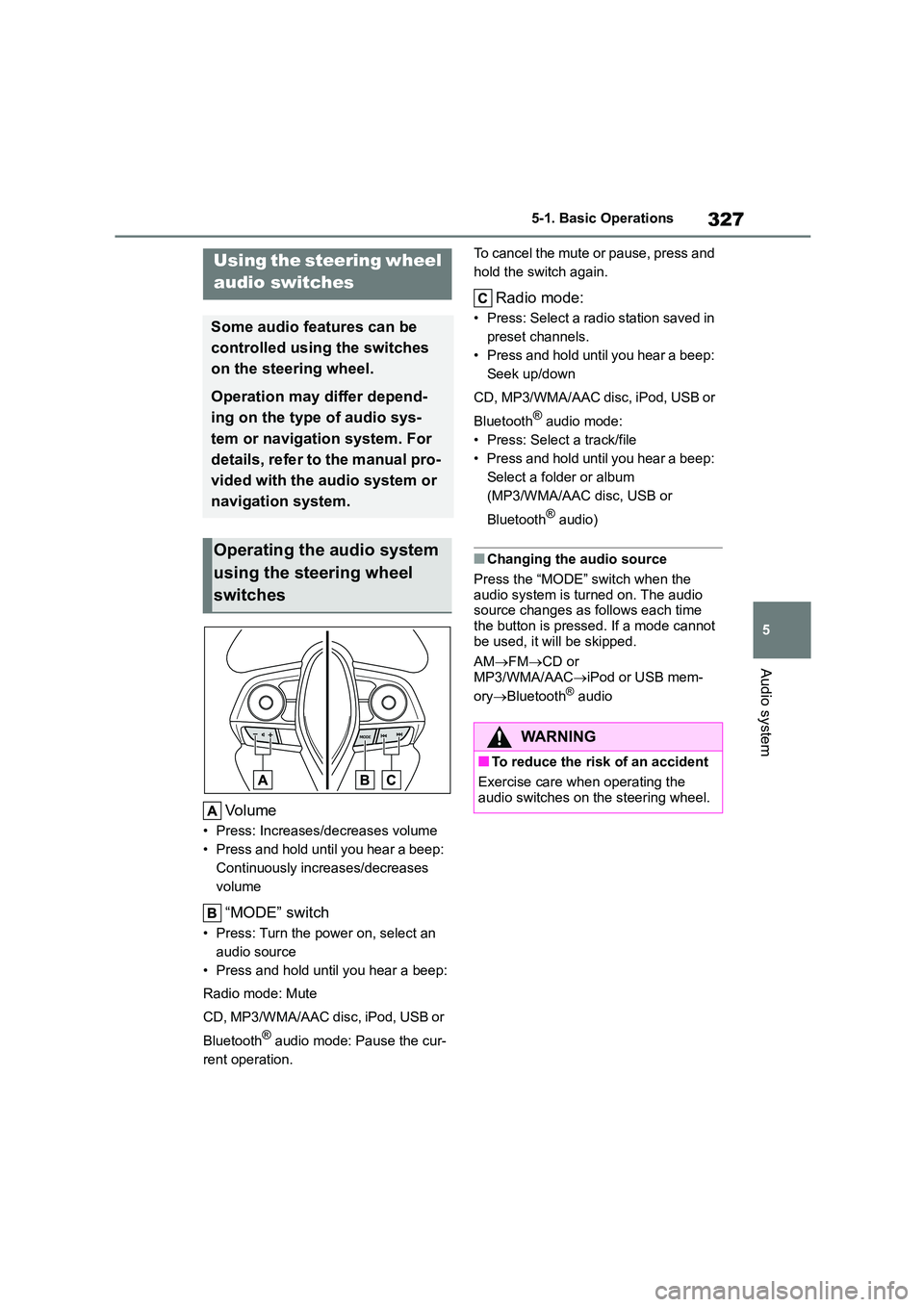
Volume
• Press: Increases/decreases volume
• Press and hold until you hear a beep:
Continuously increases/decreases
volume
“MODE” switch
• Press: Turn the power on, select an
audio source
• Press and hold until you hear a beep:
Radio mode: Mute
CD, MP3/WMA/AAC disc, iPod, USB or
Bluetooth® audio mode: Pause the cur-
rent operation.
To cancel the mute or pause, press and
hold the switch again.
Radio mode:
• Press: Select a radi o station saved in
preset channels.
• Press and hold until you hear a beep:
Seek up/down
CD, MP3/WMA/AAC disc, iPod, USB or
Bluetooth® audio mode:
• Press: Select a track/file
• Press and hold until you hear a beep:
Select a folder or album
(MP3/WMA/AAC disc, USB or
Bluetooth® audio)
■Changing the audio source
Press the “MODE” switch when the
audio system is turned on. The audio source changes as follows each time
the button is pressed. If a mode cannot
be used, it will be skipped.
AM FMCD or
MP3/WMA/AAC iPod or USB mem-
ory Bluetooth® audio
Using the steering wheel
audio switches
Some audio features can be
controlled using the switches
on the steering wheel.
Operation may differ depend-
ing on the type of audio sys-
tem or navigation system. For
details, refer to the manual pro-
vided with the audio system or
navigation system.
Operating the audio system
using the steering wheel
switches
WA R N I N G
■To reduce the risk of an accident
Exercise care when operating the
audio switches on the steering wheel.
Page 330 of 678
3285-1. Basic Operations
■iPod
Connect an iPod using an iPod
cable.
Turn on the power of the iPod if it is not
turned on.
■USB memory
Connect the USB memory device.
Turn on the power of the USB memory
device if it is not turned on.
■Portable audio player
Connect the portable audio player.
Turn on the power of the portable audio
player if it is not turned on.
USB port
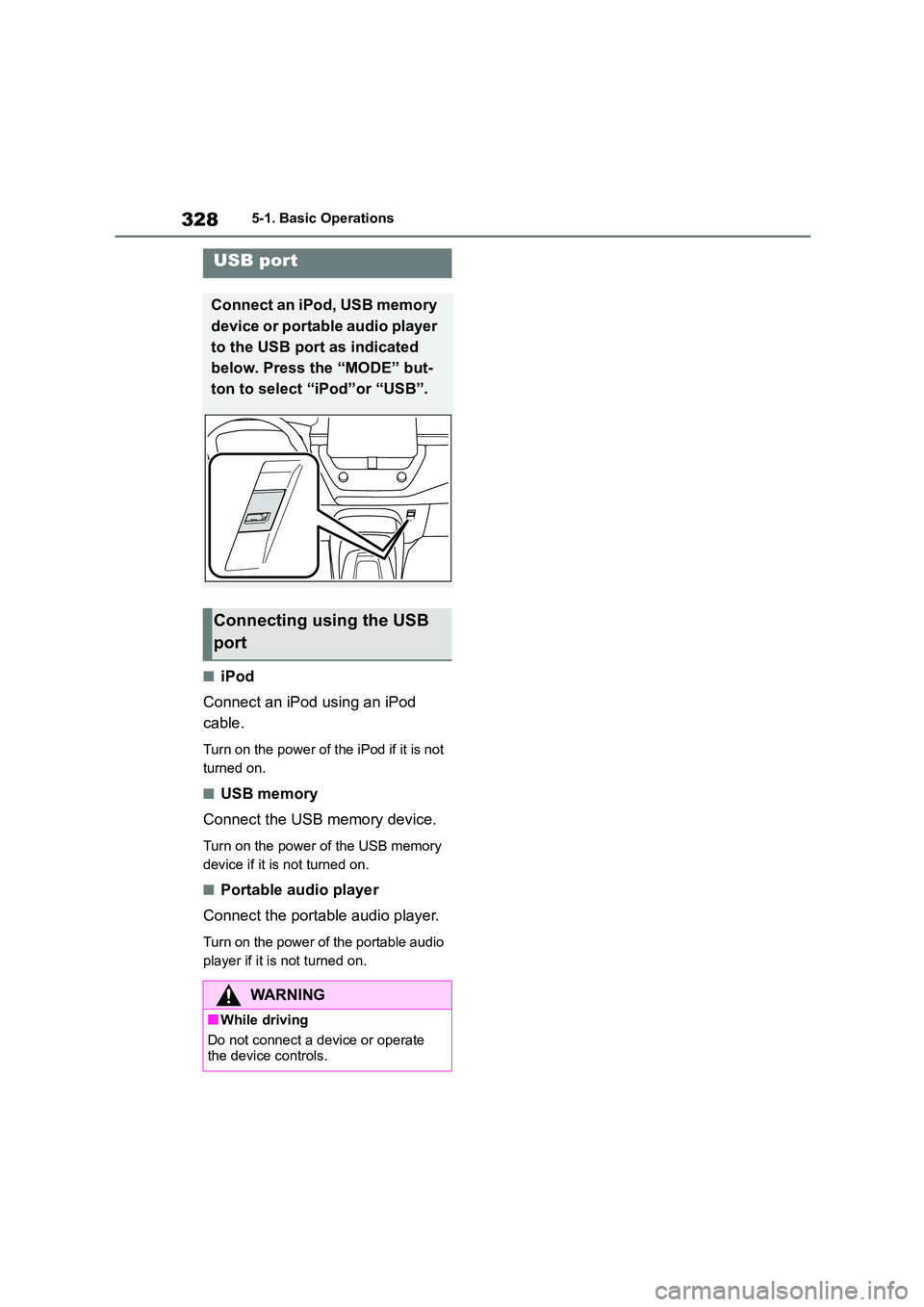
Connect an iPod, USB memory
device or portable audio player
to the USB port as indicated
below. Press the “MODE” but-
ton to select “iPod”or “USB”.
Connecting using the USB
port
WA R N I N G
■While driving
Do not connect a device or operate
the device controls.
Page 346 of 678
3445-5. Using an external device
P. 3 2 8
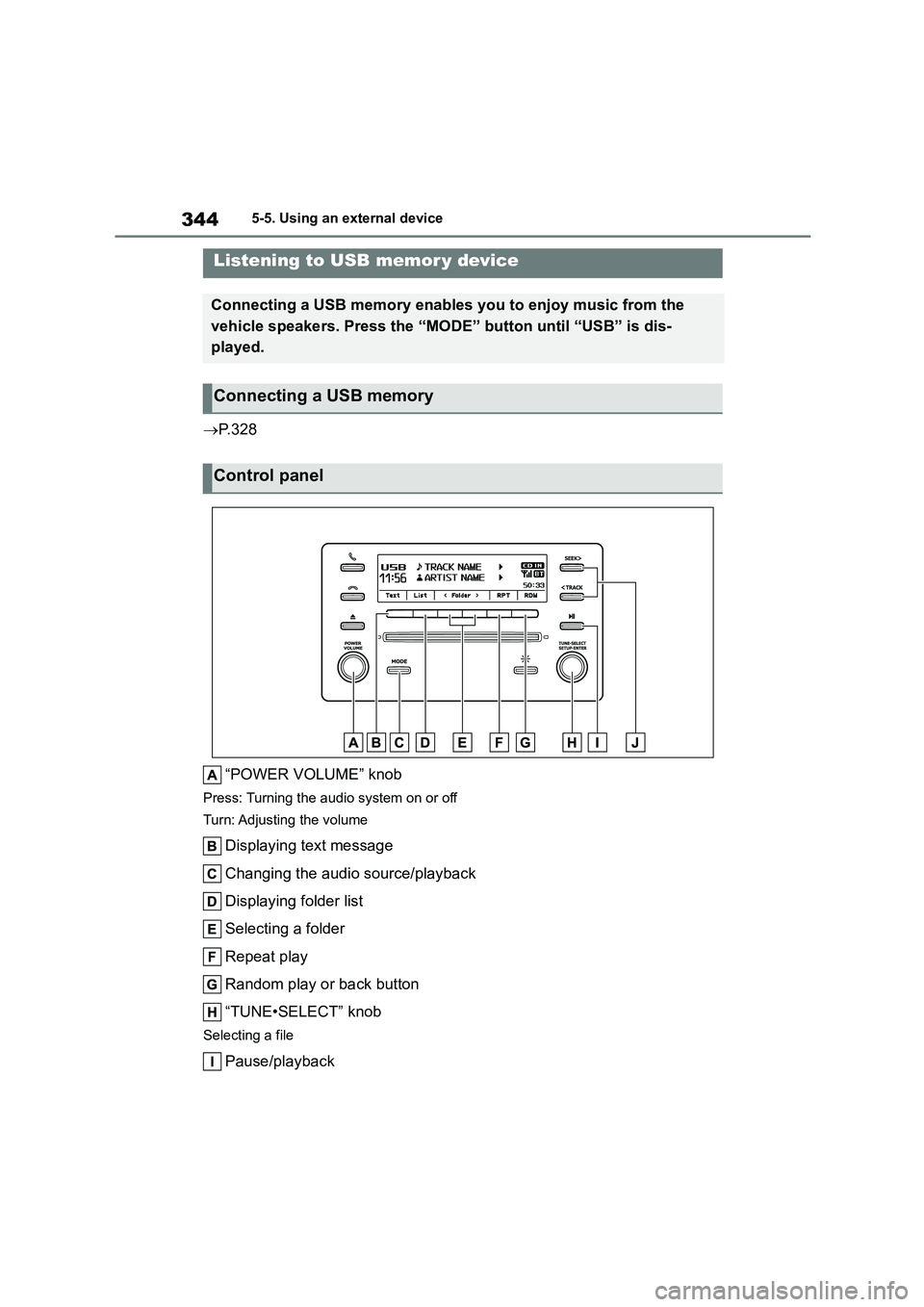
“POWER VOLUME” knob
Press: Turning the audio system on or off
Turn: Adjusting the volume
Displaying text message
Changing the audio source/playback
Displaying folder list
Selecting a folder
Repeat play
Random play or back button
“TUNE•SELECT” knob
Selecting a file
Pause/playback
Listening to USB memor y device
Connecting a USB memory enables you to enjoy music from the
vehicle speakers. Press the “MOD E” button until “USB” is dis-
played.
Connecting a USB memory
Control panel
Page 347 of 678
345
5
5-5. Using an external device
Audio system
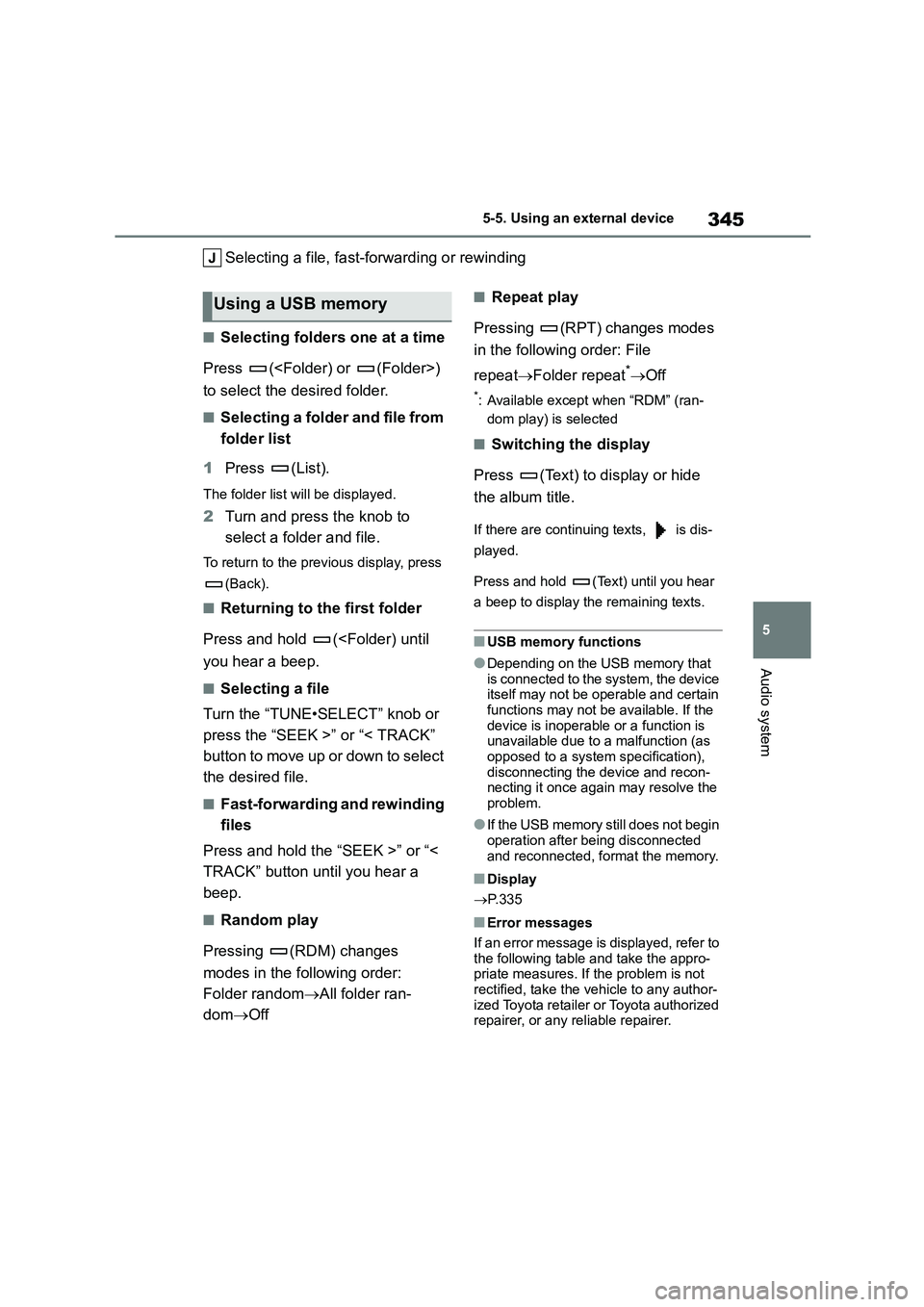
Selecting a file, fast-f orwarding or rewinding
■Selecting folders one at a time
Press (
to select the desired folder.
■Selecting a folder and file from
folder list
1 Press (List).
The folder list will be displayed.
2Turn and press the knob to
select a folder and file.
To return to the previous display, press
(Back).
■Returning to the first folder
Press and hold (
■Selecting a file
Turn the “TUNE•SELECT” knob or
press the “SEEK >” or “< TRACK”
button to move up or down to select
the desired file.
■Fast-forwarding and rewinding
files
Press and hold the “SEEK >” or “<
TRACK” button until you hear a
beep.
■Random play
Pressing (RDM) changes
modes in the following order:
Folder random All folder ran-
dom Off
■Repeat play
Pressing (RPT) changes modes
in the following order: File
repeat Folder repeat*Off
*: Available except when “RDM” (ran-
dom play) is selected
■Switching the display
Press (Text) to display or hide
the album title.
If there are continuing texts, is dis-
played.
Press and hold (Text) until you hear
a beep to display the remaining texts.
■USB memory functions
●Depending on the USB memory that
is connected to t he system, the device
itself may not be operable and certain functions may not be available. If the
device is inoperable or a function is
unavailable due to a malfunction (as opposed to a system specification),
disconnecting the device and recon-
necting it once again may resolve the problem.
●If the USB memory still does not begin operation after being disconnected
and reconnected, format the memory.
■Display
P. 3 3 5
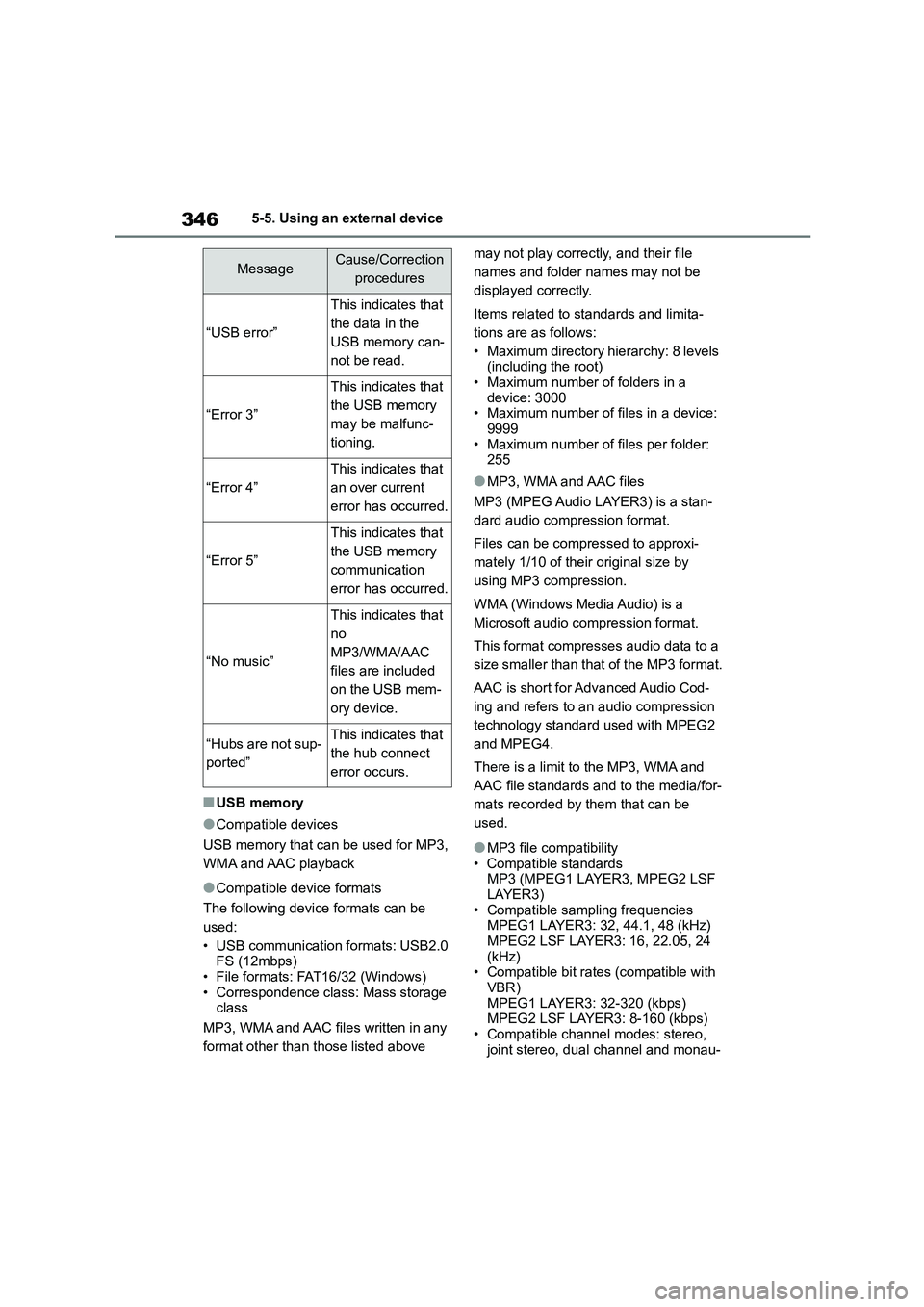
■Error messages
If an error message is displayed, refer to
the following table and take the appro-
priate measures. If the problem is not rectified, take the vehicle to any author-
ized Toyota retailer or Toyota authorized
repairer, or any reliable repairer.
Using a USB memory
Page 348 of 678
3465-5. Using an external device
■USB memory
●Compatible devices
USB memory that can be used for MP3,
WMA and AAC playback
●Compatible device formats
The following device formats can be
used:
• USB communication formats: USB2.0 FS (12mbps)
• File formats: FAT16/32 (Windows)
• Correspondence class: Mass storage class
MP3, WMA and AAC files written in any
format other than those listed above
may not play correctly, and their file
names and folder names may not be
displayed correctly.
Items related to standards and limita-
tions are as follows:
• Maximum directory hierarchy: 8 levels
(including the root) • Maximum number of folders in a
device: 3000
• Maximum number of files in a device: 9999
• Maximum number of files per folder:
255
●MP3, WMA and AAC files
MP3 (MPEG Audio LAYER3) is a stan-
dard audio compression format.
Files can be compressed to approxi-
mately 1/10 of their original size by
using MP3 compression.
WMA (Windows Media Audio) is a
Microsoft audio compression format.
This format compresses audio data to a
size smaller than that of the MP3 format.
AAC is short for Advanced Audio Cod-
ing and refers to an audio compression
technology standard used with MPEG2
and MPEG4.
There is a limit to the MP3, WMA and
AAC file standards and to the media/for-
mats recorded by them that can be
used.
●MP3 file compatibility
• Compatible standards
MP3 (MPEG1 LAYER3, MPEG2 LSF LAYER3)
• Compatible sampling frequencies
MPEG1 LAYER3: 32, 44.1, 48 (kHz)
MPEG2 LSF LAYER3: 16, 22.05, 24 (kHz)
• Compatible bit rates (compatible with
VBR) MPEG1 LAYER3: 32-320 (kbps)
MPEG2 LSF LAYER3: 8-160 (kbps)
• Compatible channel modes: stereo, joint stereo, dual channel and monau-
MessageCause/Correction
procedures
“USB error”
This indicates that
the data in the
USB memory can-
not be read.
“Error 3”
This indicates that
the USB memory
may be malfunc-
tioning.
“Error 4”
This indicates that
an over current
error has occurred.
“Error 5”
This indicates that
the USB memory
communication
error has occurred.
“No music”
This indicates that
no
MP3/WMA/AAC
files are included
on the USB mem-
ory device.
“Hubs are not sup-
ported”
This indicates that
the hub connect
error occurs.