2022 TOYOTA COROLLA CROSS voice command
[x] Cancel search: voice commandPage 4 of 612

4TABLE OF CONTENTS
iPod/iPhone (Apple CarPlay)......................................... 339
Android Auto ...................... 342
Bluetooth
® audio ................ 343
5-8. Audio/visual remote controls Steering switches ............... 347
5-9. Audio settings Setup .................................. 349
5-10. Tips for operating the audio/visual system
Operating information......... 350
5-11. Voice command system oper- ation
Voice command system ..... 358
Command list ..................... 361
5-12. Mobile Assistant operation Mobile Assistant ................. 365
5-13. Phone operation (Hands-free system for cellular phones)
Quick reference .................. 367
Some basics ...................... 368
Placing a call using the Blue-
tooth
® hands-free system 372
Receiving a call using the Blue-
tooth
® hands-free system 375
Talking on the Bluetooth
®
hands-free system ........... 376
Bluetooth
® phone message
function ............................ 378
5-14. Phone settings Setup .................................. 382
5-15. What to do if... (Bluetooth
®)
Troubleshooting ................. 392
5-16. Connected Services Overview Functional overview ........... 396
Type A: Function achieved by using a smart phone or DCM......................................... 397Type B: Function achieved by
using DCM and the system......................................... 400
Type C: Function achieved by using DCM ....................... 401
Type D: Function achieved by using DCM and a smartphone......................................... 401
5-17. Connected Services Opera- tion
Toyota apps........................ 403
5-18. Toyota apps settings Setup.................................. 407
6-1. Using the air conditioning system and defogger
Manual air conditioning system......................................... 410
Automatic air conditioning sys- tem ................................... 416
Heated steering wheel/seat heaters ............................. 424
6-2. Using the interior lights Interior lights list ................. 426
6-3. Using the storage features List of storage features ...... 428
Luggage compartment features ......................................... 431
6-4. Other interior features Other interior features ........ 433
7-1. Maintenance and care Cleaning and protecting the vehicle exterior................. 446
Cleaning and protecting the vehicle interior.................. 449
6Interior features
7Maintenance and care
Page 279 of 612

279
5
5
Audio
Audio
.5-1. Basic functionButtons overview......... 281
Menu screen ............... 283
Status icon .................. 284
“Setup” screen ............ 286
5-2. Basic information before operation
Initial screen ................ 287
Touch screen............... 288
Home screen............... 290
Entering letters and num- bers/list screen operation
.................................. 291
Screen adjustment ...... 294
Linking multi-information display and the system
.................................. 295
5-3. Connectivity settings Registering/Connecting a Bluetooth
® device ..... 296
Setting Bluetooth
® details
.................................. 300
Wi-Fi
® Hotspot ............ 308
Apple CarPlay/ Android Auto.............. 312
5-4. Other settings General settings .......... 319
Voice settings .............. 323
Vehicle settings ........... 3245-5. Using the audio/visual
system
Quick reference ........... 326
Some basics................ 327
5-6. Radio operation AM radio/FM radio/Siri-usXM
® Satellite
Radio(SXM) ............... 331
Internet radio ............... 336
5-7. Media operation USB memory ............... 337
iPod/iPhone (Apple Car- Play) .......................... 339
Android Auto................ 342
Bluetooth
® audio ......... 343
5-8. Audio/visual remote con- trols
Steering switches ........ 347
5-9. Audio settings Setup ........................... 349
5-10.Tips for operating the audio/visual system
Operating information.. 350
5-11.Voice command system operation
Voice command system .................................. 358
Command list .............. 361
5-12.Mobile Assistant opera- tion
Mobile Assistant .......... 365
Page 314 of 612

3145-3. Connectivity settings
4Press the “MENU” button.
5 Select “Android Auto”.
6 Check that home screen of
Android Auto is displayed.
●When an Apple CarPlay/Android
Auto connection is established,
the function of some system but-
tons will change.
●When an Apple CarPlay/Android
Auto connection is established,
some system functi ons, such as
the following, will be replaced by
similar Apple CarPlay/Android
Auto functions or will become
unavailable:
• iPod (Audio Playback)
• Hands-free Phone
• USB audio/USB video
• Bluetooth
® audio
• Bluetooth® phone (Apple CarPlay
only)
• Toyota apps
●When an Apple CarPlay/Android
Auto connection is established,
voice command system (Siri/Goo-
gle Assistant) and map application
voice guidance volume can be
changed by selecting “Voice Vol-
ume” on the voice settings screen.
It cannot be changed by “POWER
VOLUME” knob on Audio control
panel. ( P.323)
●Apple CarPlay/Android Auto is an
application developed by Apple
Inc/Google LLC. Its functions and
services may be terminated or
changed without notice depending on the connected device’s opera-
tion system, hardware and soft-
ware, or due to changes in Apple
CarPlay/Android Auto specifica-
tions.
●For a list of the apps supported by
Apple CarPlay or Android Auto,
refer to their respective website.
●While using these functions, vehi-
cle and user information, such as
location and vehicle speed, will be
shared with the
respective appli-
cation publisher and the cellular
service provider.
●By downloading and using each
application, you agree to their
terms of use.
●Data for these fu nctions is trans-
mitted using the internet and may
incur charges.
For information about data trans-
mission fees, contact your cellular
service provider.
●Depending on the application, cer-
tain functions, such as music play-
back, may be restricted.
●As the applications for each func-
tion are provided by a third-party,
they may be subject to change or
discontinuation without notice.
For details, refer to the website of
the function.
●If the USB cable is disconnected,
operation of Apple Car-
Play/Android Auto will end.
At this time, sound output will stop
and change to the system screen.
●Use of the Apple CarPlay logo
means that a vehicle user inter-
face meets Apple performance
standards. Apple is not responsi-
ble for the operation of this vehicle
Page 323 of 612

3235-4. Other settings
5
Audio
1Press the “MENU” button.
2 Select “Setup”.
3 Select “Voice”.
4 Select the desired items to
be set.
Select to adjust the volume of
voice guidance.
Select to set the voice recog-
nition prompts.
Select to train voice recogni-
tion. The voice command system
adapts the user accent.
Select to start the voice rec-
ognition tutorial.
Select to set the voice
prompt interrupt on/off.
Select to reset all setup
items.
Voice settings
Voice volume, etc. can be
set.
Displaying the voice set-
tings screen
Voice settings screen
Page 330 of 612

3305-5. Using the audio/visual system
and vertically.
■Contrast and brightness
adjustment
The contrast and brightness of
the screen can be adjusted.
1 Press the “MENU” button.
2 Select “Setup”.
3 Select “Audio”.
4 Select “Common”.
5 Select “Display”.
6 Select the desired item to be
adjusted.
“Contrast”
“+”: Select to strengthen the con-
trast of the screen.
“-”: Select to weaken the contrast of
the screen.
“Brightness”
“+”: Select to brighten the screen.
“-”: Select to darken the screen.
Depending on the audio source,
some functions may not be avail-
able.
1 Press this switch to operate
the voice command system.
The voice command system and its
list of commands can be operated.
( P.358)
Voice command system
Page 358 of 612
3585-11. Voice command system operation
5-11.Voice command system operation
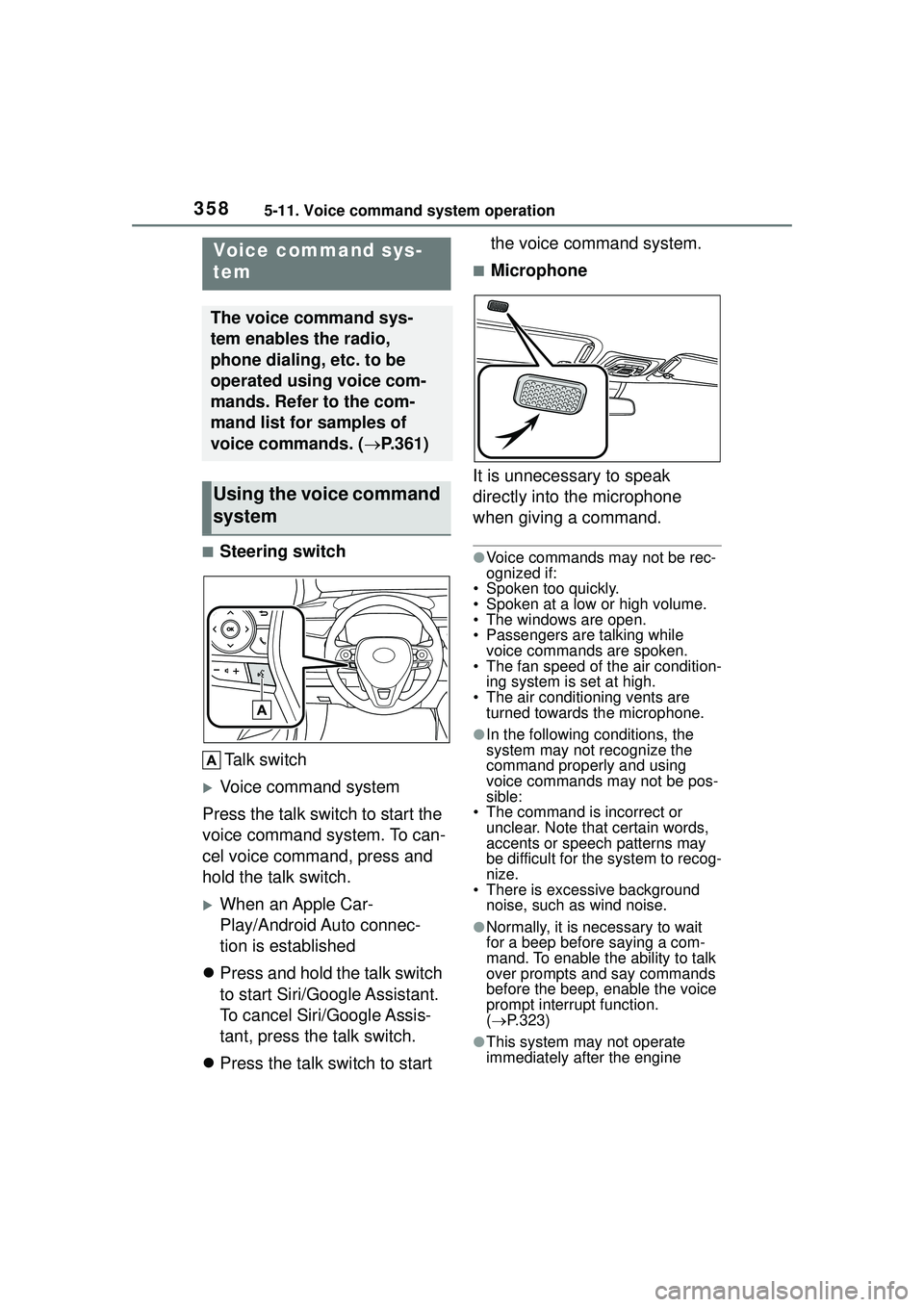
■Steering switchTalk switch
Voice command system
Press the talk switch to start the
voice command system. To can-
cel voice command, press and
hold the talk switch.
When an Apple Car-
Play/Android Auto connec-
tion is established
Press and hold the talk switch
to start Siri/Google Assistant.
To cancel Siri/Google Assis-
tant, press the talk switch.
Press the talk switch to start the voice command system.
■Microphone
It is unnecessary to speak
directly into the microphone
when giving a command.
●Voice commands may not be rec-
ognized if:
• Spoken too quickly.
• Spoken at a low or high volume.
• The windows are open.
• Passengers are talking while voice commands are spoken.
• The fan speed of the air condition-
ing system is set at high.
• The air conditioning vents are turned towards the microphone.
●In the following conditions, the
system may not recognize the
command properly and using
voice commands may not be pos-
sible:
• The command is incorrect or unclear. Note that certain words,
accents or speech patterns may
be difficult for the system to recog-
nize.
• There is excessive background
noise, such as wind noise.
●Normally, it is necessary to wait
for a beep before saying a com-
mand. To enable the ability to talk
over prompts and say commands
before the beep, enable the voice
prompt interrupt function.
( P.323)
●This system may not operate
immediately after the engine
Voice command sys-
tem
The voice command sys-
tem enables the radio,
phone dialing, etc. to be
operated using voice com-
mands. Refer to the com-
mand list for samples of
voice commands. ( P.361)
Using the voice command
system
Page 359 of 612
3595-11. Voice command system operation
5
Audio
switch is in ACC or ON.
The voice command system is
operated by saying commands
which correspond to a sup-
ported function. To display
examples of commands for sup-
ported functions, select a func-
tion button on the screen after
starting the voice command sys-
tem.
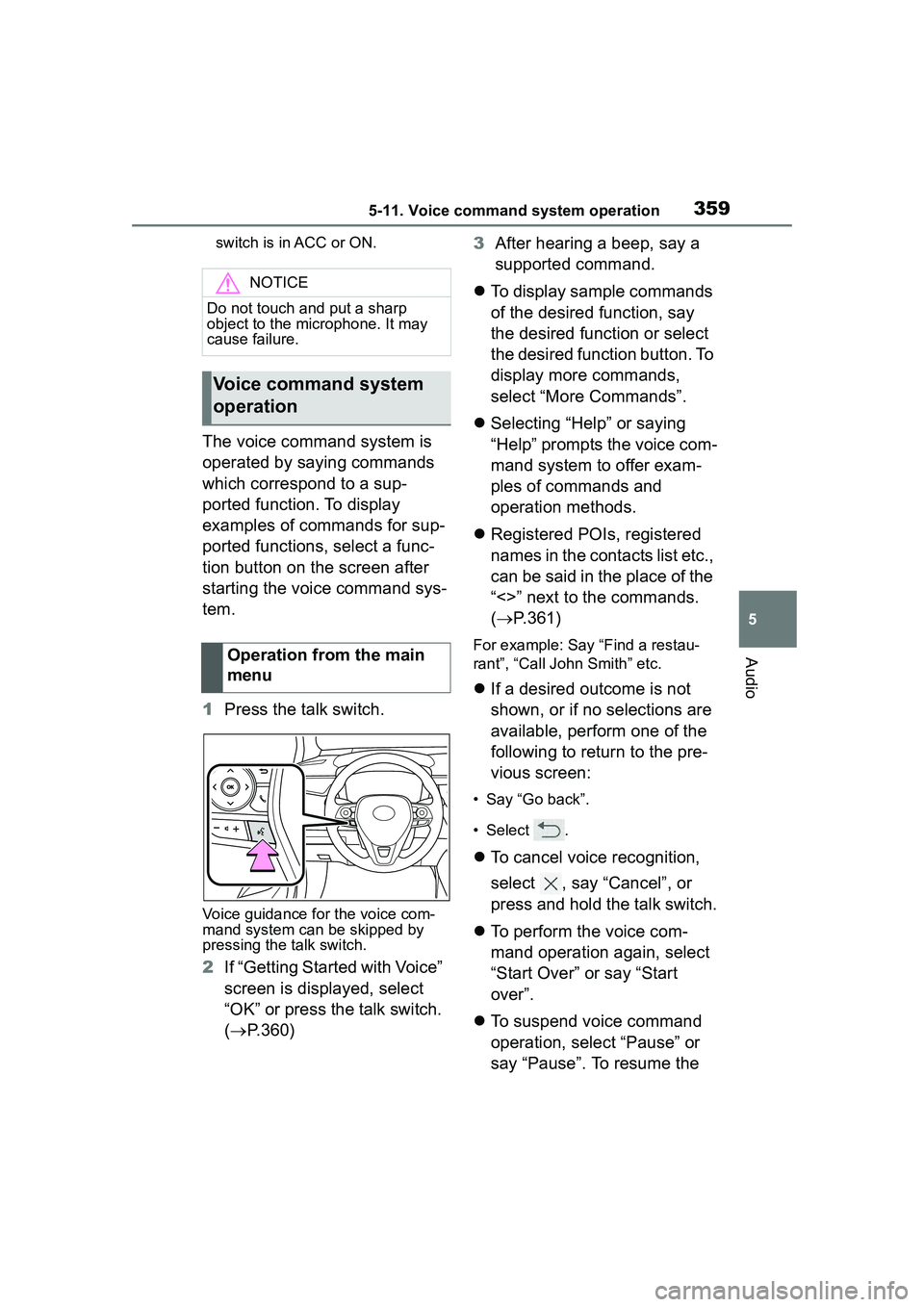
1Press the talk switch.
Voice guidance for the voice com-
mand system can be skipped by
pressing the talk switch.
2If “Getting Started with Voice”
screen is displayed, select
“OK” or press the talk switch.
( P.360) 3
After hearing a beep, say a
supported command.
To display sample commands
of the desired function, say
the desired function or select
the desired function button. To
display more commands,
select “More Commands”.
Selecting “Help” or saying
“Help” prompts the voice com-
mand system to offer exam-
ples of commands and
operation methods.
Registered POIs, registered
names in the contacts list etc.,
can be said in the place of the
“<>” next to the commands.
( P.361)
For example: Say “Find a restau-
rant”, “Call John Smith” etc.
If a desired outcome is not
shown, or if no selections are
available, perform one of the
following to return to the pre-
vious screen:
• Say “Go back”.
• Select .
To cancel voice recognition,
select , say “Cancel”, or
press and hold the talk switch.
To perform the voice com-
mand operation again, select
“Start Over” or say “Start
over”.
To suspend voice command
operation, select “Pause” or
say “Pause”. To resume the
NOTICE
Do not touch and put a sharp
object to the microphone. It may
cause failure.
Voice command system
operation
Operation from the main
menu
Page 360 of 612
3605-11. Voice command system operation
voice command operation,
select “Resume” or press the
talk switch.
●If the system does not respond or
the confirmation screen does not
disappear, press the talk switch
and try again.
●If a voice command cannot be rec-
ognized 3 consecutive times,
voice recognition will be canceled.
●Voice recognition prompts can be
changed on the voice settings
screen. (P.323)
This function can be used to cancel
voice guidance by turning the voice
prompts off. When you press the
talk switch while using this setting, a
beep sounds, and then you can
immediately say a command.
●Some voice guidance can be can-
celed by setting voice prompts to
off. Use this setting when it is
desirable to say a command
immediately after pressing the talk
switch and hearing a beep.
To increase voice recognition
performance, use the “Tutori-
als” and “Voice Training” func-
tions on the “Getting Started
with Voice” screen. These func-
tions are only available when
the vehicle is not moving.
The “Tutorials” and “Voice Train-
ing” functions can also be
started on the voice settings
screen. ( P.323)
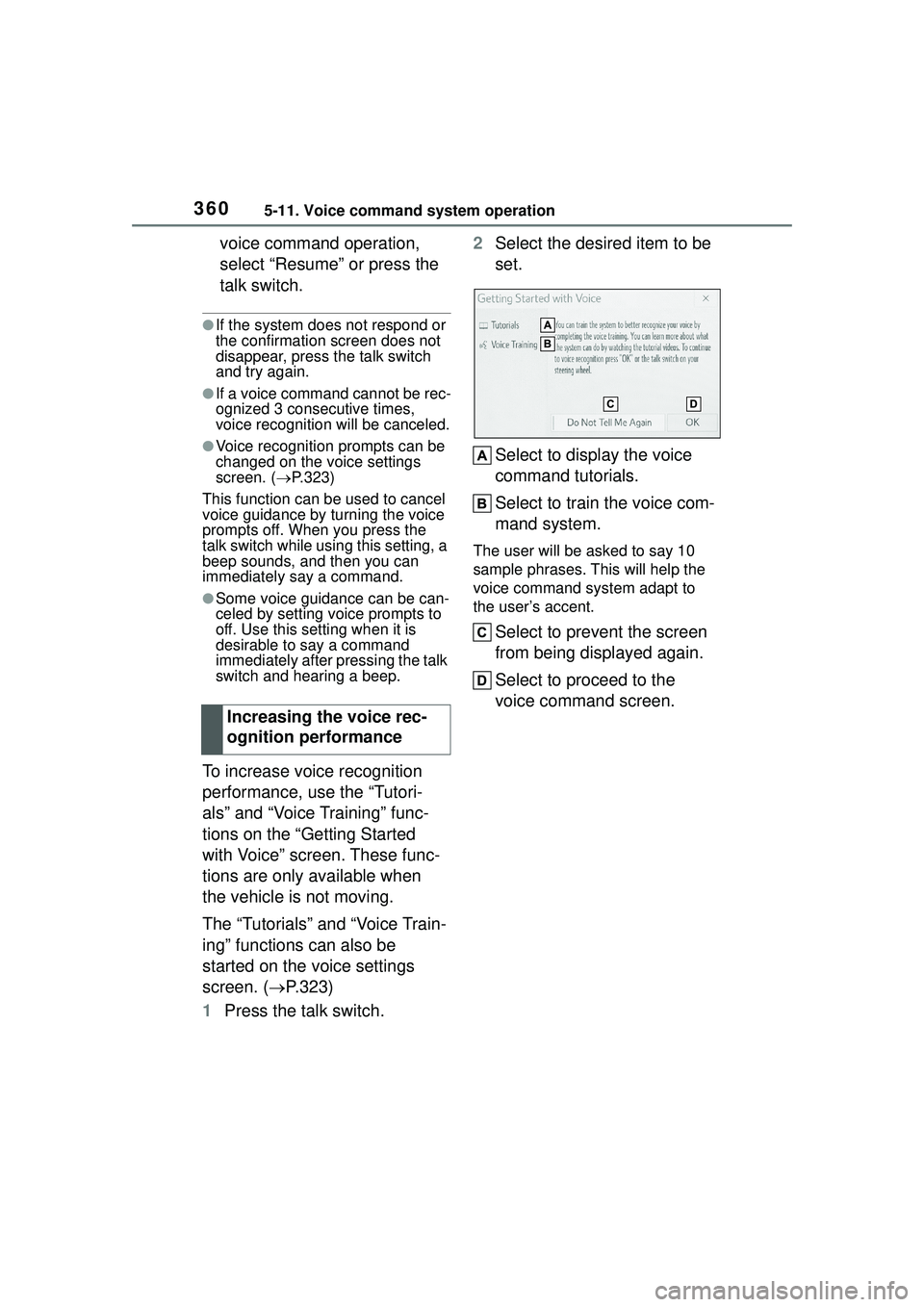
1 Press the talk switch. 2
Select the desired item to be
set.
Select to display the voice
command tutorials.
Select to train the voice com-
mand system.
The user will be asked to say 10
sample phrases. This will help the
voice command system adapt to
the user’s accent.
Select to prevent the screen
from being displayed again.
Select to proceed to the
voice command screen.
Increasing the voice rec-
ognition performance