3615-11. Voice command system operation
5
Audio
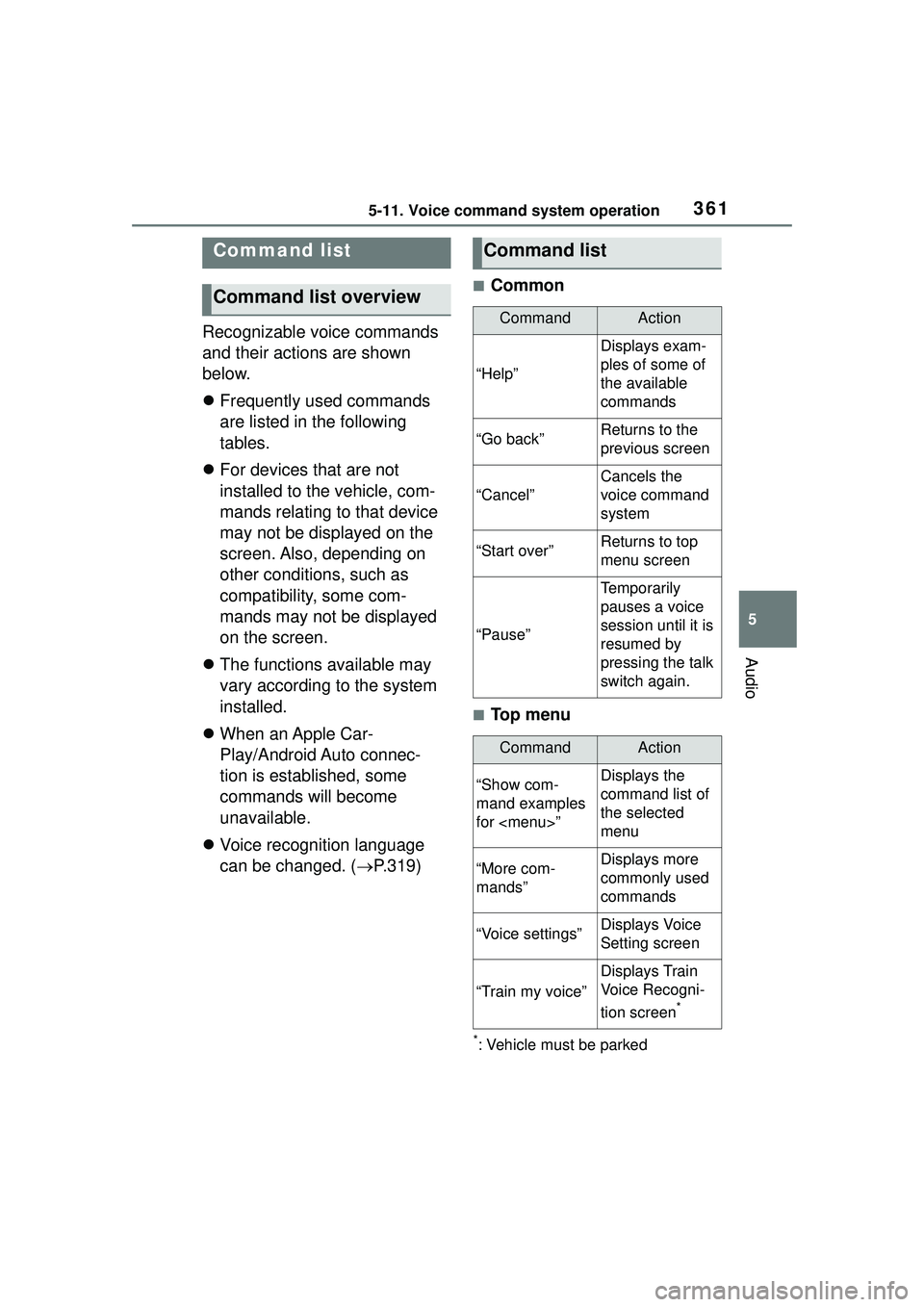
Recognizable voice commands
and their actions are shown
below.
Frequently used commands
are listed in the following
tables.
For devices that are not
installed to the vehicle, com-
mands relating to that device
may not be displayed on the
screen. Also, depending on
other conditions, such as
compatibility, some com-
mands may not be displayed
on the screen.
The functions available may
vary according to the system
installed.
When an Apple Car-
Play/Android Auto connec-
tion is established, some
commands will become
unavailable.
Voice recognition language
can be changed. ( P.319)
■Common
■Top menu
*: Vehicle must be parked
Command list
Command list overview
Command list
CommandAction
“Help”
Displays exam-
ples of some of
the available
commands
“Go back”Returns to the
previous screen
“Cancel”
Cancels the
voice command
system
“Start over”Returns to top
menu screen
“Pause”
Temporarily
pauses a voice
session until it is
resumed by
pressing the talk
switch again.
CommandAction
“Show com-
mand examples
for
Page 362 of 612
3625-11. Voice command system operation
■Phone*1
*1: When an Apple CarPlay connec-tion is established, this voice
commands will be unavailable.
*2: If the system does not recognize the name of a contact, create a
voice tag. ( P.384) The name of
a contact can also be recognized
by adding a voice tag.
■While in a phone call*
*: When an Apple CarPlay connec- tion is established, this voice
commands will be unavailable.
■While incoming message
notification is displayed
*1, 2
*1: Full screen message notification must be turned on within the
phone settings ( P.382)
*2: When an Apple CarPlay connec-
tion is established, this voice
CommandAction
“Call
tact>”
*2
Places a call to
the specified
contact from the
phone book
“Call ”
*2
Places a call to
the specified
phone type of
the contact from
the phone book
“Dial
number>”Places a call to
the specified
phone number
“Redial”
Places a call to
the phone num-
ber of the latest
outgoing call
“Call back”
Places a call to
the phone num-
ber of latest
incoming call
“Show recent
calls”Displays the call
history screen
“Send a mes-
sage to
tact>”
Sends a text
message to
specified con-
tact from the
phone book
CommandAction
“Send ”
Sends DTMF
tones has speci-
fied
“Mute”
Mutes the micro-
phone (far side
cannot hear the
conversation)
“Unmute”Unmutes the
microphone
CommandAction
“Read message”
Reads the
incoming mes-
sage over the
vehicle speakers
“Ignore”
Ignores the
incoming mes-
sage notification
“Reply”
Initiates sending
a reply to the
incoming mes-
sage
“Call”
Places a call to
the phone num-
ber of incoming
message
Page 363 of 612
3635-11. Voice command system operation
5
Audio
commands will be unavailable.
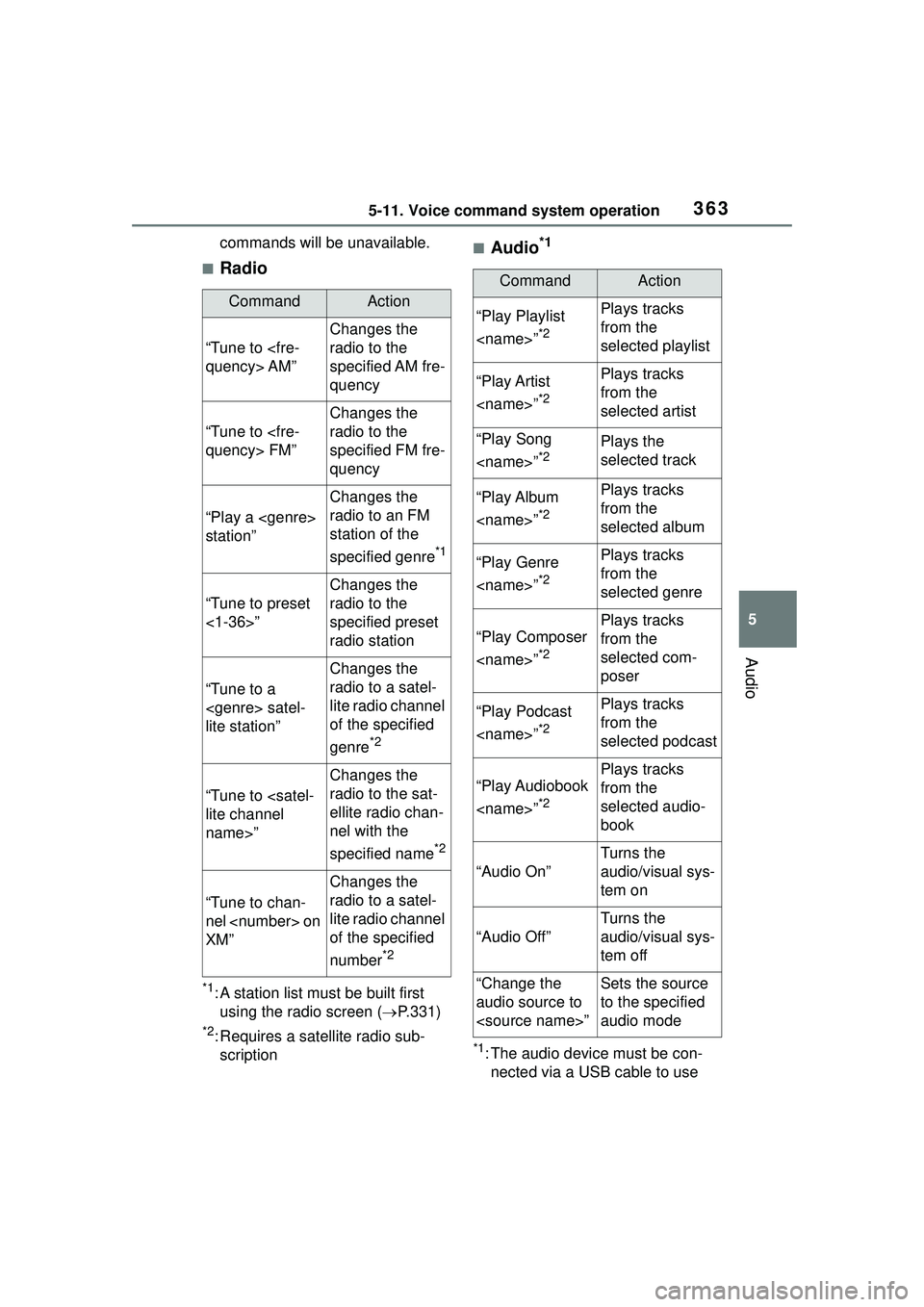
■Radio
*1: A station list must be built first using the radio screen ( P.331)
*2: Requires a satellite radio sub-
scription
■Audio*1
*1: The audio device must be con-nected via a USB cable to use
CommandAction
“Tune to
quency> AM”
Changes the
radio to the
specified AM fre-
quency
“Tune to
quency> FM”
Changes the
radio to the
specified FM fre-
quency
“Play a
station”
Changes the
radio to an FM
station of the
specified genre
*1
“Tune to preset
<1-36>”
Changes the
radio to the
specified preset
radio station
“Tune to a satel-
lite station”
Changes the
radio to a satel-
lite radio channel
of the specified
genre
*2
“Tune to
lite channel
name>”
Changes the
radio to the sat-
ellite radio chan-
nel with the
specified name
*2
“Tune to chan-
nel on
XM”
Changes the
radio to a satel-
lite radio channel
of the specified
number
*2
CommandAction
“Play Playlist ”
*2
Plays tracks
from the
selected playlist
“Play Artist ”
*2
Plays tracks
from the
selected artist
“Play Song ”
*2Plays the
selected track
“Play Album ”
*2
Plays tracks
from the
selected album
“Play Genre ”
*2
Plays tracks
from the
selected genre
“Play Composer ”
*2
Plays tracks
from the
selected com-
poser
“Play Podcast ”
*2
Plays tracks
from the
selected podcast
“Play Audiobook ”
*2
Plays tracks
from the
selected audio-
book
“Audio On”
Turns the
audio/visual sys-
tem on
“Audio Off”
Turns the
audio/visual sys-
tem off
“Change the
audio source to ”Sets the source
to the specified
audio mode
Page 364 of 612
3645-11. Voice command system operation
the functionality in this section
*2: When an Apple CarPlay connec-tion is established, this voice
commands will be unavailable.
■Toyota apps
*: When an application is opened and is in full screen mode, press-
ing the talk switch will start the
voice command system and com-
mands for the currently displayed
application will be available
Commands relating to operation of
the audio/visual system can only be
performed when the audio/visual
system is turned on.
CommandAction
“Launch
cation name>”
*Activates the
Toyota apps
Page 365 of 612
3655-12. Mobile Assistant operation
5
Audio
5-12.Mobile Assistant operation
●While a phone call is active, the
Mobile Assistant cannot be used.
●If using the navigation feature of
the cellular phone, ensure the
active audio source is Bluetooth
®
audio or iPod in order to hear turn
by turn direction prompts.
●Wait for the listening beeps before
using the Mobile Assistant.
●The Mobile Assistant may not rec-
ognize commands in the following
situations:
• Spoken too quickly.
• Spoken at a low or high volume. • The windows are open.
• Passengers are talking while the
Mobile Assistant is being used.
• The fan speed of the air condition- ing system is set at high.
• The air conditioning vents are
turned toward the microphone.
Mobile Assist supports the Siri
Eyes Free Mode and Google
App. The available features and
functions may vary based on the
iOS/Android version installed on
the connected device.
Type A
1 Press and hold the talk
switch on the steering wheel
until Mobile Assistant screen
is displayed.
Type B
1 Press and hold the switch
on the steering wheel until
Mobile Assistant
The Mobile Assistant func-
tion is a voice input assist
function. Mobile Assist sup-
ports the Siri Eyes Free
Mode and Google App.
(Google App can be used
only with the corresponding
device.) Instructions can be
spoken into the vehicle
microphone as if speaking a
command to the phone. The
content of the request is
then interpreted by the
phone and the result is out-
put from the vehicle speak-
ers. To operate the Mobile
Assistant, a compatible
device must be registered
and connected to this sys-
tem via Bluetooth
®.
( P.296)
When an Apple CarPlay
connection is established,
this function will be unavail-
able.
Connectable devices and
available functions
Mobile Assistant opera-
tion
Page 366 of 612
3665-12. Mobile Assistant operation
Mobile Assistant screen is
displayed.
2 The Mobile Assistant can be
used only when the following
screen is displayed.
Type A: To cancel the Mobile
Assistant, select “Cancel” or
press and hold the talk switch
on the steering wheel.
Type B: To cancel the Mobile
Assistant, select “Cancel” or
press and hold the switch
on the steering wheel.
Type A: To restart the Mobile
Assistant for additional com-
mands, press the talk switch
on the steering wheel.
Type B: To restart the Mobile
Assistant for additional com-
mands, press the switch
on the steering wheel.
• Mobile Assistant can only be restarted after the system
responds to a voice command.
• After some phone and music commands, the Mobile Assistant
feature will automa tically end to
complete the requested action.
The volume of the Mobile
Assistant can be adjusted
using the “POWER VOLUME”
knob or steering wheel vol-
ume control switches. The
Mobile Assistant and phone
call volumes are synchro-
nized.
Page 370 of 612
3705-13. Phone operation (Hands-free system for cellular phones)
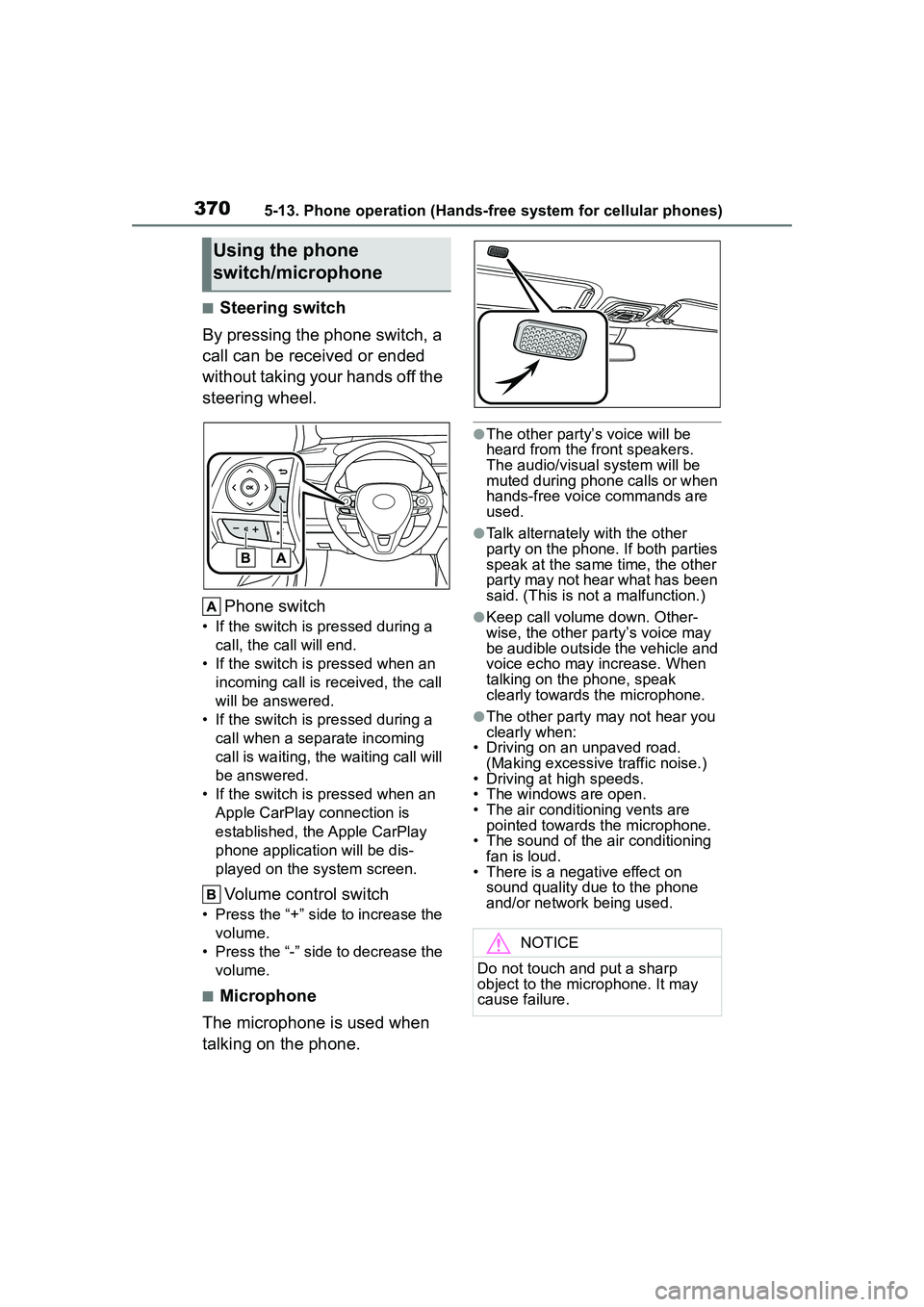
■Steering switch
By pressing the phone switch, a
call can be received or ended
without taking your hands off the
steering wheel.
Phone switch
• If the switch is pressed during a call, the call will end.
• If the switch is pressed when an incoming call is received, the call
will be answered.
• If the switch is pressed during a call when a separate incoming
call is waiting, the waiting call will
be answered.
• If the switch is pressed when an Apple CarPlay connection is
established, the Apple CarPlay
phone application will be dis-
played on the system screen.
Volume control switch
• Press the “+” side to increase the volume.
• Press the “-” side to decrease the volume.
■Microphone
The microphone is used when
talking on the phone.
●The other party’s voice will be
heard from the front speakers.
The audio/visual system will be
muted during phone calls or when
hands-free voice commands are
used.
●Talk alternately with the other
party on the phone. If both parties
speak at the same time, the other
party may not hear what has been
said. (This is not a malfunction.)
●Keep call volume down. Other-
wise, the other party’s voice may
be audible outside the vehicle and
voice echo may increase. When
talking on the phone, speak
clearly towards the microphone.
●The other party may not hear you
clearly when:
• Driving on an unpaved road.
(Making excessive traffic noise.)
• Driving at high speeds.
• The windows are open.
• The air conditioning vents are pointed towards the microphone.
• The sound of the air conditioning
fan is loud.
• There is a negative effect on sound quality due to the phone
and/or network being used.
Using the phone
switch/microphone
NOTICE
Do not touch and put a sharp
object to the microphone. It may
cause failure.
Page 371 of 612
3715-13. Phone operation (Hands-free system for cellular phones)
5
Audio
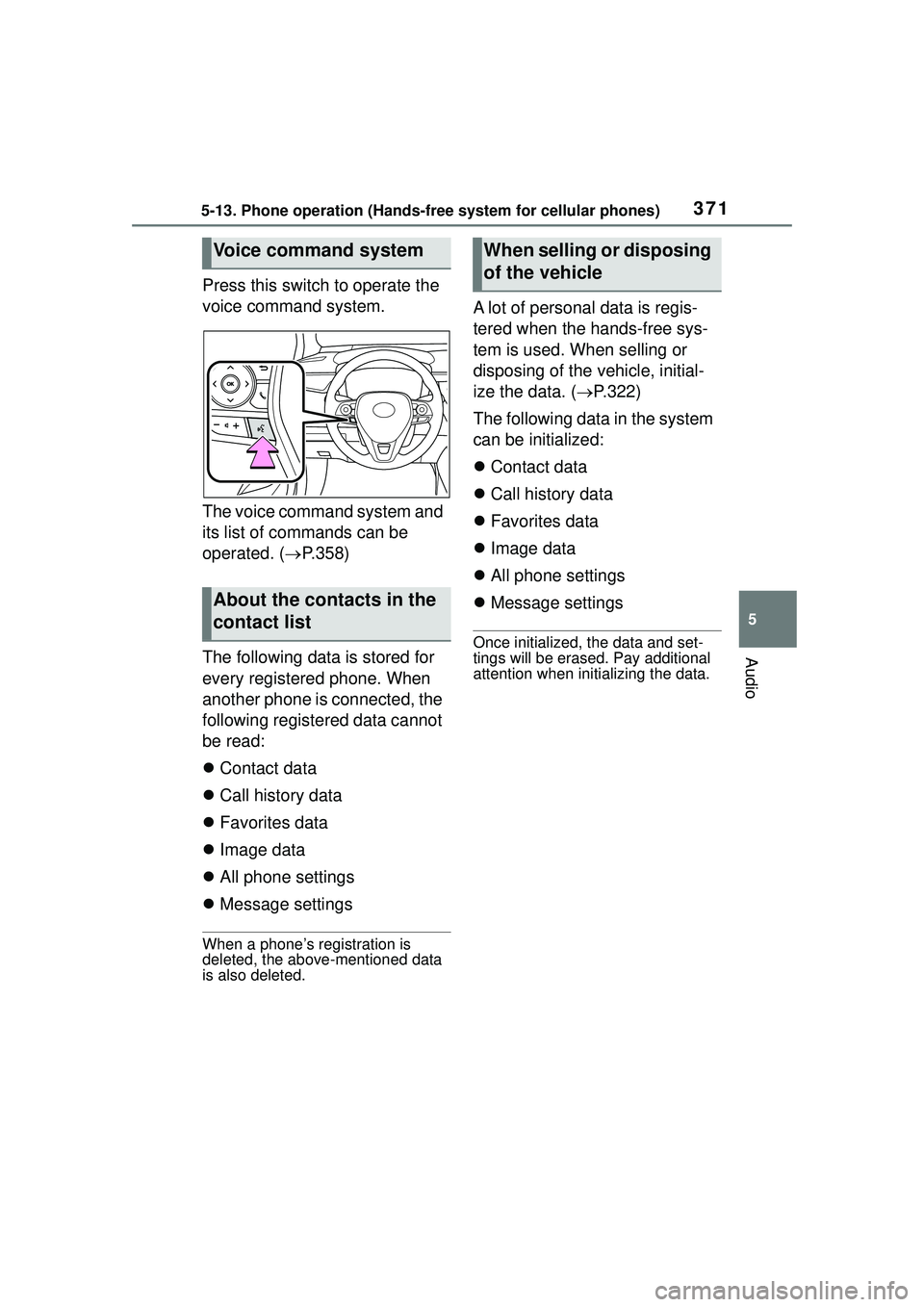
Press this switch to operate the
voice command system.
The voice command system and
its list of commands can be
operated. (P.358)
The following data is stored for
every registered phone. When
another phone is connected, the
following registered data cannot
be read:
Contact data
Call history data
Favorites data
Image data
All phone settings
Message settings
When a phone’s registration is
deleted, the above-mentioned data
is also deleted.
A lot of personal data is regis-
tered when the hands-free sys-
tem is used. When selling or
disposing of the vehicle, initial-
ize the data. ( P.322)
The following data in the system
can be initialized:
Contact data
Call history data
Favorites data
Image data
All phone settings
Message settings
Once initialized, the data and set-
tings will be erased. Pay additional
attention when initializing the data.
Voice command system
About the contacts in the
contact list
When selling or disposing
of the vehicle