2022 TOYOTA BZ4X change time
[x] Cancel search: change timePage 136 of 674

134
Owners Manual_Europe_M42D76_en
2-2. Charging
■Calendar settings
Charging schedule is performed accord- ing to the date and time shown on the multi-information display. Refer to the
“Settings display” ( P.178)
If the calendar settings check screen is displayed when an attempt was made to
register a charge schedule, check that the correct date is set. If it is incorrect, be sure to correct it.
If the calendar information is wrong, the charging schedule function will not oper-ate normally.
When registering the charging
schedule, the following settings can
be changed.
■Select the charging mode
One of the two following charging
modes can be selected.
“Start”
Starts charging at the set time* and
finishes charging when fully
charged.
“Start-Stop”
AC charging is performed accord-
ing to the set start time and stop
time.*
*: There might be a slight error in the
timing when charging starts due to
the state of the traction battery.
■Repeated setting
The periodic charging schedule can
be set by selecting your desired
day of the week. Select one or
more day of the week to do the
charging schedule.
■Turning “Charge Now” on and
off
To start charging without changing
the charging schedule setting, turn
“Charge Now” on to temporarily
cancel the charging schedule and
enable charging after connecting
the AC charging connector.*
*: If the charging connector is removed
during charging while the charging
schedule is registered and “Charge
Now” is on, “Charge Now” turns off.
■“Next Event”
Of the registered charging sched-
ules, the closest charging schedule
after the current time is called the
“Next Event”.
For charging schedule, AC
charging will be performed accord-
ing to the Next Event.
The charging schedule can be reg-
istered on the multi-information dis-
play or multimedia.
Multi-information display opera-
tion: P. 1 3 6
Using the charging
schedule function
AC charging can be carried out
at the desired time by register-
ing the charging schedule.
Settings of the charging
schedule function
Registering the charging
schedule
Page 139 of 674
137
2
Owners Manual_Europe_M42D76_en
2-2. Charging
Electric Vehicle system
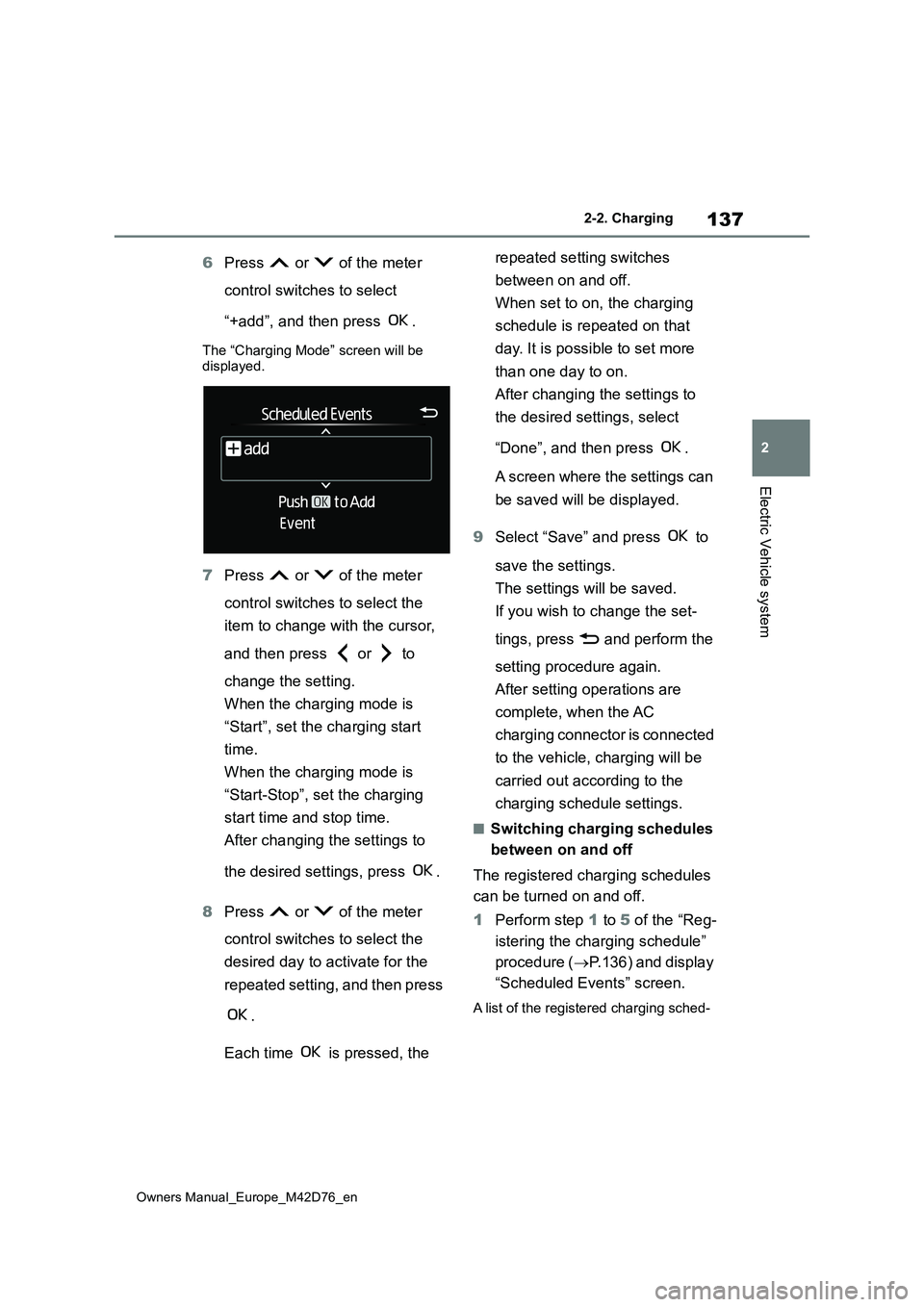
6Press or of the meter
control switches to select
“+add”, and then press .
The “Charging Mode” screen will be displayed.
7 Press or of the meter
control switches to select the
item to change with the cursor,
and then press or to
change the setting.
When the charging mode is
“Start”, set the charging start
time.
When the charging mode is
“Start-Stop”, set the charging
start time and stop time.
After changing the settings to
the desired settings, press .
8 Press or of the meter
control switches to select the
desired day to activate for the
repeated setting, and then press
.
Each time is pressed, the
repeated setting switches
between on and off.
When set to on, the charging
schedule is repeated on that
day. It is possible to set more
than one day to on.
After changing the settings to
the desired settings, select
“Done”, and then press .
A screen where the settings can
be saved will be displayed.
9 Select “Save” and press to
save the settings.
The settings will be saved.
If you wish to change the set-
tings, press and perform the
setting procedure again.
After setting operations are
complete, when the AC
charging connector is connected
to the vehicle, charging will be
carried out according to the
charging schedule settings.
■Switching charging schedules
between on and off
The registered charging schedules
can be turned on and off.
1 Perform step 1 to 5 of the “Reg-
istering the charging schedule”
procedure ( P.136) and display
“Scheduled Events” screen.
A list of the registered charging sched-
Page 140 of 674

138
Owners Manual_Europe_M42D76_en
2-2. Charging
ule will be displayed.
2 Press or of the meter
control switches to select the
item to turn ON/OFF, and then
press .
Each time is pressed, the
selected charging schedule
switches between on and off.
When set to off, a charging
schedule is ignored and
charging according to the
charging schedule is not carried
out.
■Changing the registered
charging schedules
The registered charging schedules
can be modified or deleted.
1 Perform step 1 to 5 of the “Reg-
istering the charging schedule”
( P.136) procedure and display
“Scheduled Events” screen.
A list of the registered charging sched-
ule will be displayed.
2 Press or of the meter
control switches to select the
item to change, and then press
and hold .
The “Edit Event” screen will be dis-
played.
3 Press or of the meter
control switches to select the
item to operate, press and
perform the necessary opera-
tion.
“Edit”
Page 141 of 674
139
2
Owners Manual_Europe_M42D76_en
2-2. Charging
Electric Vehicle system
Change the desired settings as
described starting from step 7 of the
“Registering the charging schedule”
procedure. ( P.136)
Press to return to the previous
screen.
“Delete”
A deletion confirmation screen will be
displayed.
Press or of the meter control
switches to select “Yes”, and then press
to delete the selected charging
schedule.
To cancel deletion, select “No” and then
press .
Press to return to the previous
screen.
■Setting “Charge Now” to on
The “Charge Now” setting can be
changed by performing one of the
two following procedures.
Operation on “Charging Sched-
ule” screen
1 Perform step 1 to 4 of the “Reg-
istering the charging schedule”
procedure ( P.136) and display
“Charging Schedule” screen.
2 Press or of the meter
control switches to select
“Charge Now”, and then press
.
Each time is pressed, “Charge
Now” switches between on and off.
Operation on “Closing Display”
screen*
*: If “Closing Display” is not set to
“Charging Schedule” on the
screen of the multi-information dis-
play, the “Closing Display” is not dis-
played. In this case, check the
settings on the multi-information dis-
play.
1 Turn the power switch off. The
“Closing Display” screen is dis-
played on the multi-information
display.
(If the door is opened while wait-
ing for charging schedule, the
same screen will be displayed.)
2 Press to set “Charge Now”
to on.
After setting operations are com-
plete, charging starts when the AC
charging connector is connected.
■Displaying “Next Event”
1 Perform step 1 to 4 of the “Reg-
istering the charging schedule”
procedure ( P.136) and display
“Charging Schedule” screen.
2 Press or of the meter
control switches to select “Next
Event”, and then press .
The “Next Event” screen will be dis- played.
Page 143 of 674

141
2
Owners Manual_Europe_M42D76_en
2-2. Charging
Electric Vehicle system
■How to read the “Charging schedule” screen
Charging schedules
Displays the week-long registered charging schedule in a list u sing icons.
“Add” button
Press to add a new item to the charging schedule. (P.141)
“Edit” button
Press to change or delete registered items on the charging schedule. (P.143)
“Charge now” button
Each time the button is pressed, “Charge now” switches between on and off.
( P.144)
Return button
Press to close the “Charging schedule” screen.
■Registering the charging
schedule
1 Display the “Charging sched-
ule” screen. ( P. 1 4 0 )
2 Press “Add”.
The “Add event” screen will be dis- played on the screen.
3 Change the schedule to the
desired time.
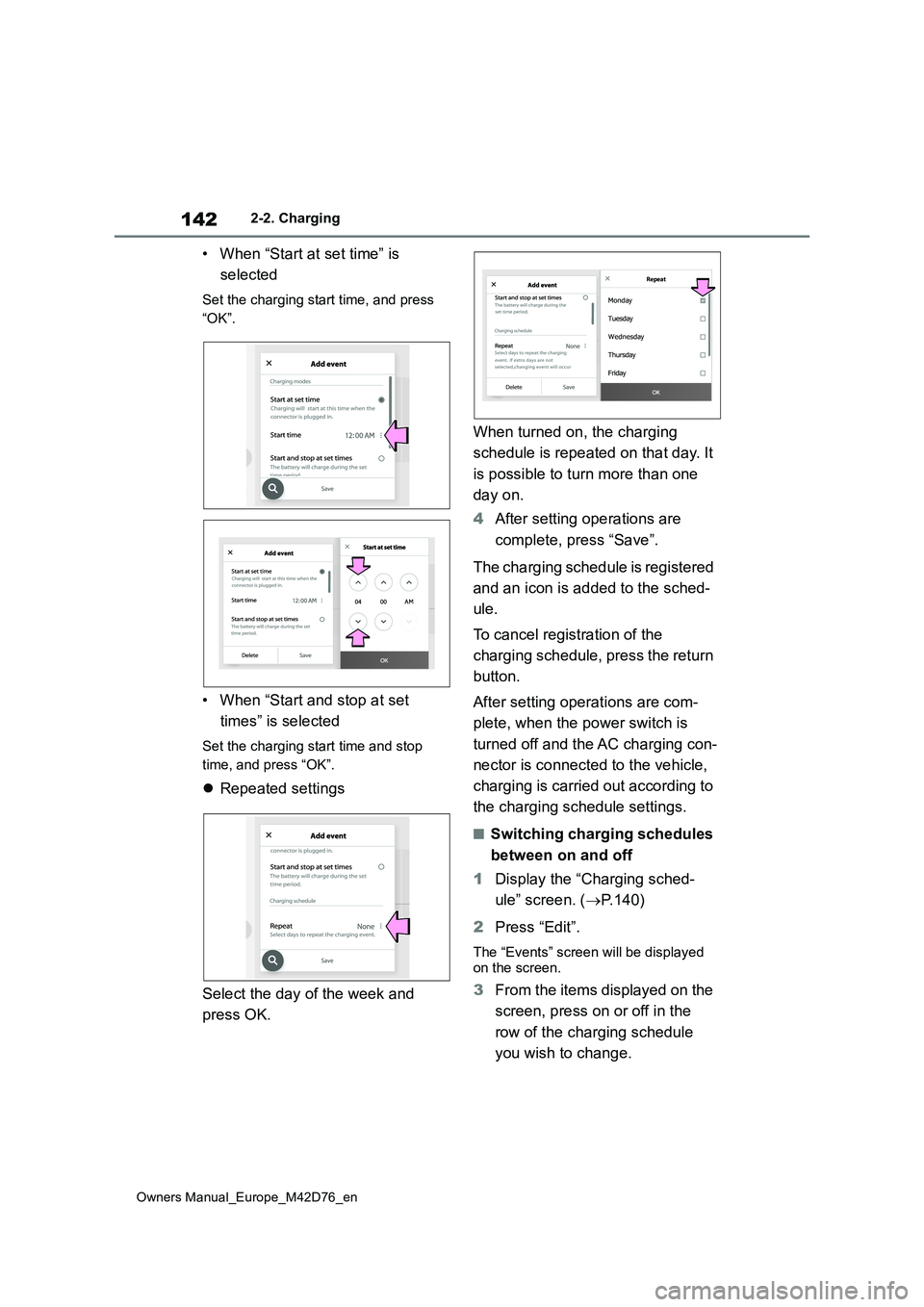
Charging mode
Press “Start at set time” or “Start
and stop at set times” to set the
desired charging mode.
Page 144 of 674
142
Owners Manual_Europe_M42D76_en
2-2. Charging
• When “Start at set time” is
selected
Set the charging start time, and press
“OK”.
• When “Start and stop at set
times” is selected
Set the charging start time and stop
time, and press “OK”.
Repeated settings
Select the day of the week and
press OK.
When turned on, the charging
schedule is repeated on that day. It
is possible to turn more than one
day on.
4 After setting operations are
complete, press “Save”.
The charging schedule is registered
and an icon is added to the sched-
ule.
To cancel registration of the
charging schedule, press the return
button.
After setting operations are com-
plete, when the power switch is
turned off and the AC charging con-
nector is connected to the vehicle,
charging is carried out according to
the charging schedule settings.
■Switching charging schedules
between on and off
1 Display the “Charging sched-
ule” screen. ( P.140)
2 Press “Edit”.
The “Events” screen will be displayed on the screen.
3 From the items displayed on the
screen, press on or off in the
row of the charging schedule
you wish to change.
Repeat
Page 145 of 674
143
2
Owners Manual_Europe_M42D76_en
2-2. Charging
Electric Vehicle system
If the charging schedule you wish to
change is not displayed on the
screen, scroll the list up and down
to display it.
Each time the button is pressed,
the charging schedule switches
between on and off.
■Changing the registered
charging schedules
1 Display the “Charging sched-
ule” screen. ( P. 1 4 0 )
2 Press “Edit”.
The “Scheduled Events” screen will be displayed on the screen.
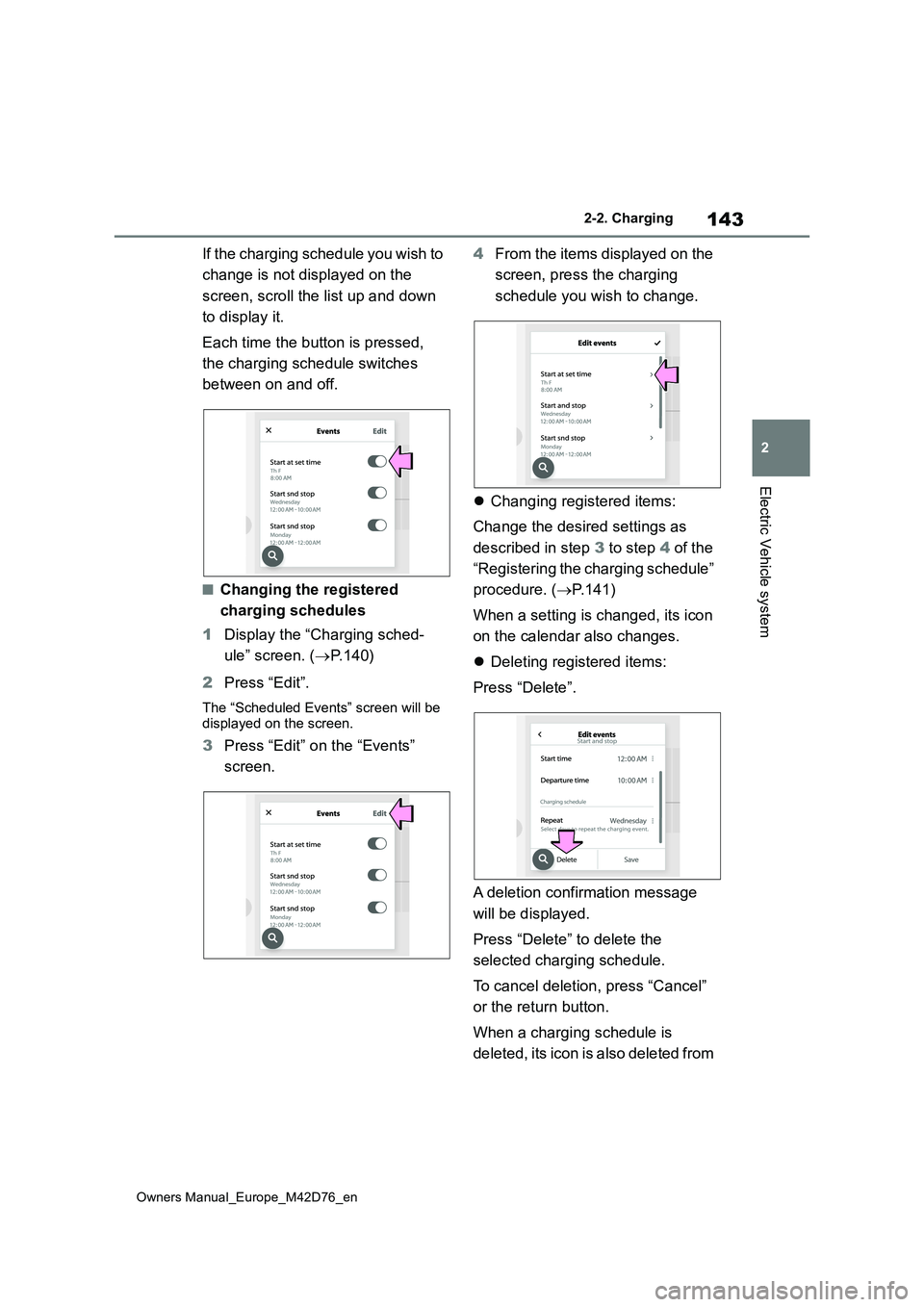
3 Press “Edit” on the “Events”
screen.
4 From the items displayed on the
screen, press the charging
schedule you wish to change.
Changing registered items:
Change the desired settings as
described in step 3 to step 4 of the
“Registering the charging schedule”
procedure. ( P.141)
When a setting is changed, its icon
on the calendar also changes.
Deleting registered items:
Press “Delete”.
A deletion confirmation message
will be displayed.
Press “Delete” to delete the
selected charging schedule.
To cancel deletion, press “Cancel”
or the return button.
When a charging schedule is
deleted, its icon is also deleted from
Page 176 of 674

174
Owners Manual_Europe_M42D76_en
3-1. Instrument cluster
●When “--” is displayed, the system
may be malfunctioning. Take your vehicle to any authorized Toyota retailer or Toyota authorized repairer,
or any reliable repairer.
●When the outside temperature is
approximately 3°C (37°F) or lower, the
indicator will flash for approxi-
mately 10 seconds, then stay on.
■Liquid crystal display
P. 1 7 6
■Customization
The gauges and meters can be custom-
ized in of the multi-information dis-
play. ( P.561)
The Multi-Information display can
be switched between display and
hidden.
■Display items
Odometer
Displays the total distance the vehicle
has been driven.
Trip meter A/Trip meter B
Displays the distance the vehicle has
been driven since the meter was last
reset. Trip meters A and B can be used
to record and display different distances
independently.
■Switching the display
The display switches each time the
switch is pressed. Also, when the
switch is continuously pressed
during the trip meter display, the
driving distance can be changed to
“0”.
The clocks on the following can be
adjusted on the audio system
screen.
Multi-information display
Audio system screen
For details, refer to “Multimedia owner’s
manual”.
WARNING
■The information display at low temperatures
Allow the interior of the vehicle to warm up before using the liquid crys-tal information display. At extremely
low temperatures, the information dis- play monitor may respond slowly, and display changes may be delayed.
Switching the meter display
Odometer and trip meter
display
Adjusting the clock