Page 163 of 478
3-79
Convenient features of your vehicle
3
The information provided may differ depending on which functions are applicable to your vehicle.
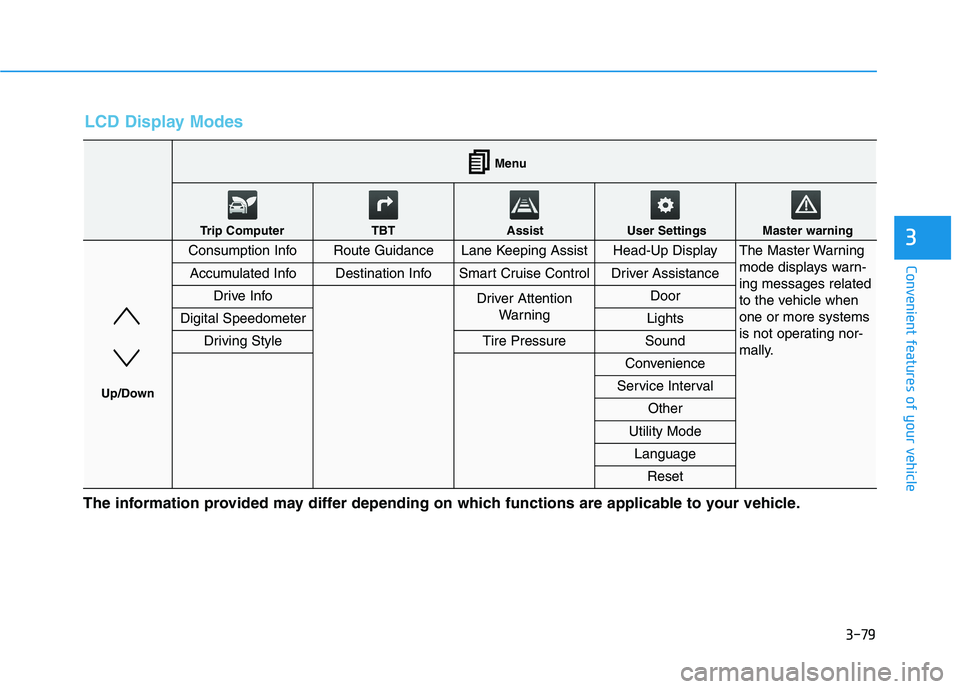
LCD Display Modes
Consumption InfoRoute GuidanceLane Keeping AssistHead-Up DisplayThe Master Warning
mode displays warn-
ing messages related
to the vehicle when
one or more systems
is not operating nor-
mally.
Accumulated InfoDestination InfoSmart Cruise ControlDriver Assistance
Drive InfoDriver Attention
Warning Door
Digital SpeedometerLights
Driving StyleTire PressureSound
Convenience
Service Interval
Other
Utility Mode
Language
Reset
Menu
Trip Computer TBT Assist User Settings Master warning
Up/Down
Page 165 of 478
3-81
Convenient features of your vehicle
3
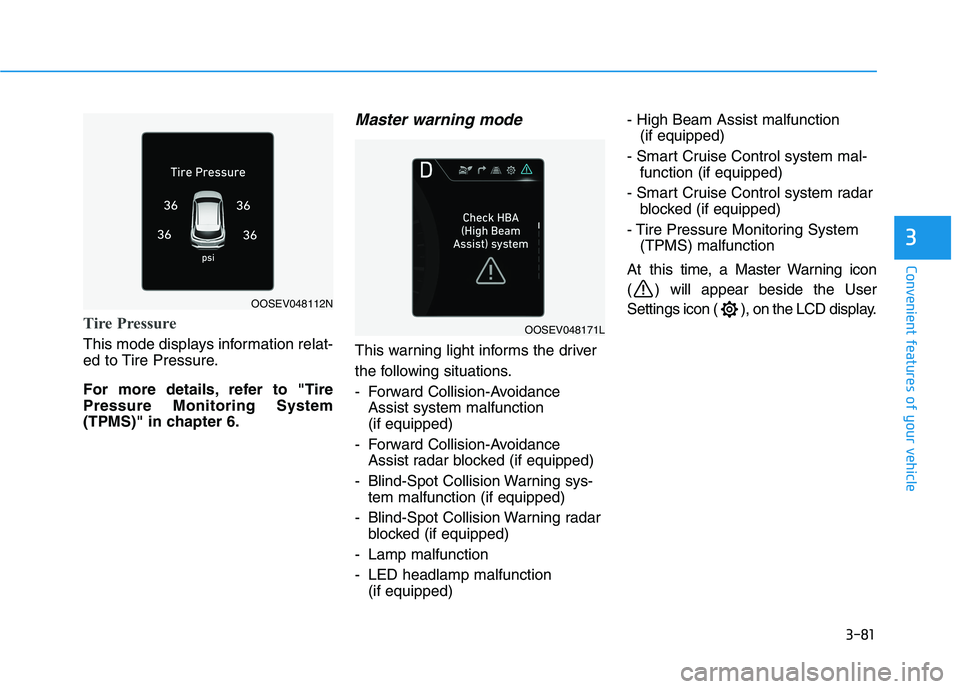
Tire Pressure
This mode displays information relat-
ed to Tire Pressure.
For more details, refer to "Tire
Pressure Monitoring System
(TPMS)" in chapter 6.
Master warning mode
This warning light informs the driver
the following situations.
- Forward Collision-Avoidance
Assist system malfunction
(if equipped)
- Forward Collision-Avoidance
Assist radar blocked (if equipped)
- Blind-Spot Collision Warning sys-
tem malfunction (if equipped)
- Blind-Spot Collision Warning radar
blocked (if equipped)
- Lamp malfunction
- LED headlamp malfunction
(if equipped)- High Beam Assist malfunction
(if equipped)
- Smart Cruise Control system mal-
function (if equipped)
- Smart Cruise Control system radar
blocked (if equipped)
- Tire Pressure Monitoring System
(TPMS) malfunction
At this time, a Master Warning icon
( ) will appear beside the User
Settings icon ( ), on the LCD display.
OOSEV048112N
OOSEV048171L
Page 166 of 478
3-82
Convenient features of your vehicle
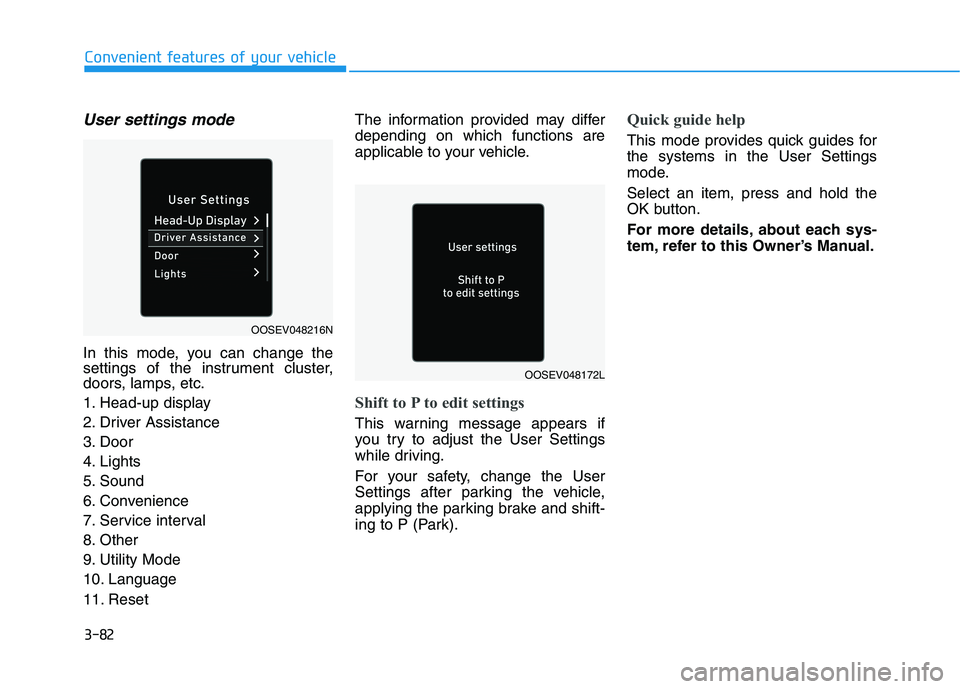
User settings mode
In this mode, you can change the
settings of the instrument cluster,
doors, lamps, etc.
1. Head-up display
2. Driver Assistance
3. Door
4. Lights
5. Sound
6. Convenience
7. Service interval
8. Other
9. Utility Mode
10. Language
11. ResetThe information provided may differ
depending on which functions are
applicable to your vehicle.
Shift to P to edit settings
This warning message appears if
you try to adjust the User Settings
while driving.
For your safety, change the User
Settings after parking the vehicle,
applying the parking brake and shift-
ing to P (Park).
Quick guide help
This mode provides quick guides for
the systems in the User Settings
mode.
Select an item, press and hold the
OK button.
For more details, about each sys-
tem, refer to this Owner’s Manual.
OOSEV048216N
OOSEV048172L
Page 175 of 478
3-91
Convenient features of your vehicle
3
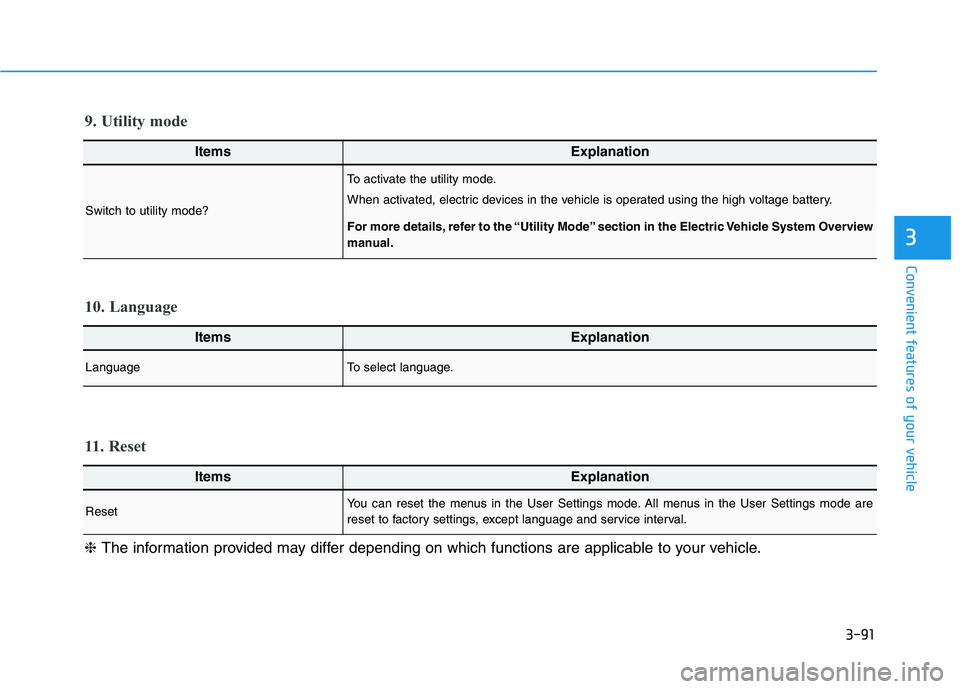
ItemsExplanation
LanguageTo select language.
10. Language
ItemsExplanation
ResetYou can reset the menus in the User Settings mode. All menus in the User Settings mode are
reset to factory settings, except language and service interval.
11. Reset
❈The information provided may differ depending on which functions are applicable to your vehicle.
ItemsExplanation
Switch to utility mode?
To activate the utility mode.
When activated, electric devices in the vehicle is operated using the high voltage battery.
For more details, refer to the “Utility Mode” section in the Electric Vehicle System Overview
manual.
9. Utility mode
Page 177 of 478
3-93
Convenient features of your vehicle
3
Consumption info display
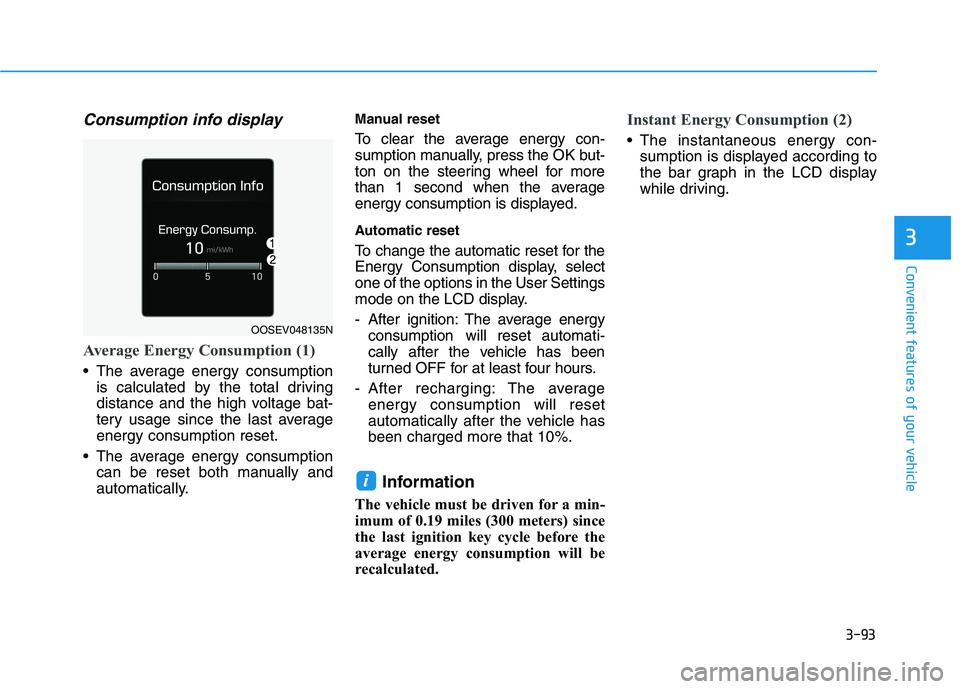
Average Energy Consumption (1)
The average energy consumption
is calculated by the total driving
distance and the high voltage bat-
tery usage since the last average
energy consumption reset.
The average energy consumption
can be reset both manually and
automatically.
Manual reset
To clear the average energy con-
sumption manually, press the OK but-
ton on the steering wheel for more
than 1 second when the average
energy consumption is displayed.
Automatic reset
To change the automatic reset for the
Energy Consumption display, select
one of the options in the User Settings
mode on the LCD display.
- After ignition: The average energy
consumption will reset automati-
cally after the vehicle has been
turned OFF for at least four hours.
- After recharging: The average
energy consumption will reset
automatically after the vehicle has
been charged more that 10%.
Information
The vehicle must be driven for a min-
imum of 0.19 miles (300 meters) since
the last ignition key cycle before the
average energy consumption will be
recalculated.
Instant Energy Consumption (2)
The instantaneous energy con-
sumption is displayed according to
the bar graph in the LCD display
while driving.
i
OOSEV048135N
Page 180 of 478
3-96
Convenient features of your vehicle
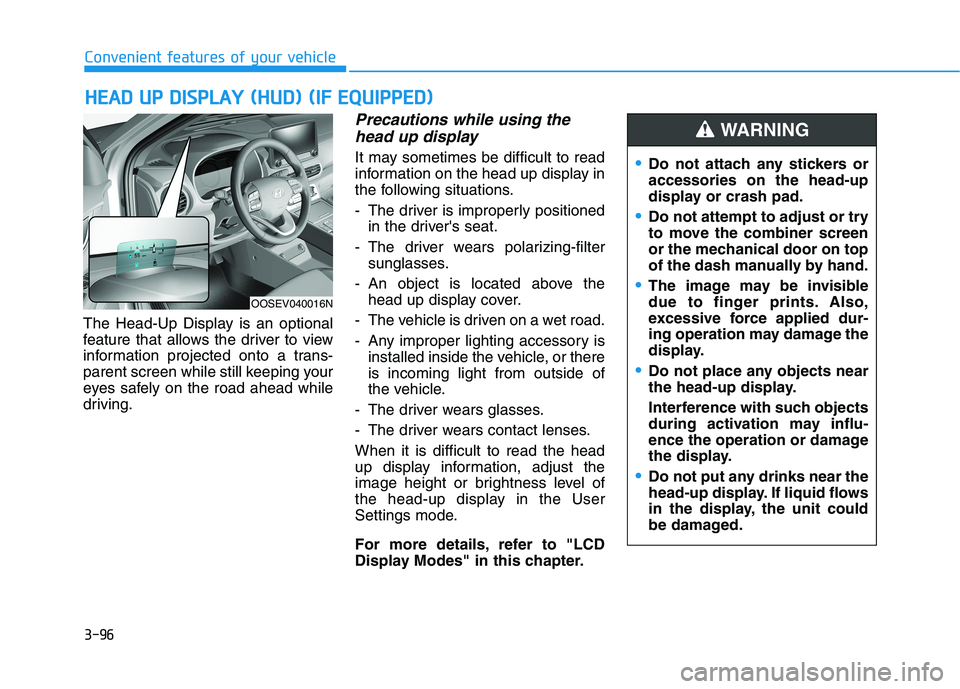
The Head-Up Display is an optional
feature that allows the driver to view
information projected onto a trans-
parent screen while still keeping your
eyes safely on the road ahead while
driving.
Precautions while using the
head up display
It may sometimes be difficult to read
information on the head up display in
the following situations.
- The driver is improperly positioned
in the driver's seat.
- The driver wears polarizing-filter
sunglasses.
- An object is located above the
head up display cover.
- The vehicle is driven on a wet road.
- Any improper lighting accessory is
installed inside the vehicle, or there
is incoming light from outside of
the vehicle.
- The driver wears glasses.
- The driver wears contact lenses.
When it is difficult to read the head
up display information, adjust the
image height or brightness level of
the head-up display in the User
Settings mode.
For more details, refer to "LCD
Display Modes" in this chapter.
H HE
EA
AD
D
U
UP
P
D
DI
IS
SP
PL
LA
AY
Y
(
(H
HU
UD
D)
)
(
(I
IF
F
E
EQ
QU
UI
IP
PP
PE
ED
D)
)
Do not attach any stickers or
accessories on the head-up
display or crash pad.
Do not attempt to adjust or try
to move the combiner screen
or the mechanical door on top
of the dash manually by hand.
The image may be invisible
due to finger prints. Also,
excessive force applied dur-
ing operation may damage the
display.
Do not place any objects near
the head-up display.
Interference with such objects
during activation may influ-
ence the operation or damage
the display.
Do not put any drinks near the
head-up display. If liquid flows
in the display, the unit could
be damaged.
WARNING
OOSEV040016N
Page 189 of 478
3-105
Convenient features of your vehicle
3
The lane change signals will blink 3,
5 or 7 times.
You can activate or deactivate the
One Touch Turn Signal function or
choose the number of blinks (3, 5, or
7) from the User Settings mode in
the LCD display.
For more details, refer to the "LCD
Display" section in this chapter.
Battery saver function
The purpose of this feature is to pre-
vent the battery from being dis-
charged. The system automatically
turns off the parking lamp when the
driver turns the vehicle off and opens
the driver-side door.
With this feature, the parking lamps
will turn off automatically if the driver
parks on the side of road at night.
If necessary, to keep the lamps on
when the vehicle is turned off, perform
the following:
1) Open the driver-side door.
2) Turn the parking lamps OFF and
ON again using the headlamp
switch on the steering column.
Headlamp delay function
If the POWER button is placed in the
ACC position or the OFF position
with the headlamps ON, the head-
lamps (and/or parking lamps) remain
on for about 5 minutes. However, if
the driver’s door is opened and
closed, the headlights are turned off
after 15 seconds. Also, with the vehi-
cle off if the driver's door is opened
and closed, the headlamps (and/or
parking lamps) are turned off after 15
seconds.
The headlamps (and/or parking
lamps) can be turned off by pressing
the lock button on the smart key
twice or turning the light switch to the
OFF or AUTO position.
You can activate or deactivate the
Headlamp Delay function from the
User Settings mode (Light) on the
LCD display.
For more details, refer to the "LCD
Display" section in this chapter.If the driver exits the vehicle
through another door besides the
driver door, the battery saver func-
tion does not operate and the
headlamp delay function does not
turn OFF automatically.
This may cause the battery to dis-
charge. To avoid battery dis-
charge, turn OFF the headlamps
manually from the headlamp
switch before exiting the vehicle.
NOTICE
Page 190 of 478
3-106
Convenient features of your vehicle
Smart Cornering Lamp
(if equipped)
As an optional safety feature, your
vehicle may be equipped with a
smart cornering lamp. The cornering
lamp turns ON automatically while
driving when the vehicle enters into a
cornering maneuver.
The system will operate under the
following conditions:
When the headlamps are turned
ON
When the steering angle is above
25 to 35 degrees (depending on
vehicle speed)
When the vehicle speed is under
25 mph (40 km/h)
Welcome System
Headlamp and parking lamp
When the headlamp (lamp switch in
the headlamp or AUTO position) is
on and all doors (and liftgate) are
locked and closed, the parking lamp
and headlamp will come on for 15
seconds when the door unlock but-
ton is pressed on the smart key.
At this time, if you press the door lock
or unlock button, the parking lamp
and headlamp will turn off immedi-
ately.
You can activate or deactivate the
Welcome Light from the User
Settings mode on the LCD display.
For more details, refer to "LCD
Display" in this chapter.
Interior lamp
When the interior lamp switch is in
the DOOR position and all doors (and
liftgate) are closed and locked, the
room lamp will come on for 30 sec-
onds if any of the below is performed.
When the door unlock button is
pressed on the smart key.
When the button of the outside
door handle is pressed.
At this time, if you press the door lock
or unlock button, the room lamp will
turn off immediately.