Page 287 of 478
5-52
Driving your vehicle
FCA Warning Message and
System Control
FCA produces warning messages
and warning alarms in accordance
with the collision risk levels, such as
abrupt stopping of the vehicle in
front, or insufficient braking distance
detection. Also, it controls the brakes
in accordance with the collision risk
levels.
The driver can select the initial warn-
ing activation time in the User
Settings in the LCD display. The
options for the initial Forward
Collision Warning include Late,
Normal or Early initial warning time.
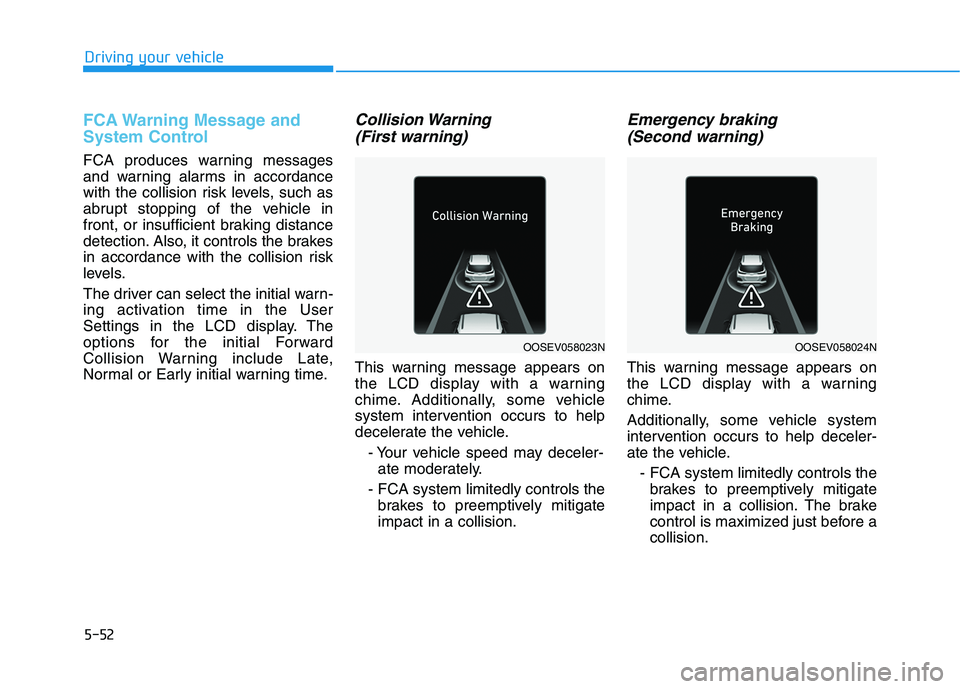
Collision Warning
(First warning)
This warning message appears on
the LCD display with a warning
chime. Additionally, some vehicle
system intervention occurs to help
decelerate the vehicle.
- Your vehicle speed may deceler-
ate moderately.
- FCA system limitedly controls the
brakes to preemptively mitigate
impact in a collision.
Emergency braking
(Second warning)
This warning message appears on
the LCD display with a warning
chime.
Additionally, some vehicle system
intervention occurs to help deceler-
ate the vehicle.
- FCA system limitedly controls the
brakes to preemptively mitigate
impact in a collision. The brake
control is maximized just before a
collision.
OOSEV058023NOOSEV058024N
Page 300 of 478
5-65
Driving your vehicle
5
The second stage alarm may be
deactivated.
- To deactivate the warning chime:
Go to the 'User Settings →Driver
Assistance and deselect Blind-
Spot Collision Warning Sound' on
the LCD display.
- To activate the warning chime:
Go to the 'User Settings →Driver
Assistance and select Blind-Spot
Collision Warning Sound' on the
LCD display.
Information
The warning chime function helps
alert the driver. Deactivate this func-
tion only when it is necessary.
For more information, refer to
"LCD Display Modes" in chapter 3.
i
OOS057025
■ Left side
OOS057026
■ Right side
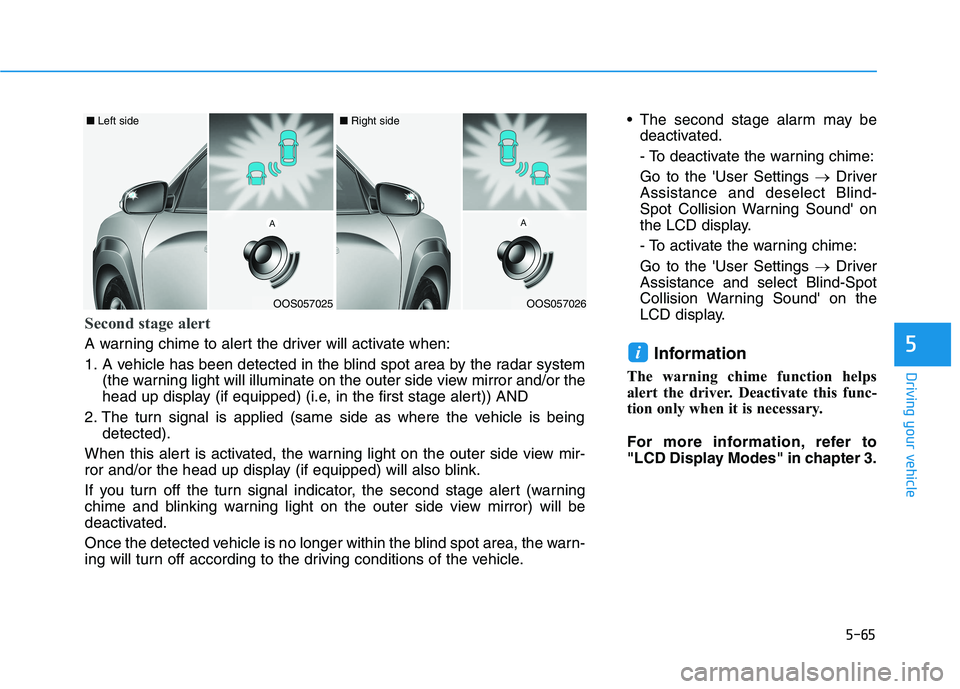
Second stage alert
A warning chime to alert the driver will activate when:
1. A vehicle has been detected in the blind spot area by the radar system
(the warning light will illuminate on the outer side view mirror and/or the
head up display (if equipped) (i.e, in the first stage alert)) AND
2. The turn signal is applied (same side as where the vehicle is being
detected).
When this alert is activated, the warning light on the outer side view mir-
ror and/or the head up display (if equipped) will also blink.
If you turn off the turn signal indicator, the second stage alert (warning
chime and blinking warning light on the outer side view mirror) will be
deactivated.
Once the detected vehicle is no longer within the blind spot area, the warn-
ing will turn off according to the driving conditions of the vehicle.
Page 301 of 478
5-66
Driving your vehicle
Rear Cross-Traffic Collision
Warning (RCCW) (if equipped)
Rear Cross-Traffic Collision Warning
monitors approaching cross traffic
from the left and right side of the
vehicle when your vehicle is in
reverse.
Operating conditions
To operate:
Go to the 'User Settings →Driver
Assistance and select Rear Cross-
Traffic Collision Warning' on the LCD
display.For more details, refer to
"LCD Display Modes" in chapter 3.
The system will turn on and standby
to activate. The system will activate
when vehicle speed is below 6 mph
(10 km/h) and with the gear in R
(Reverse).
If the function is deselected from the
instrument cluster, the function will
deactivate.
Information
• The last selected setting (ON or
OFF) of RCCW is remained in the
system.
• The system will activate when vehi-
cle speed is below 6.2 mph (10 km/h)
and with the gear shifted to R
(Reverse).
• The RCCW (Rear Cross-Traffic
Collision Warning) detecting range
is approximately 1 ft ~ 65 ft (0.5 m ~
20 m) in the direction of both later-
al sides of the vehicle.
An approaching vehicle will be
detected if their vehicle speed is
within 2.5 ~ 22.5 mph (8 km/h ~36
km/h).
Note that the detecting range may
vary under certain conditions. As
always, use caution and pay close
attention to your surroundings
when backing up your vehicle.
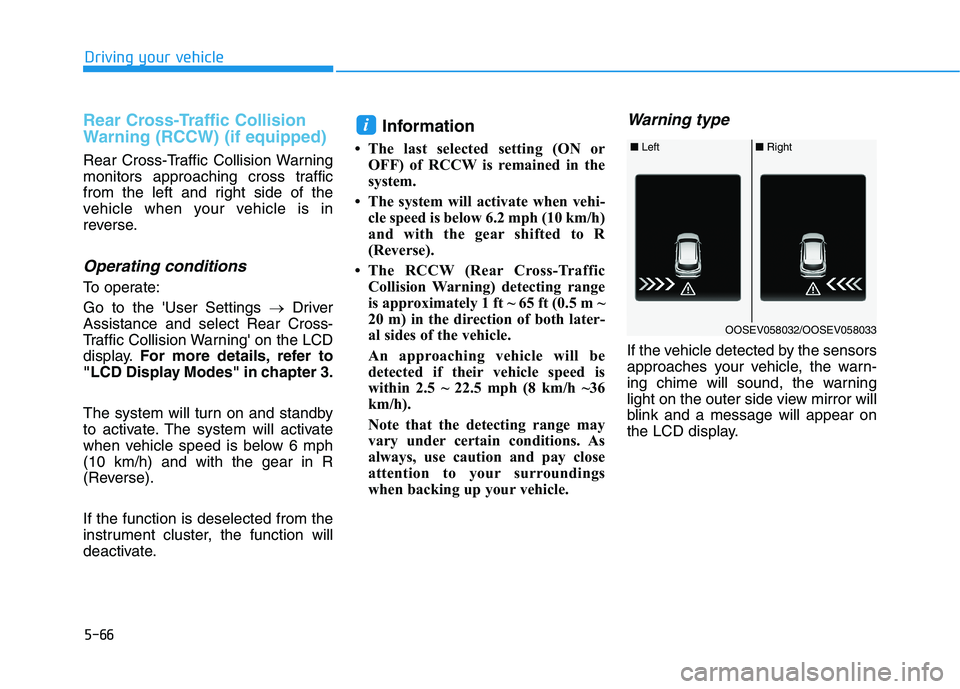
Warning type
If the vehicle detected by the sensors
approaches your vehicle, the warn-
ing chime will sound, the warning
light on the outer side view mirror will
blink and a message will appear on
the LCD display.
i
■ Left■ Right
OOSEV058032/OOSEV058033
Page 315 of 478
5-80
Driving your vehicle
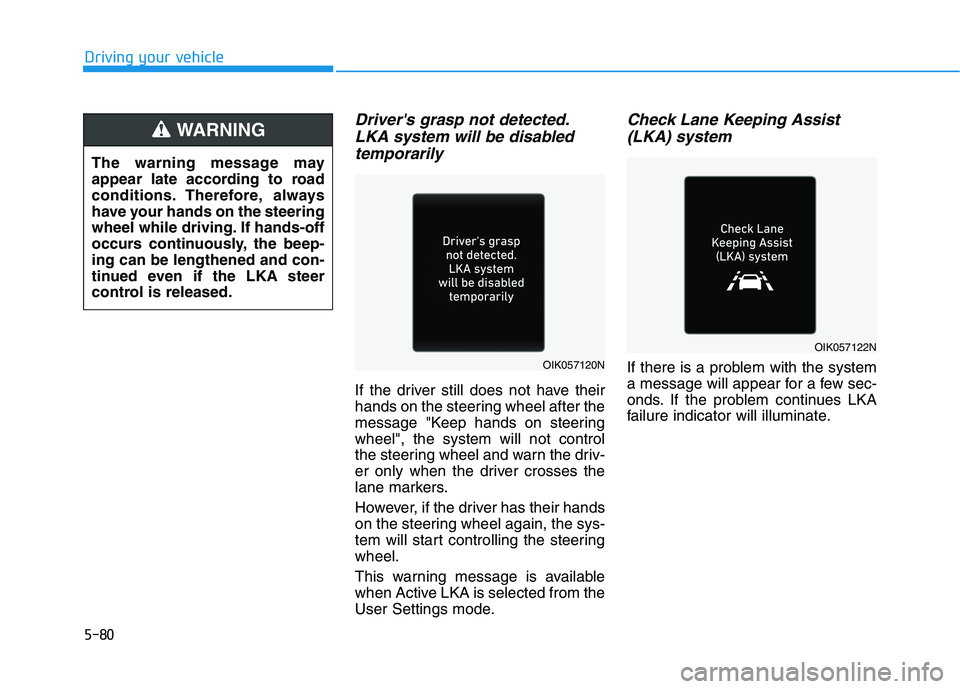
Driver's grasp not detected.
LKA system will be disabled
temporarily
If the driver still does not have their
hands on the steering wheel after the
message "Keep hands on steering
wheel", the system will not control
the steering wheel and warn the driv-
er only when the driver crosses the
lane markers.
However, if the driver has their hands
on the steering wheel again, the sys-
tem will start controlling the steering
wheel.
This warning message is available
when Active LKA is selected from the
User Settings mode.
Check Lane Keeping Assist
(LKA) system
If there is a problem with the system
a message will appear for a few sec-
onds. If the problem continues LKA
failure indicator will illuminate. The warning message may
appear late according to road
conditions. Therefore, always
have your hands on the steering
wheel while driving. If hands-off
occurs continuously, the beep-
ing can be lengthened and con-
tinued even if the LKA steer
control is released.
WARNING
OIK057120N
OIK057122N
Page 318 of 478
5-83
Driving your vehicle
5
Driving on a steep grade, over a hill,
or when driving on a curved road.
The adverse road conditions cause
excessive vehicle vibrations while
driving.
The surrounding of the inside rear
view mirror temperature is high
due to direct sunlight, etc.
When front visibility is poor
The windshield or the camera lens
is blocked with dirt or debris.
The windshield glass is fogged up; a
clear view of the road is obstructed.
Placing objects on the dashboard,
etc.
The sensor cannot detect the lane
because of fog, heavy rain or snow.LKA Function Change
The driver can change LKA to Lane
Departure Warning from the LCD dis-
play. Go to the 'User Settings →
Driver Assistance →Lane Safety →
Lane Departure Warning/LKA/Active
LKA.
Lane Departure Warning
LDW mode alerts the driver with a
visual warning and a warning alarm
when the system detects the vehicle
departing the lane. The steering
wheel will not be controlled.
LKA
LKA mode guides the driver to help
keep the vehicle within the lanes. It
rarely controls the steering wheel,
when the vehicle drives well inside
the lanes. However, it starts to con-
trol the steering wheel, when the
vehicle is about to deviate out of the
lanes.
Active LKA
Active LKA mode provides more fre-
quent steering wheel control in com-
parison with the Standard LKA
mode. Active LKA can reduce the dri-
ver’s fatigue to assist the steering for
maintaining the vehicle in the middle
of the lane.
Page 319 of 478
5-84
Driving your vehicle
Driver Attention Warning system is
designed as a safety feature to help
reduce drowsy or inattentive driving.
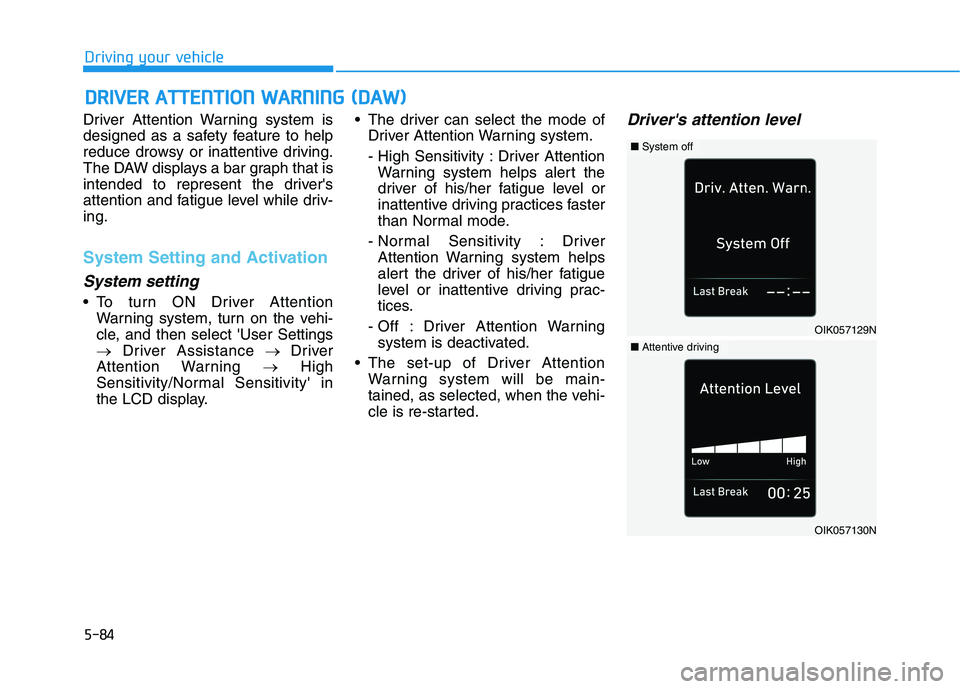
The DAW displays a bar graph that is
intended to represent the driver's
attention and fatigue level while driv-
ing.
System Setting and Activation
System setting
To turn ON Driver Attention
Warning system, turn on the vehi-
cle, and then select 'User Settings
→Driver Assistance → Driver
Attention Warning →High
Sensitivity/Normal Sensitivity' in
the LCD display. The driver can select the mode of
Driver Attention Warning system.
- High Sensitivity : Driver Attention
Warning system helps alert the
driver of his/her fatigue level or
inattentive driving practices faster
than Normal mode.
- Normal Sensitivity : Driver
Attention Warning system helps
alert the driver of his/her fatigue
level or inattentive driving prac-
tices.
- Off : Driver Attention Warning
system is deactivated.
The set-up of Driver Attention
Warning system will be main-
tained, as selected, when the vehi-
cle is re-started.
Driver's attention level
D DR
RI
IV
VE
ER
R
A
AT
TT
TE
EN
NT
TI
IO
ON
N
W
WA
AR
RN
NI
IN
NG
G
(
(D
DA
AW
W)
)
OIK057129N
■System off
OIK057130N
■Attentive driving
Page 340 of 478

5-105
Driving your vehicle
5
SCC Reaction Setting
The sensitivity of vehicle speed
when following the front vehicle to
maintain the set distance can be
adjusted. Go to the 'User Settings →
Driver Assistance →SCC Reaction
→Fast/Normal/Slow' on the LCD
display. You may select one of the
three stages you prefer.
Fast:
Vehicle speed following the front
vehicle to maintain the set distance
is faster than normal speed. Normal:
Vehicle speed following the front
vehicle to maintain the set distance
is normal.
Slow:
Vehicle speed following the front
vehicle to maintain the set distance
is slower than normal speed.
Information
The last selected speed sensitivity of
the smart cruise control is retained in
the system.
Conventional Cruise Control
Mode
The driver may choose to switch to
use the conventional Cruise Control
mode (speed only control function)
by following these steps:
1. Push the CRUISE button on the
steering wheel to turn the system
on. The cruise ( ) indi-
cator will illuminate.
2. Push and hold the Vehicle-to-
Vehicle Distance button for more
than 2 seconds.
3. Choose between "Smart Cruise
Control" and "Cruise Control".
Information
When the system is turned OFF using
the CRUISE button or the CRUISE
button is turned ON after the vehicle
is restarted with the POWER button,
conventional cruise control will be dis-
abled and Smart Cruise Control mode
will be enabled again.
i
i
OIK057097N
Page 366 of 478
6-7
What to do in an emergency
6
T TI
IR
RE
E
P
PR
RE
ES
SS
SU
UR
RE
E
M
MO
ON
NI
IT
TO
OR
RI
IN
NG
G
S
SY
YS
ST
TE
EM
M
(
(T
TP
PM
MS
S)
)
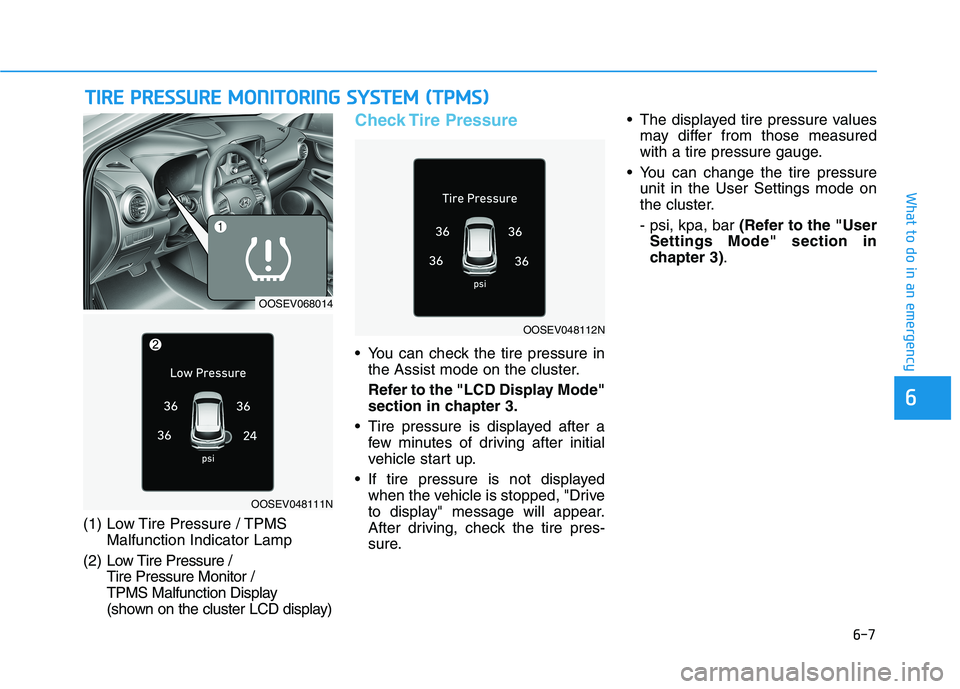
(1) Low Tire Pressure / TPMS
Malfunction Indicator Lamp
(2) Low Tire Pressure /
Tire Pressure Monitor /
TPMS Malfunction Display
(shown on the cluster LCD display)
Check Tire Pressure
You can check the tire pressure in
the Assist mode on the cluster.
Refer to the "LCD Display Mode"
section in chapter 3.
Tire pressure is displayed after a
few minutes of driving after initial
vehicle start up.
If tire pressure is not displayed
when the vehicle is stopped, "Drive
to display" message will appear.
After driving, check the tire pres-
sure. The displayed tire pressure values
may differ from those measured
with a tire pressure gauge.
You can change the tire pressure
unit in the User Settings mode on
the cluster.
- psi, kpa, bar (Refer to the "User
Settings Mode" section in
chapter 3).
OOSEV048112N
OOSEV068014
OOSEV048111N