2021 HYUNDAI KONA EV user setting
[x] Cancel search: user settingPage 197 of 478
3-113
Convenient features of your vehicle
3
To prevent possible damage to
the washer pump, do not oper-
ate the washer when the fluid
reservoir is empty.
To prevent possible damage to
the wipers or windshield, do not
operate the wipers when the
windshield is dry.
To prevent damage to the wiper
arms and other components, do
not attempt to move the wipers
manually.
To prevent possible damage to
the wipers and washer system,
use anti-freezing washer fluids
in the winter season or cold
weather.
Rear Window Wiper and Washer
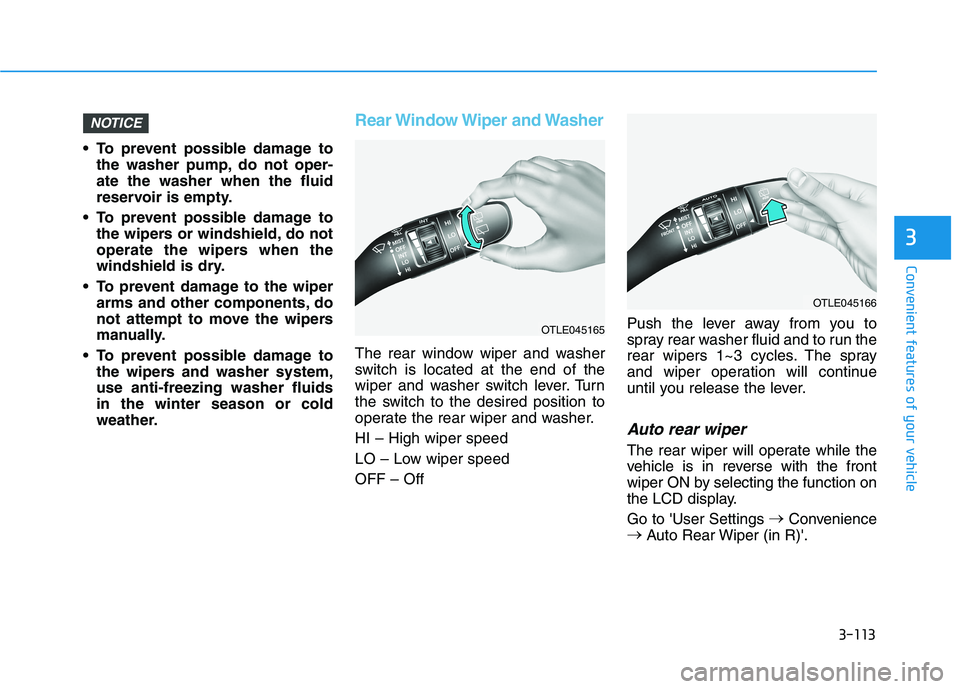
The rear window wiper and washer
switch is located at the end of the
wiper and washer switch lever. Turn
the switch to the desired position to
operate the rear wiper and washer.
HI – High wiper speed
LO – Low wiper speed
OFF – OffPush the lever away from you to
spray rear washer fluid and to run the
rear wipers 1~3 cycles. The spray
and wiper operation will continue
until you release the lever.
Auto rear wiper
The rear wiper will operate while the
vehicle is in reverse with the front
wiper ON by selecting the function on
the LCD display.
Go to 'User Settings →
Convenience
→
Auto Rear Wiper (in R)'.
NOTICE
OTLE045166
OTLE045165
Page 208 of 478
3-124
Convenient features of your vehicle
Instrument panel vents
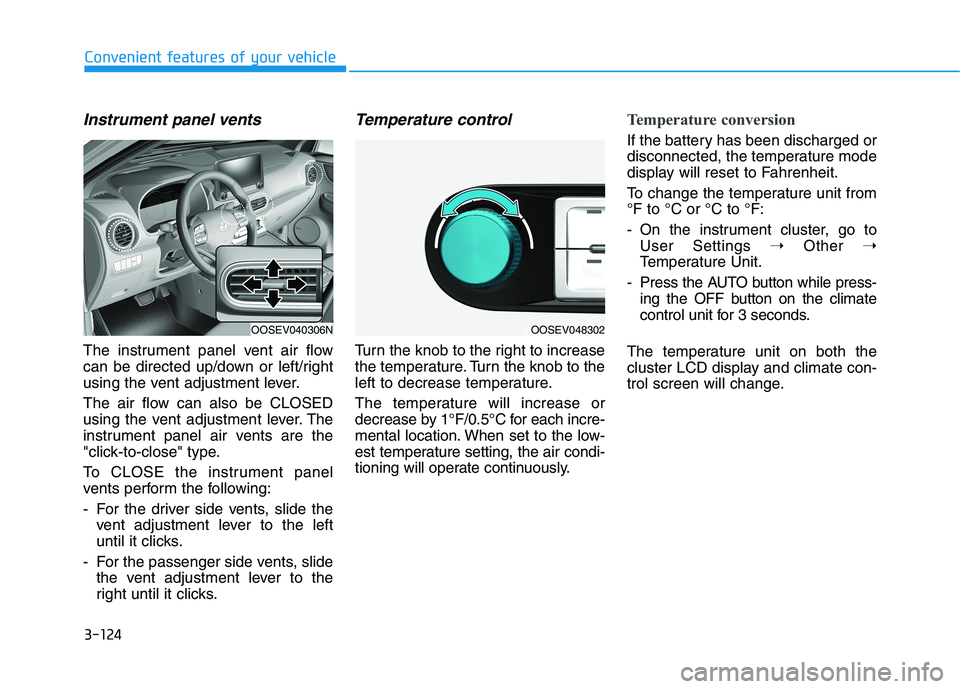
The instrument panel vent air flow
can be directed up/down or left/right
using the vent adjustment lever.
The air flow can also be CLOSED
using the vent adjustment lever. The
instrument panel air vents are the
"click-to-close" type.
To CLOSE the instrument panel
vents perform the following:
- For the driver side vents, slide the
vent adjustment lever to the left
until it clicks.
- For the passenger side vents, slide
the vent adjustment lever to the
right until it clicks.
Temperature control
Turn the knob to the right to increase
the temperature. Turn the knob to the
left to decrease temperature.
The temperature will increase or
decrease by 1°F/0.5°C for each incre-
mental location. When set to the low-
est temperature setting, the air condi-
tioning will operate continuously.
Temperature conversion
If the battery has been discharged or
disconnected, the temperature mode
display will reset to Fahrenheit.
To change the temperature unit from
°F to °C or °C to °F:
- On the instrument cluster, go to
User Settings ➝Other ➝
Temperature Unit.
- Press the AUTO button while press-
ing the OFF button on the climate
control unit for 3 seconds.
The temperature unit on both the
cluster LCD display and climate con-
trol screen will change.
OOSEV040306NOOSEV048302
Page 227 of 478
3-143
Convenient features of your vehicle
3
To charge a cellular phone
The wireless cellular phone charging
system charges only the Qi-enabled
cellular phones ( ). Read the label
on the cellular phone accessory
cover or visit your cellular phone
manufacturer's website to check
whether your cellular phone supports
the Qi technology.
The wireless charging process starts
when you put a Qi-enabled cellular
phone on the wireless charging unit.
1. Remove other items, including the
smart key, from the wireless charg-
ing unit. If not, the wireless charg-
ing process may be interrupted.
Place the cellular phone on the
center of the charging pad ( ).
2. The indicator light is orange when
the cellular phone is charging. The
indicator light turns green when
phone charging is complete.
3. You can turn ON or OFF the wire-
less charging function in the user
settings mode on the instrument
cluster. For further information,
refer to the "LCD Display Modes"
in this chapter.If your cellular phone is not charging:
- Slightly change the position of the
cellular phone on the charging
pad.
- Make sure the indicator light is
orange.
The indicator light will blink orange for
10 seconds if there is a malfunction in
the wireless charging system.
In this case, temporarily stop the
charging process, and re-attempt to
charge your cellular phone again.
The system warns you with a mes-
sage on the LCD display if the cellular
phone is still on the wireless charging
unit after the vehicle is turned OFF
and the front door is opened.
Information
For some manufacturers' cellular
phones, the system may not warn you
even though the cellular phone is left
on the wireless charging unit. This is
due to the particular characteristic of
the cellular phone and not a malfunc-
tion of the wireless charging. The wireless cellular phone
charging system may not sup-
port certain cellular phones,
which are not verified for the Qi
specification ( ).
When placing your cellular
phone on the charging mat,
position the phone in the middle
of the mat for optimal charging
performance. If your cell phone
is off to the side, the charging
rate may be less and in some
cases the cell phone may experi-
ence higher heat conduction.
In some cases, the wireless
charging may stop temporarily
when the Smart Key is used,
either when starting the vehicle or
locking/unlocking the doors, etc.
When charging certain cellular
phones, the charging indicator
may not change to green when
the cell phone is fully charged.
NOTICE
i
Page 256 of 478
5-21
Driving your vehicle
5
The Smart Regeneration System
controls the regenerative braking
automatically according to the road
gradient and driving condition of the
vehicle in front. The system mini-
mizes the unnecessary operation of
the brake and acceleration pedal,
improving the electric energy effi-
ciency and assisting the driver.System Setting
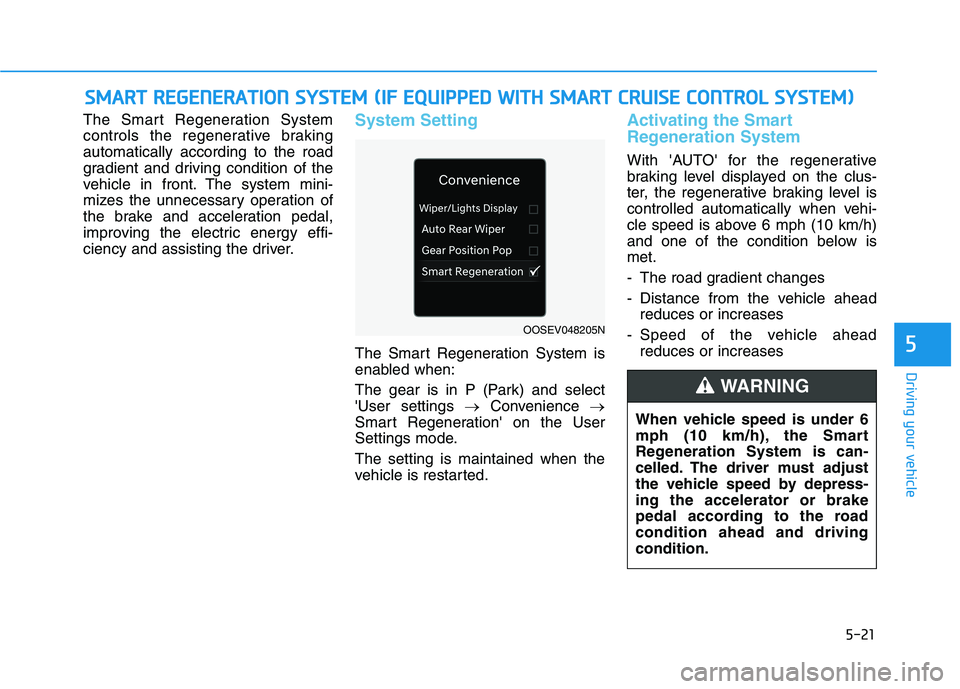
The Smart Regeneration System is
enabled when:
The gear is in P (Park) and select
'User settings →Convenience →
Smart Regeneration' on the User
Settings mode.
The setting is maintained when the
vehicle is restarted.
Activating the Smart
Regeneration System
With 'AUTO' for the regenerative
braking level displayed on the clus-
ter, the regenerative braking level is
controlled automatically when vehi-
cle speed is above 6 mph (10 km/h)
and one of the condition below is
met.
- The road gradient changes
- Distance from the vehicle ahead
reduces or increases
- Speed of the vehicle ahead
reduces or increases
S SM
MA
AR
RT
T
R
RE
EG
GE
EN
NE
ER
RA
AT
TI
IO
ON
N
S
SY
YS
ST
TE
EM
M
(
(I
IF
F
E
EQ
QU
UI
IP
PP
PE
ED
D
W
WI
IT
TH
H
S
SM
MA
AR
RT
T
C
CR
RU
UI
IS
SE
E
C
CO
ON
NT
TR
RO
OL
L
S
SY
YS
ST
TE
EM
M)
)
OOSEV048205N
When vehicle speed is under 6
mph (10 km/h), the Smart
Regeneration System is can-
celled. The driver must adjust
the vehicle speed by depress-
ing the accelerator or brake
pedal according to the road
condition ahead and driving
condition.
WARNING
Page 257 of 478
5-22
Driving your vehicle
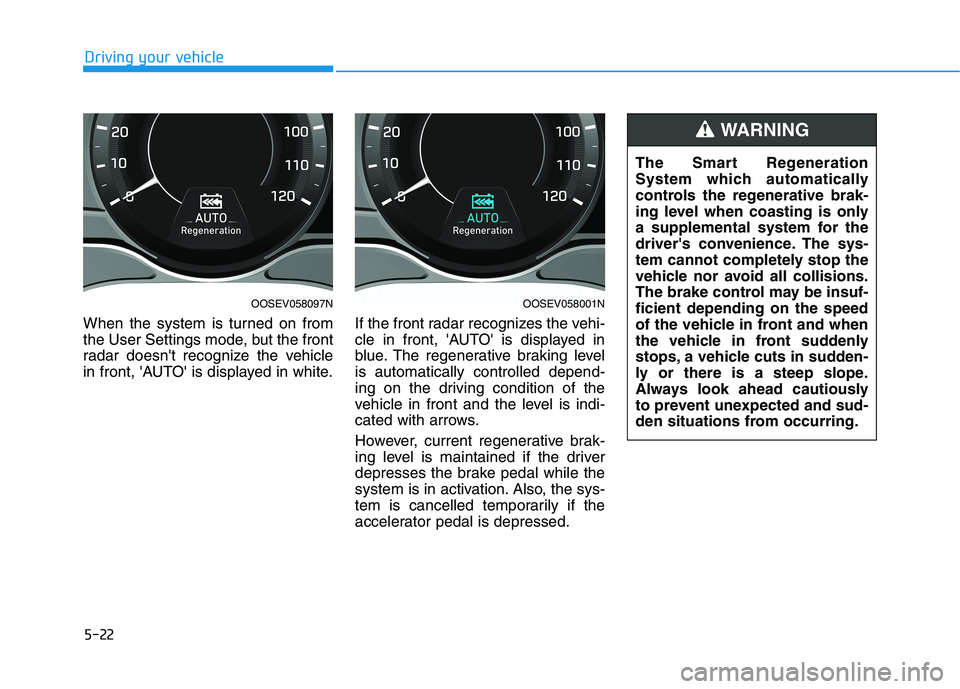
When the system is turned on from
the User Settings mode, but the front
radar doesn't recognize the vehicle
in front, 'AUTO' is displayed in white.If the front radar recognizes the vehi-
cle in front, 'AUTO' is displayed in
blue. The regenerative braking level
is automatically controlled depend-
ing on the driving condition of the
vehicle in front and the level is indi-
cated with arrows.
However, current regenerative brak-
ing level is maintained if the driver
depresses the brake pedal while the
system is in activation. Also, the sys-
tem is cancelled temporarily if the
accelerator pedal is depressed.
OOSEV058097NOOSEV058001N
The Smart Regeneration
System which automatically
controls the regenerative brak-
ing level when coasting is only
a supplemental system for the
driver's convenience. The sys-
tem cannot completely stop the
vehicle nor avoid all collisions.
The brake control may be insuf-
ficient depending on the speed
of the vehicle in front and when
the vehicle in front suddenly
stops, a vehicle cuts in sudden-
ly or there is a steep slope.
Always look ahead cautiously
to prevent unexpected and sud-
den situations from occurring.
WARNING
Page 258 of 478
5-23
Driving your vehicle
5
Cancelling the Smart
Regeneration System:
Cancelled manually
Pulling and holding the right side
paddle shifter for more than 1 sec-
ond.
The Smart Regeneration System
turns off temporarily. Note that the
"AUTO" indicator in the LCD dis-
play turns off.
Cancelled automatically
- The vehicle is shifted to N
(Neutral), R (Reverse) or P
(Park).
- Cruise Control system (including
Smart Cruise Control system) is
enabled.
- The ESC (Electronic Stability
Control) or ABS is activated.
Resuming the Smart
Regeneration System
To re-activate the Smart
Regeneration System while driving,
pull and hold the right side paddle
shifter for more than 1 second again.
Note that the "AUTO" indicator in the
LCD display turns back on, signaling
that the Smart Regeneration System
is enabled again.
Disabling the Smart
Regeneration System
To turn off the system, shift to P (Park)
and deselect 'User Settings →
Convenience →Smart Regeneration'
on the User Settings mode.
Vehicle-to-Vehicle Front
Recognition - Front Radar
Sensor
In order for the Smart Regeneration
System to operate properly, always
make sure the radar sensor cover is
clean and free of dirt, snow, and
debris. Dirt, snow, or foreign sub-
stances on the lens may adversely
affect the sensing performance of
the sensor. In this case, the system
operation may stop temporarily and
not operate normally.
Do not apply license plate
frame or foreign objects such
as a bumper sticker or a
bumper guard near the radar
sensor. Doing so may adverse-
ly affect the sensing perform-
ance of the radar.
Always keep the radar sensor
and lens cover clean and free
of dirt and debris.
CAUTION
When the Smart Regeneration
System is cancelled automati-
cally, adjust the vehicle speed
directly by depressing the
accelerator or brake pedal
according to the road condition
ahead and driving condition.
WARNING
Page 284 of 478
5-49
Driving your vehicle
5
Forward Collision-Avoidance Assist
system is designed to help detect
and monitor the vehicle ahead in the
roadway through camera recognition
and radar signals to warn the driver
that a collision is imminent, and if
necessary, apply emergency brak-
ing.
The camera type FCA system
detects the vehicle ahead in the
roadway through the camera.
System Setting and Activation
System setting
Forward Collision-Avoidance
Assist system is enabled whenever
the vehicle is turned on.
To turn off the system, go to the
'User Settings →Driver
Assistance' and deselect 'Forward
Collision Avoidance Assist' on the
cluster LCD display.
FCA deactivates, when the driver
deselects the system setting.
F FO
OR
RW
WA
AR
RD
D
C
CO
OL
LL
LI
IS
SI
IO
ON
N-
-A
AV
VO
OI
ID
DA
AN
NC
CE
E
A
AS
SS
SI
IS
ST
T
(
(F
FC
CA
A)
)
-
-
F
FR
RO
ON
NT
T
V
VI
IE
EW
W
C
CA
AM
ME
ER
RA
A
O
ON
NL
LY
Y
Take the following precautions
when using the Forward
Collision-Avoidance Assist
(FCA) system:
This system is only a supple-
mental system and it is not
intended to, nor does it
replace the need for extreme
care and attention of the driv-
er. The sensing range and
objects detectable by the sen-
sors are limited. Pay attention
to the road conditions at all
times.
NEVER drive too fast in accor-
dance with the road condi-
tions or while cornering.
Always drive cautiously to
prevent unexpected and sud-
den situations from occur-
ring. FCA does not stop the
vehicle completely and is not
a collision avoidance system.
WARNING
Page 285 of 478
5-50
Driving your vehicle
The warning light illumi-
nates on the LCD display,
when you cancel the FCA
system. The driver can
monitor the FCA ON/OFF status on
the LCD display. Also, the warning
light illuminates when the ESC is
turned off (Traction & Stability control
disabled).
If the warning light remains ON when
the FCA is activated, have the sys-
tem checked by an authorized
HYUNDAI dealer.
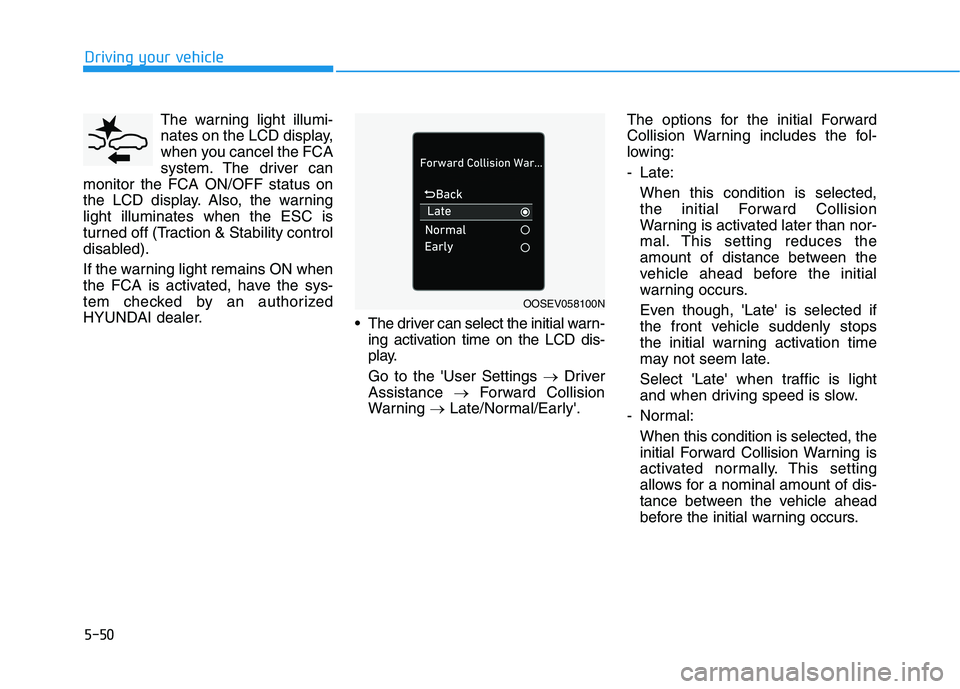
The driver can select the initial warn-
ing activation time on the LCD dis-
play.
Go to the 'User Settings →Driver
Assistance →Forward Collision
Warning →Late/Normal/Early'.The options for the initial Forward
Collision Warning includes the fol-
lowing:
- Late:
When this condition is selected,
the initial Forward Collision
Warning is activated later than nor-
mal. This setting reduces the
amount of distance between the
vehicle ahead before the initial
warning occurs.
Even though, 'Late' is selected if
the front vehicle suddenly stops
the initial warning activation time
may not seem late.
Select 'Late' when traffic is light
and when driving speed is slow.
- Normal:
When this condition is selected, the
initial Forward Collision Warning is
activated normally. This setting
allows for a nominal amount of dis-
tance between the vehicle ahead
before the initial warning occurs.
OOSEV058100N