Page 213 of 350
210 IN CASE OF EMERGENCY
CavityMini Fuse Description
F53 5 Amp BeigeKL 30 (+30) - IPC, FTM
F38 20 Amp YellowCentral Doors Locking
F36 15 Amp BlueKL 30 (+30) - TPMS, EOBD, HVAC,
Radio, SGW
F43 15 Amp BlueBi-Directional Washer Pump
F48 20 Amp YellowPassenger Power Windows
F50 7.5 Amp BrownKL 15 (+15) - Air-Bag
F51 7.5 Amp BrownKL 15 (+15) - External Mirror
Adjustment Command, HVAC, RVC,
HWB Coils
F37 5 Amp BeigeKL 15 (+15) - Brake Pedal Switch (N.O.),
IPC, Brake Pedal Switch (N.C.)
F49 5 Amp BeigeKL 15 (+15) - PAM, CSS Lighting, TTM,
SGW, and Heaters Light
F31 5 Amp BeigeKL 15a (INT A) - HWB, MCO
F47 20 Amp YellowDriver Power Windows
2020_RAM_PROMASTER_CITY_OM_USA=GUID-7B6A7FCA-79B0-423F-95C5-ED2A949C3D13=1=en=.book Page 210
Page 235 of 350

232 IN CASE OF EMERGENCY
1. Apply the parking brake, shift the automatic transmis-sion into PARK (P) and turn the ignition to STOP.
2. Turn off the heater, radio, and all unnecessary electrical accessories. 3. If using another vehicle to jump-start the battery, park the
vehicle within the jumper cables reach, apply the parking
brake and make sure the ignition is OFF.
Jump Starting Procedure
WARNING!
• Take care to avoid the radiator cooling fan whenever the hood is raised. It can start anytime the ignition
switch is ON. You can be injured by moving fan blades.
• Remove any metal jewelry such as rings, watch bands and bracelets that could make an inadvertent electrical
contact. You could be seriously injured.
• Batteries contain sulfuric acid that can burn your skin or eyes and generate hydrogen gas which is flammable
and explosive. Keep open flames or sparks away from
the battery.
WARNING!
Do not allow vehicles to touch each other as this could
establish a ground connection and personal injury could
result.
WARNING!
Failure to follow this jump starting procedure could
result in personal injury or property damage due to
battery explosion.
CAUTION!
Failure to follow these procedures could result in
damage to the charging system of the booster vehicle or
the discharged vehicle.
2020_RAM_PROMASTER_CITY_OM_USA=GUID-7B6A7FCA-79B0-423F-95C5-ED2A949C3D13=1=en=.book Page 232
Page 296 of 350

SERVICING AND MAINTENANCE 293
Leather Parts
Mopar Total Clean is specifically recommended for leather
upholstery.
Your leather upholstery can be best preserved by regular
cleaning with a damp soft cloth. Small particles of dirt can act
as an abrasive and damage the leather upholstery and
should be removed promptly with a damp cloth. Stubborn
soils can be removed easily with a soft cloth and Mopar Total
Clean. Care should be taken to avoid soaking your leather
upholstery with any liquid. Please do not use polishes, oils,
cleaning fluids, solvents, detergents, or ammonia-based
cleaners to clean your leather upholstery. Application of a
leather conditioner is not required to maintain the original
condition.
NOTE:
If equipped with light colored leather, it tends to show any
foreign material, dirt, and fabric dye transfer more so than
darker colors. The leather is designed for easy cleaning, and
FCA recommends Mopar total care leather cleaner applied
on a cloth to clean the leather seats as needed.
Glass Surfaces
All glass surfaces should be cleaned on a regular basis with
Mopar Glass Cleaner, or any commercial household-type
glass cleaner. Never use an abrasive type cleaner. Use
caution when cleaning the inside rear window equipped
with electric defrosters or windows equipped with radio
antennas. Do not use scrapers or other sharp instruments
that may scratch the elements.
When cleaning the rear view mirror, spray cleaner on the
towel or cloth that you are using. Do not spray cleaner
directly on the mirror.CAUTION!
Do not use Alcohol and Alcohol-based and/or Ketone
based cleaning products to clean leather upholstery, as
damage to the upholstery may result.
7
2020_RAM_PROMASTER_CITY_OM_USA=GUID-7B6A7FCA-79B0-423F-95C5-ED2A949C3D13=1=en=.book Page 293
Page 310 of 350
MULTIMEDIA 307
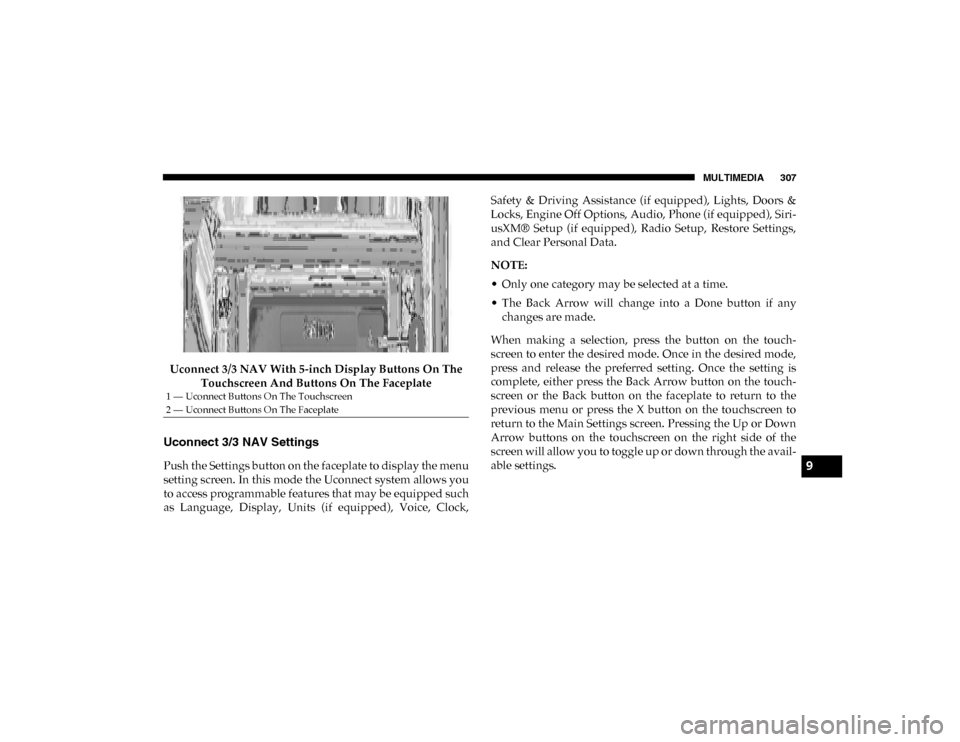
Uconnect 3/3 NAV With 5-inch Display Buttons On The Touchscreen And Buttons On The Faceplate
Uconnect 3/3 NAV Settings
Push the Settings button on the faceplate to display the menu
setting screen. In this mode the Uconnect system allows you
to access programmable features that may be equipped such
as Language, Display, Units (if equipped), Voice, Clock, Safety & Driving Assistance (if equipped), Lights, Doors &
Locks, Engine Off Options, Audio, Phone (if equipped), Siri
-
usXM® Setup (if equipped), Radio Setup, Restore Settings,
and Clear Personal Data.
NOTE:
• Only one category may be selected at a time.
• The Back Arrow will change into a Done button if any changes are made.
When making a selection, press the button on the touch -
screen to enter the desired mode. Once in the desired mode,
press and release the preferred setting. Once the setting is
complete, either press the Back Arrow button on the touch -
screen or the Back button on the faceplate to return to the
previous menu or press the X button on the touchscreen to
return to the Main Settings screen. Pressing the Up or Down
Arrow buttons on the touchscreen on the right side of the
screen will allow you to toggle up or down through the avail -
able settings.
1 — Uconnect Buttons On The Touchscreen
2 — Uconnect Buttons On The Faceplate
9
2020_RAM_PROMASTER_CITY_OM_USA=GUID-7B6A7FCA-79B0-423F-95C5-ED2A949C3D13=1=en=.book Page 307
Page 315 of 350
312 MULTIMEDIA
Doors & Locks — If Equipped
After pressing the Doors & Locks button on the touchscreen, the following settings will be available:
Engine Off Options
After pressing the Engine Off Options button on the touchscreen, the following settings will be available:Setting Name
Selectable Options
Auto Door Locks On Off
NOTE:
When the “Auto Door Locks” feature is selected, all doors will lock automatically when the vehicle reaches a speed of 12 mph
(20 km/h). Sound Horn With Lock Off1st Press 2nd Press
Setting Name Selectable Options
Radio Off Delay — If Equipped 0 min
20 min
NOTE:
When this Setting is selected, the radio will remain off for the selected amount of time when the engine has been shut off.
2020_RAM_PROMASTER_CITY_OM_USA=GUID-7B6A7FCA-79B0-423F-95C5-ED2A949C3D13=1=en=.book Page 312
Page 317 of 350

314 MULTIMEDIA
Phone/Bluetooth®
After pressing the Phone/Bluetooth® button on the touchscreen, the following settings will be available:Auto-On Radio — If
Equipped On
OffRecall Last
NOTE:
Press the Auto-On Radio button on the touchscreen to set how the radio behaves when the ignition is switched to ON/RUN. AUX Volume Offset + –
NOTE:
This feature provides the ability to tune the audio level for portable devices connected through the AUX input. Auto Play On Off
NOTE:
The Auto Play feature allows a media device to begin playing when the media device is plugged in. To make your selection,
press the On or Off buttons to activate or deactivate Auto Play.
Setting Name
Selectable Options
Setting NameSelectable Options
Paired Phones/Devices List of Paired Phones/Devices
NOTE:
This feature shows which phones are paired to the Phone system. For further information, refer to the Uconnect Owner’s
Manual Supplement.
2020_RAM_PROMASTER_CITY_OM_USA=GUID-7B6A7FCA-79B0-423F-95C5-ED2A949C3D13=1=en=.book Page 314
Page 318 of 350

MULTIMEDIA 315
SiriusXM® Setup — If Equipped
After pressing the SiriusXM® Setup button on the touchscreen, the following settings will be available:Setting Name Selectable Options
Tune Start OnOff
NOTE:
The “Tune Start” feature begins playing the current song from the beginning when you tune to a music channel using one
of the 12 presets, so you can enjoy the complete song. This feature occurs the first time the preset is selected during that
current song. Tune Start works in the background, so you will not even realize it's on, except that you will miss the experience
of joining your favorite song with only a few seconds left to play. Channel Skip List of Channels
NOTE:
SiriusXM® can be programmed to designate a group of channels that are the most desirable to listen to or to exclude unde -
sirable channels while scanning. This feature allows you to select the channels you would like to skip.
Subscription Information Sirius ID
NOTE:
New vehicle purchasers or lessees will receive a free limited time subscription to SiriusXM® Satellite Radio with your radio.
Following the expiration of the free services, it will be necessary to access the information on the Subscription Information
screen to re-subscribe.
1. Press the Subscription Information button on the touchscreen to access the Subscription Information screen.
2. Write down the Sirius ID numbers for your receiver. To reactivate your service, either call the number listed on the screen or visit the provider online.
SiriusXM® Travel Link is a separate subscription.
9
2020_RAM_PROMASTER_CITY_OM_USA=GUID-7B6A7FCA-79B0-423F-95C5-ED2A949C3D13=1=en=.book Page 315
Page 319 of 350
316 MULTIMEDIA
Restore Settings — If Equipped
After pressing the Restore Settings button on the touchscreen, the following settings will be available:
Clear Personal Data
After pressing the Clear Personal Data button on the touchscreen, the following settings will be available:Setting Name
Selectable Options
Restore Settings YesNo
NOTE:
When this feature is selected, it will reset the Display, Clock, Audio, and Radio Settings to their default settings. Once the
settings are restored, a pop-up appears stating "settings reset to default." Press the okay button on the touchscreen to exit.
Setting Name Selectable Options
Clear Personal Data YesNo
NOTE:
When this feature is selected, it will remove personal data including Bluetooth® devices and presets.
2020_RAM_PROMASTER_CITY_OM_USA=GUID-7B6A7FCA-79B0-423F-95C5-ED2A949C3D13=1=en=.book Page 316