Page 50 of 456
50
Supra Owner's Manual3-1. CONTROLS
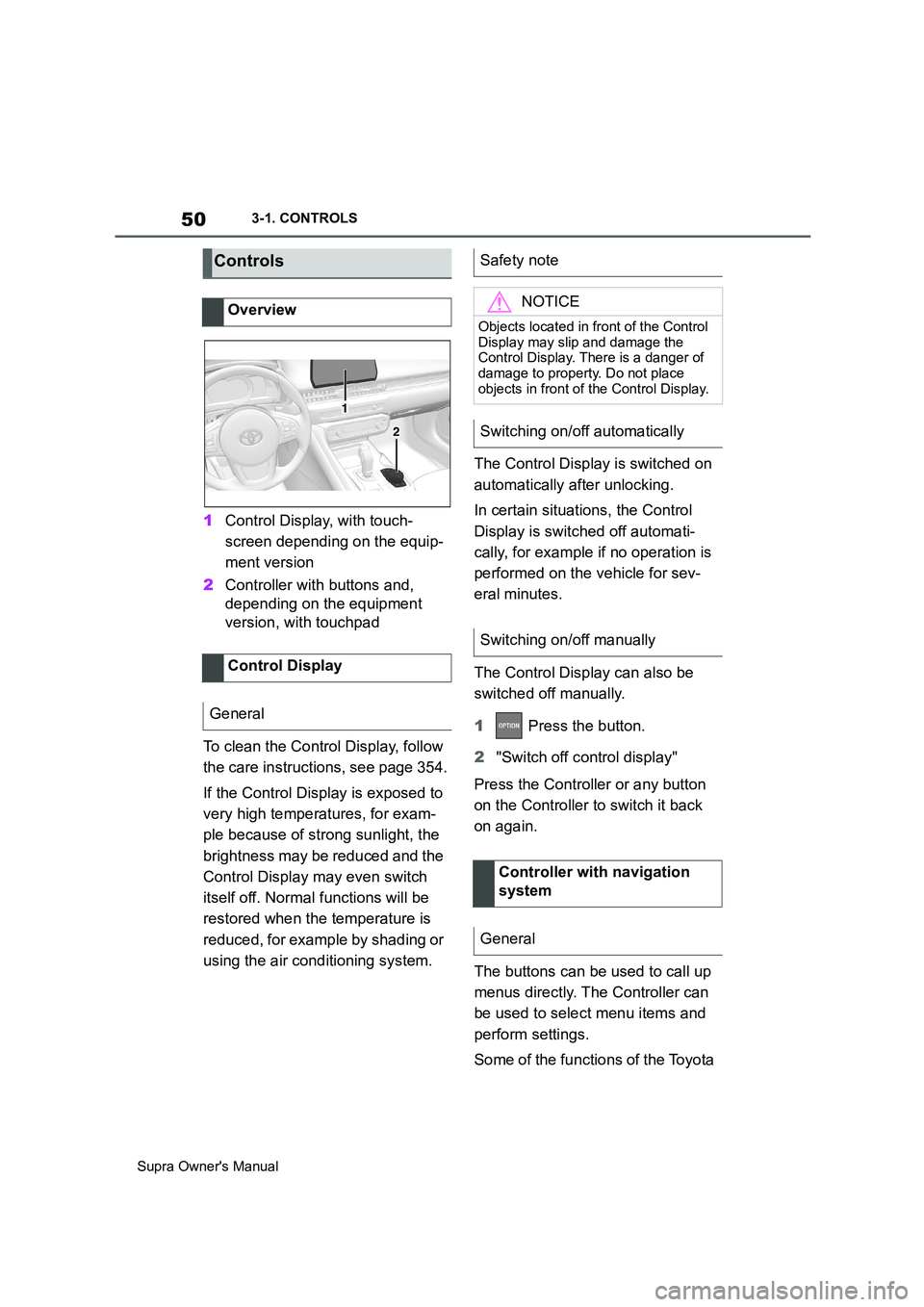
1Control Display, with touch-
screen depending on the equip-
ment version
2Controller with buttons and,
depending on the equipment
version, with touchpad
To clean the Control Display, follow
the care instructions, see page 354.
If the Control Display is exposed to
very high temperatures, for exam-
ple because of strong sunlight, the
brightness may be reduced and the
Control Display may even switch
itself off. Normal functions will be
restored when the temperature is
reduced, for example by shading or
using the air conditioning system.The Control Display is switched on
automatically after unlocking.
In certain situations, the Control
Display is switched off automati-
cally, for example if no operation is
performed on the vehicle for sev-
eral minutes.
The Control Display can also be
switched off manually.
1 Press the button.
2"Switch off control display"
Press the Controller or any button
on the Controller to switch it back
on again.
The buttons can be used to call up
menus directly. The Controller can
be used to select menu items and
perform settings.
Some of the functions of the Toyota
Controls
Overview
Control Display
General
1
2
Safety note
NOTICE
Objects located in front of the Control
Display may slip and damage the
Control Display. There is a danger of
damage to property. Do not place
objects in front of the Control Display.
Switching on/off automatically
Switching on/off manually
Controller with navigation
system
General
Page 52 of 456
52
Supra Owner's Manual3-1. CONTROLS
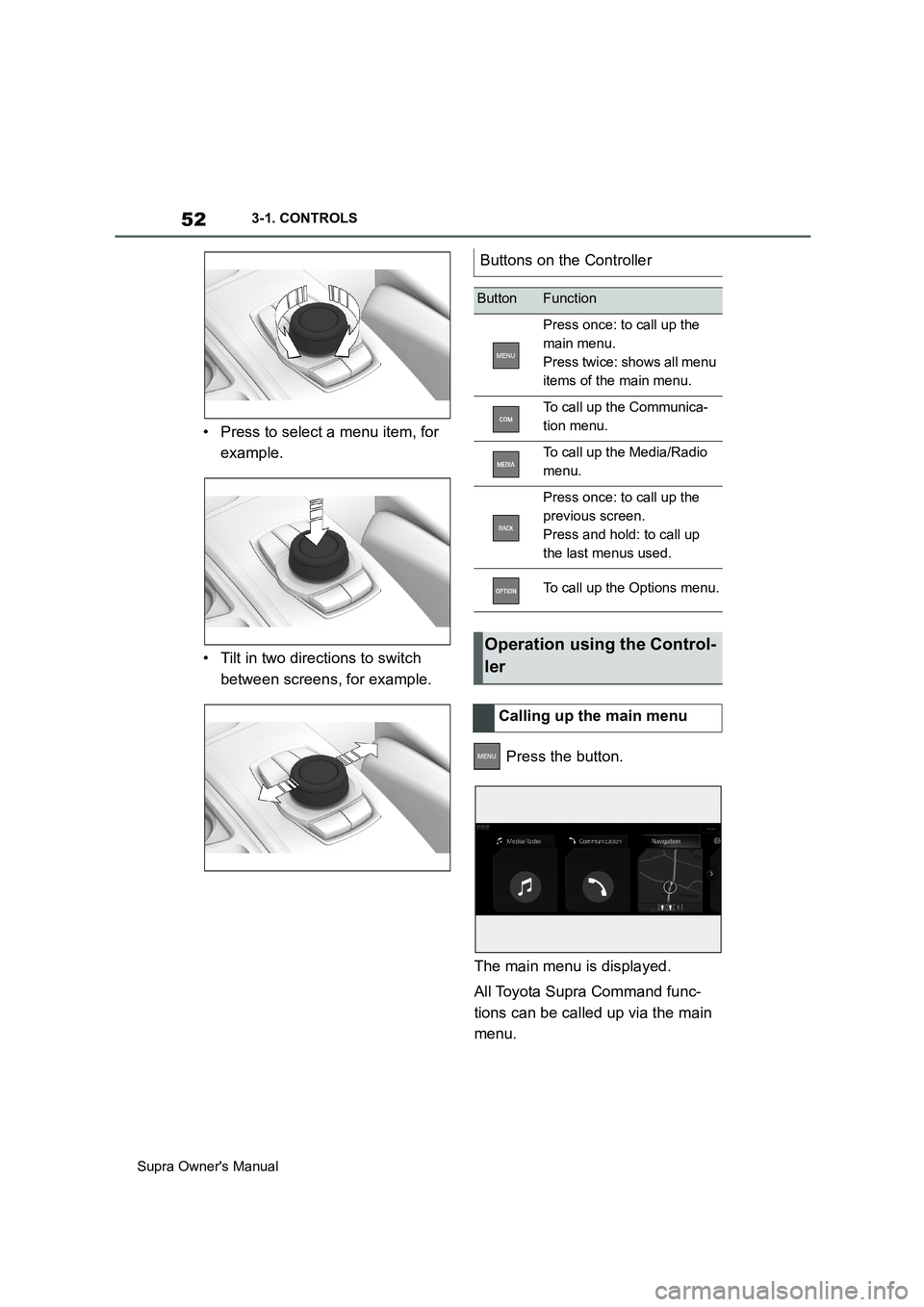
• Press to select a menu item, for
example.
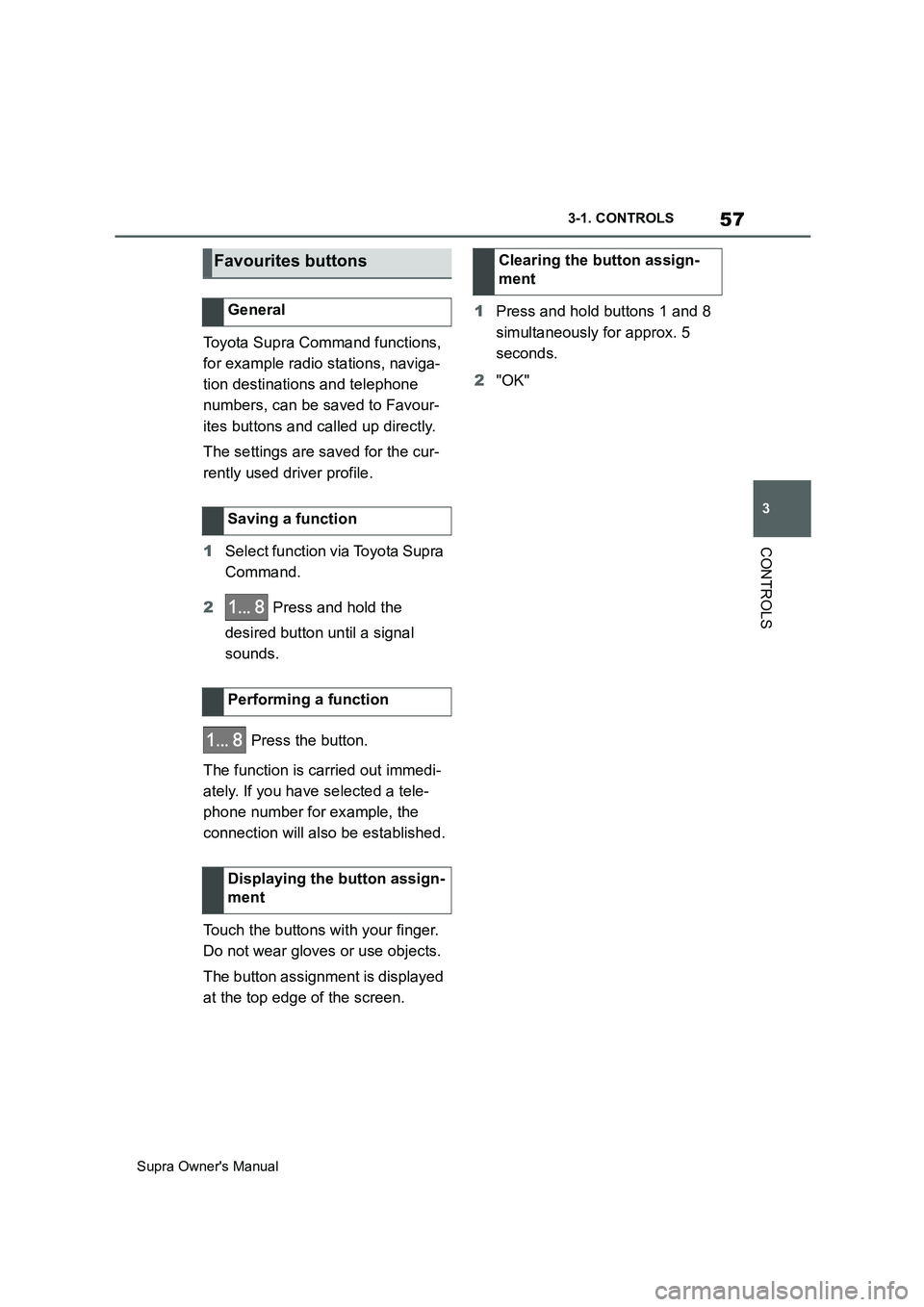
• Tilt in two directions to switch
between screens, for example.
Press the button.
The main menu is displayed.
All Toyota Supra Command func-
tions can be called up via the main
menu.
Buttons on the Controller
ButtonFunction
Press once: to call up the
main menu.
Press twice: shows all menu
items of the main menu.
To call up the Communica-
tion menu.
To call up the Media/Radio
menu.
Press once: to call up the
previous screen.
Press and hold: to call up
the last menus used.
To call up the Options menu.
Operation using the Control-
ler
Calling up the main menu
Page 53 of 456
53
3
Supra Owner's Manual3-1. CONTROLS
CONTROLS
1 Press the button twice.
All menu items of the main menu are
displayed.
2Select a menu item.
3To move a menu item to the
desired position, tilt the Control-
ler to the right or left.
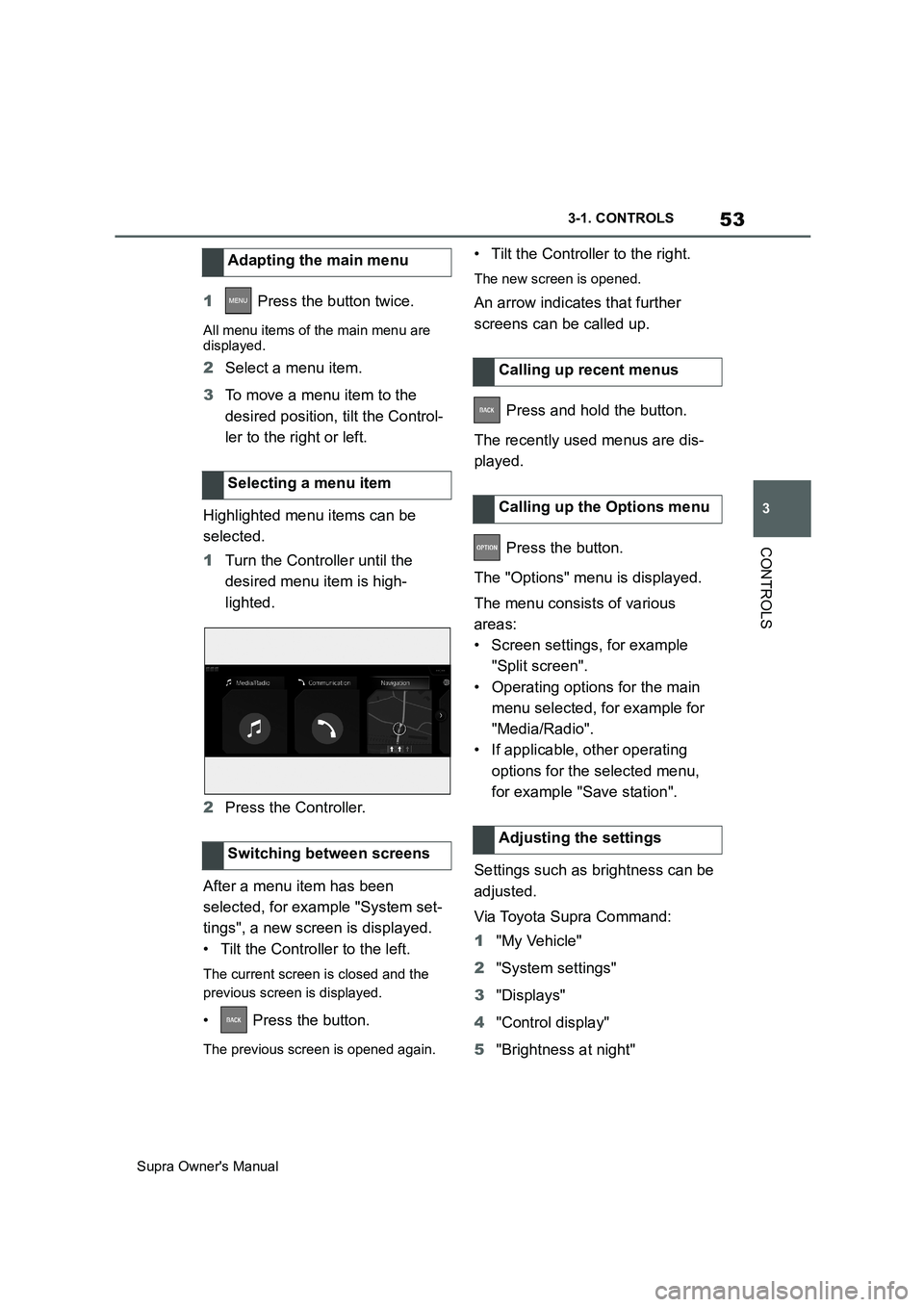
Highlighted menu items can be
selected.
1Turn the Controller until the
desired menu item is high-
lighted.
2Press the Controller.
After a menu item has been
selected, for example "System set-
tings", a new screen is displayed.
• Tilt the Controller to the left.
The current screen is closed and the
previous screen is displayed.
• Press the button.
The previous screen is opened again.
• Tilt the Controller to the right.
The new screen is opened.
An arrow indicates that further
screens can be called up.
Press and hold the button.
The recently used menus are dis-
played.
Press the button.
The "Options" menu is displayed.
The menu consists of various
areas:
• Screen settings, for example
"Split screen".
• Operating options for the main
menu selected, for example for
"Media/Radio".
• If applicable, other operating
options for the selected menu,
for example "Save station".
Settings such as brightness can be
adjusted.
Via Toyota Supra Command:
1"My Vehicle"
2"System settings"
3"Displays"
4"Control display"
5"Brightness at night" Adapting the main menu
Selecting a menu item
Switching between screens
Calling up recent menus
Calling up the Options menu
Adjusting the settings
Page 54 of 456
54
Supra Owner's Manual3-1. CONTROLS
6Turn the Controller until the
desired setting is displayed.
7Press the Controller.
1Turn the Controller: to select let-
ters or numbers.
2: to confirm your entry.
For alphabetical lists with more
than 30 entries, the letters for which
entries are available can be dis-
played on the left.
1Turn the Controller quickly to the
left or right.
All the letters for which an entry is avail-
able are shown on the left.
2Select the initial letter of the
desired entry.
The first entry of the selected letter is
displayed.
The Control Display is equipped
with a touchscreen.
Touch the touchscreen with your
fingers. Do not use any objects.
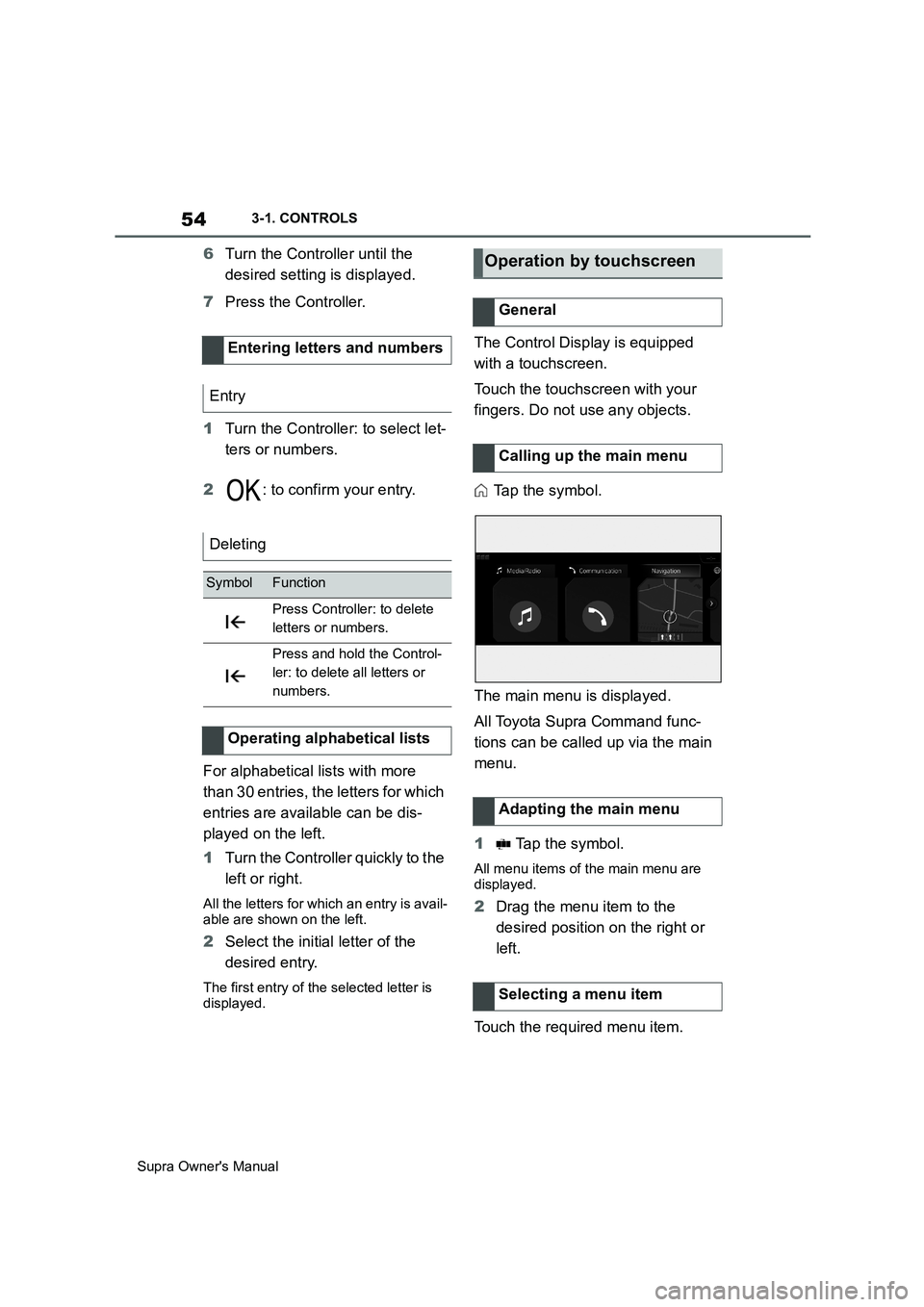
Tap the symbol.
The main menu is displayed.
All Toyota Supra Command func-
tions can be called up via the main
menu.
1 Tap the symbol.
All menu items of the main menu are
displayed.
2Drag the menu item to the
desired position on the right or
left.
Touch the required menu item. Entering letters and numbers
Entry
Deleting
SymbolFunction
Press Controller: to delete
letters or numbers.
Press and hold the Control-
ler: to delete all letters or
numbers.
Operating alphabetical lists
Operation by touchscreen
General
Calling up the main menu
Adapting the main menu
Selecting a menu item
Page 55 of 456
55
3
Supra Owner's Manual3-1. CONTROLS
CONTROLS
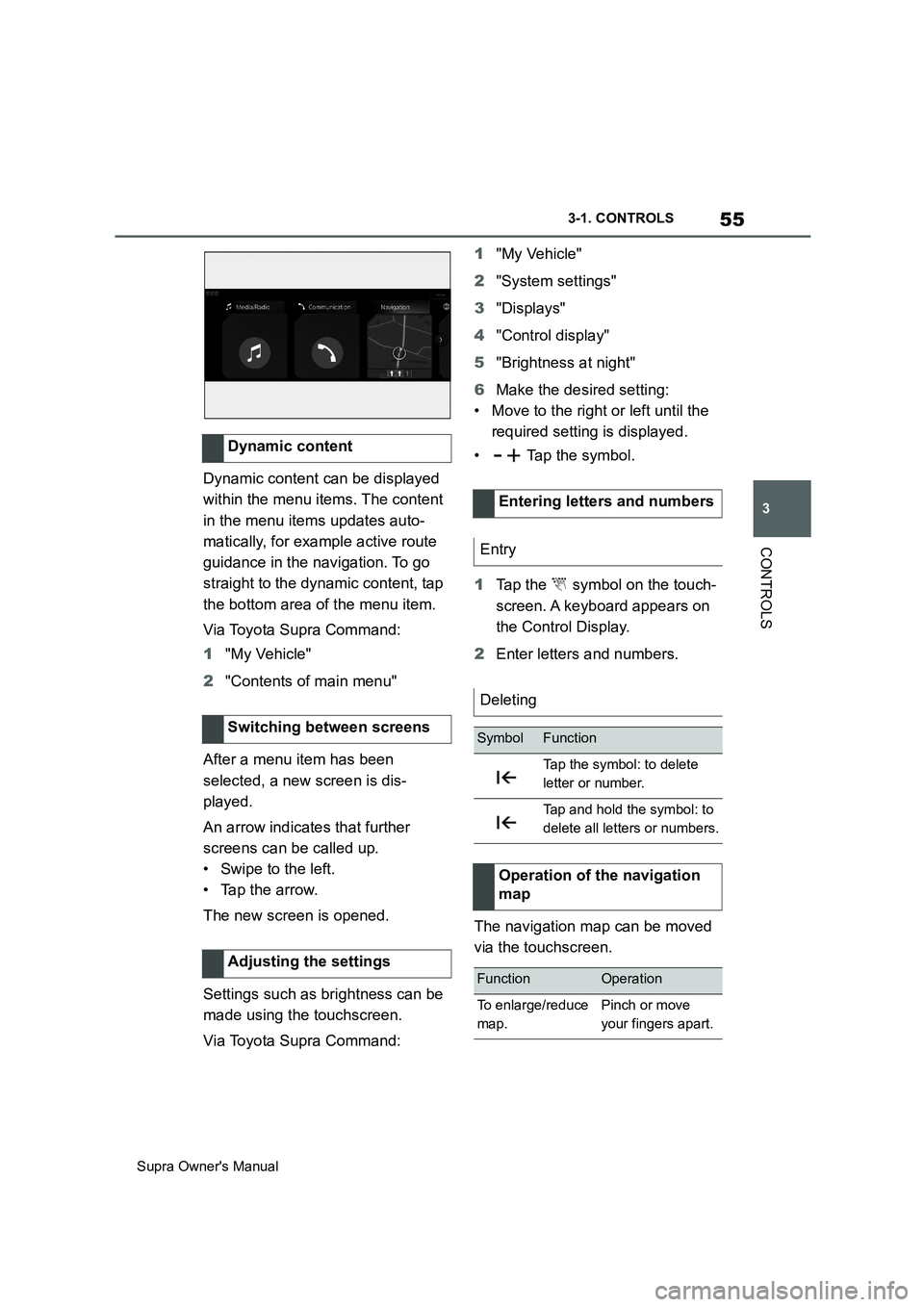
Dynamic content can be displayed
within the menu items. The content
in the menu items updates auto-
matically, for example active route
guidance in the navigation. To go
straight to the dynamic content, tap
the bottom area of the menu item.
Via Toyota Supra Command:
1"My Vehicle"
2"Contents of main menu"
After a menu item has been
selected, a new screen is dis-
played.
An arrow indicates that further
screens can be called up.
• Swipe to the left.
• Tap the arrow.
The new screen is opened.
Settings such as brightness can be
made using the touchscreen.
Via Toyota Supra Command:1"My Vehicle"
2"System settings"
3"Displays"
4"Control display"
5"Brightness at night"
6Make the desired setting:
• Move to the right or left until the
required setting is displayed.
• Tap the symbol.
1Tap the symbol on the touch-
screen. A keyboard appears on
the Control Display.
2Enter letters and numbers.
The navigation map can be moved
via the touchscreen. Dynamic content
Switching between screens
Adjusting the settings
Entering letters and numbers
Entry
Deleting
SymbolFunction
Tap the symbol: to delete
letter or number.
Tap and hold the symbol: to
delete all letters or numbers.
Operation of the navigation
map
FunctionOperation
To enlarge/reduce
map.Pinch or move
your fingers apart.
Page 56 of 456
56
Supra Owner's Manual3-1. CONTROLS
Some of the functions of the Toyota
Supra Command can be operated
with the touchpad of the Controller.
Via Toyota Supra Command:
1"My Vehicle"
2"System settings"
3"Touchpad"
4Select the desired setting:
• "Write": to enter letters and num-
bers.
• "Map": to operate the map.
• "Search fields": to write letters
without selecting the list field.
• "Audio feedback": to have the
entered letters and numbers
read out.
Entering letters requires a bit of
practice to begin with. Pay attention
to the following when entering:
• The system recognises upper
and lower case and numbers. It
may be necessary to switch
between upper and lower case,
numbers and characters, see
page 54.
• Enter characters as they are dis-
played on the Control Display.
• Always enter associated charac-ters, for example accents or
dots, so that the letter will be cor-
rectly detected. The input option
depends on the language that
has been set. You may need to
enter special characters using
the Controller.
The map of the navigation system
can be moved using the touchpad.
Touchpad
General
Selecting functions
Entering letters and numbers
Entering special characters
EntryOperation
To delete a charac-
ter.Swipe on the
touchpad to the
left.
To enter a space.
Swipe in the mid-
dle of the touchpad
to the right.
To enter a hyphen.
Swipe at the top of
the touchpad to the
right.
To enter an under-
score.
Swipe at the bot-
tom of the
touchpad to the
right.
Operating map
FunctionOperation
To move map.
Swipe in the
appropriate direc-
tion.
To enlarge/reduce
map.
Pinch together or
move your fingers
apart on the
touchpad.
To display menu.Tap once.
Page 57 of 456
57
3
Supra Owner's Manual3-1. CONTROLS
CONTROLS
Toyota Supra Command functions,
for example radio stations, naviga-
tion destinations and telephone
numbers, can be saved to Favour-
ites buttons and called up directly.
The settings are saved for the cur-
rently used driver profile.
1Select function via Toyota Supra
Command.
2 Press and hold the
desired button until a signal
sounds.
Press the button.
The function is carried out immedi-
ately. If you have selected a tele-
phone number for example, the
connection will also be established.
Touch the buttons with your finger.
Do not wear gloves or use objects.
The button assignment is displayed
at the top edge of the screen.1Press and hold buttons 1 and 8
simultaneously for approx. 5
seconds.
2"OK"
Favourites buttons
General
Saving a function
Performing a function
Displaying the button assign-
ment
Clearing the button assign-
ment
Page 58 of 456
58
Supra Owner's Manual3-1. CONTROLS
This chapter describes all standard,
country-specific and special equip-
ment available for the model series.
It may therefore describe equip-
ment which is not installed in your
vehicle, for example on account of
the optional equipment selected or
the country specification. This also
applies to safety-relevant functions
and systems. Please comply with
the relevant laws and regulations
when using the corresponding func-
tions and systems.
The voice control system enables
most of the functions shown in the
Control Display to be operated by
spoken commands. The system
provides spoken announcements to
assist you with input.
• Functions that can only be used
when the vehicle is stationary
can only be operated via the
voice control system to a limited
extent.
• The system has a special micro-
phone on the driver's side.
• ›...‹ indicates commands for the
voice control system in the
Owner's Manual.• Commands, numbers and let-
ters should be spoken fluently,
with the usual emphasis and at a
normal volume and speed.
• Always say the commands in the
language of the voice control
system.
• When selecting the radio sta-
tion, use the customary pronun-
ciation of the station name as it is
displayed on the Control Display.
›[...] Station ...‹, for example,
Classic Radio station.
In order for the voice commands to
be detected, a language must be
set using Toyota Supra Command
that is supported by the voice con-
trol system.
Selecting the language, see page
61.
1 Press the button on the
steering wheel.
2Wait for the acoustic signal.
3Say the command.
It is possible that no further spoken
commands are available. In this
Voice control system
Vehicle equipment
Principle
General
Operating requirements
Saying voice commands
Activating the voice control
system
This symbol on the Control
Display shows that the voice
control system is active.