Page 608 of 698
Setting NameSelectable Options
Personal Settings Linked To Key Fob — IfEquipped On
Off
NOTE:
•The “Personal Settings Linked To Key Fob” feature provides automatic driver seat positioning to enhance driver
mobility when entering and exiting the vehicle.
•The seats return to the memorized seat location (if “Personal Settings Linked To Key Fob” is set to on) when the
key fob is used to unlock the door.
Power Side Steps — If Equipped
After pressing the “Power Side Steps” button on the
touchscreen, the following settings will be available:
Setting Name Selectable Options
Power Side Steps AutomaticStow
606 MULTIMEDIA
Page 612 of 698
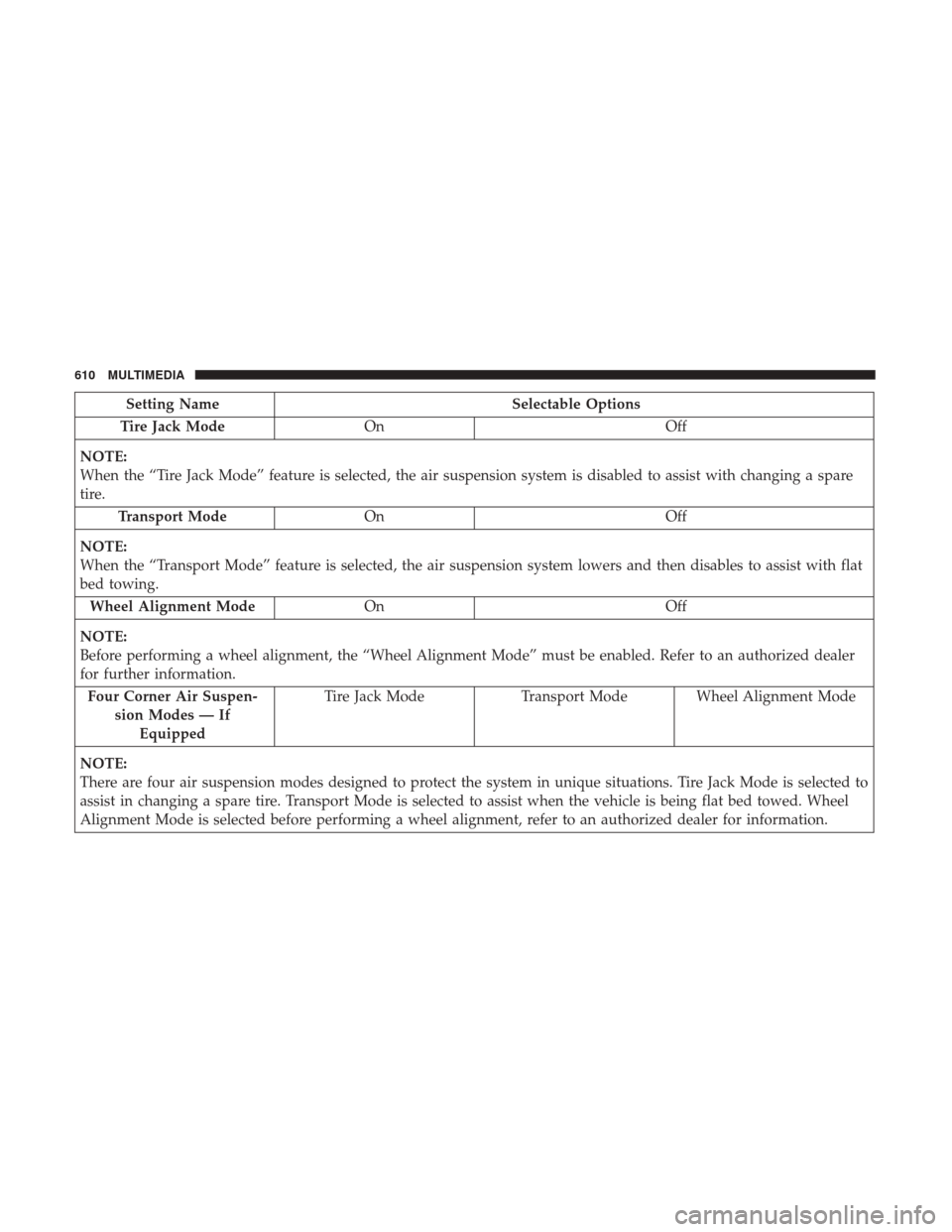
Setting NameSelectable Options
Tire Jack Mode On Off
NOTE:
When the “Tire Jack Mode” feature is selected, the air suspension system is disabled to assist with changing a spare
tire. Transport Mode On Off
NOTE:
When the “Transport Mode” feature is selected, the air suspension system lowers and then disables to assist with flat
bed towing. Wheel Alignment Mode On Off
NOTE:
Before performing a wheel alignment, the “Wheel Alignment Mode” must be enabled. Refer to an authorized dealer
for further information. Four Corner Air Suspen- sion Modes — IfEquipped Tire Jack Mode
Transport Mode Wheel Alignment Mode
NOTE:
There are four air suspension modes designed to protect the system in unique situations. Tire Jack Mode is selected to
assist in changing a spare tire. Transport Mode is selected to assist when the vehicle is being flat bed towed. Wheel
Alignment Mode is selected before performing a wheel alignment, refer to an authorized dealer for information.
610 MULTIMEDIA
Page 613 of 698
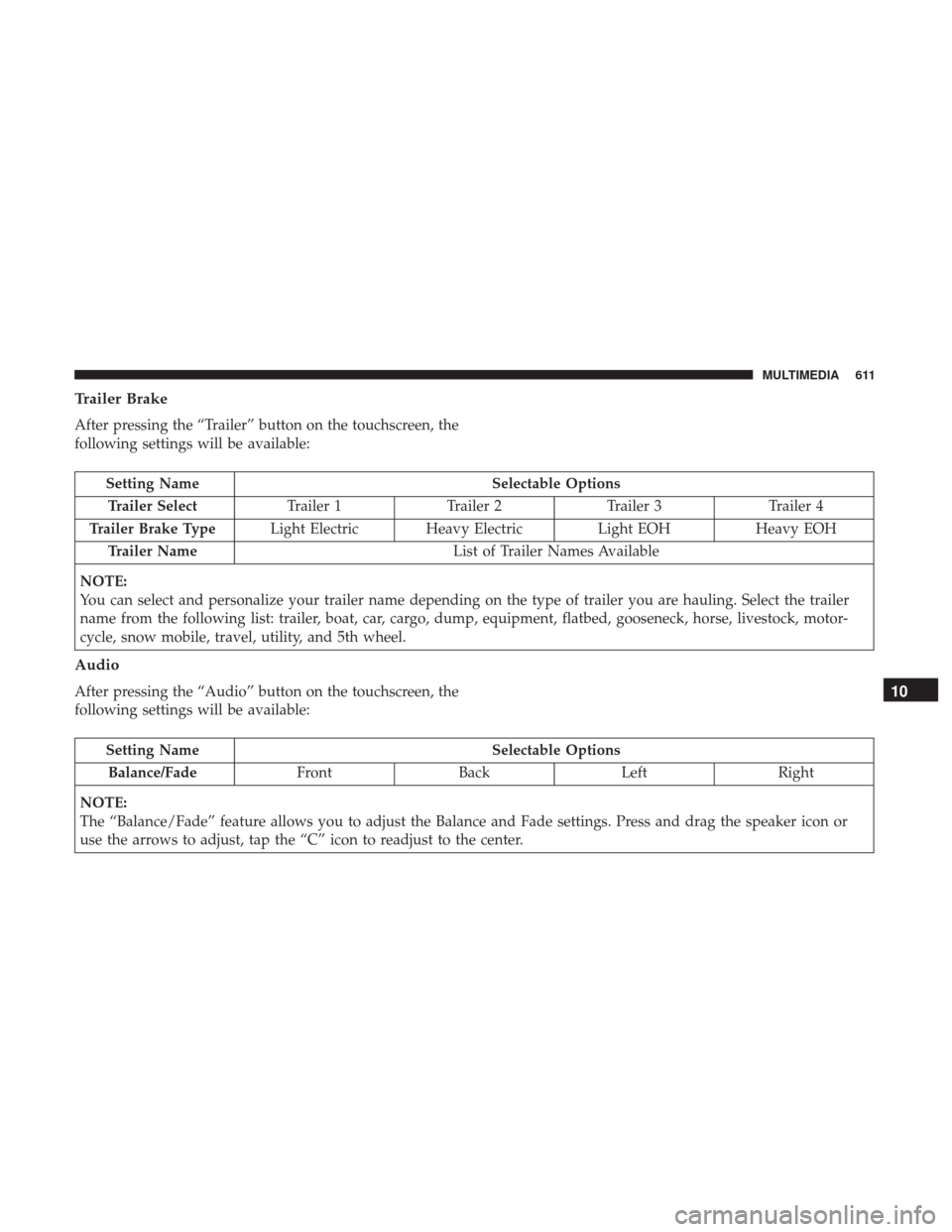
Trailer Brake
After pressing the “Trailer” button on the touchscreen, the
following settings will be available:
Setting NameSelectable Options
Trailer Select Trailer 1Trailer 2Trailer 3 Trailer 4
Trailer Brake Type Light Electric Heavy Electric Light EOHHeavy EOH
Trailer Name List of Trailer Names Available
NOTE:
You can select and personalize your trailer name depending on the type of trailer you are hauling. Select the trailer
name from the following list: trailer, boat, car, cargo, dump, equipment, flatbed, gooseneck, horse, livestock, motor-
cycle, snow mobile, travel, utility, and 5th wheel.
Audio
After pressing the “Audio” button on the touchscreen, the
following settings will be available:
Setting Name Selectable Options
Balance/Fade FrontBack LeftRight
NOTE:
The “Balance/Fade” feature allows you to adjust the Balance and Fade settings. Press and drag the speaker icon or
use the arrows to adjust, tap the “C” icon to readjust to the center.
10
MULTIMEDIA 611
Page 617 of 698
Setting NameSelectable Options
Subscription Info Sirius ID
NOTE:
New vehicle purchasers or lessees will receive a free limited time subscription to SiriusXM Satellite Radio with your
radio. Following the expiration of the free services, it will be necessary to access the information on the Subscription
Information screen to re-subscribe.
1. Press the “Subscription Info” button on the touchscreen to access the Subscription Information screen.
2. Write down the Sirius ID numbers for your receiver. To reactivate your service, either call the number listed on the screen or visit the provider online.
SiriusXM Travel Link is a separate subscription.
Reset
After pressing the “Reset” button on the touchscreen, the
following settings will be available:
Setting Name Selectable Options
Reset App Drawer OKCancel
Restore Settings OKCancel
NOTE:
When the “Restore Settings” feature is selected it resets clock, audio and other features to their default settings.
10
MULTIMEDIA 615
Page 618 of 698
Setting NameSelectable Options
Clear Personal Data OKCancel
NOTE:
When the “Clear Personal Data” feature is selected it removes all personal data including Bluetooth devices and pre-
sets.
System Information
After pressing the “System Information” button on the
touchscreen, the following settings will be available:
Setting Name Selectable Options
Software License System Software Information Screen
NOTE:
When the “Software License” feature is selected, a “System Software Information” screen will appear, displaying the
system software version.
616 MULTIMEDIA
Page 619 of 698

Uconnect 4C NAV With 12–inch Display Settings
Press the “Settings” button on the touchscreen to display
the settings menu screen. In this mode the Uconnect
system allows you to access programmable features that
may be equipped such as Language, Display, Voice Set-
tings, Clock & Date, Camera, Safety & Driving Assistance,
Mirrors and Wipers, Brakes, Lights, Doors & Locks,Auto-On Comfort & Remote Start (if equipped), Engine Off
Options, Suspension, Trailer Brake, Audio Settings,
Bluetooth, SiriusXM Setup (if equipped), and Reset.
NOTE:
Only one category may be selected at a time.
When making a selection, press the button on the touch-
screen to enter the desired mode. Once in the desired
mode, press and release the preferred setting until a
check-mark appears next to the setting, showing that
setting has been selected. Once the setting is complete,
press the back arrow button on the touchscreen to return to
the previous menu or press the “X” button on the touch-
screen to close out of the settings screen. Pressing the Up or
Down Arrow buttons on the touchscreen on the right side
of the screen will allow you to toggle up or down through
the list of available settings.
NOTE: All settings should be changed with the ignition in
the RUN position.
Uconnect 4C NAV With 12–inch Display Buttons On The
Touchscreen And Buttons On The Faceplate
1 — Uconnect Buttons On The Touchscreen
2 — Uconnect Buttons On The Faceplate
10
MULTIMEDIA 617
Page 622 of 698
Units — If Equipped
After pressing “Units” on the touchscreen, the following
will be available:
Setting NameSelectable Options
Units USMetric Custom
NOTE: When the “Custom” setting is selected, units will appear according to your personally configured settings. To
configure these settings, press the “Custom” bar. The following settings will appear:
Speed MPH km/h
Distance mi km
Fuel Consumption MPG (US)MPG (UK) L/100 km km/L
Capacity Gal (US)Gal (UK) L
Pressure psikPa bar
Temperature °F °C
Voice
After pressing the “Voice” button on the touchscreen, the
following settings will be available:
Setting Name Selectable Options
Voice Response Length Brief Detailed
Show Command List Alwaysw/Help Never
620 MULTIMEDIA
Page 624 of 698

Camera
After pressing the “Camera” button on the touchscreen, the
following settings will be available:
Setting NameSelectable Options
Parkview Backup Camera Delay OnOff
NOTE:
The “ParkView Backup Camera Delay” setting determines whether or not the screen will display the rear view image with
dynamic grid lines for up to ten seconds after the vehicle is shifted out of REVERSE. This delay will be canceled if the vehi-
cle’s speed exceeds 8 mph (13 km/h), the transmission is shifted into PARK, or the ignition is switched to the OFF position.
Parkview Camera Delay On Off
NOTE:
The “Parkview Camera Delay” setting determines whether or not the screen will display the rear view image with dynamic
grid lines for up to ten seconds after the vehicle is shifted out of REVERSE. This delay will be canceled if the vehicle’s
speed exceeds 8 mph (13 km/h), the transmission is shifted into PARK, or the ignition is switched to the OFF position.
Active Backup Camera Guidelines On Off
NOTE:
The “Active Backup Camera Guidelines” feature overlays the Rear Backup Camera image with active, or dynamic,
grid lines to help illustrate the width of the vehicle and its project back up path, based on the steering wheel position
when the option is checked. A dashed center line overlay indicates the center of the vehicle to assist with parking or
aligning to a hitch/receiver. Fixed Backup Camera Guidelines OnOff
622 MULTIMEDIA