Page 379 of 729
#
An action is available: selectthe action. #
Several actions are available: ifth e notifi‐
cation is not open, select theV symbol. #
Select the action.
The notification is still available. #
IfAdditional information isavailable, select
th e action.
Ad ditional information is shown in a window
as text, ima geortext and ima ge. #
Toclose the windo w:select OK.
Editing notifications #
Call up the Notifications Centre
(/ page 375). #
Tomake settings: selectZ.
% If no settings can be made, a messa ge
appears. #
Select the service. #
Switch the options on or off.
The following options are available:
R Allow notifications
R Display in notification centre R
Show notifications
R Acoustic feedback
When Allow notifications is switched on, the
ot her options cannot be selected. #
Todel ete: touch a message on the
to uchsc reen and slide tothe left or right.
or #
Select there cycle bin. #
Select Delete orDelete all.
Delete deletes a single notification.
Delete all deletes all notifications cur rently
shown. #
With O you will exit dele temode. Global sear
ch Global sear
chove rview
Yo u can use theglobal sear chinthe home
screen and in the notifications.
The global sear chprov ides sear chresults forthe
fo llowing categories and their sub-categories:
R Navigation R
Media
R Telephone, social media, In Car Of fice
In Car Of fice is not available in all countries.
R User inter face and Digi tal Owner's Manual
R Internet
This enables youto sear chforto wns, roads and
to urist att ractions wi th the navigation sy stem,
fo rex ample.
% You can also sear chfor 3 wordaddresses
(/ page 412).
When you en ter a 3 wordaddress in the
gl obal sear ch, separate each of thewo rds
with a space or a full stop.
During the entry process the most likely sugges‐
tions are shown beneath the sear chfield. When
yo u en ter "S", "Stuttgart", "S teak" and "Sandra"
are shown, forex ample. If you select "Stuttgart",
yo ure cei vethe suggestions "S tarbuc ks", "S teak"
and "City railw ay",forex ample.
The sear chresults in the list are shown, sor ted
according tocatego ry. Next tothe category is
th e number of results. You will be shown the
best results from each categor y.Ad ditional 376
MBUX multimedia sy stem
Page 381 of 729
Switching
the sound on/off On
the multifunction steering wheel On
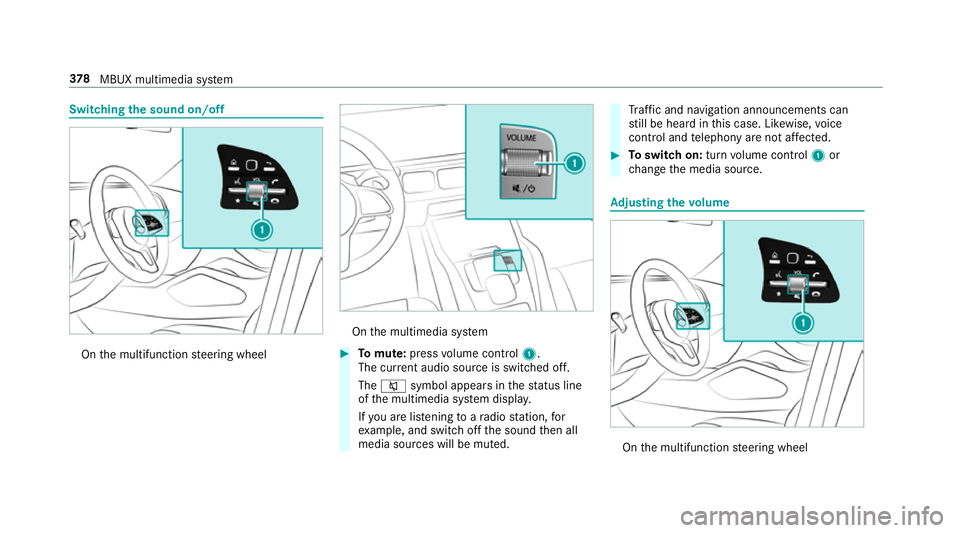
the multimedia sy stem #
Tomute: pressvolume control 1.
The cur rent audio sou rce is switched off.
The 8 symbol appears in thest atus line
of the multimedia sy stem displa y.
If yo u are lis tening toara dio station, for
ex ample, and swit choff the sound then all
media sources will be muted. Tr
af fic and navigation announcements can
st ill be heard in this case. Lik ewise, voice
control and telephony are not af fected. #
Toswitch on: turnvolume control 1or
ch ange the media source. Ad
justing the volume On
the multifunction steering wheel 378
MBUX multimedia sy stem
Page 382 of 729
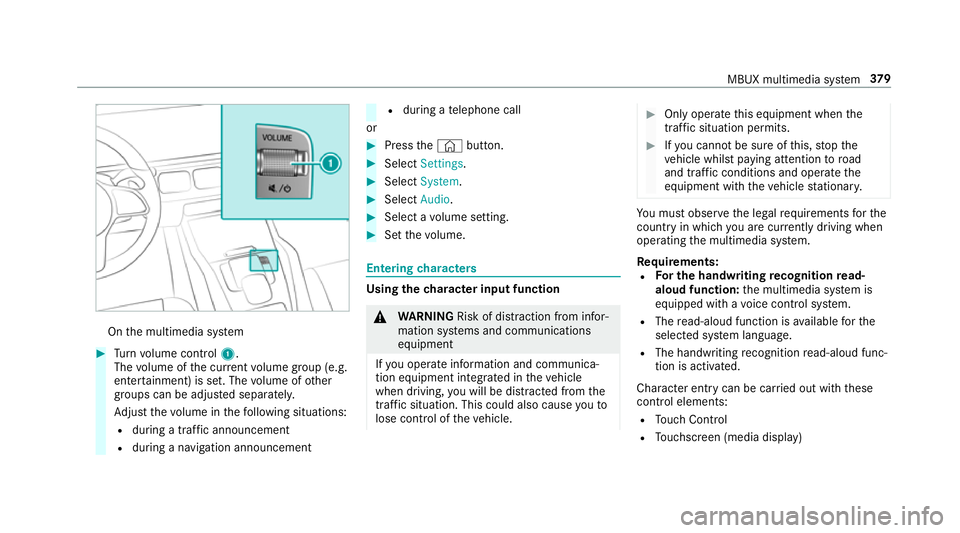
On
the multimedia sy stem #
Turn volume control 1.
The volume of the cur rent volume group (e.g.
enter tainment) is set. The volume of other
groups can be adjus ted separatel y.
Ad just thevo lume in thefo llowing situations:
R during a traf fic announcement
R during a navigation announcement R
during a telephone call
or #
Press the© button. #
Select Settings . #
Select System. #
Select Audio. #
Select a volume setting. #
Set thevo lume. Entering
characters Using
thech aracter input function &
WARNING Risk of di stra ction from infor‐
mation sy stems and communications
equipment
If yo u operate information and communica‐
tion equipment integ rated in theve hicle
when driving, you will be distracted from the
traf fic situation. This could also cause youto
lose control of theve hicle. #
Only operate this equipment when the
traf fic situation permits. #
Ifyo u cannot be sure of this, stop the
ve hicle whilst paying attention toroad
and traf fic conditions and ope rate the
equipment with theve hicle stationar y. Yo
u must obse rveth e legal requirements forthe
country in whi chyou are cur rently driving when
operating the multimedia sy stem.
Re quirements:
R For the handwriting recognition read-
aloud function: the multimedia sy stem is
equipped with a voice control sy stem.
R The read-aloud function is available forthe
selected sy stem language.
R The handwriting recognition read-aloud func‐
tion is activated.
Character ent rycan be car ried out with these
control elements:
R Touch Control
R Touchsc reen (media display) MBUX multimedia sy
stem 37 9
Page 398 of 729
#
Select Lock.
The device connected via the MBUX Touch
app is loc ked or unloc ked. Sy
stem language Note
s onthe sy stem language
This function allo wsyouto determ ine the lan‐
guage forth e menu displa ysand the navigation
announcements. The selected language af fects
th ech aracters available for entr y.The navigation
announcements are not available in all lan‐
guages. If a language is not available, the naviga‐
tion announcements will be in Engl ish.
Setting the sy stem language
Multimedia sy stem:
4 © 5
Settings 5
System
5 Language #
Set the language.
% Ifyo u are using Arabic map data, thete xt
information can also be shown in Arabic on
th e navigation map. Todo so, select �
Page 408 of 729
A cor
responding er ror messa geis shown if
th ere is no mobile phone connected or no
pulse can be sent tothe sy stem for an exten‐
ded pe riod.
% Only pulse values in thera nge of
30‑140 bpm are shown on the media displa y.
The pulse values ha veno medical validity but
are only informative in nature and are there‐
fo re also not requ ired tobe accura te. #
Intheeve nt of an er ror messa gemake sure
th at thefo llowing requ irements are fulfilled:
R The fitness trac ker is connected with your
GARMIN account.
R Your GARMIN account is connected with
yo ur Mercedes me account on your
mobile phone. R
The mobile phone is connected as the
main phone tothe multimedia sy stem
(/ page 452). Na
vigation Switching navigation on
Multimedia sy
stem:
4 © 5
Navigation (Navigation) #
Alternatively: press thez button.
The map appears. The cur rent vehicle posi‐
tion is shown. The navigation menu is shown.
The navigation menu is hidden if route guid‐
ance is active. Showing/hiding
the navigation menu 4
© 5
Navigation
If ro ute guidance is not active the map appears.
The navigation menu is shown.
The navigation menu is hidden if route guidance
is active. #
Tosho w:tap on theto uchsc reen.
or #
Press theTo uch Control or theto uchpad. #
Tohide: the navigation menu is hidden auto‐
maticall y. MBUX multimedia sy
stem 405
Page 409 of 729
Na
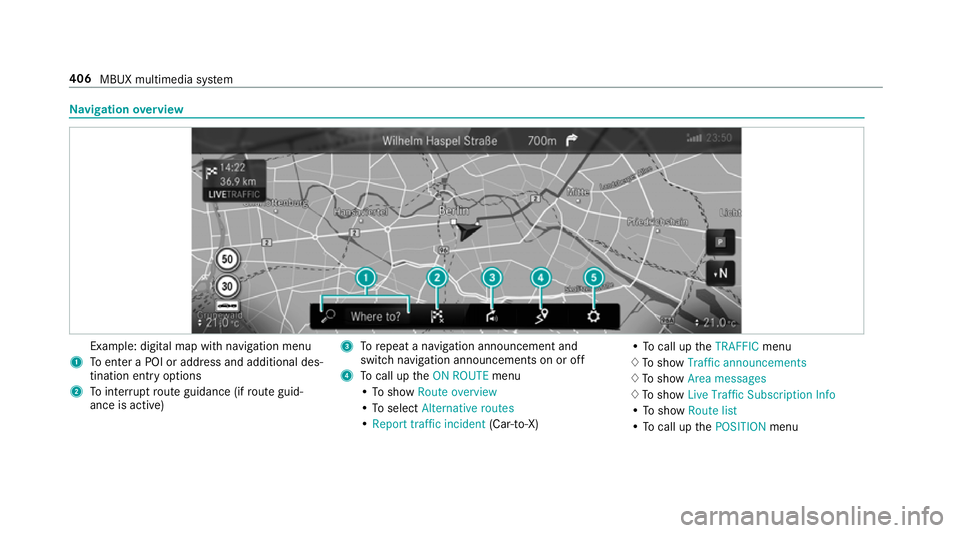
vigation overview Example: digital map with navigation menu
1 Toenter a POI or address and additional des‐
tination entry options
2 Tointer rupt route guidance (if route guid‐
ance is active) 3
Torepeat a navigation announcement and
switch navigation announcements on or off
4 Tocall up theON ROUTE menu
• To show Route overview
• To select Alternative routes
• Report traffic incident (Car-to-X) •
To call up theTRAFFIC menu
♢ To show Traffic announcements
♢ To show Area messages
♢ To show Live Traffic Subscription Info
• To show Route list
• To call up thePOSITION menu 406
MBUX multimedia sy stem
Page 411 of 729
Yo
u can car ryout the activation yourself or
ha ve it car ried out at a Mercedes-Benz
service cent re. Fu
rther information can be found at: http://
www.mercedes.me Multimedia sy
stem:
4 © 5
Navigation 5
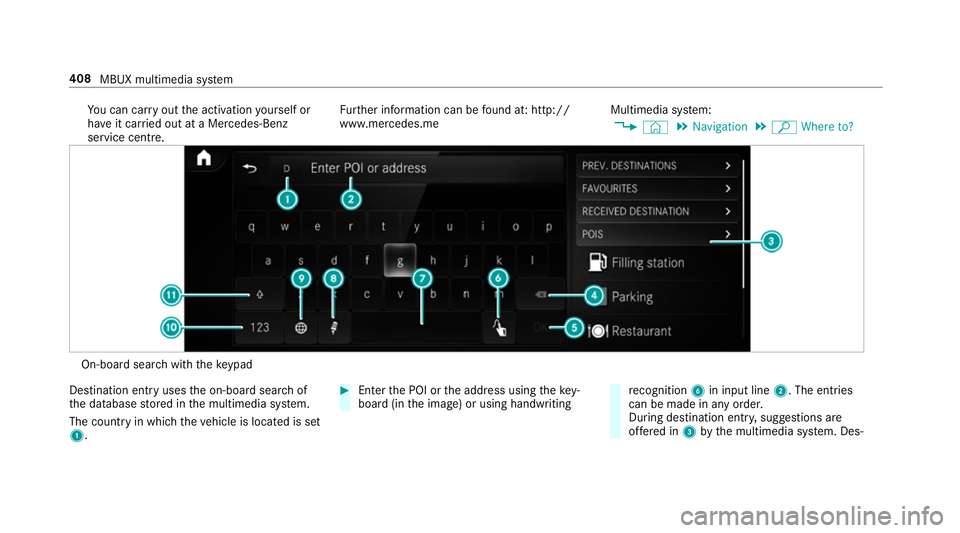
ª Where to? On-board sear
chwith theke ypad
De stination ent ryuses the on-board sear chof
th e database stored in the multimedia sy stem.
The count ryin which theve hicle is located is set
1. #
Enter the POI or the address using theke y‐
board (in the image) or using handwriting re
cognition 6in input line 2. The entries
can be made in any order.
During destination entr y,suggestions are
of fere d in 3bythe multimedia sy stem. Des‐ 408
MBUX multimedia sy stem
Page 413 of 729
Using online sear
ch
% Requirements: the media display sho wsan
In te rn et connection wi tha double-ar row
symbol in thest atus line.
Online sear chis not available in all countries.
De stination ent ryuses online map services. If
th e on-board sear chfinds no suitable de stina‐
tions or if youch ange countries, the online
sear chisavailable.
Fo rth e destination you can en ter an addre ss, a
POI or a 3 wordaddress.
% Enter a 3 wordaddress (/ page412). #
Select country indica tor1. #
Select the pr ovider forth e online service
from the count ries list.
or #
Ifth e on-board sear chdelivers no results,
enter the destination in the input line. The
entry order is not releva nt, e.g. stre et and
to wn. Use the functions described forth e on-
board sear ch.
The sear chresults are displa yed. #
Select the destination in the list.
The de tailed view forth ero ute is displ ayed.
Selecting pr evious destinations
Re quirements:
R Prev ious destinations are stored.
R For destination sug gestions: you ha vecre‐
ated a profile (/ page 366).
R The Allow destination suggestions option is
switched on (/ page371).
R The multimedia sy stem has already gathered
suf ficient da tain order toshow destination
suggestions.
Multimedia sy stem:
4 © 5
Navigation 5
ª Where to?
5 PREV. DESTINATIONS
The following ent ries can be selected in the pre‐
vious destinations:
R Destination suggestions (/ page 430)
R Destinations
R Routes #
Select the destination or route.
The destination address is shown. The route
can be calculated.
% You can sa vea pr evious destination or a des‐
tination suggestion as a favo urite
(/ page 430).
Using thefa vo urites, you ha vequick access
to the destinations (/ page414).
Selec ting a POI
Requ irements:
R For use of personal POIs: a USB device is
connected wi th the multimedia sy stem.
R Personal POIs with the GPS Ex change form at
(.gpx) ha vebeen sa ved in the "PersonalPOI"
fo lder on the USB device.
Multimedia sy stem:
4 © 5
Navigation 5
ª Where to?
5 POIS
Sear ching using categories (no route guid‐
ance) #
Select the categor y,forex ample Filling sta-
tion. 41 0
MBUX multimedia sy stem