Page 324 of 729
Obser
vethe legal requ irements forth e count ry
in which you are cur rently driving when you
operate the on-board computer.
% The on-board computer displa ysappear on
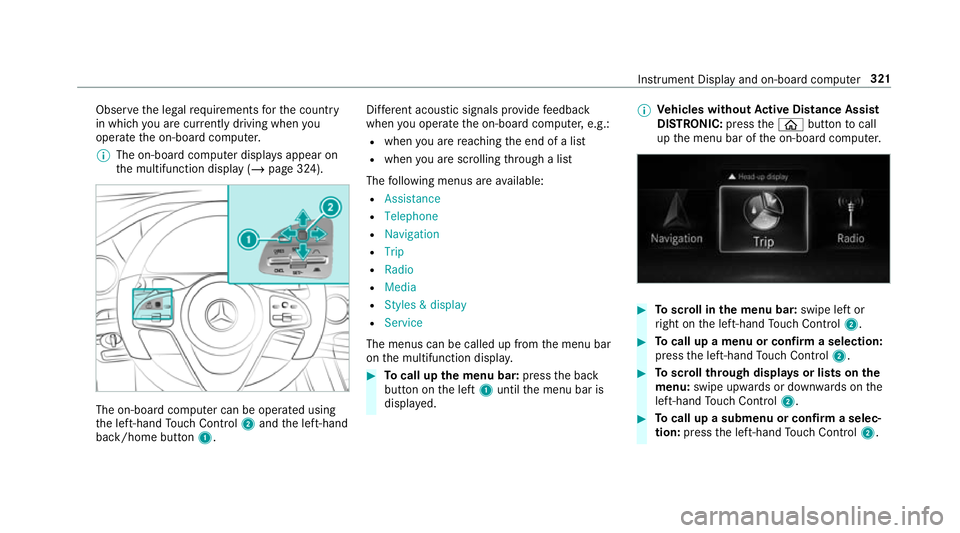
th e multifunction display (/ page 324).The on-board computer can be operated using
th e left-hand Touch Control 2and the left-hand
back/home button 1. Dif
fere nt acoustic signals pr ovide feedback
when you operate the on-board computer, e.g.:
R when you are reaching the end of a list
R when you are sc rolling thro ugh a list
The following menus are available:
R Assistance
R Telephone
R Navigation
R Trip
R Radio
R Media
R Styles & display
R Service
The menus can be called up from the menu bar
on the multifunction displa y. #
Tocall up the menu bar: pressthe back
button on the left 1until the menu bar is
displa yed. %
Ve
hicles without Active Di stance Assist
DISTRO NIC:press theò button tocall
up the menu bar of the on-board computer. #
Toscroll in the menu bar: swipe left or
ri ght on the left-hand Touch Control 2. #
Tocall up a menu or confirm a selection:
press the left-hand Touch Control 2. #
Toscroll through displa ysor lists on the
menu: swipe upwards or down wards on the
left-hand Touch Control 2. #
Tocall up a submenu or confirm a selec‐
tion: press the left-hand Touch Control 2. In
stru ment Display and on-board computer 321
Page 325 of 729
#
Toexit a submenu: pressthe back button
on the left 1.
Selecting the head-up display #
Ifth e head-up display is switched on: swipe
upwards on the left-hand Touch Control 2. #
Swipe upwards on the left-hand Touch Con‐
trol 2toswitch tothe head-up displa y.#
Ifth e head-up display is switched off: press
th e left-hand Touch Control 2.
Fu ll-sur face menu display
Yo u can displ aythefo llowing menus in full on
th e instrument display:
R Assistance
R Trip
R Navigation #
Inthe cor responding menu, use the left-hand
To uch Control 2toscroll tothe end of the
list. #
Press the left-hand Touch Control 2.
The selected menu will be displ ayed in full. Ad
justing the design of the in stru ment dis‐
play
On-boa rdcompu ter:
4 Styles & display
Setting the design #
Swipe up wards or down wards on the left-
hand Touch Control. #
Press the left-hand Touch Control.
The instrument displ ayis shown in the selec‐
te d design.
The following designs can be selec ted, depend‐
ing on theve hicle equipment:
R Classic
R Sport
R Progressive
R Understated
R Standard displays Showing display content on
the instrument
clus ter
Ad ditional display con tent can also be shown on
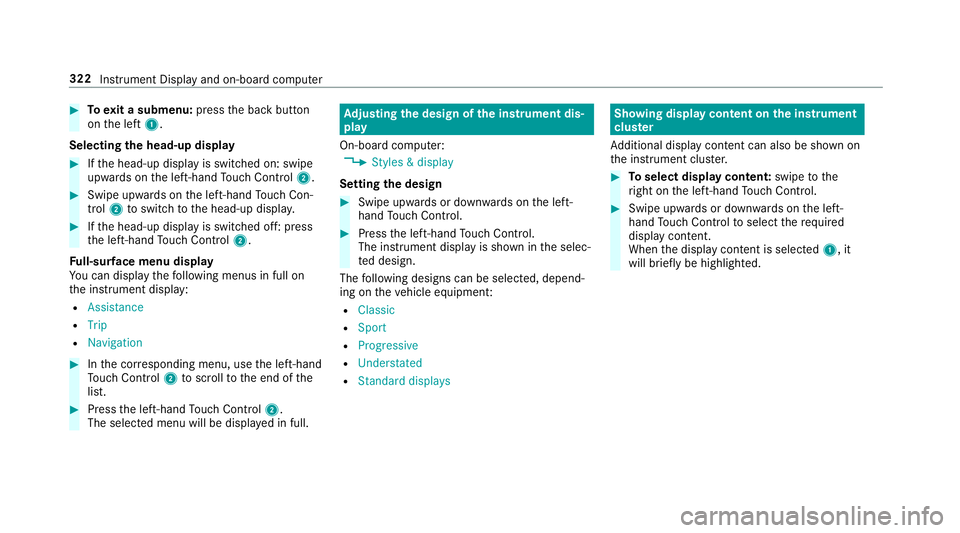
th e instrument clus ter. #
Toselect display content: swipetothe
ri ght on the left-hand Touch Control. #
Swipe upwards or down wards on the left-
hand Touch Control toselect there qu ired
display con tent.
When the display conte nt is selected1, it
will brie fly be highligh ted. 322
Instrument Display and on-board computer
Page 326 of 729
1
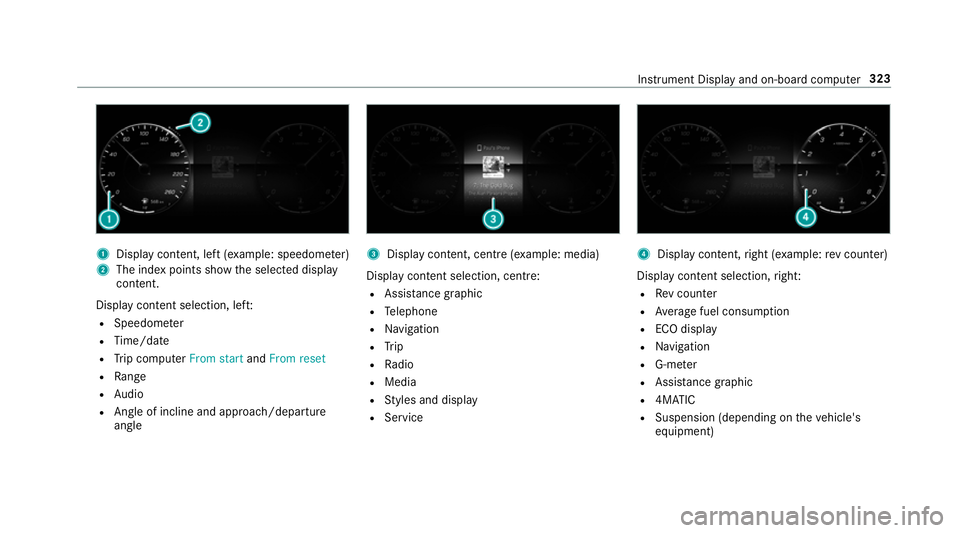
Displ aycontent, le ft(exa mp le: speedom eter)
2 The index points show the selected display
conte nt.
Display content selection, le ft:
R Speedom eter
R Time/date
R Trip computer From startandFrom reset
R Range
R Audio
R Angl e of incline and approach/departure
angle 3
Display conte nt, centre (examp le: media)
Display con tent selection, centre:
R Assi stance graphic
R Telephone
R Navigation
R Trip
R Radio
R Media
R Styles and display
R Service 4
Display conte nt,right (e xamp le:rev counter)
Display content selection, right:
R Rev counter
R Average fuel consum ption
R ECO display
R Navigation
R G-me ter
R Assi stance graphic
R 4MATIC
R Suspension (depending on theve hicle's
equipment) Instrument Display and on-board computer
323
Page 330 of 729
Re
setting values on the trip menu of the on-
board compu ter On-board computer:
4 Trip
% The spelling on the main menu displa yed
may dif fer. Therefore, obser vethe menu
ove rview forth e instrument display
(/ page 320).
Yo u can reset theva lues of thefo llowing func‐
tions:
R Trip dis tance
R Trip computer From startandFrom reset
R ECO display (/ page 200) #
Toselect the function tobe rese t:swipe
upwards or down wards on the left-hand
To uch Control. #
Press the left-hand Touch Control. #
Select Yes. #
Press the left-hand Touch Control. If
yo u press and hold the left-hand Touch Con‐
trol, theva lues of the function will be reset
immediatel y. Calling up navigation instructions on
the on-
board compu ter On-board computer:
4 Navigation
The following displa ysare available in the naviga‐
tion menu:
R Navigation view
R Map view
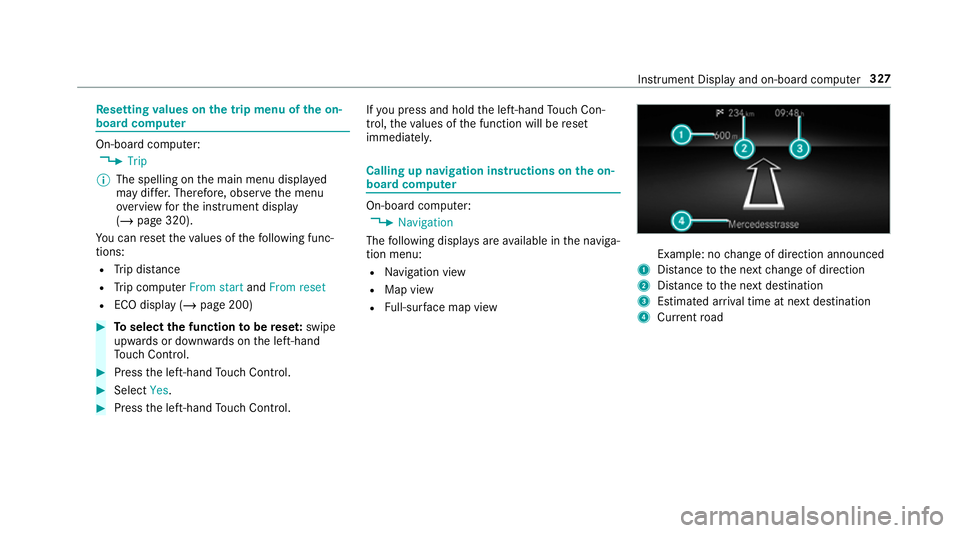
R Full-sur face map view Example: no
change of direction announced
1 Distance tothe next change of direction
2 Distance tothe next destination
3 Estimated ar riva l time at next destination
4 Current road In
stru ment Display and on-board computer 327
Page 331 of 729
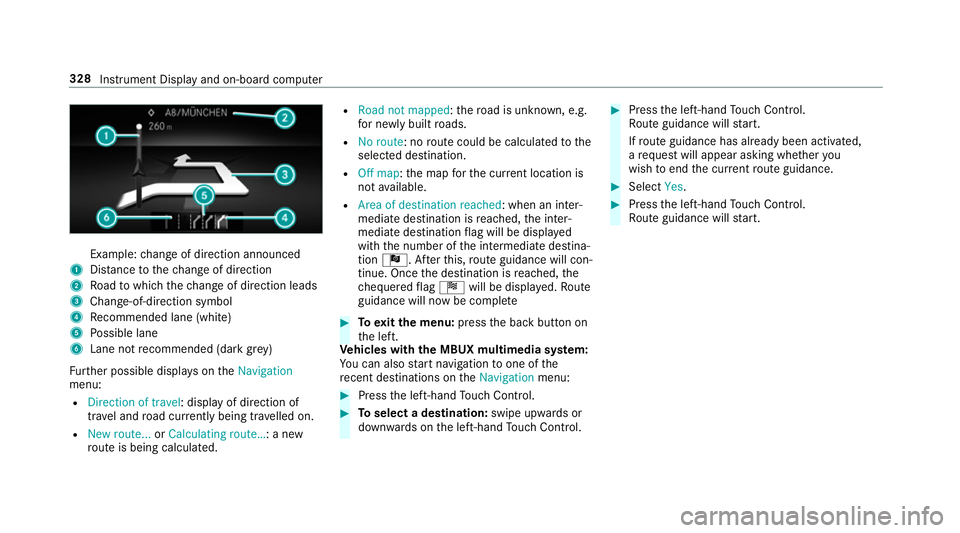
Example:
change of direction announced
1 Distance tothech ange of direction
2 Road towhich thech ange of direction leads
3 Chan ge-of-direction symbol
4 Recommended lane (white)
5 Possible lane
6 Lane not recommended (da rkgrey)
Fu rther possible displa yson theNavigation
menu:
R Direction of travel: display of direction of
tra vel and road cur rently being tr avelled on.
R New route... orCalculating route… : a new
ro ute is being calculated. R
Road not mapped :th ero ad is unknown, e.g.
fo r newly built roads.
R No route: no route could be calculated tothe
selected destination.
R Off map: the map forth e cur rent location is
not available.
R Area of destination reached: when an inter‐
mediate destination is reached, the inter‐
mediate destination flag will be displa yed
with the number of the intermediate destina‐
tion Î. Af terth is, route guidance will con‐
tinue. Once the destination is reached, the
ch equered flag Í will be displa yed. Ro ute
guidance will now be co mplete #
Toexitth e menu: pressthe back button on
th e left.
Ve hicles with the MBUX multimedia sy stem:
Yo u can also start navigation toone of the
re cent destinations on theNavigation menu: #
Press the left-hand Touch Control. #
Toselect a destination: swipe upwards or
down wards on the left-hand Touch Control. #
Press the left-hand Touch Control.
Ro ute guidance will start.
If ro ute guidance has already been activated,
a re qu est will appear asking whe ther you
wish toend the cur rent route guidance. #
Select Yes. #
Press the left-hand Touch Control.
Ro ute guidance will start. 328
Instru ment Display and on-board computer
Page 334 of 729
#
Swipe up wards or down wards on the left-
hand Touch Control and select 6(Accept)
or ~ (Reject). #
Press the left-hand Touch Control.
Yo u may accept/ reject the call using the6
or ~ button on thesteering wheel. Setting
the head-up display using the on-
board compu ter On-board computer:
4 HEAD-UP DISPLAY
The following head-up display settings can be
selec ted:
R Position
R Brightness
R Displa ys #
Toselect a setting: swipe upwards or down‐
wa rds on the left-hand Touch Control. #
Press the left-hand Touch Control. #
Toadjust the position: swipe upwards or
down wards on the left-hand Touch Control. #
Toadjust the brightness: swipetothe left
or right on the left-hand Touch Control. #
Press the left-hand Touch Control.
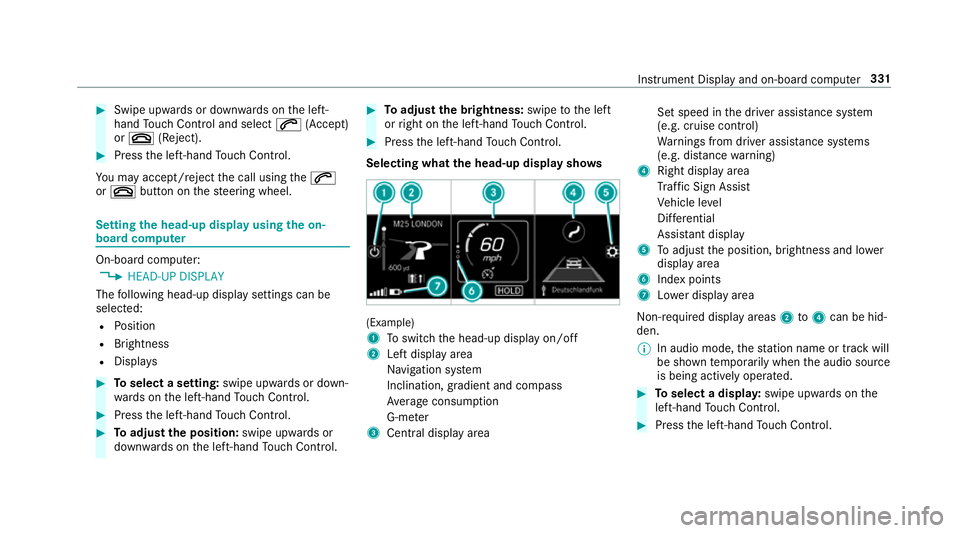
Selecting what the head-up display sho ws (Example)
1
Toswitch the head-up display on/off
2 Left display area
Navigation sy stem
Inclination, gradient and compass
Av erage consum ption
G-me ter
3 Central displ ayarea Set speed in
the driver assis tance sy stem
(e.g. cruise control)
Wa rnings from driver assis tance sy stems
(e.g. dis tance warning)
4 Right display area
Traf fic Sign Assi st
Ve hicle le vel
Dif fere ntial
Assi stant display
5 Toadjust the position, brightness and lo wer
display area
6 Index points
7 Lowe r display area
Non-required display areas 2to4 can be hid‐
den.
% In audio mode, thest ation name or track will
be shown temp orarily when the audio source
is being actively operated. #
Toselect a displa y:swipe upwards on the
left-hand Touch Control. #
Press the left-hand Touch Control. In
stru ment Display and on-board computer 331
Page 335 of 729
Head-up Display
Fu
nction of the head-up display The head-up display projects information from
th e navigation sy stem, the driver assis tance sys‐
te ms and some warning messages abo vethe
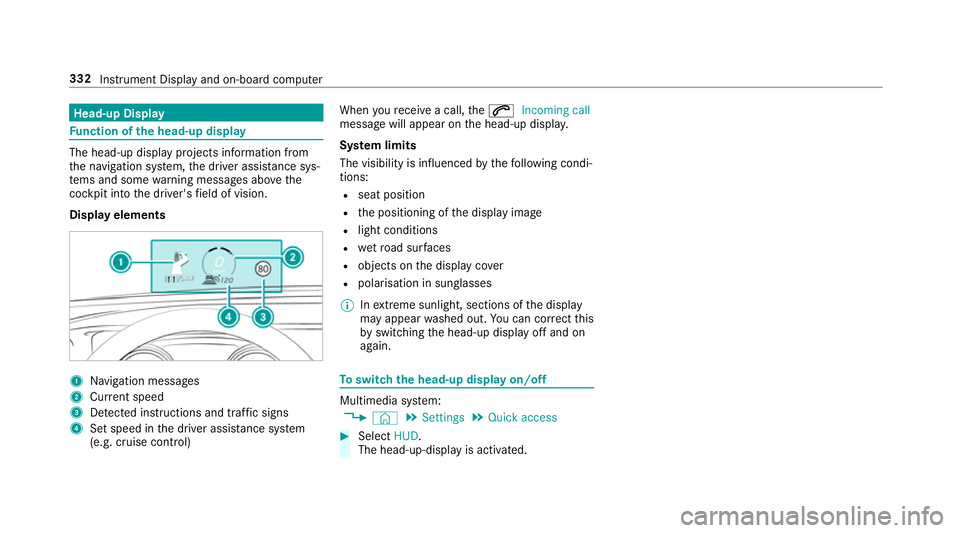
cockpit into the driver's field of vision.
Display elements 1
Navigation messa ges
2 Current speed
3 Detected instructions and traf fic signs
4 Set speed in the driver assis tance sy stem
(e.g. cruise control) When
youre cei vea call, the6 Incoming call
message will appear on the head-up displa y.
Sy stem limits
The visibility is influenced bythefo llowing condi‐
tions:
R seat position
R the positioning of the display image
R light conditions
R wetro ad sur faces
R objects on the display co ver
R polarisation in sunglasses
% Inextreme sunlight, sections of the display
may appear washed out. You can co rrect this
by switching the head-up display off and on
again. To
switch the head-up display on/off Multimedia sy
stem:
4 © 5
Settings 5
Quick access #
Select HUD.
The head-up-display is activated. 332
Instrument Display and on-board computer
Page 338 of 729
#
Tointer rupt avo ice output: speak inthe
middle of a voice dialogue when the sy stem
is still answering.
The voice output is shor tened and the con‐
clusion is reached more quickl y.
% The Voice barge-in option must be switched
on in the multimedia sy stem forth is
(/ page 335). Overview of
the LINGU ATRO NIC ope rable
functions Yo
u can use the LINGU ATRO NIC voice control
sy stem tooperate thefo llowing functions
depending on theve hicle equipment:
R Telephone
R Text messa geand e-mail
R Navigation
R Address book
R Radio
R Media
R TV
R Vehicle functions R
Weather
Fu ll functionality is only available foryo u with
activation of online voice control (/ page 335). Note
s onthe language setting Yo
u can change the language of LINGU ATRO NIC
via the sy stem language settings. If the set sys‐
te m language is not suppor tedby LINGUA‐
TRONIC, English will be selected.
LINGU ATRO NIC is available in thefo llowing lan‐
guages:
R German
R English
R French
R Italian
R Dutch
R Polish
R Portuguese
R Russian
R Swedish
R Spanish R
Czech
R Turkish Setting LINGU
ATRO NIC (multimedia sy stem) Please no
tefor online voice control:
R Your vehicle is connected with your
Mercedes me user account (/ page479).
R There is an In tern et connection
(/ page 487).
Please no tefor activation of contacts for online
use:
R Online voice control is activated.
Multimedia sy stem:
4 © 5
Settings 5
System
5 LINGUATRONIC
Switching voice activation of LINGU ATRO NIC
on/o ff #
Select Voice activation "Hi Mercedes".
Depending on the pr evious status, the func‐
tion is activated or deactivated. LINGU
ATRO NIC 335