Page 311 of 697
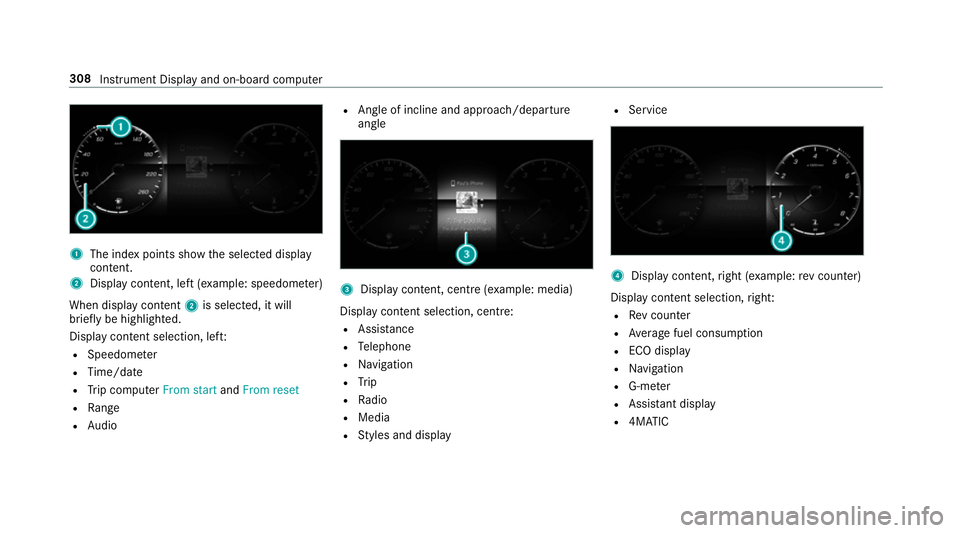
1
The index points show the selected display
conte nt.
2 Display content, le ft(exa mp le: speedom eter)
When display conte nt2 is selected, it will
brie fly be highligh ted.
Display con tent selection, le ft:
R Speedom eter
R Time/date
R Trip computer From startandFrom reset
R Range
R Audio R
Angl e of incline and approach/departure
angle 3
Display conte nt, centre (examp le: media)
Display con tent selection, centre:
R Assi stance
R Telephone
R Navigation
R Trip
R Radio
R Media
R Styles and display R
Service 4
Display conte nt,right (e xamp le:rev counter)
Display content selection, right:
R Rev counter
R Average fuel consum ption
R ECO display
R Navigation
R G-me ter
R Assi stant display
R 4MATIC 308
Instru ment Display and on-board computer
Page 317 of 697

Selecting
radio stations using the on-boa rd
compu ter On-board computer:
4 Radio 1
Frequency range
2 Station
3 Name of track
% The illustration sho wsthe Instrument Display
in theWi descreen Cockpit
When you select a station from the memory pre‐
sets, the preset will appear next tothest ation
name. When you select a sa vedstation in the frequency
range, an as terisk will appear next to
th est ation name. #
Toselect a radio station: swipe upwards or
down wards on the left-hand Touch Control.
Selecting the frequency range or memory
preset #
Press the left-hand Touch Control. #
Swipe upwards or down wards on the left-
hand Touch Control. #
Press the left-hand Touch Control. Ope
rating media playba ckusing the on-
board compu ter On-board computer:
4 Media 1
Media source
2 Track number and cur rent track
3 Name of artist (e xamp le)
% The illustration sho wsthe Instrument Display
in theWi descreen Cockpit #
Tochange trac kson an active media
source: swipe upwards or down wards on the
left-hand Touch Control. 314
Instrument Display and on-board computer
Page 324 of 697
#
Tocor rect an ent ry:say theCorrection
vo ice command. #
Toselect an entry from the selection lis t:
say the line number or the conte nts. #
Tobrows eth e selection lis t:say theNext
or Back voice command. #
Tointer rupt the dialogue: saythePause
vo ice command.
The dialogue can be continued with the
"Hello Mercedes" voice command or by
pressing up the£ rock er switch on the
multifunction steering wheel. #
Tojump tothe preceding dialogue: saythe
Back voice command. #
Tojump back totheto p dialogue le vel:
say theHome voice command. #
Tocancel the dialogue: saytheClose voice
command or press the8 or~ button
on the multifunction steering wheel. #
Tointer rupt avo ice output: speak inthe
middle of a voice dialogue when the sy stem
is still answering.
The voice output is shor tened and the con‐
clusion is reached more quickl y.
% The Voice barge-in option must be switched
on in the multimedia sy stem forth is
(/ page 322). Overview of operable functions in LINGUA‐
TRONIC
Yo
u can use the LINGU ATRO NIC voice control
sy stem tooperate thefo llowing functions
depending on theve hicle equipment:
R Telephone
R Text messa geand e-mail
R Navigation
R Address book
R Radio
R Media
R Vehicle functions
R Weather Fu
ll functionality is only available foryo u with
activation of online voice control (/ page 322). Note
s onthe language setting Yo
u can change the language of LINGU ATRO NIC
via the sy stem language settings. If the set sys‐
te m language is not suppor tedby LINGUA‐
TRONIC, English will be selected.
LINGU ATRO NIC is available in thefo llowing lan‐
guages:
R German
R English
R French
R Italian
R Dutch
R Polish
R Portuguese
R Russian
R Swedish
R Spanish
R Czech LINGU
ATRO NIC 321
Page 327 of 697
%
Con tent in angled brac kets, e.g. or
, is a placeholder which has tobe
comple tedby yo u with the desired term . The
vo ice command Set as intermediate destination
could,forex ample, be comple ted
with: Set Mercedes-Benz Arena as intermedi-
ate destination. Overview of switch
voice commands Swit
chvoice commands can be used toopen
cer tain applications.
Switch voice commands Vo
ice command Colloquialexample Function
Switch to navigation I would like to go to navigationSwitches
tonavigation
Switch to address book I would like to switch to the
address bookSwitches
tothe address book
Switch to telephon eI would like to switch to the phone Swit
ches tothete lephone
Switch to messages Can you switch to messages
please?Swit
ches tothete xt messa geapplication.
Switch to e-mail I would like to go to the e-mail
applicationSwit
ches tothe e-mail application
Switch to radio I would like to switch to the radioSwitches
toradio
Switch to TV I would like to switch to the TVSwitches
toTV
Switch to media I would like to switch to the media
applicationSwitches
tomedia 324
LINGU ATRO NIC
Page 333 of 697
Vo
ice command Colloquialexample Function
Search for C ould you open the contact "John
Smith"? Opens
the conta ct dataof a contact in the address book.
Redial Redial/Call last phone numberMakes a call
tothe last telephone number dialled.
Change phon eC ould you please switch to the sec-
ond phone? Changes
the primary telephone Overview of
radio voice commands Ra
dio voice commands can also be used when
th era dio application runs in the bac kground and ano
ther application is visible in thefo re ground.
The following list of fers just a small selection of
th e possible radio voice commands. You will re
cei veadditional suggestions if you say Help
for radio .
Ra dio voice commands Vo
ice command Colloquialexample Function
Station I would like to select station "Cool
FM"To
select thera dio station mentioned
Frequency Go to station/radio frequency
"eighty seven point five mega-
hertz".To
enter a radio frequency, e.g. forth e FM range
Next radio statio nC all up the next radio station The next
radio station in a list is called up 330
LINGU ATRO NIC
Page 334 of 697
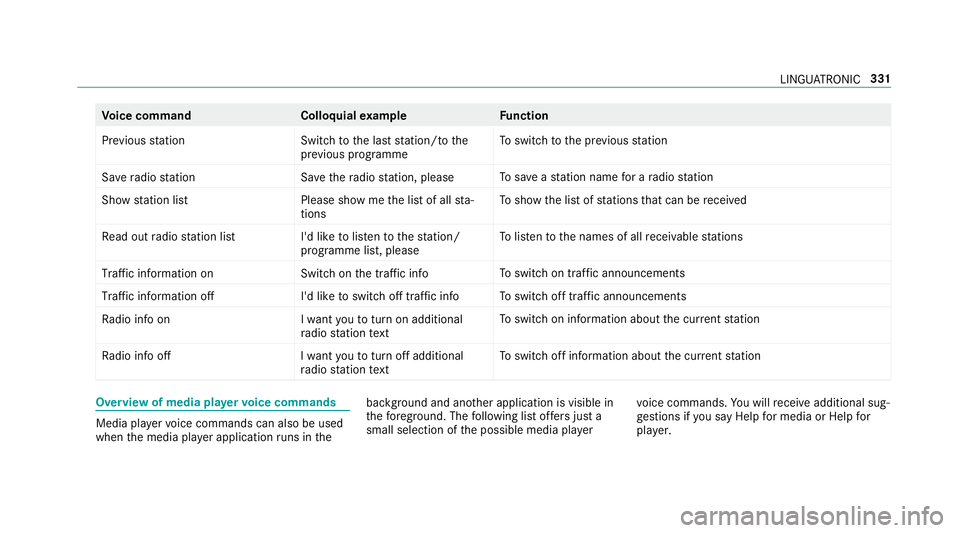
Vo
ice command Colloquialexample Function
Previous station Switch to the last station/to the
previous programme To
switch tothe pr evious station
Save radio statio nS ave the radio station, please To
save ast ation name for a radio station
Show station list Please show me the list of all sta-
tions To
show the list of stations that can be recei ved
Read out radio station list I'd like to listen to the station/
programme list, pleaseTo
listento the names of all recei vable stations
Traffic information on Switch on the traffic infoTo
switch on traf fic announcements
Traffic information off I'd like to switch off traffic infoTo
switch off traf fic announcements
Radio info on I want you to turn on additional
radio station textTo
switch on information about the cur rent station
Radio info off I want you to turn off additional
radio station textTo
switch off information about the cur rent station Overview of media pla
yervo ice commands Media pla
yervo ice commands can also be used
when the media pla yer application runs in the bac
kground and ano ther application is visible in
th efo re ground. The following list of fers just a
small selection of the possible media pla yervo
ice commands. You will recei veadditional sug‐
ge stions if you say Help for media orHelp for
player . LINGU
ATRO NIC 331
Page 342 of 697
Overview and operation
Overview of
the MBUX multimedia sy stem &
WARNING Risk of di stra ction from infor‐
mation sy stems and communications
equipment
If yo u operate information and communica‐
tion equipment integ rated in theve hicle
when driving, you will be distracted from the
traf fic situation. This could also cause youto
lose control of theve hicle. #
Only operate this equipment when the
traf fic situation permits. #
Ifyo u cannot be sure of this, stop the
ve hicle whilst paying attention toroad
and traf fic conditions and ope rate the
equipment with theve hicle stationar y. Yo
u must obse rveth e legal requirements forthe
country in whi chyou are cur rently driving when
operating the multimedia sy stem.
MBUX stands for Mercedes-Benz User Experi‐
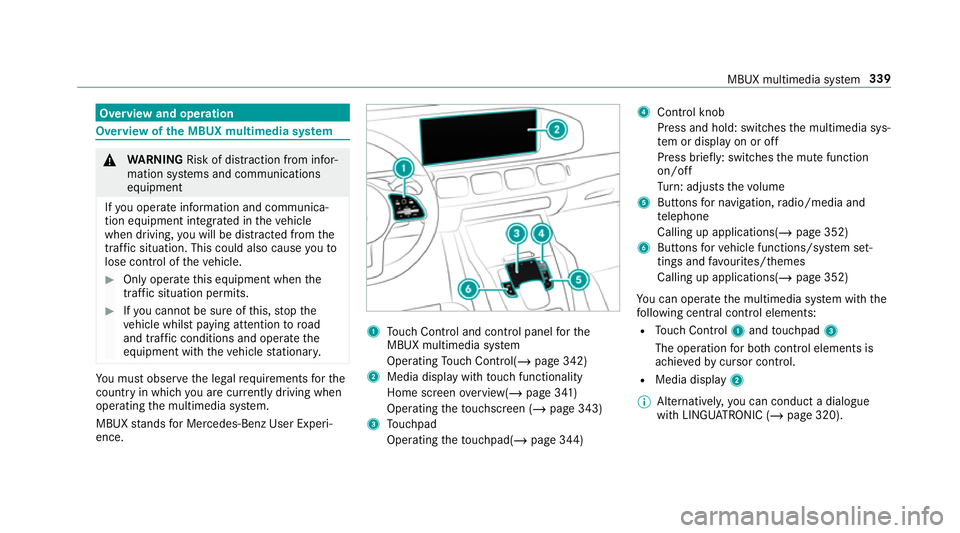
ence. 1
Touch Control and cont rol panel forthe
MBUX multimedia sy stem
Operating Touch Control(/ page 342)
2 Media displ aywith touch functionality
Home sc reen ove rview(/ page 341)
Operating theto uchsc reen (/ page 343)
3 Touchpad
Operating theto uchpad( /page 344) 4
Control knob
Press and hold: swit ches the multimedia sys‐
te m or display on or off
Press brief ly: switches the mute function
on/off
Tu rn: adjusts thevo lume
5 Buttons for navigation, radio/media and
te lephone
Calling up applications(/ page 352)
6 Buttons forve hicle functions/sy stem set‐
tings and favo urites/ themes
Calling up applications(/ page 352)
Yo u can operate the multimedia sy stem with the
fo llowing central control elements:
R Touch Control 1and touchpad 3
The operation for bo thcontrol elements is
achie vedby cursor control.
R Media displ ay2
% Alternati vely, you can conduct a dialogue
with LINGU ATRO NIC (/ page 320). MBUX multimedia sy
stem 339
Page 343 of 697
%
Ifth eve hicle is fitted wi th the MBUX in-car
assis tant, selected functions of the multime‐
dia sy stem can be operated conta ct-free as
we ll as turning there ading light on or off
(/ page 347).
Nu merous application, online services, services
and apps are available foryo u. You can call
th ese up using the home screen or using buttons
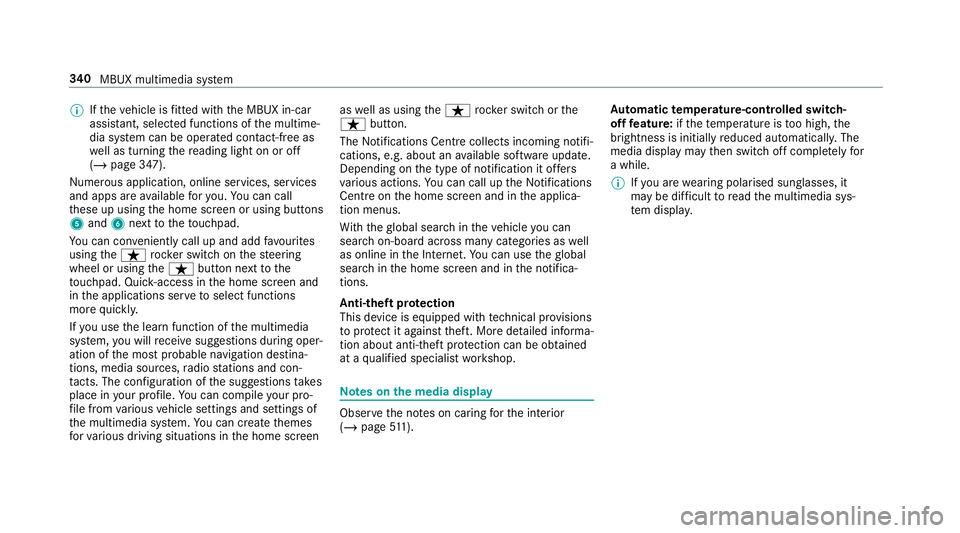
5 and 6next totheto uchpad.
Yo u can co nveniently call up and add favo urites
using theß rocker switch on thesteering
wheel or using theß button next tothe
to uchpad. Quic k-access in the home screen and
in the applications ser vetoselect functions
more quickl y.
If yo u use the learn function of the multimedia
sy stem, you will recei vesuggestions during oper‐
ation of the most probable navigation destina‐
tions, media sources, radio stations and con‐
ta cts. The configu ration of the suggestions takes
place in your profile. You can co mpileyour pro‐
fi le from various vehicle settings and settings of
th e multimedia sy stem. You can create themes
fo rva rious driving situations in the home screen as
well as using theß rocker switch or the
ß button.
The Notifications Centre collects incoming notifi‐
cations, e.g. about an available software update.
Depending on the type of notification it of fers
va rious actions. You can call up the Notifications
Centre on the home screen and in the applica‐
tion menus.
Wi th th eglobal sear chintheve hicle you can
sear chon-board across many categories as well
as online in the Internet. You can use theglobal
sear chinthe home screen and in the notifica‐
tions.
Anti-theft pr otection
This device is equipped with tech nical pr ovisions
to protect it against theft. More de tailed informa‐
tion about anti-theft pr otection can be obtained
at a qualified specialist workshop. Note
s onthe media display Obser
vethe no tes on caring forth e interior
(/ page 511). Au
tomatic temperature-cont rolled switch-
off feature: ifth ete mp erature is too high, the
brightness is initially reduced automatically. The
media display may then switch off comple tely for
a while.
% Ifyo u are wearing polarised sun glasses, it
may be dif ficult toread the multimedia sys‐
te m displa y. 340
MBUX multimedia sy stem