Page 393 of 777
392
RX350/RX350L_U 5-1. Basic Operations
Lexus Display Audio
system .......................................... 394
Steering wheel audio
switches...................................... 400
Mobile Assistant.......................... 401
USB/AUX ports ........................403
5-2. Setup
Setup menu ..................................406
General settings ......................... 407
Voice settings ............................... 410
Display settings .............................. 411
5-3. Using the audio system
Selecting the au dio source ......412
Optimal use of the audio
system ........................................... 413
Audio settings ...............................414
Audio menu screen
operation ......................................417
5-4. Using the radio
Radio operation.......................... 420
5-5. Playing an audio CD and
MP3/WMA/AAC discs
CD player operation ................ 4275 Lexus Display
Audio system
Page 394 of 777

393
5 Lexus Display
Audio system
RX350/RX350L_U 5-6. Using an external device
Listening to an iPod ...................434
Using USB memory
device.......................................... 438
Using the AUX port ................. 442
5-7. Connecting Bluetooth ®
Steps for using Bluetooth ®
devices .........................................443
Registering a Bluetooth ®
device...........................................445
Selecting a Bluetooth ®
device...........................................446
Connecting a Bluetooth ®
audio player ............................... 447
Connecting a Bluetooth ®
phone .......................................... 448
Displaying a Bluetooth ®
device details ............................449
Detailed Bluetooth ®
settings........................................ 450
5-8. Bluetooth ®
Audio
Listening to Bluetooth ®
Audio............................................453 5-9. Bluetooth ®
Phone
Using a Bluetooth ®
Phone ...........................................455
Making a call ................................ 457
Receiving a call ...........................460
Speaking on the phone............. 461
Using a Bluetooth ®
phone
message ...................................... 463
Using the steering wheel
switches....................................... 465
Bluetooth ®
phone
settings ........................................ 466
5-10. Phonebook
Contact settings .........................468
Messaging setting........................471
5-11. Bluetooth ®
What to do if...
(Troubleshooting)................... 472
Bluetooth ®
................................... 476
5-12. Other function
“Information” screen................. 482
USB photo ....................................484
Weather information................486
Voice command system ......... 487
Page 396 of 777
3955-1. Basic Operations
5
Lexus Display Audio system
RX350/RX350L_U ■
“Menu” screen
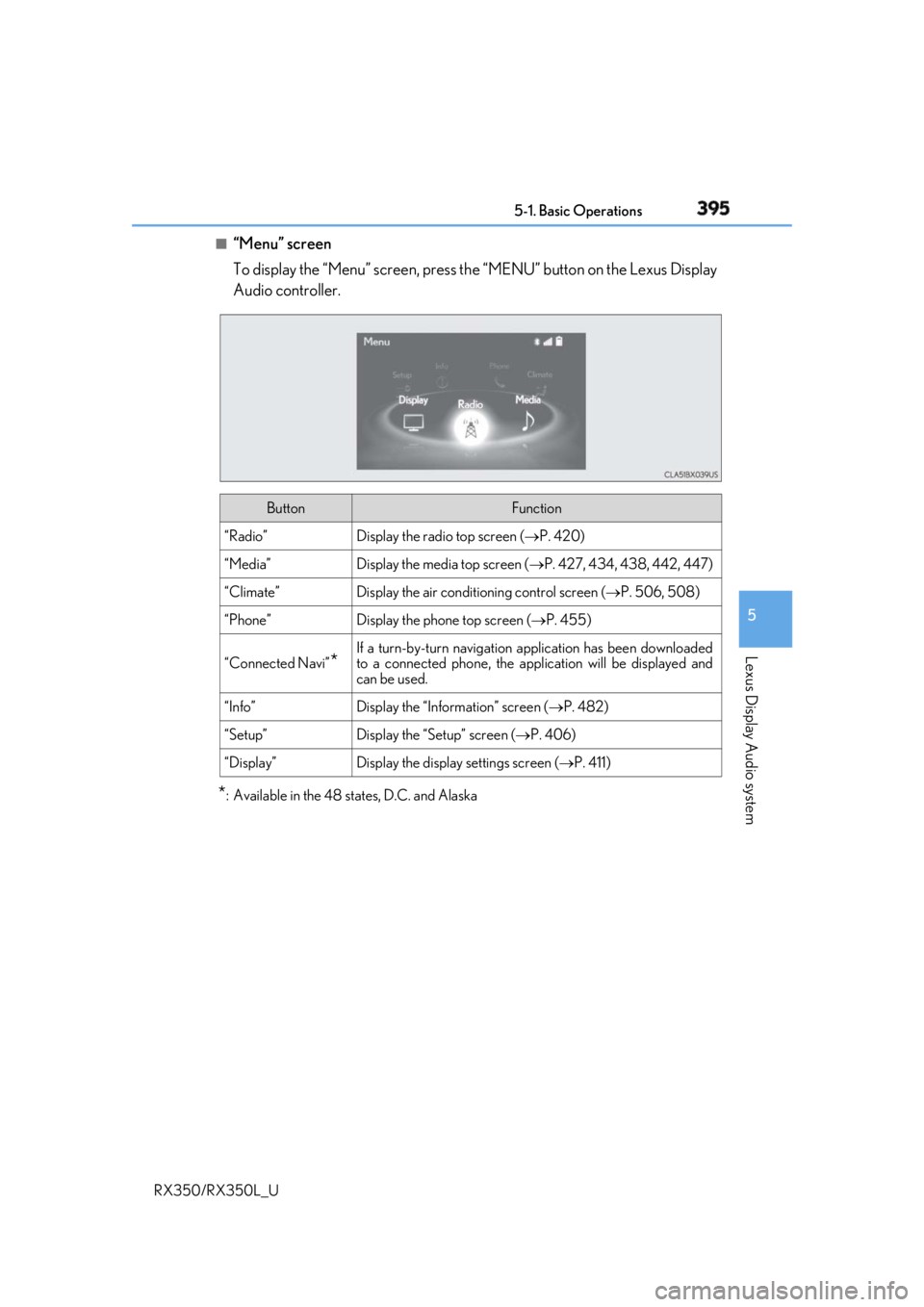
To display the “Menu” screen, press th e “MENU” button on the Lexus Display
Audio controller.
* : Available in the 48 states, D.C. and Alaska Button Function
“Radio” Display the radio top screen ( P. 420)
“Media” Display the media top screen ( P. 427, 434, 438, 442, 447)
“Climate” Display the air conditioning control screen ( P. 506, 508)
“Phone” Display the phone top screen ( P. 455)
“Connected Navi”
* If a turn-by-turn navigation application has been downloaded
to a connected phone, the appl ication will be displayed and
can be used.
“Info” Display the “Information” screen ( P. 482)
“Setup” Display the “Setup” screen ( P. 406)
“Display” Display the display settings screen ( P. 411)
Page 407 of 777
406
RX350/RX350L_U 5-2. Setup
Go to “Setup”: “MENU” button “Setup”
Change the settings for operation
sounds, screen animation, etc.
( P. 407)
Change the settings for voice guid-
ance. ( P. 410)
Change the settings for registering,
removing, connecting and discon-
necting Bluetooth ®
devices.
( P. 445, 446, 447, 448)
Change the settings for FM radio,
iPod, etc. ( P. 414)
Change the settings for vehicle cus-
tomization. ( P. 722)
Change the settings for phone
sound, phonebook, etc. ( P. 466)
Set the pop up reminder for mobile
data usage notification.Setup menu The Lexus Display Audio system can be adjusted to the desired settings.
Display “Setup” screen 1
2
3
4
5
6
7
Page 408 of 777

407 5-2. Setup
5
Lexus Display Audio system
RX350/RX350L_U Go to “General Settings”: “MENU” button “Setup” “General”
General settings Settings are available for adjusting th e operation sounds, screen animation,
etc.
Screen for general settings
Button Function
“Language” Change language. The select able languages may differ
depending on the model or region.
“Units of Measurement” Change the distance unit.
“Beep” Set the beep sound on/off.
“Button Color” Change the button color.
“Customize Images” Change the startup image and screen off image.
( P. 408)
“Animation” Set the animation effect on/off.
“Delete Personal Data” Delete personal data ( P. 409)
“Software Update” Update program versions. For details, contact your Lexus
dealer.
“Gracenote ®
Database
Update” Update gracenote database versions. For details, contact
your Lexus dealer
“Software Information” Display the open source license.
“Auto Detect iPhone
App” Select to set a pop-up message displayed on an iPhone
connected via Bluetooth ®
on/off when an application on
the iPhone needs to be activated.
Page 412 of 777
4115-2. Setup
5
Lexus Display Audio system
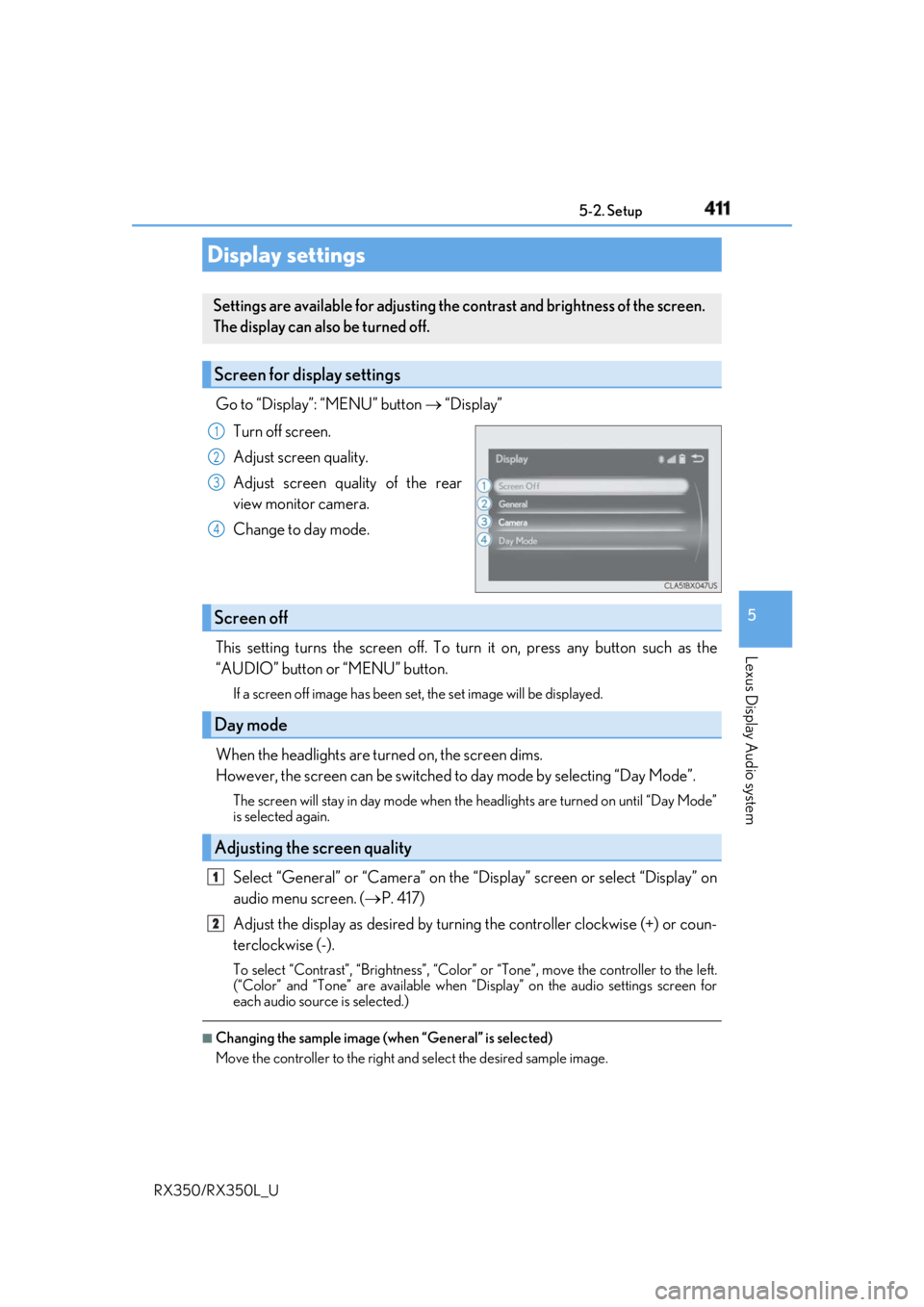
RX350/RX350L_U Go to “Display”: “MENU” button “Display”
Turn off screen.
Adjust screen quality.
Adjust screen quality of the rear
view monitor camera.
Change to day mode.
This setting turns the screen off. To tu rn it on, press any button such as the
“AUDIO” button or “MENU” button. If a screen off image has been se t, the set image will be displayed.
When the headlights are turned on, the screen dims.
However, the screen can be switched to day mode by selecting “Day Mode”.The screen will stay in day mode when the headlights are turned on until “Day Mode”
is selected again.
Select “General” or “Camera” on the “D isplay” screen or select “Display” on
audio menu screen. ( P. 417)
Adjust the display as desired by turning the controller clockwise (+) or coun-
terclockwise (-). To select “Contrast”, “Brightness”, “Color” or “Tone”, move the controller to the left.
(“Color” and “Tone” are available when “Display” on the audio settings screen for
each audio source is selected.) ■
Changing the sample image (when “General” is selected)
Move the controller to the right and select the desired sample image.Display settings Settings are available for adjusting the contrast and brightness of the screen.
The display can also be turned off.
Screen for display settings 1
2
3
4
Screen off
Day mode
Adjusting the screen quality 1
2
Page 414 of 777
4135-3. Using the audio system
5
Lexus Display Audio system
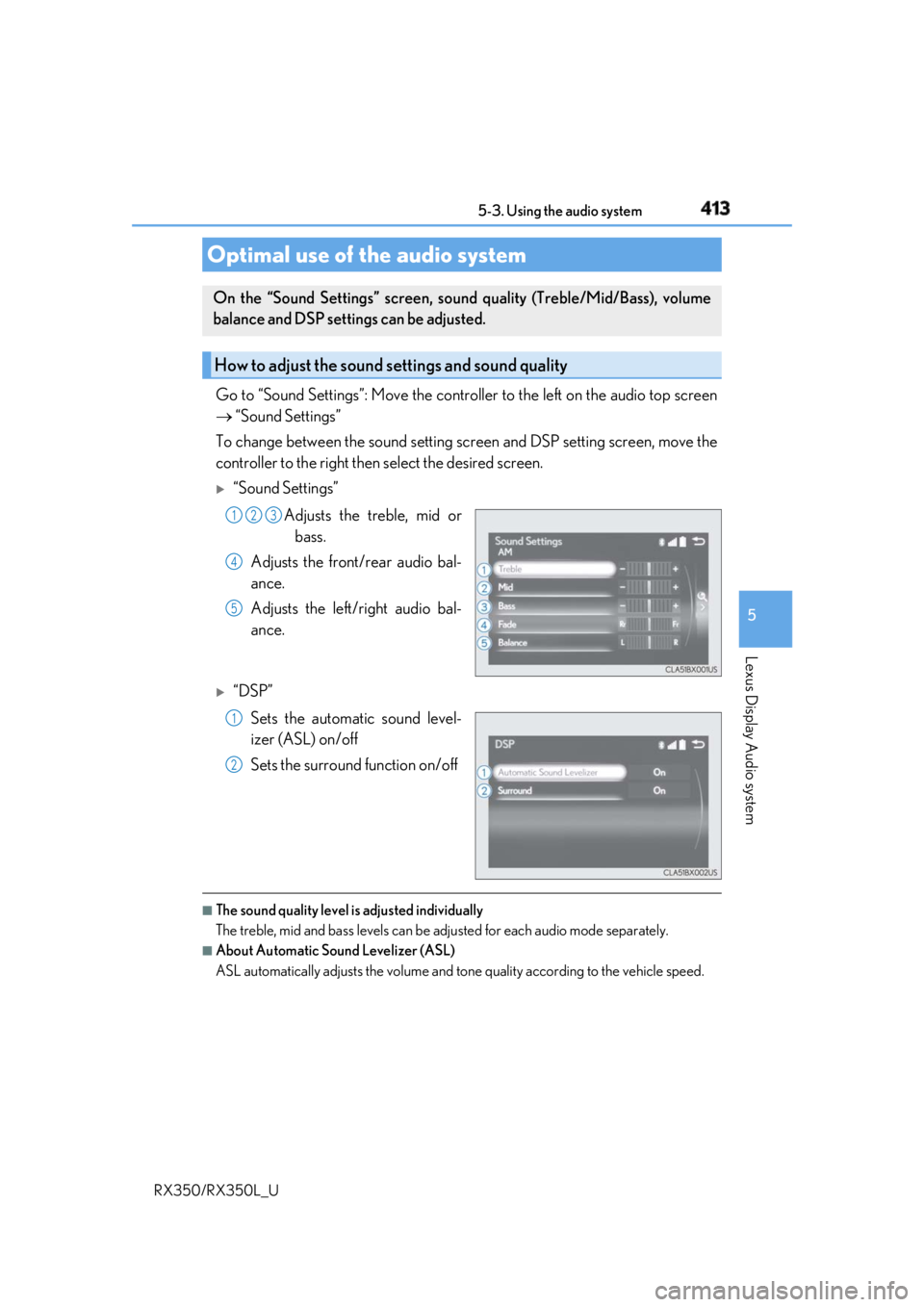
RX350/RX350L_U Go to “Sound Settings”: Move the contro ller to the left on the audio top screen
“Sound Settings”
To change between the sound setting sc reen and DSP setting screen, move the
controller to the right then select the desired screen.
“Sound Settings”
Adjusts the treble, mid or
bass.
Adjusts the front/rear audio bal-
ance.
Adjusts the left/right audio bal-
ance.
“DSP”
Sets the automatic sound level-
izer (ASL) on/off
Sets the surround function on/off
■
The sound quality level is adjusted individually
The treble, mid and bass levels can be adjusted for each audio mode separately. ■
About Automatic Sound Levelizer (ASL)
ASL automatically adjusts the volume and to ne quality according to the vehicle speed.Optimal use of the audio system On the “Sound Settings” screen, soun d quality (Treble/Mid/Bass), volume
balance and DSP settings can be adjusted.
How to adjust the sound settings and sound quality 1 2 3
4
5
1
2
Page 415 of 777
414 5-3. Using the audio system
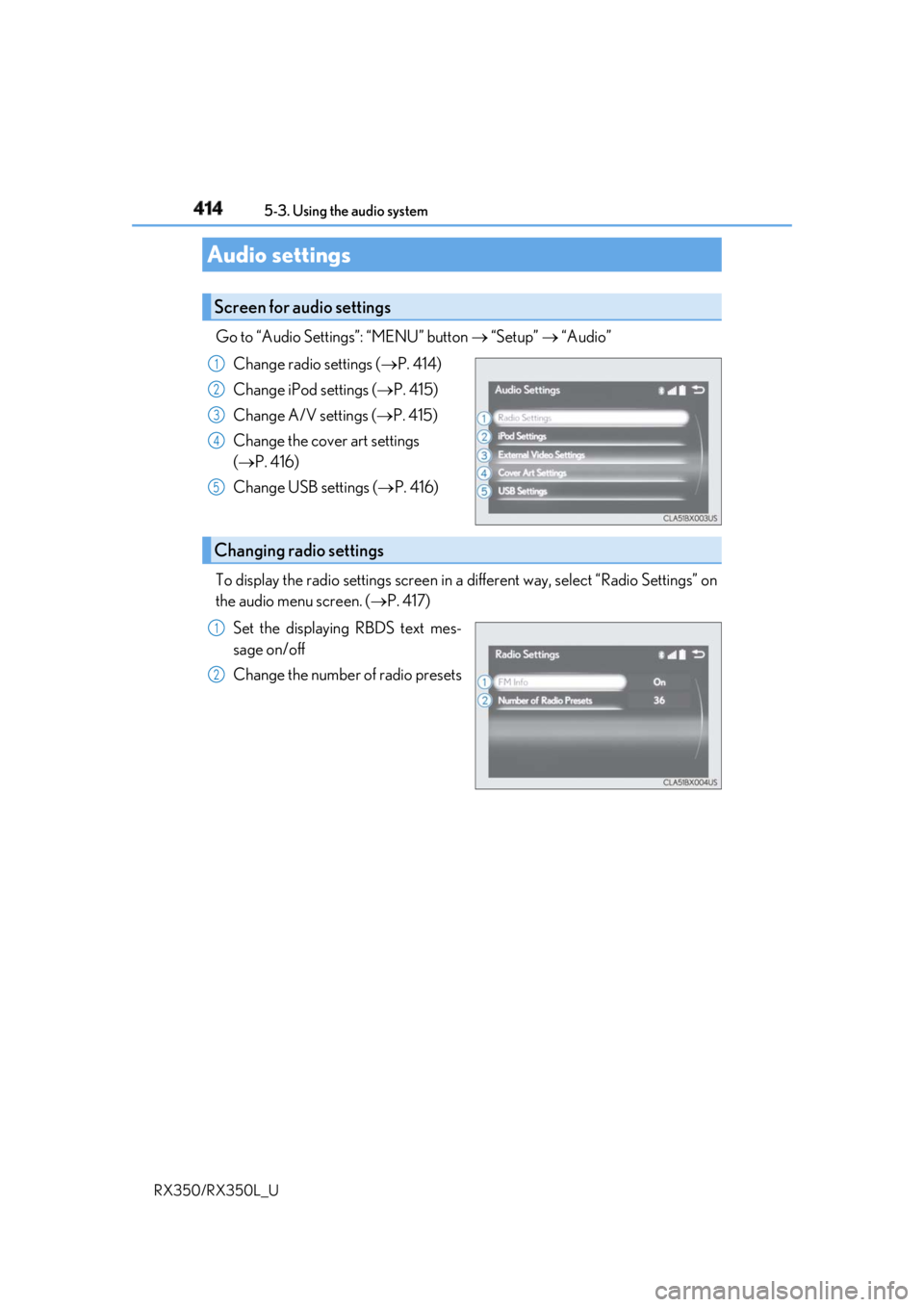
RX350/RX350L_U Go to “Audio Settings”: “MENU” button “Setup” “Audio”
Change radio settings ( P. 414)
Change iPod settings ( P. 415)
Change A/V settings ( P. 415)
Change the cover art settings
( P. 416)
Change USB settings ( P. 416)
To display the radio settings screen in a different way, select “Radio Settings” on
the audio menu screen. ( P. 417)
Set the displaying RBDS text mes-
sage on/off
Change the number of radio presetsAudio settings Screen for audio settings 1
2
3
4
5
Changing radio settings 1
2