2019 FORD E SERIES reset
[x] Cancel search: resetPage 222 of 329
Using Seek, Fast Forward andReverse
In radio mode, select a frequency band andpress and release either button. Thesystem stops at the first station it finds inthat direction.
In CD mode, press and release to selectthe next or previous track. Press and holdto move quickly forward or backwardthrough the current track.
In satellite radio mode, press and releaseto select the next or previous satellite radiostation. If you select a specific category(such as jazz, rock or news), press to findthe next or previous station in the categoryyou select.
DIGITAL RADIO (IF EQUIPPED)
Note:HD Radio broadcasts are notavailable in all markets.
HD Radio technology is the digitalevolution of analog AM/FM radio. Yoursystem has a special receiver that allowsit to receive digital broadcasts (whereavailable) in addition to the analogbroadcasts, it already receives. Digitalbroadcasts provide a better sound qualitythan analog broadcasts with free,crystal-clear audio and no static ordistortion. For more information, and aguide to available stations andprogramming, please visitwww.hdradio.com.
When HD Radio is on and you tune to astation broadcasting HD Radio technology,you may notice the HD Radio logo on yourscreen. When this logo is available, youmay also see Title and Artist fieldson-screen.
The multicast indicator appears in FMmode (only) if the current station isbroadcasting multiple digital broadcasts.The highlighted numbers signify availabledigital channels where new or differentcontent is available. HD1 signifies the mainprogramming status and is available inanalog and digital broadcasts. Othermulticast stations (HD2 through HD7) areonly available digitally.
When HD Radio broadcasts are active, youcan access the following functions:
•Scan allows you to hear a briefsampling of all available stations. Thisfeature still works when HD Radioreception is on, although it does notscan for HD2-HD7 channels. You maysee the HD logo appear if the stationhas a digital broadcast.
•Memory presets allow you to save anactive channel as a memory preset.Touch and hold a memory preset slotuntil the sound returns. There is a briefmute while the radio saves the station.Sound returns when finished. Whenswitching to an HD2 or HD3 memorypreset, the sound mutes before thedigital audio plays, because the systemhas to reacquire the digital signal.
Note:As with any saved radio station, youcannot access a station you save if yourvehicle is outside the station’s receptionarea.
219
E-Series (TE4) Canada/United States of America, enUSA, Edition date: 201804, Second-Printing
Audio SystemE265273
Page 224 of 329

Potential Station Issues
ActionCauseIssues
No action required. This is abroadcast issue.This is poor time alignmentby the radio broadcaster.Echo, stutter, skip or repeatin audio.Increase or decrease inaudio volume.
No action required. Thereception issue may clear upas you continue to drive.
The radio is shifting betweenanalog and digital audio.Sound fading or blending inand out.
No action required. This isnormal behavior. Wait untilthe audio is available.
The digital multicast is notavailable until the HD Radiobroadcast is decoded. Oncedecoded, the audio is avail-able.
There is an audio mutedelay when selecting HD2 orHD3, multicast preset orDirect Tune.
No action required. Thestation is not available inyour current location.
The previously storedmulticast preset or directtune is not available in yourcurrent reception area.
Cannot access HD2 or HD3multicast channel whenrecalling a preset or from adirect tune.
Fill out the station issueform at website listed
below.*
Data service issue by theradio broadcaster.Text information does notmatch currently playingaudio.
Fill out the station issueform at website listed
below.*
Data service issue by theradio broadcaster.There is no text informationshown for currently selectedfrequency.
No action required. This isnormal behavior.Pressing Scan disablesHD2-HD7 channel search.HD2-HD7 stations not foundwhen Scan is pressed.
*http://hdradio.com/stations/feedback
HD Radio Technology manufactured underlicense from iBiquity Digital Corporationand foreign patents. HD Radio and the HDand HD Radio logos are proprietarytrademarks of DTS Ford Motor Companyand DTS are not responsible for thecontent sent using HD Radio technology.Content may be changed, added or deletedat any time at the station owner'sdiscretion.
SATELLITE RADIO (IF EQUIPPED)
SiriusXM® Satellite Radio broadcasts avariety of music, news, sports, weather,traffic and entertainment satellite radiochannels. For more information and acomplete list of SiriusXM satellite radiochannels, visit www.siriusxm.com in theUnited States, www.siriusxm.ca in Canada,or call SiriusXM at 1-888-539-7474.
221
E-Series (TE4) Canada/United States of America, enUSA, Edition date: 201804, Second-Printing
Audio System
Page 226 of 329
Troubleshooting
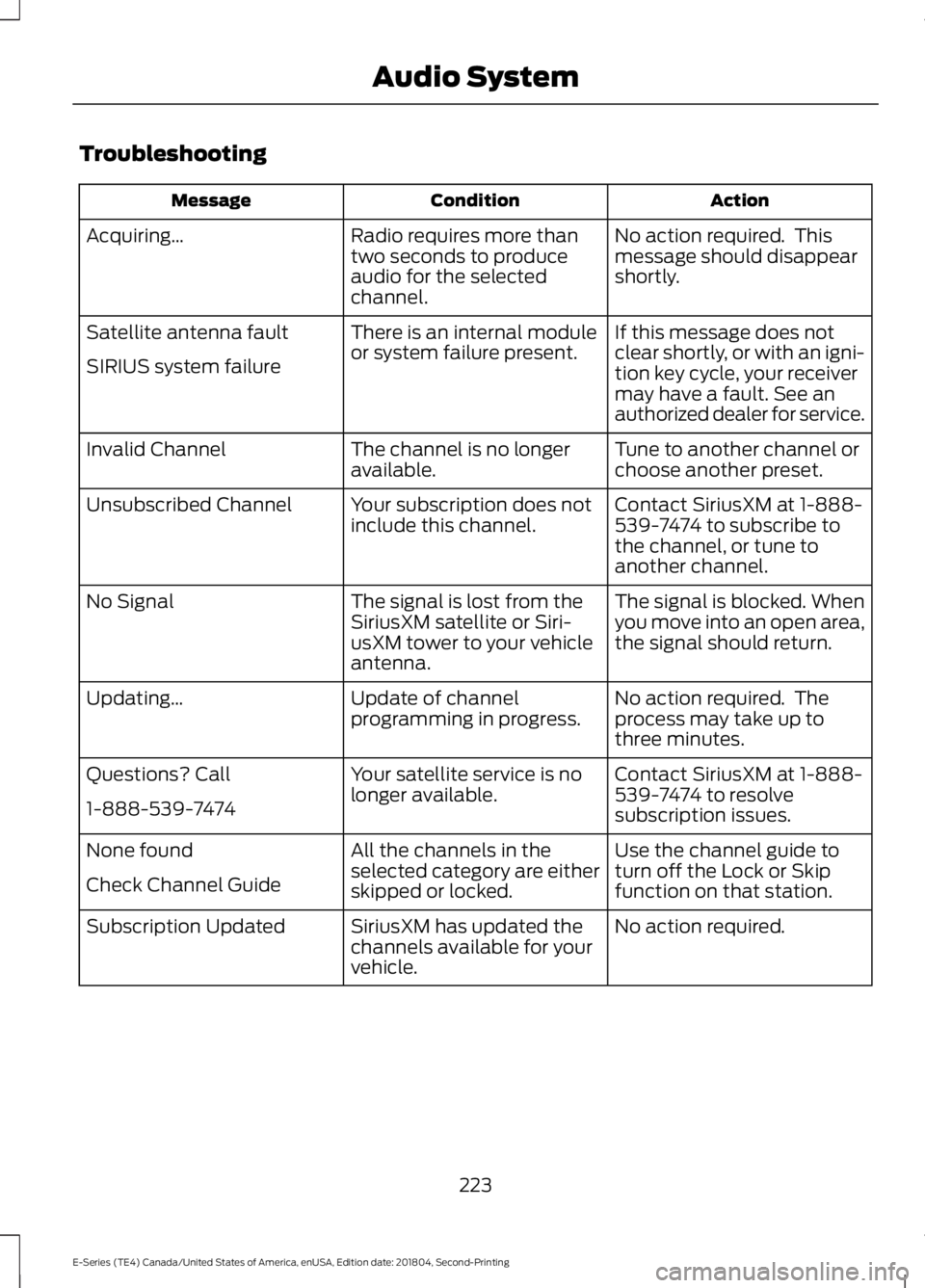
ActionConditionMessage
No action required. Thismessage should disappearshortly.
Radio requires more thantwo seconds to produceaudio for the selectedchannel.
Acquiring…
If this message does notclear shortly, or with an igni-tion key cycle, your receivermay have a fault. See anauthorized dealer for service.
There is an internal moduleor system failure present.Satellite antenna fault
SIRIUS system failure
Tune to another channel orchoose another preset.The channel is no longeravailable.Invalid Channel
Contact SiriusXM at 1-888-539-7474 to subscribe tothe channel, or tune toanother channel.
Your subscription does notinclude this channel.Unsubscribed Channel
The signal is blocked. Whenyou move into an open area,the signal should return.
The signal is lost from theSiriusXM satellite or Siri-usXM tower to your vehicleantenna.
No Signal
No action required. Theprocess may take up tothree minutes.
Update of channelprogramming in progress.Updating…
Contact SiriusXM at 1-888-539-7474 to resolvesubscription issues.
Your satellite service is nolonger available.Questions? Call
1-888-539-7474
Use the channel guide toturn off the Lock or Skipfunction on that station.
All the channels in theselected category are eitherskipped or locked.
None found
Check Channel Guide
No action required.SiriusXM has updated thechannels available for yourvehicle.
Subscription Updated
223
E-Series (TE4) Canada/United States of America, enUSA, Edition date: 201804, Second-Printing
Audio System
Page 230 of 329

The cellular profile, media device index,and development log will remain in thevehicle unless you delete them and aregenerally accessible only in the vehiclewhen the cellular phone or media playeris connected. If you no longer plan to usethe system or the vehicle, we recommendyou perform a Master Reset to erase allstored information.
System data cannot be accessed withoutspecial equipment and access to thevehicle's SYNC module. Ford MotorCompany and Ford of Canada will notaccess the system data for any purposeother than as described absent consent, acourt order, or where required by lawenforcement, other governmentauthorities, or other third parties actingwith lawful authority. Other parties mayseek to access the informationindependently of Ford Motor Company andFord of Canada. For further privacyinformation, see the sections on 911 Assist,Vehicle Health Report, and Traffic,Directions and Information.
USING VOICE RECOGNITION
This system helps you control manyfeatures using voice commands. Thisallows you to keep your hands on thewheel and focus on what is in front of you.
Helpful Hints
•Make sure the interior of your vehicle isas quiet as possible. Wind noise fromopen windows and road vibrations mayprevent the system from correctlyrecognizing spoken commands.
•After pressing the voice button, waituntil after the tone sounds andListening appears before saying acommand. Any command spokenbefore this does not register with thesystem.
•Speak naturally, without long pausesbetween words.
•At any time, you can interrupt thesystem while it is speaking by pressingthe voice button.
Initiating a Voice Session
Initiate a voice session bypressing the voice button on thesteering wheel controls. SeeVoice Control (page 47).
When prompted you can say any of the following:
If you want the system to carry out the followingVoice command
Stream audio from your phone.Bluetooth Audio
Cancel the requested action.Cancel
Access mobile applications.mobile (apps | applica-tions)
Make calls.Phone
Access the device connected to your USB port.USB [1]
Run a vehicle health report.Vehicle Health (Report)
227
E-Series (TE4) Canada/United States of America, enUSA, Edition date: 201804, Second-Printing
SYNC™E142599
Page 244 of 329

Action and DescriptionMessage
Press OK to select and scroll to select the desired phone.Press OK to confirm.
Turn the Bluetooth feature on and off.4BT ON/OFF
Press OK and scroll to toggle between On and Off. When thedesired selection is chosen, press OK.Setting Bluetooth to off disconnects all Bluetooth devicesand turns off all Bluetooth features.
Delete a paired cell phone.DEL DEVICEPress the OK button and scroll to select the device. Press OKto confirm.
Delete all previously paired phones (and all informationoriginally saved with those phones).DELETE ALL
Press OK to select.
Exit the current menu.RETURN
1 This is a speed-dependent feature. It is only available when your vehicle is traveling at3 mph (5 km/h) or less.2 You can only connect one device at a time. When another cell phone is connected, theprevious one is disconnected.3 SYNC attempts to connect with the primary phone at every ignition cycle. When a phoneis selected as primary, it appears first in the list and is marked with an asterisk (*).4Turning Bluetooth off disconnects all Bluetooth devices and deactivates all Bluetoothfeatures.
Advanced
The Advanced menu allows you to accessand set prompts, languages, defaults,perform a master reset, install anapplication and view system information.
To access the advanced menu, press the phone button to enter the Phone Menu,the scroll to:
Action and DescriptionMessage
Press OK.SYS SETTINGS
Press OK.ADVANCED
Select one of the following:
241
E-Series (TE4) Canada/United States of America, enUSA, Edition date: 201804, Second-Printing
SYNC™
Page 245 of 329

Action and DescriptionMessage
Get help from SYNC by using questions, helpful hints or asking you fora specific action. To turn these prompts on or off:PROMPTS
1.Press the OK button to select and scroll to select between On andOff.
2. Press the OK button when the desired selection appears in thedisplay. SYNC returns you to the Advanced menu.
1. Press OK to select and then scroll through the languages. Choosebetween English, Français and Español. Once selected, all of theradio displays and prompts are in the selected language.
2. Press OK when the desired selection appears in the display. If youchange the language setting, the display indicates that the systemis updating. When complete, SYNC returns you to the Advancedmenu.
LANGUAGES
Return to the factory default settings. This selection does not eraseyour indexed information, for example phonebook, call history, textmessages or paired devices.
DEFAULTS
Press the OK button to select and then press OK again when thefollowing message appears in the display.
RESTORE?
Completely erase all information stored on SYNC, for examplephonebook, call history, text messages and paired devices, and returnthe system to the factory default settings.
MASTERRESET
Press OK to select. The display indicates when complete. SYNC returnsyou to the Advanced menu.
Press OK to select.SYNC REBOOT
Press OK to select. You only need to pressthe OK button once. SYNC will be unre-sponsive for 2-4 minutes while it isrebooting. Wait 2-4 minutes beforeattempting to execute a SYNC command
CONFIRM REBOOT?
Install applications you have downloaded.INSTALL APPPress the OK button and scroll to select. Press the OK button toconfirm.
Access the Auto Version number as well as the FDN number.SYSTEM INFOPress the OK button to select.
Exit the current menu.RETURN
242
E-Series (TE4) Canada/United States of America, enUSA, Edition date: 201804, Second-Printing
SYNC™
Page 263 of 329

Action and DescriptionMessage
1. Press the OK button. When find SYNC appears in thedisplay, press the OK button again.
2. Follow the directions in your phone's manual to put yourphone into discovery mode. A six-digit PIN appears in thedisplay.
3. When prompted on your phone's six-digit display, enterthe PIN.
Connect a previously paired Bluetooth-enabled phone.Connect BT
1. Press OK to select and view a list of devices.
2. Scroll until the desired device is chosen and press OK toconnect the device.
Turn the Bluetooth feature on and off.**BT ON/OFF
1.Press the OK button and scroll to toggle between on andoff.
2. Make a selection and press the OK button.
Delete a paired media device.DEL DEVICE
1. Press the OK button and scroll to select the device.
2. Press the OK button to confirm.
Delete all previously paired devices.DELETE ALL
1. Press the OK button.
2. Press the OK button to confirm.
Exit the current menu.RETURN
*This is a speed-dependent feature. It is only available when your vehicle is traveling at 3mph (5 km/h) or less.**Setting Bluetooth to off disconnects all Bluetooth devices and turns off all Bluetoothfeatures.
Advanced
The Advanced menu allows you to accessand set prompts, languages, defaults andperform a master reset.
Press the AUX button, then the Menubutton to enter the Media Menu.
260
E-Series (TE4) Canada/United States of America, enUSA, Edition date: 201804, Second-Printing
SYNC™
Page 264 of 329
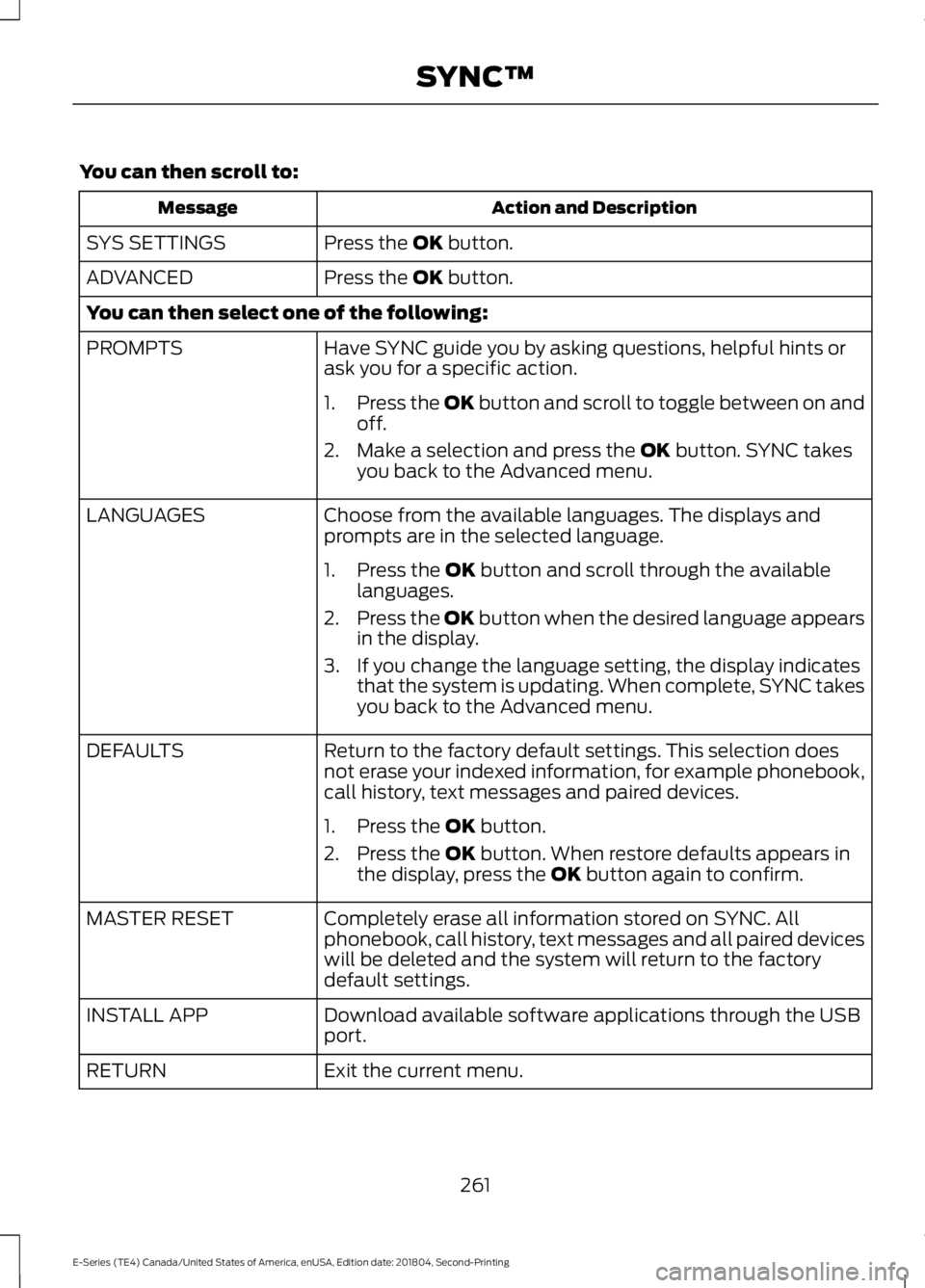
You can then scroll to:
Action and DescriptionMessage
Press the OK button.SYS SETTINGS
Press the OK button.ADVANCED
You can then select one of the following:
Have SYNC guide you by asking questions, helpful hints orask you for a specific action.PROMPTS
1.Press the OK button and scroll to toggle between on andoff.
2. Make a selection and press the OK button. SYNC takesyou back to the Advanced menu.
Choose from the available languages. The displays andprompts are in the selected language.LANGUAGES
1. Press the OK button and scroll through the availablelanguages.
2.Press the OK button when the desired language appearsin the display.
3. If you change the language setting, the display indicatesthat the system is updating. When complete, SYNC takesyou back to the Advanced menu.
Return to the factory default settings. This selection doesnot erase your indexed information, for example phonebook,call history, text messages and paired devices.
DEFAULTS
1. Press the OK button.
2. Press the OK button. When restore defaults appears inthe display, press the OK button again to confirm.
Completely erase all information stored on SYNC. Allphonebook, call history, text messages and all paired deviceswill be deleted and the system will return to the factorydefault settings.
MASTER RESET
Download available software applications through the USBport.INSTALL APP
Exit the current menu.RETURN
261
E-Series (TE4) Canada/United States of America, enUSA, Edition date: 201804, Second-Printing
SYNC™