Page 92 of 660

921-3. Theft deterrent system
AVENSIS_OM_OM20C79E_(EE)
The intrusion sensor detects intruders or movement in the vehicle.
When an intruder or movement is detected, the alarm will be trig-
gered.
This system is designed to deter and prevent vehicle theft but does
not guarantee absolute security against all intrusions.
■Setting the intrusion sensor
The intrusion sensor will be set automatically when the alarm is set.
( P. 8 9 )
■Canceling the intrusion sensor
If you are leaving pets or other moving things inside the vehicle,
make sure to disable the intrusion sensor before setting the alarm,
as it will respond to movement inside the vehicle.
Turn the engine switch to the lock position (vehicles without
smart entry & start system) or off (vehicles with smart entry &
start system).
Press the intrusion sensor
cancel switch.
Pressing the switch again will
re-enable the intrusion sensor.
■ Canceling and automatic re-enabling of the intrusion sensor
● The alarm will still be set even when the intrusion sensor is canceled.
● Vehicles without smart entry & start system: After the intrusion sensor is
canceled, turn the engine switch to the “LOCK” position or unlocking the
doors using the wireless remote control will re-enable the intrusion sensor.
Vehicles with smart entry & start system: After the intrusion sensor is can-
celed, pressing the engine switch or unlocking the doors using the entry
function or wireless remote control will re-enable the intrusion sensor.
● The intrusion sensor will automatically be re-enabled when the alarm sys-
tem is deactivated.
Intrusion sensor (if equipped)
1
2
Page 105 of 660
1052. Instrument cluster
2
Instrument cluster
AVENSIS_OM_OM20C79E_(EE)
Tachometer
Displays the engine speed in revolutions per minute.
Multi-information display
Presents the driver with a variety of driving-related data. (P. 1 0 8 , 1 11 )
Speedometer
Displays the vehicle speed.
Fuel gauge
Displays the quantity of fuel remaining in the tank.
Clock
Displays the time.
Outside temperature display
P. 107
1
2
3
4
5
6
Page 109 of 660
1092. Instrument cluster
2
Instrument cluster
AVENSIS_OM_OM20C79E_(EE)When refueling, turn the engine switch to the “LOCK” position (vehicles
without smart entry & start system) or off (vehicles with smart entry &
start system).
If the vehicle is refueled without turning the engine switch to the “LOCK”
position or off, the display may not be updated.
●Average vehicle speed
Displays the average vehicle speed since the engine was last
started.
●Elapsed time
Displays the elapsed time since the engine was started.
●Setting
The settings of the following items can be changed.
• Language
Select to change the language on the display. (P. 629)
•Units
Select to change the units for measure of the fuel consumption and out-
side temperature. (P. 629)
• Eco Driving Indicator Light
Select to activate/deactivate the Eco Driving Indicator Light. (P. 109)
• Stop & start system
Select to change the stop & start system setting. (P. 295)
•Clock
Select to adjust the hours and minutes. (P. 110)
•Clock format
Select to change the clock format.
• Tire pressure warning system
Select to set up the tire pressure warning system. (P. 470)
●Average fuel consumption and Eco Driving Indicator Zone Display
(if equipped)
Displays the average fuel consumption since the function was reset.
Suggests Zone of Eco driving and Eco driving ratio based on accel-
eration.
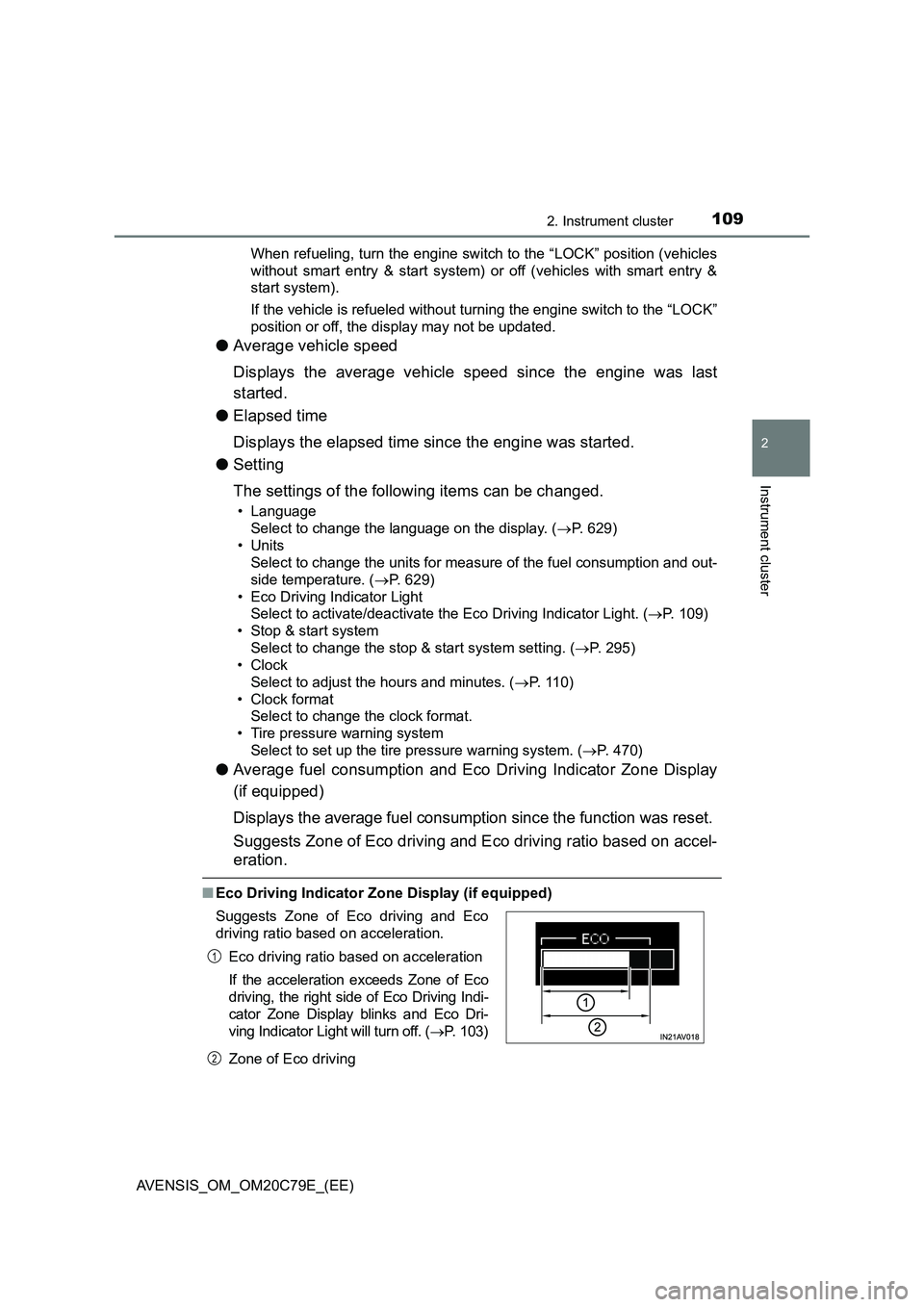
■Eco Driving Indicator Zone Display (if equipped)
Zone of Eco driving Suggests Zone of Eco driving and Eco
driving ratio based on acceleration.
Eco driving ratio based on acceleration
If the acceleration exceeds Zone of Eco
driving, the right side of Eco Driving Indi-
cator Zone Display blinks and Eco Dri-
ving Indicator Light will turn off. (P. 103)
1
2
Page 110 of 660
1102. Instrument cluster
AVENSIS_OM_OM20C79E_(EE)
■ When disconnecting and reconnecting battery terminals
The following information data will be reset:
● Elapsed time
● Average fuel consumption
● Driving range
● Average vehicle speed
■ Liquid crystal display
Small spots or light spots may appear on the display. This phenomenon is
characteristic of liquid crystal displays, and there is no problem to continue
using the display.
■ Setting display automatic suspension
In the following situations, the setting display will be suspended.
● When a message appears
● When the vehicle begins to move
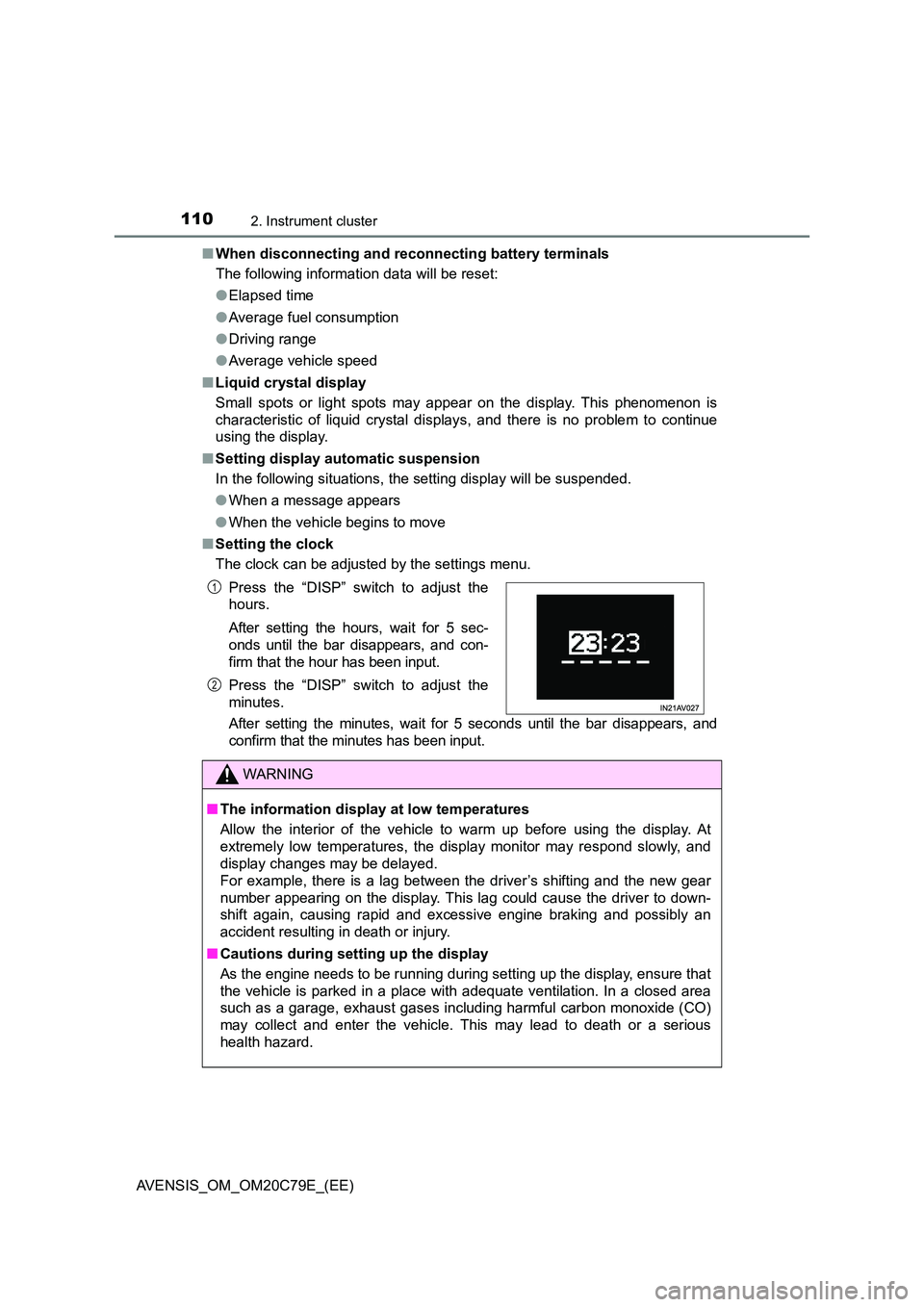
■ Setting the clock
The clock can be adjusted by the settings menu.
After setting the minutes, wait for 5 seconds until the bar disappears, and
confirm that the minutes has been input.
Press the “DISP” switch to adjust the
hours.
After setting the hours, wait for 5 sec-
onds until the bar disappears, and con-
firm that the hour has been input.
Press the “DISP” switch to adjust the
minutes.
WARNING
■ The information display at low temperatures
Allow the interior of the vehicle to warm up before using the display. At
extremely low temperatures, the display monitor may respond slowly, and
display changes may be delayed.
For example, there is a lag between the driver’s shifting and the new gear
number appearing on the display. This lag could cause the driver to down-
shift again, causing rapid and exce ssive engine braking and possibly an
accident resulting in death or injury.
■ Cautions during setting up the display
As the engine needs to be running during setting up the display, ensure that
the vehicle is parked in a place with adequate ventilation. In a closed area
such as a garage, exhaust gases including harmful carbon monoxide (CO)
may collect and enter the vehicle. This may lead to death or a serious
health hazard.
1
2
Page 114 of 660
1142. Instrument cluster
AVENSIS_OM_OM20C79E_(EE)
The settings of the following items can be changed, refer to P. 629.
For functions that can be enabled or disabled, the function switches
between on and off each time is pressed.
● (LDA [Lane Departure Alert])*1
Select to adjust LDA (Lane Departure Alert) sensitivity.
● (RSA [Road Sign Assist])
*1
Select to activate/deactivate RSA (Road Sign Assist).
●AFS (Adaptive Front-lighting System)
Select to activate/deactivate AFS (Adaptive Front-lighting System).
● (Clock)
Select to adjust time or set a clock format.
● (Instrument panel light)
Select to adjust brightness of the instrument panel light.
●Settings
Select the menu to set up the following items.
• (RSA [Road Sign Assist]) setup
*1
Select to set up RSA (Road Sign Assist).
• (Stop & Start system) setup*1
Select to set up Stop & Start system priority. (P. 300)
• (tire pressure warning system) setup*1
Select to set up the tire pressure warning system. (P. 470)
•Units
Select to change the unit for measure of the fuel consumption and out-
side temperature.
• (Eco Driving Indicator Light)*1
Select to activate/deactivate the Eco Driving Indicator Light. (P. 103)
Settings display
Page 119 of 660
119
3
Operation of
each component
AVENSIS_OM_OM20C79E_(EE)3-1. Key information
Keys ................................... 120
3-2. Opening, closing and
locking the doors
Side doors.......................... 132
Trunk (sedan) .................... 139
Back door (wagon)............. 143
Smart entry & start
system ............................. 148
3-3. Adjusting the seats
Front seats ......................... 166
Rear seats ......................... 168
Driving position memory .... 170
Head restraints .................. 172
3-4. Adjusting the steering
wheel and mirrors
Steering wheel ................... 174
Inside rear view mirror ....... 176
Outside rear view
mirrors ............................. 179
3-5. Opening and closing the
windows
Power windows .................. 182
Page 121 of 660
1213-1. Key information
3
Operation of each component
AVENSIS_OM_OM20C79E_(EE)
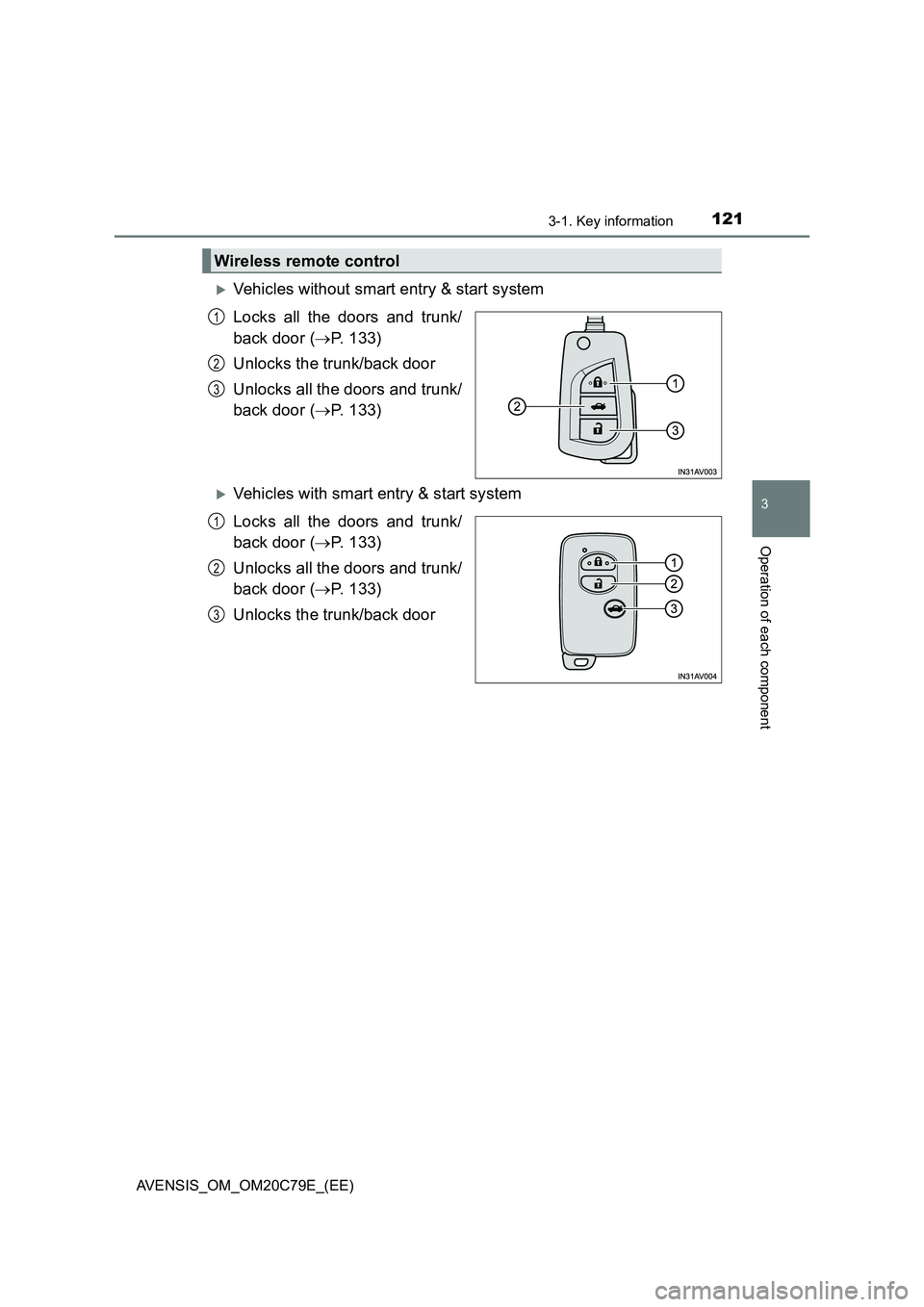
Vehicles without smart entry & start system
Locks all the doors and trunk/
back door (P. 133)
Unlocks the trunk/back door
Unlocks all the doors and trunk/
back door (P. 133)
Vehicles with smart entry & start system
Locks all the doors and trunk/
back door (P. 133)
Unlocks all the doors and trunk/
back door (P. 133)
Unlocks the trunk/back door
Wireless remote control
1
2
3
1
2
3
Page 122 of 660
1223-1. Key information
AVENSIS_OM_OM20C79E_(EE)
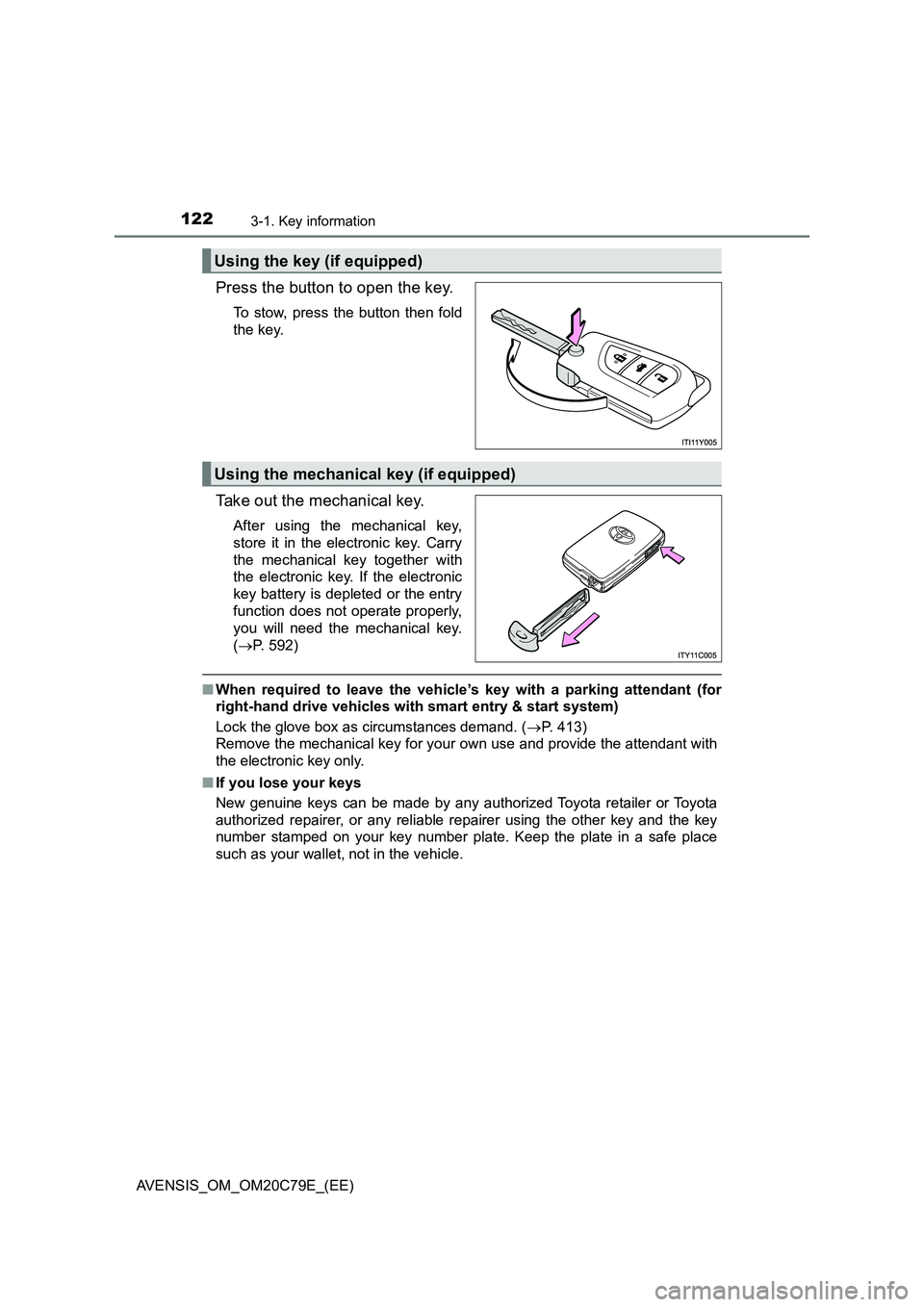
Press the button to open the key.
To stow, press the button then fold
the key.
Take out the mechanical key.
After using the mechanical key,
store it in the electronic key. Carry
the mechanical key together with
the electronic key. If the electronic
key battery is depleted or the entry
function does not operate properly,
you will need the mechanical key.
(P. 592)
■When required to leave the vehicle’s key with a parking attendant (for
right-hand drive vehicles with smart entry & start system)
Lock the glove box as circumstances demand. (P. 413)
Remove the mechanical key for your own use and provide the attendant with
the electronic key only.
■If you lose your keys
New genuine keys can be made by any authorized Toyota retailer or Toyota
authorized repairer, or any reliable repairer using the other key and the key
number stamped on your key number plate. Keep the plate in a safe place
such as your wallet, not in the vehicle.
Using the key (if equipped)
Using the mechanical key (if equipped)