2018 SUBARU WRX ESP
[x] Cancel search: ESPPage 250 of 578
(259,1)
北米Model "A1700BE-B" EDITED: 2017/ 10/ 11
!Touch screen operation
This system is operated mainly by the keys
on the screen.
When a screen key is touched, a beep
sounds. You can set the beep sound.
Refer to“Unit settings”F5-18.NOTE.If the system does not respond to
touching a screen key, move your
finger away from the screen and touch
it again.
.Grayed-out screen keys cannot be
operated.
.The displayed image may become
darker and moving images may be
slightly distorted when the screen is
cold.
.In extremely cold conditions, the
screen may not be displayed correctly.
Also, the screen keys may be less
responsive than usual when pressed.
.When you look at the screen through
polarized material such as polarized
sunglasses, the screen may be dark
and difficult to see. If so, look at the
screen from different angles, adjust the
screen settings or take off your sun-
glasses. Refer to“Unit settings”F5-18.!Entering letters and numbers/list
screen operation
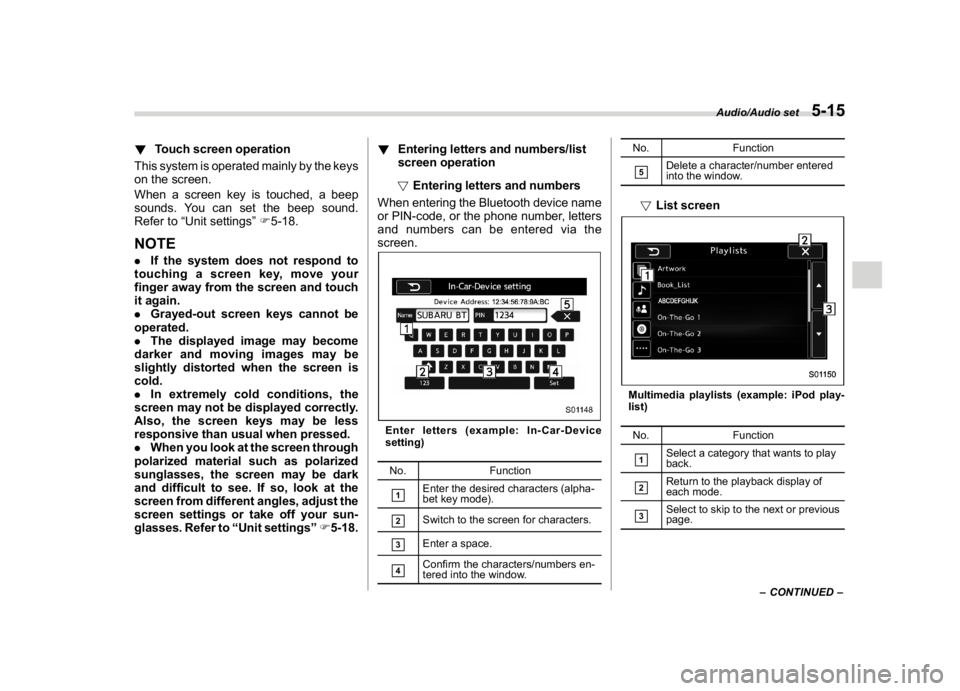
!Entering letters and numbers
When entering the Bluetooth device name
or PIN-code, or the phone number, letters
and numbers can be entered via the
screen.
Enter letters (example: In-Car-Device
setting)
No. Function&1
Enter the desired characters (alpha-
bet key mode).
&2
Switch to the screen for characters.
&3
Enter a space.
&4
Confirm the characters/numbers en-
tered into the window.No. Function
&5
Delete a character/number entered
into the window.
!List screenMultimedia playlists (example: iPod play-
list)
No. Function&1
Select a category that wants to play
back.
&2
Return to the playback display of
each mode.
&3
Select to skip to the next or previous
page.
–CONTINUED–
Audio/Audio set
5-15
5
Page 274 of 578

(283,1)
北米Model "A1700BE-B" EDITED: 2017/ 10/ 11
NOTE.SiriusXM Satellite Services—De-
scriptions
–Only SiriusXM Satellite Radio
®
brings you more of what you love,
all in one place. Get over 175
channels, including commercial-
free music, plus the best sports,
news, talk, comedy and entertain-
ment. Welcome to the world of
satellite radio. More information
about SiriusXM Satellite Radio is
available online at
www.siriusxm.com (U.S.) and
www.siriusxm.ca (Canada).
.SiriusXM Satellite Services—Sub-
scription Instructions
–For SiriusXM Services requiring a
subscription (such as SiriusXM Sa-
tellite Radio, and some Infotainment
& data services), the following para-
graph shall be included.
Required SiriusXM Satellite Radio
and some Infotainment & data ser-
vices monthly subscriptions sold
separately after trial period. Sub-
scription fee is consumer only. All
fees and programming subject to
change. Subscriptions are subject
to the Customer Agreement avail-
able at www.siriusxm.com (U.S.) or
www.siriusxm.ca (Canada). Sirius,XM and all related marks and logos
are trademarks of Sirius XM Radio
Inc. All other marks, channel names
and logos are the property of their
respective owners.
For more information, program
schedules, and to subscribe or
extend subscription after compli-
mentary trial period; more informa-
tion is available at:
.U.S. customers:
Visit www.siriusxm.com or call
1-866-635-2349
.Canadian customers:
Visit www.siriusxm.ca or call
1-877-209-0079
.SiriusXM Satellite Radio is solely
responsible for the quality, availability
and content of the satellite radio ser-
vices provided, which are subject to the
terms and conditions of the SiriusXM
Satellite Radio customer service agree-
ment.
.Customers should have their radio
ID ready; the radio ID can be found by
tuning to“Ch 000”on the radio. For
details, see“DISPLAYING THE RADIO
ID”below.
.All fees and programming are the
responsibility of SiriusXM Satellite
Radio and are subject to change.!How to change the source
Select the“Sirius XM”key on the source
select screen. Refer to“Selecting an audio
source”F5-17.
!Presetting a channel
1. The presets list is displayed via either
of the following procedures.
.When you touch the
tab in the
SiriusXM main screen (if the list that
was displayed the last time is Presets).
.When you select thetab in each
list screen.
2. The current channel is stored if you
touch and hold the preset list key. You can
store up to 30 channels (A beep sounds
when a channel stored).
The playing icon is displayed for the
currently selected channel.
–CONTINUED–
Audio/Audio set
5-39
5
Page 281 of 578

(290,1)
北米Model "A1700BE-B" EDITED: 2017/ 10/ 11
connected content is subject to change
without notice and could be affected by
any of the following: compatibility
issues with future firmware versions
of the smartphone; compatibility is-
sues with future versions of the con-
nected content application(s) for the
smartphone; changes to or disconti-
nuation of the connected content ap-
plication(s) or service by its provider.
.Communication and phone call
charges for smartphones should be
paid by the wireless subscriber.
.If you lose the data in a smartphone
or other device while using it with the
system, no compensation will be given
for the lost data.
.SUBARU CORPORATION makes no
guarantee regarding the content pro-
vided by aha.
.aha may not work due to factors on
smartphones, smartphone applica-
tions or stations. SUBARU CORPORA-
TION is not responsible for it.!About the supported devices
This system supports the following de-
vices.
.For iPhone/iPod touch users
Type GenerationFirmware
version or
OS
iPhoneiPhone 3G iOS 4.2.x
iPhone 3GS iOS 6.1.x
iPhone 4 iOS 7.0.x
iPhone 4s iOS 7.0.x
iPhone 5 iOS 7.0.x
iPhone 5c iOS 7.0.x
iPhone 5s iOS 7.0.x
iPod touchiPod touch iOS 3.1.x
iPod touch 2 iOS 4.2.x
iPod touch 3 iOS 5.1.x
iPod touch 4 iOS 6.1.x
iPod touch 5iOS 7.0.x
NOTENote that the warranty does not apply if
an unsupported iPhone/iPod touch is
connected..For Android device users
Android OS Specification Profile
Android
Ver. 2.2 or
Ver. 2.3Bluetooth
Specification
Ver. 1.1 or
higher
(Ver. 2.0 +
EDR or higher
is recom-
mended).aha Con-
nect Bin-
ary API
over SPP
.Digital
audio by
A2DPNOTEThe available functions may vary de-
pending on the type of Android device.
!Connecting a smartphone
If you connect a smartphone to this system
after starting a supported aha application
on the smartphone, you can display and
operate the aha application displayed on
the smartphone on the system screen.
1. Runtheahaapplicationonyour
smartphone.
2. Connect the iPhone/iPod touch to the
USB port or connect the Android device by
utilizing the Bluetooth connection (SPP
and A2DP profile).
.For details about connecting an
iPhone/iPod touch: Refer to“Connect-
ing and disconnecting a USB memory/
portable device”F5-16.
.For details about registering or con-
Audio/Audio set
5-46
Page 300 of 578

(309,1)
北米Model "A1700BE-B" EDITED: 2017/ 10/ 11
“BT Devices Connection”screen (At the
initial startup and when no device is
registered).5. Touch the“Add”key.When the“Add”key is selected (Waiting
for the connection request from a device).
.For details about operating the Blue-
tooth device, see the manual that
comes with it.
.To cancel the registration, touch the
“Cancel”key.
6. Register the Bluetooth device using
your Bluetooth device.
.A PIN-code is not required for SSP
(Secure Simple Pairing) compatible
Bluetooth devices. Depending on the
type of Bluetooth device being con-
nected, a message confirming regis-
tration may be displayed on the Blue-
tooth device’s screen. Respond and
operate the Bluetooth device accord-
ing to the confirmation message.
7. Check that the screen is displayed
when registration is complete.
.The system waits for connection
requests coming from the registered
device.
.At this stage, the Bluetooth functions
are not yet available.
!Registering a Bluetooth Audio de-
vice for the first time
To use the Bluetooth Audio, it is necessary
to register an audio device with the
system.
The device registration procedure is the
same for both the hands-free system andBluetooth audio.
1. Display the“BT Devices Connection”
screen. Refer to“Registering a Bluetooth
phone for the first time”F5-64.
2. Select the“Add”key.
The“Add”key is not displayed when five
devices are already registered.
To add another device, you need to delete
one of the registered devices.
Press the
key for the device to be
deleted, and then select the“OK”key.
3. Register the Bluetooth device using
your Bluetooth device.
.A PIN-code is not required for SSP
(Secure Simple Pairing) compatible
Bluetooth devices. Depending on the
type of Bluetooth device being con-
nected, a message confirming regis-
tration may be displayed on the Blue-
tooth device’s screen. Respond and
operate the Bluetooth device accord-
ing to the confirmation message.
4. Check that the screen is displayed
when registration is complete.
.The system waits for connection
requests coming from the registered
device.
.At this stage, the Bluetooth functions
are not yet available.
–CONTINUED–
Audio/Bluetooth
®settings
5-65
5
Page 316 of 578

(325,1)
北米Model "A1700BE-B" EDITED: 2017/ 10/ 11
&Voice command system op-
eration1. Press the talk switch on the steering
wheel.
After the voice command top screen has
been displayed, speech guidance will
commence.NOTEWhen the voice command mode is
audio mode, voice guidance for the
voice command system can be skipped
by pressing the talk switch on the
steering wheel.
2. Say the command.
Example (Say“PHONE”)NOTE.Commands related with each func-
tion are displayed on the screen of the
each function tab. Some commonly
used commands are displayed on the
screen of the main tab. Even if any tab
is selected, all commands can be
operated.
.Saying
“Help”
prompts guidance to
offer examples of commands and op-
eration methods.
.To cancel voice recognition, select
“6”, or press and hold the talk switch
on the steering wheel.
.If the system does not respond or
the confirmation screen does not dis-
appear, press the talk switch on thesteering wheel and try again.
.The notations used in the com-
mands are as follows.
–< >: Numbers, titles or names to
be spoken
!Voice command example: Call name
1. Press the talk switch on the steering
wheel.
2. Say
“Call
.
.A confirmation screen will be dis-
played showing the recognition results.
If multiple matching items are found, a
selection screen will be displayed. Say
“
or select the number.
NOTE.In the same manner as it is displayed
on the screen,“Call
saying
“Call a contact”
say the name of
a contact. For example:
“Call a con-
tact”
,“John Smith”
or
“Call a contact”
,
“Mary Davis”.Short or abbreviated names in the
contacts list may not be recognized.
Change names in the contacts list to
full names.
.Sometimes a voice recognition re-
sult confirmation screen will be dis-
played. After confirming the result, say“Yes”
or
“No”
.
.When the system recognizes multi-
–CONTINUED–
Audio/Voice command system
5-81
5
Page 326 of 578
(335,1)
北米Model "A1700BE-B" EDITED: 2017/ 10/ 11
Appendix&Certification.Bluetooth
The Bluetooth word mark and logo are
registered trademarks of Bluetooth SIG,
Inc. and any use of such marks by Clarion
Co., Ltd. is under license..SiriusXM Satellite Radio (if
equipped)
SiriusXM
TM
and all related marks and
logos are trademarks of SiriusXM Radio
Inc. All rights reserved.
.Pandora (if equipped)
Pandora, the Pandora logo, and other
Pandora marks are trademarks or regis-
tered trademarks of Pandora Media, Inc.,
or its subsidiaries worldwide.
If you have any issues with the Pandora
application on your mobile phone, please
direct them to
[email protected].
.iPod
“Made for iPod”and“Made for iPhone”
mean that an electronic accessory has
been designed to connect specifically to
iPod or iPhone respectively, and has been
certified by the developer to meet Apple
performance standards. Apple is not re-
sponsible for the operation of this device or
its compliance with safety and regulatory
standards. Please note that the use of this
accessory with iPod or iPhone may affect
wireless performance.
iPhone, iPod, iPod classic, iPod nano,
iPod touch, and iTunes are trademarks of
Apple Inc., registered in the U.S. and other
countries..How to get the source code using the
open source
This system implements software using
theopensource.Forcustomerswho
would like to get the source code of the
software, it is available by downloading it
from the web site of Clarion Co., Ltd.
For details, refer to the following web site.http://www.clarion.com/us/en/support/in-
dex.html
&Certification for the Hands-
free system.U.S.-spec. models
CAUTION
FCC WARNING
Changes or modifications not ex-
pressly approved by the party re-
sponsible for compliance could void
the user’s authority to operate the
equipment.
This device complies with part 15 of the
FCC Rules. Operation is subject to the
following two conditions: (1) This device
may not cause harmful interference, and
(2) this device must accept any interfer-
ence received, including interference that
may cause undesired operation.
–CONTINUED–
Audio/Appendix
5-91
5
Page 336 of 578
(347,1)
北米Model "A1700BE-B" EDITED: 2017/ 10/ 11
below the climate control dials and in the
center console. Electrical power (12V DC)
from the battery is available at any of the
outlets when the ignition switch is in either
the“ACC”or“ON”position.
You can use an in-vehicle electrical appli-
ance by connecting it to an outlet.
The maximum power rating of an appli-
ance that can be connected is120W.Do
not use an appliance which exceeds the
indicated wattage for each outlet.
When using appliances connected to two
or more outlets simultaneously, the total
power consumed by them must not ex-
ceed 120W.
CAUTION
.Do not attempt to use a cigarette
lighter in the accessory power
outlets.
.Do not place any foreign objects,
especially metal ones such as
coins or aluminum foil, into the
accessory power outlet. That
could cause a short circuit. Al-
ways put the cap on the acces-
sory power outlet when it is not in
use.
.Use only electrical appliances
which are designed for 12V DC.
The maximum power rating of anappliance that can be connected
is 120W. Do not use an appliance
which exceeds the indicated wat-
tage for each outlet.
When using appliances con-
nected to two or more outlets
simultaneously, the total power
consumed by them must not
exceed 120W. Overloading the
accessory power outlet can
cause a short circuit. Do not use
double adapters or more than
one electrical appliance.
.If the plug on your electric appli-
ance is either too loose or too
tight for the accessory power
outlet, this can result in a poor
contact or cause the plug to get
stuck. Only use plugs that fit
properly.
.Use of an electric appliance in the
accessory power outlet for a long
period of time while the engine is
not running can cause battery
discharge.
.Before driving your vehicle, make
sure that the plug and the cord on
your electrical appliance will not
interfere with your shifting gears
and operating the accelerator
and brake pedals. If they do, donot use the electrical appliance
while driving.
&Use with a cigarette lighter (if
equipped)To use the accessory power outlet as a
cigarette lighter socket, purchase the
cigarette lighter plug, which is an optional
accessory. A cigarette lighter plug is
available from your SUBARU dealer.
The cigarette lighter operates only when
the ignition switch is in the“ON”or“ACC”
position.
To use the cigarette lighter, push in the
knob and wait a few moments. It will
automatically spring up when ready for
use.
WARNING
To avoid being burned, never grasp
the lighter by the end with the
heating element. Doing so could
result in injury and could also da-
mage the heating element.
–CONTINUED–
Interior equipment/Accessory power outlets
6-9
6
Page 355 of 578

(368,1)
北米Model "A1700BE-B" EDITED: 2017/ 10/ 11
.When opening the cap, grasp it
firmly and turn it slowly to the left.
Do not remove the cap quickly.
Fuel may be under pressure and
spray out of the fuel filler neck,
especially in hot weather. If you
hear a hissing sound while you
are removing the cap, wait for the
sound to stop and then slowly
open the cap to prevent fuel from
spraying out and creating a fire
hazard.3. Set the fuel filler cap on the cap holder
inside the fuel filler lid.
WARNING
.When refueling, insert the fuel
nozzle securely into the fuel filler
pipe. If the nozzle is lifted or not
fully inserted, its automatic stop-
ping mechanism may not func-
tion, causing fuel to overflow the
tank and creating a fire hazard.
.Stop refueling when the auto-
matic stop mechanism on the
fuel nozzle activates. If you con-
tinue to add fuel, temperature
changes or other conditions
may cause fuel to overflow from
the tank and create a fire hazard.
4. Stop filling the tank after the fuel filler
pump automatically stops. Do not add any
more fuel.
5. Put the cap back on, turn it clockwise
until you hear a clicking noise. Be certain
not to catch the tether under the cap while
tightening.
CAUTION
Make sure that the cap is tightened
until it clicks to prevent fuel spillage
in the event of an accident.
6. Close the fuel filler lid completely.
CAUTION
If you spill any fuel on the painted
surface, rinse it off immediately.
Otherwise, the painted surface
could be damaged.NOTE.You will see the“
”sign in the fuel
gauge. This indicates that the fuel filler
door (lid) is located on the right side of
the vehicle.
.If the fuel filler cap is not tightened
until it clicks or if the tether is caught
under the cap, the CHECK ENGINE
warning light/malfunction indicator
light may illuminate. Refer to“CHECK
ENGINE warning light/Malfunction in-
dicator light”F3-16.
CAUTION
.Never add any cleaning agents to
the fuel tank. The addition of a
cleaning agent may cause da-
mage to the fuel system.
.After refueling, turn the cap
clockwise until it clicks to ensure
that it is fully tightened. If the cap
is not securely tightened, fuel
may leak out while the vehicle is
Starting and operating/Fuel
7-6