2018 Hyundai Elantra audio
[x] Cancel search: audioPage 234 of 526

Information - Using the voicerecognition
• When using the voice recognition fea- ture, only commands listed within the
user's manual are supported.
• Be aware that during the operation of the voice recognition system, pressing
any key other than the key termi-
nate the voice recognition mode.
• For superior voice recognition perform- ance, position the microphone used for
voice recognition above the head of the
driver’s seat and maintain a proper
position when saying commands.
• Within the following situations, voice recognition may not function properly
due to external sound.
- When the windows and sunroof areopen
- When the wind of the cooling / heating device is strong
- When entering and passing through tunnels
(Continued)(Continued)
- When driving on rugged and unevenroads
- During severe rain (heavy rains, windstorms)
• Phone related voice commands can be used only when a Bluetooth
®Wireless
Technology device is connected.
• When making calls by stating a name, the corresponding contact must be
downloaded and stored within the audio
system.
• After downloading the Bluetooth
®
Wireless Technology phone book, it
takes some times to convert the phone
book data into voice information.
During this time, voice recognition may
not properly operate.
• Pronounce the voice commands natural- ly and clearly as if in a normal conver-
sation.
i
4-15
Multimedia System
4
Page 236 of 526
4-17
Multimedia System
4
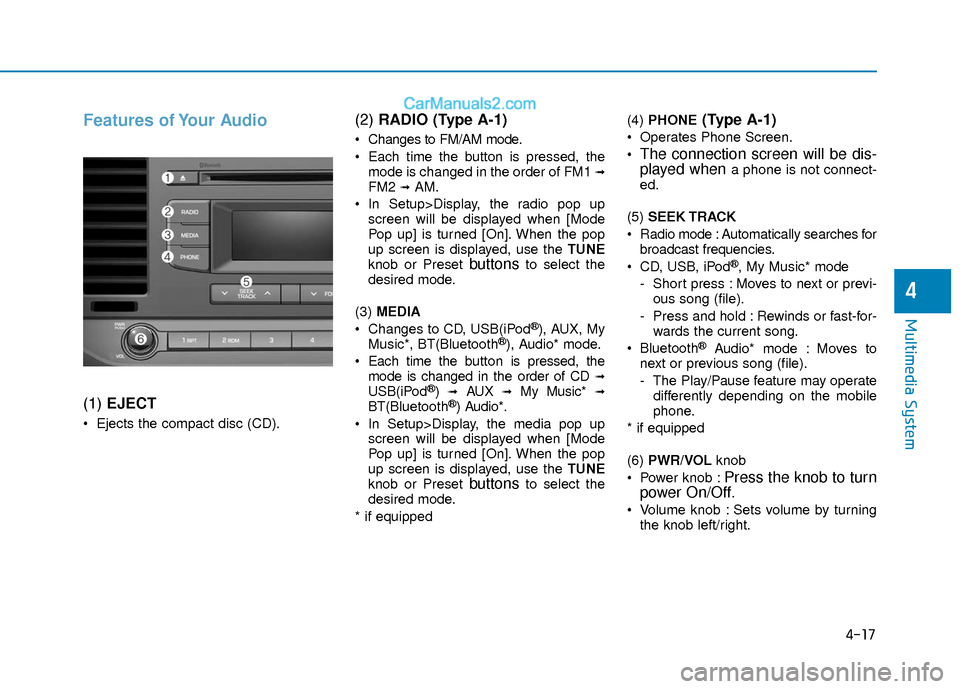
Features of Your Audio
(1) EJECT
Ejects the compact disc (CD).
(2) RADIO (Type A-1)
Changes to FM/AM mode.
Each time the button is pressed, the
mode is changed in the order of FM1
➟FM2 ➟AM.
In Setup>Display, the radio pop up screen will be displayed when [Mode
Pop up] is turned [On]. When the pop
up screen is displayed, use the TUNE
knob or Preset
buttonsto select the
desired mode.
(3) MEDIA
Changes to CD, USB(iPod
®), AUX, My
Music*, BT(Bluetooth®), Audio* mode.
Each time the button is pressed, the mode is changed in the order of CD
➟USB(iPod®)➟AUX➟My Music*➟BT(Bluetooth®) Audio*.
In Setup>Display, the media pop up screen will be displayed when [Mode
Pop up] is turned [On]. When the pop
up screen is displayed, use the TUNE
knob or Preset
buttonsto select the
desired mode.
* if equipped (4)
PHONE
(Type A-1)
Operates Phone Screen.
The connection screen will be dis-
played whena phone is not connect-
ed.
(5) SEEK TRACK
Radio mode : Automatically searches for broadcast frequencies.
CD, USB, iPod
®, My Music* mode
- Short press : Moves to next or previ- ous song (file).
- Press and hold : Rewinds or fast-for- wards the current song.
Bluetooth
®Audio* mode : Moves to
next or previous song (file).
- The Play/Pause feature may operate differently depending on the mobile
phone.
* if equipped
(6) PWR/VOL knob
Power knob :
Press the knob to turn
power On/Off.
Volume knob : Sets volume by turning
the knob left/right.
Page 237 of 526
![Hyundai Elantra 2018 Owners Manual 4-18
Multimedia System
(7) [1] ~ [6] (Preset)
Radio mode : Saves frequencies (channels) or receives saved frequen-
cies (channels).
CD, USB, iPod
®, My Music* mode
- [RPT] : Repeat
- [RDM] : Random](/manual-img/35/14540/w960_14540-236.png "Hyundai Elantra 2018 Owners Manual 4-18
Multimedia System
(7) [1] ~ [6] (Preset)
Radio mode : Saves frequencies (channels) or receives saved frequen-
cies (channels).
CD, USB, iPod
®, My Music* mode
- [RPT] : Repeat
- [RDM] : Random")
4-18
Multimedia System
(7) [1] ~ [6] (Preset)
Radio mode : Saves frequencies (channels) or receives saved frequen-
cies (channels).
CD, USB, iPod
®, My Music* mode
- [RPT] : Repeat
- [RDM] : Random
In the Radio, Media, Setup, and Menu
pop up screen, the number menu is
selected.
* if equipped (8) DISP
Each short press toggles through the following modes : Screen Off
➟Screen
On ➟Screen Off.
Audio operation is maintained and only the Screen will be turned Off.
In the Screen Off state, press any but- ton to turn the Screen On again. (9)
SCAN
Radio mode - Short press : Previews each broad-cast for 5 seconds each.
- Press and hold : Previews the broad- casts saved in Preset [1] ~ [6] for 5
seconds each.
- Press the [SCAN] button again to
continue listening to the current fre-
quency.
CD, USB, My Music* mode - Short press : Previews each song(file) for 10 seconds each.
- Press the [SCAN] button again to
continue listening to the current song
(file).
* if equipped
(10) SETUP/CLOCK
Moves to the Display, Sound, Clock, Phone, System setting menu.
Page 240 of 526
4-21
Multimedia System
4
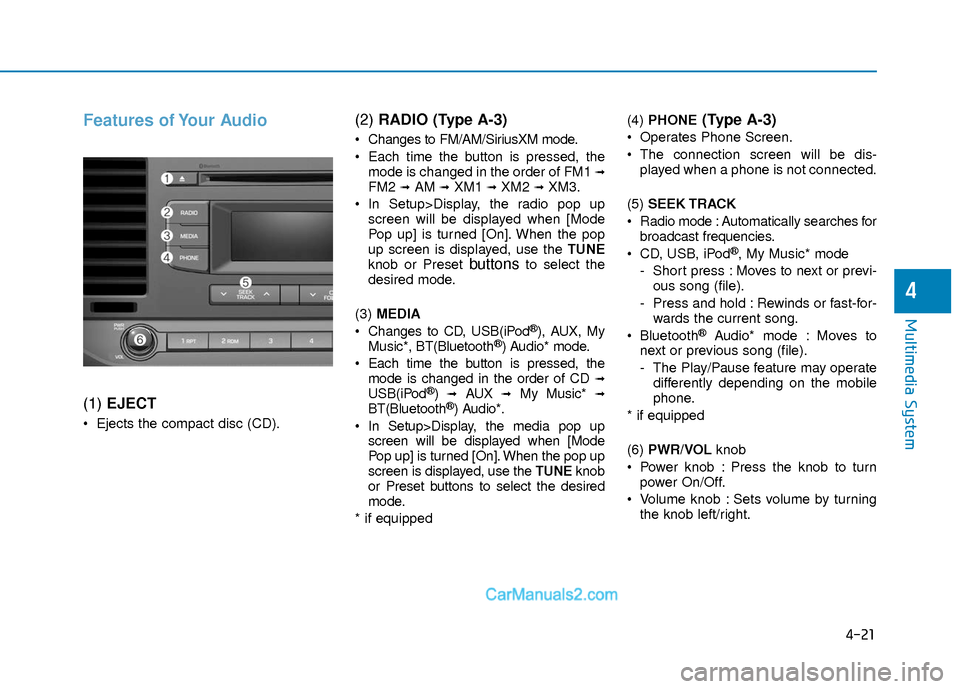
Features of Your Audio
(1) EJECT
Ejects the compact disc (CD).
(2) RADIO (Type A-3)
Changes to FM/AM/SiriusXM mode.
Each time the button is pressed, the
mode is changed in the order of FM1
➟FM2 ➟AM ➟XM1 ➟XM2 ➟XM3.
In Setup>Display, the radio pop up screen will be displayed when [Mode
Pop up] is turned [On]. When the pop
up screen is displayed, use the TUNE
knob or Preset
buttonsto select the
desired mode.
(3) MEDIA
Changes to CD, USB(iPod
®), AUX, My
Music*, BT(Bluetooth®) Audio* mode.
Each time the button is pressed, the mode is changed in the order of CD
➟USB(iPod®)➟AUX➟My Music*➟BT(Bluetooth®) Audio*.
In Setup>Display, the media pop up screen will be displayed when [Mode
Pop up] is turned [On]. When the pop up
screen is displayed, use the TUNE knob
or Preset buttons to select the desired
mode.
* if equipped (4)
PHONE
(Type A-3)
Operates Phone Screen.
The connection screen will be dis-
played when a phone is not connected.
(5) SEEK TRACK
Radio mode : Automatically searches for broadcast frequencies.
CD, USB, iPod
®, My Music* mode
- Short press : Moves to next or previ- ous song (file).
- Press and hold : Rewinds or fast-for- wards the current song.
Bluetooth
®Audio* mode : Moves to
next or previous song (file).
- The Play/Pause feature may operate differently depending on the mobile
phone.
* if equipped
(6) PWR/VOL knob
Power knob : Press the knob to turn power On/Off.
Volume knob : Sets volume by turning the knob left/right.
Page 241 of 526
![Hyundai Elantra 2018 Owners Manual 4-22
Multimedia System
(7) [1] ~ [6] (Preset)
Radio mode : Saves frequencies (channels) or receives saved frequen-
cies (channels).
CD, USB, iPod
®, My Music* mode
- [RPT] : Repeat
- [RDM] : Random](/manual-img/35/14540/w960_14540-240.png "Hyundai Elantra 2018 Owners Manual 4-22
Multimedia System
(7) [1] ~ [6] (Preset)
Radio mode : Saves frequencies (channels) or receives saved frequen-
cies (channels).
CD, USB, iPod
®, My Music* mode
- [RPT] : Repeat
- [RDM] : Random")
4-22
Multimedia System
(7) [1] ~ [6] (Preset)
Radio mode : Saves frequencies (channels) or receives saved frequen-
cies (channels).
CD, USB, iPod
®, My Music* mode
- [RPT] : Repeat
- [RDM] : Random
In the Radio, Media, Setup, and Menu
pop up screen, the number menu is
selected.
* if equipped (8) DISP
Each short press toggles through the following modes : Screen Off
➟Screen
On ➟Screen Off.
Audio operation is maintained and only the Screen will be turned Off.
In the Screen Off state, press any but- ton to turn the Screen On again. (9)
SCAN
Radio mode - Short press : Previews each broad-cast for 5 seconds each.
- Press and hold : Previews the broad- casts saved in Preset [1] ~ [6] for 5
seconds each.
- Press the [SCAN] button again to
continue listening to the current fre-
quency.
- XM Radio does not support the Preset scan feature.
CD, USB, My Music* mode - Short press : Previews each song(file) for 10 seconds each.
- Press the [SCAN] button again to
continue listening to the current song
(file).
* if equipped
(10) SETUP/CLOCK
Moves to the Display, Sound, Clock, Phone, System setting menu.
Page 243 of 526
4-24
Multimedia System
(Continued)
• Depending on the type of CD-R/CD-RWCDs, certain CDs may not operate nor-
mally depending on manufacturing
company or recording methods.
Information
- Playing an Incompatible CopyProtected Audio CD
Some copy protected CDs, which do not
comply with international audio CD stan-
dards (Red Book), may not play on your
car audio. Please note that inabilities to
properly play a copy protected CD may
indicate that the CD is defective, not the
CD player.
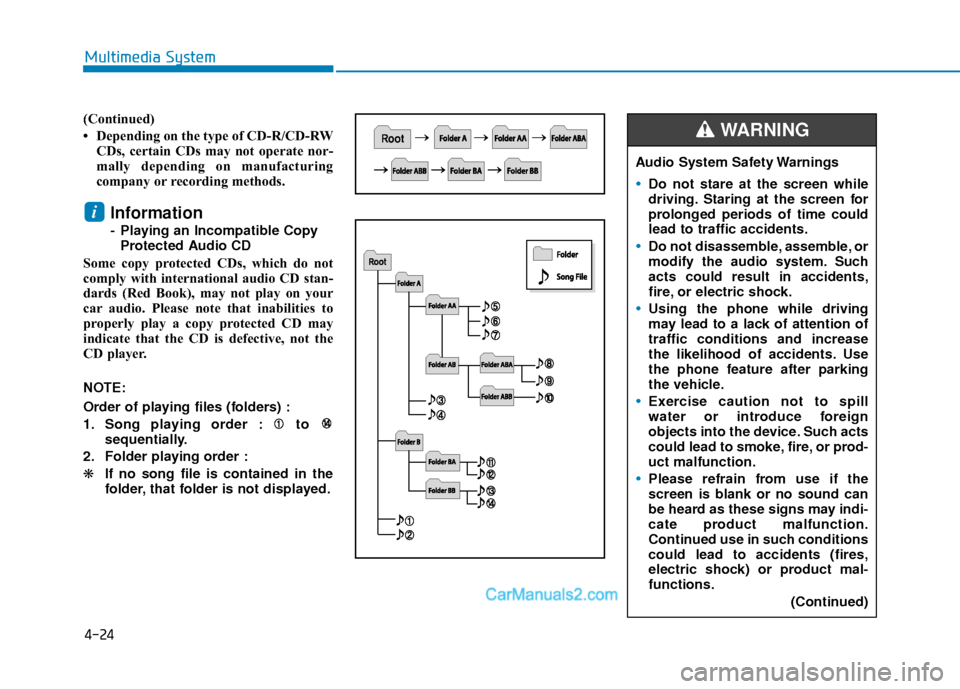
NOTE:
Order of playing files (folders) :
1. Song playing order : to sequentially.
2. Folder playing order :
❋ If no song file is contained in the
folder, that folder is not displayed.
i
Audio System Safety Warnings
Do not stare at the screen while
driving. Staring at the screen for
prolonged periods of time could
lead to traffic accidents.
Do not disassemble, assemble, or
modify the audio system. Such
acts could result in accidents,
fire, or electric shock.
Using the phone while driving
may lead to a lack of attention of
traffic conditions and increase
the likelihood of accidents. Use
the phone feature after parking
the vehicle.
Exercise caution not to spill
water or introduce foreign
objects into the device. Such acts
could lead to smoke, fire, or prod-
uct malfunction.
Please refrain from use if the
screen is blank or no sound can
be heard as these signs may indi-
cate product malfunction.
Continued use in such conditions
could lead to accidents (fires,
electric shock) or product mal-
functions.
(Continued)
WARNING
Page 244 of 526
4-25
Multimedia System
4
Information
Turn on the car ignition before using this
device. Do not operate the audio system
for long periods of time with the ignition
turned off as such operations may lead to
battery discharge.
Do not subject the device to severeshock or impact. Direct pressure
onto the front side of the monitor
may cause damage to the LCD or
touch screen.
When cleaning the device, make sure to turn off the device and use a
dry and smooth cloth. Never use
rough materials, chemical cloths, or
solvents (alcohol, benzene, thin-
ners, etc.) as such materials may
damage the device panel or cause
color/quality deterioration.
Do not place beverages close to the audio system. Spilling beverages
may lead to system malfunction.
Placing the audio system within an electromagnetic environment may
result in noise interference.
Information
In case of product malfunction, please
contact your dealer or vehicle service cen-
ter.
i
NOTICE
i(Continued)
Do not touch the antenna during
thunder or lightening as such
acts may lead to lightning
induced electric shock.
Do not stop or park in parking-
restricted areas to operate the
product. Such acts could lead to
traffic accidents.
Distracted Driving
Driving while distracted can result
in a loss of vehicle control that may
lead to an accident, severe person-
al injury, and death. The driver’s pri-
mary responsibility is in the safe
and legal operation of a vehicle,
and use of any handheld devices,
other equipment, or vehicle sys-
tems which take the driver’s eyes,
attention and focus away from the
safe operation of a vehicle or which
are not permissible by law should
never be used during operation of
the vehicle.
WARNING
Page 245 of 526

4-26
Multimedia System
Information
- Using the USB Devices
• To use an external USB device, make sure the device is not connected when
starting up the vehicle. Connect the
device after starting up.
• If you start the engine when the USB device is connected, it may damage the
USB device. (USB flashdrives are very
sensitive to electric shock.)
• If the engine is started up or turned off while the external USB device is con-
nected, the external USB device may not
work.
• The System may not play unauthenti- cated MP3 or WMA files.
1) It can only play MP3 files with the com- pression rate between 8Kbps ~
320Kbps.
2) It can only play WMA music files with the compression rate between 8Kbps ~
320Kbps.
• Take precautions for static electricity when connecting or disconnecting the
external USB device.
(Continued)(Continued)
• An encrypted MP3 PLAYER is not rec-
ognizable.
• Depending on the condition of the exter- nal USB device, the connected external
USB device can be unrecognizable.
• When the formatted byte/sector setting of External USB device is not either
512BYTE or 2048BYTE, then the device
will not be recognized.
• Use only a USB device formatted to FAT 12/16/32.
• USB devices without USB I/F authenti- cation may not be recognizable.
• Make sure the USB connection terminal does not come in contact with the
human body or other objects.
• If you repeatedly connect or disconnect the USB device in a short period of time,
it may break the device.
• You may hear a strange noise when con- necting or disconnecting a USB device.
• If you disconnect the external USB device during playback in USB mode,
the external USB device can be damaged
or may malfunction. Therefore, discon-
nect the external USB device when the
audio is turned off or in another mode.
(e.g, Radio)
(Continued)(Continued)
• Depending on the type and capacity of
the external USB device or the type of
files stored in the device, there is a dif-
ference in the time for recognition the
device.
• Do not use the USB device for purposes other than playing music files.
• Playing videos through the USB is not supported.
• Use of USB accessories such as recharg- ers or heaters using USB I/F may lower
performance or cause trouble.
• If you use devices such as a USB hub purchased separately, the vehicle’s
audio system may not recognize the USB
device. In this case, connect the USB
device directly to the multimedia termi-
nal of the vehicle.
• If the USB device is divided by logical drives, only the music files on the high-
est-priority drive are recognized by car
audio.
• Devices such as MP3 Player/ Cellular phone/Digital camera can be unrecog-
nizable by standard USB I/F.
• Charging through the USB may not be supported in some mobile devices.
• USB HDD or USB types liable to connec- tion failures due to vehicle vibrations are
not supported. (i-stick type)
(Continued)
i