Page 260 of 526
4-41
Multimedia System
4
Information
- Using the My Music(if equipped)
• Even if memory is available, a maxi- mum of 6,000 songs can be stored.
• The same song can be copied up to 1,000 times.
• Memory info can be checked in the System menu of Setup.
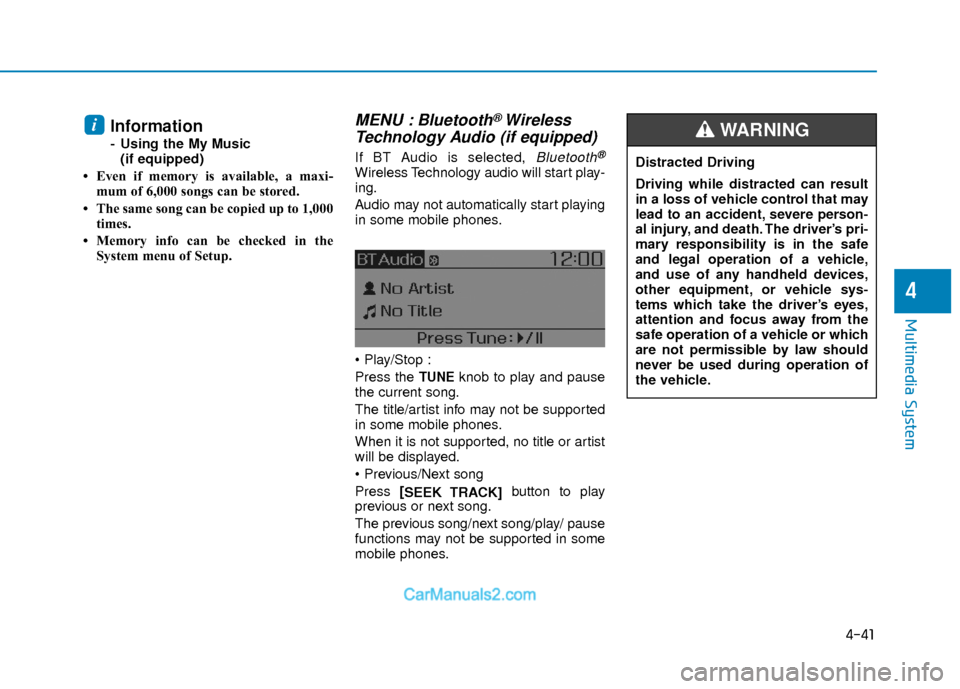
MENU : Bluetooth® Wireless
Technology Audio (if equipped)
If BT Audio is selected, Bluetooth®
Wireless Technology audio will start play-
ing.
Audio may not automatically start playing
in some mobile phones.
Press the
TUNEknob to play and pause
the current song.
The title/artist info may not be supported
in some mobile phones.
When it is not supported, no title or artist
will be displayed.
Press [
SEEK TRACK] button to play
previous or next song.
The previous song/next song/play/ pause
functions may not be supported in some
mobile phones.
i
Distracted Driving
Driving while distracted can result
in a loss of vehicle control that may
lead to an accident, severe person-
al injury, and death. The driver’s pri-
mary responsibility is in the safe
and legal operation of a vehicle,
and use of any handheld devices,
other equipment, or vehicle sys-
tems which take the driver’s eyes,
attention and focus away from the
safe operation of a vehicle or which
are not permissible by law should
never be used during operation of
the vehicle.
WARNING
Page 261 of 526

4-42
Multimedia System
Phone Mode (if equipped)
Making a call using the Steeringwheel controls
❈ The actual features in the vehicle may
differ from the illustration.
(1) VOICE RECOGNITION
Activates voice recognition*.
(2) MODE
Press the button to change audio
source.
FM1
➟ FM2 ➟ AM ➟ XM1*➟XM2*➟XM3*➟ CD ➟ USB(iPod®) ➟ AUX ➟My Music*➟ BT Audio*.
(3) VOLUME +
/-
Raises or lowers speaker volume.
*if equipped (4)
MUTE
Mutes audio volume.
(5) CALL
Places and transfers calls.
Check call history and making calls
- Shortly press the [CALL] button on the
steering wheel controls.
- The call history list will be displayed on the screen.
- Press the [CALL] button again to con-
nect a call to the selected number.
Redialing the most recently called number
- Press and hold the [CALL] button on
the steering wheel controls.
- The most recently called number is redialed.
(6) END
Ends calls or cancels functions.
❈ If call history does not exist, a screen
asking whether to download call histo-
ry is displayed. (The download feature
may not be supported in some mobile
phones)
Pairing using the Steering wheel controls
1. Press the [CALL] button on the steer-
ing wheel controls.
2. Select [OK] button to enter the Pair Phone screen.
Vehicle Name : Name of device as shown when searching from your
Bluetooth®Wireless Technology
device
Passkey : Passkey used to pair the device
Page 262 of 526

4-43
Multimedia System
4
3. From your Bluetooth®Wireless
Technology device (i.e. Mobile
Phone), search and select your car
audio system.
❈ SSP : Secure Simple Pairing
Non SSP supported device :
4. After a few moments, a screen is dis- played where the passkey is entered.
Enter the passkey “0000” to pair your
Bluetooth®Wireless Technology
device with the car audio system.
SSP supported device :
4. After a few moments, a screen is dis- played that has the 6 digit passkey
from any nearby SSP device that is
found. Check the passkey on your
Bluetooth®Wireless Technology. Some phones (i.e., iPhone
®, Android TM
and Blackberry®phones) may offer an
option to allow acceptance of all future
Bluetooth
®connection requests by
default. Visit http://www.hyundaiusa.com/Bluetoothfor additional
information on pairing your Bluetooth®-
enabled mobile phone, and to view a
phone compatibility list.
If
Bluetooth®Wireless Technology
devices are paired but none are cur-
rently connected, pressing the [CALL]
button on the steering wheel control
displays the following screen. Select
[Pair] button to pair a new device or
select [Connect] to connect a previous-
ly paired device.
MENU : Phone
With a Bluetooth®Wireless Technology
device connected, press the [PHONE]
button to display the Phone menu
screen.
Favorites : [1] Button
Up to 20 frequently used contacts can be
saved for easy access.
Call History : [2] Button
Displays the call history list screen.
If you select the [History] button but there
is no call history data, a prompt is dis-
played which asks to download call histo-
ry data.
Page 263 of 526
4-44
Multimedia System
Contacts : [3]Button
Displays the Contacts list screen.
If you select the [Contacts] button but
there is no contacts data stored, a
prompt is displayed which asks to down-
load contacts data.
Setup : [4] Button
Displays Phone related settings.
This feature may not be supported in
some mobile phones. For more informa-
tion on download support, refer to your
mobile phone’s user manual.
Answering a Call
Answering a call with a Bluetooth®
Wireless Technology device connected
will display the following screen.
To accept the call, press [CALL] button
on the steering wheel while the call is
incoming.
Caller : Displays the other party’s name when the incoming caller is saved with-
in your contacts
Incoming Number : Displays the incoming number
Information
• When an incoming call pop-up is dis-played, most Audio and SETUP features
are disabled. Only the call volume will
operate.
• The telephone number may not be prop- erly displayed in some mobile phones.
i
Page 265 of 526

4-46
Multimedia System
Up to 1,000 contacts saved in yourBluetooth®Wireless Technology phone
can be downloaded into the car con-
tacts. Contacts that have been down-
loaded to the car cannot be edited or
deleted on the phone.
Mobile phone contacts are managed separately for each paired
Bluetooth®
Wireless Technology device (max 5
devices x 1,000 contacts each).
Previously downloaded data is main-
tained even if the
Bluetooth®Wireless
Technology de vice has been discon-
nected. (However, the contacts and call
history saved to the phone will be
deleted if a paired phone is deleted.)
It is possible to download contacts dur- ing Bluetooth
®streaming audio.
When downloading contacts, the icon will be displayed within the status bar. It is not possible to begin downloading
a contact list when the contact down-
load feature has been turned off within
the
Bluetooth® Wireless Technology
device. In addition, some devices may
require device authorization upon
attempting to download contacts. If
downloading does not normally occur,
check the
Bluetooth®Wireless
Technology device settings or for notifi-
cations on the screen.
The contacts download feature may not be supported in some mobile
phones. For more information of sup-
ported Bluetooth
®devices and func-
tion support, refer to your phone’s user
manual.
Voice Recognition Mode
(if equipped)
Using Voice Recognition
Short press the button on the steer-
ing wheel controls. Say a command
If prompt feedback is in [On], then the
system will say "Please say a command
after the beep (BEEP)"
If prompt feedback is in [On] mode, then the system will only say "(BEEP)"
To change Prompt Feedback [On]/[Off], go to [SETUP/CLOCK]
�
[System] �[Prompt Feedback]
For proper recognition, say the com- mand after the voice instruction and
beep tone.
Page 269 of 526
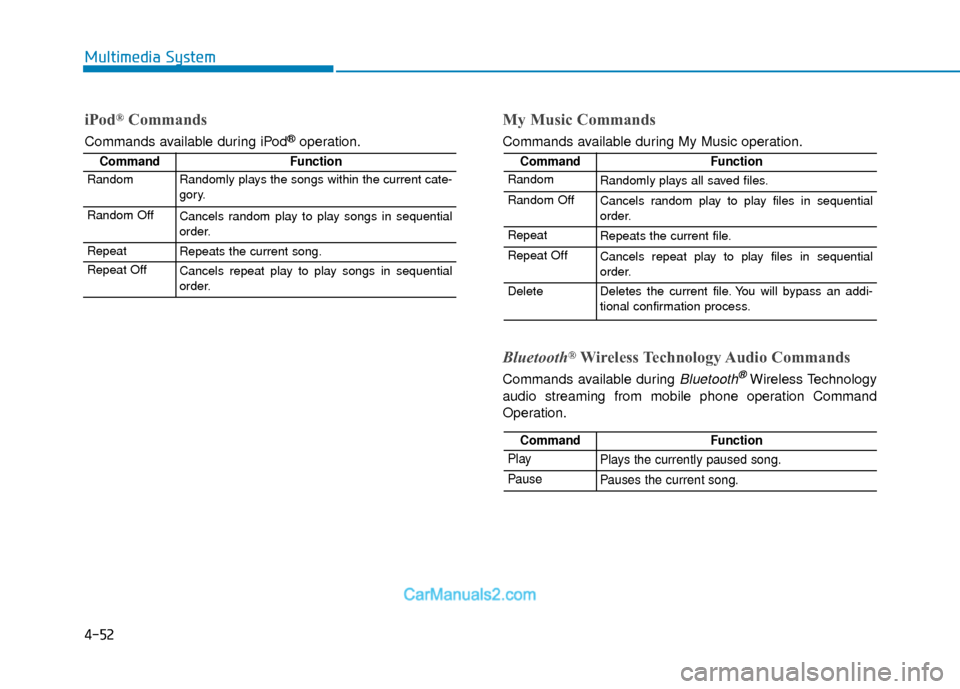
4-50
Multimedia System
CommandFunction
FM Preset 1~6Plays the most recently played broadcast saved in
FM Preset 1~6.
AM Preset 1~6Plays the broadcast saved in AM Preset 1~6.
FM 87.5~107.9Plays the FM broadcast of the corresponding fre-
quency.
AM 530~1710Plays the AM broadcast of the corresponding fre-
quency.
XM (Satellite) When listening to the SiriusXM®, maintains the
current state.
When listening to a different mode, displays the most recently played SiriusXM
®screen.
XM (Satellite) 1~3Displays the selected SiriusXM®screen.
XM Channel
0~223Plays the selected SiriusXM®channel.
MediaMoves to the most recently played media screen.
CDPlays music on the CD.
USBPlays music on the USB device.
iPod®Plays music on theiPod®.
My MusicPlays music saved in My Music.
CommandFunction
AUX (Auxiliary)Plays the connected external device.
Bluetooth®AudioPlays the music saved in connected Bluetooth®
device.
MuteMutes the sound.
Cancel (Exit)Ends voice command.
Page 270 of 526
4-51
Multimedia System
4
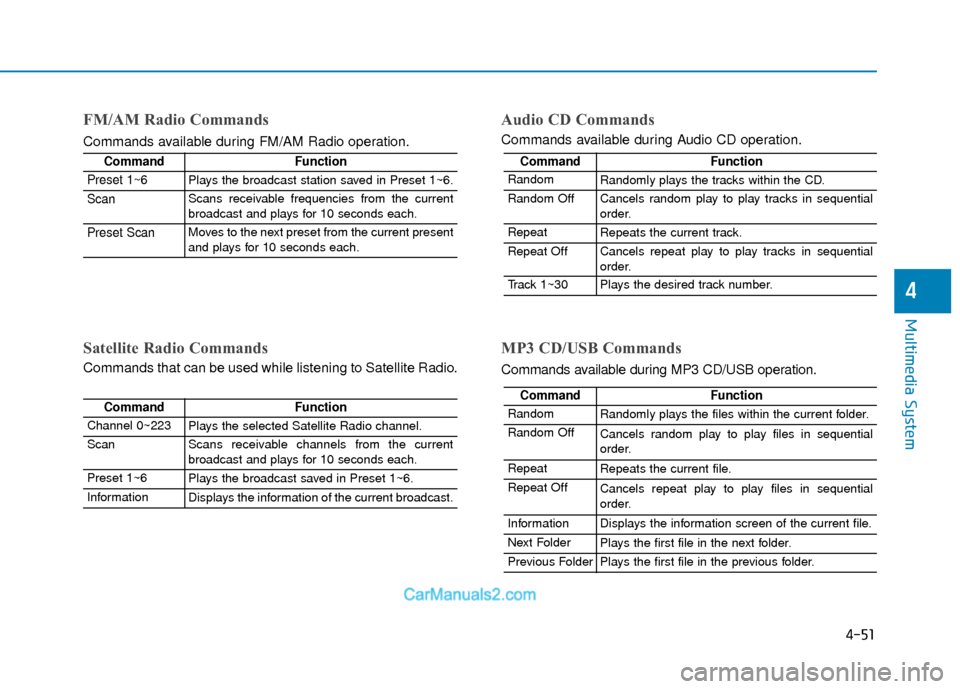
CommandFunction
RandomRandomly plays the files within the current folder.
Random OffCancels random play to play files in sequential
order.
RepeatRepeats the current file.
Repeat OffCancels repeat play to play files in sequential
order.
InformationDisplays the information screen of the current file.
Next FolderPlays the first file in the next folder.
Previous FolderPlays the first file in the previous folder.
CommandFunction
RandomRandomly plays the tracks within the CD.
Random OffCancels random play to play tracks in sequential
order.
RepeatRepeats the current track.
Repeat OffCancels repeat play to play tracks in sequential
order.
Track 1~30Plays the desired track number.
FM/AM Radio Commands
Commands available during FM/AM Radio operation.
Audio CD Commands
Commands available during Audio CD operation.
CommandFunction
Preset 1~6Plays the broadcast station saved in Preset 1~6.
ScanScans receivable frequencies from the current
broadcast and plays for 10 seconds each.
Preset ScanMoves to the next preset from the current present
and plays for 10 seconds each.
Satellite Radio Commands
Commands that can be used while listening to Satellite Radio.
MP3 CD/USB Commands
Commands available during MP3 CD/USB operation.
CommandFunction
Channel 0~223Plays the selected Satellite Radio channel.
ScanScans receivable channels from the current
broadcast and plays for 10 seconds each.
Preset 1~6Plays the broadcast saved in Preset 1~6.
InformationDisplays the information of the current broadcast.
Page 271 of 526
4-52
Multimedia System
iPod®Commands
Commands available during iPod®operation.
My Music Commands
Commands available during My Music operation.
Bluetooth®Wireless Technology Audio Commands
Commands available during Bluetooth®Wireless Technology
audio streaming from mobile phone operation Command
Operation.
CommandFunction
RandomRandomly plays all saved files.
Random OffCancels random play to play files in sequential
order.
RepeatRepeats the current file.
Repeat OffCancels repeat play to play files in sequential
order.
DeleteDeletes the current file. You will bypass an addi-
tional confirmation process.
CommandFunction
RandomRandomly plays the songs within the current cate-
gory.
Random OffCancels random play to play songs in sequential
order.
RepeatRepeats the current song.
Repeat OffCancels repeat play to play songs in sequential
order.
CommandFunction
PlayPlays the currently paused song.
PausePauses the current song.
![Hyundai Elantra 2018 Owners Manual 4-44
Multimedia System
Contacts : [3]Button
Displays the Contacts list screen.
If you select the [Contacts] button but
there is no contacts data stored, a
prompt is displayed which asks to down-
load](/manual-img/35/14540/w960_14540-262.png "Hyundai Elantra 2018 Owners Manual 4-44
Multimedia System
Contacts : [3]Button
Displays the Contacts list screen.
If you select the [Contacts] button but
there is no contacts data stored, a
prompt is displayed which asks to down-
load")