2018 Hyundai Elantra radio
[x] Cancel search: radioPage 108 of 526

3-31
Convenient features of your vehicle
3
Programming HomeLink®
Please note the following:
When programming a garage dooropener, it is advised to park the vehicle
outside of the garage.
It is recommended that a new battery be placed in the hand-held transmitter
of the device being programmed to
HomeLink
®for quicker training and
accurate transmission of the radio-fre-
quency signal.
Some vehicles may require the ignition switch to be placed in the ACC (or
"Accessories") position for program-
ming and/or operation of HomeLink
®.
In the event that there are still pro- gramming difficulties or questions after
following the programming steps listed
below, contact HomeLink
®at:
www.homelink.com or by calling 1-
800-355-3515.
Rolling code programming
Rolling code devices which are "code-
protected" and manufactured after 1996
may be determined by the following:
Reference the device owner’s manual for verification.
The handheld transmitter appears to program the HomeLink
®Universal
Transceiver but does not activate the
device.
Press and hold the trained HomeLink button. The device has the rolling code
feature if the indicator light flashes rap-
idly and then turns solid after 2 sec-
onds.
To train rolling code devices, follow these
instructions:
1. At the garage door opener receiver (motor-head unit) in the garage, locate
the "learn" or "smart" button. This can
usually be found where the hanging
antenna wire is attached to the motor-
head unit. Exact location and color of
the button may vary by garage door
opener brand. If there is difficulty
locating the training button, reference
the device owner’s manual or please
visit our Web site at
www.homelink.com. 2. Firmly press and release the "learn" or
"smart" button (which activates the
"training light"). You will have 30 sec-
onds to initiate step 3.
3. Return to the vehicle and firmly press, hold for two seconds and then release
the desired HomeLink
®button. Repeat
the "press/hold/release" sequence a
second time to complete the program-
ming. (Some devices may require you
to repeat this sequence a third time to
complete the programming.)
4. Press and hold the just-trained HomeLink
®button and observe the
red Status Indicator LED. If the indica-
tor light stays on constantly, program-
ming is complete and your device
should activate.
5. To program the remaining two HomeLink
®buttons, follow either
steps 1 through 4 above for other
Rolling Code devices or steps 2
through 5 in Standard Programming
for standard devices.
Page 128 of 526

3-51
Convenient features of your vehicle
3
Information
• The Smart Trunk function will not workif any of the following occurs:
- The smart key is close to a radio trans-mitter such as a radio station or an air-
port which can interfere with normal
operation of the transmitter.
- The smart key is near a mobile two way radio system or a cellular phone.
- Another vehicle's smart key is being operated close to your vehicle.
• The detecting range may decrease or increase when :
- One side of the tire is raised to replacea tire or to inspect the vehicle.
- The vehicle is parked on a slope or unpaved road, etc.
Fuel Filler Door
Opening the fuel filler door
The fuel filler door must be opened from
inside the vehicle by pulling up the fuel
filler door release lever.
1. Turn the engine off. Locate the fuel filler door release lever on the floor on
the left side of the driver seat.
2. Pull up on the release lever. 3. Pull the fuel filler door (1) out to fully
open.
4. To remove the fuel tank cap (2), turn it counterclockwise. You may hear a
hissing noise as the pressure inside
the tank equalizes.
5. Place the cap on the fuel filler door.
Information
If the fuel filler door does not open because
ice has formed around it, tap lightly or
push on the door to break the ice and
release the door. Do not pry on the door. If
necessary, spray around the door with an
approved de-icer fluid (do not use radiator
anti-freeze) or move the vehicle to a warm
place and allow the ice to melt.
i
i
OAD045034
OAD045035
Page 220 of 526

Multimedia System
Multimedia system .................................................4-2
AUX, USB and iPod®port ...............................................4-2
Antenna ........................................................................\
.......4-2
Steering Wheel Audio Controls ......................................4-3
Bluetooth®Wireless Technology Hands-Free ...........4-4
Audio (Display Audio) / Video /
Navigation System (AVN).................................................4-4
How Vehicle Audio Works ...............................................4-5
Features of Your Vehicle.................................................4-6
Caring for CDs ....................................................................4-7
Audio (Without Touch Screen) ..........................4-16
Features of Your Audio .................................................4-17
Radio Mode.......................................................................4\
-32
SiriusXM Radio Mode.....................................................4-34
Media Mode......................................................................4-\
36
Phone Mode .....................................................................4-4\
2
Voice Recognition Mode ...............................................4-46
Setup Mode ......................................................................4-\
53
Declaration of conformity ..................................4-63
FCC ........................................................................\
..............4-63
4
Page 222 of 526

4-3
Multimedia System
4
Do not clean the inside of the rearglass window with a cleaner or
scraper to remove foreign deposits
as this may cause damage to the
antenna elements.
Avoid adding metallic coatings to the rear glass window. These can
degrade AM and FM broadcast sig-
nals.
Steering Wheel Audio Control
Do not operate multiple audio remote
control buttons simultaneously.
VOLUME (VOL + / - ) (1)
Press the VOLUME switch up toincrease volume.
Press the VOLUME switch down to decrease volume.
SEEK/PRESET ( / ) (2)
If the SEEK/PRESET switch is pressed
up or down and held for 0.8 second or
more, it will function in the following
modes:
RADIO mode
It will function as the AUTO SEEK select
button. It will SEEK until you release the
button.
MEDIA mode
It will function as the FF/RW button.
If the SEEK/PRESET switch is pressed
up or down, it will function in the following
modes:
RADIO mode
It will function as the PRESET STATION
UP/DOWN button.
MEDIA mode
It will function as the TRACK UP/ DOWN
button.
NOTICE
NOTICE
OAD045446N
Page 223 of 526

4-4
Multimedia System
MODE (3)
Press the MODE button to toggle
through Radio, XM, Disc, or AUX modes.
Information
Detailed information for audio control
buttons is described later in this chapter
or in the Car Multimedia User's Manual
that was supplied with this vehicle
Bluetooth®Wireless
Technology Hands-Free
You can use the phone wirelessly by
using the Bluetooth®Wireless
Technology.
(1) Call / Answer button
(2) Call end button (3) Microphone
Detailed information for the
Bluetooth®
Wireless Technology hands-free is
described later in this chapter or in the
Car Multimedia User's Manual.
Audio (Display Audio) / Video /
Navigation System (AVN)
Detailed information for the AVN system
is described in the Car Multimedia User's
Manual.
i
OAD045447N
OAD045430
Page 224 of 526
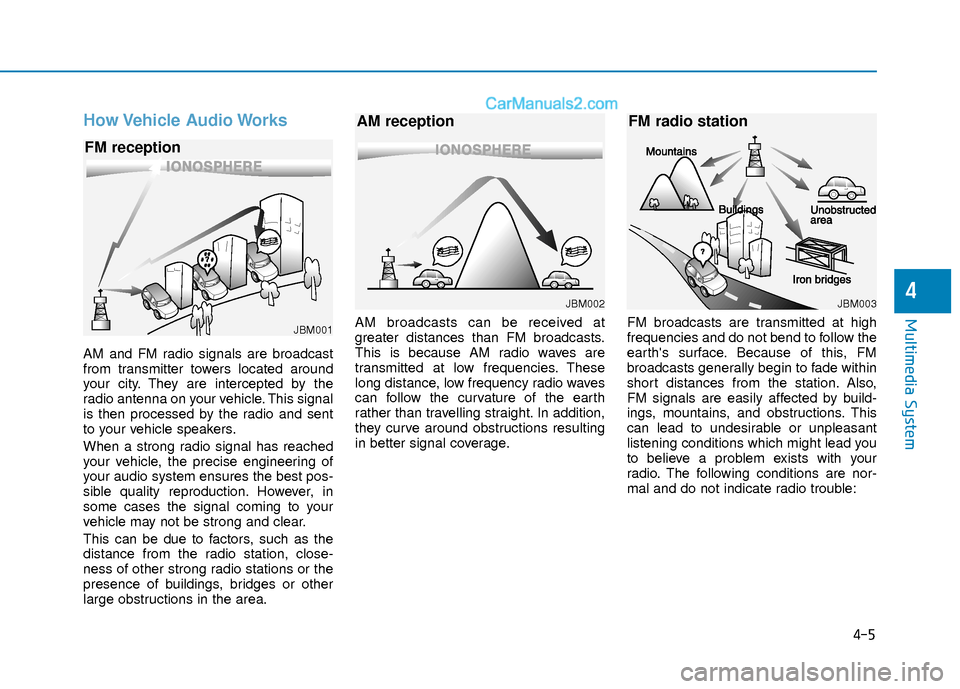
How Vehicle Audio Works
AM and FM radio signals are broadcast
from transmitter towers located around
your city. They are intercepted by the
radio antenna on your vehicle. This signal
is then processed by the radio and sent
to your vehicle speakers.
When a strong radio signal has reached
your vehicle, the precise engineering of
your audio system ensures the best pos-
sible quality reproduction. However, in
some cases the signal coming to your
vehicle may not be strong and clear.
This can be due to factors, such as the
distance from the radio station, close-
ness of other strong radio stations or the
presence of buildings, bridges or other
large obstructions in the area.AM broadcasts can be received at
greater distances than FM broadcasts.
This is because AM radio waves are
transmitted at low frequencies. These
long distance, low frequency radio waves
can follow the curvature of the earth
rather than travelling straight. In addition,
they curve around obstructions resulting
in better signal coverage.
FM broadcasts are transmitted at high
frequencies and do not bend to follow the
earth's surface. Because of this, FM
broadcasts generally begin to fade within
short distances from the station. Also,
FM signals are easily affected by build-
ings, mountains, and obstructions. This
can lead to undesirable or unpleasant
listening conditions which might lead you
to believe a problem exists with your
radio. The following conditions are nor-
mal and do not indicate radio trouble:
4-5
Multimedia System
4
JBM001
FM reception
JBM002
AM reception
JBM003
FM radio station
Page 225 of 526
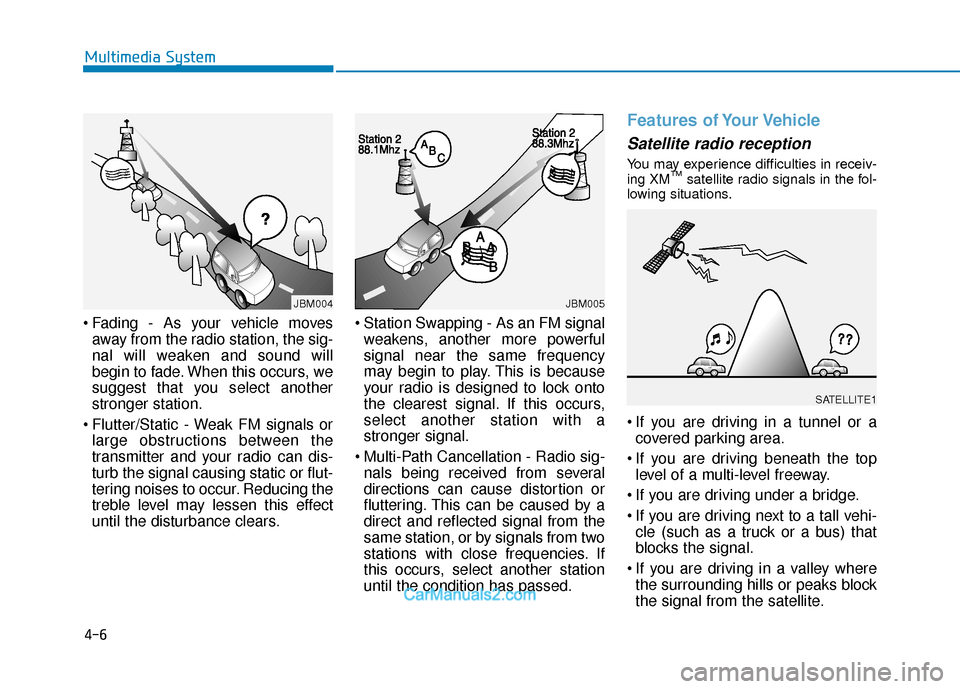
Fading - As your vehicle movesaway from the radio station, the sig-
nal will weaken and sound will
begin to fade. When this occurs, we
suggest that you select another
stronger station.
Flutter/Static - Weak FM signals or large obstructions between the
transmitter and your radio can dis-
turb the signal causing static or flut-
tering noises to occur. Reducing the
treble level may lessen this effect
until the disturbance clears. Station Swapping - As an FM signal
weakens, another more powerful
signal near the same frequency
may begin to play. This is because
your radio is designed to lock onto
the clearest signal. If this occurs,
select another station with a
stronger signal.
Multi-Path Cancellation - Radio sig- nals being received from several
directions can cause distortion or
fluttering. This can be caused by a
direct and reflected signal from the
same station, or by signals from two
stations with close frequencies. If
this occurs, select another station
until the condition has passed.
Features of Your Vehicle
Satellite radio reception
You may experience difficulties in receiv-
ing XM™satellite radio signals in the fol-
lowing situations.
If you are driving in a tunnel or a covered parking area.
If you are driving beneath the top level of a multi-level freeway.
If you are driving under a bridge.
If you are driving next to a tall vehi- cle (such as a truck or a bus) that
blocks the signal.
If you are driving in a valley where the surrounding hills or peaks block
the signal from the satellite.
4-6
Multimedia System
¢¢¢
JBM004JBM005
SATELLITE1
Page 226 of 526

If you are driving on a mountainroad where is the signal blocked by
mountains.
If you are driving in an area with tall trees that block the signal (30 ft.
/10m or more), for example on an
road that goes through a dense for-
est.
The signal can become weak in some areas that are not covered by
the XM™ repeater network.Information
There may also be additional unforeseen
circumstances leading to reception prob-
lems with the XM™ satellite radio signal.
Advisory Messages, such as ‘CH
Unavailable’ may occur when starting
XM™ Radio.
Caring for CDs
If the temperature inside the car is too
high, open the car windows to ventilate
before using the system.
It is illegal to copy and use MP3/WMA files without permission. Use CDs that
are created only by lawful means.
Do not apply volatile agents, such as benzene and thinner, normal cleaners
and magnetic sprays made for analog
disc onto CDs.
To prevent the disc surface from get- ting damaged, hold CDs by the edges
or the center hole only.
Clean the disc surface with a piece of soft cloth before playback (wipe it from
the center to the outside edge).
Do not damage the disc surface or attach pieces of sticky tape or paper.
Make certain only CDs are inserted into the CD player (Do not insert more
than one CD at a time).
Keep CDs in their cases after use to protect them from scratches or dirt.
Depending on the type of CD-R/CD- RW CDs, certain CDs may not operate
normally according to the manufactur-
ing companies. In such circumstances,
continued use may cause malfunctions
to your audio system.
i
4-7
Multimedia System
4
SATELLITE2