2018 Hyundai Elantra radio
[x] Cancel search: radioPage 227 of 526

Information - Playing an
Incompatible Copy Protected
Audio CD
Some copy protected CDs, which do not
comply with international audio CD stan-
dards (Red Book), may not play on your
car audio. Please note that inabilities to
properly play a copy protected CD may
indicate that the CD is defective, not the
CD player.
Using a cellular phone or a two-
way radio
When a cellular phone is used inside the
vehicle, noise may be produced from the
audio system. This does not mean that
something is wrong with the audio equip-
ment. In such a case, try to operate
mobile devices as far from the audio
equipment as possible.
NOTE:
Order of playing files (folders) :
1. Song playing order : to
sequentially.
2. Folder playing order :
❋ If no song file is contained in the fold-
er, that folder is not displayed.i
4-8
Multimedia System
When using a communication sys-
tem such as a cellular phone or a
radio set inside the vehicle, a sepa-
rate external antenna must be fit-
ted. When a cellular phone or a
radio set is used with an internal
antenna alone, it may interfere with
the vehicle's electrical system and
adversely affect safe operation of
the vehicle.
CAUTION
Do not use a cellular phone while
driving. Stop at a safe location to
use a cellular phone or set up the
hands-free calling feature.
WARNING
Page 236 of 526
4-17
Multimedia System
4
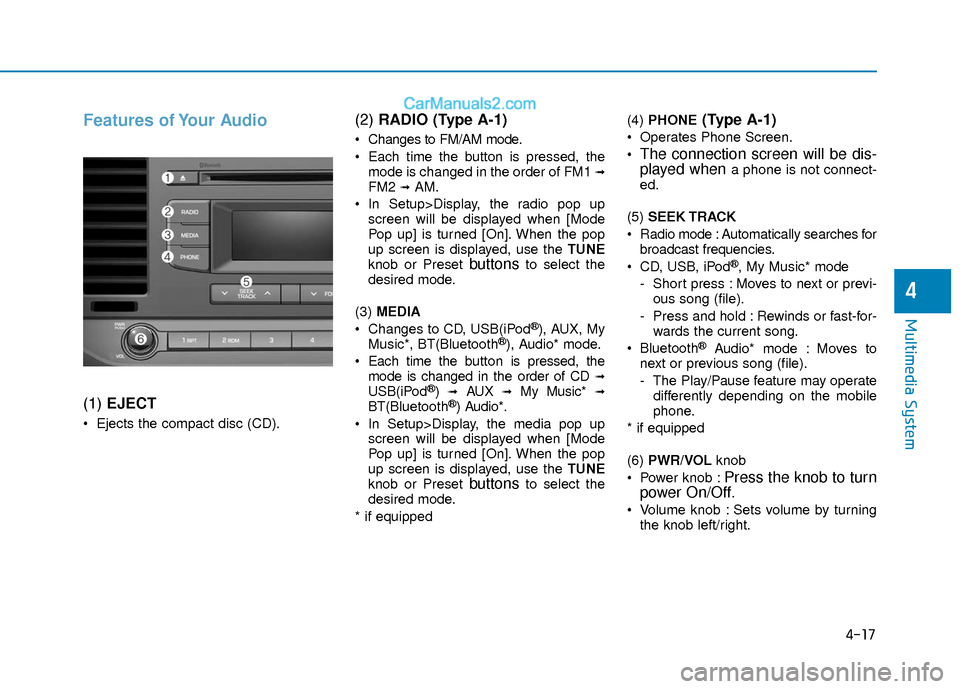
Features of Your Audio
(1) EJECT
Ejects the compact disc (CD).
(2) RADIO (Type A-1)
Changes to FM/AM mode.
Each time the button is pressed, the
mode is changed in the order of FM1
➟FM2 ➟AM.
In Setup>Display, the radio pop up screen will be displayed when [Mode
Pop up] is turned [On]. When the pop
up screen is displayed, use the TUNE
knob or Preset
buttonsto select the
desired mode.
(3) MEDIA
Changes to CD, USB(iPod
®), AUX, My
Music*, BT(Bluetooth®), Audio* mode.
Each time the button is pressed, the mode is changed in the order of CD
➟USB(iPod®)➟AUX➟My Music*➟BT(Bluetooth®) Audio*.
In Setup>Display, the media pop up screen will be displayed when [Mode
Pop up] is turned [On]. When the pop
up screen is displayed, use the TUNE
knob or Preset
buttonsto select the
desired mode.
* if equipped (4)
PHONE
(Type A-1)
Operates Phone Screen.
The connection screen will be dis-
played whena phone is not connect-
ed.
(5) SEEK TRACK
Radio mode : Automatically searches for broadcast frequencies.
CD, USB, iPod
®, My Music* mode
- Short press : Moves to next or previ- ous song (file).
- Press and hold : Rewinds or fast-for- wards the current song.
Bluetooth
®Audio* mode : Moves to
next or previous song (file).
- The Play/Pause feature may operate differently depending on the mobile
phone.
* if equipped
(6) PWR/VOL knob
Power knob :
Press the knob to turn
power On/Off.
Volume knob : Sets volume by turning
the knob left/right.
Page 237 of 526
![Hyundai Elantra 2018 Owners Manual 4-18
Multimedia System
(7) [1] ~ [6] (Preset)
Radio mode : Saves frequencies (channels) or receives saved frequen-
cies (channels).
CD, USB, iPod
®, My Music* mode
- [RPT] : Repeat
- [RDM] : Random](/manual-img/35/14540/w960_14540-236.png "Hyundai Elantra 2018 Owners Manual 4-18
Multimedia System
(7) [1] ~ [6] (Preset)
Radio mode : Saves frequencies (channels) or receives saved frequen-
cies (channels).
CD, USB, iPod
®, My Music* mode
- [RPT] : Repeat
- [RDM] : Random")
4-18
Multimedia System
(7) [1] ~ [6] (Preset)
Radio mode : Saves frequencies (channels) or receives saved frequen-
cies (channels).
CD, USB, iPod
®, My Music* mode
- [RPT] : Repeat
- [RDM] : Random
In the Radio, Media, Setup, and Menu
pop up screen, the number menu is
selected.
* if equipped (8) DISP
Each short press toggles through the following modes : Screen Off
➟Screen
On ➟Screen Off.
Audio operation is maintained and only the Screen will be turned Off.
In the Screen Off state, press any but- ton to turn the Screen On again. (9)
SCAN
Radio mode - Short press : Previews each broad-cast for 5 seconds each.
- Press and hold : Previews the broad- casts saved in Preset [1] ~ [6] for 5
seconds each.
- Press the [SCAN] button again to
continue listening to the current fre-
quency.
CD, USB, My Music* mode - Short press : Previews each song(file) for 10 seconds each.
- Press the [SCAN] button again to
continue listening to the current song
(file).
* if equipped
(10) SETUP/CLOCK
Moves to the Display, Sound, Clock, Phone, System setting menu.
Page 238 of 526
4-19
Multimedia System
4
(11) MENU
Displays menus for the current mode.
®List : Move to parent category.
(12) FOLDER
MP3 CD/USB mode - Folder Search
(13) TUNE knob
Radio mode : Changes frequency by turning the knob left/right.
CD, USB, iPod
®, My Music* mode :
Searches songs (files) by turning the
knob left/right. When the desired song
is displayed, press the knob to play the
song.
Moves focus in all selection menus and selects menus.
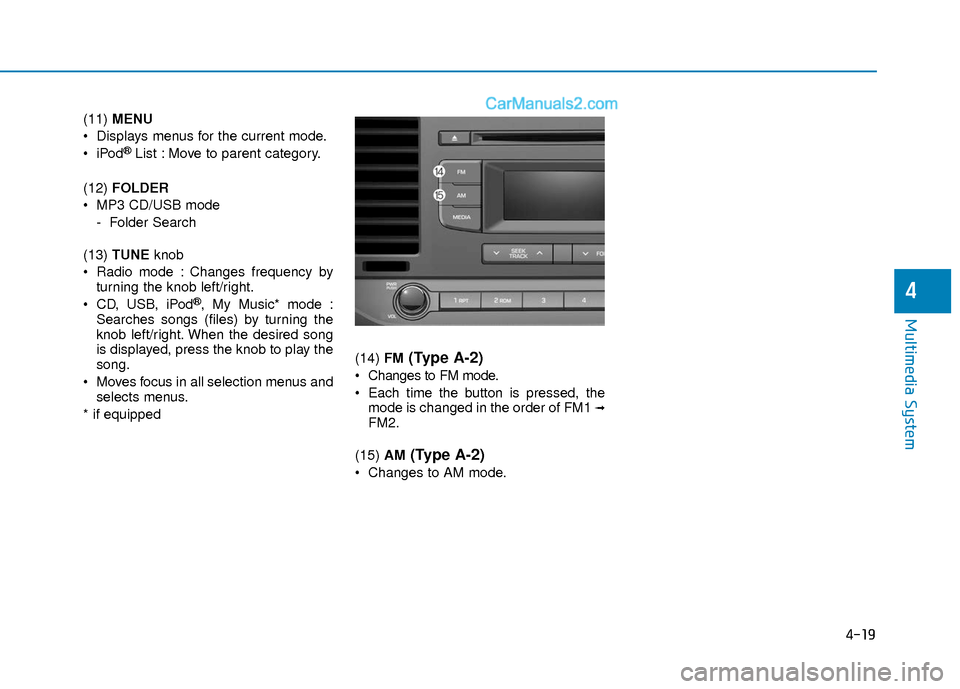
* if equipped (14)
FM
(Type A-2)
Changes to FM mode.
Each time the button is pressed, the
mode is changed in the order of FM1
➟FM2.
(15) AM
(Type A-2)
Changes to AM mode.
Page 240 of 526
4-21
Multimedia System
4
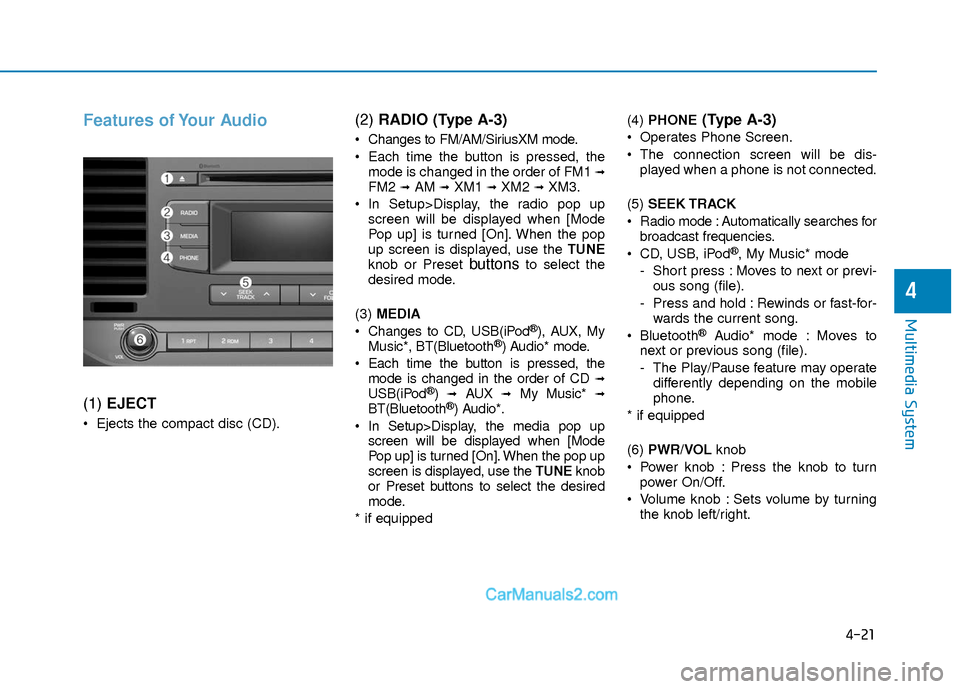
Features of Your Audio
(1) EJECT
Ejects the compact disc (CD).
(2) RADIO (Type A-3)
Changes to FM/AM/SiriusXM mode.
Each time the button is pressed, the
mode is changed in the order of FM1
➟FM2 ➟AM ➟XM1 ➟XM2 ➟XM3.
In Setup>Display, the radio pop up screen will be displayed when [Mode
Pop up] is turned [On]. When the pop
up screen is displayed, use the TUNE
knob or Preset
buttonsto select the
desired mode.
(3) MEDIA
Changes to CD, USB(iPod
®), AUX, My
Music*, BT(Bluetooth®) Audio* mode.
Each time the button is pressed, the mode is changed in the order of CD
➟USB(iPod®)➟AUX➟My Music*➟BT(Bluetooth®) Audio*.
In Setup>Display, the media pop up screen will be displayed when [Mode
Pop up] is turned [On]. When the pop up
screen is displayed, use the TUNE knob
or Preset buttons to select the desired
mode.
* if equipped (4)
PHONE
(Type A-3)
Operates Phone Screen.
The connection screen will be dis-
played when a phone is not connected.
(5) SEEK TRACK
Radio mode : Automatically searches for broadcast frequencies.
CD, USB, iPod
®, My Music* mode
- Short press : Moves to next or previ- ous song (file).
- Press and hold : Rewinds or fast-for- wards the current song.
Bluetooth
®Audio* mode : Moves to
next or previous song (file).
- The Play/Pause feature may operate differently depending on the mobile
phone.
* if equipped
(6) PWR/VOL knob
Power knob : Press the knob to turn power On/Off.
Volume knob : Sets volume by turning the knob left/right.
Page 241 of 526
![Hyundai Elantra 2018 Owners Manual 4-22
Multimedia System
(7) [1] ~ [6] (Preset)
Radio mode : Saves frequencies (channels) or receives saved frequen-
cies (channels).
CD, USB, iPod
®, My Music* mode
- [RPT] : Repeat
- [RDM] : Random](/manual-img/35/14540/w960_14540-240.png "Hyundai Elantra 2018 Owners Manual 4-22
Multimedia System
(7) [1] ~ [6] (Preset)
Radio mode : Saves frequencies (channels) or receives saved frequen-
cies (channels).
CD, USB, iPod
®, My Music* mode
- [RPT] : Repeat
- [RDM] : Random")
4-22
Multimedia System
(7) [1] ~ [6] (Preset)
Radio mode : Saves frequencies (channels) or receives saved frequen-
cies (channels).
CD, USB, iPod
®, My Music* mode
- [RPT] : Repeat
- [RDM] : Random
In the Radio, Media, Setup, and Menu
pop up screen, the number menu is
selected.
* if equipped (8) DISP
Each short press toggles through the following modes : Screen Off
➟Screen
On ➟Screen Off.
Audio operation is maintained and only the Screen will be turned Off.
In the Screen Off state, press any but- ton to turn the Screen On again. (9)
SCAN
Radio mode - Short press : Previews each broad-cast for 5 seconds each.
- Press and hold : Previews the broad- casts saved in Preset [1] ~ [6] for 5
seconds each.
- Press the [SCAN] button again to
continue listening to the current fre-
quency.
- XM Radio does not support the Preset scan feature.
CD, USB, My Music* mode - Short press : Previews each song(file) for 10 seconds each.
- Press the [SCAN] button again to
continue listening to the current song
(file).
* if equipped
(10) SETUP/CLOCK
Moves to the Display, Sound, Clock, Phone, System setting menu.
Page 242 of 526

4-23
Multimedia System
4
(11) MENU
Displays menus for the current mode.
®List : Move to parent category.
(12) CAT/FOLDER
Radio mode - SiriusXM Radio : Category Search.
MP3 CD/USB mode - Folder Search
(13) TUNE knob
Radio mode : Changes frequency by turning the knob left/right.
CD, USB, iPod
®, My Music* mode :
Searches songs (files) by turning the
knob left/right. When the desired song
is displayed, press the knob to play the
song.
Moves focus in all selection menus and selects menus.
* if equipped (14)
FM/AM
(Type A-4)
Changes to FM/AM mode.
Each time the button is pressed, the
mode is changed in the order of FM1
➟FM2 ➟ AM.
(15) XM
(Type A-4)
Changes to XM mode.
Each time the button is pressed, the
mode is changed in the order of XM1
➟XM2 ➟ XM3.
Information
- Using Compact Discs
• If the temperature inside the car is too high, open the car windows to ventilate
before using the system.
• It is illegal to copy and use MP3/WMA files without permission. Use CDs that
are created only by lawful means.
• Do not apply volatile agents, such as benzene or thinner, use normal cleaners
and magnetic sprays made for CDs.
• To prevent the disc surface from getting damaged, hold CDs by the edges or the
center hole only.
• Clean the disc surface with a piece of soft cloth before playback (wipe it from
the center to the outside edge).
• Do not damage the disc surface or attach pieces of sticky tape or paper.
• Make certain only CDs are inserted into the CD player (Do not insert more than
one CD at a time).
• Keep CDs in their cases after use to pro- tect them from scratches or dirt.
(Continued)
i
Page 245 of 526

4-26
Multimedia System
Information
- Using the USB Devices
• To use an external USB device, make sure the device is not connected when
starting up the vehicle. Connect the
device after starting up.
• If you start the engine when the USB device is connected, it may damage the
USB device. (USB flashdrives are very
sensitive to electric shock.)
• If the engine is started up or turned off while the external USB device is con-
nected, the external USB device may not
work.
• The System may not play unauthenti- cated MP3 or WMA files.
1) It can only play MP3 files with the com- pression rate between 8Kbps ~
320Kbps.
2) It can only play WMA music files with the compression rate between 8Kbps ~
320Kbps.
• Take precautions for static electricity when connecting or disconnecting the
external USB device.
(Continued)(Continued)
• An encrypted MP3 PLAYER is not rec-
ognizable.
• Depending on the condition of the exter- nal USB device, the connected external
USB device can be unrecognizable.
• When the formatted byte/sector setting of External USB device is not either
512BYTE or 2048BYTE, then the device
will not be recognized.
• Use only a USB device formatted to FAT 12/16/32.
• USB devices without USB I/F authenti- cation may not be recognizable.
• Make sure the USB connection terminal does not come in contact with the
human body or other objects.
• If you repeatedly connect or disconnect the USB device in a short period of time,
it may break the device.
• You may hear a strange noise when con- necting or disconnecting a USB device.
• If you disconnect the external USB device during playback in USB mode,
the external USB device can be damaged
or may malfunction. Therefore, discon-
nect the external USB device when the
audio is turned off or in another mode.
(e.g, Radio)
(Continued)(Continued)
• Depending on the type and capacity of
the external USB device or the type of
files stored in the device, there is a dif-
ference in the time for recognition the
device.
• Do not use the USB device for purposes other than playing music files.
• Playing videos through the USB is not supported.
• Use of USB accessories such as recharg- ers or heaters using USB I/F may lower
performance or cause trouble.
• If you use devices such as a USB hub purchased separately, the vehicle’s
audio system may not recognize the USB
device. In this case, connect the USB
device directly to the multimedia termi-
nal of the vehicle.
• If the USB device is divided by logical drives, only the music files on the high-
est-priority drive are recognized by car
audio.
• Devices such as MP3 Player/ Cellular phone/Digital camera can be unrecog-
nizable by standard USB I/F.
• Charging through the USB may not be supported in some mobile devices.
• USB HDD or USB types liable to connec- tion failures due to vehicle vibrations are
not supported. (i-stick type)
(Continued)
i