2018 FORD EXPEDITION ECU
[x] Cancel search: ECUPage 378 of 571
as possible. Use of any tire or wheel not
recommended by Ford can affect the
safety and performance of your vehicle,
which could result in an increased risk of
loss of vehicle control, vehicle rollover,
personal injury and death.
WARNING: When one of the front
wheels is off the ground, the
transmission alone will not prevent the
vehicle from moving or slipping off the
jack, even if the transmission is in park
(P). WARNING:
To help prevent your
vehicle from moving when changing a
wheel, shift the transmission into park
(P), set the parking brake and use an
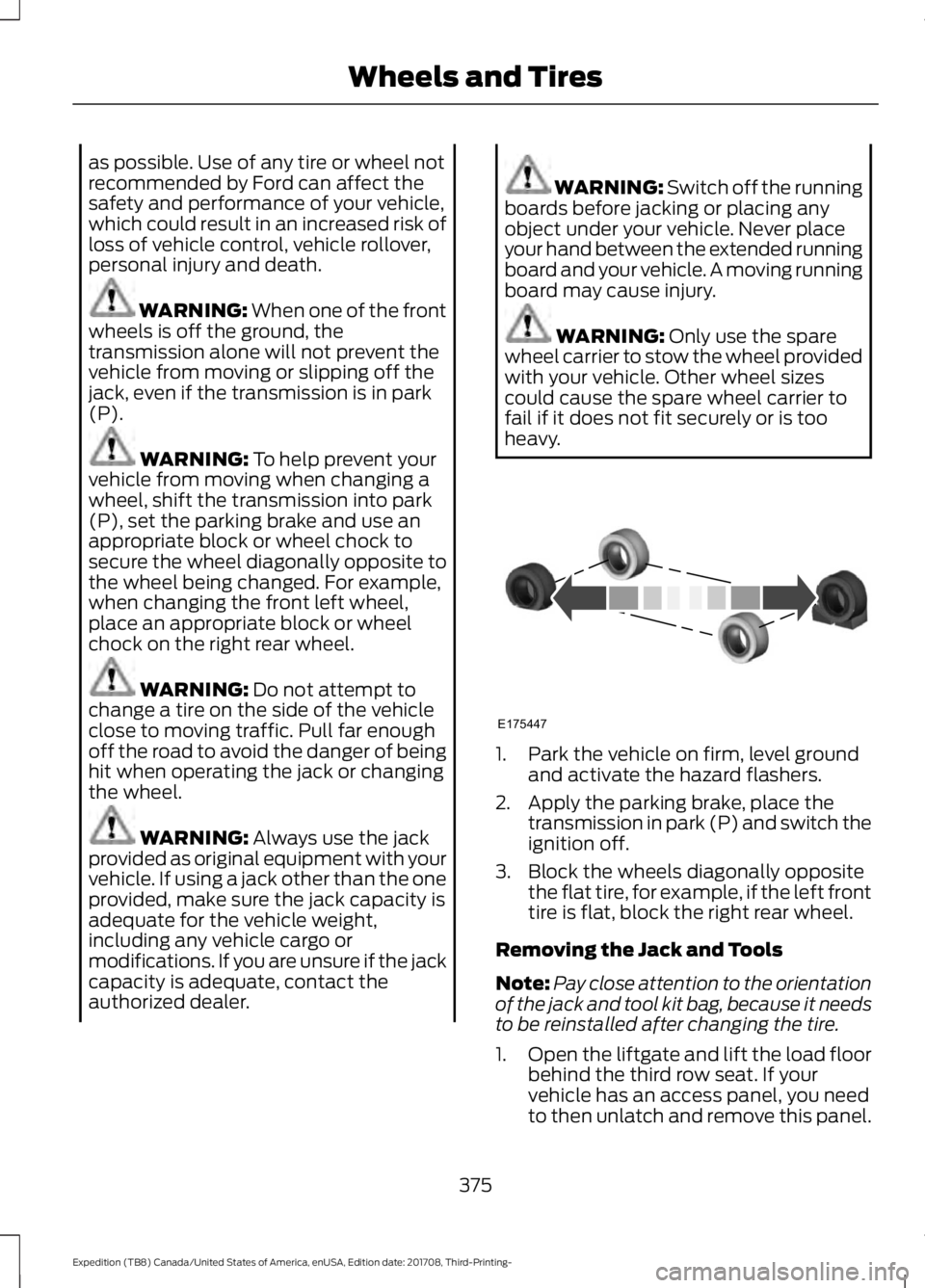
appropriate block or wheel chock to
secure the wheel diagonally opposite to
the wheel being changed. For example,
when changing the front left wheel,
place an appropriate block or wheel
chock on the right rear wheel. WARNING:
Do not attempt to
change a tire on the side of the vehicle
close to moving traffic. Pull far enough
off the road to avoid the danger of being
hit when operating the jack or changing
the wheel. WARNING:
Always use the jack
provided as original equipment with your
vehicle. If using a jack other than the one
provided, make sure the jack capacity is
adequate for the vehicle weight,
including any vehicle cargo or
modifications. If you are unsure if the jack
capacity is adequate, contact the
authorized dealer. WARNING:
Switch off the running
boards before jacking or placing any
object under your vehicle. Never place
your hand between the extended running
board and your vehicle. A moving running
board may cause injury. WARNING:
Only use the spare
wheel carrier to stow the wheel provided
with your vehicle. Other wheel sizes
could cause the spare wheel carrier to
fail if it does not fit securely or is too
heavy. 1. Park the vehicle on firm, level ground
and activate the hazard flashers.
2. Apply the parking brake, place the transmission in park (P) and switch the
ignition off.
3. Block the wheels diagonally opposite the flat tire, for example, if the left front
tire is flat, block the right rear wheel.
Removing the Jack and Tools
Note: Pay close attention to the orientation
of the jack and tool kit bag, because it needs
to be reinstalled after changing the tire.
1. Open the liftgate and lift the load floor
behind the third row seat. If your
vehicle has an access panel, you need
to then unlatch and remove this panel.
375
Expedition (TB8) Canada/United States of America, enUSA, Edition date: 201708, Third-Printing- Wheels and TiresE175447
Page 381 of 571
Rear jacking point
1. Remove the lug nuts with the lug
wrench. Replace the flat tire with the
spare tire, making sure the valve stem
is facing outward.
2. Reinstall the lug nuts until the wheel is
snug against the hub. Do not fully
tighten the lug nuts until the wheel has
been lowered.
3. Completely lower the vehicle by turning
the jack drive counterclockwise.
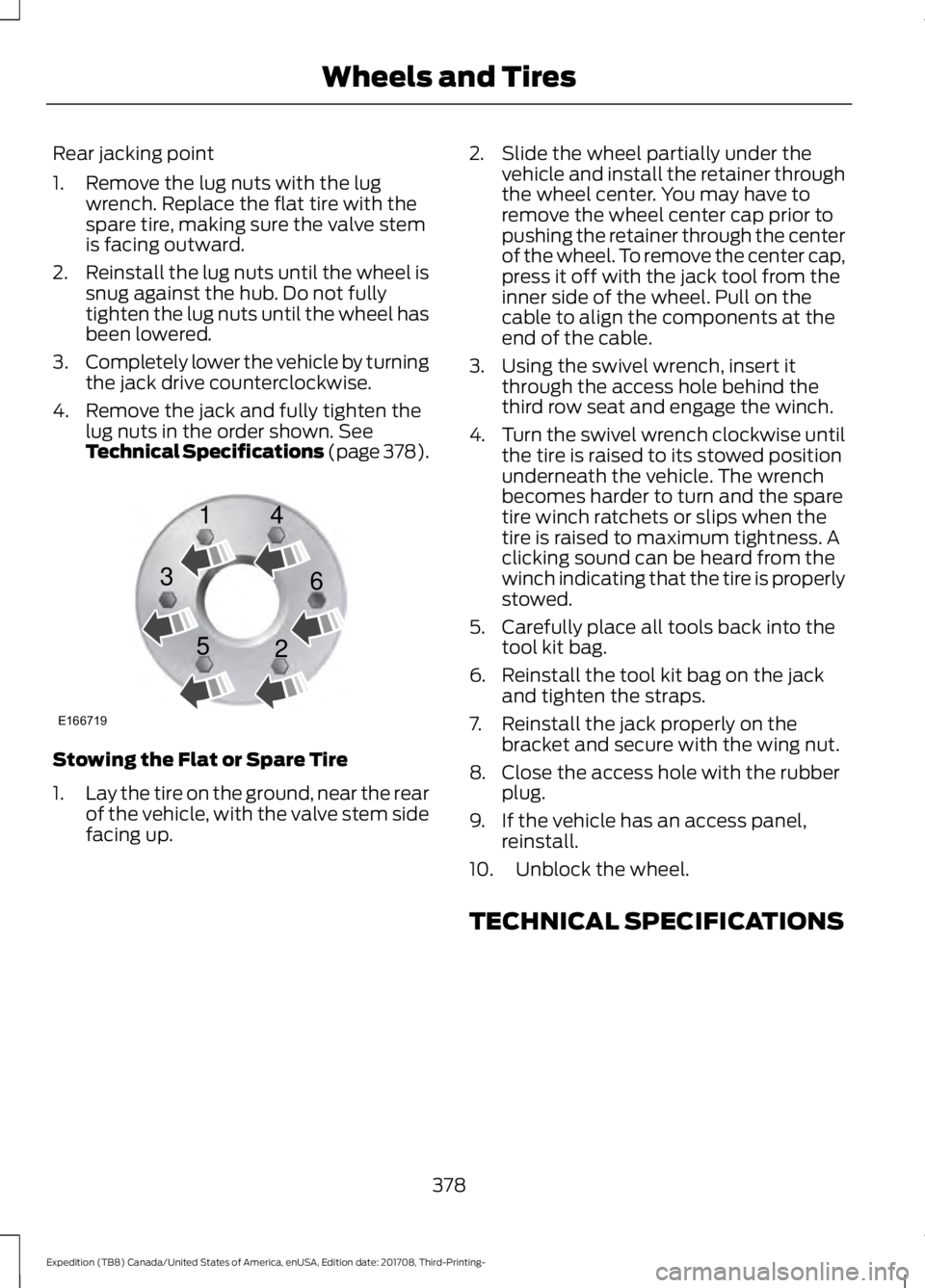
4. Remove the jack and fully tighten the lug nuts in the order shown. See
Technical Specifications (page 378). Stowing the Flat or Spare Tire
1.
Lay the tire on the ground, near the rear
of the vehicle, with the valve stem side
facing up. 2. Slide the wheel partially under the
vehicle and install the retainer through
the wheel center. You may have to
remove the wheel center cap prior to
pushing the retainer through the center
of the wheel. To remove the center cap,
press it off with the jack tool from the
inner side of the wheel. Pull on the
cable to align the components at the
end of the cable.
3. Using the swivel wrench, insert it through the access hole behind the
third row seat and engage the winch.
4. Turn the swivel wrench clockwise until
the tire is raised to its stowed position
underneath the vehicle. The wrench
becomes harder to turn and the spare
tire winch ratchets or slips when the
tire is raised to maximum tightness. A
clicking sound can be heard from the
winch indicating that the tire is properly
stowed.
5. Carefully place all tools back into the tool kit bag.
6. Reinstall the tool kit bag on the jack and tighten the straps.
7. Reinstall the jack properly on the bracket and secure with the wing nut.
8. Close the access hole with the rubber plug.
9. If the vehicle has an access panel, reinstall.
10. Unblock the wheel.
TECHNICAL SPECIFICATIONS
378
Expedition (TB8) Canada/United States of America, enUSA, Edition date: 201708, Third-Printing- Wheels and TiresE166719
1
3
5 4
6
2
Page 382 of 571
Wheel Lug Nut Torque Specifications
WARNING: When you install a wheel, always remove any corrosion, dirt or foreign
materials present on the mounting surfaces of the wheel or the surface of the wheel
hub, brake drum or brake disc that contacts the wheel. Make sure to secure any fasteners
that attach the rotor to the hub so they do not interfere with the mounting surfaces of
the wheel. Installing wheels without correct metal-to-metal contact at the wheel
mounting surfaces can cause the wheel nuts to loosen and the wheel to come off while
your vehicle is in motion, resulting in loss of vehicle control, personal injury or death. lb.ft (Nm)
1
Bolt Size
150 lb.ft (204 Nm)
M14 x 1.5
1 Torque specifications are for nut and bolt threads free of dirt and rust. Use only our
recommended replacement fasteners.
Retighten the lug nuts to the specified torque within 100 miles (160 kilometers) after any
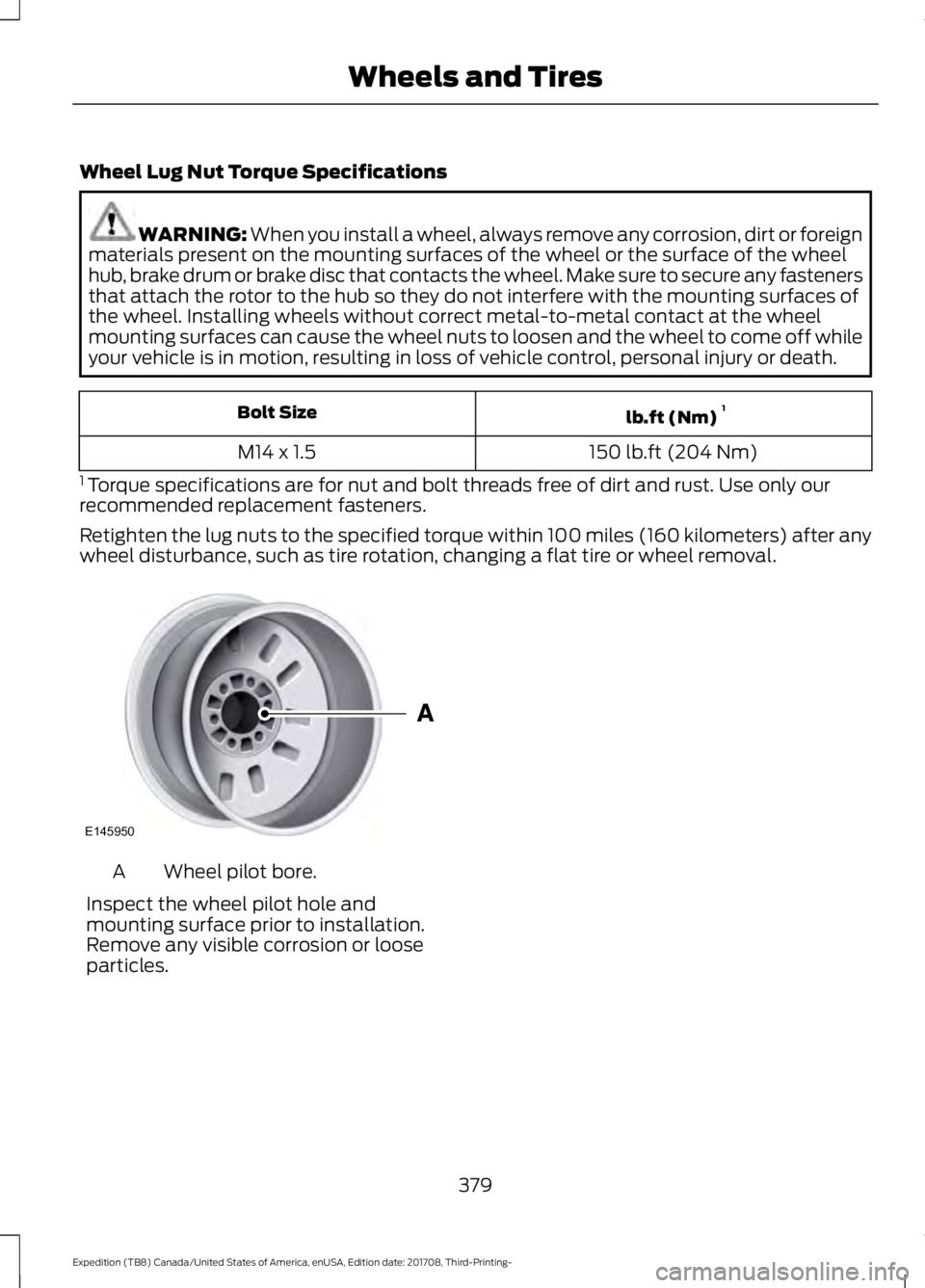
wheel disturbance, such as tire rotation, changing a flat tire or wheel removal. Wheel pilot bore.
A
Inspect the wheel pilot hole and
mounting surface prior to installation.
Remove any visible corrosion or loose
particles.
379
Expedition (TB8) Canada/United States of America, enUSA, Edition date: 201708, Third-Printing- Wheels and TiresE145950
Page 407 of 571
911 Assist
WARNING: Unless the 911 Assist
setting is set on before a crash, the
system will not dial for help which could
delay response time, potentially
increasing the risk of serious injury or
death after a crash. WARNING:
Do not wait for 911
Assist to make an emergency call if you
can do it yourself. Dial emergency
services immediately to avoid delayed
response time which could increase the
risk of serious injury or death after a
crash. If you do not hear 911 Assist within
five seconds of the crash, the system or
phone may be damaged or
non-functional. WARNING:
Always place your
phone in a secure location in your vehicle
so it does not become a projectile or get
damaged in a crash. Failure to do so may
cause serious injury to someone or
damage the phone which could prevent
911 Assist from working properly.
Note: The SYNC 911 Assist feature must be
set on before the incident.
Note: The SYNC 911 Assist feature only
operates in the U.S., Canada or in a territory
in which 911 is the emergency number.
Note: Before setting this feature on, make
sure that you read the 911 Assist Privacy
Notice later in this section for important
information.
Note: If any user switches 911 Assist to on
or off, that setting applies for all paired
phones. If 911 Assist is switched off, either
a voice message plays or a display message
or an icon comes on when your vehicle is
started and after a previously paired phone
connects. Note:
Every phone operates differently.
While SYNC 911 Assist works with most
cellular phones, some may have trouble
using this feature.
If a crash deploys an airbag (excluding
knee airbags and rear inflatable safety
belts [if equipped]) or activates the fuel
pump shut-off, your SYNC-equipped
vehicle may be able to contact emergency
services by dialing 911 through a paired and
connected Bluetooth-enabled phone.
See
Supplementary Restraints System
(page 44). Important information about
airbag deployment is in this chapter.
See
Roadside Emergencies (page 300).
Important information about the fuel pump
shut-off is in this chapter.
Setting 911 Assist On or Off
Press the Settings button then select: Action and Description
Menu
Item
Select the desired option, on
or off.
911 Assist
To make sure that 911 Assist works
properly:
• SYNC must be powered and working
properly at the time of the incident and
throughout feature activation and use.
• The 911 Assist feature must be set on
before the incident.
• You must pair and connect a Bluetooth
enabled and compatible cell phone to
SYNC.
• A connected Bluetooth enabled phone
must have the ability to make and
maintain an outgoing call at the time
of the incident.
404
Expedition (TB8) Canada/United States of America, enUSA, Edition date: 201708, Third-Printing- SYNC™
Page 412 of 571
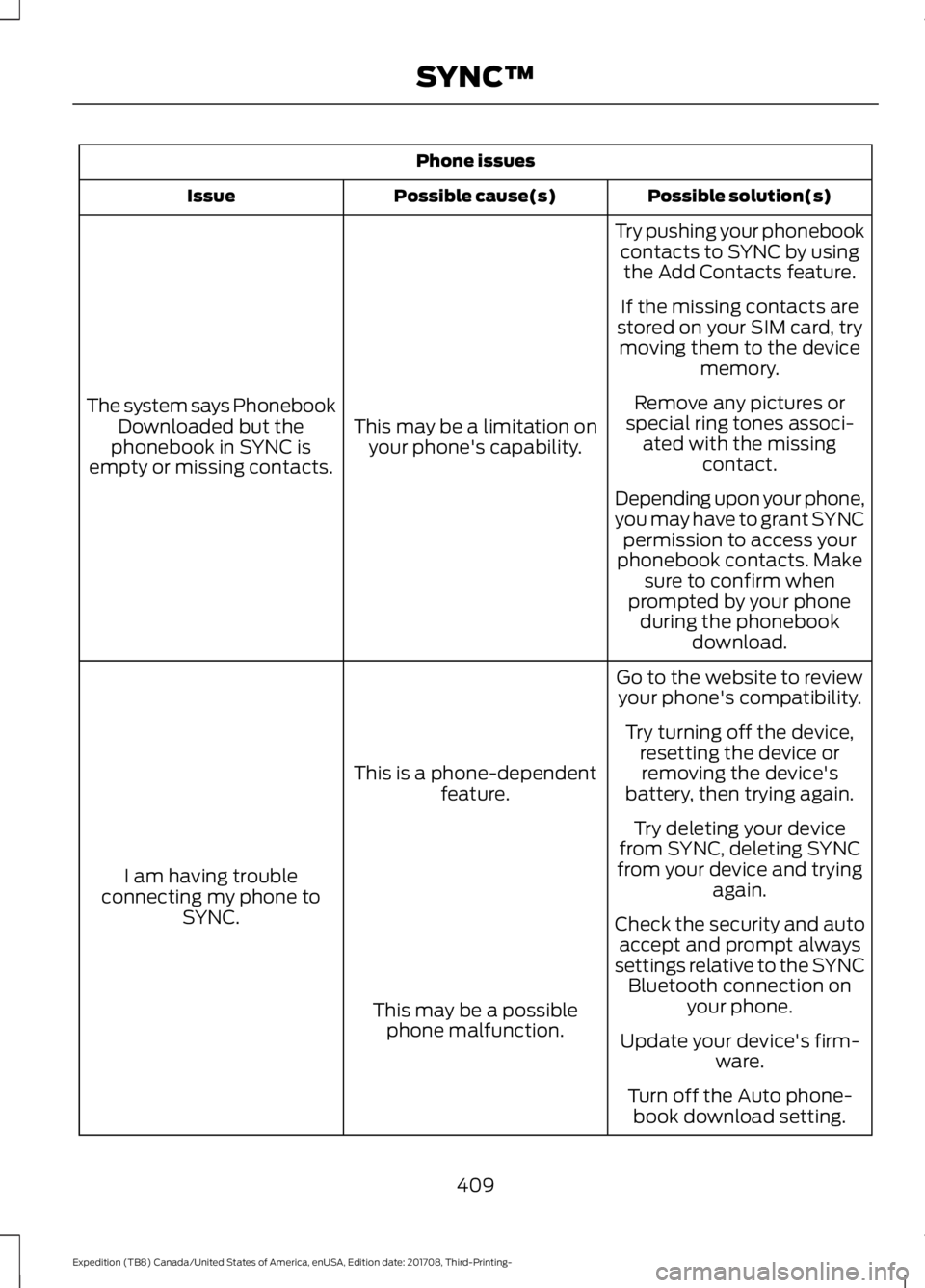
Phone issues
Possible solution(s)
Possible cause(s)
Issue
Try pushing your phonebookcontacts to SYNC by usingthe Add Contacts feature.
This may be a limitation on your phone's capability.
The system says Phonebook
Downloaded but the
phonebook in SYNC is
empty or missing contacts. If the missing contacts are
stored on your SIM card, try moving them to the device memory.
Remove any pictures or
special ring tones associ- ated with the missing contact.
Depending upon your phone,
you may have to grant SYNC permission to access your
phonebook contacts. Make sure to confirm when
prompted by your phone during the phonebook download.
Go to the website to review your phone's compatibility.
This is a phone-dependent feature.
I am having trouble
connecting my phone to SYNC. Try turning off the device,
resetting the device orremoving the device's
battery, then trying again.
Try deleting your device
from SYNC, deleting SYNC
from your device and trying again.
Check the security and auto accept and prompt always
settings relative to the SYNC Bluetooth connection on your phone.
This may be a possible
phone malfunction. Update your device's firm-
ware.
Turn off the Auto phone- book download setting.
409
Expedition (TB8) Canada/United States of America, enUSA, Edition date: 201708, Third-Printing- SYNC™
Page 413 of 571
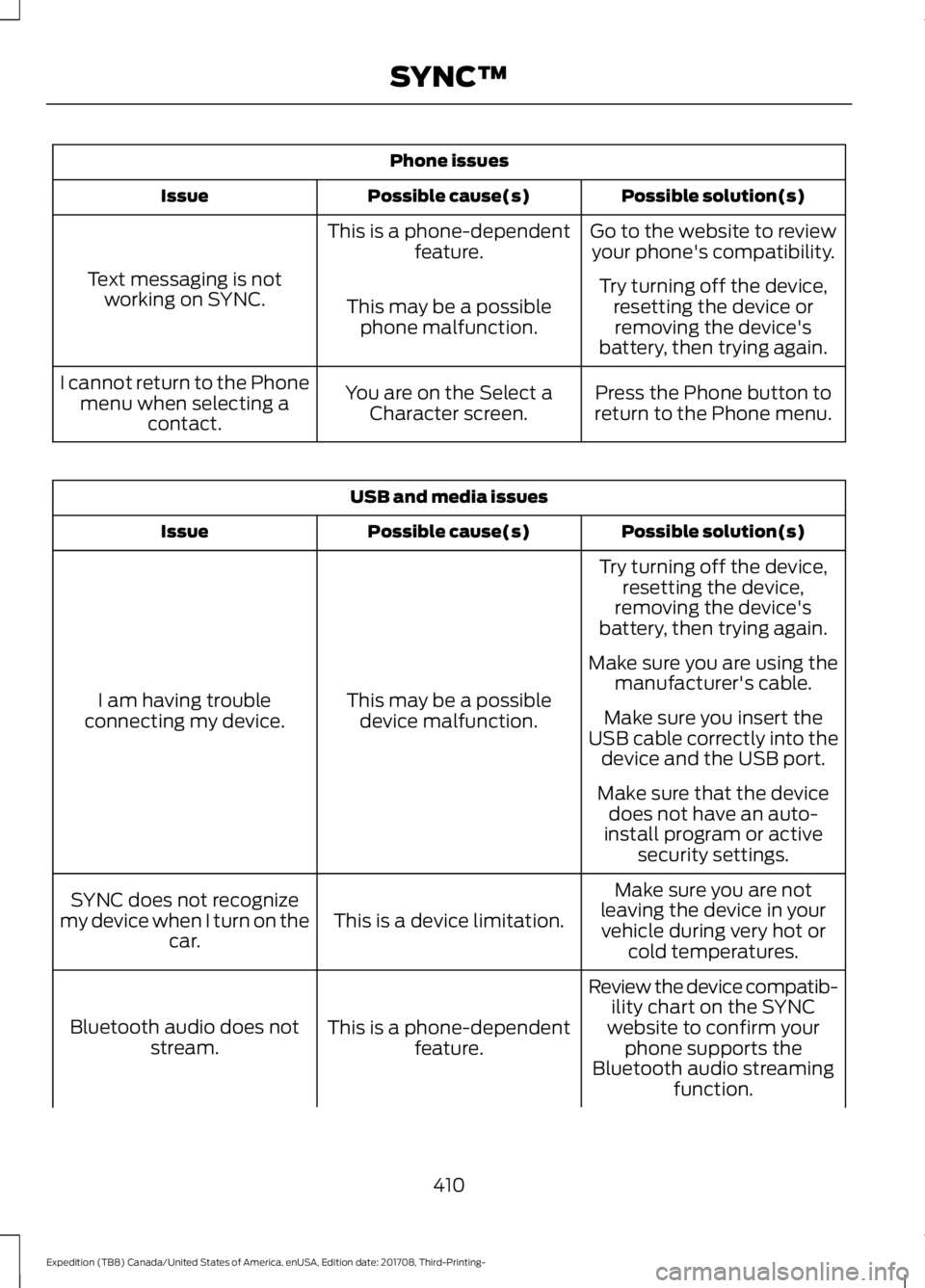
Phone issues
Possible solution(s)
Possible cause(s)
Issue
Go to the website to reviewyour phone's compatibility.
This is a phone-dependent
feature.
Text messaging is not working on SYNC. Try turning off the device,
resetting the device orremoving the device's
battery, then trying again.
This may be a possible
phone malfunction.
Press the Phone button to
return to the Phone menu.
You are on the Select a
Character screen.
I cannot return to the Phone
menu when selecting a contact. USB and media issues
Possible solution(s)
Possible cause(s)
Issue
Try turning off the device,resetting the device,
removing the device's
battery, then trying again.
This may be a possible device malfunction.
I am having trouble
connecting my device. Make sure you are using the
manufacturer's cable.
Make sure you insert the
USB cable correctly into the device and the USB port.
Make sure that the device does not have an auto-
install program or active security settings.
Make sure you are not
leaving the device in your vehicle during very hot or cold temperatures.
This is a device limitation.
SYNC does not recognize
my device when I turn on the car.
Review the device compatib-ility chart on the SYNC
website to confirm your phone supports the
Bluetooth audio streaming function.
This is a phone-dependent
feature.
Bluetooth audio does not
stream.
410
Expedition (TB8) Canada/United States of America, enUSA, Edition date: 201708, Third-Printing- SYNC™
Page 426 of 571
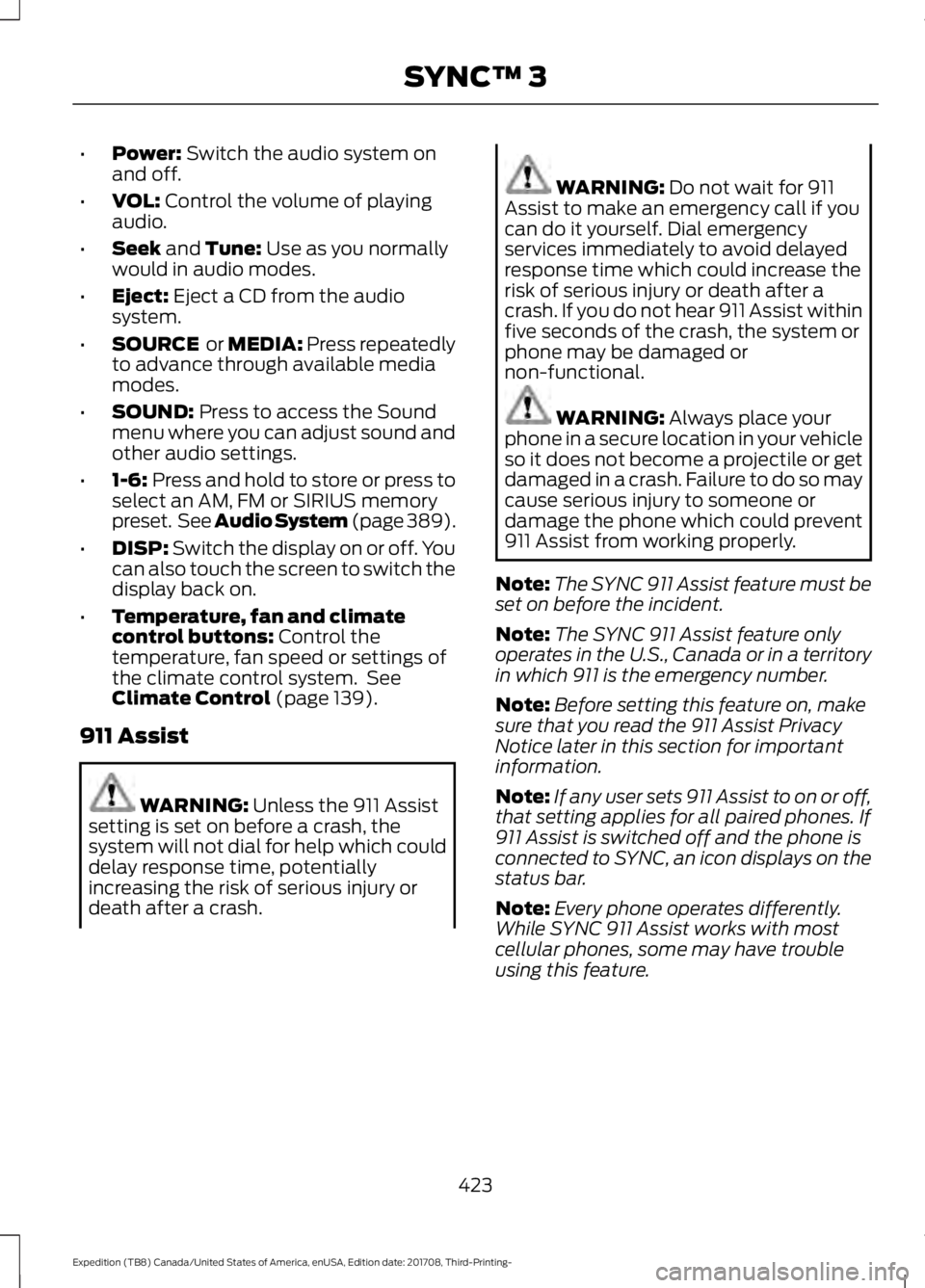
•
Power: Switch the audio system on
and off.
• VOL:
Control the volume of playing
audio.
• Seek
and Tune: Use as you normally
would in audio modes.
• Eject:
Eject a CD from the audio
system.
• SOURCE
or MEDIA: Press repeatedly
to advance through available media
modes.
• SOUND:
Press to access the Sound
menu where you can adjust sound and
other audio settings.
• 1-6:
Press and hold to store or press to
select an AM, FM or SIRIUS memory
preset. See Audio System (page 389).
• DISP:
Switch the display on or off. You
can also touch the screen to switch the
display back on.
• Temperature, fan and climate
control buttons:
Control the
temperature, fan speed or settings of
the climate control system. See
Climate Control
(page 139).
911 Assist WARNING:
Unless the 911 Assist
setting is set on before a crash, the
system will not dial for help which could
delay response time, potentially
increasing the risk of serious injury or
death after a crash. WARNING:
Do not wait for 911
Assist to make an emergency call if you
can do it yourself. Dial emergency
services immediately to avoid delayed
response time which could increase the
risk of serious injury or death after a
crash. If you do not hear 911 Assist within
five seconds of the crash, the system or
phone may be damaged or
non-functional. WARNING:
Always place your
phone in a secure location in your vehicle
so it does not become a projectile or get
damaged in a crash. Failure to do so may
cause serious injury to someone or
damage the phone which could prevent
911 Assist from working properly.
Note: The SYNC 911 Assist feature must be
set on before the incident.
Note: The SYNC 911 Assist feature only
operates in the U.S., Canada or in a territory
in which 911 is the emergency number.
Note: Before setting this feature on, make
sure that you read the 911 Assist Privacy
Notice later in this section for important
information.
Note: If any user sets 911 Assist to on or off,
that setting applies for all paired phones. If
911 Assist is switched off and the phone is
connected to SYNC, an icon displays on the
status bar.
Note: Every phone operates differently.
While SYNC 911 Assist works with most
cellular phones, some may have trouble
using this feature.
423
Expedition (TB8) Canada/United States of America, enUSA, Edition date: 201708, Third-Printing- SYNC™ 3
Page 430 of 571
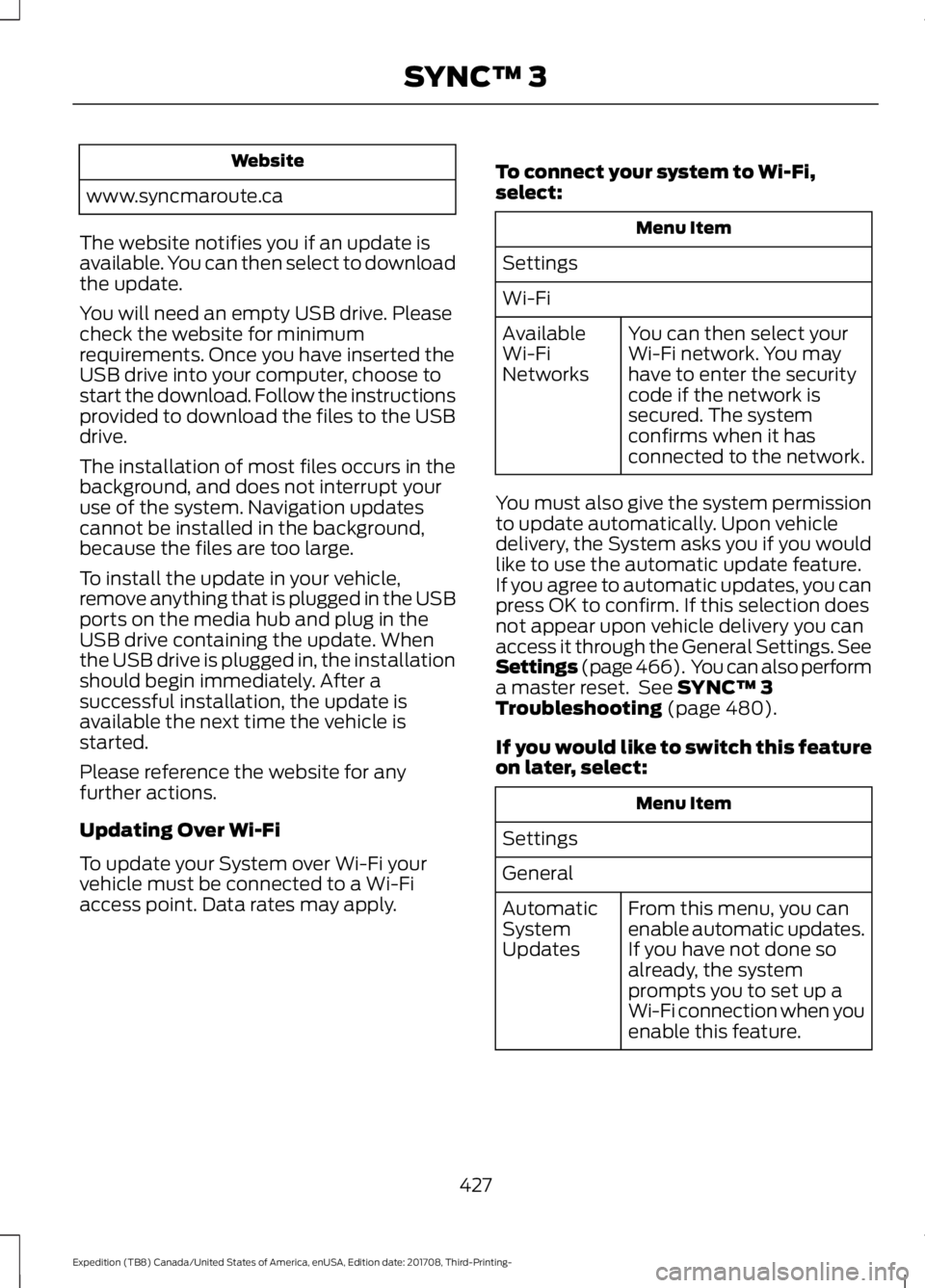
Website
www.syncmaroute.ca
The website notifies you if an update is
available. You can then select to download
the update.
You will need an empty USB drive. Please
check the website for minimum
requirements. Once you have inserted the
USB drive into your computer, choose to
start the download. Follow the instructions
provided to download the files to the USB
drive.
The installation of most files occurs in the
background, and does not interrupt your
use of the system. Navigation updates
cannot be installed in the background,
because the files are too large.
To install the update in your vehicle,
remove anything that is plugged in the USB
ports on the media hub and plug in the
USB drive containing the update. When
the USB drive is plugged in, the installation
should begin immediately. After a
successful installation, the update is
available the next time the vehicle is
started.
Please reference the website for any
further actions.
Updating Over Wi-Fi
To update your System over Wi-Fi your
vehicle must be connected to a Wi-Fi
access point. Data rates may apply. To connect your system to Wi-Fi,
select: Menu Item
Settings
Wi-Fi You can then select your
Wi-Fi network. You may
have to enter the security
code if the network is
secured. The system
confirms when it has
connected to the network.
Available
Wi-Fi
Networks
You must also give the system permission
to update automatically. Upon vehicle
delivery, the System asks you if you would
like to use the automatic update feature.
If you agree to automatic updates, you can
press OK to confirm. If this selection does
not appear upon vehicle delivery you can
access it through the General Settings. See
Settings (page 466). You can also perform
a master reset. See SYNC™ 3
Troubleshooting (page 480).
If you would like to switch this feature
on later, select: Menu Item
Settings
General From this menu, you can
enable automatic updates.
If you have not done so
already, the system
prompts you to set up a
Wi-Fi connection when you
enable this feature.
Automatic
System
Updates
427
Expedition (TB8) Canada/United States of America, enUSA, Edition date: 201708, Third-Printing- SYNC™ 3