2018 CHEVROLET CITY EXPRESS service
[x] Cancel search: servicePage 3 of 74
Chevrolet City Express Infotainment System (GMNA-Localizing-U.S./Canada-
11683801) - 2018 - crc - 7/12/17
2 Introduction
Introduction
Infotainment
The names, logos, emblems,
slogans, vehicle model names, and
vehicle body designs appearing in
this manual including, but not limited
to GM, the GM logo, CHEVROLET,
the CHEVROLET Emblem, City
Express, and the City Express
Emblem are registered trademarks
and/or service marks of General
Motors LLC, its subsidiaries,
affiliates, or licensors.This manual describes features that
may or may not be on your specific
vehicle either because they are
options that you did not purchase or
due to changes subsequent to the
printing of this owner's manual.
Refer to the purchase
documentation relating to your
specific vehicle to confirm each of
the features found on your vehicle.
Keep this manual with the owner's
manual in the vehicle, so it will be
there if it is needed. If the vehicle is
sold, leave this manual in the
vehicle.
Overview
Read the following pages to
become familiar with the
infotainment system features.
{Warning
Taking your eyes off the road for
too long or too often while using
any infotainment feature can
cause a crash. You or others
could be injured or killed. Do not
give extended attention to
infotainment tasks while driving.
Limit your glances at the vehicle
displays and focus your attention
on driving. Use voice commands
whenever possible.
The infotainment system has built-in
features intended to help avoid
distraction by disabling some
functions when driving. These
functions may gray out when they
are unavailable.
Litho in U.S.A.
Part No. 84323700 A First Printing©2017 General Motors LLC. All Rights Reserved.
Page 11 of 74
Chevrolet City Express Infotainment System (GMNA-Localizing-U.S./Canada-
11683801) - 2018 - crc - 7/12/17
10 Radio
the TUNE PUSH/AUDIO knob to the
left for lower frequencies or to the
right for higher frequencies. When in
the SXM mode, turn the TUNE
PUSH/AUDIO knob to change the
channel.
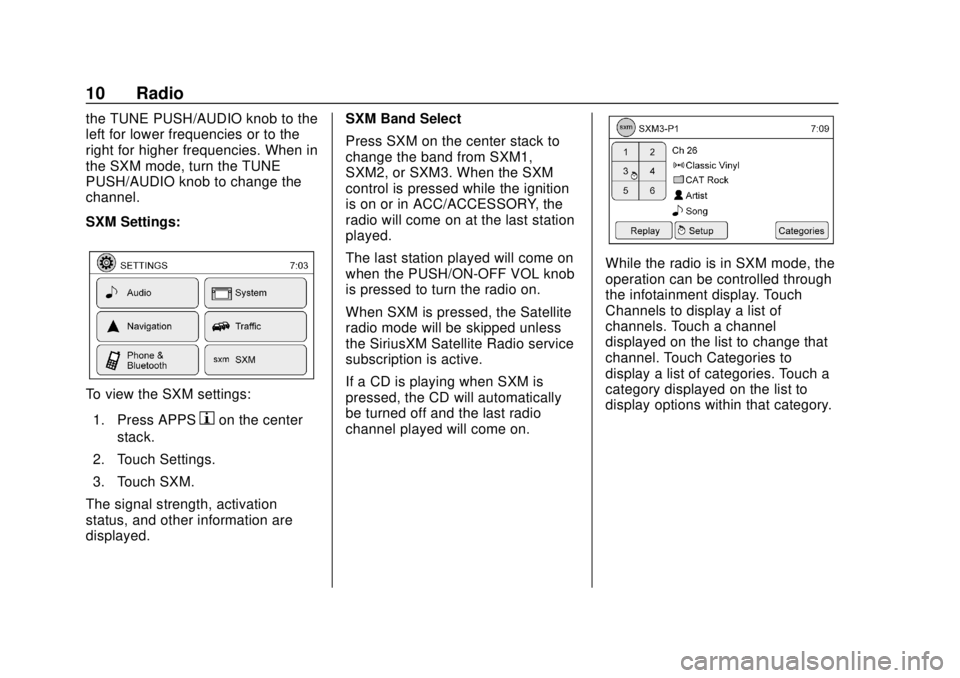
SXM Settings:
To view the SXM settings:1. Press APPS
hon the center
stack.
2. Touch Settings.
3. Touch SXM.
The signal strength, activation
status, and other information are
displayed. SXM Band Select
Press SXM on the center stack to
change the band from SXM1,
SXM2, or SXM3. When the SXM
control is pressed while the ignition
is on or in ACC/ACCESSORY, the
radio will come on at the last station
played.
The last station played will come on
when the PUSH/ON-OFF VOL knob
is pressed to turn the radio on.
When SXM is pressed, the Satellite
radio mode will be skipped unless
the SiriusXM Satellite Radio service
subscription is active.
If a CD is playing when SXM is
pressed, the CD will automatically
be turned off and the last radio
channel played will come on.
While the radio is in SXM mode, the
operation can be controlled through
the infotainment display. Touch
Channels to display a list of
channels. Touch a channel
displayed on the list to change that
channel. Touch Categories to
display a list of categories. Touch a
category displayed on the list to
display options within that category.
Page 14 of 74
Chevrolet City Express Infotainment System (GMNA-Localizing-U.S./Canada-
11683801) - 2018 - crc - 7/12/17
Radio 13
are also subject to interference as
they travel from transmitter to
receiver.
Satellite Radio Reception (If
Equipped)
When the satellite radio is used for
the first time or the battery has been
replaced, the satellite radio may not
work properly. This is not a
malfunction. Wait more than
10 minutes with satellite radio on
and the vehicle outside of any metal
or large building for satellite radio to
receive all of the necessary data.
No satellite radio reception is
available and“NO SAT”is displayed
when the SAT band option is
selected unless an optional satellite
receiver and antenna are installed
and a SiriusXM Satellite Radio
service subscription is active.
Satellite radio performance may be
affected if cargo carried on the roof
blocks the satellite radio signal.
If possible, do not put cargo over
the satellite antenna. A build up of ice on the satellite
radio antenna can affect satellite
radio performance. Remove the ice
to restore satellite radio reception.
Cellular Phone Usage
Cellular phone usage can cause
interference with the vehicle's radio.
Fixed Mast Antenna
The fixed mast antenna will go
through most car washes as long as
it is securely attached. If the
antenna becomes slightly bent,
straighten it out by hand. If it is
badly bent, replace it.
Occasionally check that the antenna
is tight at the base. If tightening is
required, protect the paint from
damage.
Page 24 of 74

Chevrolet City Express Infotainment System (GMNA-Localizing-U.S./Canada-
11683801) - 2018 - crc - 7/12/17
Navigation 23
Navigation
Using the Navigation
System
This system is primarily designed to
help reach a destination, and it also
performs other functions as outlined
in this manual. The driver must use
the system safely and properly.
Information concerning road
conditions, traffic signs, and the
availability of services may not
always be up-to-date. The system is
not a substitute for safe, proper, and
legal driving.
Before using the navigation system,
read the following safety
information. Always use the system
as outlined in this manual.
{Warning
.To operate the navigation
system, first park the vehicle
in a safe location and set
the parking brake.
(Continued)
Warning (Continued)
Operating the system while
driving can distract the
driver and may result in a
serious accident.
. Do not rely on route
guidance alone. Always be
sure that all driving
maneuvers are legal and
safe in order to avoid
accidents.
. Do not disassemble or
modify this system. Doing
this may result in accidents,
fire, or electrical shock.
. If there are any foreign
objects in the system
hardware, spilled liquid on
the system, or smoke or a
smell coming from it, stop
using the system
immediately and contact
your dealer. Ignoring such
conditions may lead to
accidents, fire, or electrical
shock. Press NAV on the center stack.
Press NAV again to change
between alternative views of the
normal split and full map views.
1. Touch Settings.
2. Touch Navigation.
3. Touch Guidance & Map
Settings to access the
available map types.
Page 31 of 74
Chevrolet City Express Infotainment System (GMNA-Localizing-U.S./Canada-
11683801) - 2018 - crc - 7/12/17
30 Navigation
Maps
This section includes basic
information about the map
database.
The data is stored in the internal
flash memory that is used in the
navigation system.
Detailed Areas
Road network attributes are
contained in the map database for
detailed areas. Attributes include
information such as street names,
street addresses, and turn
restrictions. A detailed area includes
all major highways, service roads,
and residential roads. The detailed
areas include points of interest
(POIs) such as restaurants, airports,
banks, hospitals, police stations,
gas stations, tourist attractions, and
historical monuments. The map
database may not include data for
newly constructed areas or map
database corrections. The
navigation system provides full
route guidance in the detailed map
areas.
Destination
Navigation Display
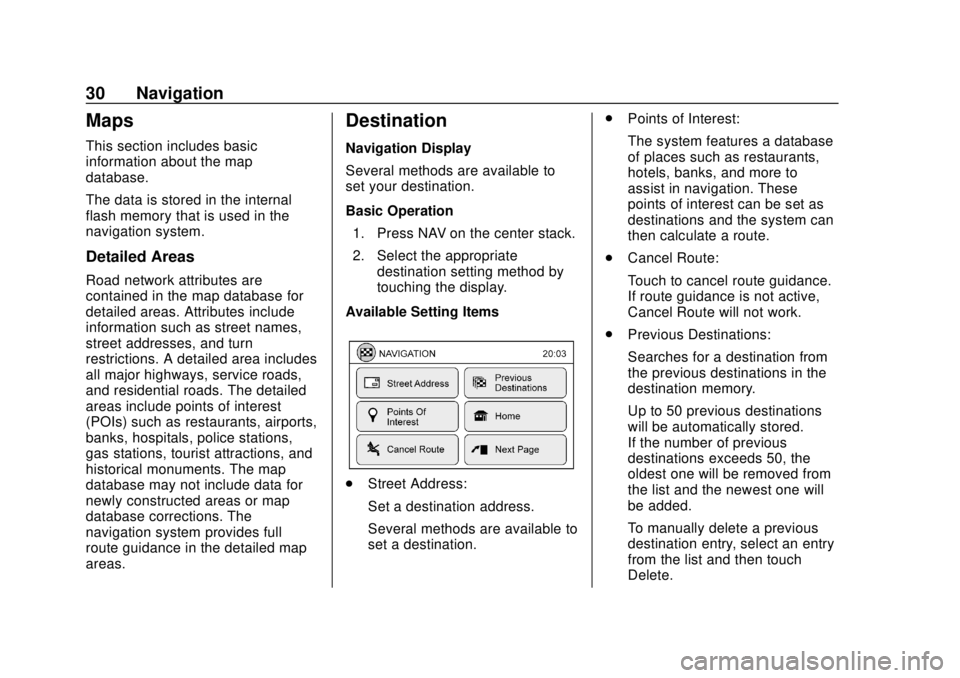
Several methods are available to
set your destination.
Basic Operation1. Press NAV on the center stack.
2. Select the appropriate destination setting method by
touching the display.
Available Setting Items
. Street Address:
Set a destination address.
Several methods are available to
set a destination. .
Points of Interest:
The system features a database
of places such as restaurants,
hotels, banks, and more to
assist in navigation. These
points of interest can be set as
destinations and the system can
then calculate a route.
. Cancel Route:
Touch to cancel route guidance.
If route guidance is not active,
Cancel Route will not work.
. Previous Destinations:
Searches for a destination from
the previous destinations in the
destination memory.
Up to 50 previous destinations
will be automatically stored.
If the number of previous
destinations exceeds 50, the
oldest one will be removed from
the list and the newest one will
be added.
To manually delete a previous
destination entry, select an entry
from the list and then touch
Delete.
Page 46 of 74
Chevrolet City Express Infotainment System (GMNA-Localizing-U.S./Canada-
11683801) - 2018 - crc - 7/12/17
Navigation 45
event. The route list is displayed.
Touch the names of two streets
on the list to avoid that portion of
the route and then touch
Recalculate Route to calculate
the new route.
. List All Traffic Events
Touch List All Traffic Events to
display a list of all traffic events
in the area, including those that
are not directly along the current
route. Touch the line of a specific
event on the display to see more
details about that item.
Traffic Flow Feature
Using information received from
SiriusXM Traffic, the system informs
of traffic levels on certain highways
and roads in the area along the
route. When a route is active, touch
MAP to display the map of the
current vehicle location. Any roads
with traffic flow information will
appear colored as follows:
. Green: traffic is light and moving
at normal speeds >72 km
(>45 mph). .
Yellow: traffic is heavy and
moving slowly 16-72 km
(10-45 mph).
. Red: traffic is grid-locked and
not moving <16 km (<10 mph).
Traffic Settings
To access the settings for the traffic
feature:
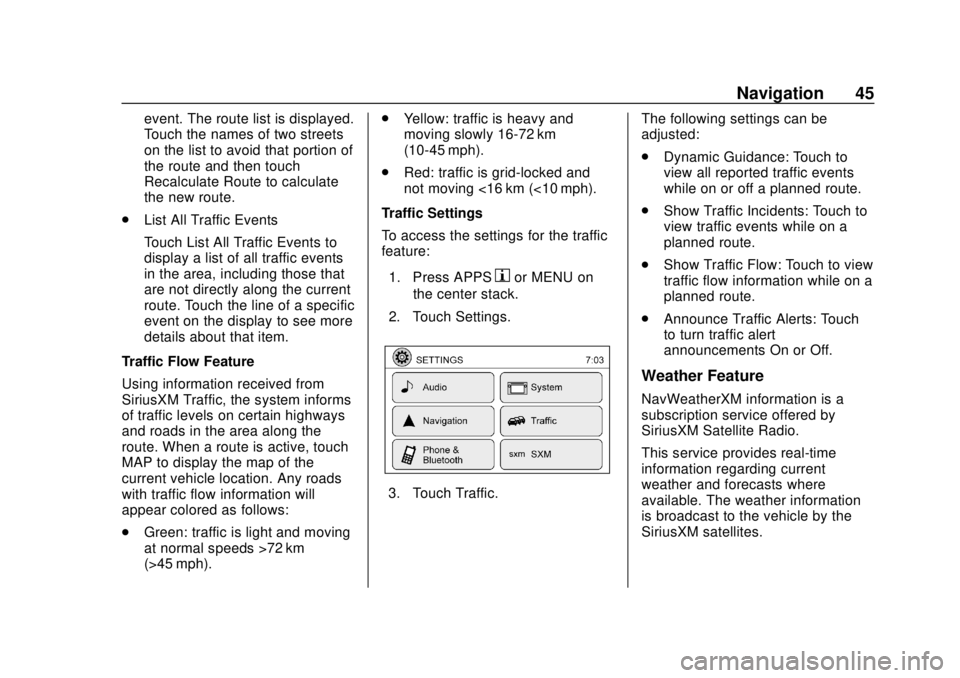
1. Press APPS
hor MENU on
the center stack.
2. Touch Settings.
3. Touch Traffic. The following settings can be
adjusted:
.
Dynamic Guidance: Touch to
view all reported traffic events
while on or off a planned route.
. Show Traffic Incidents: Touch to
view traffic events while on a
planned route.
. Show Traffic Flow: Touch to view
traffic flow information while on a
planned route.
. Announce Traffic Alerts: Touch
to turn traffic alert
announcements On or Off.
Weather Feature
NavWeatherXM information is a
subscription service offered by
SiriusXM Satellite Radio.
This service provides real-time
information regarding current
weather and forecasts where
available. The weather information
is broadcast to the vehicle by the
SiriusXM satellites.
Page 47 of 74
Chevrolet City Express Infotainment System (GMNA-Localizing-U.S./Canada-
11683801) - 2018 - crc - 7/12/17
46 Navigation
{Warning
NavWeatherXM information is not
a substitute for attentive driving.
Weather conditions change
constantly and emergency
situations can arise without
warning. Relying only on
NavWeatherXM information could
result in serious personal injury.
NavWeatherXM information is
available in limited markets. To
subscribe or check if this service is
available in the area, call
1-888-601-6296 or see
www.siriusxm.com/navweather.
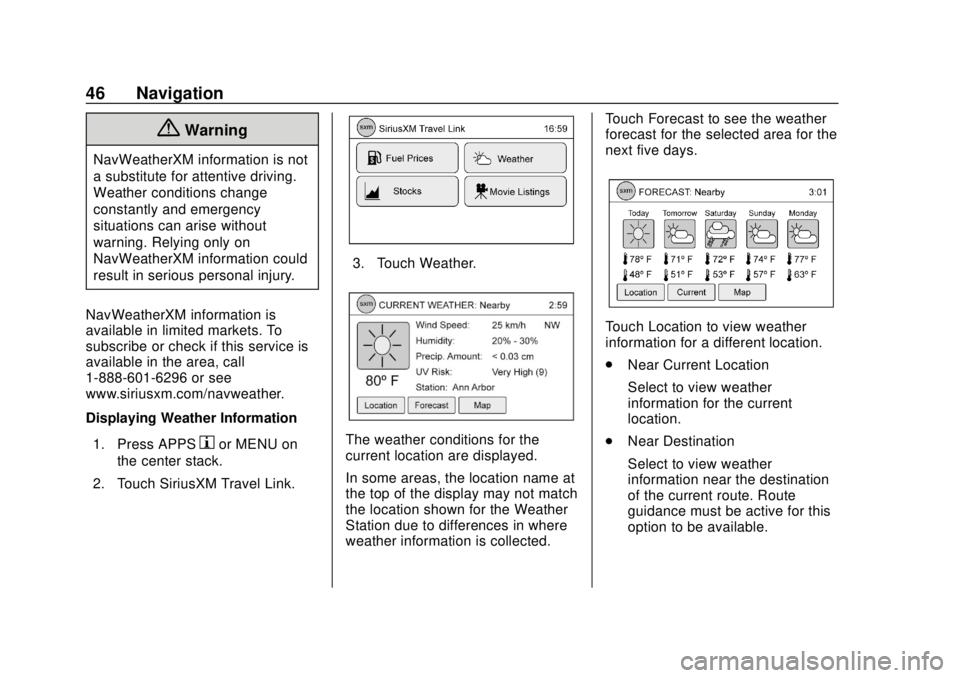
Displaying Weather Information 1. Press APPS
hor MENU on
the center stack.
2. Touch SiriusXM Travel Link.
3. Touch Weather.
The weather conditions for the
current location are displayed.
In some areas, the location name at
the top of the display may not match
the location shown for the Weather
Station due to differences in where
weather information is collected. Touch Forecast to see the weather
forecast for the selected area for the
next five days.
Touch Location to view weather
information for a different location.
.
Near Current Location
Select to view weather
information for the current
location.
. Near Destination
Select to view weather
information near the destination
of the current route. Route
guidance must be active for this
option to be available.
Page 49 of 74

Chevrolet City Express Infotainment System (GMNA-Localizing-U.S./Canada-
11683801) - 2018 - crc - 7/12/17
48 Navigation
From the SiriusXM Travel Link
menu, touch SiriusXM Movie. The
system displays the Movie and
Theater search page.
To search movies:
.Touch Movie to choose a
movie name.
. Touch Theater to choose a
specific theater.
. Touch Date to choose which
date to search movies and/or
theaters.
. Touch Search to view a list of
movies or theaters.
When searching by movie, a list will
display movies to select. When a
movie is selected, a theater list will
appear with a direction arrow and
distance from the current vehicle
location. The direction and distance
will update every 10 seconds as the
vehicle is moving. The direction
arrow represents the location of the
theater from the current vehicle
location. The distance represents
the straight line distance between
the vehicle location and the theater. Movie details are available when a
movie is selected. The details
include Cast, Synopsis, and Theater
Information. Touch the appropriate
icon to display more information.
Cast and Synopsis:
.
Actors
. Show Times
. Rating (G, PG-13, R, etc.)
. Length of movie
Theater information includes
address, phone number, distance,
and amenities.
Troubleshooting
XM Travel Link services use the
SiriusXM Satellite Signal and GPS
Satellite Signal to provide this
feature.
When the vehicle is started, it can
take up to five minutes for the radio
to receive the Travel Link services.
Travel Link Messages
No GPS Signal : Move the vehicle
into a position that is visible to
the sky. Acquiring Signal :
Radio is
downloading the activation
information or not receiving a good
signal. Move the vehicle to an open
area and restart the vehicle.
No XM Signal : Reception is
blocked. Move the vehicle into an
open area.
Global Positioning
System (GPS)
This navigation system combines
the data obtained from the vehicle
and from GPS (Global Positioning
System) satellites to calculate the
current location of the vehicle. This
position is then displayed
throughout route guidance to a
destination.
Vehicle Positioning
At times, the position of the vehicle
on the map could be inaccurate due
to one or more of the following
reasons:
. The road system has changed.