Page 295 of 634
Audio/Audio set
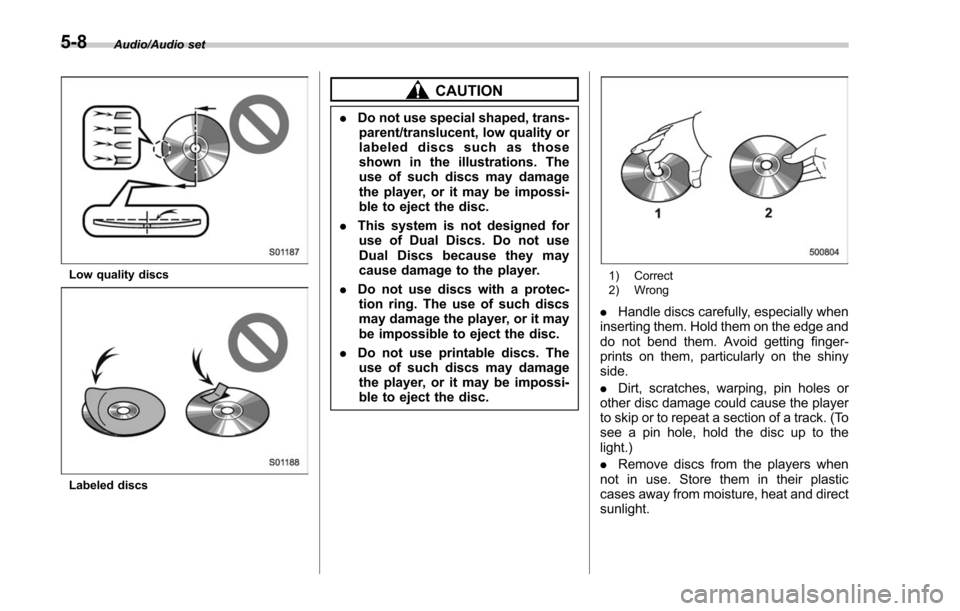
Low quality discs
Labeled discs
CAUTION
.Do not use special shaped, trans-
parent/translucent, low quality or
labeled discs such as those
shown in the illustrations. The
use of such discs may damage
the player, or it may be impossi-
ble to eject the disc.
. This system is not designed for
use of Dual Discs. Do not use
Dual Discs because they may
cause damage to the player.
. Do not use discs with a protec-
tion ring. The use of such discs
may damage the player, or it may
be impossible to eject the disc.
. Do not use printable discs. The
use of such discs may damage
the player, or it may be impossi-
ble to eject the disc.
1) Correct
2) Wrong
. Handle discs carefully, especially when
inserting them. Hold them on the edge and
do not bend them. Avoid getting finger-
prints on them, particularly on the shiny
side.
. Dirt, scratches, warping, pin holes or
other disc damage could cause the player
to skip or to repeat a section of a track. (To
see a pin hole, hold the disc up to the
light.)
. Remove discs from the players when
not in use. Store them in their plastic
cases away from moisture, heat and direct
sunlight.
5-8
Page 306 of 634
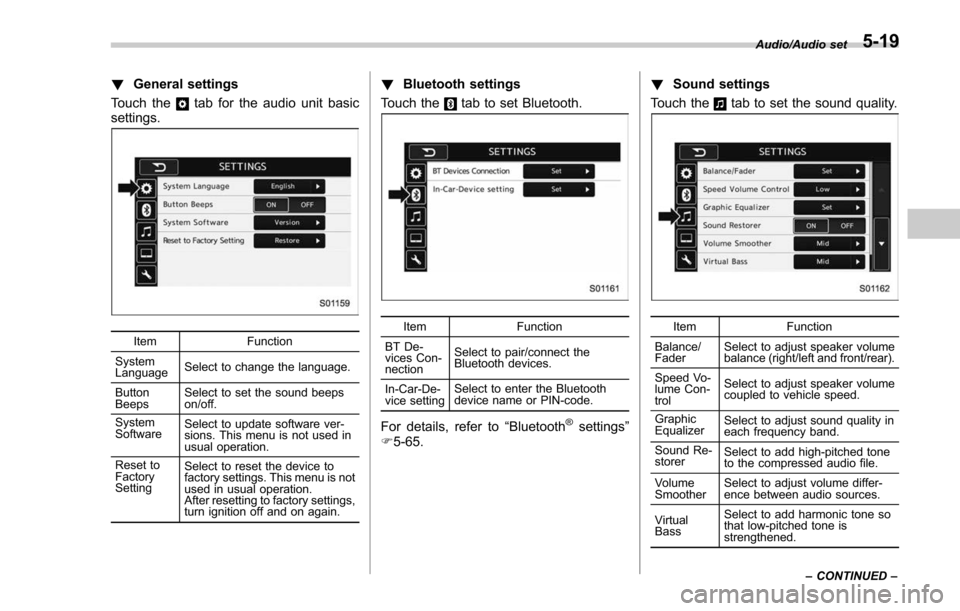
!General settings
Touch the
tab for the audio unit basic
settings.
Item Function
System
Language Select to change the language.
Button
Beeps Select to set the sound beeps
on/off.
System
Software Select to update software ver-
sions. This menu is not used in
usual operation.
Reset to
Factory
Setting Select to reset the device to
factory settings. This menu is not
used in usual operation.
After resetting to factory settings,
turn ignition off and on again.
!
Bluetooth settings
Touch the
tab to set Bluetooth.
Item Function
BT De-
vices Con-
nection Select to pair/connect the
Bluetooth devices.
In-Car-De-
vice setting Select to enter the Bluetooth
device name or PIN-code.
For details, refer to
“Bluetooth®settings”
F 5-65. !
Sound settings
Touch the
tab to set the sound quality.
Item Function
Balance/
Fader Select to adjust speaker volume
balance (right/left and front/rear).
Speed Vo-
lume Con-
trol Select to adjust speaker volume
coupled to vehicle speed.
Graphic
Equalizer Select to adjust sound quality in
each frequency band.
Sound Re-
storer Select to add high-pitched tone
to the compressed audio file.
Volume
Smoother Select to adjust volume differ-
ence between audio sources.
Virtual
Bass Select to add harmonic tone so
that low-pitched tone is
strengthened.Audio/Audio set
–CONTINUED –
5-19
Page 309 of 634
Audio/Audio set
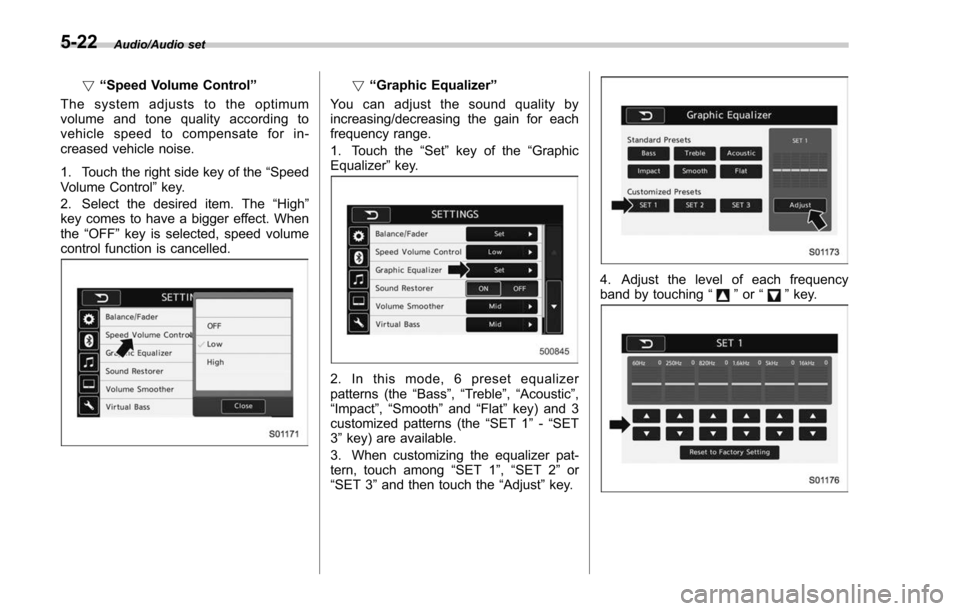
!“Speed Volume Control ”
The system adjusts to the optimum
volume and tone quality according to
vehicle speed to compensate for in-
creased vehicle noise.
1. Touch the right side key of the “Speed
Volume Control ”key.
2. Select the desired item. The “High ”
key comes to have a bigger effect. When
the “OFF ”key is selected, speed volume
control function is cancelled.! “Graphic Equalizer ”
You can adjust the sound quality by
increasing/decreasing the gain for each
frequency range.
1. Touch the “Set ”key of the “Graphic
Equalizer ”key.
2. In this mode, 6 preset equalizer
patterns (the “Bass ”,“Treble ”,“Acoustic ”,
“Impact ”,“Smooth” and“Flat”key) and 3
customized patterns (the “SET 1”-“SET
3 ” key) are available.
3. When customizing the equalizer pat-
tern, touch among “SET 1”,“SET 2 ”or
“SET 3 ”and then touch the “Adjust”key.
4. Adjust the level of each frequency
band by touching “”or “”key.
5-22
Page 310 of 634
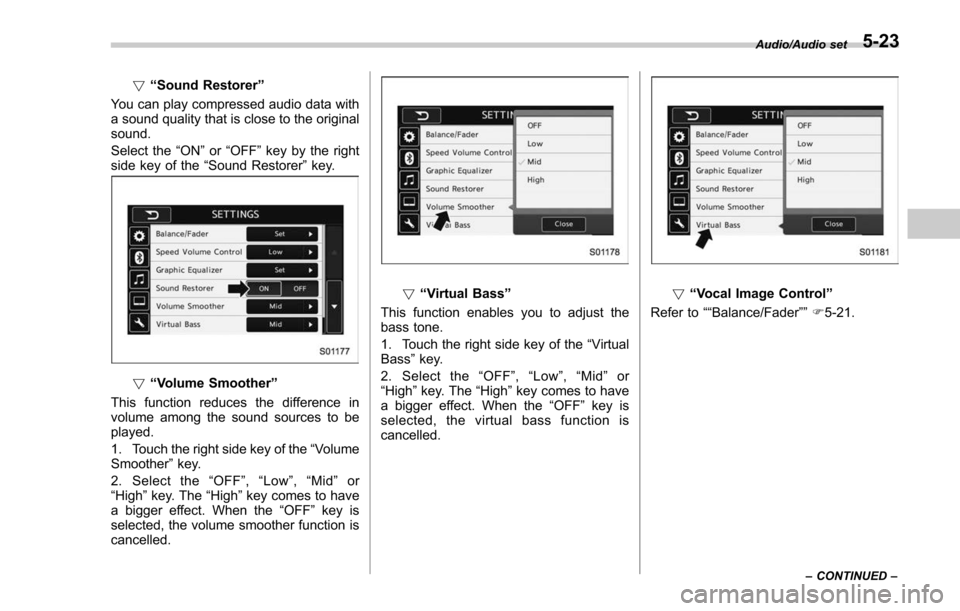
!“Sound Restorer ”
You can play compressed audio data with
a sound quality that is close to the original
sound.
Select the “ON”or “OFF ”key by the right
side key of the “Sound Restorer ”key.
! “Volume Smoother”
This function reduces the difference in
volume among the sound sources to be
played.
1. Touch the right side key of the “Volume
Smoother ”key.
2. Select the “OFF ”, “Low ”, “Mid ”or
“High ”key. The “High”key comes to have
a bigger effect. When the “OFF ”key is
selected, the volume smoother function is
cancelled.
! “Virtual Bass ”
This function enables you to adjust the
bass tone.
1. Touch the right side key of the “Virtual
Bass ”key.
2. Select the “OFF ”, “Low ”, “Mid ”or
“High ”key. The “High”key comes to have
a bigger effect. When the “OFF ”key is
selected, the virtual bass function is
cancelled.! “Vocal Image Control ”
Refer to ““Balance/Fader ””F5-21.
Audio/Audio set
–CONTINUED –5-23
Page 319 of 634
Audio/Audio set
In addition, the following messages appear.
Display MessageContents
“ Tag storage full ” If there is not enough memory in the digital
audio
“ Already Stored ” If the same information is stored in the digital
audio
“ Storing Failed ” If the store process in the digital audio failed
“ iPod full Tags cannot be stored ”If there is not enough memory in the iPod
“ Starting to transfer the Tag files. ”If the system starts to transmit music informa-
tion to an iPod
“ Transferring Failed ” If the transmitting process of music information
to an iPod failed
“ X Tag(s) Sent ”(X = number of transmitted
information) will be displayed. If the transmitting process of music information
to an iPod is successful
NOTE
.
The tag information can not be
preserved while scanning or caching
the radio station.
. If tagging the music information
fails, “Saving the HD Radio tag was
unsuccessful. (Saving the HD Radio
tag was unsuccessful.) ”will be dis-
played on the screen. If this occurs, tag
the information again.
. Program Service Data: Presents song
name, artist, station IDs, and other rele-
vant data streams.
. iTunes Tagging provides you the op-
portunity to discover a wide range of
content and the means to “tag ”that
content for later review and purchase from
the iTunes Store. Also refer to the Apple
Automotive specifications for implement-
ing iTunes Tagging.
5-32
Page 330 of 634
&ahaTMby HARMAN
aha is a cloud-based application that
connects to the system and gives you
access to your favorite web content safely
and easily. There are over 30,000 stations
spanning internet radio, personalized mu-
sic, audiobooks, Facebook, Twitter, res-
taurant and hotel searches, weather and
more. For more about aha, go to the aha
site (http://www.aharadio.com).
When connecting iPhone and iPod touch
or Android devices with the aha applica-
tion installed, you can control, view, and
hear aha content through the system.
In order to connect to this system, use a
USB port for an iPhone or iPod touch and
Bluetooth for Android devices. In this chapter, iPhone and iPod touch or
Android devices will be referred to as a
smartphone.
WARNING
Do not connect or operate the
smartphone while driving. Doing so
may result in loss of control of your
vehicle and cause an accident or
serious injury.
CAUTION
.
Do not leave your smartphone in
the car. In particular, high tem-
peratures inside the vehicle may
damage the smartphone.
. Do not push down on or apply
unnecessary pressure to the
smartphone while it is connected
as this may damage the smart-
phone or its terminal.
. Do not insert foreign objects into
the port as this may damage the
smartphone or its terminal.
Audio/Audio set
–CONTINUED –5-43
Page 333 of 634
Audio/Audio set
–Outside wireless communication
range, such as some countryside
areas
– Where the wireless communica-
tion network is congested, or where
communications are restricted
. Depending on the circumstances
and environment, the signal may be
weak or not be received. In such cases,
an error may occur.
. Top 35 entries in the preset station
list on the smartphone are displayed.
When there are more than 35 entries in
the preset station list, change the order
of the entries in the list on the smart-
phone. You can change the priority of
your preset stations within the aha
application (after disconnected from
this system) to modify the station list
shown on the screen. Please see your
smartphone aha application “Edit Pre-
sets (in Main menu) ”to modify this list.
. For operating the smartphone, see
the instruction manual that comes with
it.
. If there are multiple music files
stored on your iPhone or iPod touch,
it may take some time until playback
starts.
. Playback may be intermittent when
you switch to streaming Bluetooth
audio from aha on your smartphone device.
.
When connecting the device via
Bluetooth, the communication speed
may become slower than via USB.
! Before using aha application
In order to use the aha application on this
system, the application must be installed
on the smartphone.
! Settings required to use aha
application
. Search and download the aha applica-
tion from your smartphone app store.
–iPhone and iPod touch: Apple App
Store via iTunes
– Android device: Google Play Store
. Create an account and login to the aha
application on the smartphone.
NOTE
Please use the latest version of the aha
application.
!About app-based connected con-
tent
Requirements for using the connected
content services of the aha application
on this system.
. Latest version of the system is compa-
tible with connected content application(s)
for the smartphone, available from aha, downloaded to your smartphone.
.
A current account with a wireless
content service provider.
. A smartphone data plan: If the data
plan for your smartphone does not provide
for unlimited data usage, additional
charges from your carrier may apply for
accessing app-based connected content
via 3G, 4G, Wi-Fi or 4G LTE wireless
networks.
. Connection to the internet via 3G, 4G,
Wi-Fi or 4G LTE networks.
NOTE
. Changes to product specifications
may result in differences between the
content of the manual and features of
the product.
. Be careful not to exceed the data
usage limits for your smartphone.
Doing so will result in additional data
usage charges from your phone car-
rier.
. Access to app-based connected
content will depend on the availability
of wireless cell and/or Wi-Fi network
coverage for the purpose of allowing
your smartphone to connect to the
internet.
. Service availability may be geogra-
phically limited by region. Consult the
wireless connected content service
5-46
Page 336 of 634
&Pandora®(if equipped)
Pandora is an application for a smart-
phone. This can automatically select and
play recommended tracks.
By rating the track currently playing, tracks
that better match your preference will be
recommended.
In order to connect to this system, use a
USB port for an iPhone or iPod touch and
Bluetooth for Android devices.
Depending on differences between mod-
els or software version etc., some models
might be incompatible with this system.
This function is not available if the
Pandora application has not been in-
stalled on the smartphone.
WARNING
Do not operate the player ’s controls
or connect the smartphone while
driving. Doing so may result in loss
of control of your vehicle and cause
an accident or serious injury.
CAUTION
. Do not leave your smartphone in
the car. In particular, high tem-
peratures inside the vehicle may
damage the smartphone.
. Do not push down on or apply
unnecessary pressure to the
smartphone while it is connected
as this may damage the smart-
phone or its terminal.
. Do not insert foreign objects into
the port as this may damage the
smartphone or its terminal.
NOTE
Follow the specific operation proce-
dures for the smartphone application.
Audio/Audio set
–CONTINUED –5-49