7
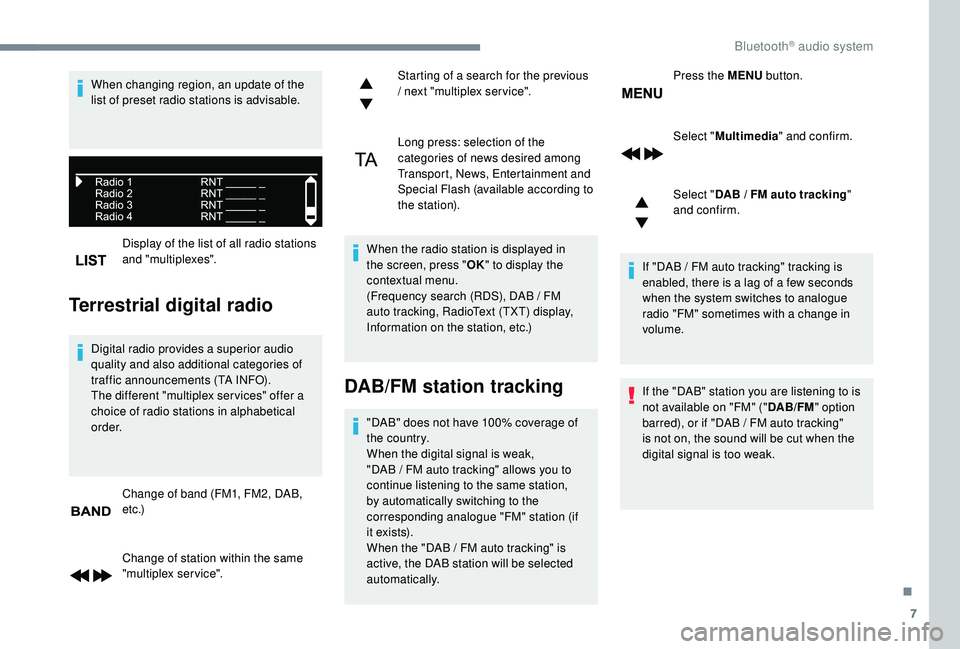
Display of the list of all radio stations
and "multiplexes".
Terrestrial digital radio
Digital radio provides a superior audio
quality and also additional categories of
traffic announcements (TA INFO).
The different "multiplex ser vices" offer a
choice of radio stations in alphabetical
o r d e r.Change of band (FM1, FM2, DAB,
e t c .)
Change of station within the same
"multiplex service". Starting of a search for the previous
/ next "multiplex service".
Long press: selection of the
categories of news desired among
Transport, News, Entertainment and
Special Flash (available according to
the station).
When the radio station is displayed in
the screen, press " OK" to display the
contextual menu.
(Frequency search (RDS), DAB / FM
auto tracking, RadioText (TXT) display,
Information on the station, etc.)
DAB/FM station tracking
"DAB" does not have 100% coverage of
the country.
When the digital signal is weak,
"DAB
/ FM auto tracking" allows you to
continue listening to the same station,
by automatically switching to the
corresponding analogue "FM" station (if
i t ex i st s).
When the "DAB
/ FM auto tracking" is
active, the DAB station will be selected
automatically. Press the MENU
button.
Select " Multimedia " and confirm.
Select " DAB / FM auto tracking
"
and confirm.
If "DAB / FM auto tracking" tracking is
enabled, there is a lag of a few seconds
when the system switches to analogue
radio "FM" sometimes with a change in
volume.
If the "DAB" station you are listening to is
not available on "FM" (" DAB/FM" option
barred), or if "DAB / FM auto tracking"
is not on, the sound will be cut when the
digital signal is too weak.
When changing region, an update of the
list of preset radio stations is advisable.
.
Bluetooth® audio system
8
Media
USB port
To protect the system, do not use a USB
hub.
Any additional equipment connected to
the system must conform to the standard
of the product or standard IEC 60950 -1.Playlists are updated every time a new USB
memory stick is connected.
When the USB port is used, the portable
device charges automatically.
Play mode
The play modes available are:
- No rmal: the tracks are played in order,
depending on the classification of the
selected files.
-
Ra
ndom: the tracks in an album or folder
are played in a random order.
-
R
andom on all media: all of the tracks
saved in the media are played in random
o r d e r.
-
R
epeat : the tracks played are only those
from the current album or folder.
Press this button to display the
contextual menu for the Media
function.
Press this button to select the
chosen play mode. Press this button to confirm.
Insert the USB memory stick into the USB port
or connect the USB device to the USB port
using a suitable cable (not supplied).
The system changes automatically to "USB"
source.
The system builds playlists (in temporary
memory), an operation which can take from
a few seconds to several minutes at the first
connection.
Reduce the number of non-music files and the
number of folders to reduce the waiting time. The choice made is displayed at the top of the
screen.
Choosing a track to play
Press one of these buttons to go to
the previous / next track.
Press one of these buttons to go to
the previous / next folder.
File classification
Make a long press on this button to
display the different classifications.
Select by "
Folder" / "Artist " /
" Genre " / "Playlist ".
Depending on availability and type
of device used.
Press OK to select the desired
classification, then press OK again
to confirm.
Bluetooth® audio system