2017 MERCEDES-BENZ E-CLASS SALOON ad blue
[x] Cancel search: ad bluePage 296 of 497
Online and Internet functions
Internet connection
Internet connection
restrictions &
WARNING Risk of di stra ction from infor‐
mation sy stems and communications
equipment
If yo u operate information and communica‐
tion equipment integ rated in theve hicle
when driving, you will be distracted from the
traf fic situation. This could also cause youto
lose control of theve hicle. #
Only operate this equipment when the
traf fic situation permits. #
Ifyo u cannot be sure of this, stop the
ve hicle whilst paying attention toroad
and traf fic conditions and ope rate the
equipment with theve hicle stationar y. Yo
u must obse rveth e legal requirements forthe
country in whi chyou are cur rently driving when
operating the multimedia sy stem. Internet access may be
restricted or not function
if:
R the mobile phone is switched off
R the mobile phone network co verage is insuf‐
fi cient
R the mobile phone is not enabled for Internet
access
R the Blue tooth®
function is switched off on
th e multimedia sy stem and the desired tele‐
phone is tobe connec ted via Blue tooth®
R the Blue tooth®
function is switched off on
th e mobile phone and thete lephone is tobe
connec ted via Blue tooth®
R neither the mobile phone network nor the
mobile phone allow simultaneous use of a
te lephone and an Internet connection
R the mobile phone has not been enabled for
Internet access via Blue tooth®
The Internet functions can only be used toa limi‐
te d deg ree whilst driving. Setting up an Internet connection
Re quirements:
R A mobile phone is connec tedto the multime‐
dia sy stem via Blue tooth®
(→ page 279).
To do so, the mobile phone must support one
of thefo llowing Blue tooth®
profiles:
- DUN (Dial-Up Networking)
- PAN (Personal Area Network)
R Set the access data of the mobile phone net‐
wo rkprov ider forth e connected mobile
phone in the multimedia sy stem. If you use
incor rect access da ta, additional costs may
be incur red.
Yo u can obtain more de tailed information at
http://www.me rcedes-benz.com/connect or
from a Mercedes-Benz service cent re.
Multimedia sy stem:
, Tel/ ®.
Tel/ ®.
Inter-
net .
Settings .
Manage Internet set- Multimedia sy
stem 293
Page 297 of 497
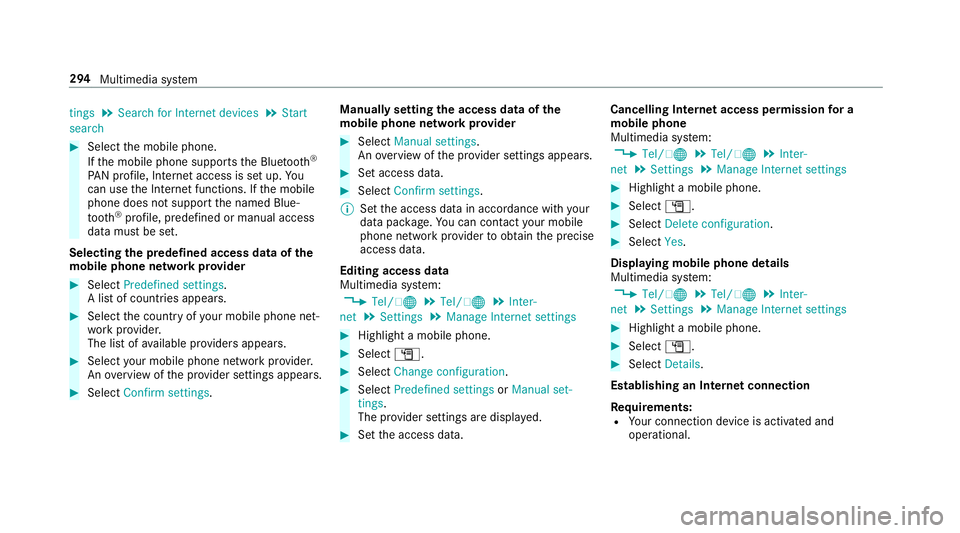
tings
.
Search for Internet devices .
Start
search #
Select the mobile phone.
If th e mobile phone supports the Blue tooth®
PA N profile, Internet access is set up. Yo u
can use the Internet functions. If the mobile
phone does not support the named Blue‐
tooth ®
profile, predefined or manual access
data must be set.
Selecting the predefined access data of the
mo bile phone network pr ovider #
Select Predefined settings.
A list of countries appears. #
Select the count ryofyour mobile phone net‐
wo rkprov ider.
The list of available pr oviders appears. #
Select your mobile phone network pr ovider.
An ove rview of the pr ovider settings appears. #
Select Confirm settings. Manually setting
the access data of the
mo bile phone network pr ovider #
Select Manual settings.
An ove rview of the pr ovider settings appears. #
Set access data. #
Select Confirm settings.
% Set the access data in accordance with your
data pac kage .Yo u can contact your mobile
phone network pr ovider toobtain the precise
access data.
Editing access data
Multimedia sy stem:
, Tel/ ®.
Tel/ ®.
Inter-
net .
Settings .
Manage Internet settings #
Highlight a mobile phone. #
Select G. #
Select Change configuration . #
Select Predefined settings orManual set-
tings.
The pr ovider settings are displa yed. #
Set the access data. Cancelling Internet access permission
for a
mobile phone
Multimedia sy stem:
, Tel/ ®.
Tel/ ®.
Inter-
net .
Settings .
Manage Internet settings #
Highlight a mobile phone. #
Select G. #
Select Delete configuration. #
Select Yes.
Displaying mobile phone details
Multimedia sy stem:
, Tel/ ®.
Tel/ ®.
Inter-
net .
Settings .
Manage Internet settings #
Highlight a mobile phone. #
Select G. #
Select Details.
Establishing an Internet connection
Re quirements:
R Your connection device is activated and
operational. 294
Multimedia sy stem
Page 299 of 497

%
The multimedia sy stem supports up to a
tot al of 15,000 files.
Suppor tedfo rm ats:
R MP3
R WMA
R AAC form ats
% Due tothe lar gevariet y of available music
fi les rega rding encoders, sampling rates and
data rates, playback cannot alw ays be guar‐
anteed.
% Due tothe wide range of USB devices availa‐
ble on the mar ket, pl ayback cann otbe guar‐
anteed for all brands of USB devices.
% Cop y-pr otected music files or DRM enc ryp‐
te dfiles cannot be pla yed bac k.
% MP3 pla yers must support Media Trans fer
Pr oto col (MTP).
Note s on copyright
Au dio files that you create or reproduce yourself
fo r playback aregeneral lysubject tocopyright
pr otection. In many count ries, reproductions,
eve nfo r private use, are not permitted without th
e prior consent of the copyright holder. Make
sure that you kn owabout the applicable copy‐
ri ght regulations and that you co mply withthese.
Switching tomedia mode
Multimedia sy stem:
, Media .
Media
The following functions are available:
R Memory card
R Media Interface 1
R Media Interface 2
R Bluetooth audio #
Select the media source.
Pla yable music files are pla yed bac k.
Inserting/removing an SD memory card &
DANG ER Risk of fata l injury from swal‐
lowing SD cards
SD cards are small parts.
They could be swallo wed and lead tochok‐
ing. #
Keep SD cards out of there ach of chil‐
dren. #
Seek medical attention immediately if
an SD card has been swallo wed. *
NO
TEDama gecaused byhigh temp era‐
tures High
temp eratures can damage the SD mem‐
ory card. #
Remo vethe SD memory card af ter use
and take it out of theve hicle. Multimedia sy
stem:
, Media .
Media .
Memory card
Inserting
The multimedia connection unit is located in the
stow age compartment under the armrest. #
Insert the SD memory card into the SD card
slot until it engages. The side with the con‐
ta cts must face down wards.
Pla yable music files are pla yed bac k. 296
Multimedia sy stem
Page 302 of 497
Switching
toMedia Inter face
Multimedia sy stem:
, Media .
Media .
Media Interface 1 #
Connect the data storage medium with the
USB port (→ page 297).
Pla yable music files are pla yed bac k.
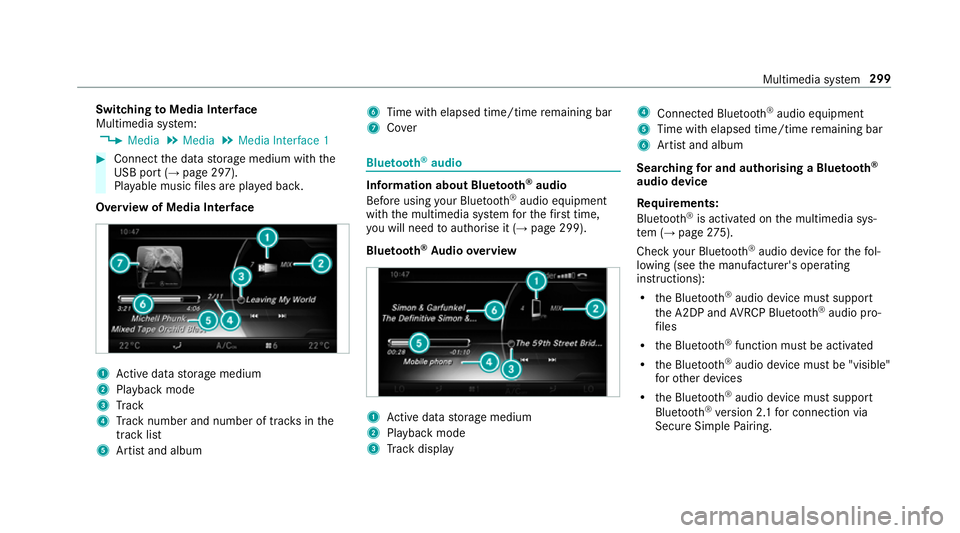
Overview of Media Inter face 1
Active da tastorage medium
2 Playback mode
3 Track
4 Track number and number of trac ksinthe
track li st
5 Artist and album 6
Time with elapsed time/time remaining bar
7 Cover Blue
tooth ®
audio Information about Blue
tooth ®
audio
Before using your Blue tooth®
audio equipment
with the multimedia sy stem forth efirs t time,
yo u will need toauthorise it (→ page 299).
Blu etoo th®
Au dio overview 1
Active da tastorage medium
2 Playback mode
3 Track display 4
Connec ted Blue tooth®
audio equipment
5 Time with elapsed time/time remaining bar
6 Artist and album
Sear ching for and authorising a Blue tooth ®
audio device
Requ irements:
Blue tooth ®
is activated on the multimedia sys‐
te m (→ page275).
Che ckyour Blue tooth®
audio device forth efo l‐
lowing (see the manufacturer's operating
instructions):
R the Blue tooth®
audio device must suppo rt
th e A2DP and AVRC P Blue tooth®
audio pro‐
fi les
R the Blue tooth®
function must be activated
R the Blue tooth®
audio device must be "visible"
fo rot her devices
R the Blue tooth®
audio device must suppo rt
Blu etoo th®
ve rsion 2.1 for connection via
Secure Simple Pairing. Multimedia sy
stem 299
Page 303 of 497

Multimedia sy
stem:
, Media .
Media .
Bluetooth
audio .
Options .
Bluetooth audio devi-
ces .
Search for audio devices #
Select Start search.
The multimedia sy stem sear ches for Blue‐
tooth ®
audio devices within range and adds
th em tothe Blue tooth ®
device list.
Option 1: Secure Simple Pairing #
Select the Blue tooth®
audio device.
Auth orisation starts.
A code is displa yed on the multimedia sys‐
te m and on the mobile phone. #
Confirm on bo thdevices if the codes are
identical.
Option 2: entering the passk ey #
Select the Blue tooth®
audio device.
The input menu forth e passk eyis displa yed. #
Multimedia sy stem: choose a one tosix‐
te en-digit number combination as a passk ey. #
Select OK once all the numbers ha vebeen
entered. #
Mobile phone: enterthe same passk eyand
con firm your entr y.
Af ter successful auth orisation,the Blue‐
tooth ®
audio equipment is connec ted and
st arts playing.
Establishing a connection from the Blue‐
to oth ®
audio equipment
The Blue tooth®
device name of the multimedia
sy stem is MB BLUETOOTH. #
Select Connect via audio device . #
Start the authorisation on your Blue tooth®
audio equipment (see the manufacturer's
operating instructions).
Af ter successful auth orisation,the Blue‐
tooth ®
audio equipment is connec ted and
st arts playing.
Wi th some Blue tooth®
audio equipment, play‐
back must be initially star ted on the device itself
so that the multimedia sy stem can play the
audio files. %
Device-specific information on authorising
and connecting Blue tooth®
-capable mobile
phones can be obtained at http://
ww w.mercedes-benz.com/connect or from a
Mercedes-Benz Service Centre.
Ac tivating Blue tooth ®
audio
Multimedia sy stem:
, Media .
Media #
Select Bluetooth audio.
The multimedia sy stem activates the connec‐
te d Blue tooth®
audio equipment.
Ad justing the volume on the Blu etoo th®
audio equipment
Multimedia sy stem:
, Media .
Media .
Bluetooth
audio .
Options .
Volume #
Select Standard orBoost .
% On some Blue tooth®
audio equipment, the
vo lume can also be adjus ted on the device
(see the manufacturer's operating instruc‐
tions). 300
Multimedia sy stem
Page 304 of 497

Displaying Blu
etoo th®
audio equipment
details
Multimedia sy stem:
, Media .
Media .
Bluetooth
audio .
Options .
Bluetooth audio devices #
Highlight Blue tooth®
audio equipment and
navigate totheright. #
Select Details. Ra
dio Switching on the
radio Multimedia sy
stem:
, Radio #
Alternatively: press the$ button.
The radio display appears. You will hear the
last station pla yed on the last frequency
band selected. Ra
dio overview 1
Memory preset
2 Display of radio station selec ted
3 Main display field with available stations and
re leva nt information
4 Artist and track displ ay Setting
the frequency band Multimedia sy
stem:
, Radio .
Waveband #
Select the frequency band. Selecting a
radio station Multimedia sy
stem:
, Radio
Using the main display field #
Toselect a station: navigate tothe left or
ri ght.
Using the cur rent station list #
Press theto uchpad or cont roller.
The station list appears with thest ations cur‐
re ntly available. #
Select thest ation.
Using direct ent ry #
Select Options . #
Select Direct entry . #
Select the frequency band. #
Ente rth e frequency of the desired station in
th e entry field.
or #
Select Station preset. Multimedia sy
stem 301
Page 372 of 497

+
ENVIRONMENTAL
NOTEEnvironmental
pollution caused byenvironmen tally ir re‐
sponsible disposal #
Dispose of operating fluids in an envi‐
ro nmentally responsible manner. Service products include
thefo llowing:
R fuels
R exhaust gas af tertre atment additives, e.g.
Ad Blue ®
R lubricants
R coolant
R brake fluid
R washer fluid
R climate cont rol sy stem refrigerant
Only use products app rove dby Mercedes-Benz.
Damage caused bythe use of products that ha ve
not been appr oved is not co veredby the
Mercedes-Benz warranty or goodwill gestures.
Yo u can identify service products appr ovedby
Mercedes-Benz bythefo llowing insc ript ion on
th e conta iners: R
MB- Freigabe (e.g. MB-Fr eigabe 229.51 )
R MB-Appr oval (e.g. MB-App rova l 229.51)
Fu rther information on appr oved service prod‐
ucts:
R inthe Mercedes-Benz Specifications for
Service Products at http://b evo.mercedes-
benz.co m (by en tering the designation)
R inthe Mercedes-Benz Specifications for
Service Products in the Mercedes-Benz BeVo
app (by entering the designation)
R at a qualified specialist workshop &
WARNING ‑ Risk of fire or explosion
caused byfuel
Fu els are highly inflammable. #
You must avoidfire , naked flames, cre‐
ating spar ksand smoking. #
Before refuelling, switch off the engine
and auxiliary heating if your vehicle is
equipped with auxiliary heating. &
WARNING Risk of inju ryfrom fuel
Fu els are poisonous and harmful to your
health #
Do not swallow fuel or let it come into
contact with skin, eyes or clo thing. #
Do not inhale fuel vapour. #
Keep children away from fuel.
If yo u or other people come into contact with
fuel, obser vethefo llowing: #
Immediately rinse fuel off your skin with
soap and water. #
If fuel comes into contact with your
ey es, immediately rinse them thor‐
oughly with clean water.Seek medical
attention immediately. #
Ifyo u swallow fuel, seek medical atten‐
tion immediatel y.Do not induce vomit‐
ing. #
Change immediately out of clo thing that
has come into con tact wi thfuel. Te
ch nical da ta369
Page 375 of 497
Information on low outside
temperatures
Re fuel your vehicle with as much winter diesel
fuel as possible at the beginning of winter.
Before changing overto winter diesel fuel, the
fuel tank should be em pty, if possible. When
re fuelling with winter diesel fuel forth efirst
time, keep the fuel le vel lo w,forex ample at
re ser veleve l. The fuel tank can be filled as usual
when next refuelling.
Fu rther information on fuel can be found:
R at a filling station
R at a qualified specialist workshop
Ta nk content and fuel reser ve
The total capacity of the fuel tank may vary,
depending on theve hicle equipment. Capacity Model
Total capacity
E 30 06 6.0 l
E 400 4MATIC
E 450 4MATIC 66.0 l
or
80.0 l
All other models 50.0 l
or
66.0 l Model
of whichreser ve
fuel
E 400 4MATIC
E 450 4MATIC 7.
0 l
or
12 .0 l
All other models 7.0 l Ad
blue ® Note
s onAdBlue ®
Obser vethe no tes on operating fluids
(→ page 368).
Ad Blue ®
is a wate r-soluble fluid forth eex haust
ga s af tertre atment of diesel engines.
* NO
TEDama gecaused bymixing addi‐
tives with AdBlue ®
or from diluting
Ad Blue ® The BlueTEC
exhaust gas af tertre atment sys‐
te m could be destr oyed by:
R Additives in AdBlue ®
R Diluting AdBlue ® #
Only use AdBlue ®
in acco rdance with
ISO 22 241. #
Do not add additives. #
Do not dilu teAd Blue ®
. 372
Tech nical da ta