Page 255 of 589
Audio system
20
5
Media
MP3
Supported audio formats
✽
✽
NOTICE
File formats other than the formats
above may not be recognized or
playable. Information such as file-
name may not be displayed.
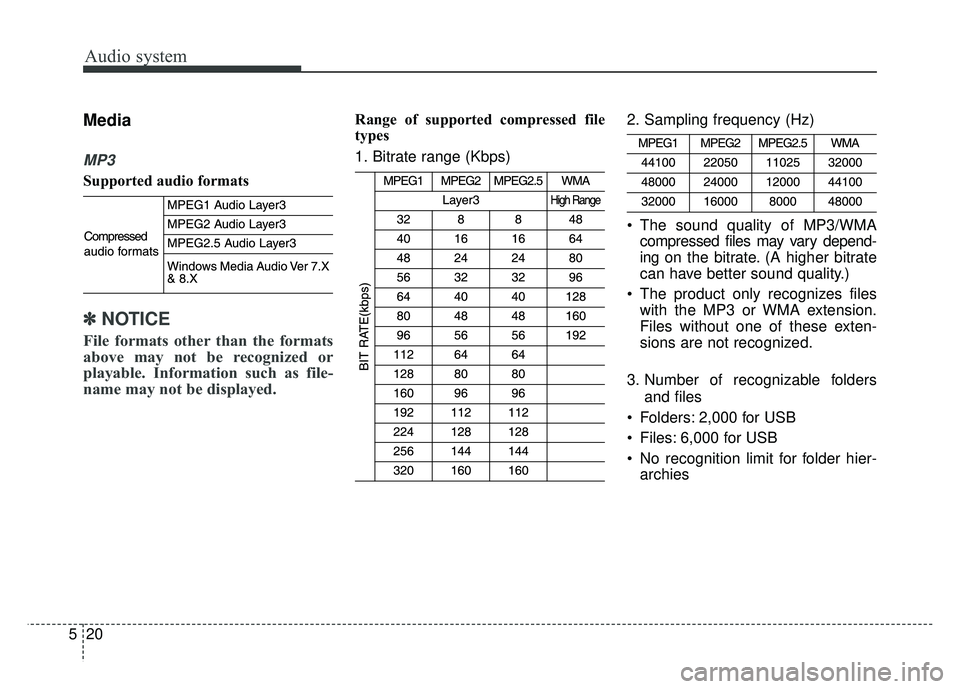
Range of supported compressed file
types
1. Bitrate range (Kbps) 2. Sampling frequency (Hz)
The sound quality of MP3/WMA
compressed files may vary depend-
ing on the bitrate. (A higher bitrate
can have better sound quality.)
The product only recognizes files with the MP3 or WMA extension.
Files without one of these exten-
sions are not recognized.
3. Number of recognizable folders and files
Folders: 2,000 for USB
Files: 6,000 for USB
No recognition limit for folder hier- archies
Page 256 of 589
Audio system
521
4. Character display range (Unicode)
Filenames: Up to 64 English char-
acters (64 Korean characters)
Foldernames: Up to 32 English characters (32 Korean characters)
Languages supported (Unicode sup-
port)
Korean: 2,604 characters
English: 94 characters
Common Chinese characters: 4,888 characters
Special symbols: 986 characters
✽ ✽ NOTICE
Japanese/Simplified Chinese char-
acters are not supported.
Page 257 of 589

Audio system
22
5
✽
✽
NOTICE - Using the USB
Devices
• Starting the vehicle while a USB
device is connected can damage
the device. Please disconnect USB
devices before starting the vehicle.
• Starting the vehicle or stopping the engine while an external USB
device is connected can result in
failure of the external USB device
to operate.
• Be cautious of static electricity when connecting/disconnecting
external USB devices.
• An encrypted MP3 player is not recognized when connected as an
external device.
• External USB devices may not be recognized, depending on the state
of the external USB device.
• Only products with byte/sectors formatted at 4 KB or lower are
recognized.
• Only USB devices in FAT12/16/32 format are recognized; NTFS and
ExFAT file systems are not recog-
nized.
• Some USB devices are not recog- nized due to compatibility issues. (Continued)(Continued)
• Do not touch the USB connections.
• Connecting and disconnecting
USB devices rapidly over a short
period of time can cause equip-
ment failure.
• Abnormal sounds may be audible when the USB device is discon-
nected.
• Turn the audio off before connect- ing or disconnecting external USB
devices.
• Recognition may take longer depending on the type, capacity or
file format of the external USB
device. This is not a product mal-
function.
• Use of USB devices for purposes other than playing music files is
prohibited.
• Image display and video playback are not supported.
• Use of USB accessories, including charge and heat though the USB
I/F, can lead to reduced product
performance or malfunctions. Do
not use USB devices or accessories
for these purposes. (Continued)(Continued)
• Use of aftermarket USB hubs and
extension cables can result in the
vehicle’s audio system failing to
recognize your USB device.
Connect the USB device directly to
the multimedia port of your vehi-
cle.
• When using high-capacity USB devices with logical drive divi-
sions, only files saved on the high-
est level logical drive can be
played.
If applications are loaded on a
USB drive, file playback may fail.
• Some MP3 players, cell phones, digital cameras, etc. (USB devices
that are not recognized as mobile
storage) may not operate normally
when connected.
• USB charging may not be sup- ported by some mobile devices.
• Operation is guaranteed only for standard (Metal Cover Type) USB
Memory drives.
• Operation of HDD, CF, SD and memory stick devices is not guar-
anteed. (Continued)
Page 260 of 589
![KIA SOUL 2017 Owners Manual Audio system
525
Shuffle play
Press the [Shuffle] to enable/disable
‘Shuffle’, ‘Shuffle folder’ or ‘Shuffle
category’ play.
Shuffle: Songs are played in
random order.
Shuffle folder: So](/manual-img/2/54636/w960_54636-259.png "KIA SOUL 2017 Owners Manual Audio system
525
Shuffle play
Press the [Shuffle] to enable/disable
‘Shuffle’, ‘Shuffle folder’ or ‘Shuffle
category’ play.
Shuffle: Songs are played in
random order.
Shuffle folder: So")
Audio system
525
Shuffle play
Press the [Shuffle] to enable/disable
‘Shuffle’, ‘Shuffle folder’ or ‘Shuffle
category’ play.
Shuffle: Songs are played in
random order.
Shuffle folder: Songs within the current folder are played in ran-
dom order.
Shuffle category: Songs within the current category are played in
random order. Menu
Press the [MENU]
button, and select
the desired function.
Save to My Music: Songs on your USB device can be saved to My
Music.
(1) File: Select a file by using TUNE knob
.
(2) Mark All: Select all files by press-ing button [1]
.
(3) Unmark All: Deselect all files by
pressing button [2]
.
(4) Save: Save the selected files bypressing button [3]
.
- Select the files you want to save,and press the [Save]. This saves
the selected files to My Music. - If Siri is activated, phone calls
are received or made while sav-
ing, saving will be canceled.
- Up to 6,000 files can be saved.
- The currently playing file on the USB device cannot be changed
while saving.
- My Music cannot be used while saving.
Information: Detailed information on the song that is currently play-
ing is displayed.
Sound Settings: Audio sound set- tings can be changed.
Page 262 of 589
![KIA SOUL 2017 Owners Manual Audio system
527
iPod®
(1) Repeat
Enable/disable repeat by pressing
button [1].
(2) Shuffle
Enable/disable shuffle play by press-
ing button [2].
(3) List
View a list of all songs by pressing
button](/manual-img/2/54636/w960_54636-261.png "KIA SOUL 2017 Owners Manual Audio system
527
iPod®
(1) Repeat
Enable/disable repeat by pressing
button [1].
(2) Shuffle
Enable/disable shuffle play by press-
ing button [2].
(3) List
View a list of all songs by pressing
button")
Audio system
527
iPod®
(1) Repeat
Enable/disable repeat by pressing
button [1].
(2) Shuffle
Enable/disable shuffle play by press-
ing button [2].
(3) List
View a list of all songs by pressing
button [3]. Playback
Connect your iPod
®to the audio
USB port, press the [MEDIA] but-
ton, and select [iPod
®].
Changing songs
Press the [SEEK/TRACK] button
to play the previous or next song.
Press and hold the [SEEK/TRACK] button to rewind or fastforward the
currently playing song.
Search songs by turning the TUNE knob, and press the knob to play.
Selecting songs from a list
Press the [List] to see a list of songs
available for play.
Select and play the desired song. Repeat play
Press the [Repeat] to enable or dis-
able ‘Repeat category’, ‘Repeat cur-
rent song’.
Repeat category: Repeat all
songs in the current category.
Repeat current song: The cur- rently playing song is repeated.
Shuffle play
Press the [Shuffle] to enable/disable
‘Shuffle category’ play.
Shuffle category: Songs within the current category are played in
random order.
Menu
Press the [MENU] button, and select
the desired function.
Information: Detailed info on the currently playing song is displayed.
Sound Settings: Audio sound set- tings can be changed.
Page 267 of 589
![KIA SOUL 2017 Owners Manual Audio system
32
5 Repeat play
Press the [Repeat] to enable or dis-
able ‘Repeat all’, ‘Repeat current
song’ or ‘Repeat category’.
Repeat all: All songs in the
playlist are repeated.
R](/manual-img/2/54636/w960_54636-266.png "KIA SOUL 2017 Owners Manual Audio system
32
5 Repeat play
Press the [Repeat] to enable or dis-
able ‘Repeat all’, ‘Repeat current
song’ or ‘Repeat category’.
Repeat all: All songs in the
playlist are repeated.
R")
Audio system
32
5 Repeat play
Press the [Repeat] to enable or dis-
able ‘Repeat all’, ‘Repeat current
song’ or ‘Repeat category’.
Repeat all: All songs in the
playlist are repeated.
Repeat current song: The cur- rently playing song is repeated.
Repeat category: Repeat all songs in the current category.
Shuffle play
Press the [Shuffle] to enable/disable
‘Shuffle’, ‘Shuffle category’ play.
Shuffle: Songs are played in random order.
Shuffle category: Songs within the current category are played in
random order. Menu
Press the [MENU]
button, and select
the desired function.
Delete Files: You can delete files from My Music.
(1) File: Select saved file by using TUNE knob
.
(2) Mark All: Select all files by press-
ing button [1]
.
(3) Unmark All: Deselect all files by
pressing button [2]
.
(4) Delete: Delete the selected file(s)by pressing button [3]
.
- Select the file to delete, thenpress the [Delete] to delete it.
- If Siri is activated, phone calls are received or made during
delete, delete will be canceled. Add to Playlist: Frequently played
songs can be paired in a [Playlist].
- Songs can be played from the[Playlist].
Information: Detailed info on the currently playing song is displayed.
Sound Settings: Audio sound set- tings can be changed.
Delete from Playlist
When a song in the playlist is play-
ing, press the [MENU] button and
select [Delete from Playlist].
Select the song to delete, then press
[Delete].
Page 268 of 589
Audio system
533
Pandora
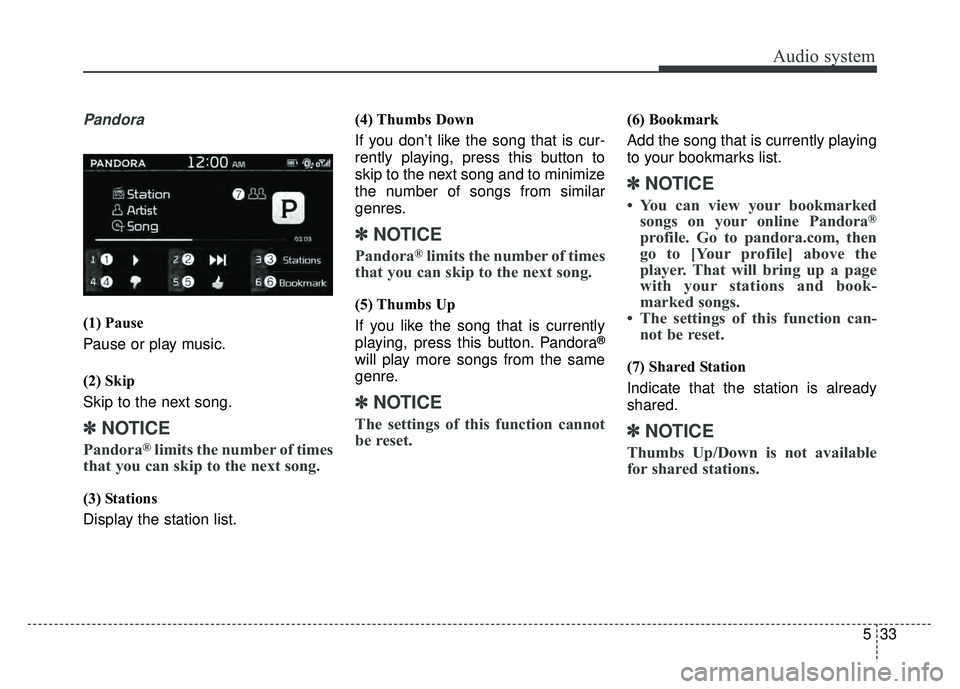
(1) Pause
Pause or play music.
(2) Skip
Skip to the next song.
✽ ✽NOTICE
Pandora®limits the number of times
that you can skip to the next song.
(3) Stations
Display the station list. (4) Thumbs Down
If you don’t like the song that is cur-
rently playing, press this button to
skip to the next song and to minimize
the number of songs from similar
genres.
✽ ✽
NOTICE
Pandora®limits the number of times
that you can skip to the next song.
(5) Thumbs Up
If you like the song that is currently
playing, press this button. Pandora
®
will play more songs from the same
genre.
✽ ✽ NOTICE
The settings of this function cannot
be reset.
(6) Bookmark
Add the song that is currently playing
to your bookmarks list.
✽ ✽NOTICE
• You can view your bookmarked
songs on your online Pandora®
profile. Go to pandora.com, then
go to [Your profile] above the
player. That will bring up a page
with your stations and book-
marked songs.
• The settings of this function can- not be reset.
(7) Shared Station
Indicate that the station is already
shared.
✽ ✽ NOTICE
Thumbs Up/Down is not available
for shared stations.
Page 274 of 589
![KIA SOUL 2017 Owners Manual Audio system
539
Connecting Bluetooth®Wireless
Technology devices
If there are no connected devices
Select the [PHONE] button on the
audio system or the [CALL] button in
the steering wheel remote con](/manual-img/2/54636/w960_54636-273.png "KIA SOUL 2017 Owners Manual Audio system
539
Connecting Bluetooth®Wireless
Technology devices
If there are no connected devices
Select the [PHONE] button on the
audio system or the [CALL] button in
the steering wheel remote con")
Audio system
539
Connecting Bluetooth®Wireless
Technology devices
If there are no connected devices
Select the [PHONE] button on the
audio system or the [CALL] button in
the steering wheel remote control ➟
List of paired
Bluetooth®Wireless
Technology devices ➟ Select the
desired
Bluetooth®Wireless Technology
device from the list ➟ Connect
Bluetooth®Wireless Technology. If there are connected devices
Select the [PHONE]
button on the
audio system ➟ Select [Settings] ➟
Select [Connections] ➟Select
Bluetooth®Wireless Technology device
to connect ➟ Select [Connect] ➟
Connect
Bluetooth®Wireless Technology.
✽ ✽ NOTICE
• Only one Bluetooth®Wireless
Technology device can be connect-
ed at a time.
• When a Bluetooth
®Wireless
Technology device is connected,
other devices cannot be paired.
Accepting/rejecting phone calls
Receiving phone calls with Bluetooth®
Wireless Technology connected.
(1) Caller name: If the caller number is in your contacts, the correspon-
ding name is displayed.
(2) Incoming phone number: Incoming phone number is displayed.
(3) Accept: Accept call.
(4) Reject: Reject call.