Page 224 of 488
149
Features of your vehicle
4
(19)
- Shortly press the key (under 0.8 sec-
onds) : Moves to the Display, Sound,
Clock, Phone, System setting modes
- Press and hold the key (over 0.8 sec- onds) : Move to the Time settingscreen (20) TUNE knob
Radio mode : Changes frequency by
turning the knob left/right
CD, USB, iPod
®
mode: Searches songs
(files) by turning the knob left/right.❈ When the desired song is displayed,
press the knob to play the song.
Moves focus in all selection menus and
selects menus
SETUP CLOCK
Page 229 of 488
Features of your vehicle
1544Phone Setup (
Bluetooth®Wireless
Technology equipped model)
Press the key Select [Phone] Pair Phone
Select [Pair Phone] Set through TUNE knob ➀
Search for device names as displayed
on your mobile phone and connect.
➁ Input the passkey displayed on the
screen. (Passkey : 0000)
❈ The device name and passkey will be
displayed on the screen for up to 3
minutes. If pairing is not completed
within the 3 minutes, the mobile phone
pairing process will automatically becanceled. ➂
Pairing completion is displayed.
❈ In some mobile phones, pairing will
automatically be followed by connection.
❈ It is possible to pair up to five
Bluetooth®Wireless Technology
enabled mobile phones.
CAUTION
To pair a Bluetooth ®
Wireless
Technology enabled mobile phone,
authentication and connection processes are first required. As aresult, you cannot pair your mobilephone while driving the vehicle.
First park your vehicle before use.
Page 230 of 488
155
Features of your vehicle
4
Phone List The names of up to 5 paired phones will
be displayed.
A [ ] is displayed in front of the currently
connected phone. Select the desired name to setup the
selected phone.
Connecting a phone
Select [Phone List] Select mobile phone
through TUNE knob Select [ConnectPhone] ➀ Select a mobile phone that is not cur-
rently connected.
➁ Connect the selected mobile phone.
➂ Connection completion is displayed.
❈ If a phone is already connected, dis-
connect the currently connected phone
and select a new phone to connect.
Disconnecting a connected phone
Select [Phone List] Select mobile phonethrough TUNE knob Select
[Disconnect Phone] ➀ Select the currently connected mobile
phone.
➁ Disconnect the selected mobile phone.
➂ Disconnection completion is displayed.
Page 231 of 488
![KIA PICANTO 2017 Owners Manual Features of your vehicle
1564 Changing connection sequence
(Priority)
This is used to change the order (priori-
ty) of automatic connection for the paired
mobile phones.
Select [Phone List] Select [](/manual-img/2/57964/w960_57964-230.png "KIA PICANTO 2017 Owners Manual Features of your vehicle
1564 Changing connection sequence
(Priority)
This is used to change the order (priori-
ty) of automatic connection for the paired
mobile phones.
Select [Phone List] Select [")
Features of your vehicle
1564 Changing connection sequence
(Priority)
This is used to change the order (priori-
ty) of automatic connection for the paired
mobile phones.
Select [Phone List] Select [Priority]
through TUNE knob Select No. 1
Priority mobile phone ➀ Select [Priority].
➁ From the paired phones, select the
phone desired for No.1 priority.
➂ The changed priority sequence is dis-
played.
❈ Once the connection sequence (priori-
ty) is changed, the new no. 1 priority mobile phone will be connected.
- When the no. 1 priority cannot be connected: Automatically attempts to connect the most recently connected
phone.
- Cases when the most recently con- nected phone cannot be connected:Attempts to connect in the order inwhich paired phones are listed.
Delete
Select [Phone List] Select mobile phone
through TUNE knob Select [Delete] ➀ Select the desired mobile phone.
➁ Delete the selected mobile phone.
➂ Deletion completion is displayed.
❈ When attempting to delete a currently
connected phone, the phone is first disconnected. Phone book Download
This feature is used to download phone
book and call histories into the audio sys-tem.
Select [Phone book Download] Select
through TUNE knob
CAUTION
The download feature may not be
supported in some mobile phones.
If a different operation is per- formed while phone book is beingdownloaded, downloading will be
discontinued. Phone book alreadydownloaded will be saved.
When downloading new phone book, delete all previously savedphone book before starting down-
load.
CAUTION
When you delete a mobile phone, the mobile phone phone book will
also be erased.
For stable Bluetooth ®
Wireless
Technology communication, delete the mobile phone from theaudio and also delete the audiofrom your mobile phone.
Page 232 of 488
![KIA PICANTO 2017 Owners Manual 157
Features of your vehicle
4
Auto Download
When connecting a mobile phone, it is
possible to automatically download new
phone book and Call Histories.
Select [Auto Download] Set /
through TUNE k](/manual-img/2/57964/w960_57964-231.png "KIA PICANTO 2017 Owners Manual 157
Features of your vehicle
4
Auto Download
When connecting a mobile phone, it is
possible to automatically download new
phone book and Call Histories.
Select [Auto Download] Set /
through TUNE k")
157
Features of your vehicle
4
Auto Download
When connecting a mobile phone, it is
possible to automatically download new
phone book and Call Histories.
Select [Auto Download] Set /
through TUNE knob
Audio Streaming
Songs (files) saved in your
Bluetooth®
Wireless Technology enabled mobile
phone can be played through the audiosystem.
Select [Audio Streaming] Set / through TUNE knob Outgoing Volume
This is used to set the volume of your
voice as heard by the other party whileon a
Bluetooth®Wireless Technology
enabled handsfree call.
Select [Outgoing Volume] Set volume
through TUNE knob ❈ Even while on a call, the volume can be
changed by using the key.
Bluetooth®Wireless Technology
System Off
This feature is used when you do not wish to use the
Bluetooth®Wireless
Technology system.
Select [Bluetooth System Off] Set
through TUNE knob ❈ If a phone is already connected, dis- connect the currently connected
phone and turn the
Bluetooth®
Wireless Technology system off.
SEEK
TRACK
OFFON
OFFON
CAUTION
The Bluetooth ®
Wireless Technology
audio streaming feature may not be supported in some mobile phones.
Page 233 of 488
Features of your vehicle
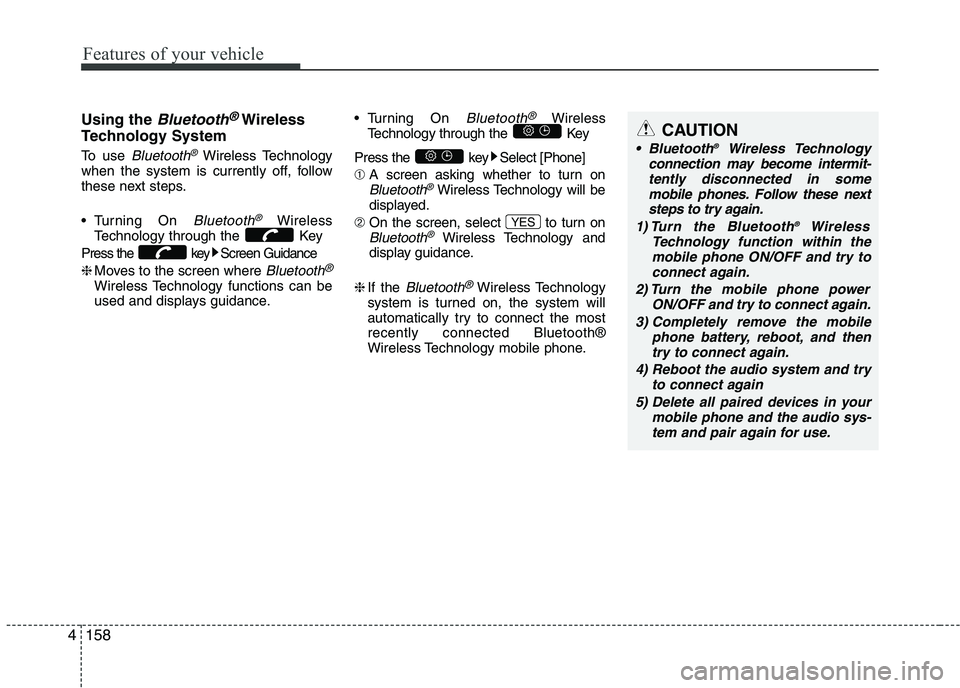
1584Using the
Bluetooth®Wireless
Technology System
To use
Bluetooth®Wireless Technology
when the system is currently off, follow
these next steps.
Turning On
Bluetooth®Wireless
Technology through the Key
Press the key Screen Guidance ❈ Moves to the screen where
Bluetooth®
Wireless Technology functions can be
used and displays guidance. Turning On
Bluetooth®Wireless
Technology through the Key
Press the key Select [Phone] ➀ A screen asking whether to turn on
Bluetooth®Wireless Technology will be
displayed.
➁ On the screen, select to turn on
Bluetooth®Wireless Technology and
display guidance.
❈ If the
Bluetooth®Wireless Technology
system is turned on, the system will
automatically try to connect the mostrecently connected Bluetooth®
Wireless Technology mobile phone. YES
CAUTION
Bluetooth
®
Wireless Technology
connection may become intermit-
tently disconnected in some mobile phones. Follow these nextsteps to try again.
1) Turn the Bluetooth ®
Wireless
Technology function within the mobile phone ON/OFF and try toconnect again.
2) Turn the mobile phone power ON/OFF and try to connect again.
3) Completely remove the mobile phone battery, reboot, and thentry to connect again.
4) Reboot the audio system and try to connect again
5) Delete all paired devices in your mobile phone and the audio sys-tem and pair again for use.
Page 238 of 488
163
Features of your vehicle
4
Time Format This function is used to set the 12/24
hour time format of the audio system.
Select [Time Format] Set 12Hr / 24Hr
through TUNE knob.
Clock Display when Power is OFF
Select [Clock Disp.(Pwr Off) Set
/through TUNEknob
: Displays time/date on screen
: Turn off. Phone Setup (
Bluetooth®Wireless Technology
equipped model)
Press the key Select [Phone] Pair Phone
Select [Pair Phone] Set through TUNE knob ➀
Search for device names as displayed
on your mobile phone and connect.
SETUP CLOCK
Off
On
Off
On
CAUTION
To pair a Bluetooth ®
Wireless
Technology enabled mobile phone, authentication and connection
processes are first required. As aresult, you cannot pair your mobile phone while driving the vehicle.First park your vehicle before use.
Page 239 of 488
![KIA PICANTO 2017 Owners Manual Features of your vehicle
1644[Non SSP supported device]
(SSP: Secure Simple Pairing)
➁ After a few moments, a screen is dis-
played where the passkey is entered.
Hear, enter the passkey “0000”](/manual-img/2/57964/w960_57964-238.png "KIA PICANTO 2017 Owners Manual Features of your vehicle
1644[Non SSP supported device]
(SSP: Secure Simple Pairing)
➁ After a few moments, a screen is dis-
played where the passkey is entered.
Hear, enter the passkey “0000”")
Features of your vehicle
1644[Non SSP supported device]
(SSP: Secure Simple Pairing)
➁ After a few moments, a screen is dis-
played where the passkey is entered.
Hear, enter the passkey “0000” to pair
your
Bluetooth®Wireless Technology
device with the car audio system. [SSP supported device] ➁
After a few moments, a screen is dis-
played 6 digits passkey. Hear, check the
passkey on your
Bluetooth®Wireless
Technology device and confirm.
❈ The device name and passkey will be
displayed on the screen for up to 3 min-
utes. If pairing is not completed within
the 3 minutes, the mobile phone pairingprocess will automatically be canceled.
➂ Pairing completion is displayed.
❈ In some mobile phones, pairing will
automatically be followed by connection.
❈ It is possible to pair up to five
Bluetooth®Wireless Technology
enabled mobile phones. Phone List The names of up to 5 paired phones will
be displayed.
A [ ] is displayed in front of the currently
connected phone. Select the desired name to setup the
selected phone.

![KIA PICANTO 2017 Owners Manual Features of your vehicle
1544Phone Setup (
Bluetooth®Wireless
Technology equipped model)
Press the key Select [Phone] Pair Phone
Select [Pair Phone] Set through TUNE knob ➀
Search for device n](/manual-img/2/57964/w960_57964-228.png "KIA PICANTO 2017 Owners Manual Features of your vehicle
1544Phone Setup (
Bluetooth®Wireless
Technology equipped model)
Press the key Select [Phone] Pair Phone
Select [Pair Phone] Set through TUNE knob ➀
Search for device n")
![KIA PICANTO 2017 Owners Manual 155
Features of your vehicle
4
Phone List The names of up to 5 paired phones will
be displayed.
A [ ] is displayed in front of the currently
connected phone. Select the desired name to setup the
s](/manual-img/2/57964/w960_57964-229.png "KIA PICANTO 2017 Owners Manual 155
Features of your vehicle
4
Phone List The names of up to 5 paired phones will
be displayed.
A [ ] is displayed in front of the currently
connected phone. Select the desired name to setup the
s")
![KIA PICANTO 2017 Owners Manual 163
Features of your vehicle
4
Time Format This function is used to set the 12/24
hour time format of the audio system.
Select [Time Format] Set 12Hr / 24Hr
through TUNE knob.
Clock Display when P](/manual-img/2/57964/w960_57964-237.png "KIA PICANTO 2017 Owners Manual 163
Features of your vehicle
4
Time Format This function is used to set the 12/24
hour time format of the audio system.
Select [Time Format] Set 12Hr / 24Hr
through TUNE knob.
Clock Display when P")