Page 262 of 488
187
Features of your vehicle
4
Bluetooth®Wireless
Technology AUDIO
Type A-1, Type A-3
What is
Bluetooth®Wireless
Technology?
Bluetooth®Wireless Technology allows
devices to be connected in a short dis-
tance, including hands-free devices,
stereo headsets, wireless remote con-
trollers, etc. For more information, visitthe
Bluetooth®Wireless Technology
website at www.Bluetooth.com
Before using Bluetooth®Wireless
Technology audio features
Bluetooth®Wireless Technology audio
may not be supported depending on
the compatibility of your
Bluetooth®
Wireless Technology mobile phone.
In order to use
Bluetooth®Wireless
Technology audio, you must first pairand connect the
Bluetooth®Wireless
Technology mobile phone.
The
Bluetooth®word mark and logos
are registered trademarks owned by
Bluetooth®SIG, Inc. and any use of
such marks by Kia is under license.
Other trademarks and trade names are
those of their respective owners. A
Bluetooth®enabled cell phone is
required to use Bluetooth®Wireless
Technology.
WARNING
Driving while distracted can result
in a loss of vehicle control that may
lead to an accident, severe person-
al injury, and death. The driver’s pri-
mary responsibility is in the safe
and legal operation of a vehicle,
and use of any handheld devices,
other equipment, or vehicle sys-
tems which take the driver’s eyes,
attention and focus away from the
safe operation of a vehicle or which
are not permissible by law should
never be used during operation of
the vehicle.
Page 263 of 488
Features of your vehicle
1884
Bluetooth®Wireless Technology audio
can be used only when the [Audio
Streaming] of Phone is turned On.
❈ Setting
Bluetooth®Wireless
Technology Audio Streaming : Press the /key Select
[Phone] through the tune knob
Select [Audio Streaming] through the TUNE knob Set / Starting
Bluetooth®Wireless
Technology Audio
Press the key to change the mode in order of CD ➟USB ➟AUX ➟
My Music ➟BT Audio.
If BT Audio is selected,
Bluetooth®
Wireless Technology audio will start
playing.
❈ Audio may not automatically start play-
ing in some mobile phones. Using the
Bluetooth®Wireless
Technology audio features
Press the TUNE knob to play and pause the current song. ❈ The previous song / next song / play /
pause functions may not be supported
in some mobile phones.
MEDIA
OFFON
SETUP CLOCK
Page 264 of 488
189
Features of your vehicle
4
PHONE (IF EQUIPPED)
Before using the
Bluetooth®Wireless
Technology phone features
In order to use
Bluetooth®Wireless
Technology phone, you must first pair and connect the
Bluetooth®Wireless
Technology mobile phone.
If the mobile phone is not paired or connected, it is not possible to enter
Phone mode. Once a phone is pairedor connected, the guidance screen will
be displayed.
If Priority is set upon vehicle ignition (IGN/ACC ON), the
Bluetooth®
Wireless Technology phone will be
automatically connected. Even if you
are outside, the
Bluetooth®Wireless
Technology phone will be automatical-
ly connected once you are in the vicin-
ity of the vehicle. If you do not wantautomatic
Bluetooth®Wireless
Technology phone connection, set the
Bluetooth®Wireless Technology power
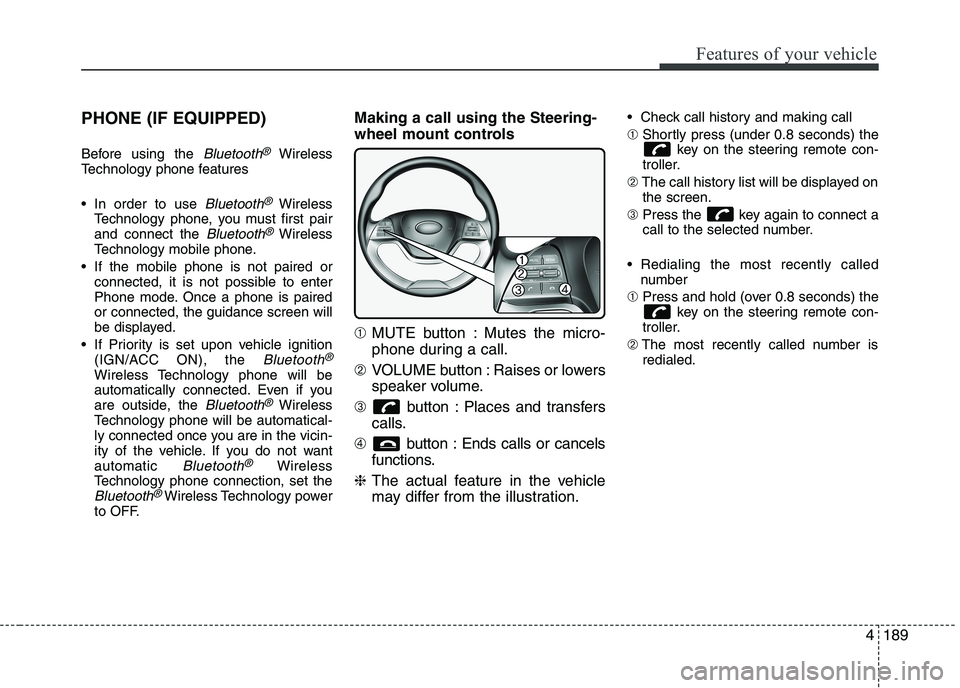
to OFF. Making a call using the Steering-
wheel mount controls ➀
MUTE button : Mutes the micro-
phone during a call.
➁ VOLUME button : Raises or lowers
speaker volume.
➂ button : Places and transfers
calls.
➃ button : Ends calls or cancels
functions.
❈ The actual feature in the vehicle
may differ from the illustration. Check call history and making call ➀
Shortly press (under 0.8 seconds) the
key on the steering remote con-
troller.
➁ The call history list will be displayed on
the screen.
➂ Press the key again to connect a
call to the selected number.
Redialing the most recently called number
➀ Press and hold (over 0.8 seconds) the
key on the steering remote con-
troller.
➁ The most recently called number is
redialed.
Page 265 of 488
Features of your vehicle
1904Making a call using the Steering-
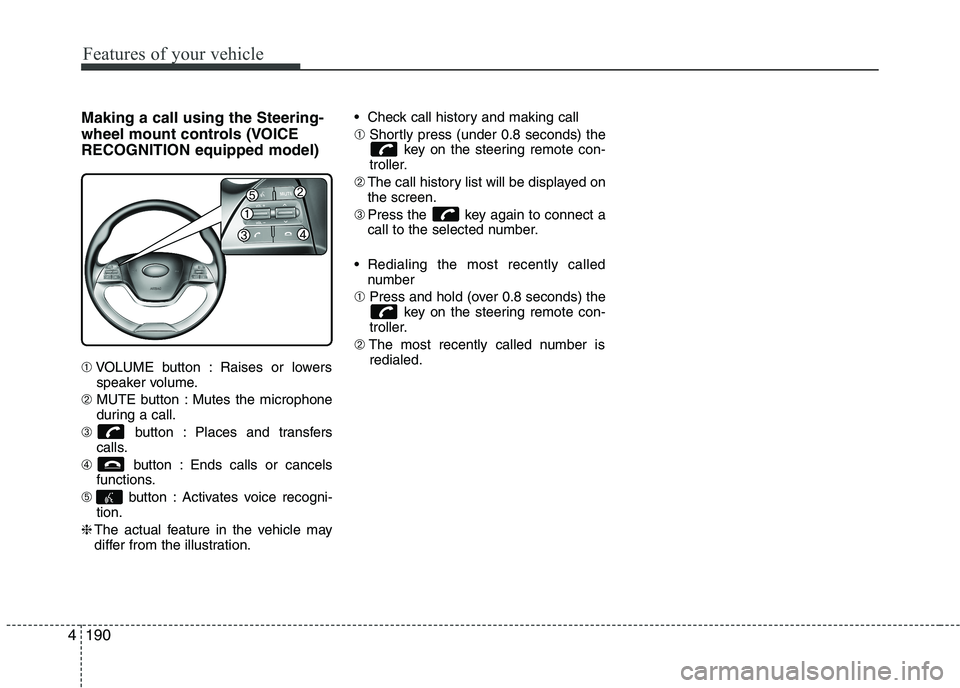
wheel mount controls (VOICERECOGNITION equipped model) ➀
VOLUME button : Raises or lowers
speaker volume.
➁ MUTE button : Mutes the microphone
during a call.
➂ button : Places and transfers
calls.
➃ button : Ends calls or cancels
functions.
➄ button : Activates voice recogni-
tion.
❈ The actual feature in the vehicle may
differ from the illustration. Check call history and making call ➀
Shortly press (under 0.8 seconds) the
key on the steering remote con-
troller.
➁ The call history list will be displayed on
the screen.
➂ Press the key again to connect a
call to the selected number.
Redialing the most recently called number
➀ Press and hold (over 0.8 seconds) the
key on the steering remote con-
troller.
➁ The most recently called number is
redialed.
Page 266 of 488
![KIA PICANTO 2017 Owners Manual 191
Features of your vehicle
4
Phone MENU
Type A-1
Press the key to display
three menus (Call History, PhoneBook, Phone Setup).
History
Press the key Set [ History]
through the TUNE knob or](/manual-img/2/57964/w960_57964-265.png "KIA PICANTO 2017 Owners Manual 191
Features of your vehicle
4
Phone MENU
Type A-1
Press the key to display
three menus (Call History, PhoneBook, Phone Setup).
History
Press the key Set [ History]
through the TUNE knob or")
191
Features of your vehicle
4
Phone MENU
Type A-1
Press the key to display
three menus (Call History, PhoneBook, Phone Setup).
History
Press the key Set [ History]
through the TUNE knob or key.
The call history is displayed and can be
used to select a number and make a call.
If call history does not exist, a screen ask-
ing whether to download call history is
displayed. (The download feature may not
be supported in some mobile phones)
P.Book
Press the key Set [ P. Book]
through the TUNE knob or key.
The phone book is displayed and can be
used to select a number and make a call. ❈
If more than one number is saved to
one contact, then a screen showing
the mobile phone number, Home and
office number is displayed. Select the
desired number to make the call.
❈ If phone book do not exist, a screen
asking whether to download phone
book is displayed. (The download fea-
ture may not be supported in somemobile phones) Setup
Press the key Set [ Setup]
through the TUNE knob or key. The
Bluetooth®Wireless Technology
mobile phone setup screen is displayed.
For more information, refer to “PhoneSetup”.
3
2
RDM
1
RPT
Page 267 of 488
![KIA PICANTO 2017 Owners Manual Features of your vehicle
1924Phone MENU
Type A-3
(for Colombia model)
Press the key to display four
menus (Favorites, Call History, Contacts,Phone Setup).
Favorites
Press the key Set [ FAV]
t](/manual-img/2/57964/w960_57964-266.png "KIA PICANTO 2017 Owners Manual Features of your vehicle
1924Phone MENU
Type A-3
(for Colombia model)
Press the key to display four
menus (Favorites, Call History, Contacts,Phone Setup).
Favorites
Press the key Set [ FAV]
t")
Features of your vehicle
1924Phone MENU
Type A-3
(for Colombia model)
Press the key to display four
menus (Favorites, Call History, Contacts,Phone Setup).
Favorites
Press the key Set [ FAV]
through the TUNE knob or key.
Up to 20 frequently used contacts saved
for easy access
History
Press the key Set [ History]
through the TUNE knob or key.
The call history is displayed and can be
used to select a number and make a call.
If call history does not exist, a screen ask-
ing whether to download call history is
displayed. (The download feature may not
be supported in some mobile phones)Contacts
Press the key Set [ Contacts]
through the TUNE knob or key.
The contacts are displayed and can be
used to select a number and make a call. ❈
If more than one number is saved to
one contact, then a screen showing
the mobile phone number, Home and
office number is displayed. Select the
desired number to make the call.
❈ If contacts do not exist, a screen asking
whether to download contacts are dis-
played. (The download feature may not
be supported in some mobile phones)
Setup
Press the key Set [ Setup]
through the TUNE knob or key. The
Bluetooth®Wireless Technology
mobile phone setup screen is displayed.
For more information, refer to “PhoneSetup”.
4
PHONE
3
PHONE
2
RDM
PHONE
1
RPT
PHONE
PHONE
Page 268 of 488
![KIA PICANTO 2017 Owners Manual 193
Features of your vehicle
4
Phone MENU
Type A-3
Press the key to display three
menus (Call History, Contacts, PhoneSetup).
History
Press the key Set [ History]
through the TUNE knob or ke](/manual-img/2/57964/w960_57964-267.png "KIA PICANTO 2017 Owners Manual 193
Features of your vehicle
4
Phone MENU
Type A-3
Press the key to display three
menus (Call History, Contacts, PhoneSetup).
History
Press the key Set [ History]
through the TUNE knob or ke")
193
Features of your vehicle
4
Phone MENU
Type A-3
Press the key to display three
menus (Call History, Contacts, PhoneSetup).
History
Press the key Set [ History]
through the TUNE knob or key.
The call history is displayed and can be
used to select a number and make a call.
If call history does not exist, a screen ask-
ing whether to download call history is
displayed. (The download feature may not
be supported in some mobile phones) Contacts
Press the key Set [ Contacts]
through the TUNE knob or key.
The contacts are displayed and can be
used to select a number and make a call. ❈
If more than one number is saved to
one contact, then a screen showing
the mobile phone number, Home and
office number is displayed. Select the
desired number to make the call.
❈ If contacts do not exist, a screen asking
whether to download contacts are dis-
played. (The download feature may not
be supported in some mobile phones) Setup
Press the key Set [ Setup]
through the TUNE knob or key. The
Bluetooth®Wireless Technology
mobile phone setup screen is displayed.
For more information, refer to “PhoneSetup”.
3
PHONE
2
RDM
PHONE
1
RPT
PHONE
PHONE
Page 269 of 488
Features of your vehicle
1944
✽✽NOTICE - USING THE
Bluetooth®Wireless Technology
CELLULAR PHONE
Do not use a cellular phone or per- form Bluetooth ®
Wireless Technology
settings (e.g. pairing a phone) while
driving.
Some Bluetooth ®
Wireless Technology
-enabled phones may not be recog-
nized by the system or fully compati-
ble with the system.
Before using Bluetooth®
Wireless
Technology related features of the
audio system, refer your phone’s User’s
Manual for phone-side Bluetooth®
Wireless Technology operations.
The phone must be paired to the audio
system to use Bluetooth®
Wireless
Technology related features.
You will not be able to use the hands- free feature when your phone (in the
car) is outside of the cellular service
area (e.g. in a tunnel, in a under-
ground, in a mountainous area, etc.). (Continued)(Continued)
If the cellular phone signal is poor or
the vehicles interior noise is too loud,
it may be difficult to hear the other
person’s voice during a call.
Do not place the phone near or inside
metallic objects, otherwise communi-
cations with Bluetooth®
Wireless
Technology system or cellular service
stations can be disturbed.
While a phone is connected through
Bluetooth ®
Wireless Technology your
phone may discharge quicker than
usual for additional Bluetooth®
Wireless
Technology-related operations.
Some cellular phones or other devices
may cause interference noise or mal-
function to audio system. In this case,
store the device in a different location
may resolve the condition.
Phone contact names should be saved in English or they may not be dis-
played correctly. (Continued)(Continued)
If Priority is set upon vehicle igni-
tion(IGN/ACC ON), the Bluetooth®
Wireless Technology phone will be
automatically connected.
Even if you are outside, the Bluetooth®
Wireless Technology phone will be
automatically connected once you are
in the vicinity of the vehicle.
If you do not want automatic
Bluetooth ®
Wireless Technology con-
nection, turn the Bluetooth®
Wireless
Technology feature off.
The hands-free call volume and quali-
ty may differ depending on the mobile
phone type.
Bluetooth ®
Wireless Technology fea-
tures can be used only when the
mobile phone has been paired and
connected with the device. For more
information on pairing and connect-
ing Bluetooth ®
Wireless Technology
enabled mobile phones, refer to the
“Phone Setup” section. (Continued)
![KIA PICANTO 2017 Owners Manual Features of your vehicle
1884
Bluetooth®Wireless Technology audio
can be used only when the [Audio
Streaming] of Phone is turned On.
❈ Setting
Bluetooth®Wireless
Technology Audio Streaming : Pre](/manual-img/2/57964/w960_57964-262.png "KIA PICANTO 2017 Owners Manual Features of your vehicle
1884
Bluetooth®Wireless Technology audio
can be used only when the [Audio
Streaming] of Phone is turned On.
❈ Setting
Bluetooth®Wireless
Technology Audio Streaming : Pre")