Page 213 of 565
212
uuAudio System Basic Operation uAudio/Information Screen
Features
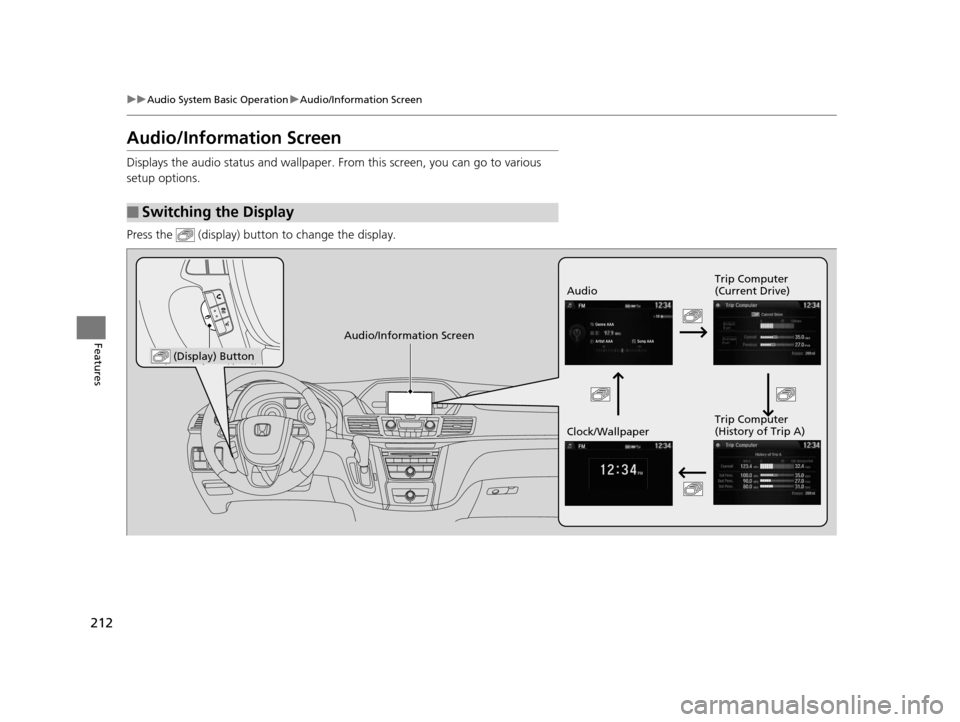
Audio/Information Screen
Displays the audio status and wallpaper. From this screen, you can go to various
setup options.
Press the (display) butto n to change the display.
■Switching the Display
Audio Trip Computer
(Current Drive)
Clock/Wallpaper Trip Computer
(History of Trip A)
Audio/Information Screen
(Display) Button
17 US ODYSSEY (KA KC)-31TK86600.book 212 ページ 2016年10月24日 月曜日
午後4時2分
Page 215 of 565
uuAudio System Basic Operation uAudio/Information Screen
214
Features
You can change, store, and delete the wa llpaper on the audio/information screen.
■Import wallpaper
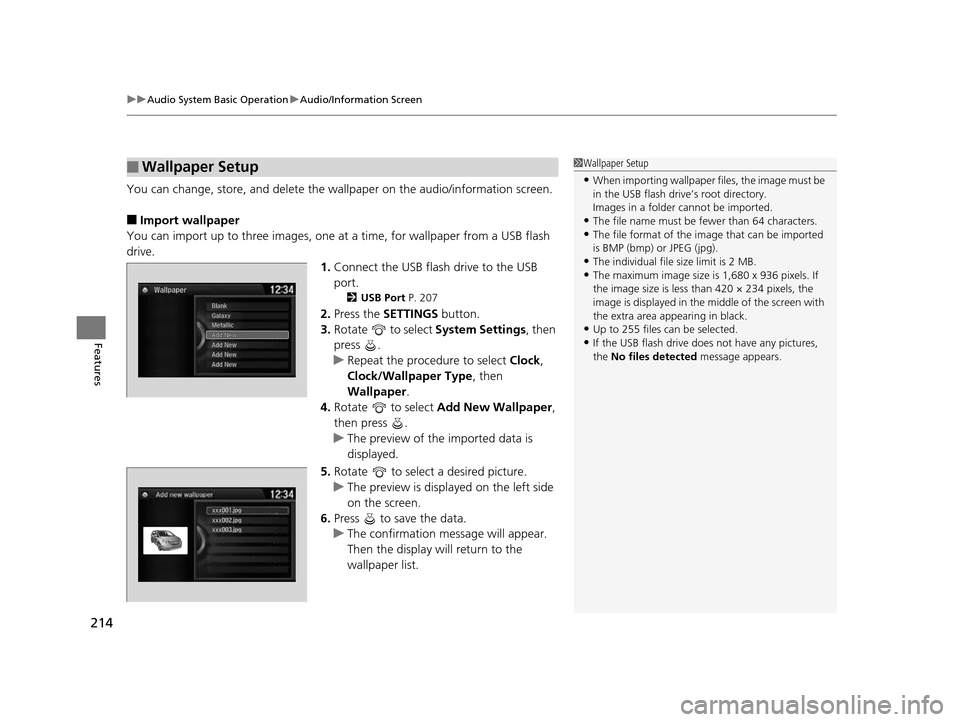
You can import up to three images, one at a time, for wallpaper from a USB flash
drive.
1.Connect the USB flash drive to the USB
port.
2 USB Port P. 207
2.Press the SETTINGS button.
3. Rotate to select System Settings, then
press .
u Repeat the procedure to select Clock,
Clock/Wallpaper Type , then
Wallpaper .
4. Rotate to select Add New Wallpaper ,
then press .
u The preview of the imported data is
displayed.
5. Rotate to select a desired picture.
u The preview is displayed on the left side
on the screen.
6. Press to save the data.
u The confirmation message will appear.
Then the display will return to the
wallpaper list.
■Wallpaper Setup1Wallpaper Setup
•When importing wallpaper files, the image must be
in the USB flash drive’s root directory.
Images in a folder cannot be imported.
•The file name must be fewer than 64 characters.•The file format of the im age that can be imported
is BMP (bmp) or JPEG (jpg).
•The individual file size limit is 2 MB.•The maximum image size is 1,680 x 936 pixels. If
the image size is less than 420 × 234 pixels, the
image is displayed in the middle of the screen with
the extra area appearing in black.
•Up to 255 files can be selected.
•If the USB flash drive doe s not have any pictures,
the No files detected message appears.
xxx001.jpg
xxx002.jpg
xxx003.jpg
17 US ODYSSEY (KA KC)-31TK86600.book 214 ページ 2016年10月24日 月曜日 午後4時2分
Page 216 of 565
215
uuAudio System Basic Operation uAudio/Information Screen
Features
■Select wallpaper
1. Press the SETTINGS button.
2. Rotate to select System Settings, then press .
u Repeat the procedure to select Clock , Clock/Wallpaper Type, then
Wallpaper .
u The screen changes to the wallpaper list.
3. Rotate to select a desired wallpaper, then press .
u The pop-up menu appears on the screen.
4. Rotate to select Set, then press .
■Delete wallpaper
1. Press the SETTINGS button.
2. Rotate to select System Settings, then press .
u Repeat the procedure to select Clock , Clock/Wallpaper Type, then
Wallpaper .
u The screen changes to the wallpaper list.
3. Rotate to select a wallpaper that you want to delete, then press .
u The pop-up menu appears on the screen.
4. Rotate to select Delete, then press .
u The confirmation me ssage will appear.
5. Rotate to select OK, then press to delete completely.
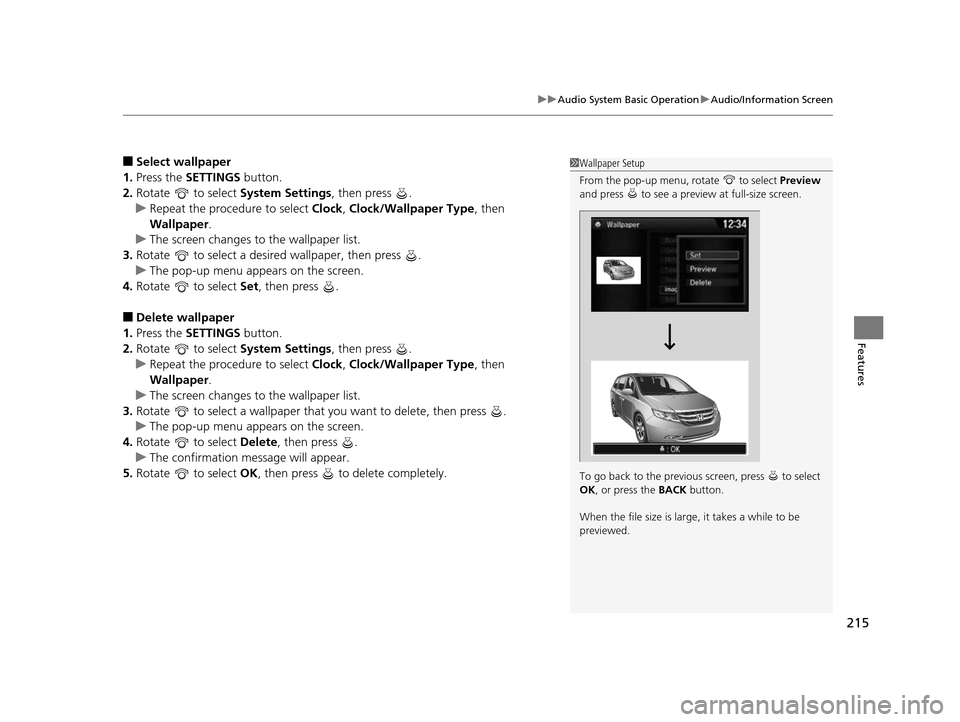
1Wallpaper Setup
From the pop-up menu, rotate to select Preview
and press to see a preview at full-size screen.
To go back to the previous screen, press to select
OK , or press the BACK button.
When the file size is large, it takes a while to be
previewed.
17 US ODYSSEY (KA KC)-31TK86600.book 215 ページ 2016年10月24日 月曜日 午後4時2分
Page 218 of 565
217
uuAudio System Basic Operation uDisplay Setup
Features
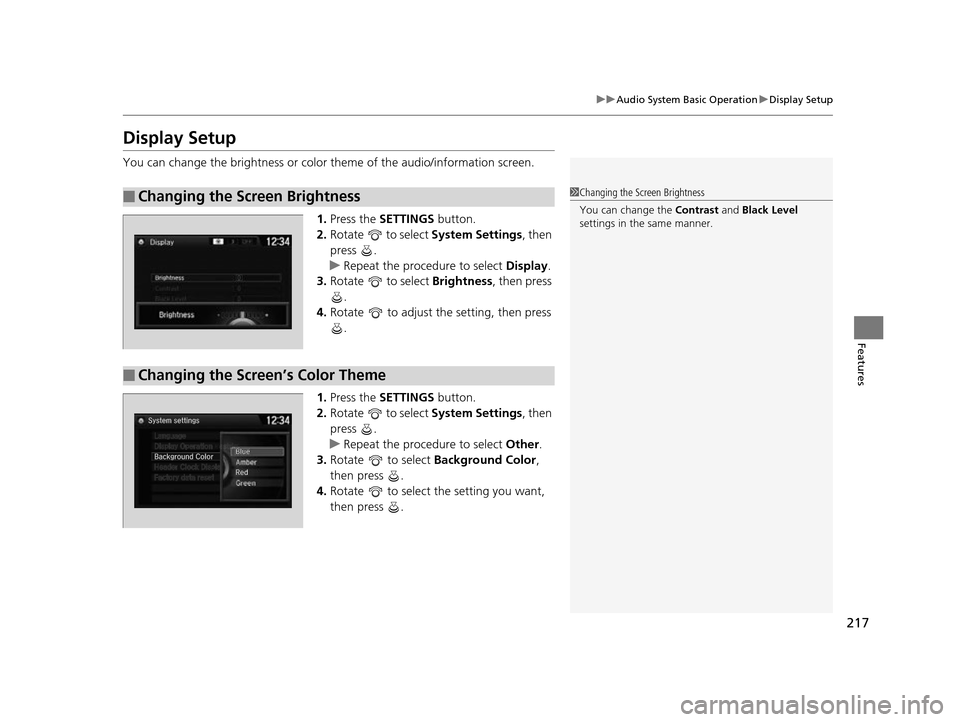
Display Setup
You can change the brightness or color theme of the audio/information screen.
1. Press the SETTINGS button.
2. Rotate to select System Settings, then
press .
u Repeat the procedure to select Display.
3. Rotate to select Brightness, then press
.
4. Rotate to adjust the setting, then press
.
1. Press the SETTINGS button.
2. Rotate to select System Settings, then
press .
u Repeat the procedure to select Other.
3. Rotate to select Background Color,
then press .
4. Rotate to select the setting you want,
then press .
■Changing the Screen Brightness1Changing the Screen Brightness
You can change the Contrast and Black Level
settings in the same manner.
■Changing the Screen’s Color Theme
17 US ODYSSEY (KA KC)-31TK86600.book 217 ページ 2016年10月24日 月曜日 午後4時2分
Page 220 of 565
Continued219
uuAudio System Basic Operation uPlaying AM/FM Radio
Features
Provides text data information related to your selected RDS-capable FM station.
■To find an RDS station from Station List
1. Press while listening to an FM station.
2. Rotate to select the station, then press .
■Manual update
Updates your available st ation list at any time.
1. Press while listening to an FM station.
2. Rotate to select Refresh, then press .
■Radio Data System (RDS)1Playing AM/FM Radio
The ST indicator appears on the display indicating
stereo FM broadcasts.
Stereo reproduction in AM is not available.
Switching the Audio Mode
Press the SOURCE button on the steering wheel.
2 Audio Remote Controls P. 210
You can also switch the mode by pressing the MENU
button and selecting Change Source on the MENU
screen.
You can store 6 AM stations and 12 FM stations into
the preset button memory. FM1 and FM2 let you
store 6 stations each.
1 Radio Data System (RDS)
When you select an RDS-capable FM station, the RDS
automatically turns on, and the frequency display
changes to the station name. However, when the
signals of that station become weak, the display
changes from the statio n name to the frequency.
17 US ODYSSEY (KA KC)-31TK86600.book 219 ページ 2016年10月24日 月曜日 午後4時2分
Page 222 of 565
221
uuAudio System Basic Operation uPlaying a CD
Continued
Features
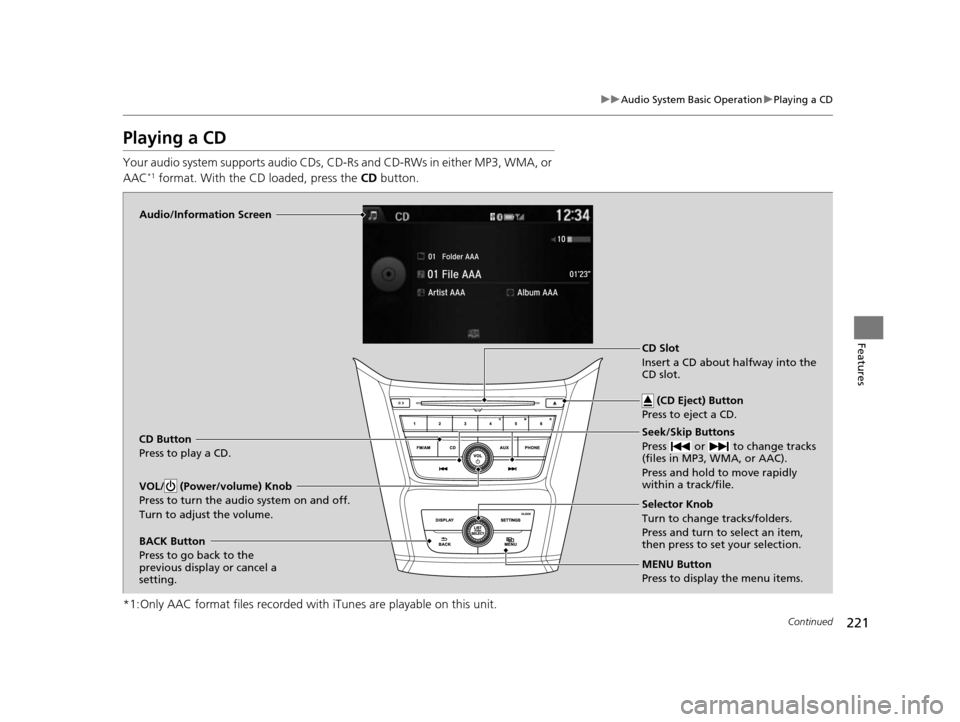
Playing a CD
Your audio system supports audio CDs, CD-Rs and CD-RWs in either MP3, WMA, or
AAC*1 format. With the CD loaded, press the CD button.
*1:Only AAC format files recorded with iTunes are playable on this unit.
Audio/Information Screen
CD Button
Press to play a CD. Seek/Skip Buttons
Press or to change tracks
(files in MP3, WMA, or AAC).
Press and hold to move rapidly
within a track/file.
MENU Button
Press to display the menu items. Selector Knob
Turn to change tracks/folders.
Press and turn to select an item,
then press to set your selection.
VOL/ (Power/volume) Knob
Press to turn the audio system on and off.
Turn to adjust the volume.
BACK Button
Press to go back to the
previous display or cancel a
setting.CD Slot
Insert a CD about halfway into the
CD slot.
(CD Eject) Button
Press to eject a CD.
17 US ODYSSEY (KA KC)-31TK86600.book 221 ページ 2016年10月24日 月曜日 午後4時2分
Page 223 of 565
uuAudio System Basic Operation uPlaying a CD
222
Features
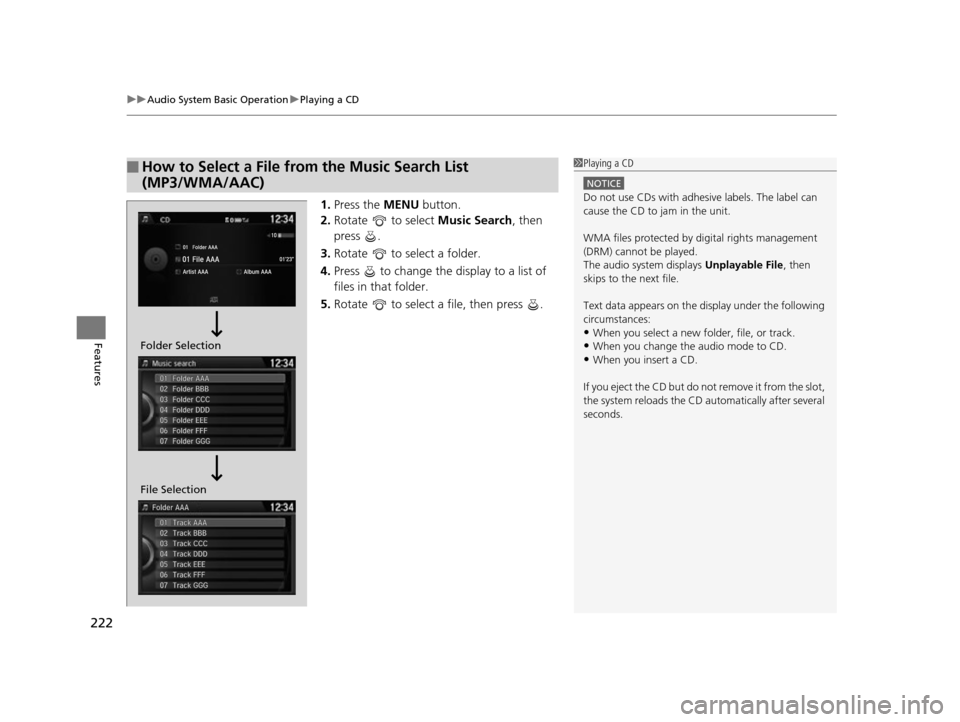
1. Press the MENU button.
2. Rotate to select Music Search, then
press .
3. Rotate to select a folder.
4. Press to change the display to a list of
files in that folder.
5. Rotate to select a file, then press .
■How to Select a File from the Music Search List
(MP3/WMA/AAC)1Playing a CD
NOTICE
Do not use CDs with adhesive labels. The label can
cause the CD to jam in the unit.
WMA files protected by di gital rights management
(DRM) cannot be played.
The audio system displays Unplayable File, then
skips to the next file.
Text data appears on the di splay under the following
circumstances:
•When you select a new folder, file, or track.
•When you change the audio mode to CD.
•When you insert a CD.
If you eject the CD but do not remove it from the slot,
the system reloads the CD automatically after several
seconds.
File Selection Folder Selection
17 US ODYSSEY (KA KC)-31TK86600.book 222 ページ 2016年10月24日 月曜日 午後4時2分
Page 225 of 565
224
uuAudio System Basic Operation uPlaying an iPod
Features
Playing an iPod
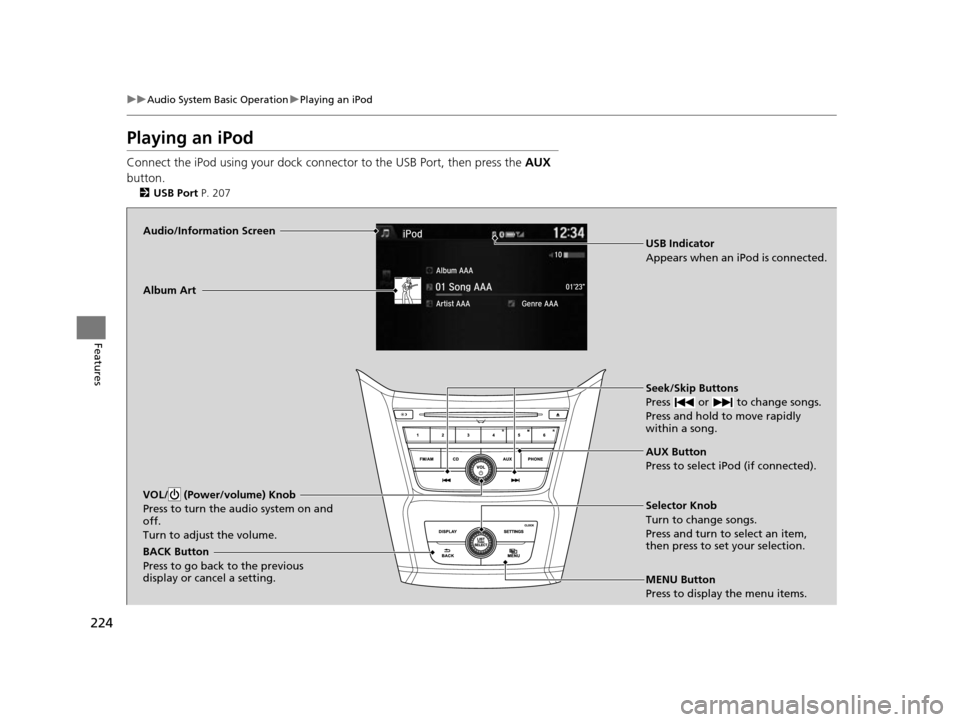
Connect the iPod using your dock connec tor to the USB Port, then press the AUX
button.
2 USB Port P. 207
Audio/Information Screen
AUX Button
Press to select iPod (if connected). Seek/Skip Buttons
Press or to change songs.
Press and hold to move rapidly
within a song.
MENU Button
Press to display the menu items. Selector Knob
Turn to change songs.
Press and turn to select an item,
then press to set your selection.
VOL/ (Power/volume) Knob
Press to turn the audio system on and
off.
Turn to adjust the volume.
BACK Button
Press to go back to the previous
display or cancel a setting.Album Art
USB Indicator
Appears when an iPod is connected.
17 US ODYSSEY (KA KC)-31TK86600.book 224 ページ 2016年10月24日 月曜日
午後4時2分